This feature separates payment-related permissions into individual modules, allowing administrators to customize staff access more precisely.
Each module includes permission toggles for actions such as:
View
Create
Update
Delete
Export
Configure
Built-in safeguards automatically enforce dependencies between actions.
Example:
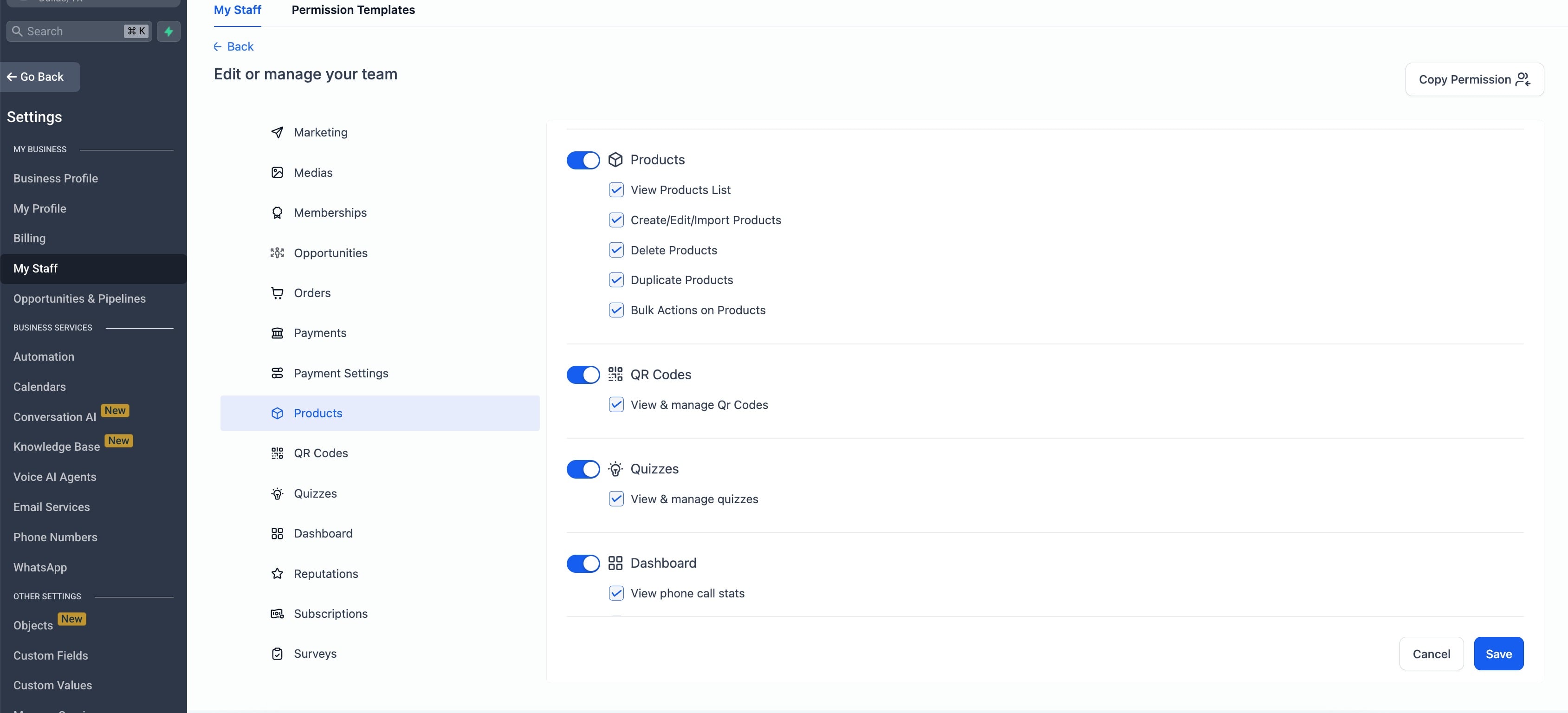
Bulk product actions only become available if Create/Edit permissions are enabled.
These modules operate alongside the primary “Payments” permission within Aesthetix.
The following six payment modules are now available in Roles & Permissions:
Allows staff to:
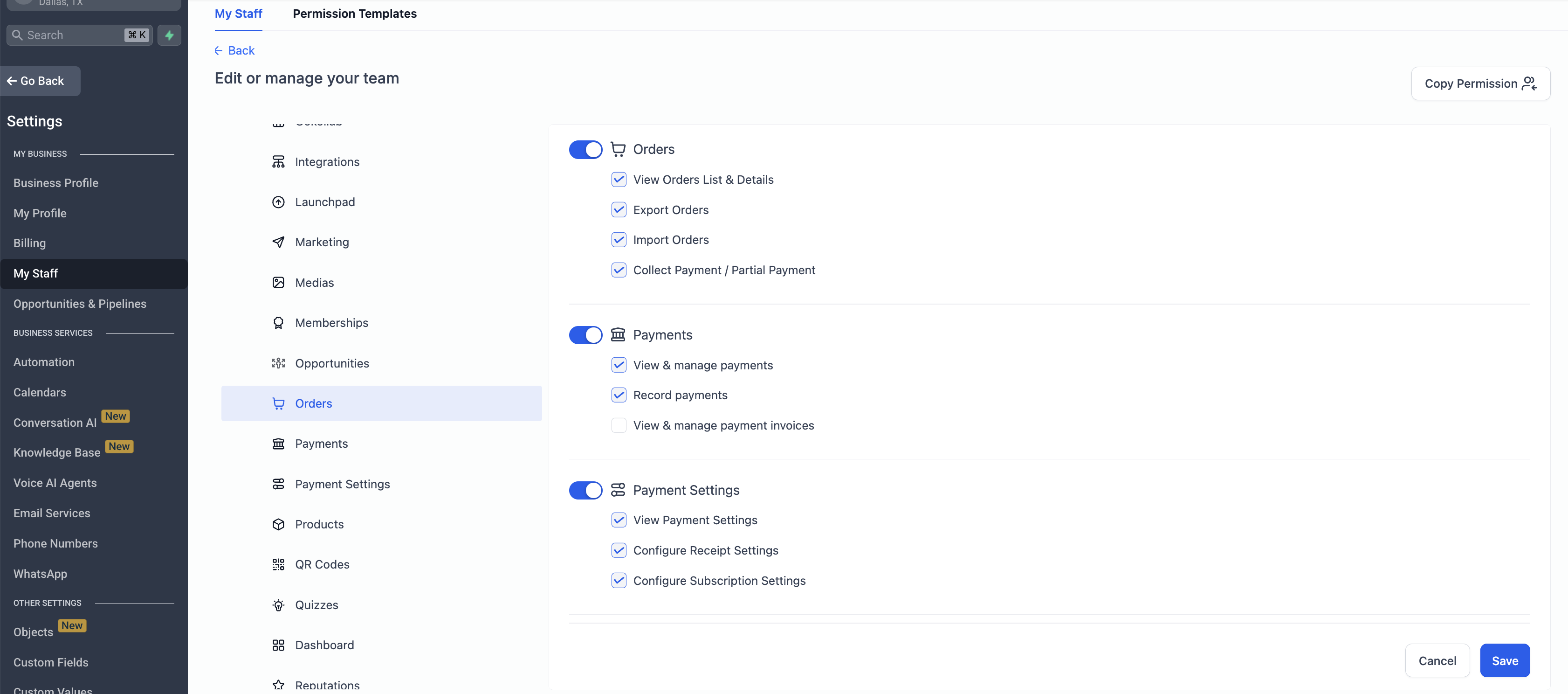
View orders
Export orders
Import orders
Collect payments (including partial payments)
Allows staff to:
Create subscriptions
Modify subscriptions
Pause subscriptions
Resume subscriptions
Cancel subscriptions
Export subscription data
Update customer payment methods
Allows staff to:
View transactions
Issue refunds
Export transaction records
Import transactions
Download receipts
Allows staff to:
View tax settings
Configure tax settings
Add manual tax rates
Delete manual tax rates
Enable automatic tax calculations
Allows staff to:
View products
Create products
Edit products
Import products
Duplicate products
Perform bulk product actions
Delete products
Allows staff to configure:
Payment receipts
Subscription defaults
Other payment-related system settings
Existing permissions such as “Refund Transactions” and “Manage Subscriptions” have now been moved into the appropriate modules.
This structure provides greater control over sensitive payment operations.
To configure payment permissions, you need:
Access to Settings → My Staff
Permission to edit staff roles
A clear understanding of which staff members should manage each payment module
A staff member or role to assign permissions to
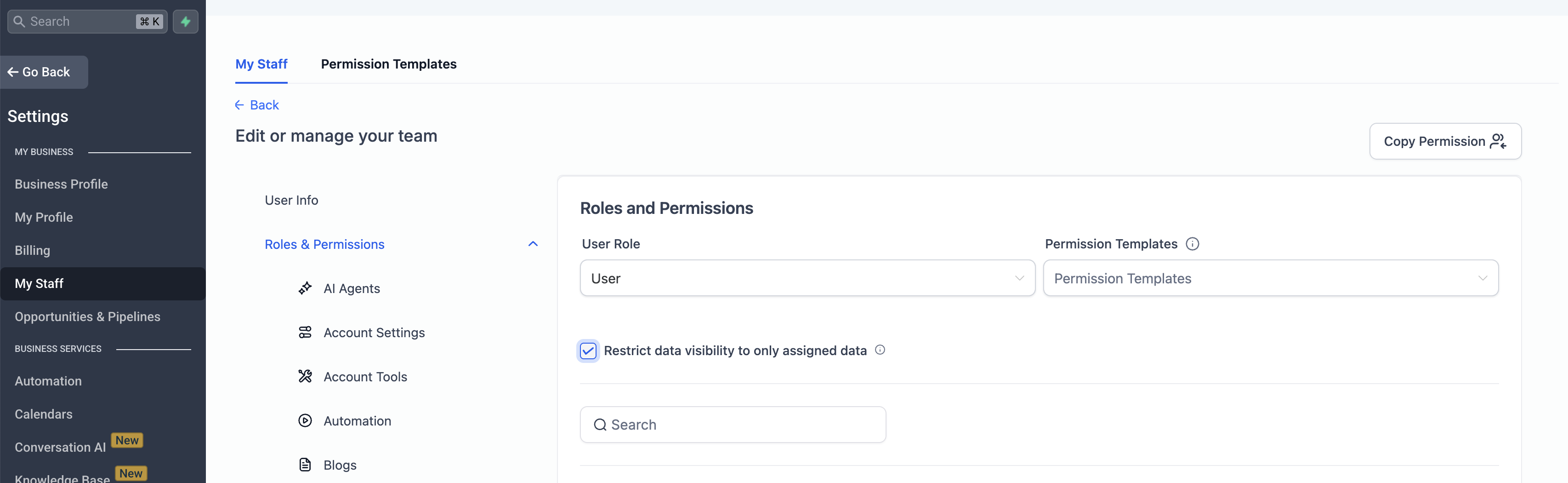
Go to Settings → My Staff
Click the Edit icon next to the staff member you want to update
Open Roles & Permissions
You will see the following sections:
Orders
Subscriptions
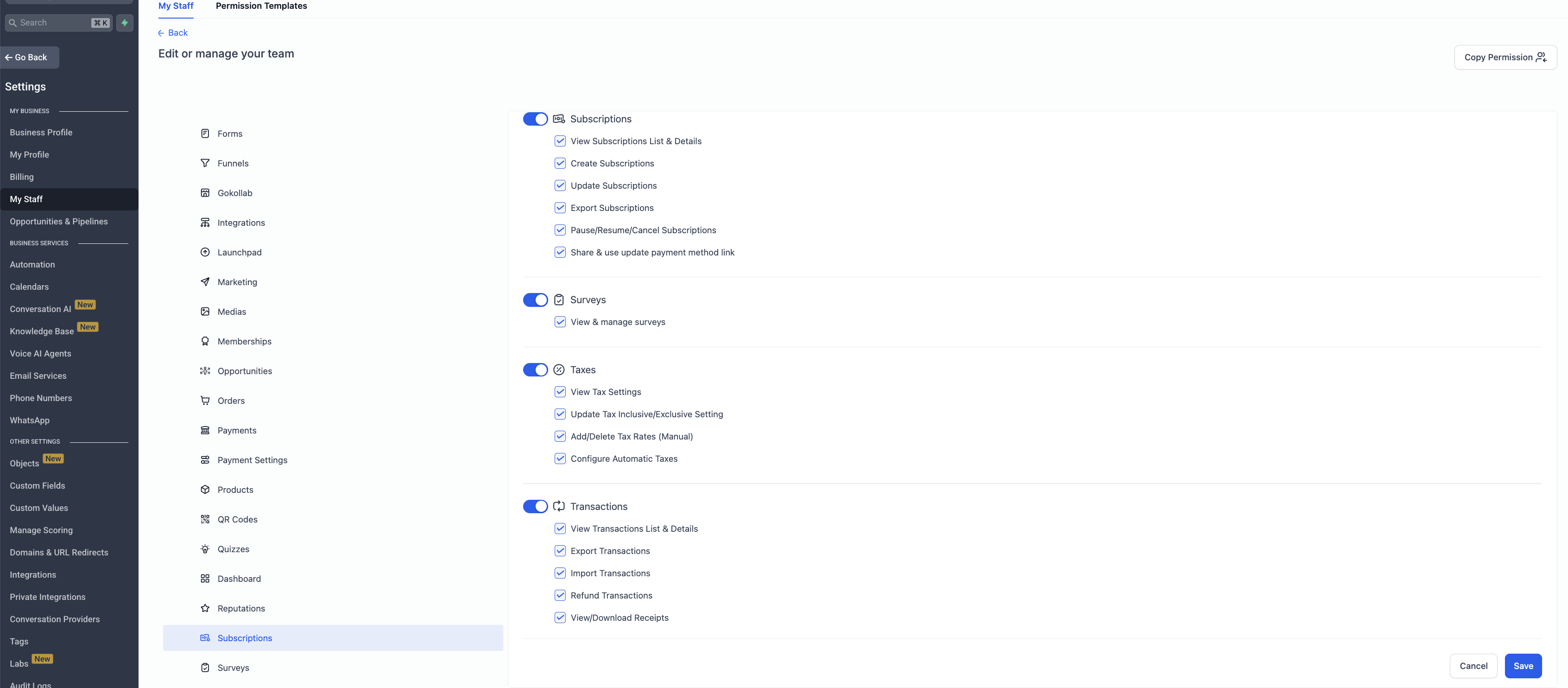
Transactions
Taxes
Products
Payment Settings
For each section:
Select the permissions you want to grant (view, create, update, delete, export, configure).
Dependencies are handled automatically. If a required permission is missing, related actions will be disabled.
You can also:
Modify multiple payment permissions at once
Apply Assigned Data Only permissions for specific staff members
Click Save to apply the changes.
Once saved, the updated permissions will immediately apply to the user across all modified modules.
Bulk actions will automatically be disabled.
Required base permissions must be enabled first.
Navigate to:
Settings → My Staff → Edit Staff Member → Roles & Permissions
You will see the six payment permission modules available for configuration.
