1. Configure Subscription Payment Retry Settings in Aesthetix
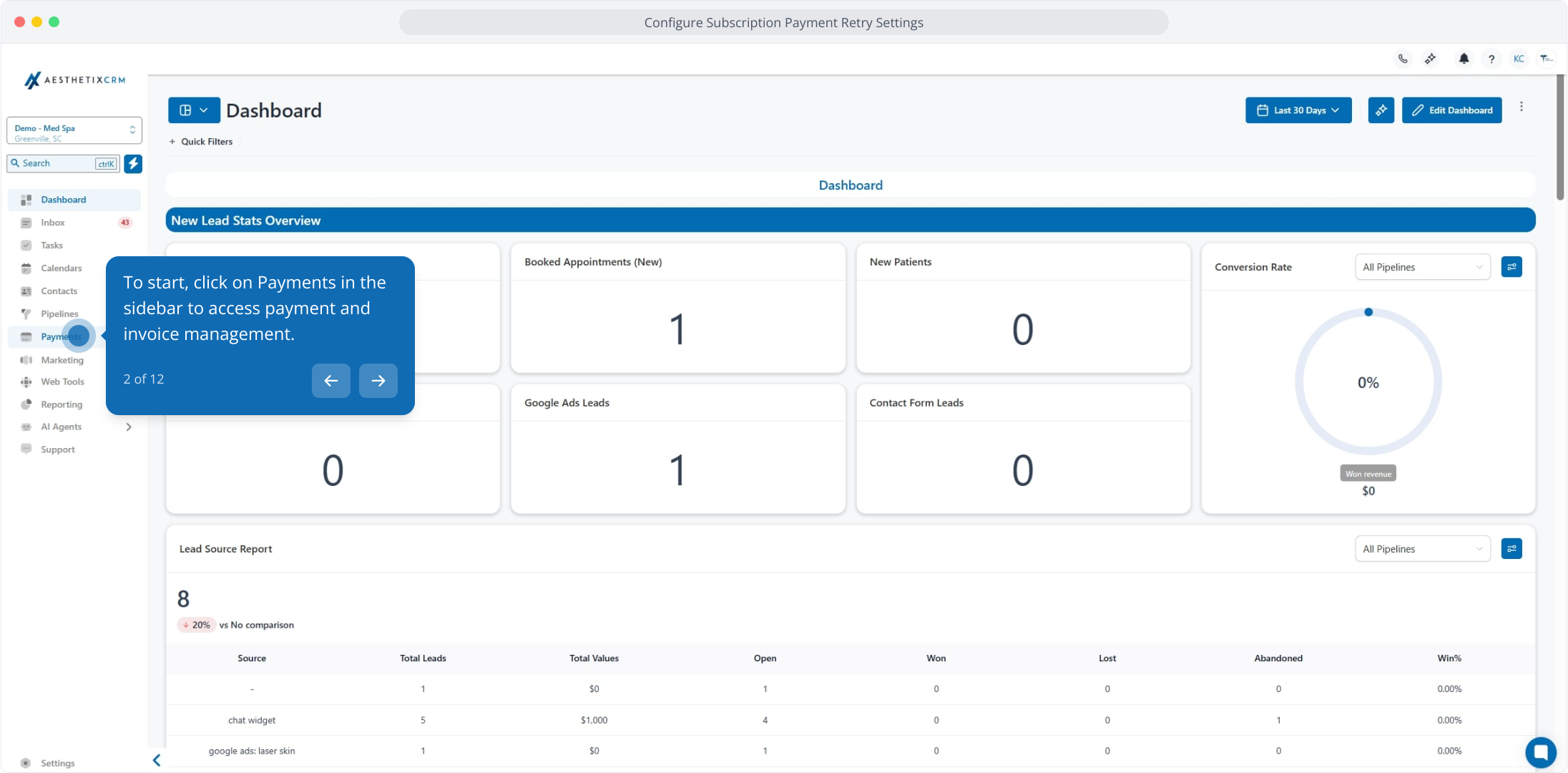
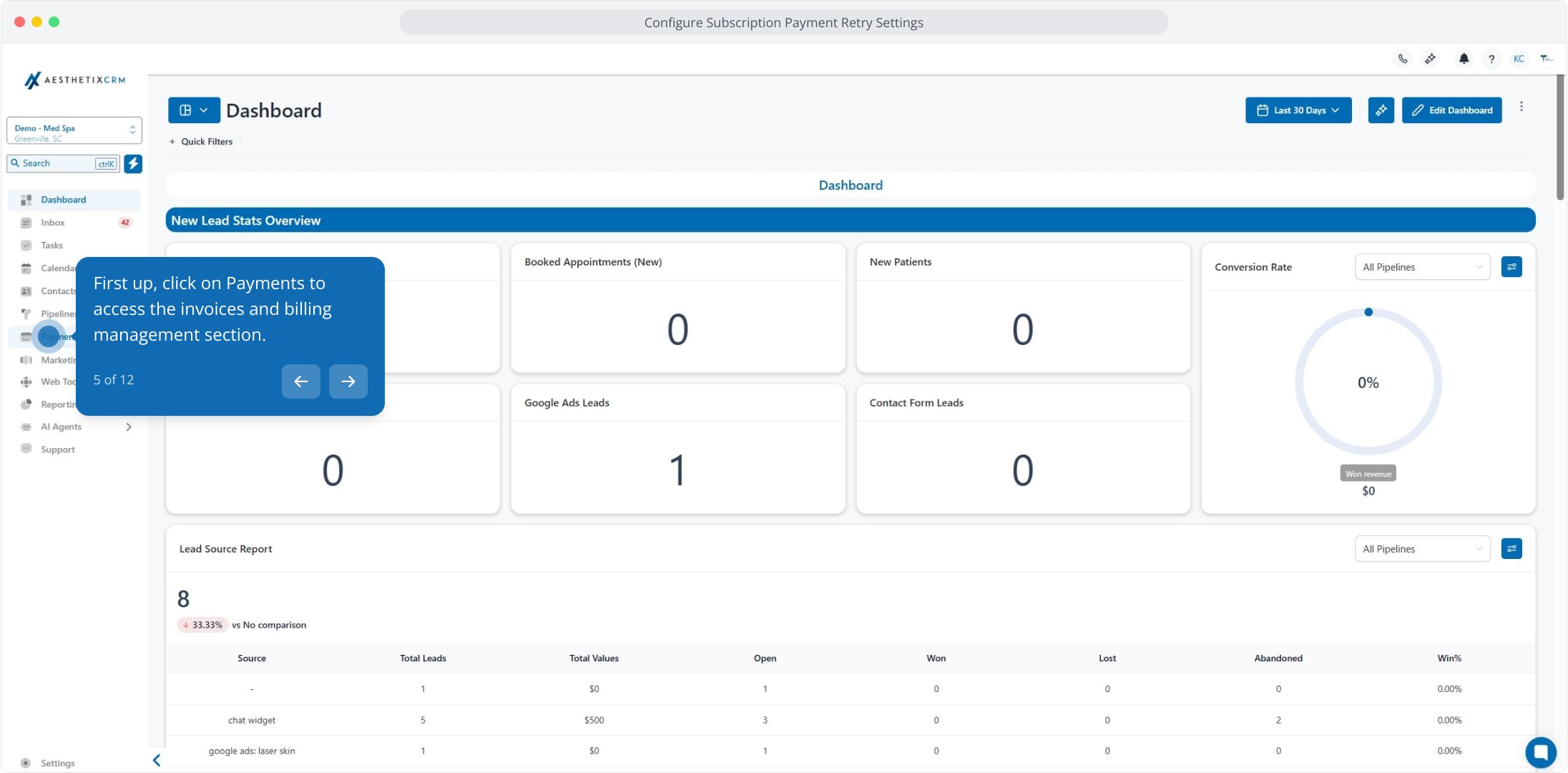
2. To start, click on Payments in the sidebar to access payment and invoice management.
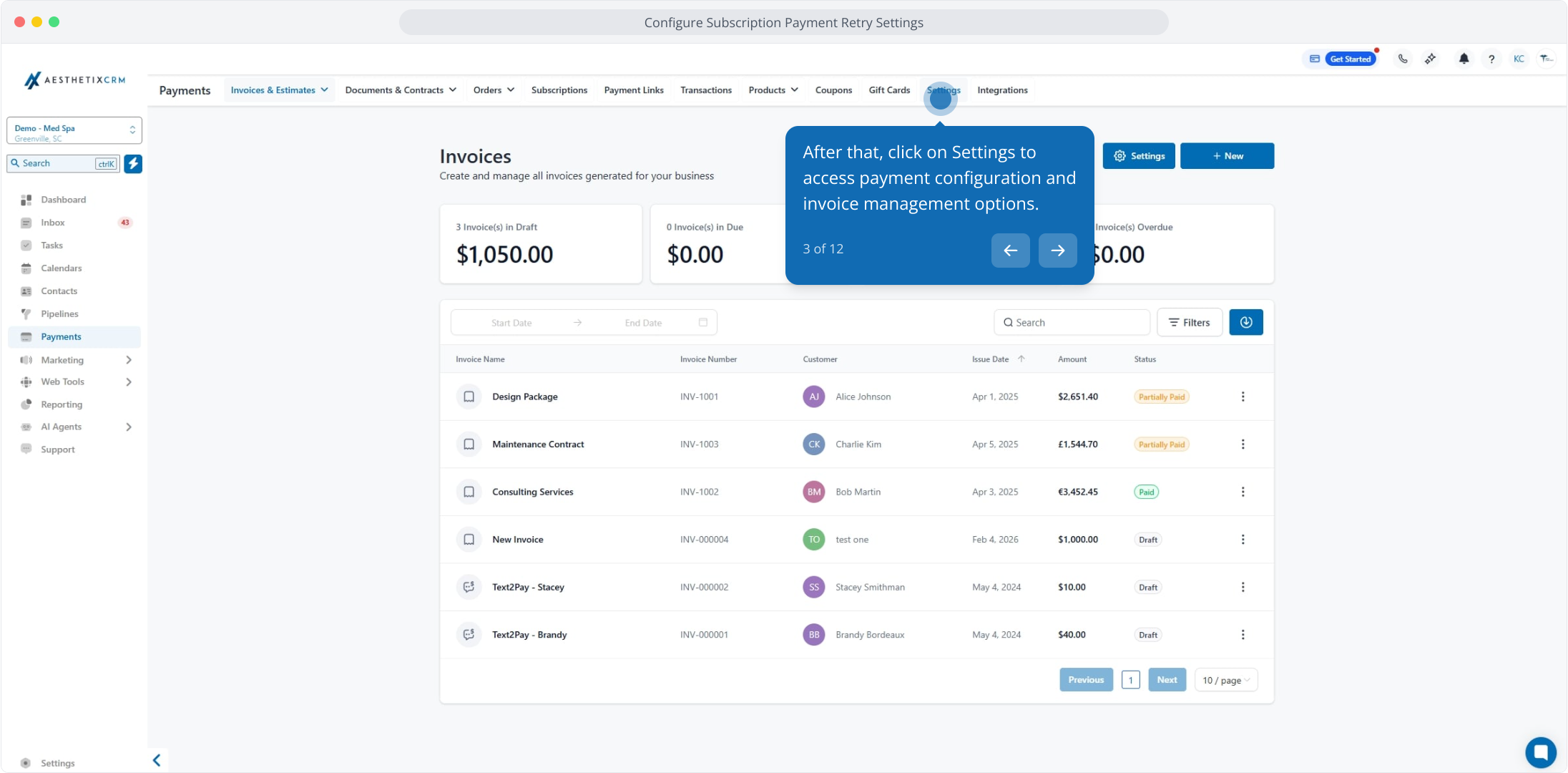
3. After that, click on Settings to access payment configuration and invoice management options.
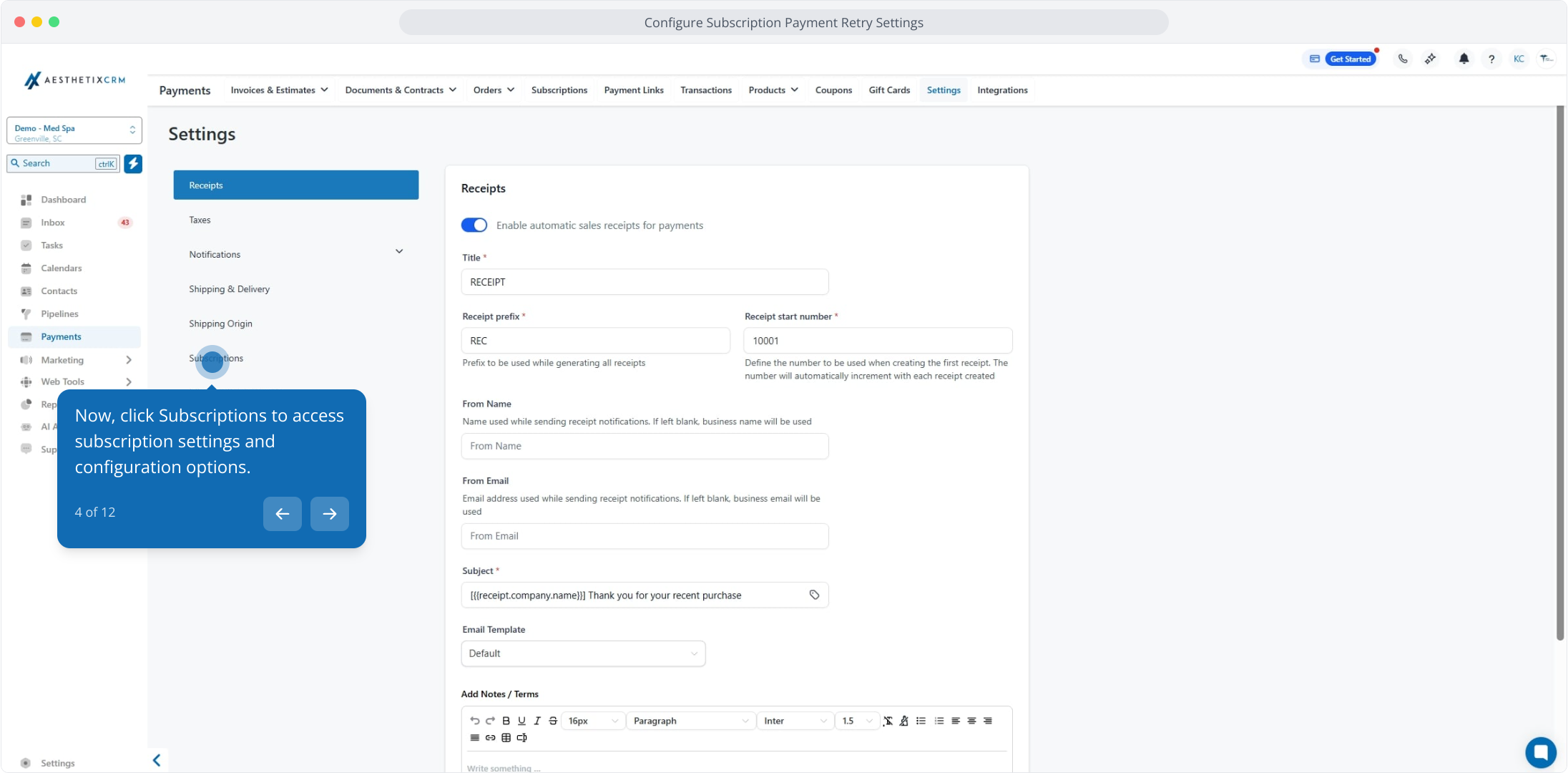
4. Now, click Subscriptions to access subscription settings and configuration options.
5. First up, click on Payments to access the invoices and billing management section.
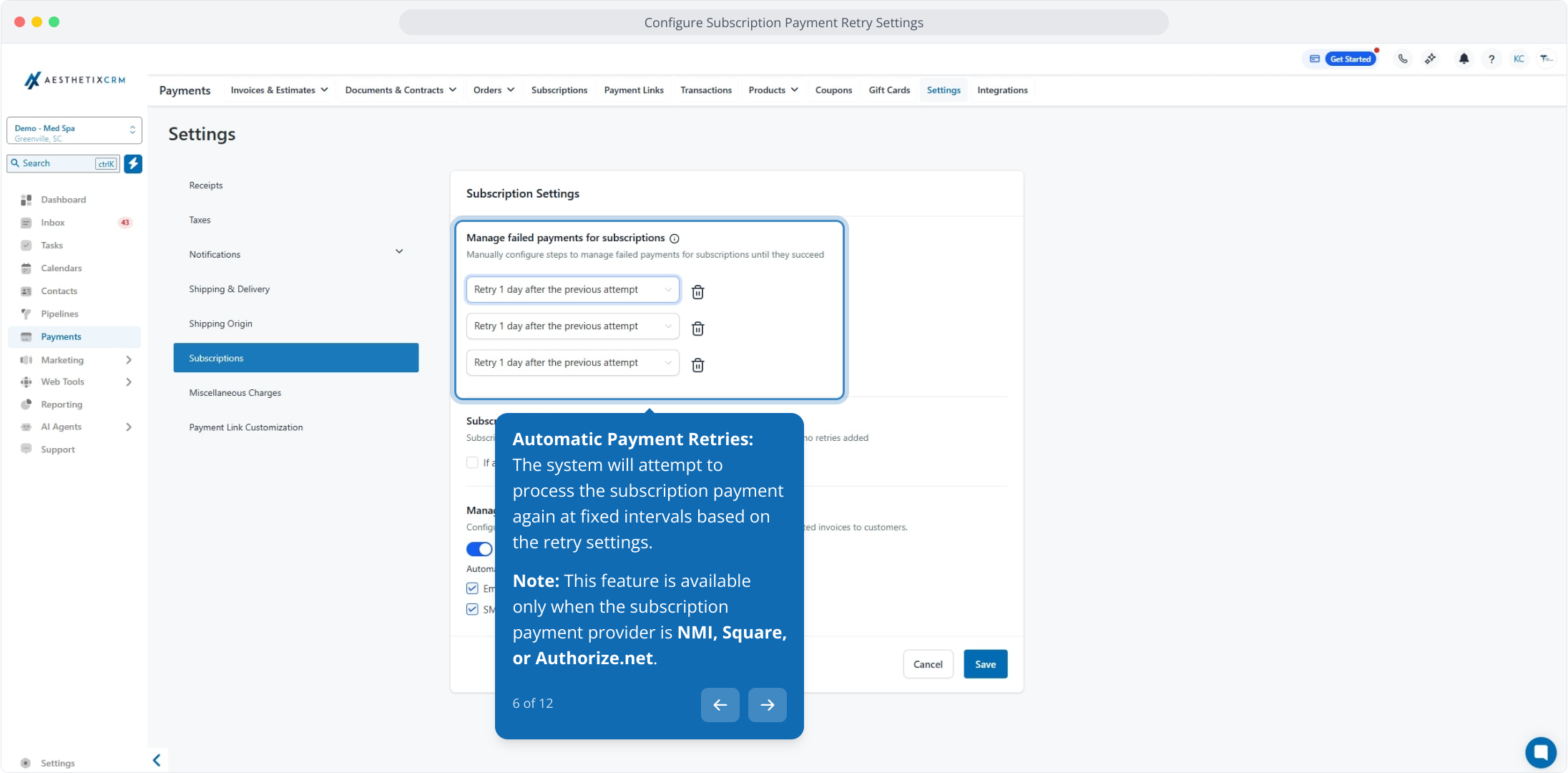
6. Automatic Payment Retries: The system will attempt to process the subscription payment again at fixed intervals based on the retry settings.
Note: This feature is available only when the subscription payment provider is NMI, Square, or Authorize.net.
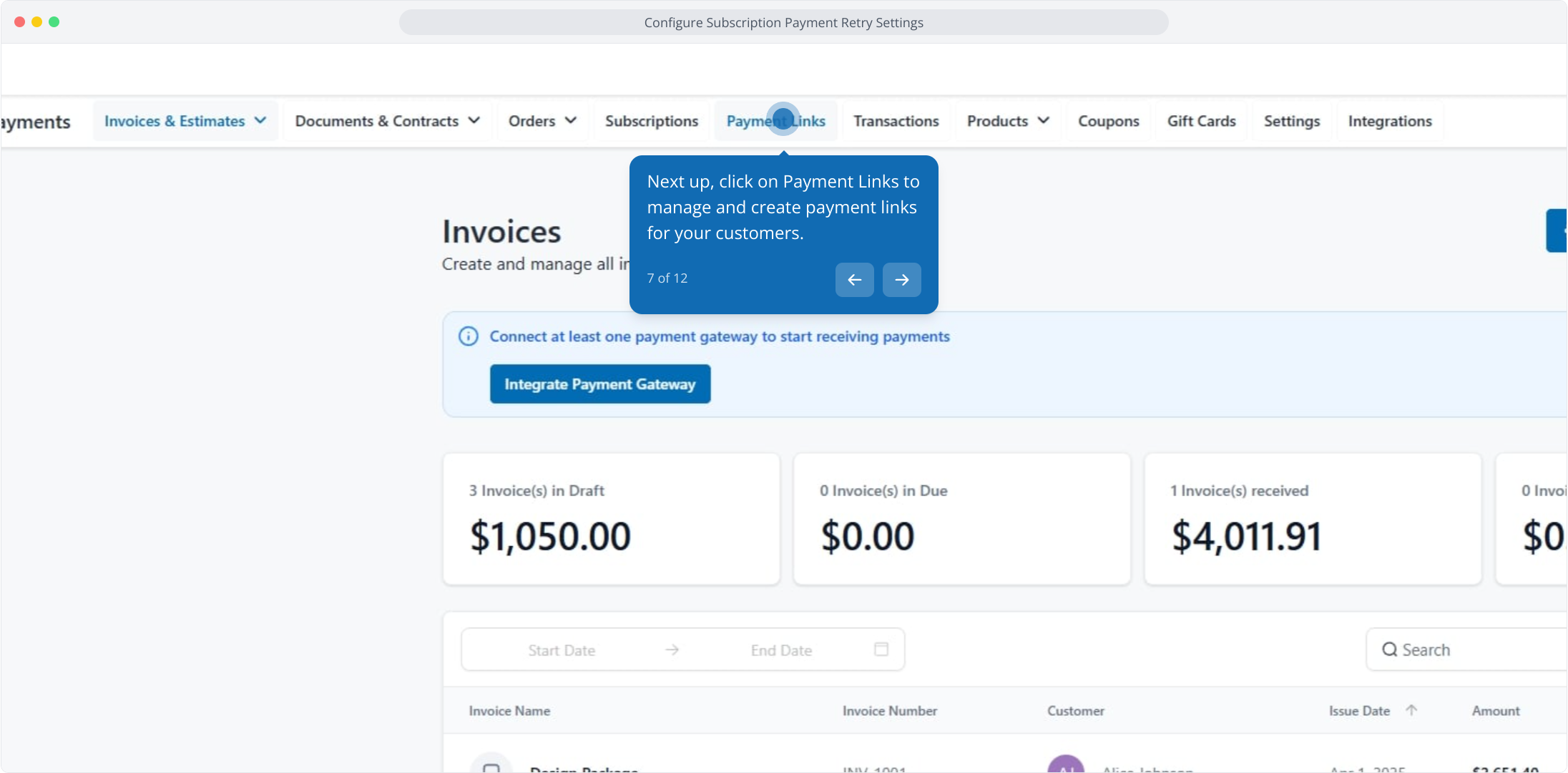
7. Next up, click on Payment Links to manage and create payment links for your customers.
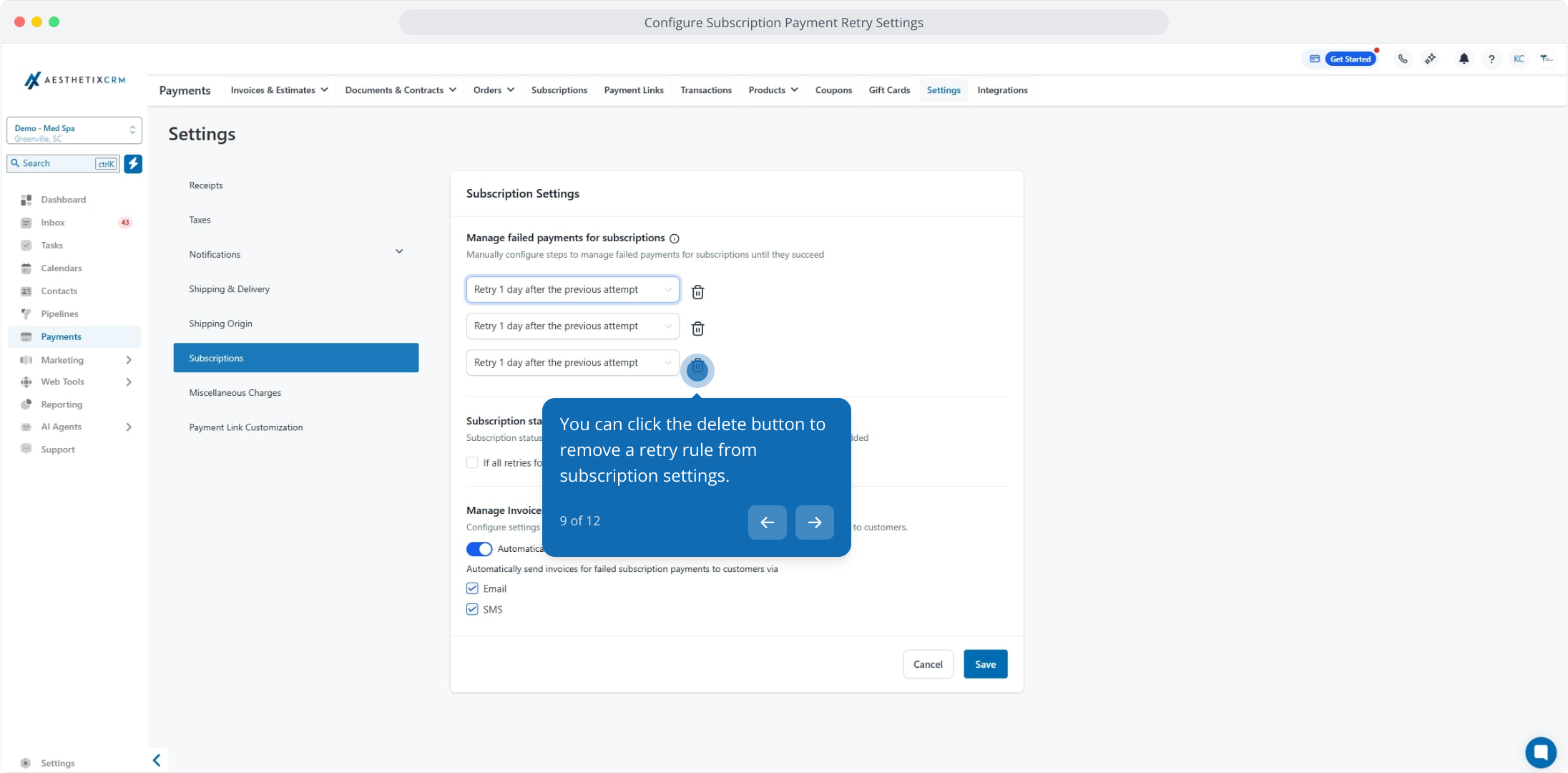
8. Customizable Retry Settings: Businesses can configure the number of retries (1, 2, or 3) and adjust the retry intervals to 1, 3, 5, or 7 days between each attempt.
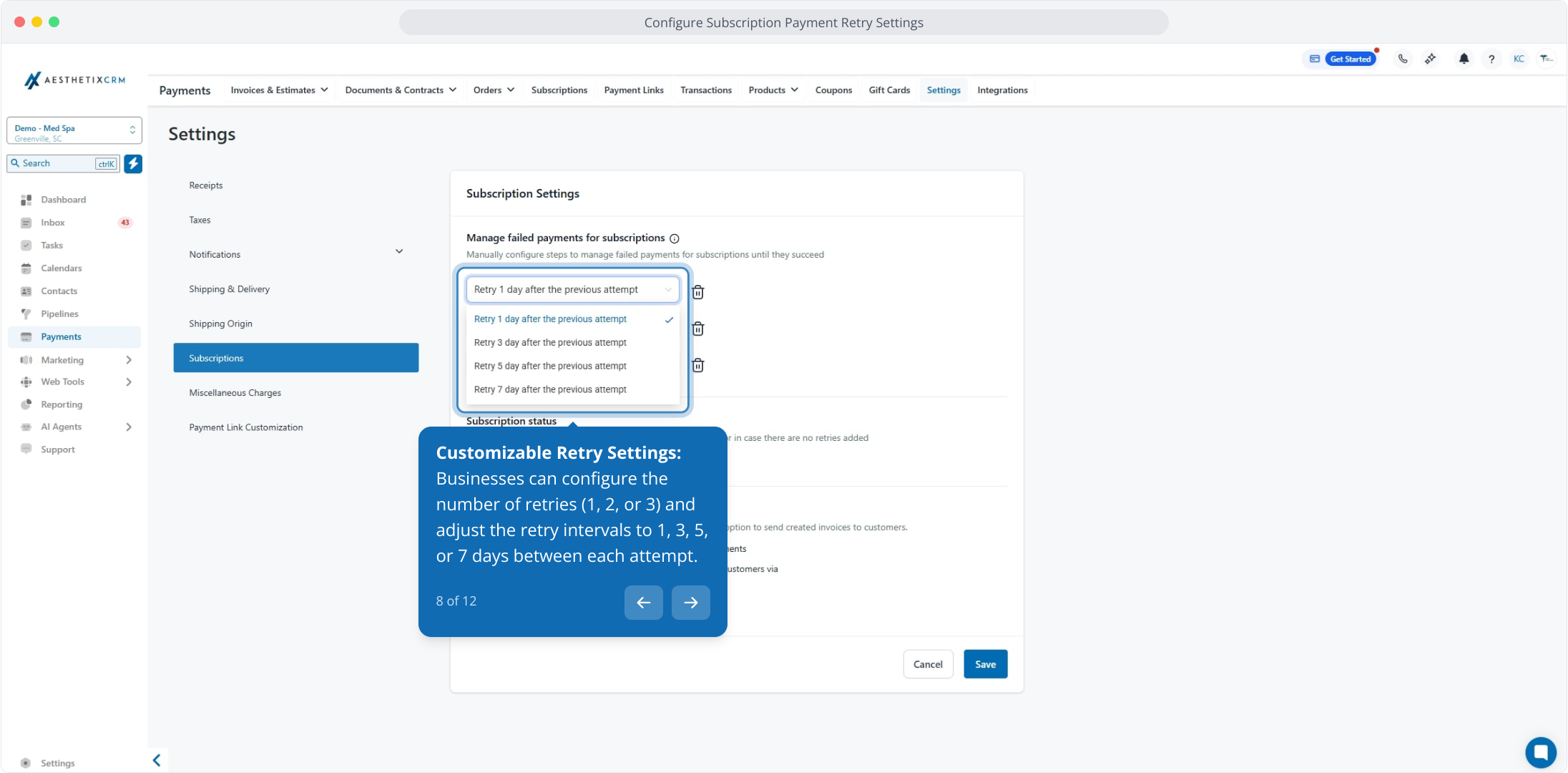
9. You can click the delete button to remove a retry rule from subscription settings.
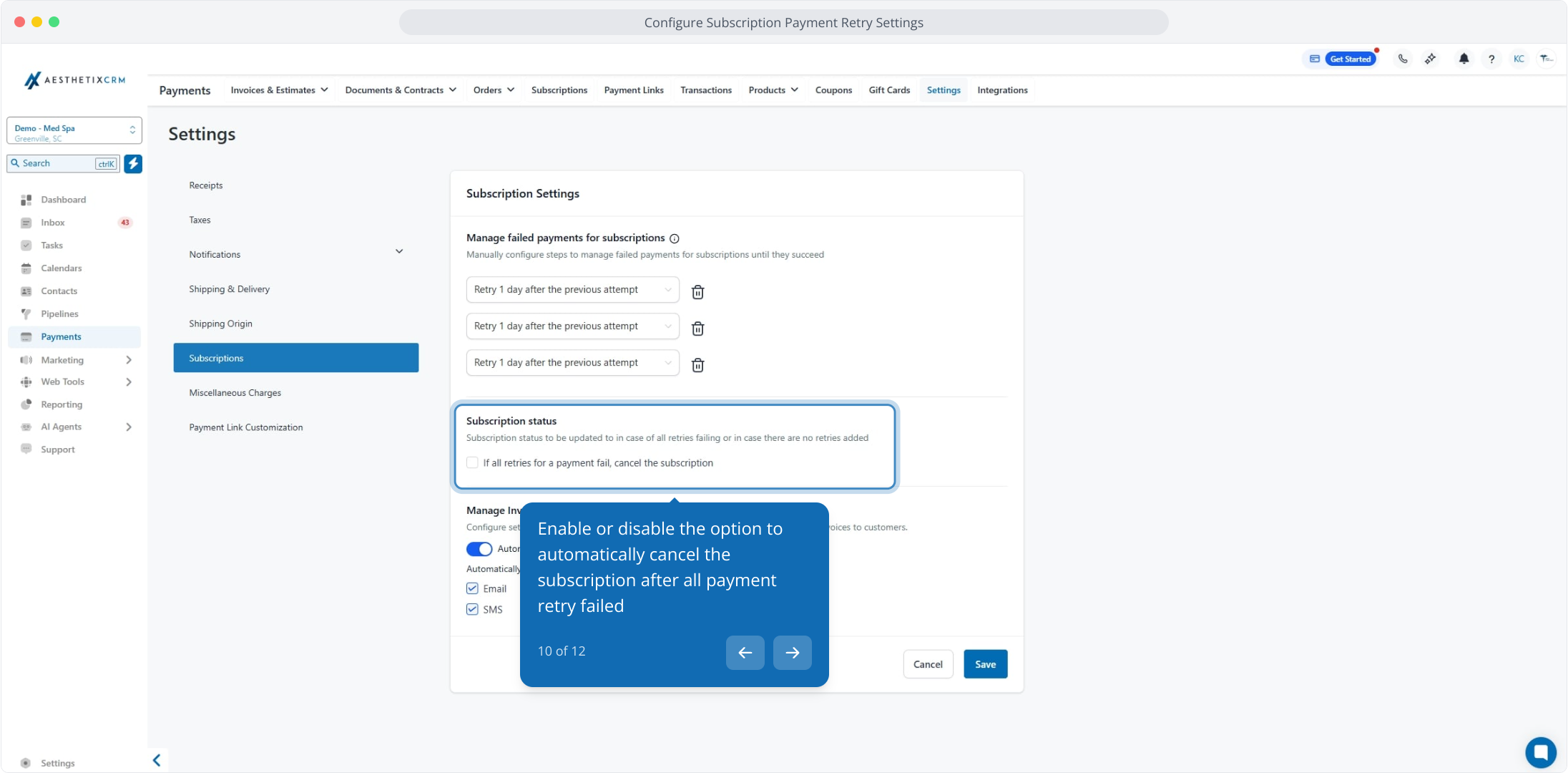
10. Enable or disable the option to automatically cancel the subscription after all payment retry failed
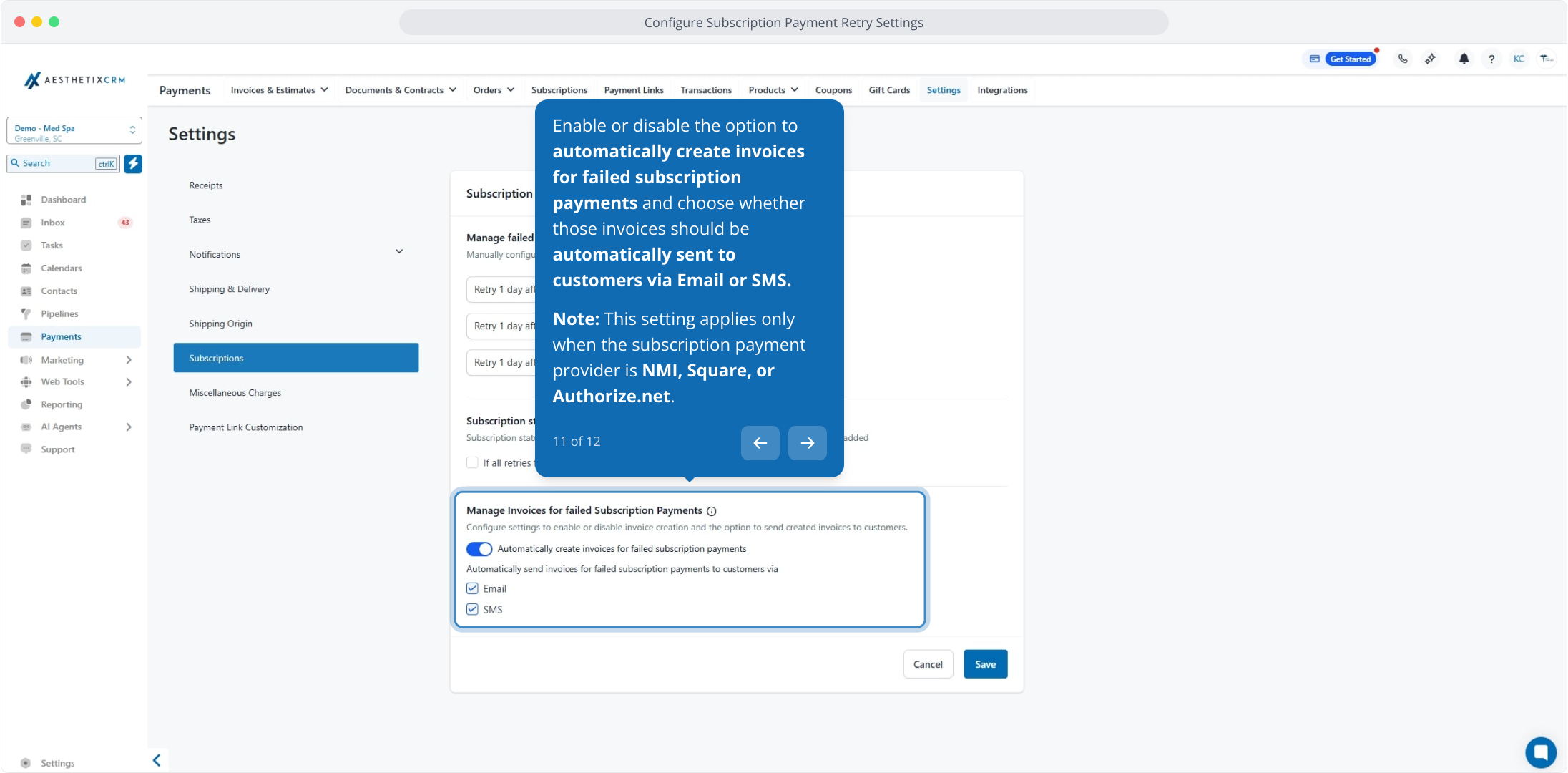
11. Enable or disable the option to automatically create invoices for failed subscription payments and choose whether those invoices should be automatically sent to customers via Email or SMS.
Note: This setting applies only when the subscription payment provider is NMI, Square, or Authorize.net.
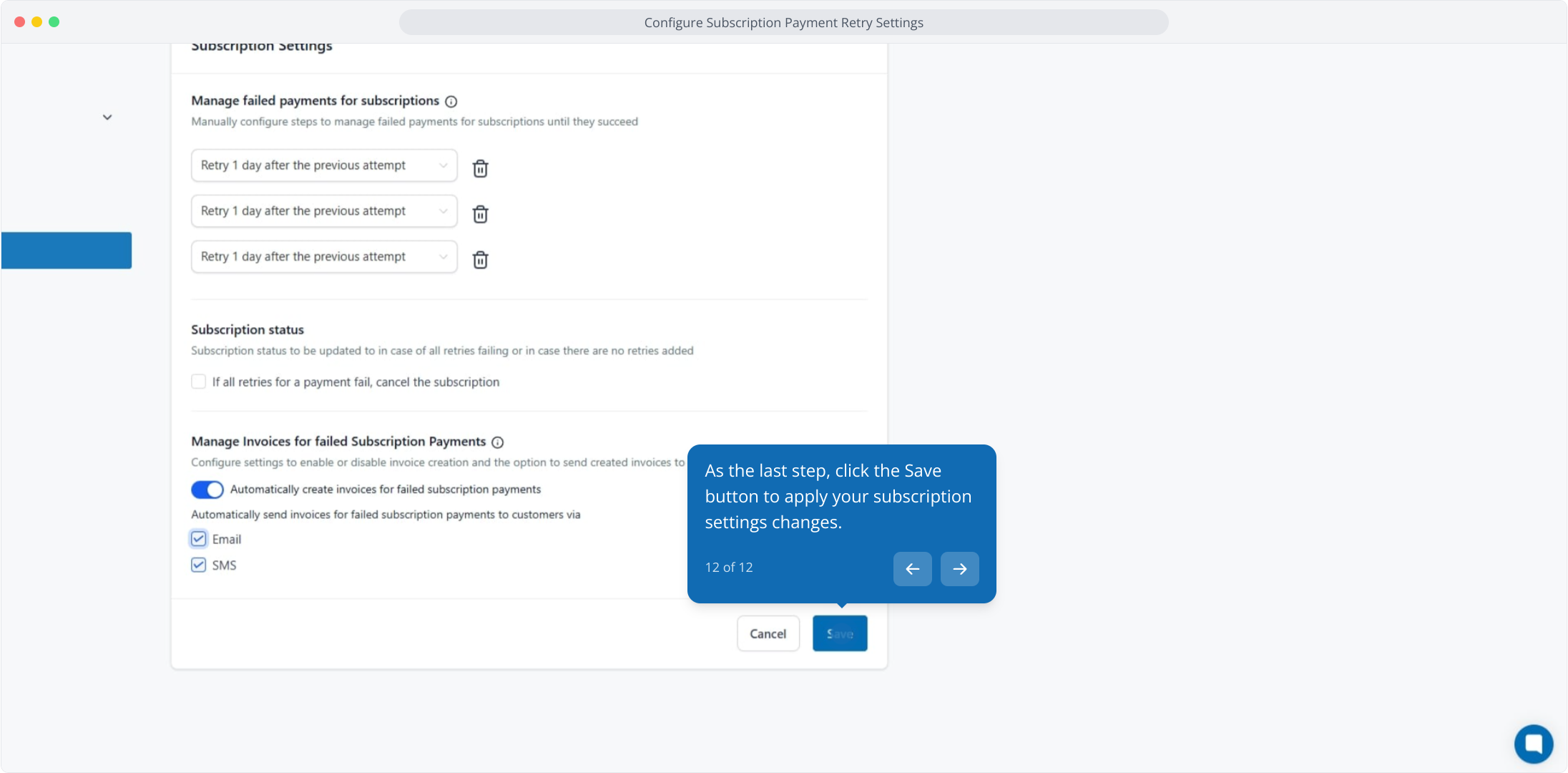
12. As the last step, click the Save button to apply your subscription settings changes.
This workflow was created with Supademo.
