Follow this navigation path to access card management for a contact:
Contacts → Contact Details → Payments ($ icon) → Actions
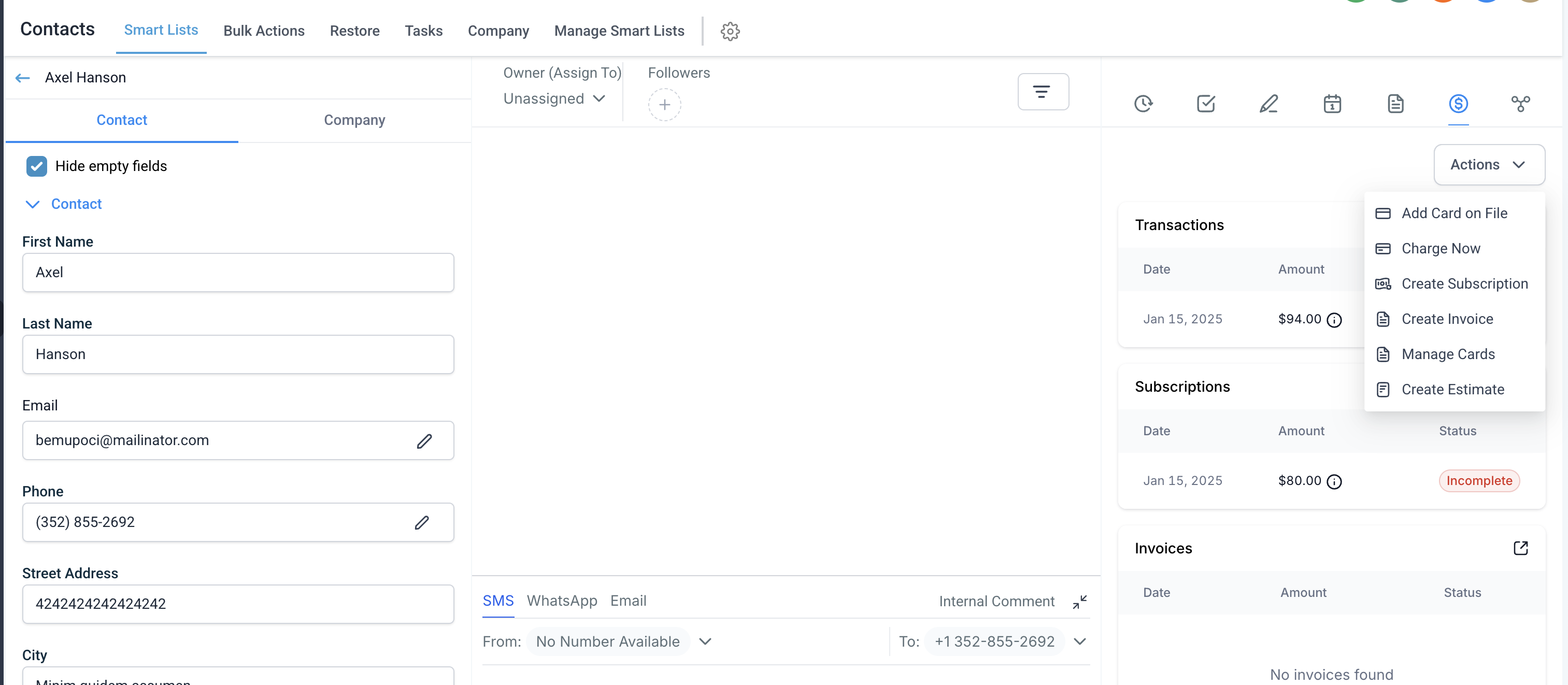
Open the Contact Record.
Click the Payments ($ icon) inside the contact details.
Click Actions.
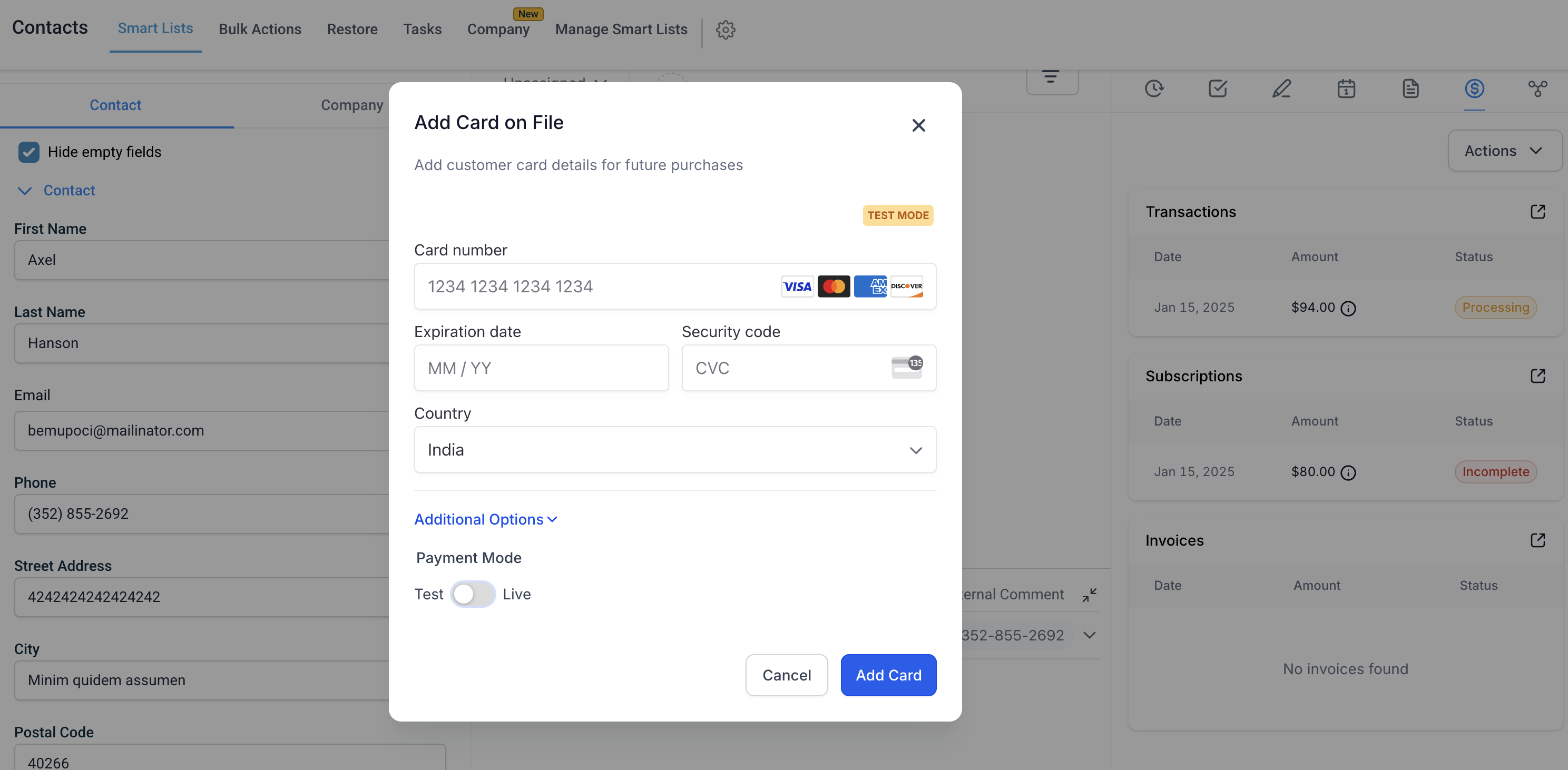
Select Add Card on File.
Enter the required card details:
Card Number
Expiration Date
CVV
Country
Verify the information entered.
Click Add Card.
Cards can be added in both Live Mode and Test Mode.
Open the Contact Record.
Click the Payments ($ icon).
Click Actions.
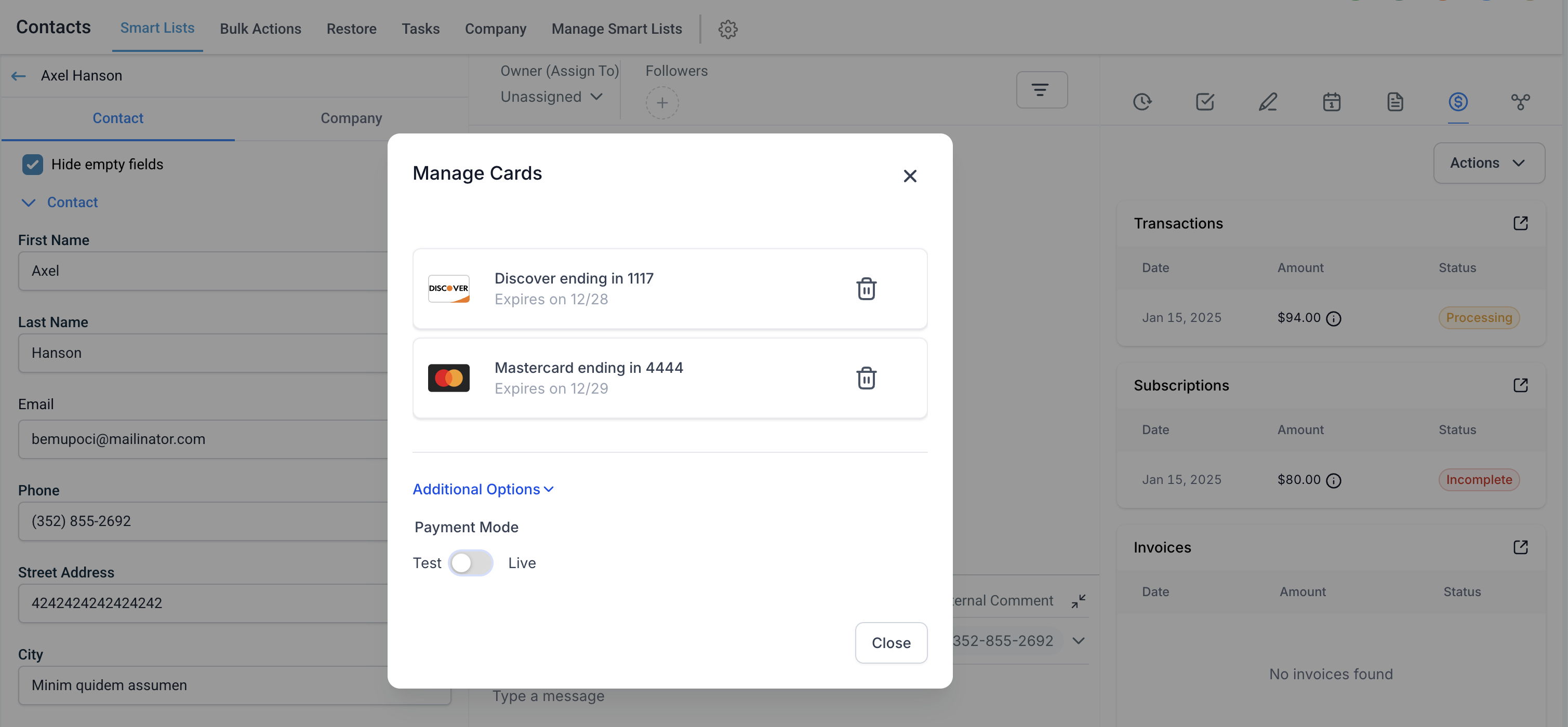
Select Manage Cards.
A list of cards will appear showing:
Last 3–4 digits of the card
Expiration date
Card provider (e.g., Visa, Mastercard)
Any associated label
Note: Both Test Mode and Live Mode cards will appear in separate lists.
Open the Manage Cards window.
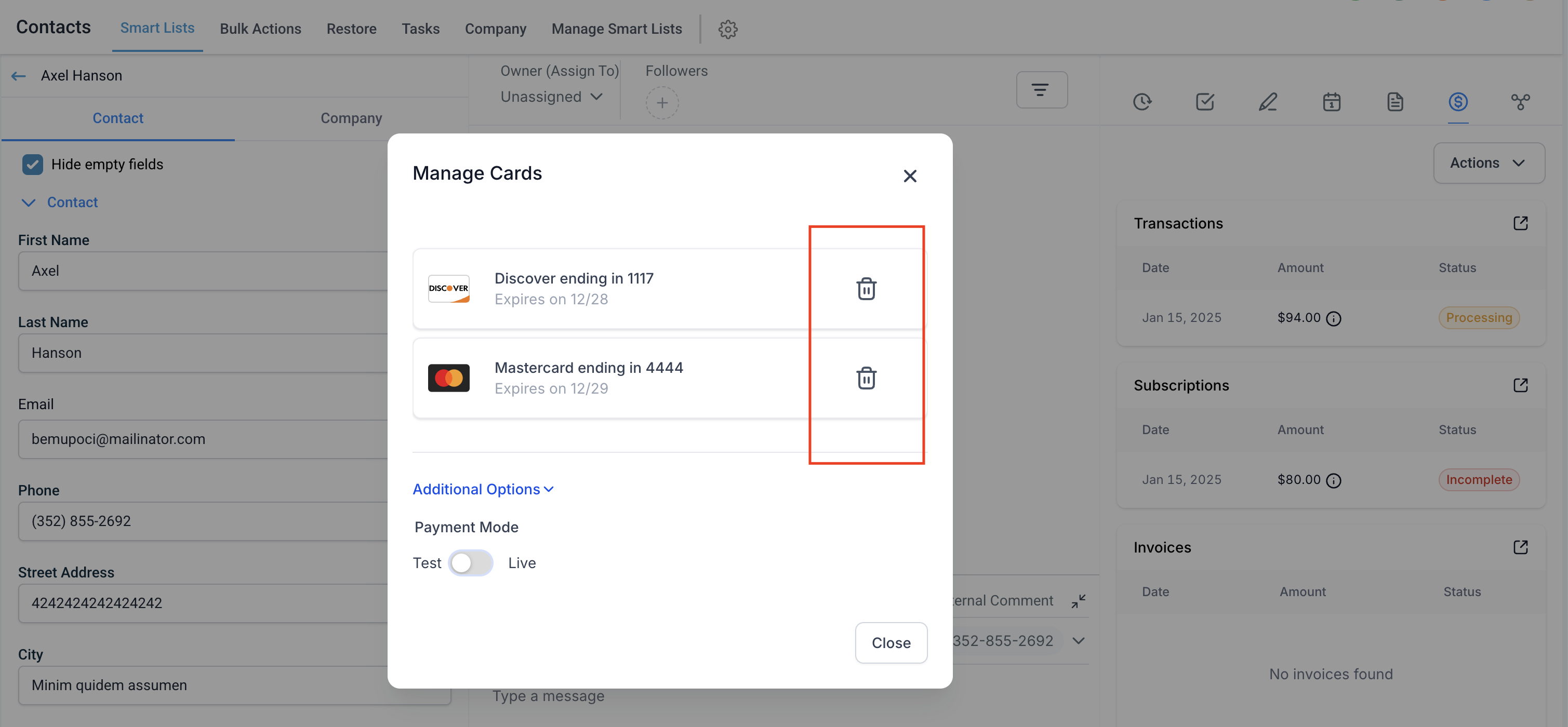
Locate the card you want to remove.
Click Delete next to the card.
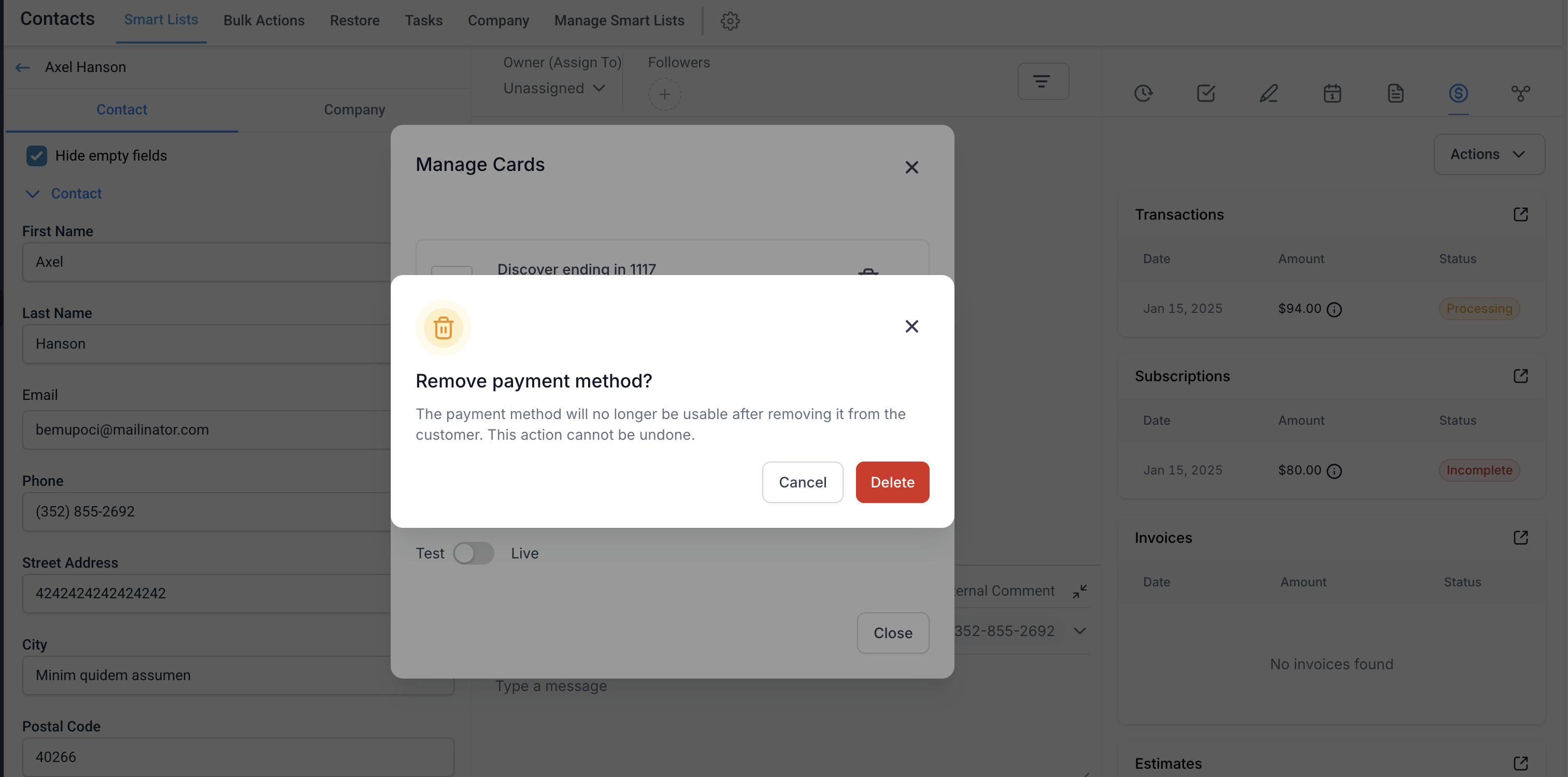
Confirm the deletion in the prompt.
If the card is connected to an active subscription, a warning message will appear before deletion. Removing the card will leave the subscription without a payment method for automatic charges.
For security and compliance reasons:
Card information is not stored within Aesthetix CRM.
Only limited card details are displayed:
Last 3–4 digits
Expiration date
Card provider (e.g., Visa, Mastercard)
Each time you open the Manage Cards window, card data is securely fetched directly from the payment provider.
All card deletions are also processed through the payment provider to maintain compliance with payment security standards.