1. Configure Invoice Reminders in Aesthetix CRM
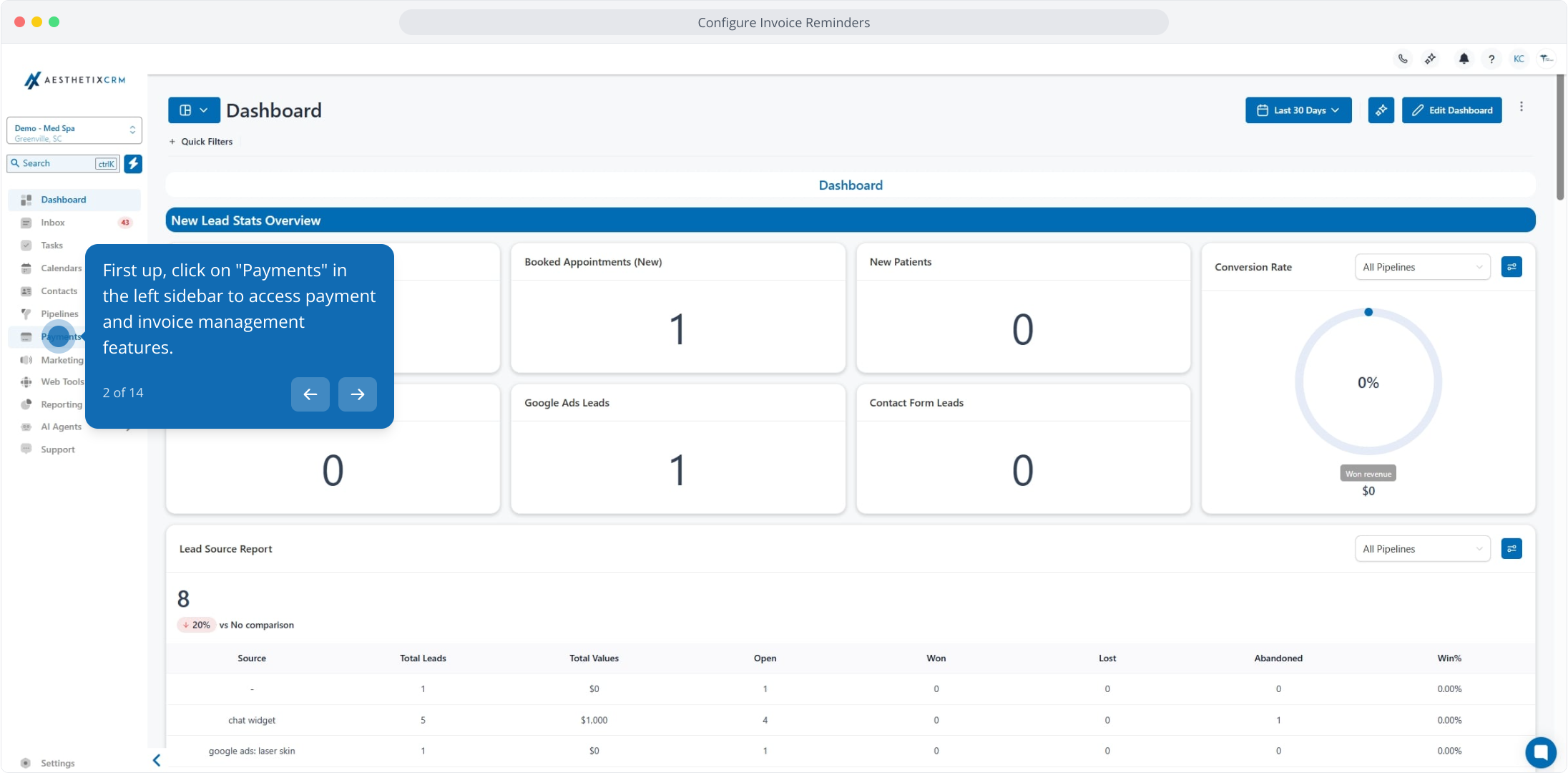
2. First up, click on "Payments" in the left sidebar to access payment and invoice management features.
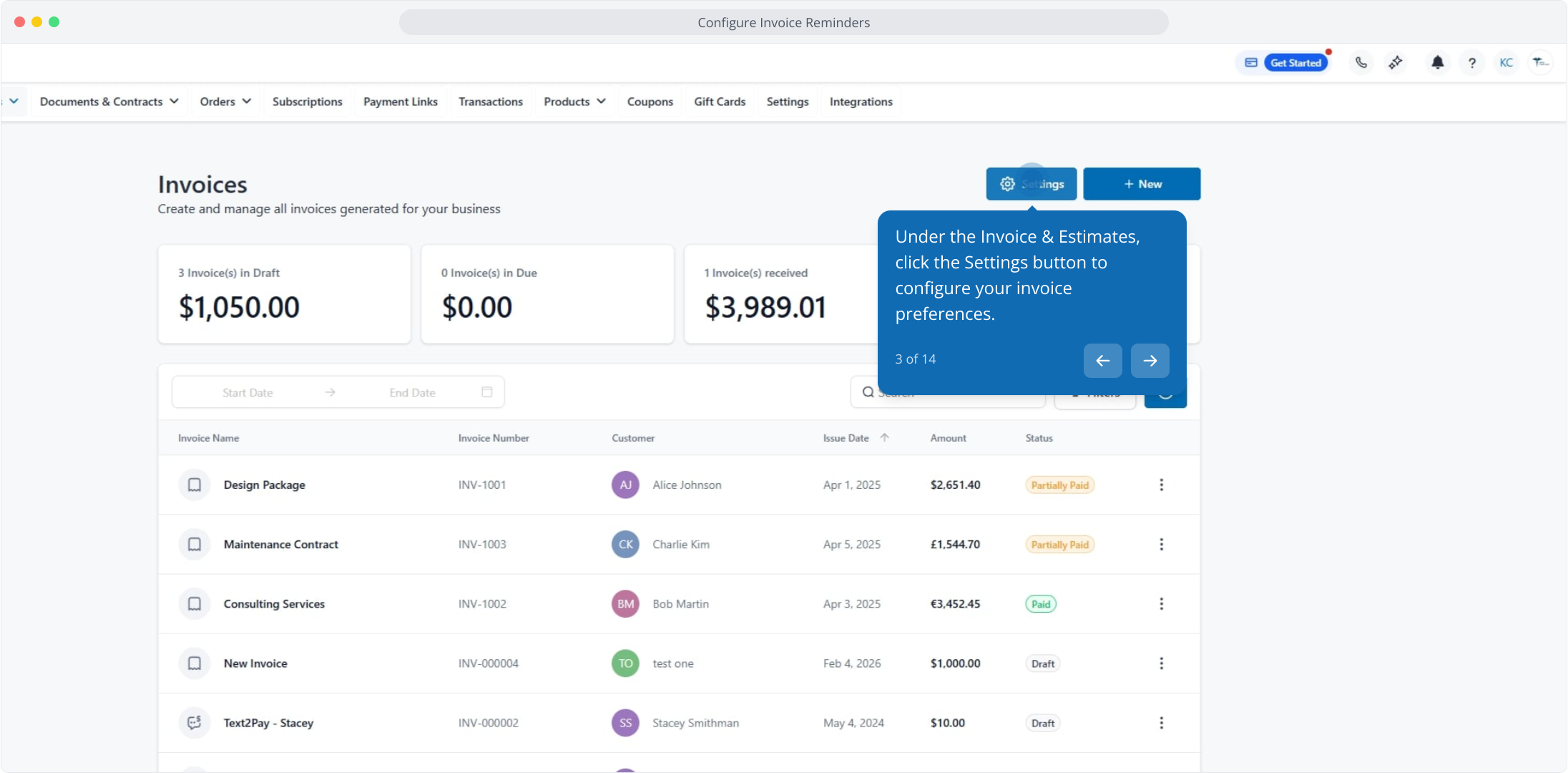
3. Under the Invoice & Estimates, click the Settings button to configure your invoice preferences.
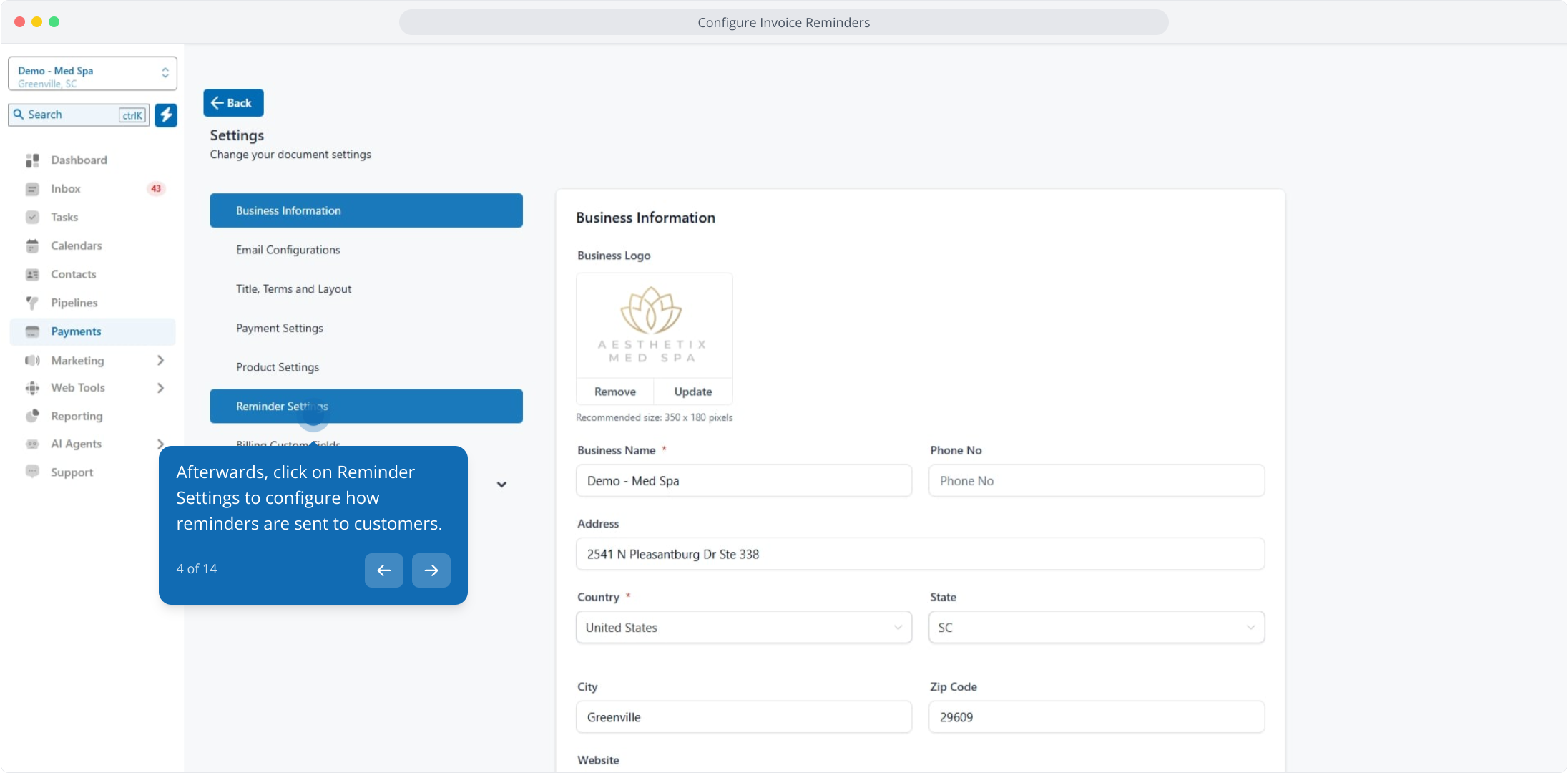
4. Afterwards, click on Reminder Settings to configure how reminders are sent to customers.
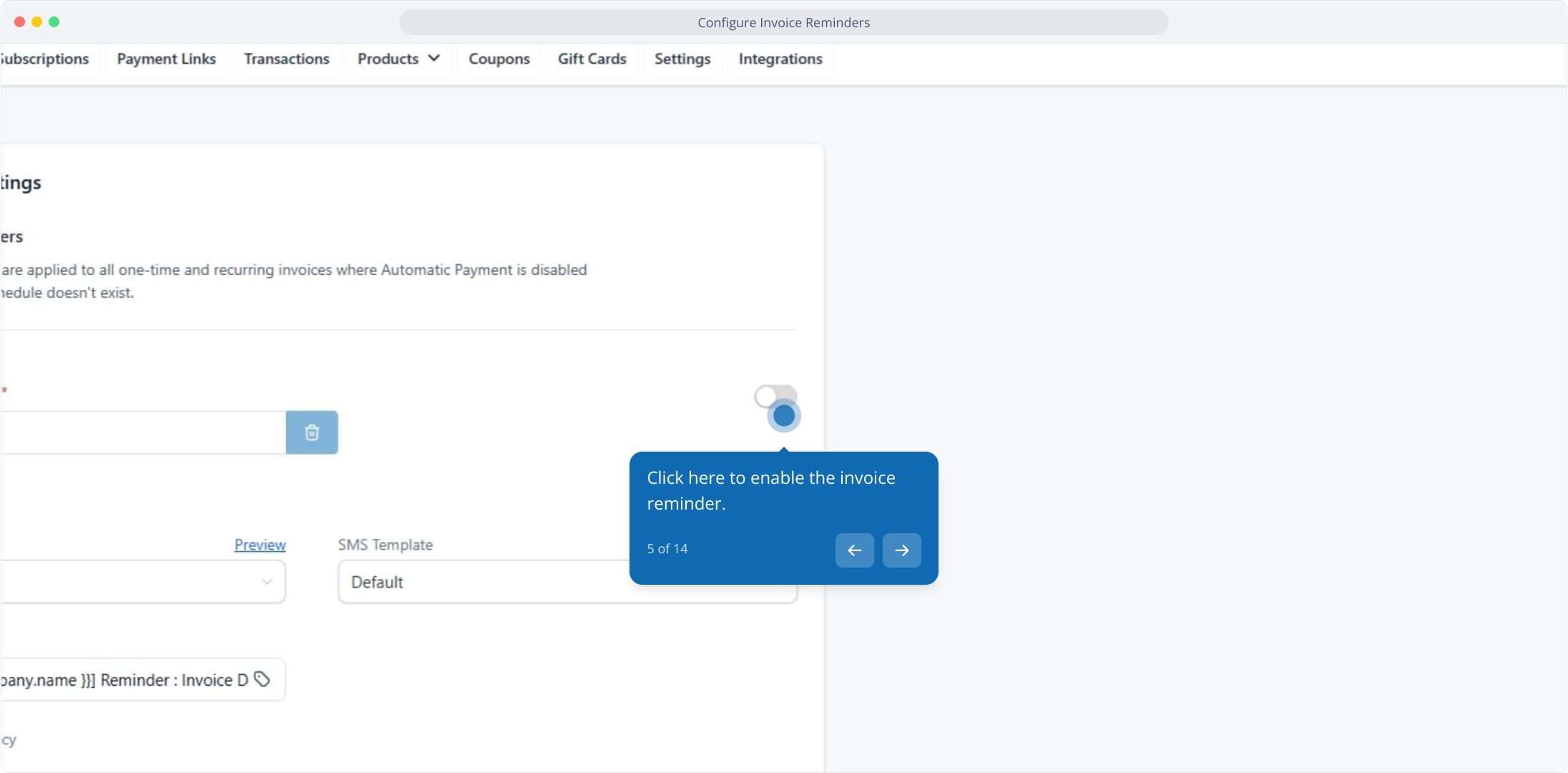
5. Click here to enable the invoice reminder.
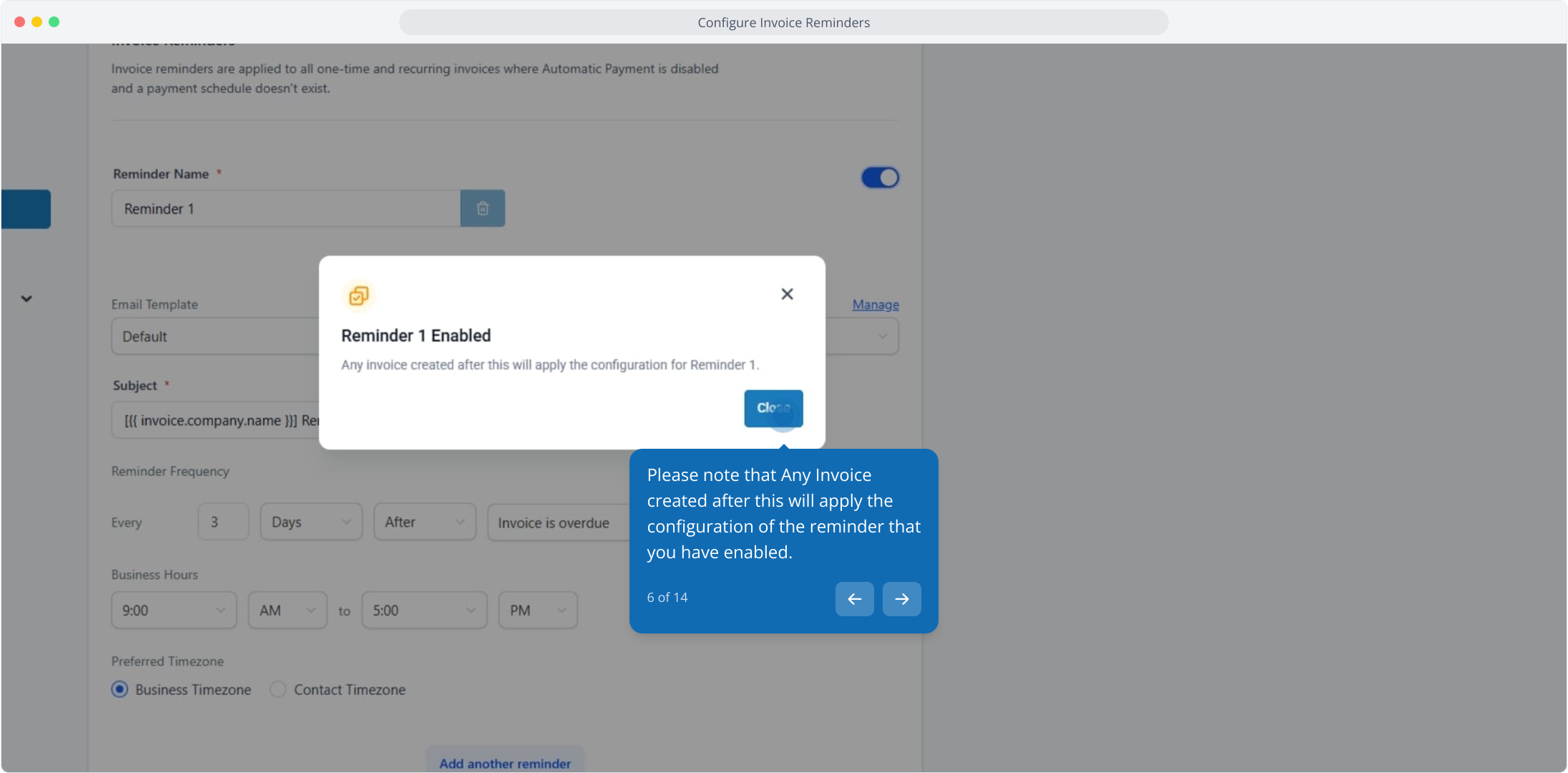
6. Please note that Any Invoice created after this will apply the configuration of the reminder that you have enabled.
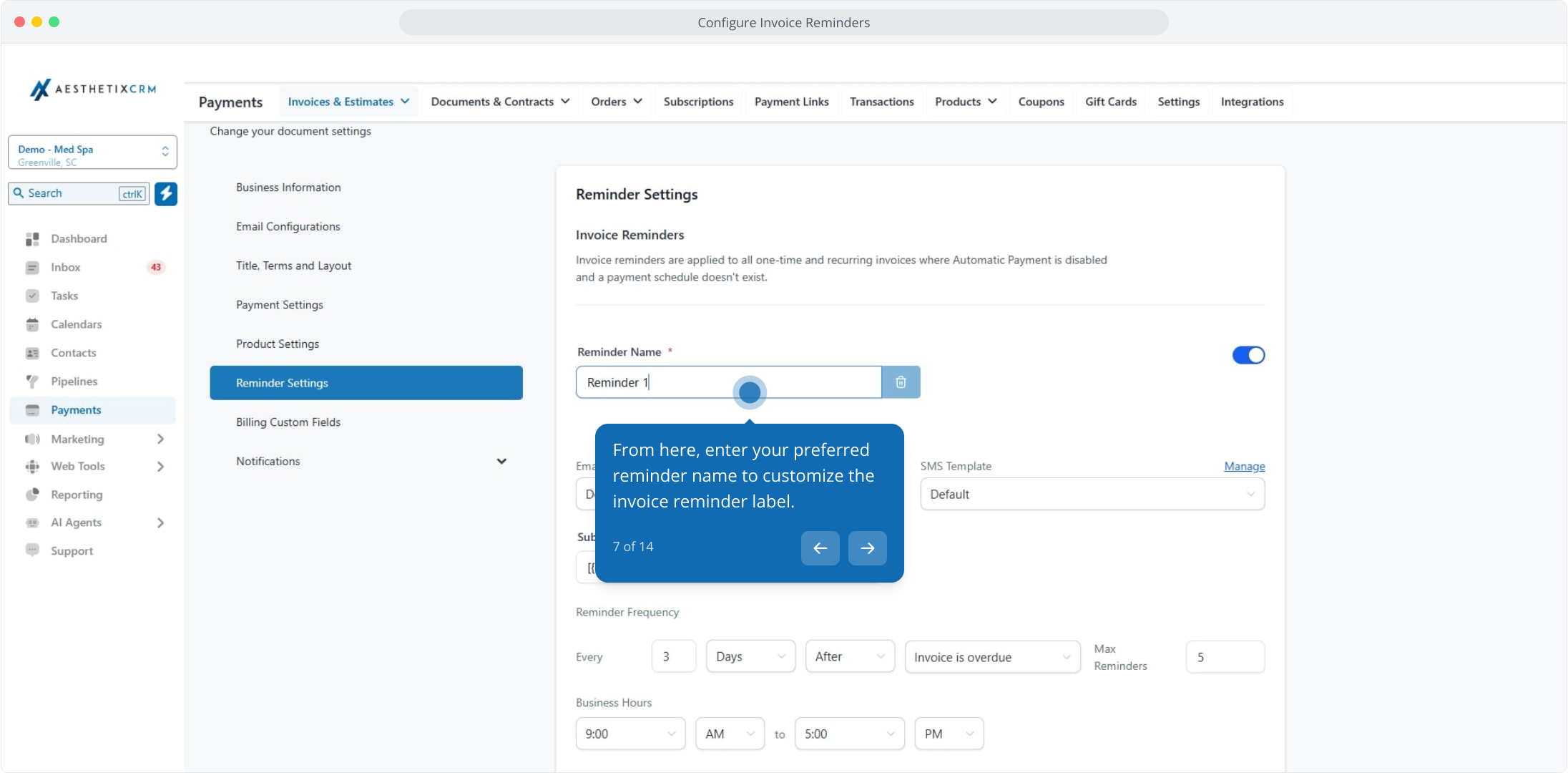
7. From here, enter your preferred reminder name to customize the invoice reminder label.
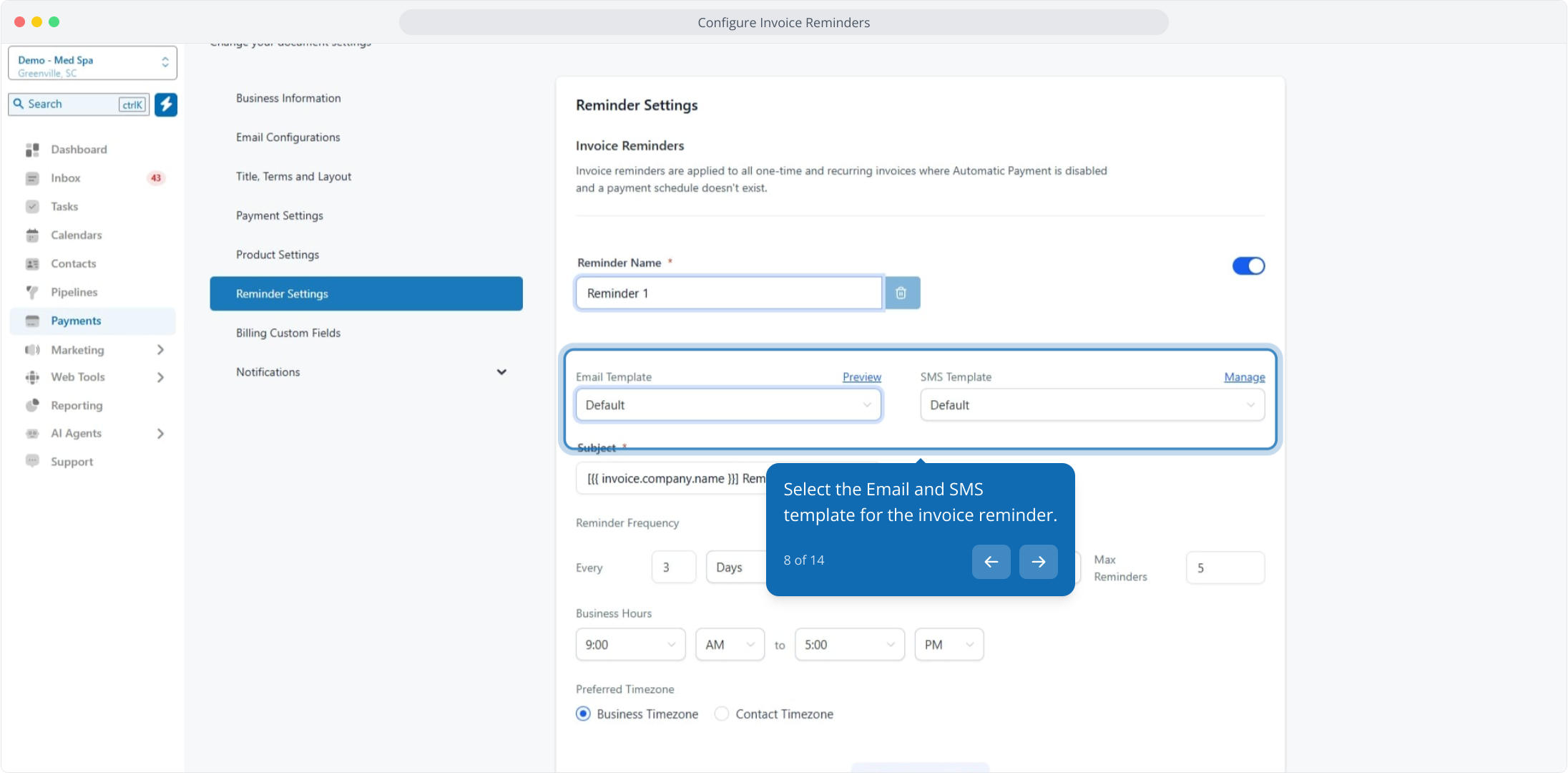
8. Select the Email and SMS template for the invoice reminder.
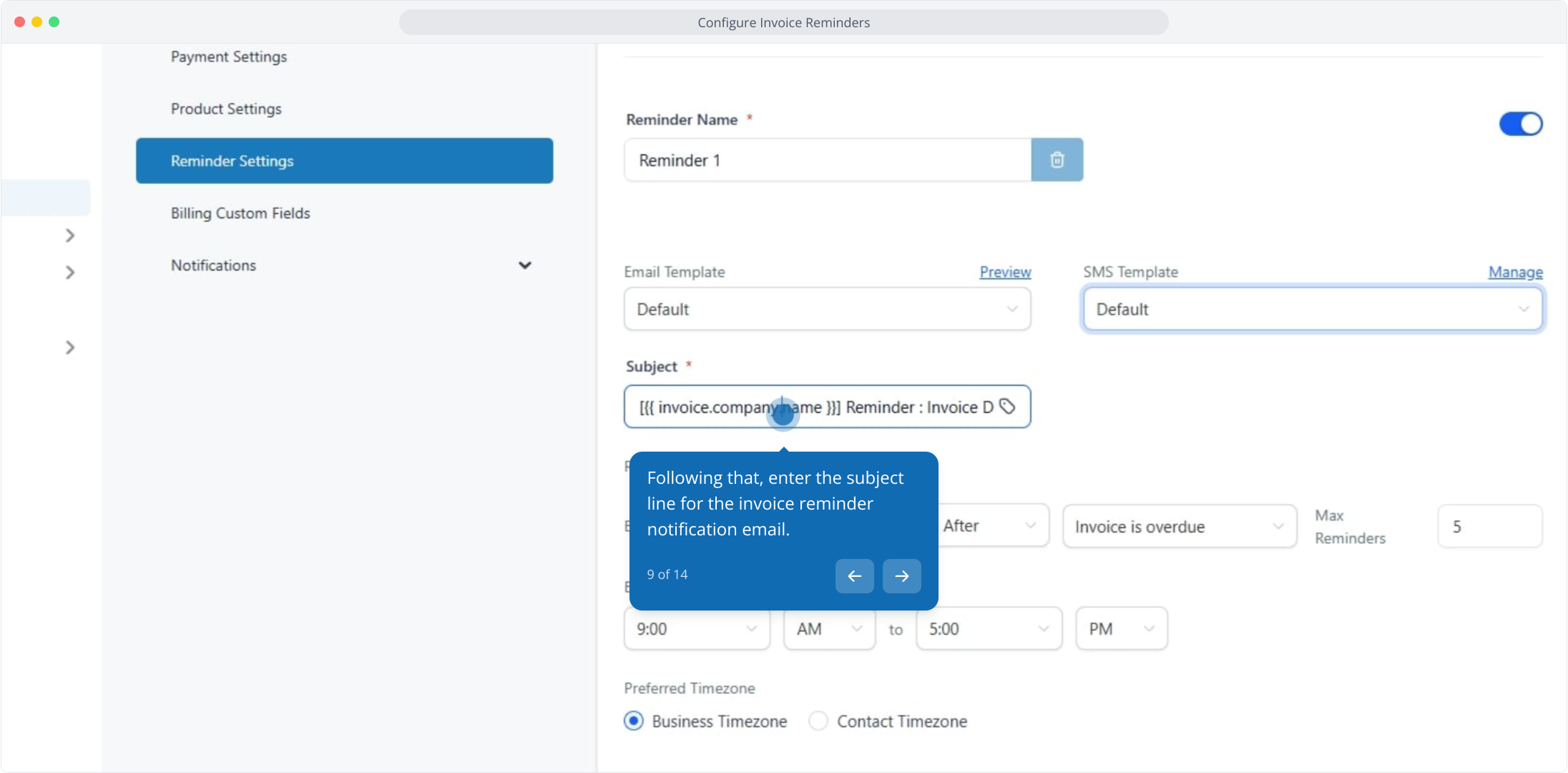
9. Following that, enter the subject line for the invoice reminder notification email.
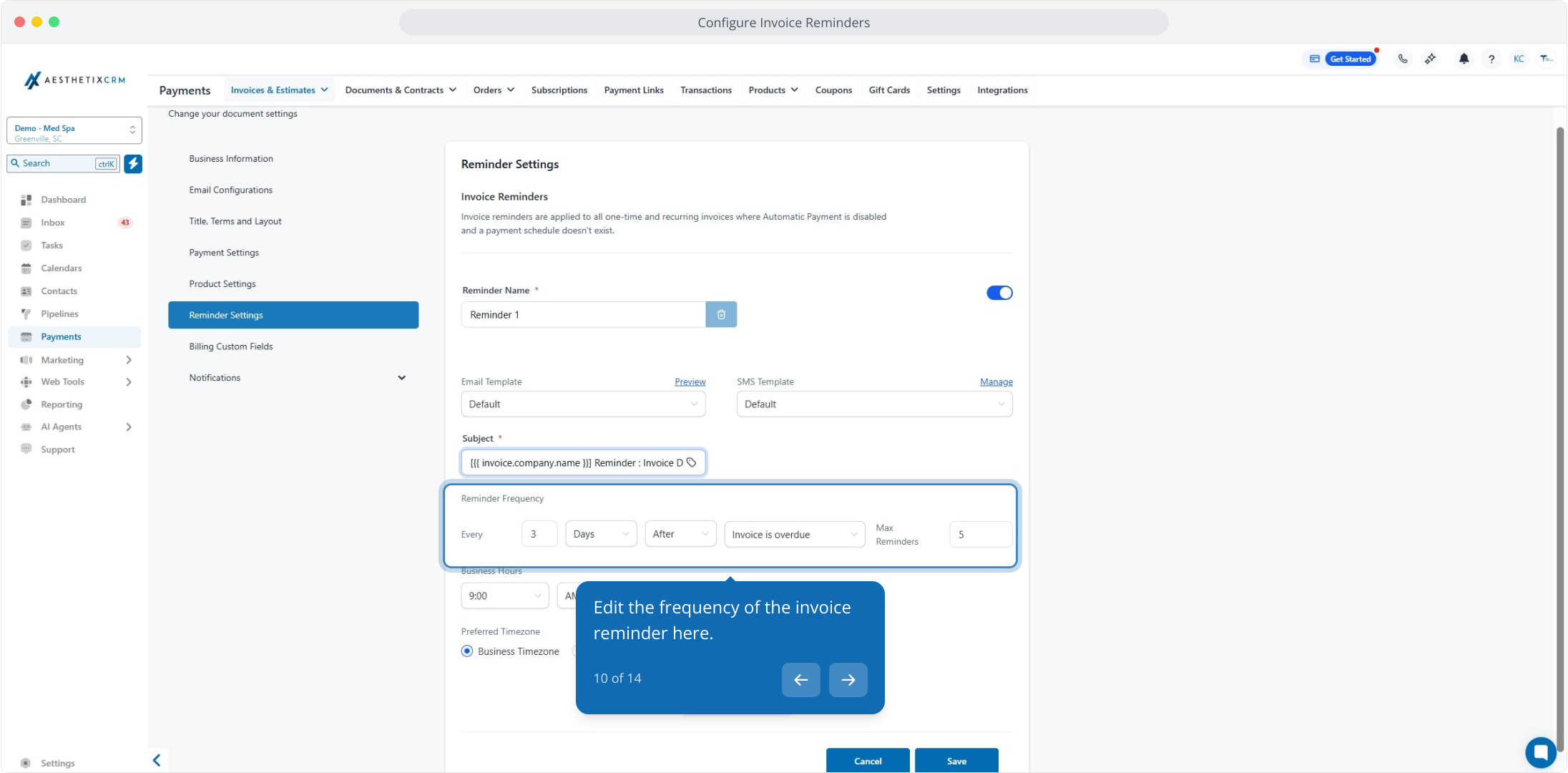
10. Edit the frequency of the invoice reminder here.
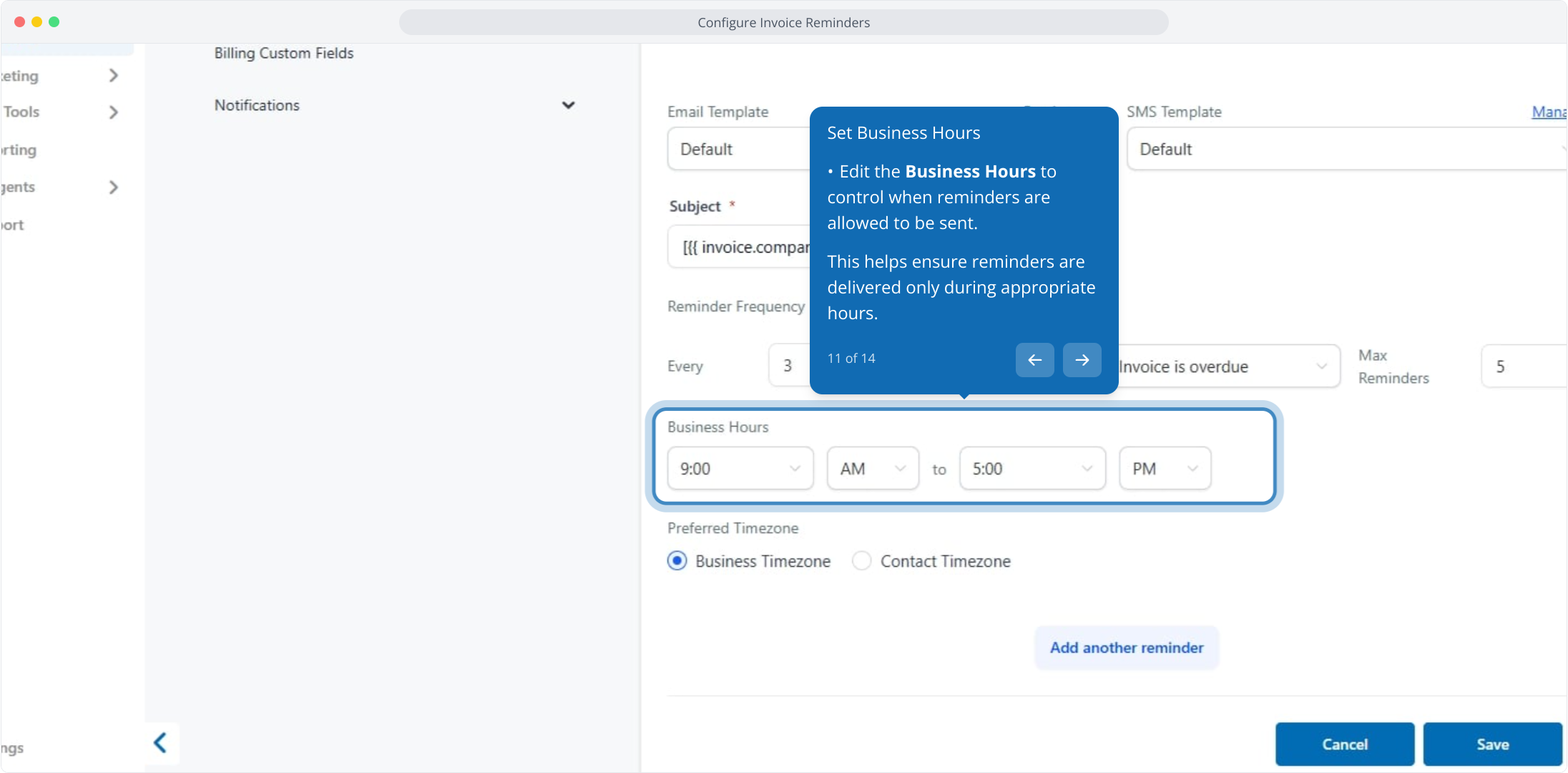
Edit the Business Hours to control when reminders are allowed to be sent.
This helps ensure reminders are delivered only during appropriate hours.
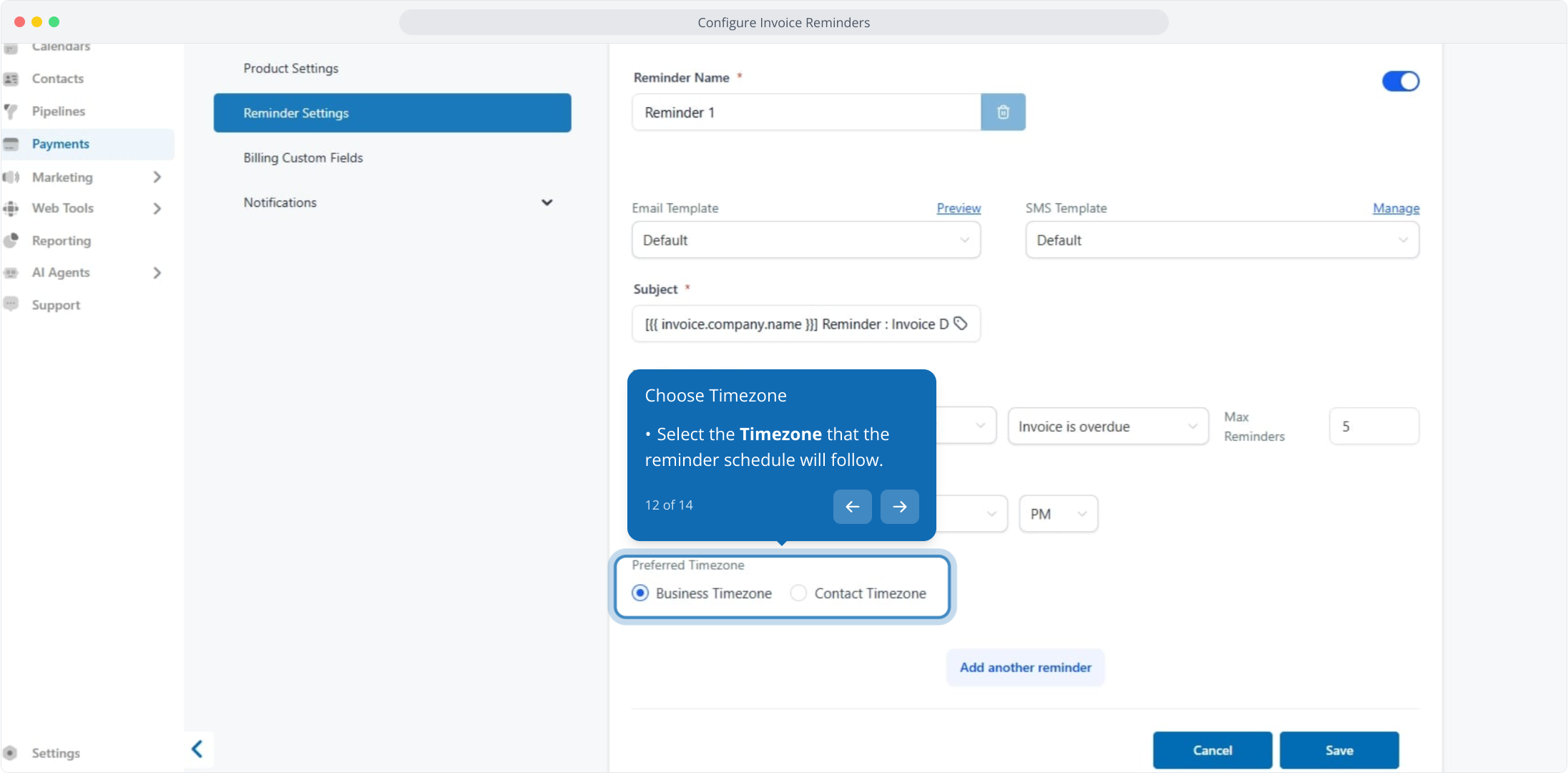
Select the Timezone that the reminder schedule will follow.
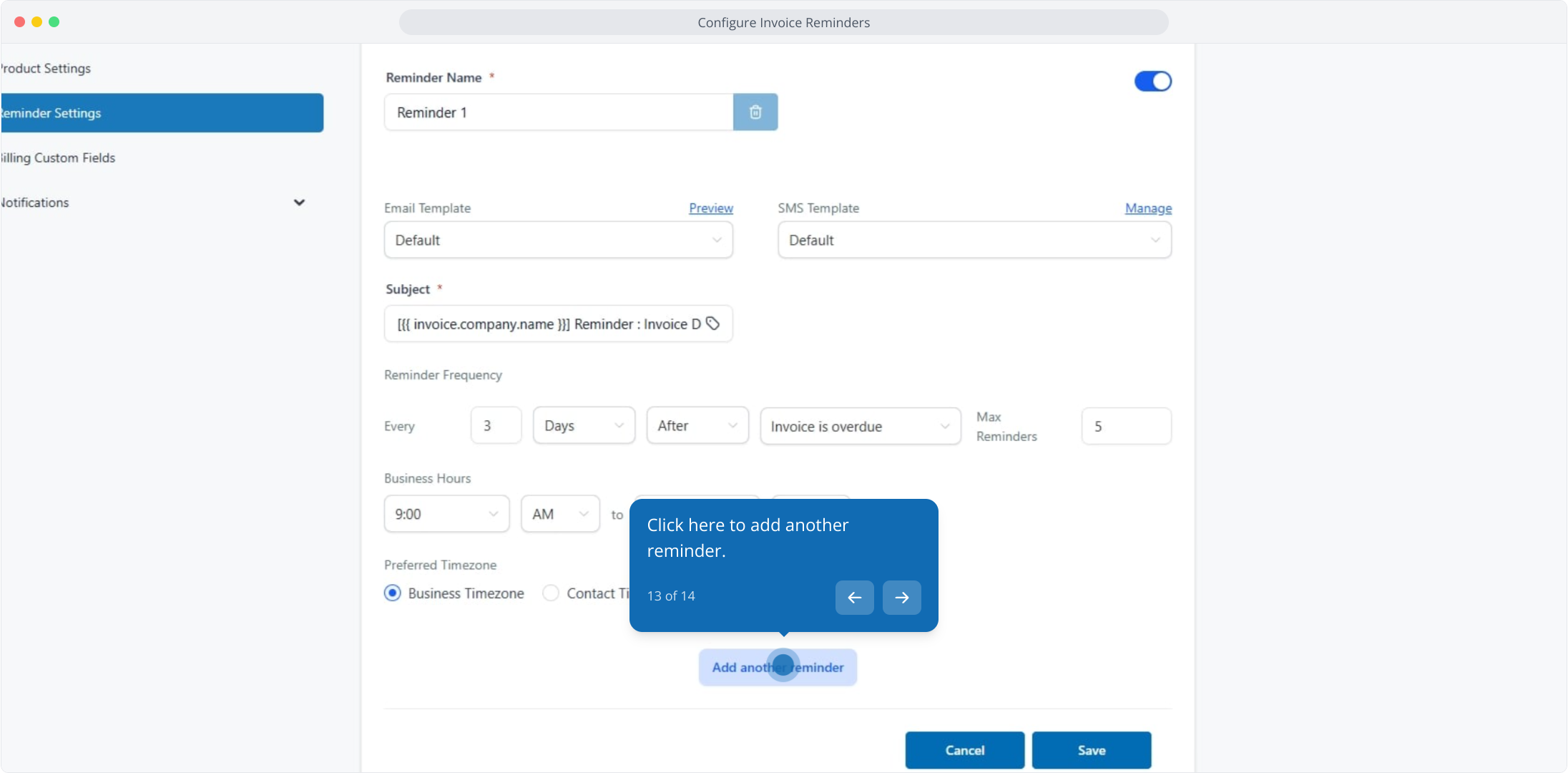
13. Click here to add another reminder.
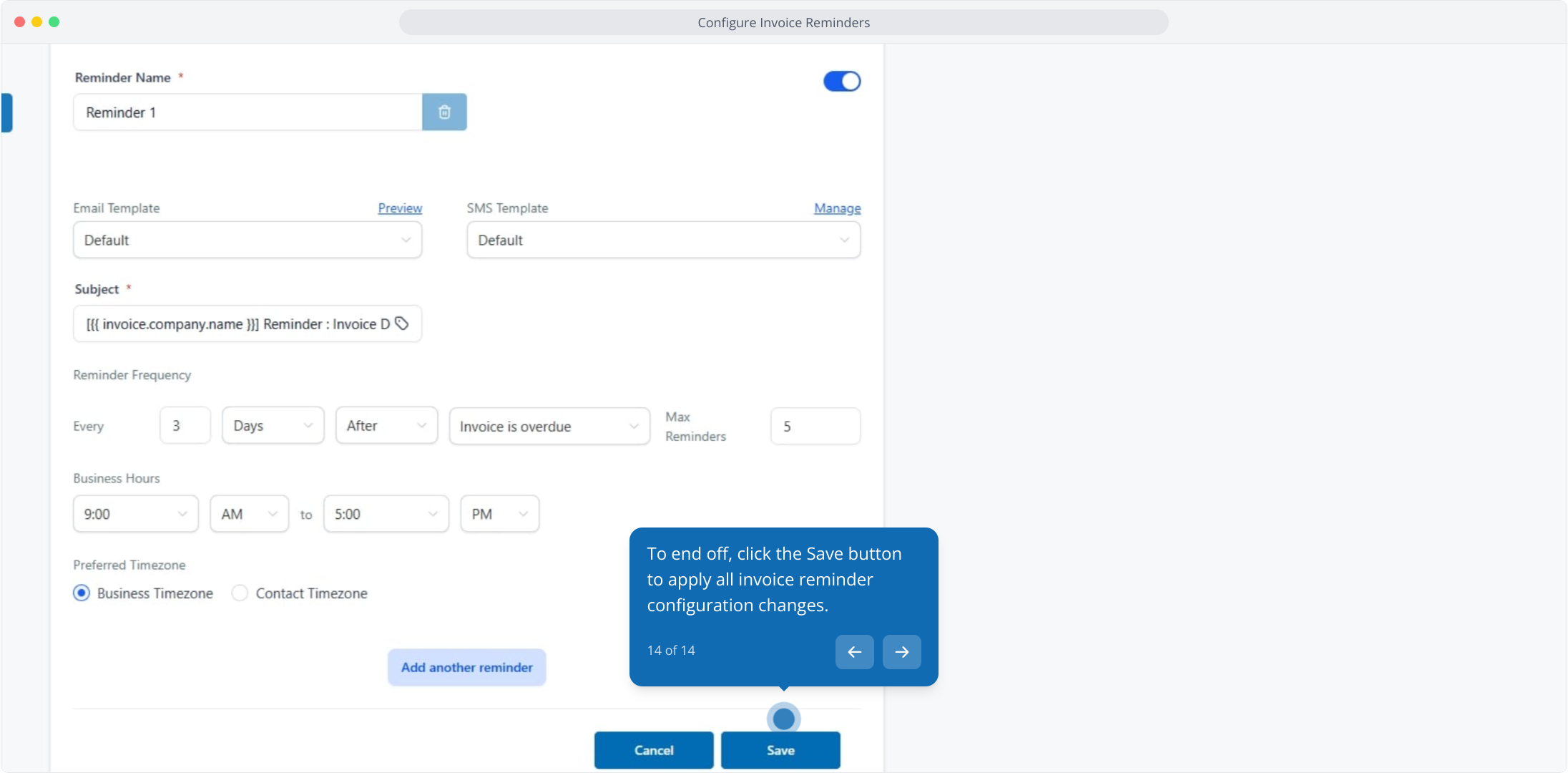
14. To end off, click the Save button to apply all invoice reminder configuration changes.
The previewed reminder template shown in the Invoice Settings is the correct template used for automated reminders.
Multiple reminders can be configured (e.g., Reminder 1, Reminder 2), each with its own timing.
Reminder automations only trigger after they have been enabled.
Automated reminders do not apply to invoices that were already overdue before the reminder feature was enabled.
The system only sends reminders for invoices created after enabling the configuration.
Previously overdue invoices must be handled manually.
Users may manually send a reminder to customers with overdue invoices.
When sending manually:
Selecting the contact will populate only the contact information.
Dynamic invoice fields (invoice amount, due date, invoice number) do not auto-populate when sending via manual message composer.
Manual reminder messaging is recommended only when necessary to avoid template mismatch concerns.
Updating Invoice Due After (days) in Payment Settings impacts future invoices only.
Existing invoices—including recurring invoices already generated—are not updated retroactively.
Any changes apply solely to invoices generated after the update.
Manual action is required for any invoice reminders related to invoices created prior to enabling reminder automation.
Staff should clarify expectations with users about dynamic field behavior in manual reminder emails.
Changing due-date settings is not retroactive and should be communicated clearly to users setting up recurring billing.
