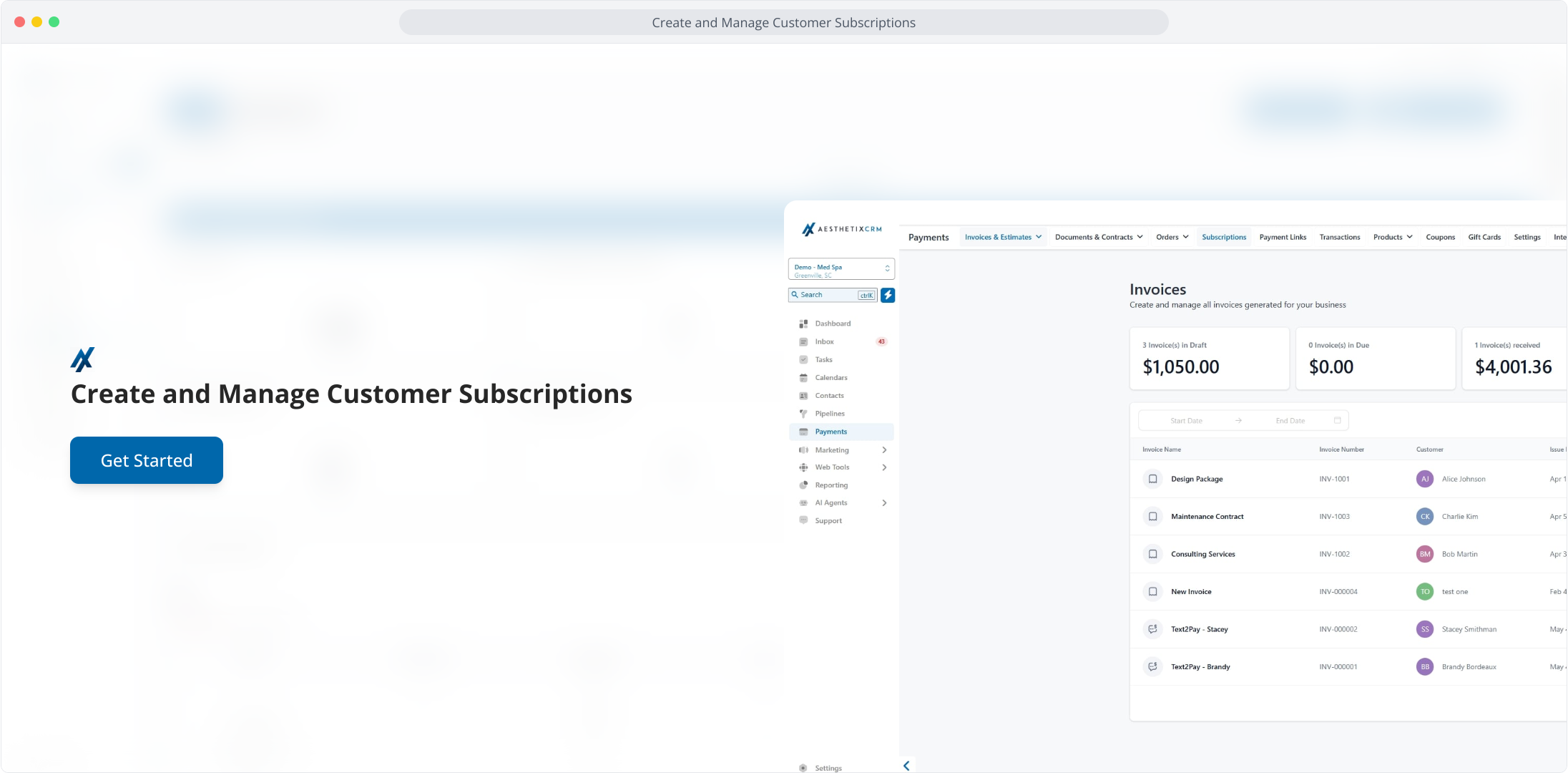
1. Create and Manage Customer Subscriptions
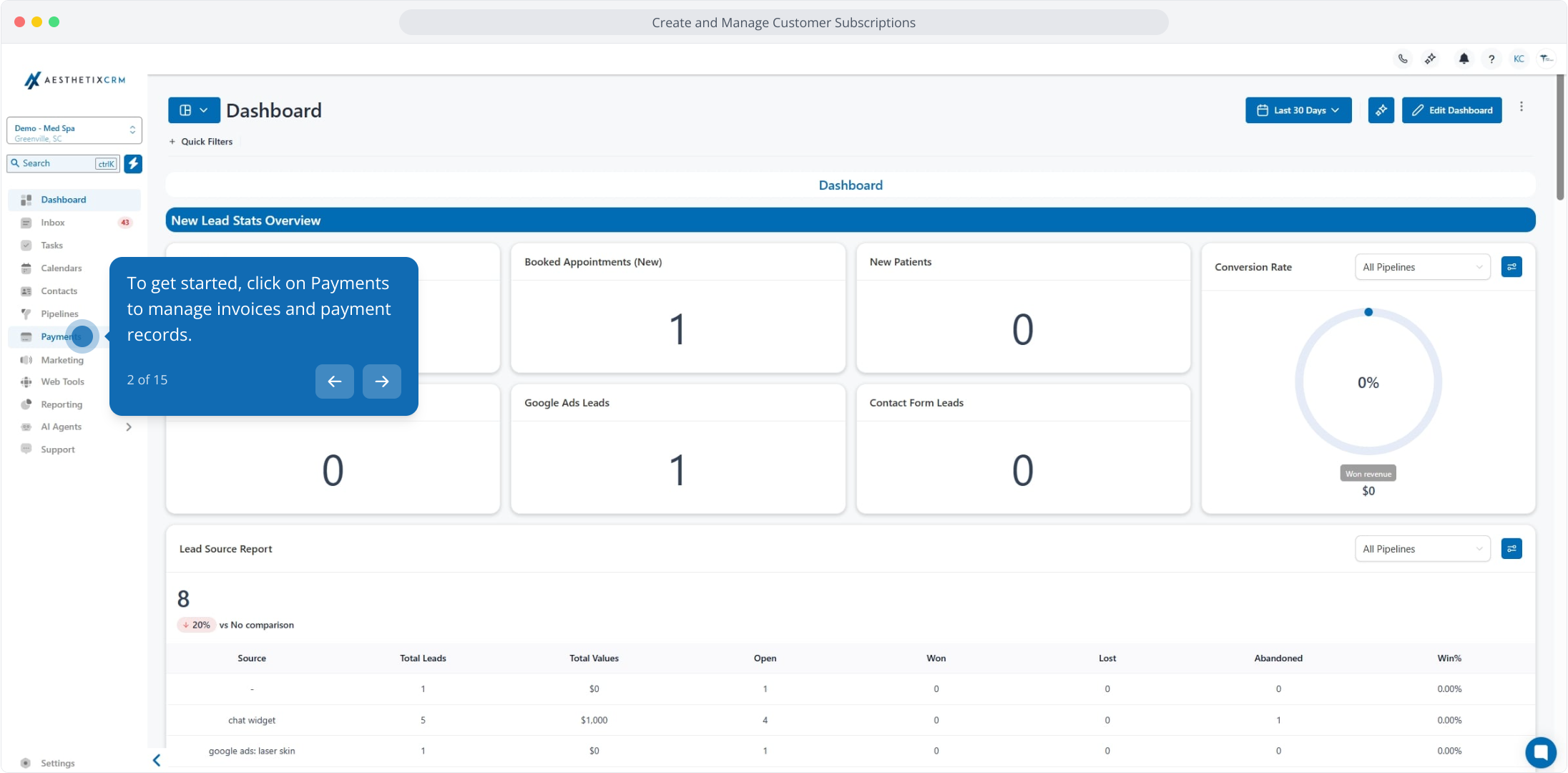
2. To get started, click on Payments to manage invoices and payment records.
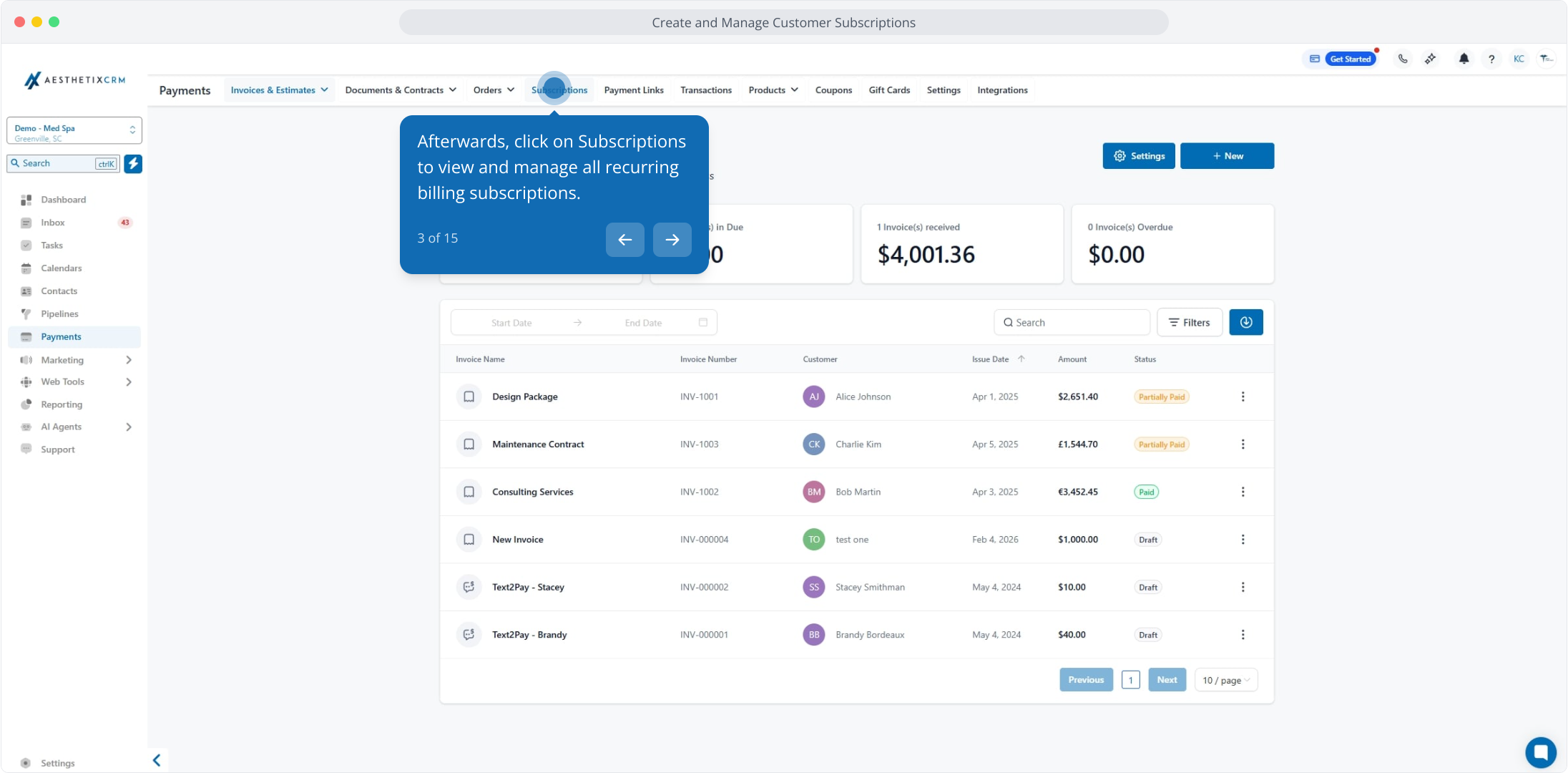
3. Afterwards, click on Subscriptions to view and manage all recurring billing subscriptions.
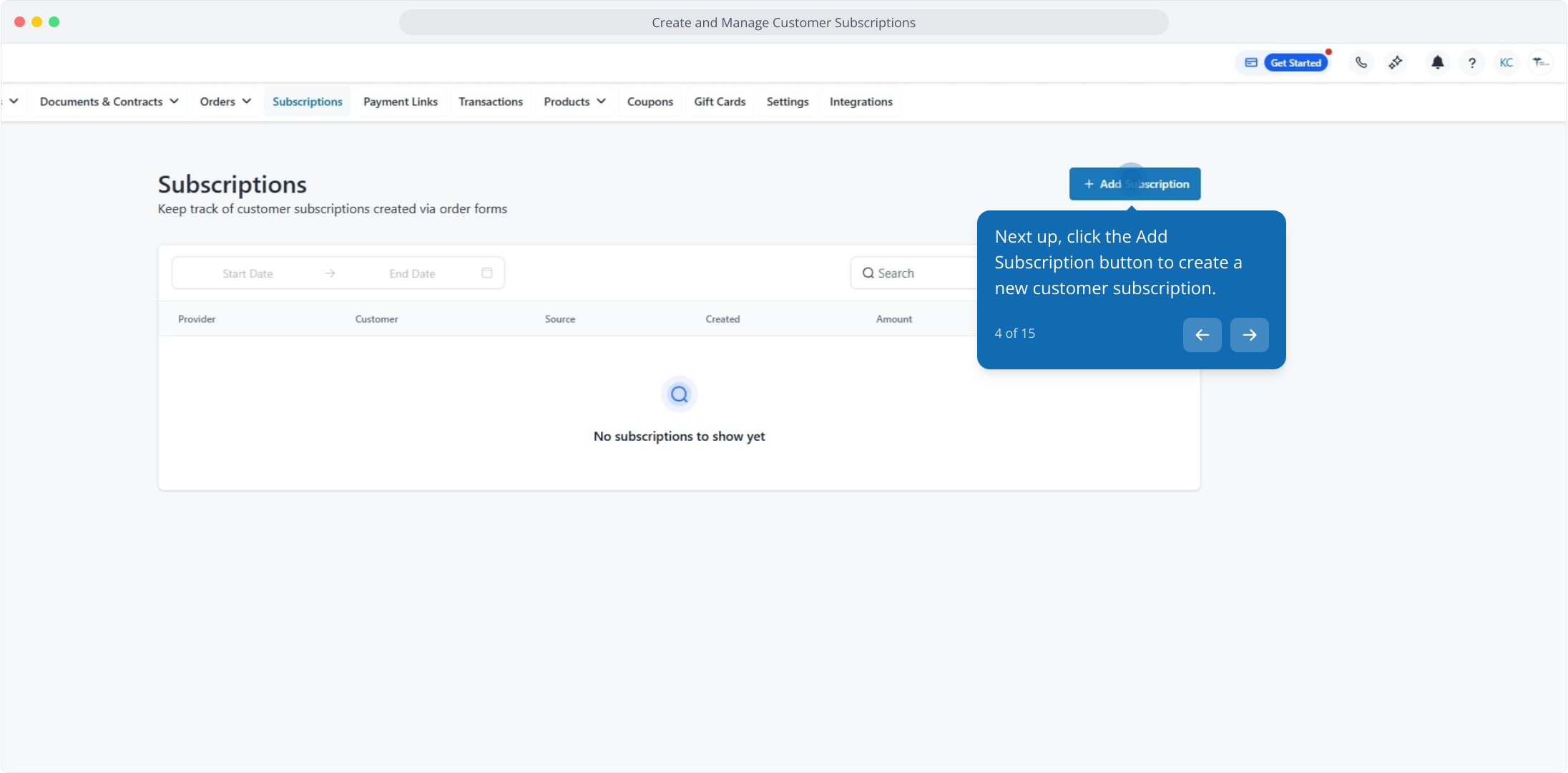
4. Next up, click the Add Subscription button to create a new customer subscription.
5. Following this, click the Add Customer field to select a customer for the subscription.
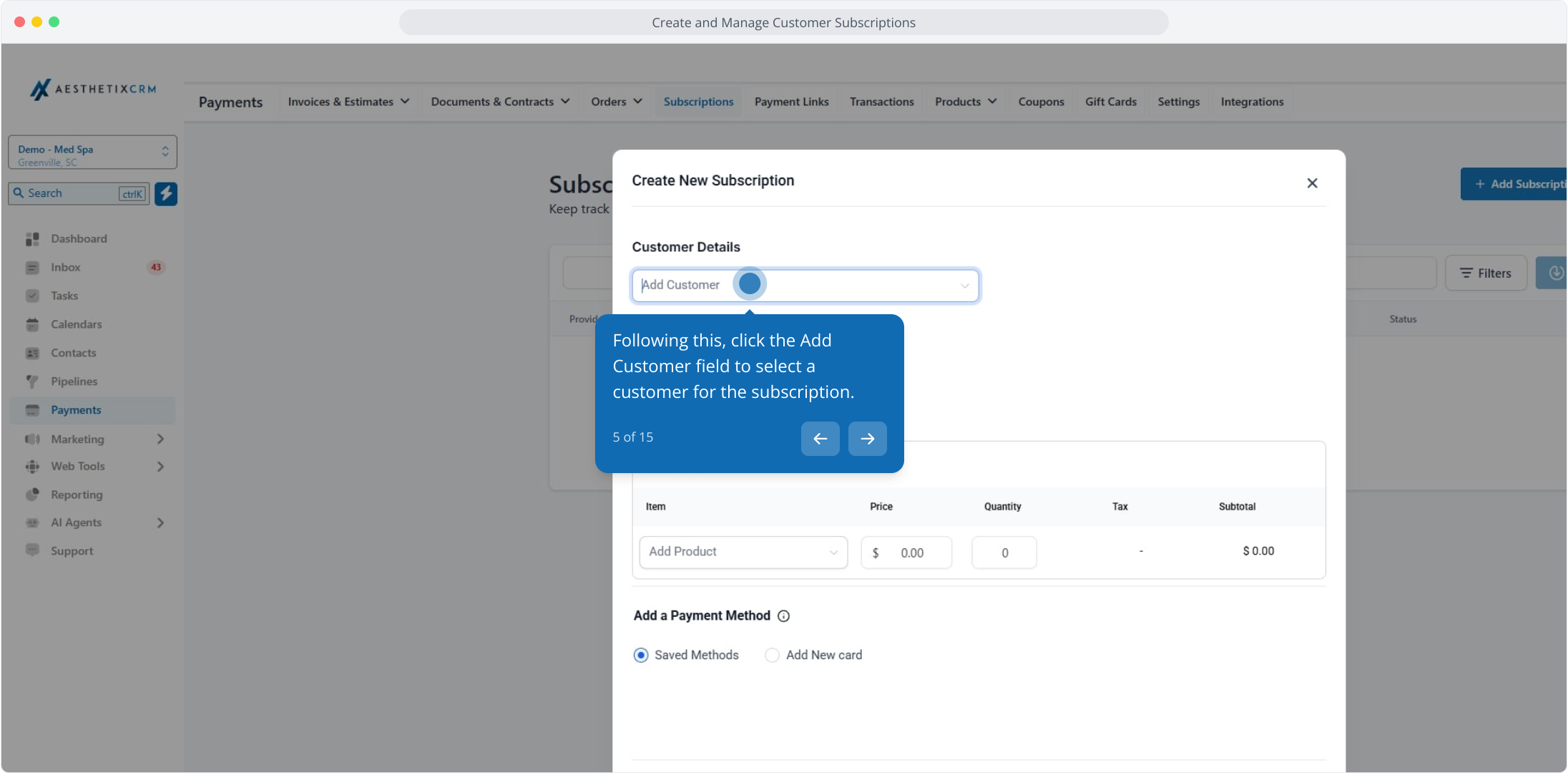
6. From here, select a contact to assign this subscription to the customer account.
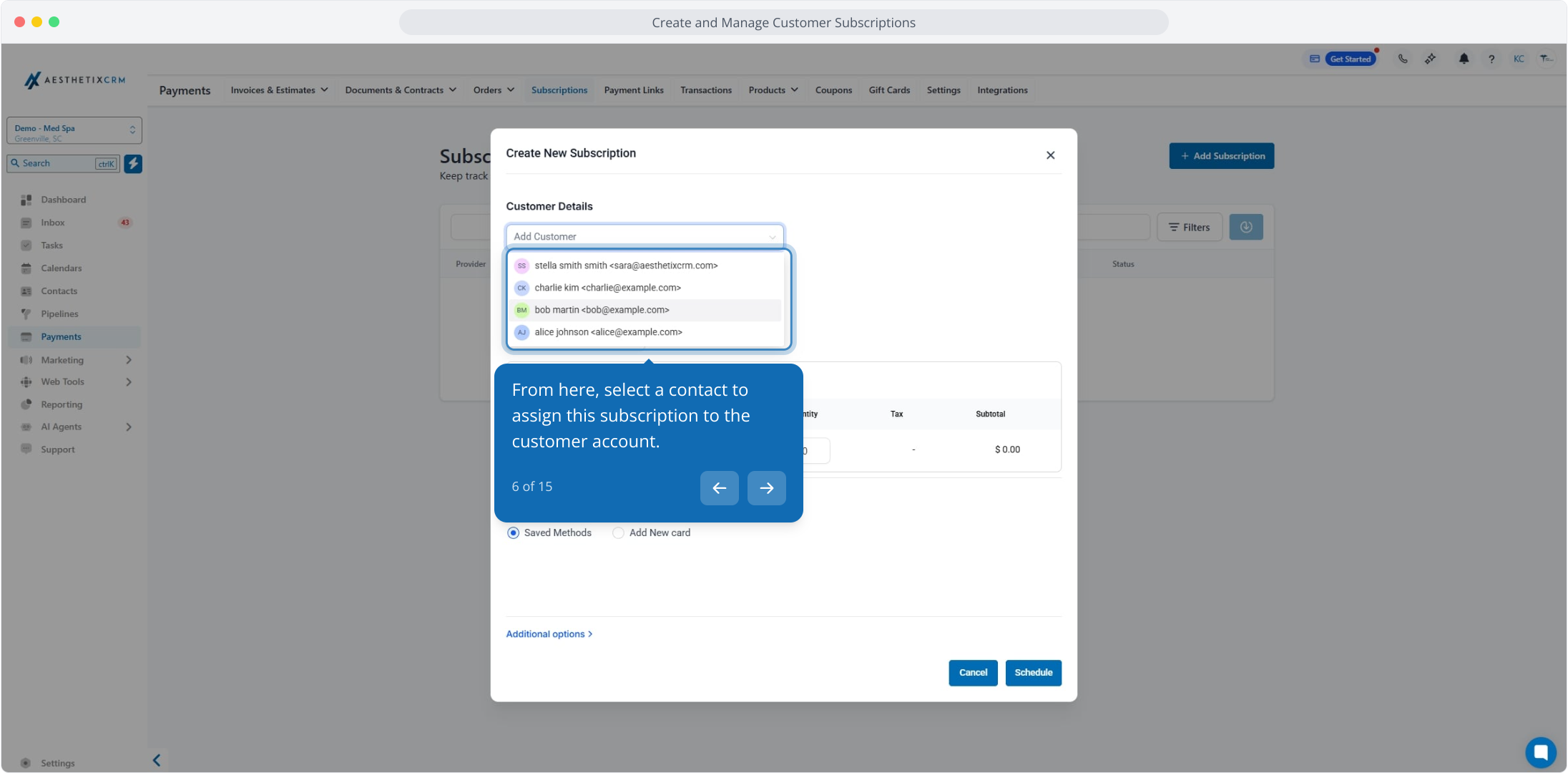
7. Next up, click the Select Date field to set the subscription bill start date.
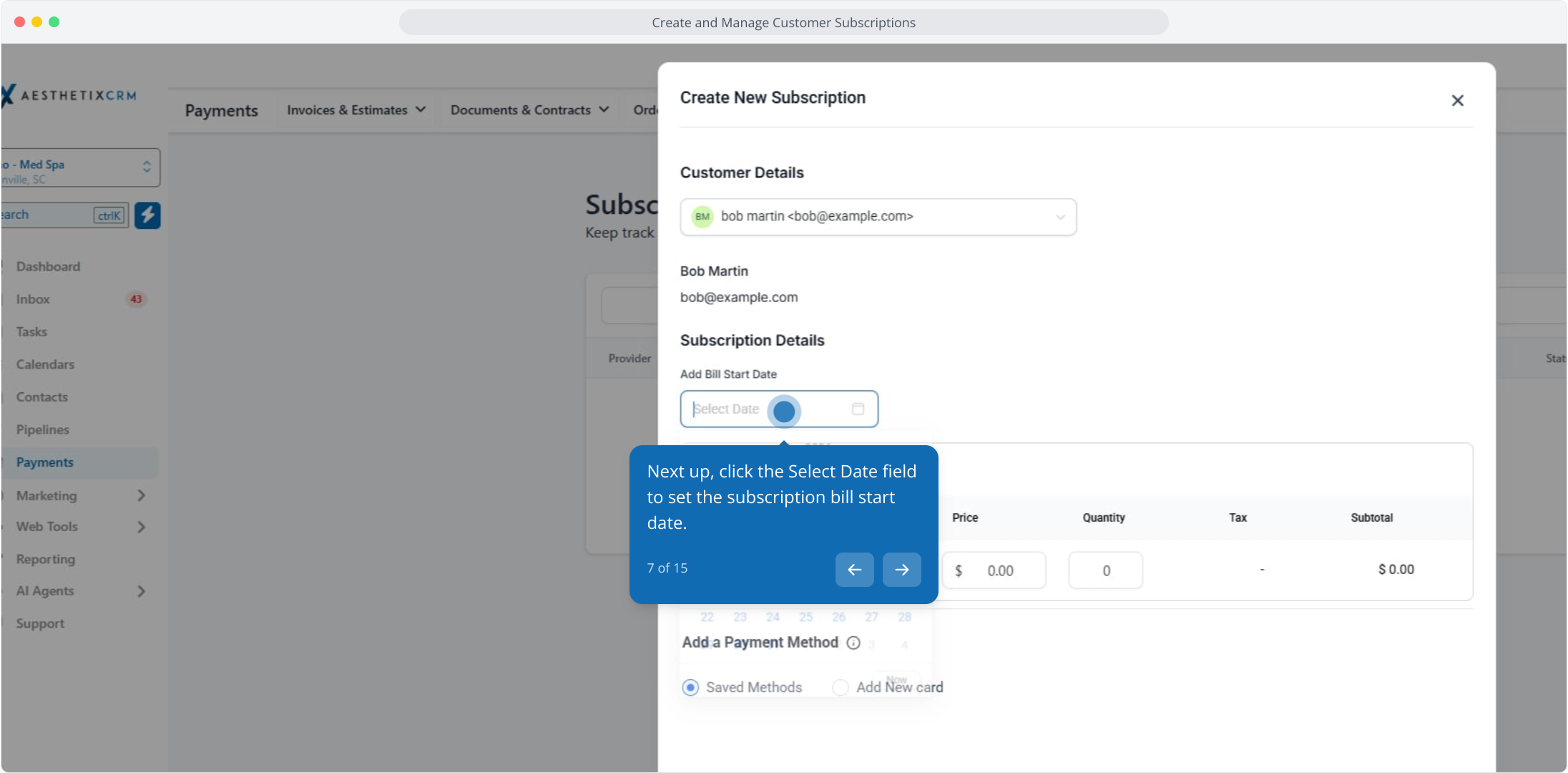
8. From here, select the date to set your subscription bill start date.
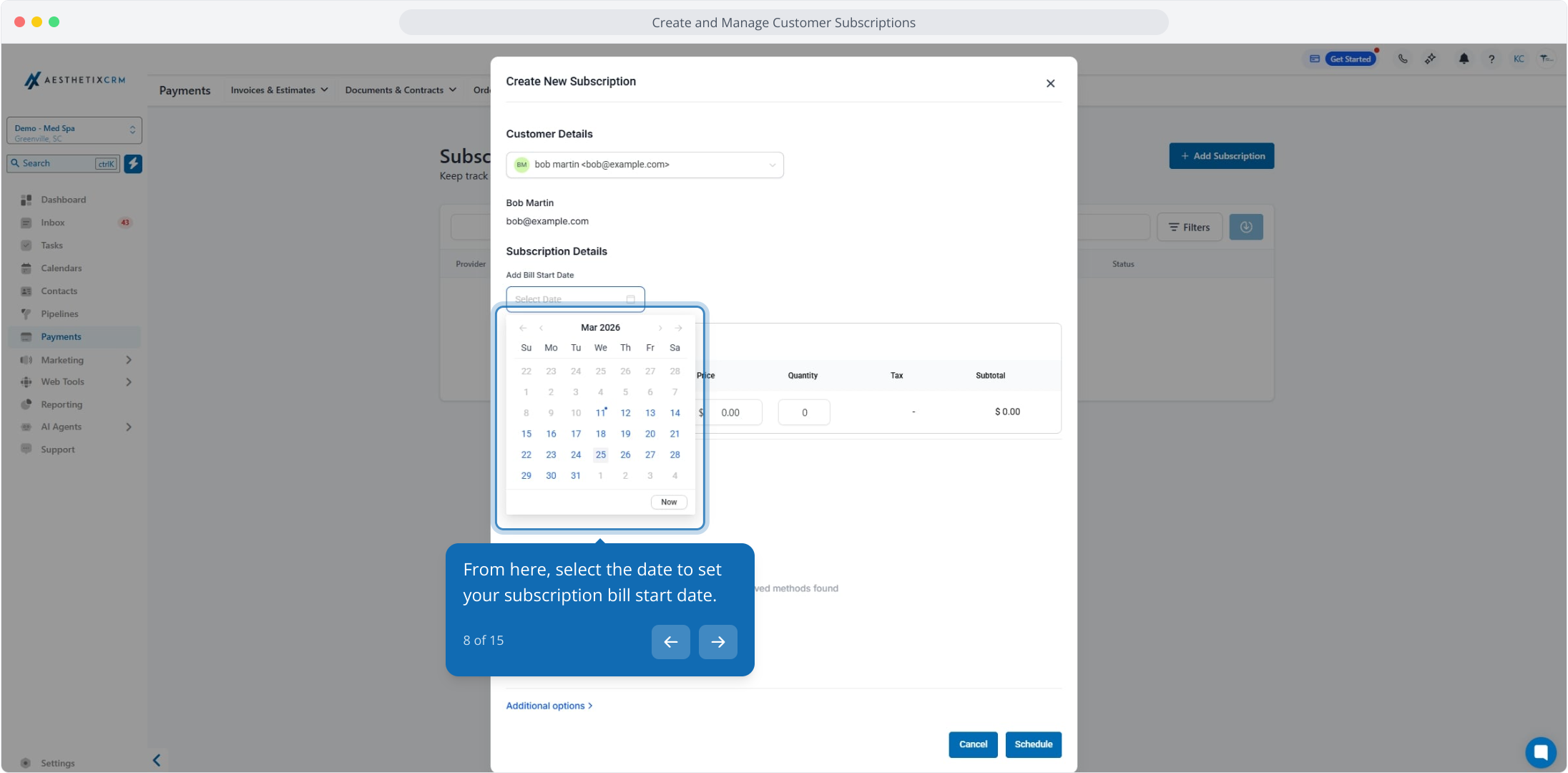
9. After that, click the Add Product field to select a product for the subscription.
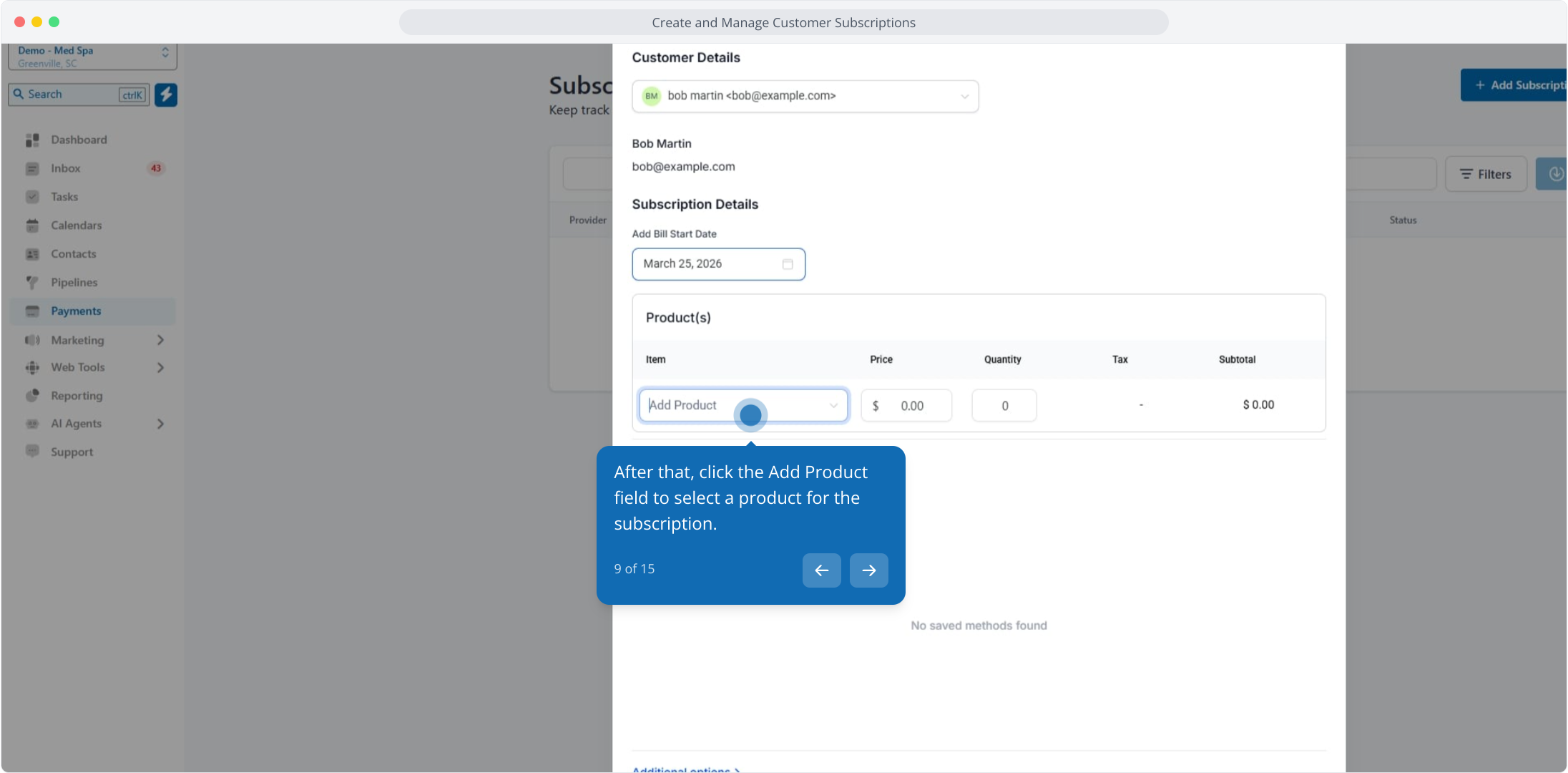
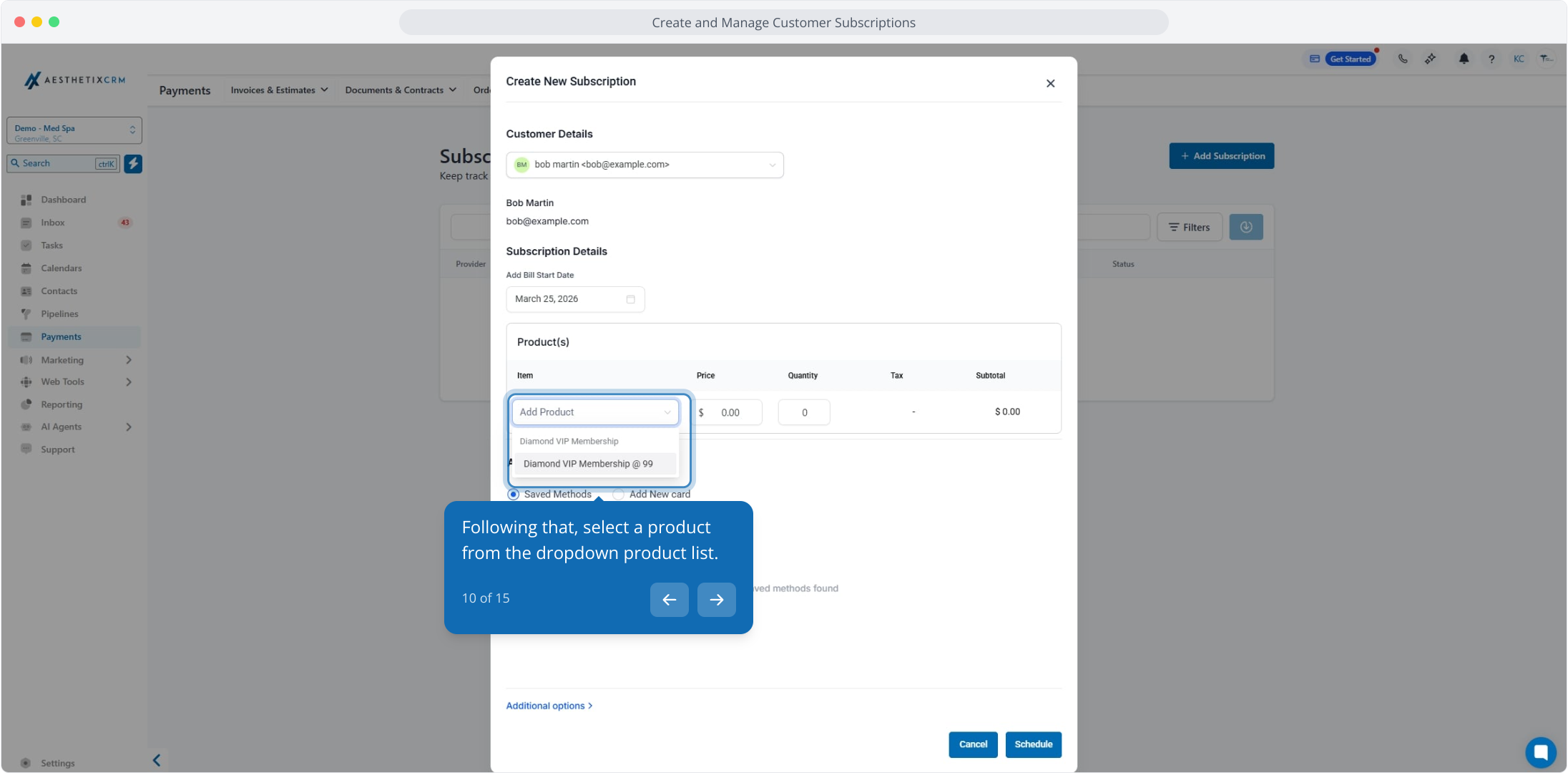
10. Following that, select a product from the dropdown product list.
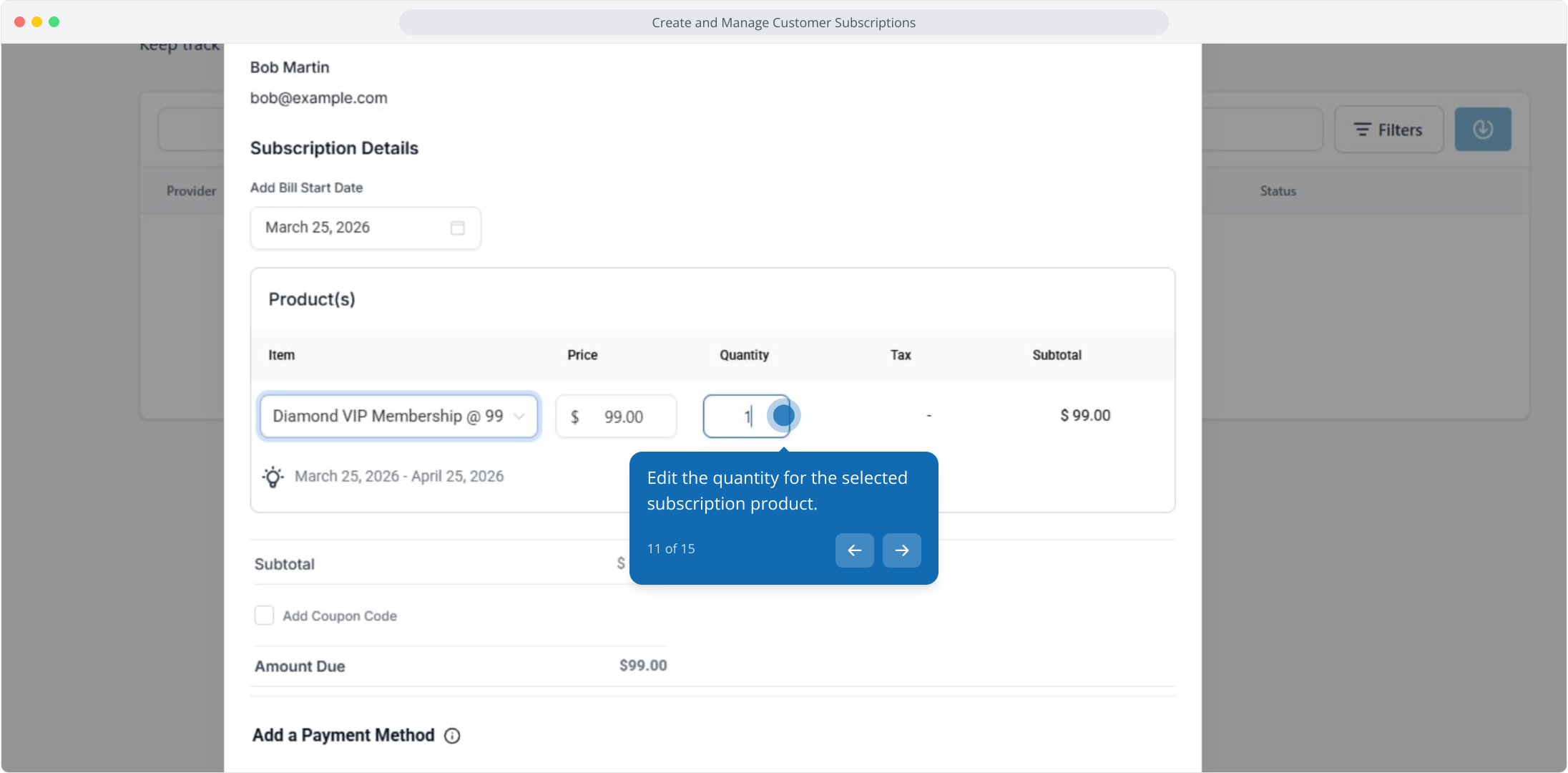
11. Edit the quantity for the selected subscription product.
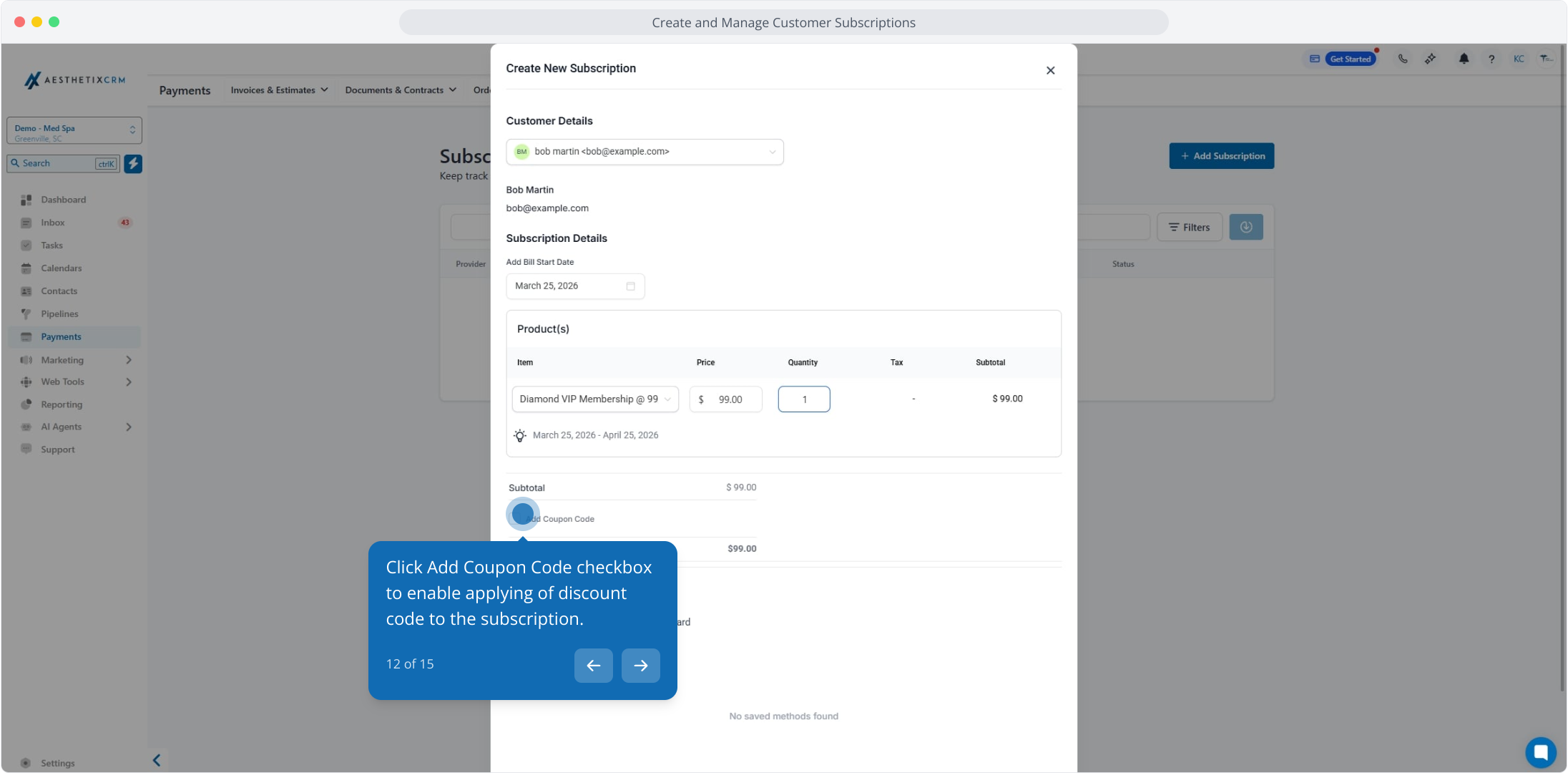
12. Click Add Coupon Code checkbox to enable applying of discount code to the subscription.
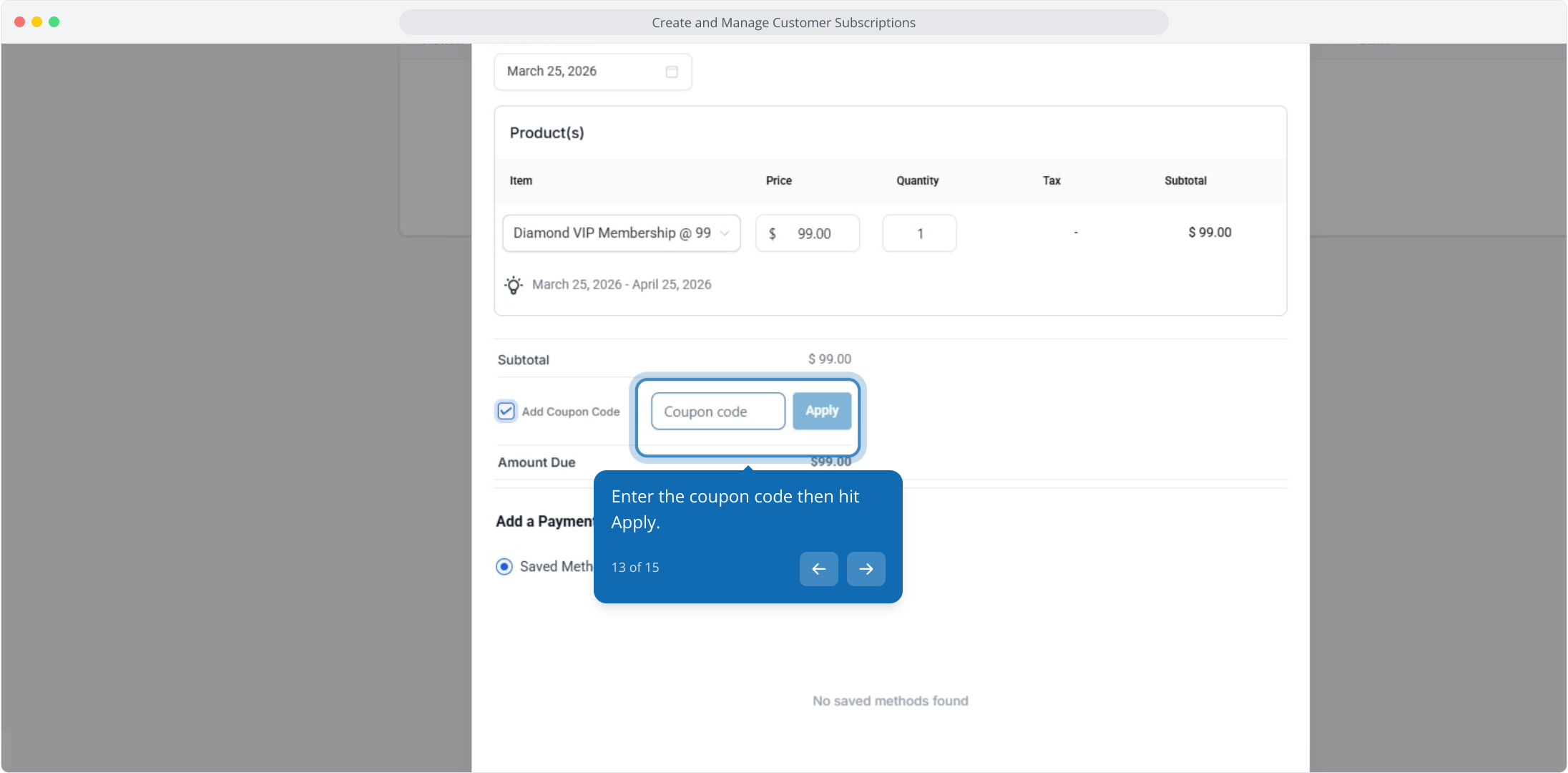
13. Enter the coupon code then hit Apply.
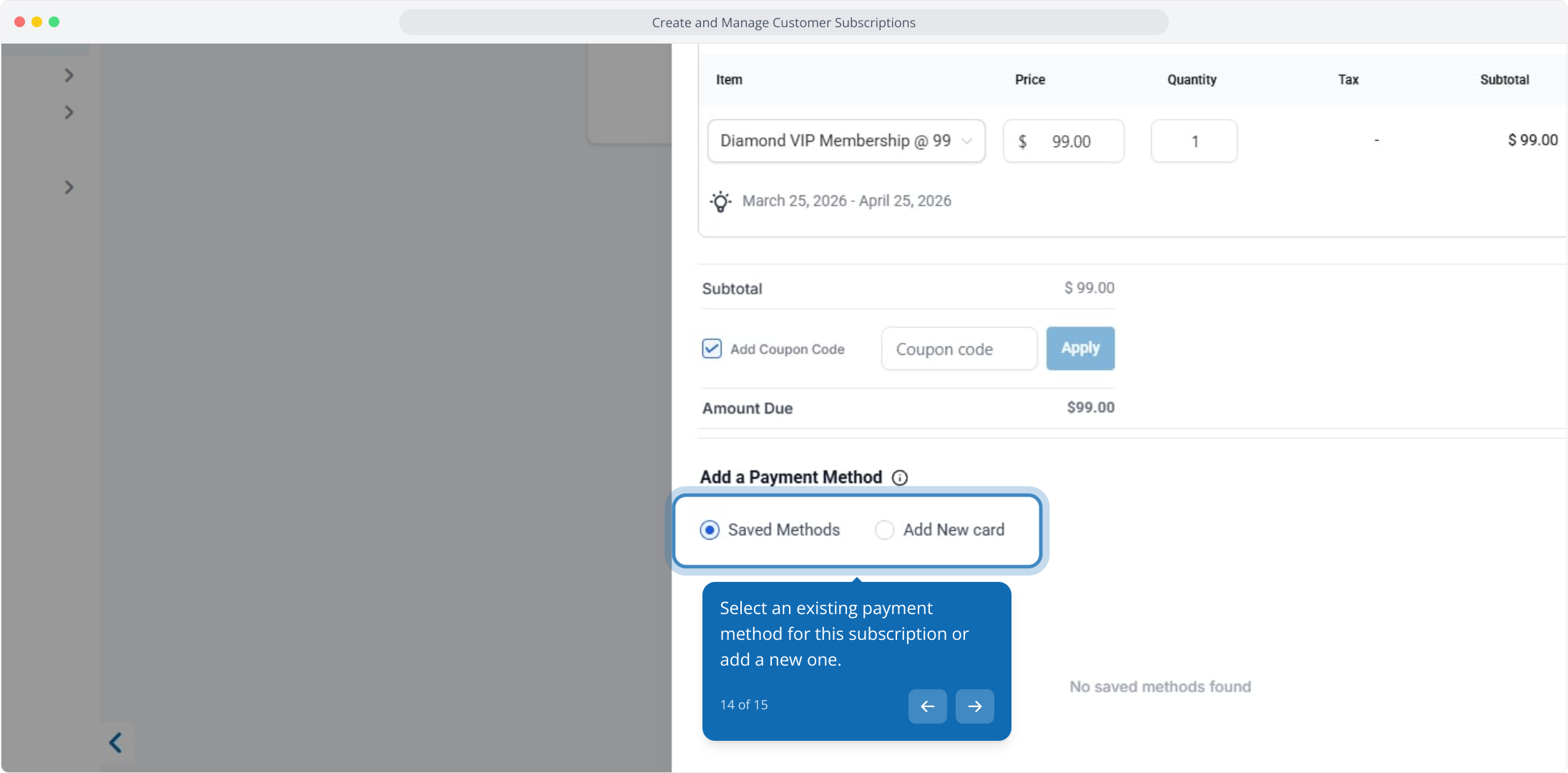
14. Select an existing payment method for this subscription or add a new one.
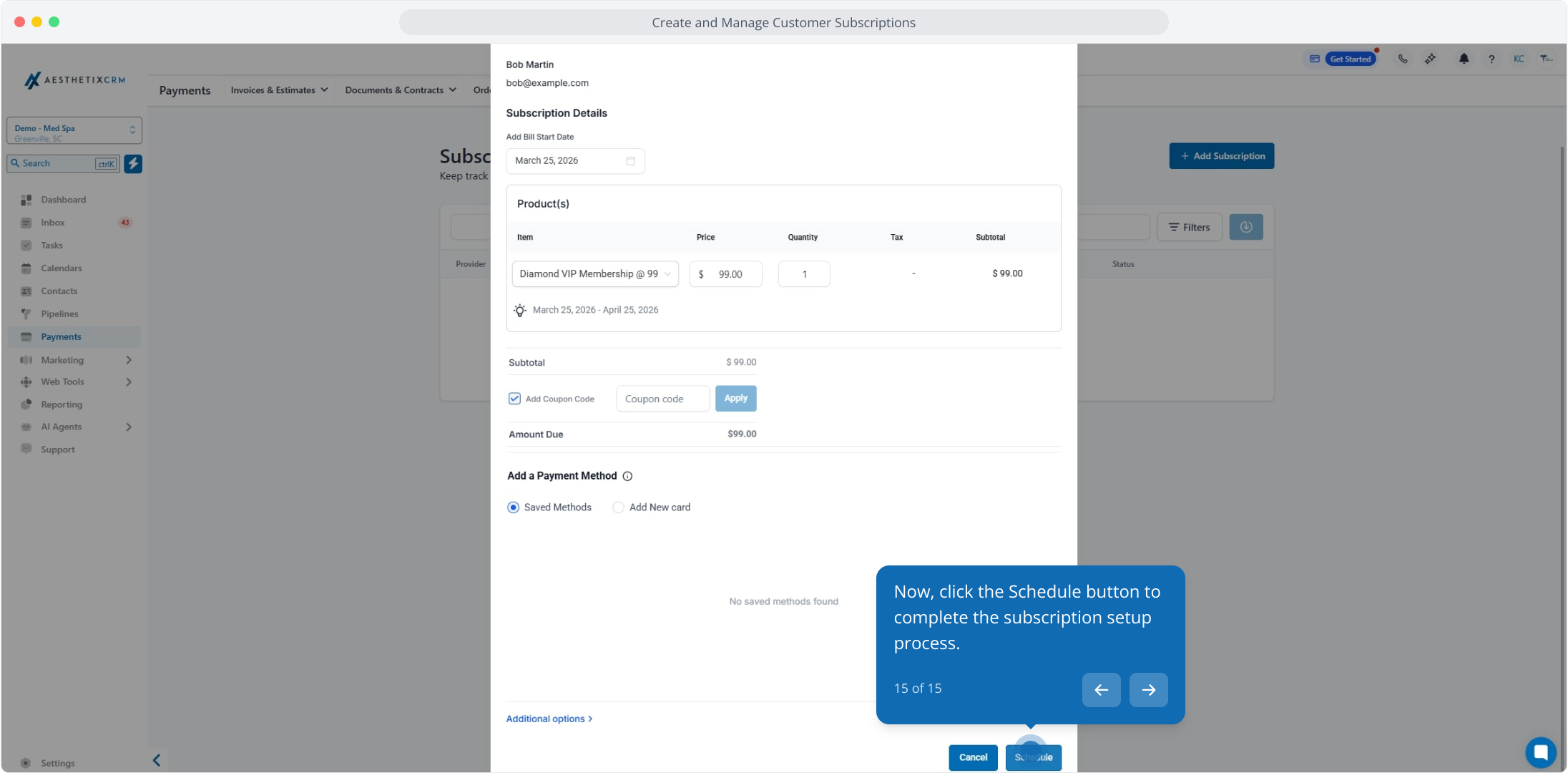
15. Now, click the Schedule button to complete the subscription setup process.
Delivery of Receipts
Automatic Receipts ensure a seamless delivery process. Receipts will be sent as downloadable PDF files attached to an email directly to the contact's email address. This convenient delivery method allows customers to access and save their receipts easily.
Leveraging Custom Templates
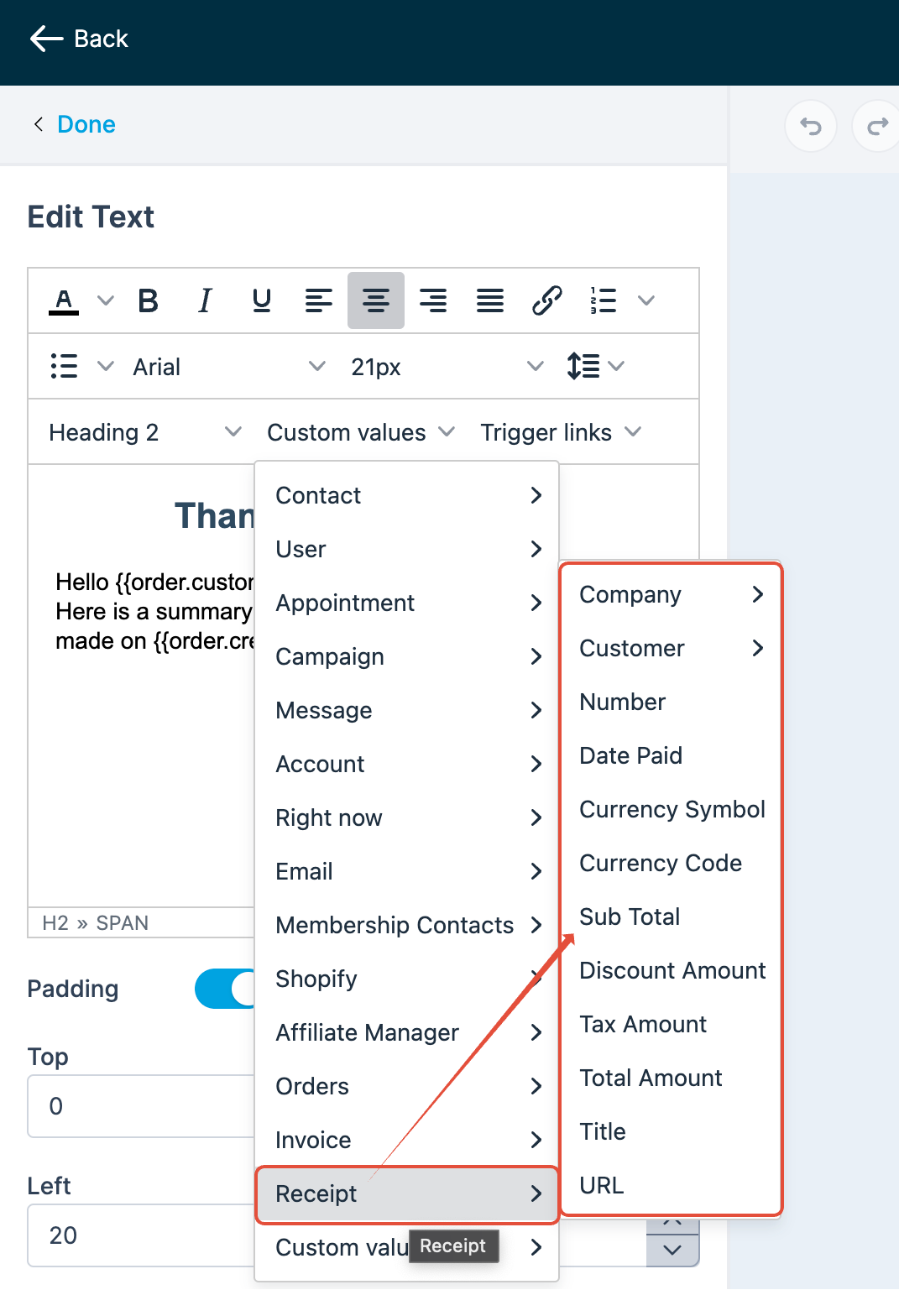
We provide you with the flexibility to leverage custom templates for sending receipts. You can create personalized and branded templates with receipts using custom values available within our email builder. Craft visually appealing and professional receipts that align with your business's unique style.
Q: Can I send sales receipts automatically for only certain types of payments?
No, enabling sales receipts applies globally to all payments made through order forms, calendar bookings, and invoices. If you want selective receipt handling, you would need to disable automatic receipts and send them manually for specific payments.
Q: Can sales receipts include custom fields or personalized messages?
Currently, sales receipts do not support adding custom fields or personalized messages beyond standard transaction details. However, you can customize the email template associated with the sales receipt to include a general message or branding elements.
Q: Are sales receipts sent immediately after a payment is processed?
Yes, sales receipts are sent automatically to the customer as soon as the payment is successfully processed. However, delays may occur depending on email delivery factors outside of Aesthetix’s control, such as the recipient's email server.
Q: How can I verify if a sales receipt was successfully delivered to a customer?
You can verify whether a sales receipt was successfully delivered by checking the Email Reporting section within your subaccount. To access it, navigate to Marketing > Emails > Email Reporting. Once there, you can use filters to search by the recipient’s email address or the subject line of the receipt email. The reporting dashboard will show the delivery status—such as whether the email was delivered, opened, or bounced—helping you confirm if your customer received the receipt.
If you prefer to send receipts manually or through a third-party platform (like Stripe), you can disable the native automatic receipts by following these steps:
Navigate to Payments in the left-hand sidebar.
Click on Settings at the top of the page.
Select the Receipts tab.
Locate the toggle labeled "Enable automatic sales receipts for payments"
Switch the toggle to OFF and click Save.
Q: Can I change a receipt number to a shorter or lower number?
No. Receipt numbers are automatically generated and must always be higher than the last one used. You can’t edit, reset, or overwrite them.
Q: If I turn off automatic receipts, will I still have a record of the payment?
Yes. Disabling the outbound email does not affect your internal bookkeeping. The system will still record every successful payment under the Transactions tab for your records.
Q: Does this setting apply to both one-time and recurring payments?
Yes. Once this toggle is turned off, the system will stop sending automated receipt emails for all transaction types captured through your connected payment gateways.
