How to use Apple Pay and Google Pay in the CRM?
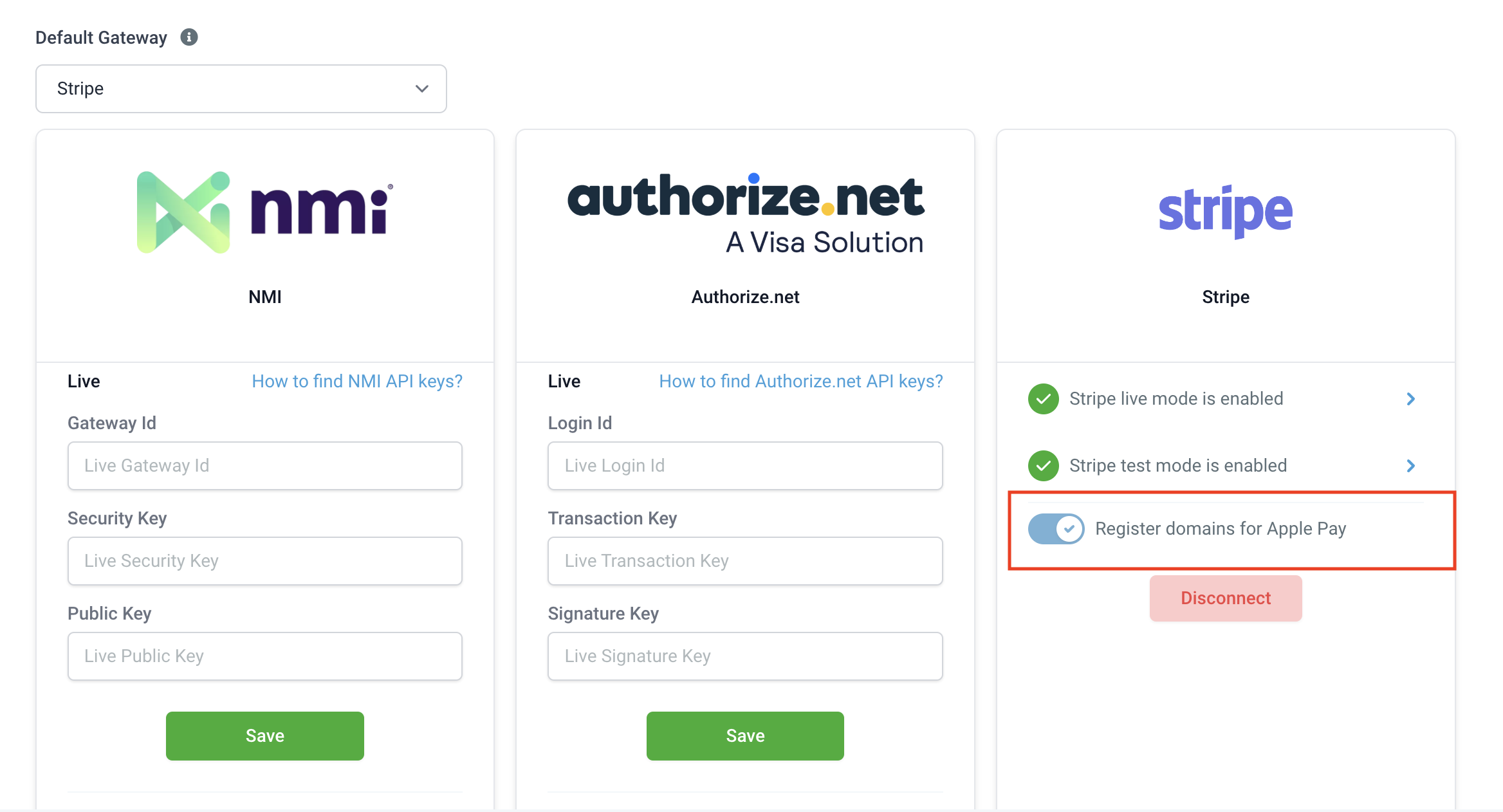
Stripe lets you display Google Pay by default alongside the credit card option. Turn the toggle on the integrations page to complete the additional requirement of registering domains with Stripe for displaying Apple Pay.
Once completed, Google Pay and Apple Pay will show alongside the credit card option on order forms. Recurring payments and upsells are supported with Apple Pay/Google Pay
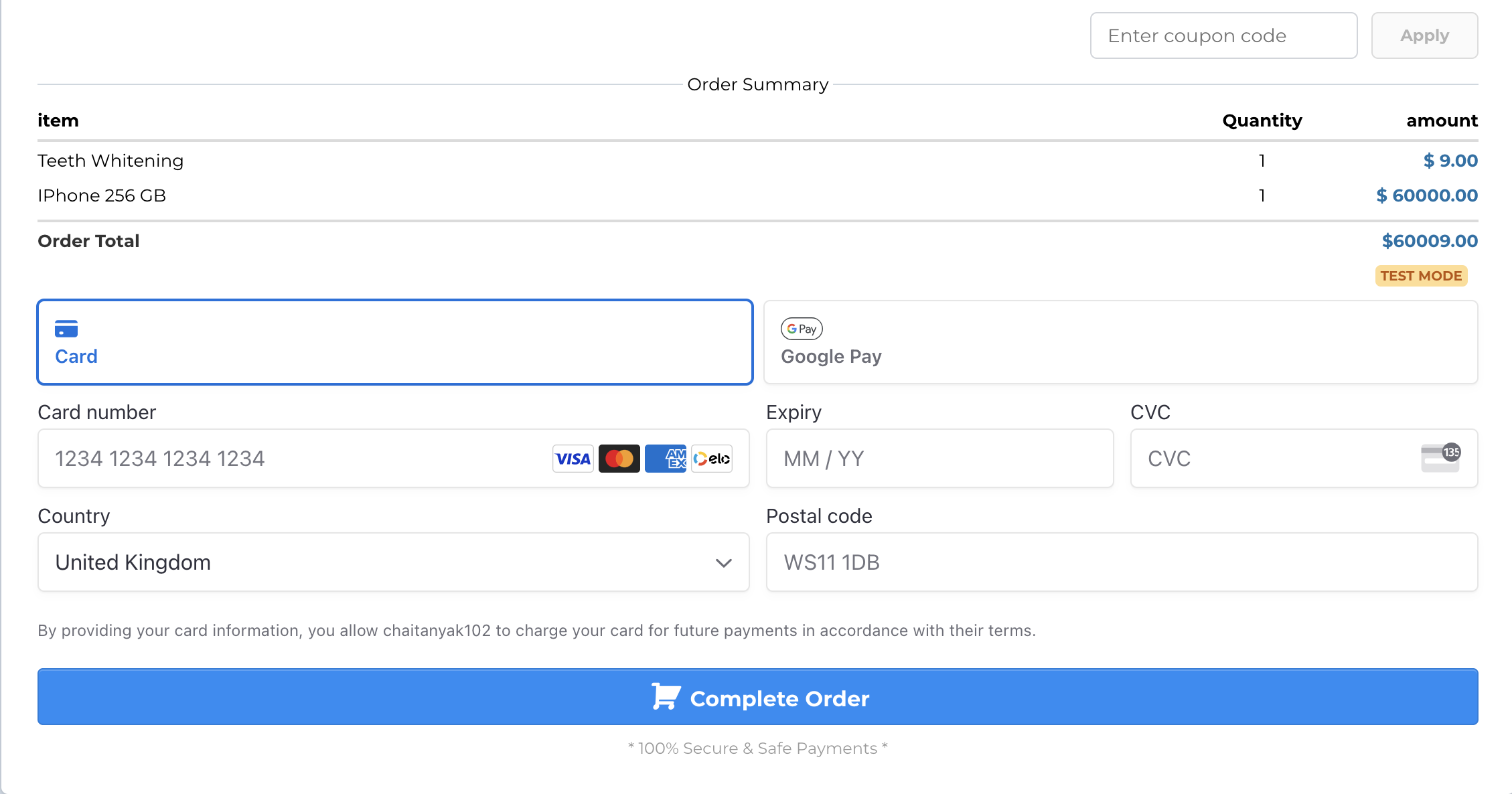
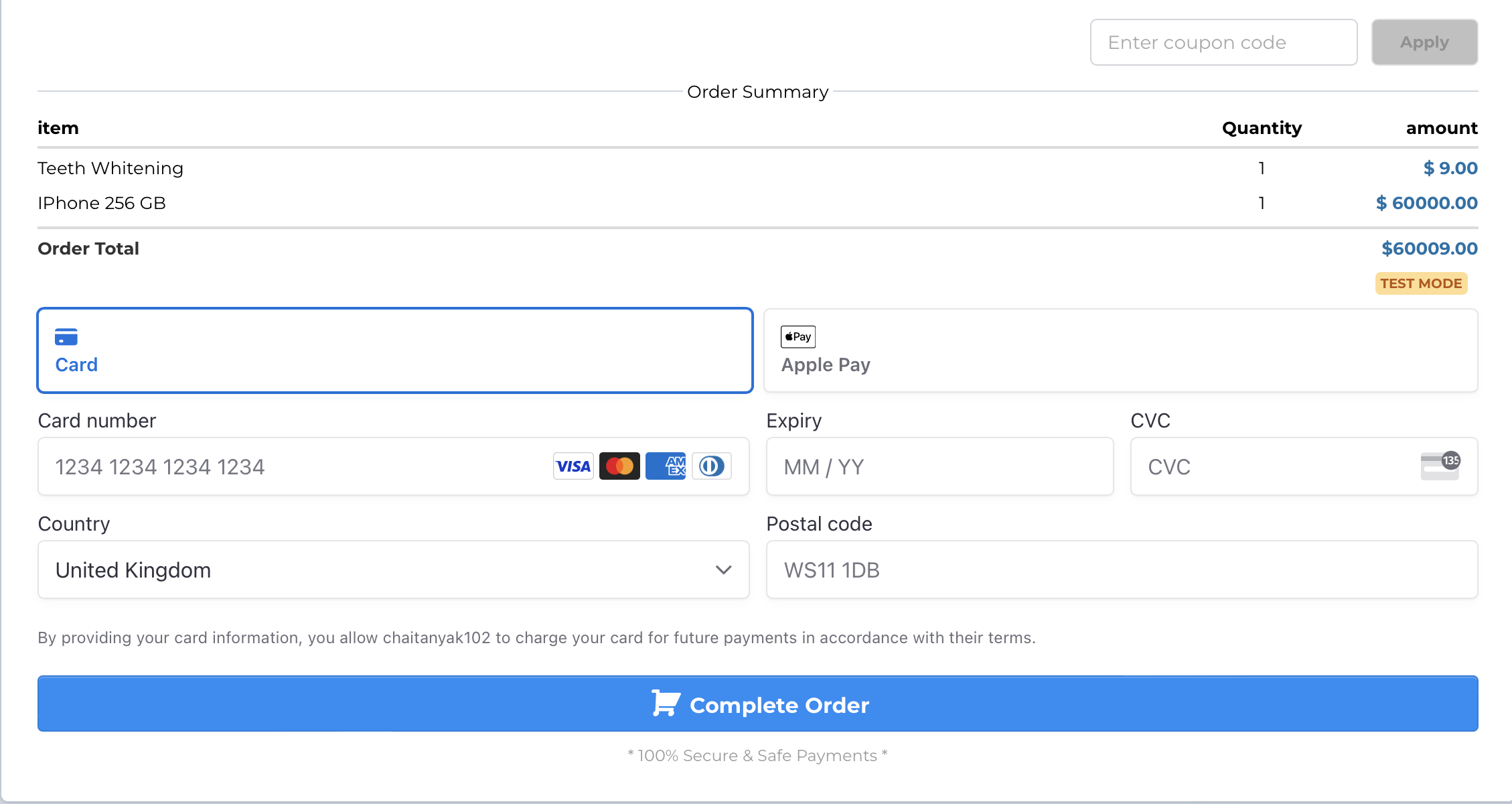
PayPal only shows up if PayPal is enabled under Payments ➝ Integrations)
Your customers will see Apple Pay and Google Pay based on their geographic location and the web browser of the end customer. They will be able to use it based on whether or not they have a payment method associated with their Google account/Apple account. Only if both these conditions apply Google Pay/Apple Pay will be visible for payment along with the default choice for a credit card.
Countries and Regions that Support Apple Pay
Countries that Support Google Pay
Currently, supported browsers include Chrome Desktop, Chrome Android, macOS Safari, iOS Safari, and Microsoft Edge for Windows.
Please Note:
This capability only works with Version 2 Funnels. Please refer to this article to know how to upgrade V1 funnels to V2.
Please note:
There might be a case that the browser is not up to date, Apple Pay and Google Pay are not supported in the customer's country or a relevant credit card has not been added to the customer's Apple/Google account. No option to pay via Apple Pay or Google pay will appear in that case. But the customer will still be able to see the credit card option to pay Using Stripe Connect under the Payments ➝ Integrations page is the primary requirement. If you're using Stripe APIs to connect to Stripe, please use Stripe Connect to use this feature. Once you have connected your Stripe account in Payments> Integrations, a toggle is provided to enable Apple Pay and Google Pay on the order forms.
1. The toggle to enable Apple Pay and Google Pay should be turned on while Stripe is connected to the location
2. Make sure that Apple Pay is available in your country
3. Ensure that the domain on which the funnel is hosted is registered with Stripe. This is an additional requirement for Apple Pay and should ideally automatically happen as soon as the toggle is turned on
a. Head over to your Stripe dashboard on this URL and see if the domain is listed in the Web Domains section
b. If the domain is not listed here, you can manually add the domain by clicking on Add New Domain. This is only intended for a quick resolution; you should raise a ticket with us if it does not automatically register on turning the toggle.
4. If the domain appears registered, ensure that the domain association file is hosted for that domain. This means that a file should get downloaded upon visiting https://example.com/.well-known/apple-developer-merchantid-domain-association if you're registering at https://example.com
Click here for more information on this.
5. The browser or the device fulfills the following requirements:
The end customer is on the web in Safari, starting with iOS 10 or macOS Sierra
List of compatible devices with Apple Pay
List of participating banks with Apple Pay
1. The toggle to enable Apple Pay and Google Pay should be turned on while Stripe is connected to the location.
2. Make sure that Google Pay is available in your country
3. The customer is using Google Chrome or Safari.
4. The customer has a valid card registered with Google Pay.
