1. Create and Manage Customer Subscriptions
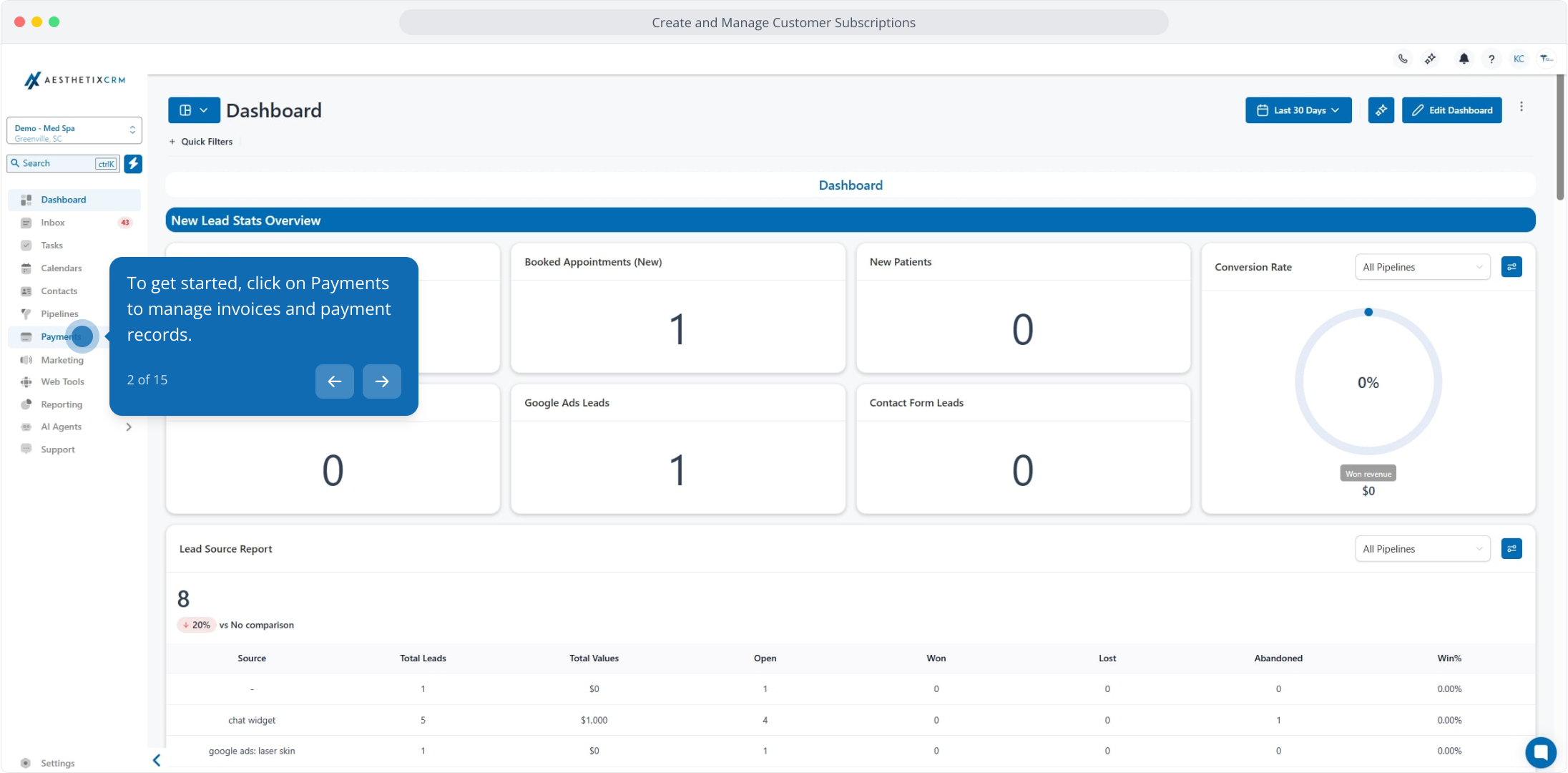
2. To get started, click on Payments to manage invoices and payment records.
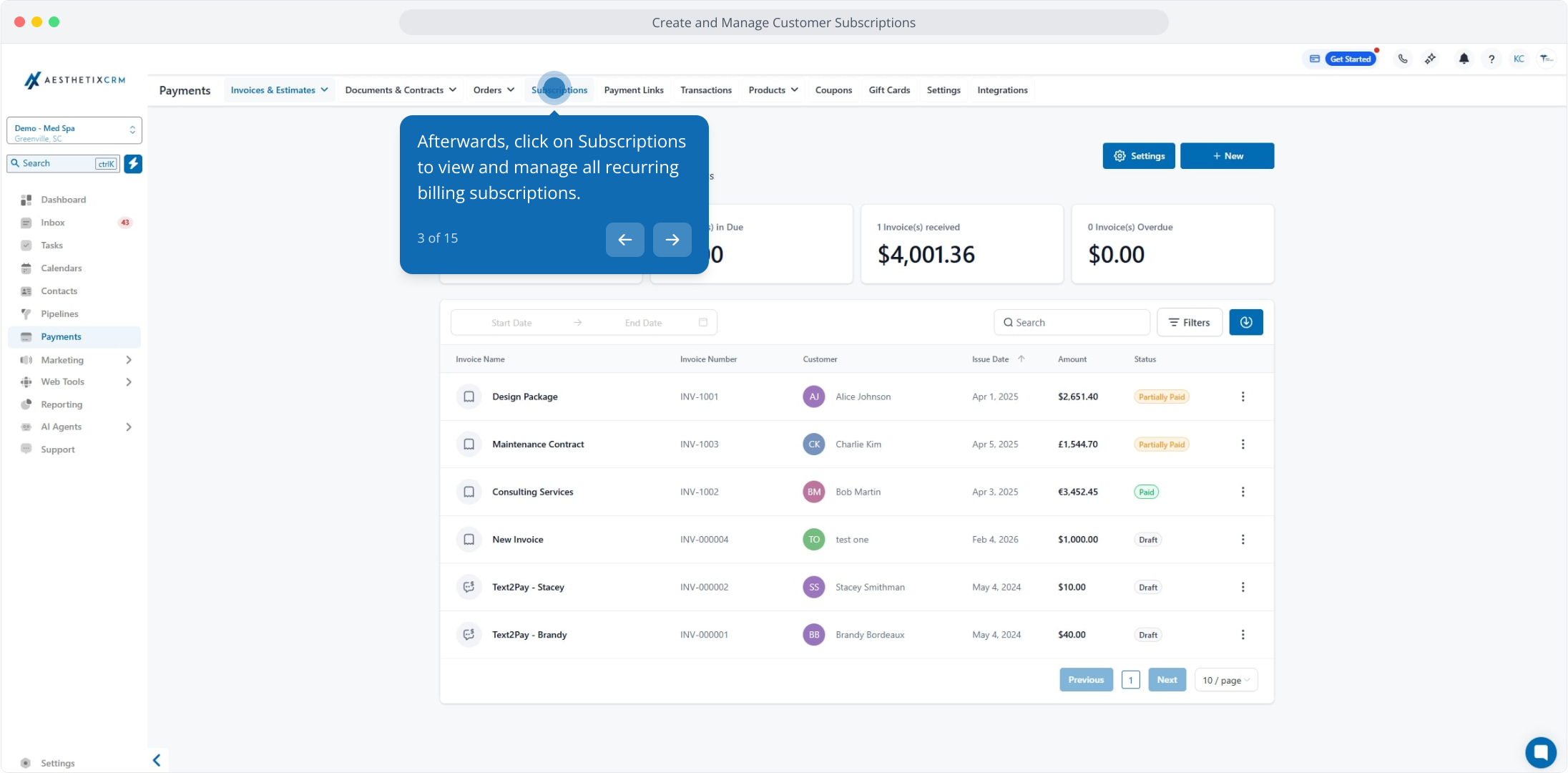
3. Afterwards, click on Subscriptions to view and manage all recurring billing subscriptions.
4. Next up, click the Add Subscription button to create a new customer subscription.
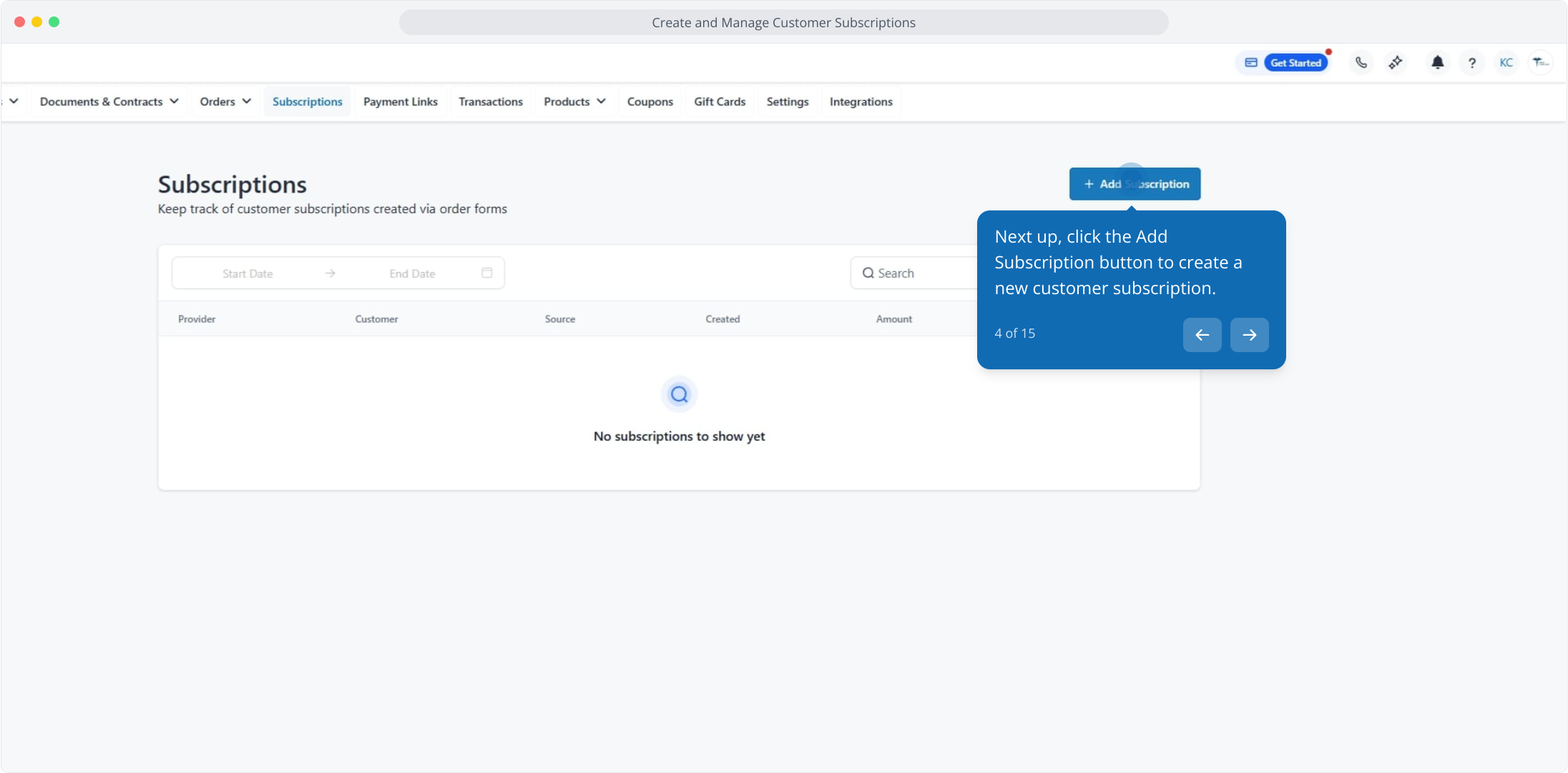
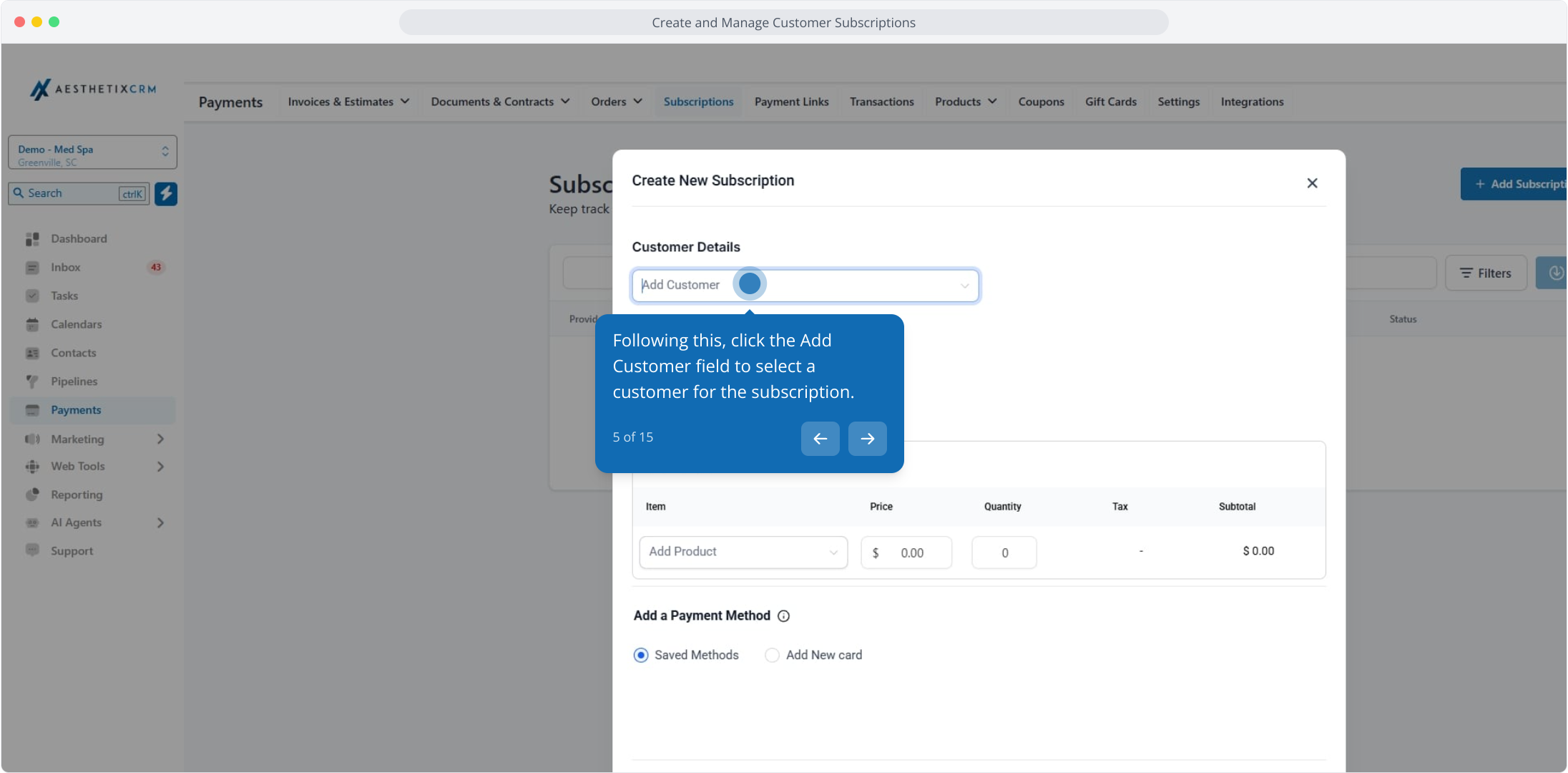
5. Following this, click the Add Customer field to select a customer for the subscription.
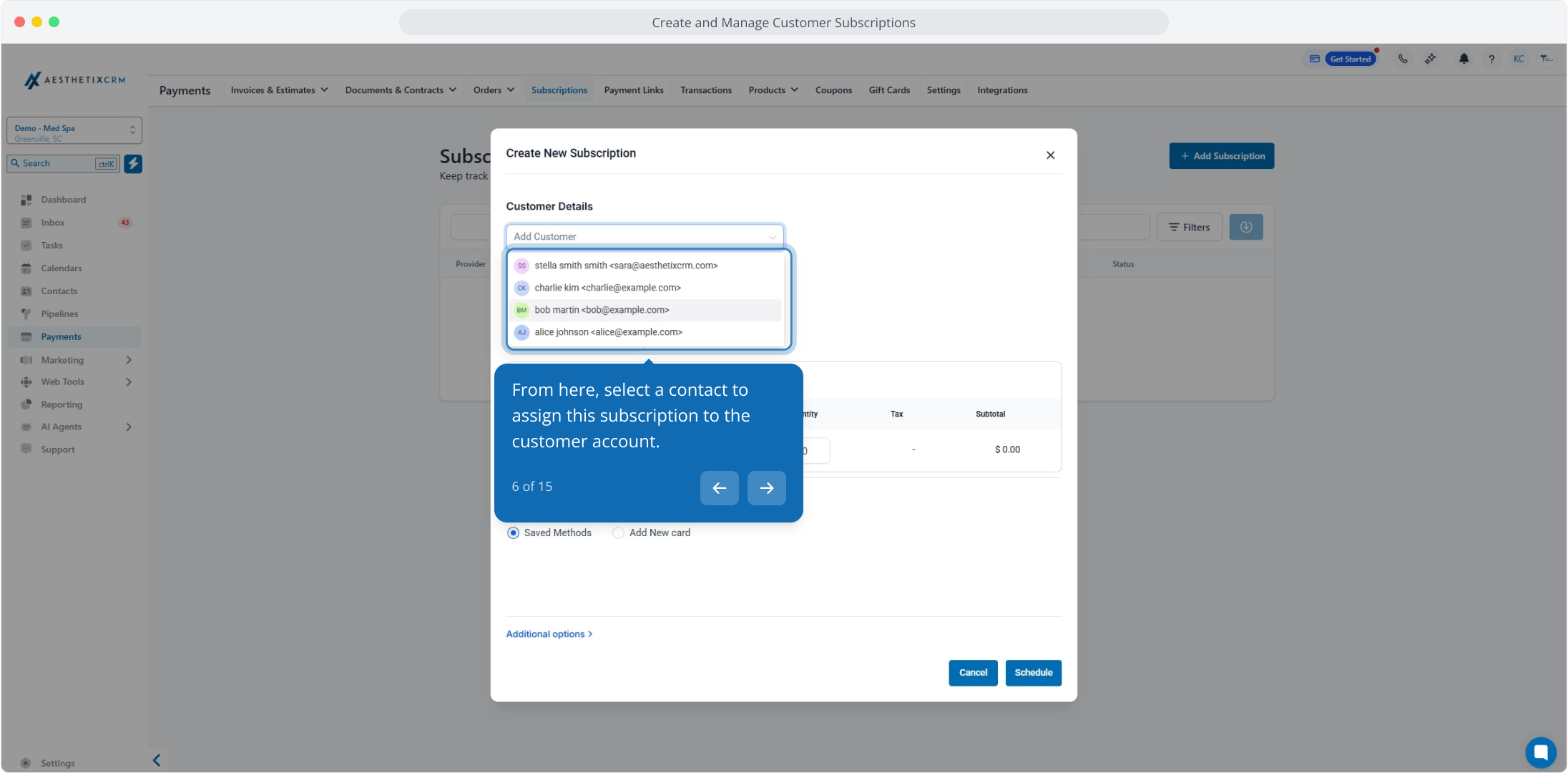
6. From here, select a contact to assign this subscription to the customer account.
7. Next up, click the Select Date field to set the subscription bill start date.
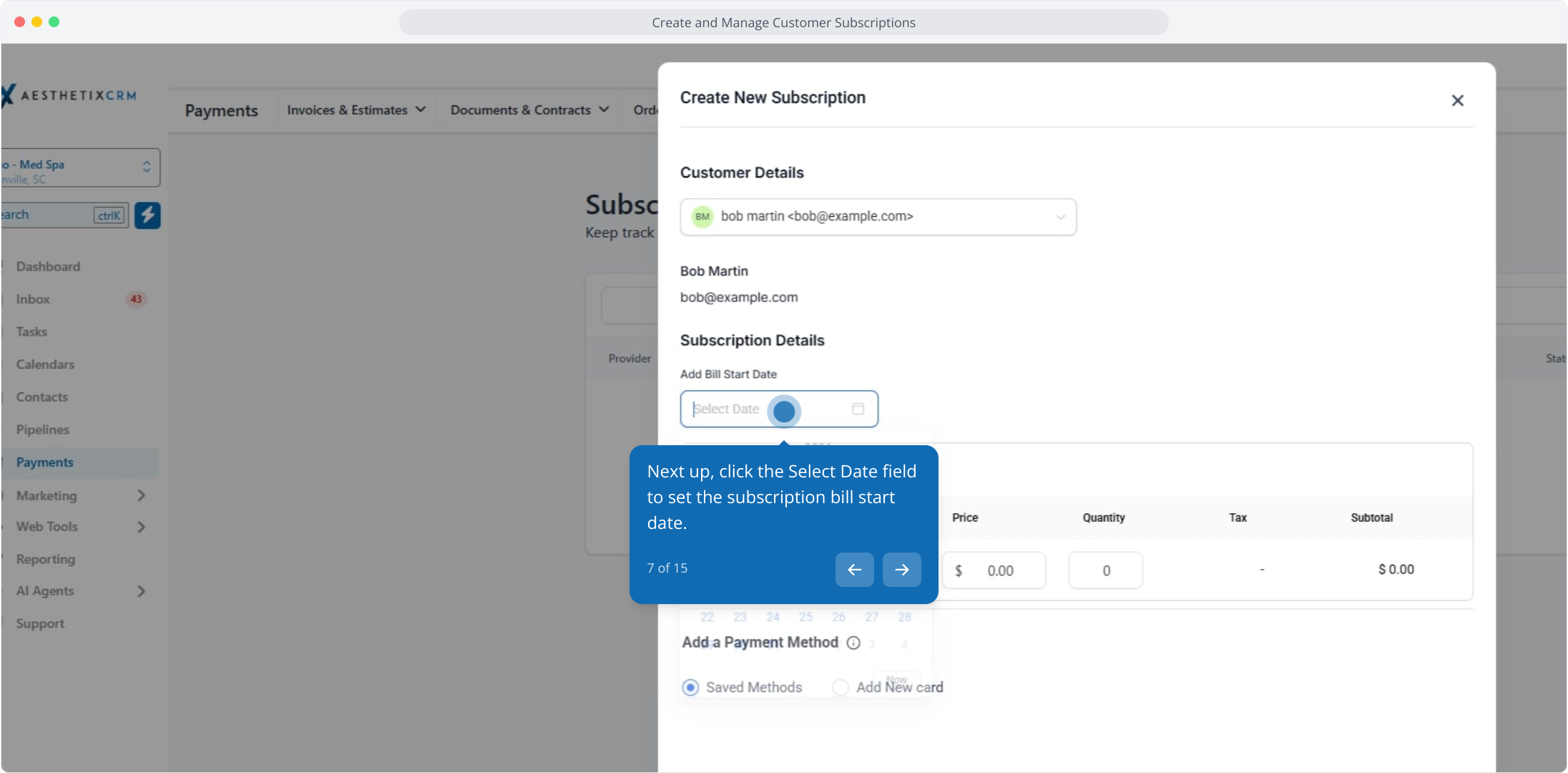
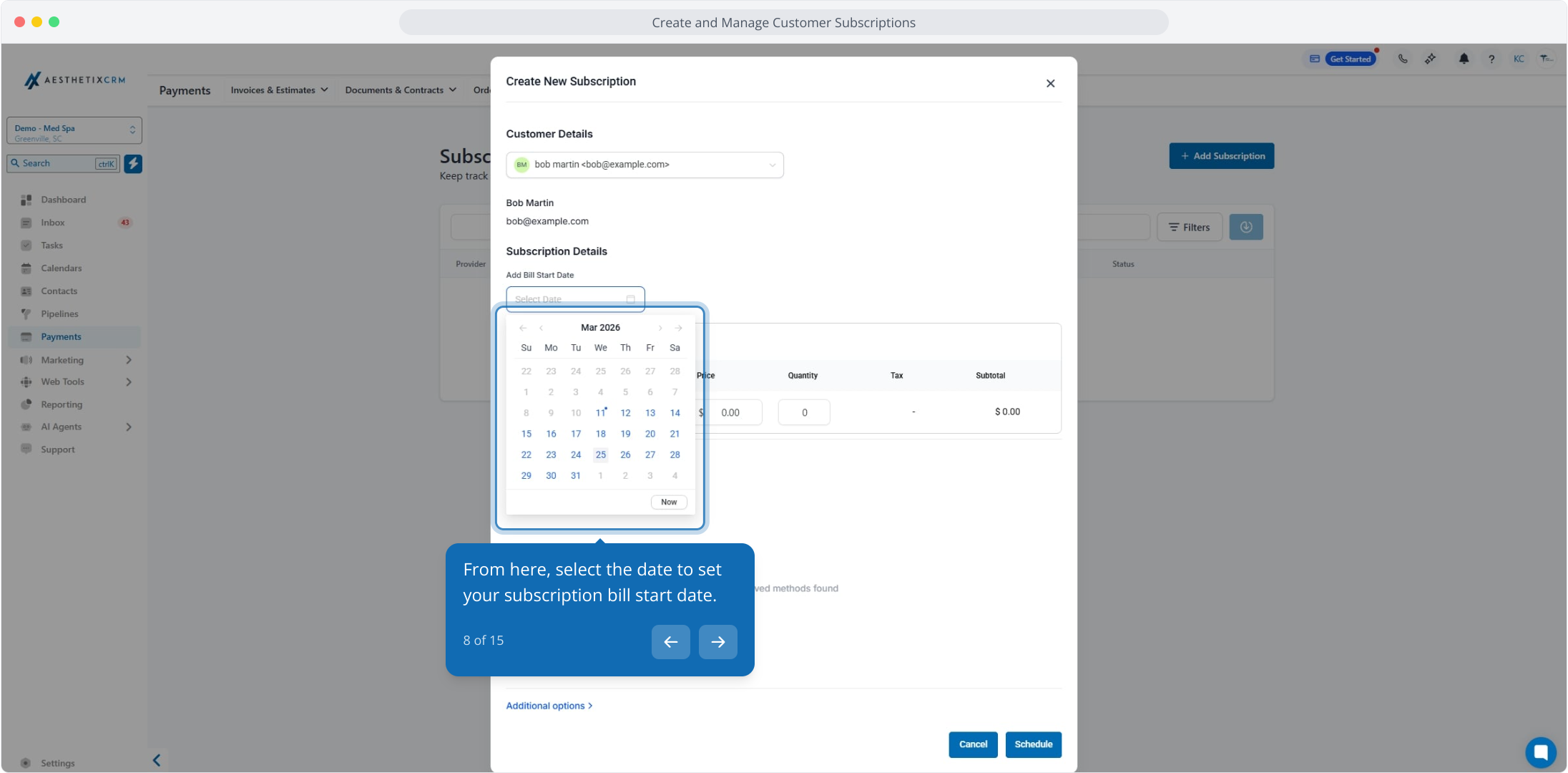
8. From here, select the date to set your subscription bill start date.
9. After that, click the Add Product field to select a product for the subscription.
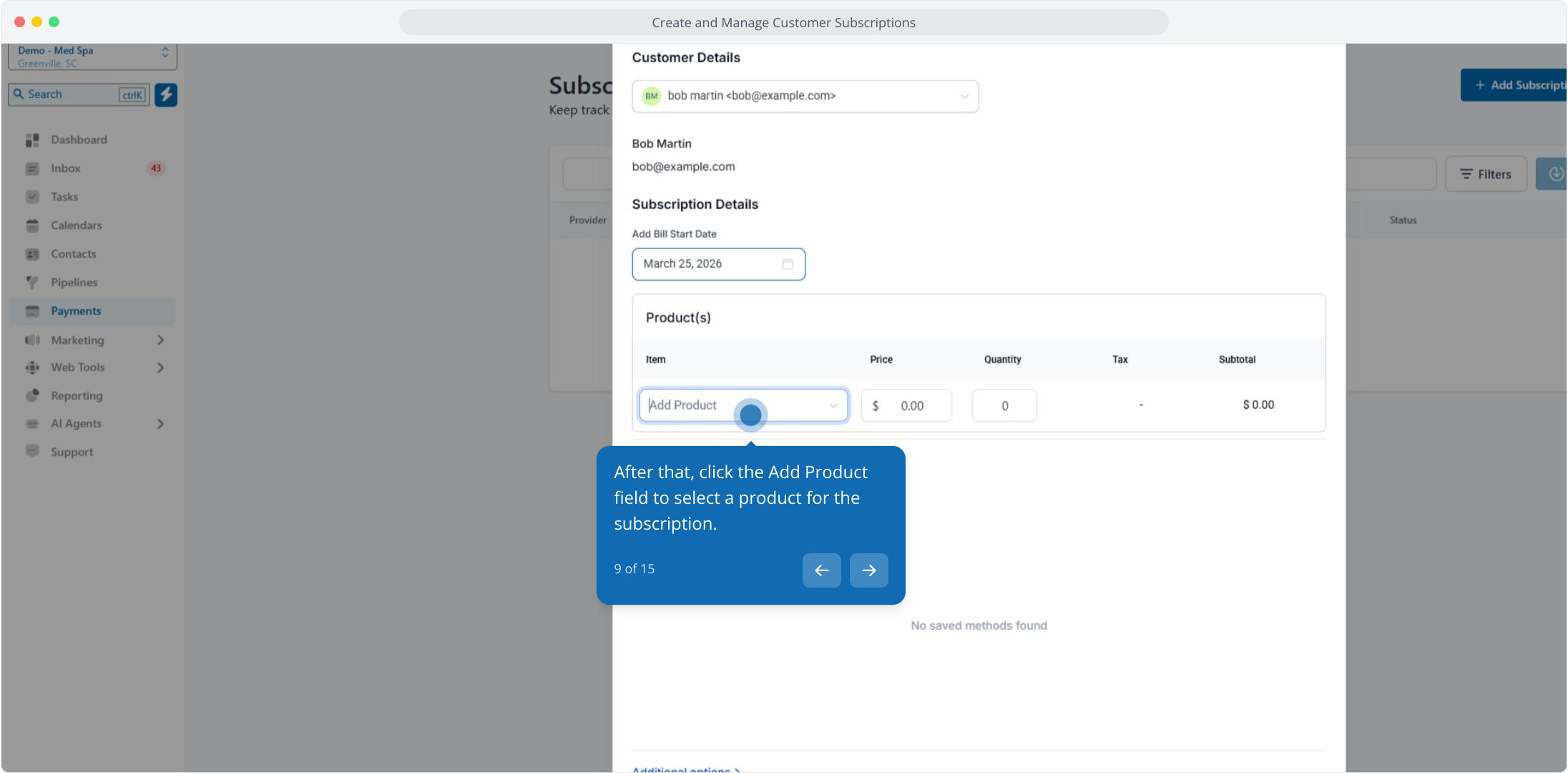
10. Following that, select a product from the dropdown product list.
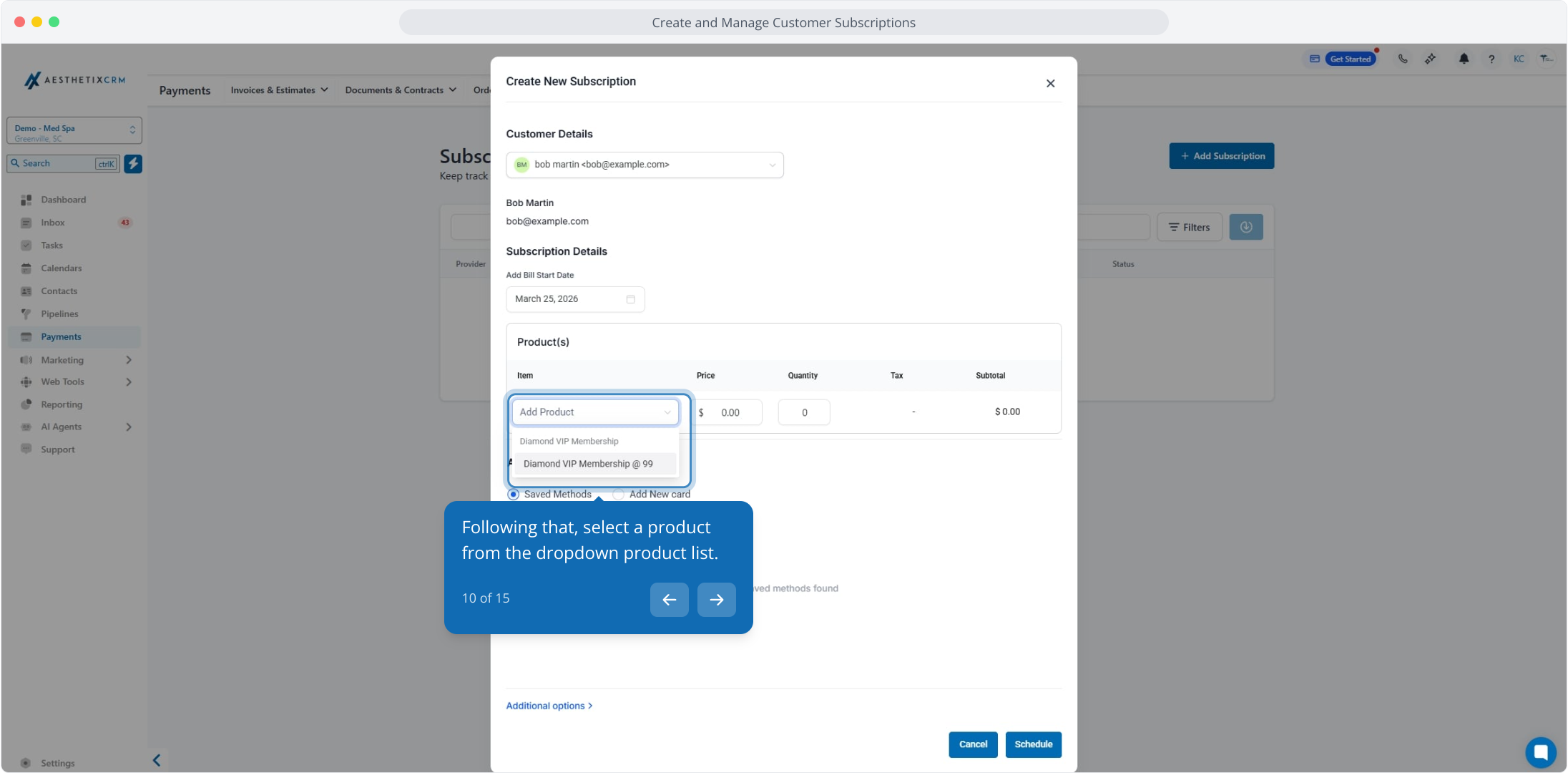
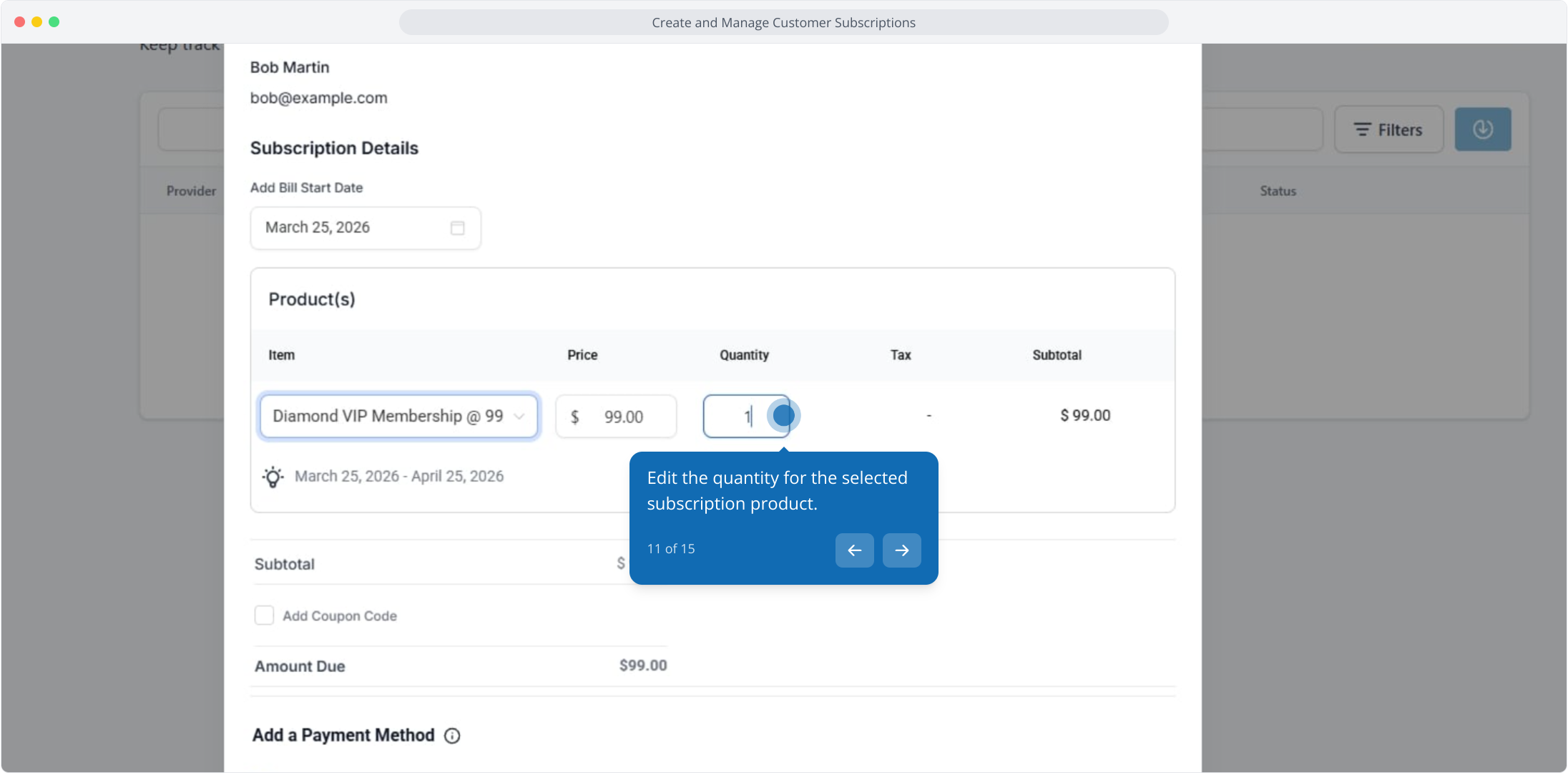
11. Edit the quantity for the selected subscription product.
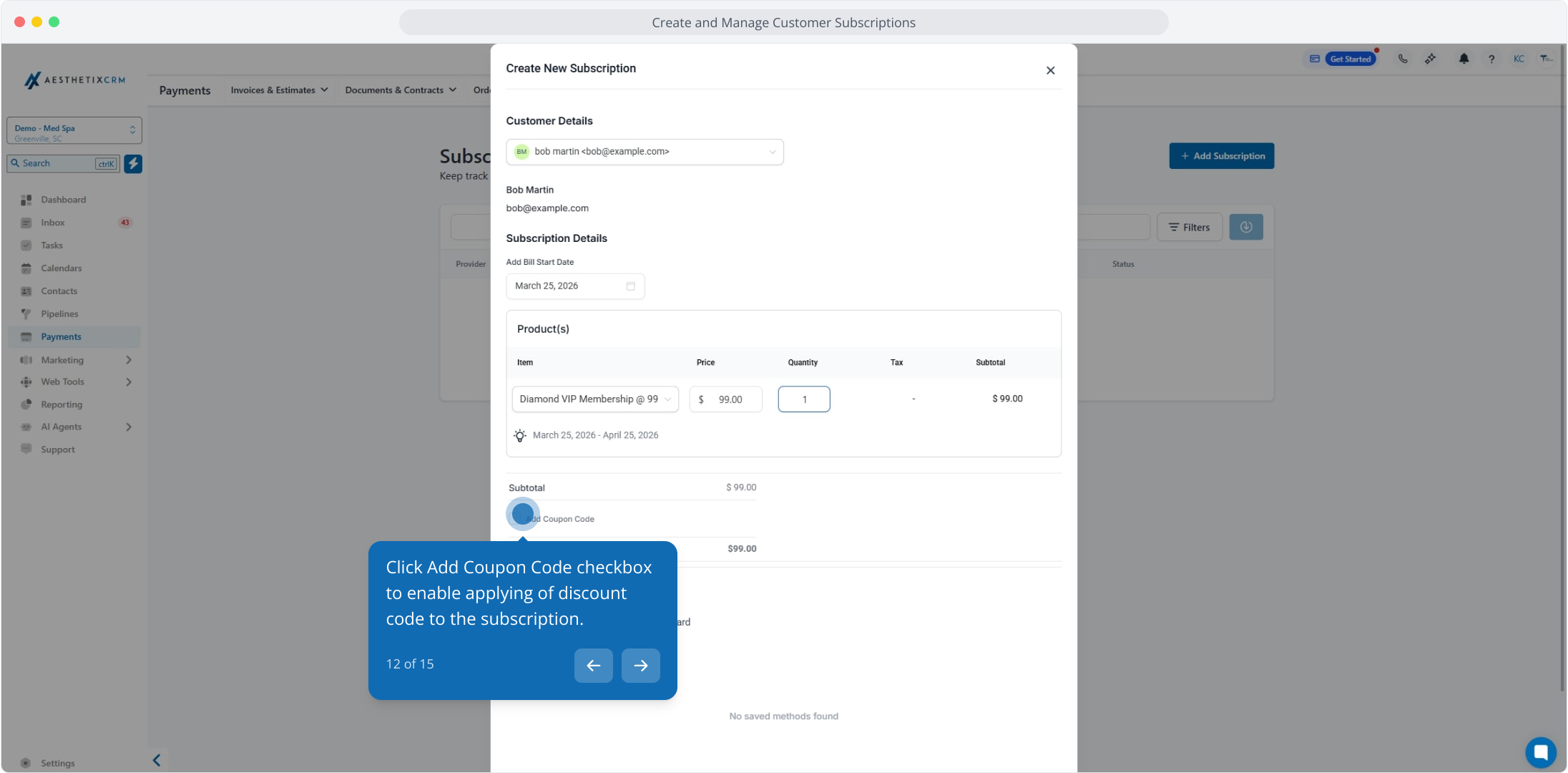
12. Click Add Coupon Code checkbox to enable applying of discount code to the subscription.
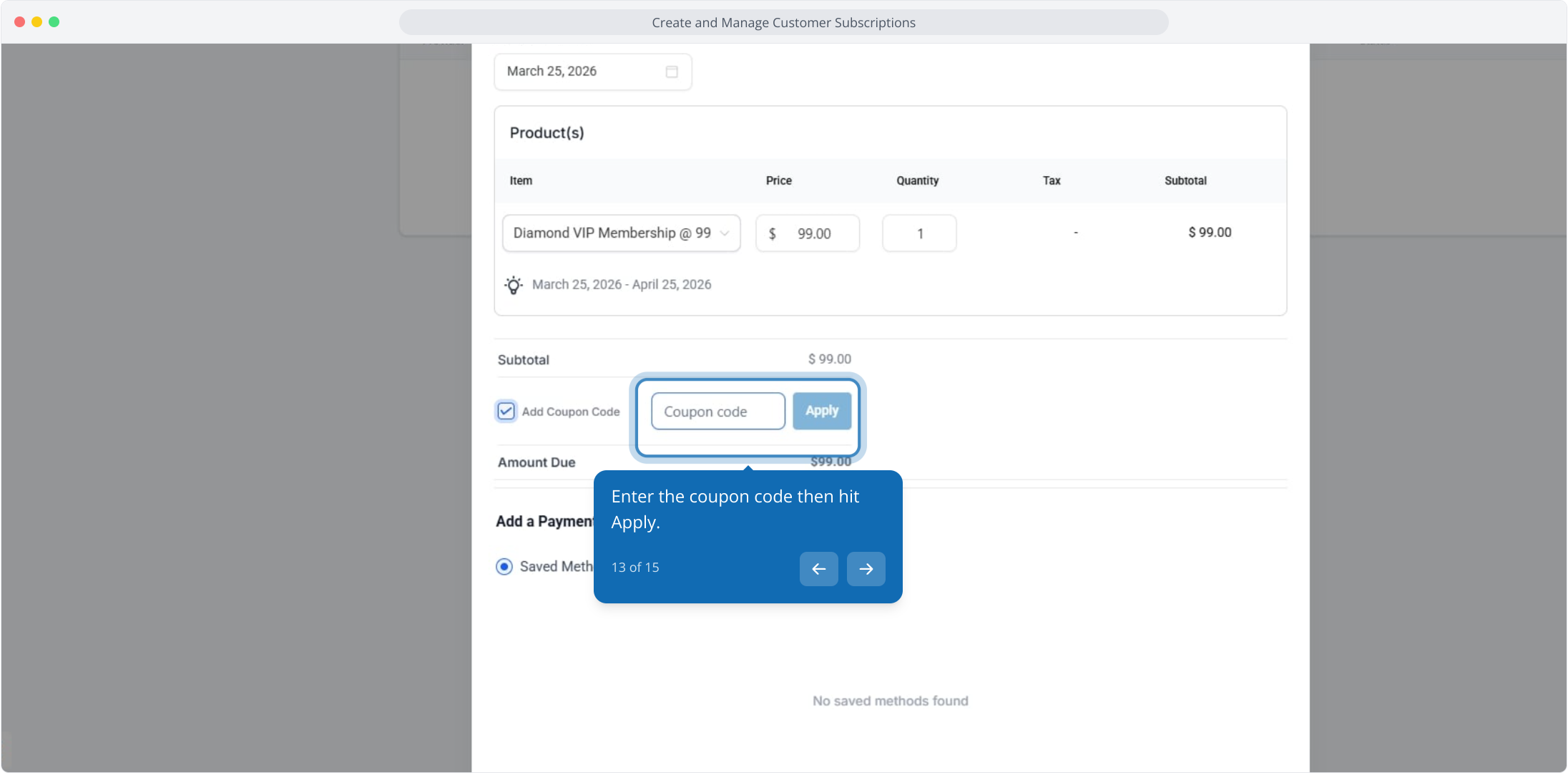
13. Enter the coupon code then hit Apply.
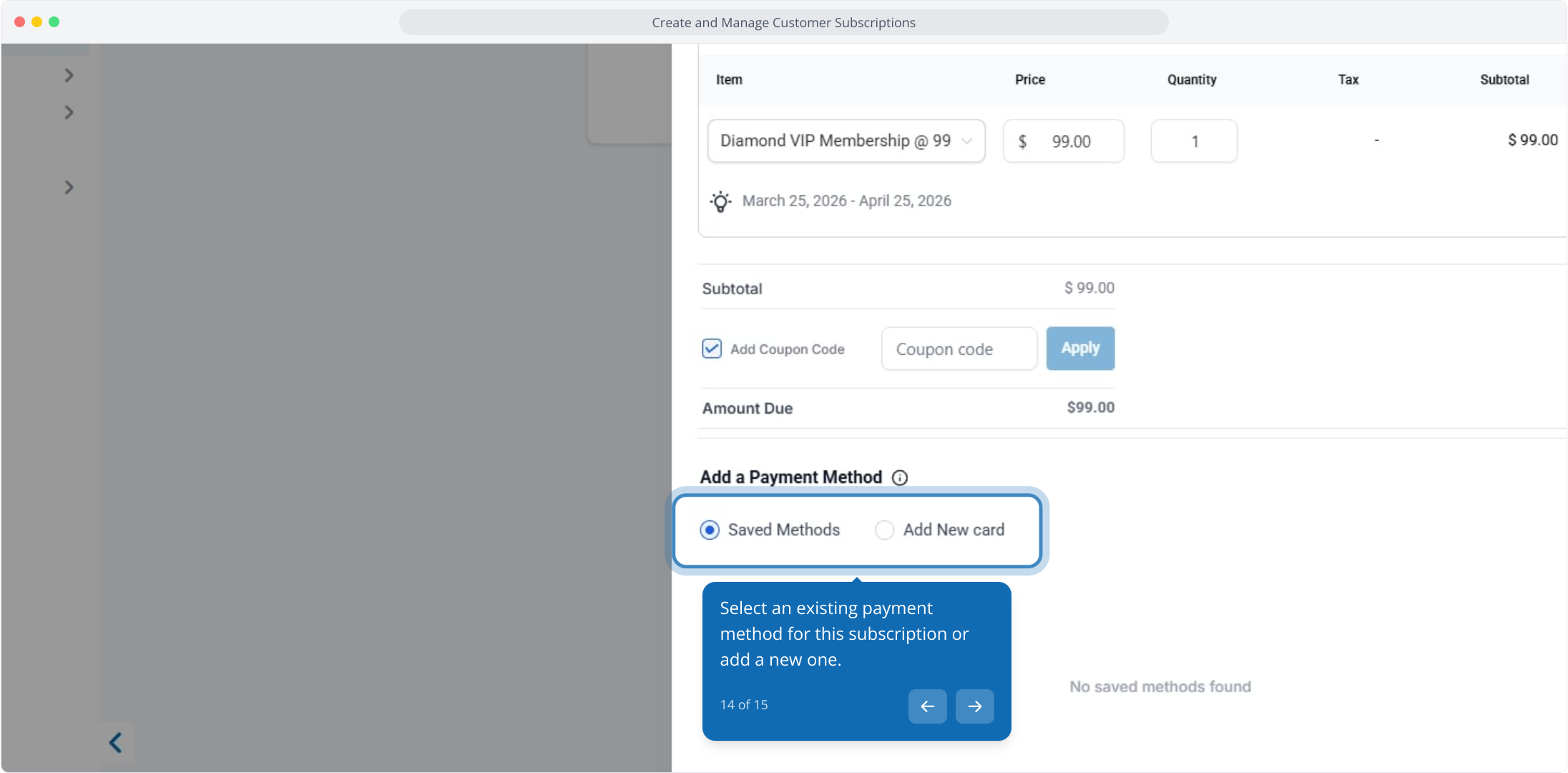
14. Select an existing payment method for this subscription or add a new one.
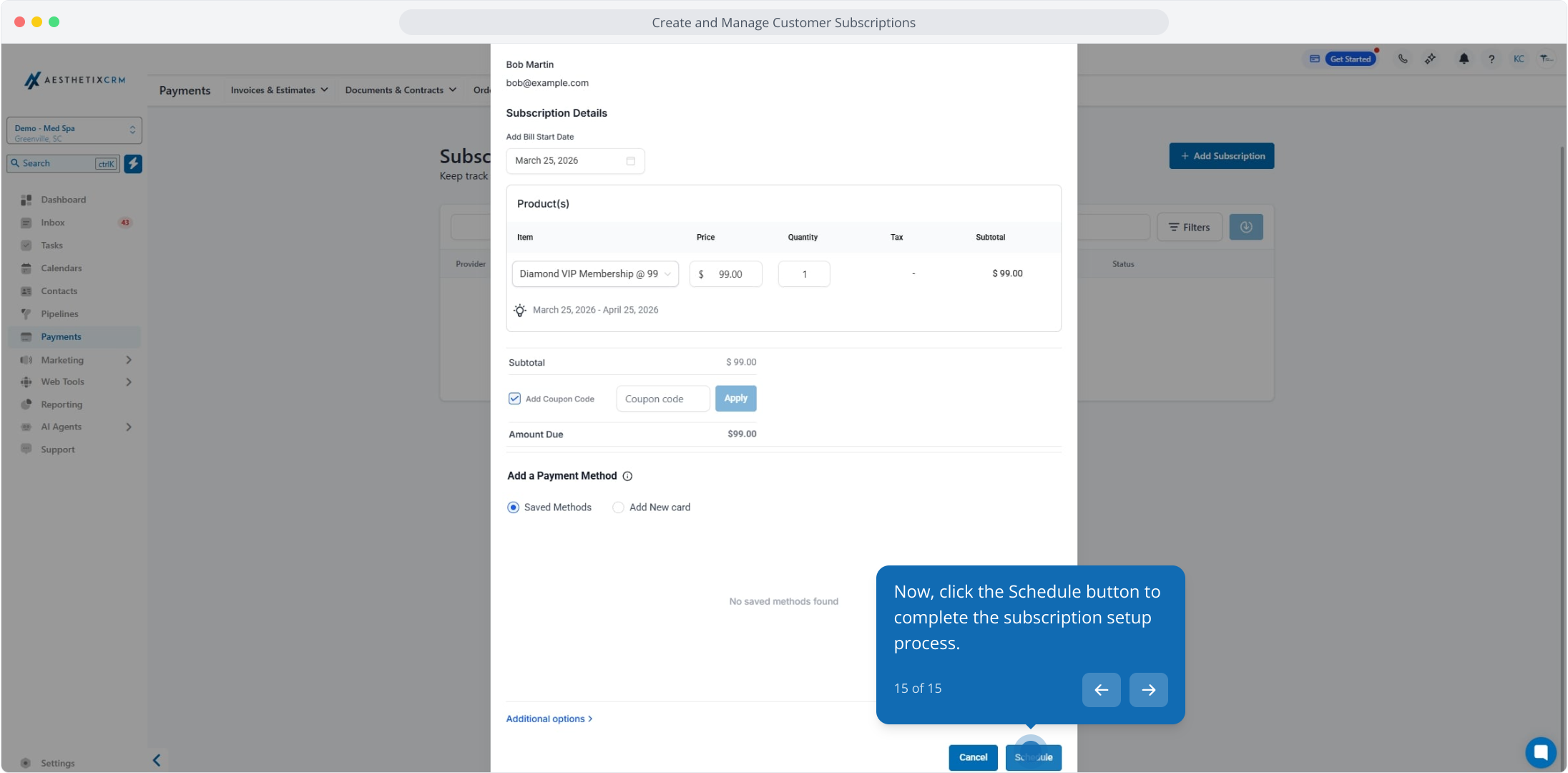
15. Now, click the Schedule button to complete the subscription setup process.