1. Create Payment Links with Multiple Products in AesthetixCRM
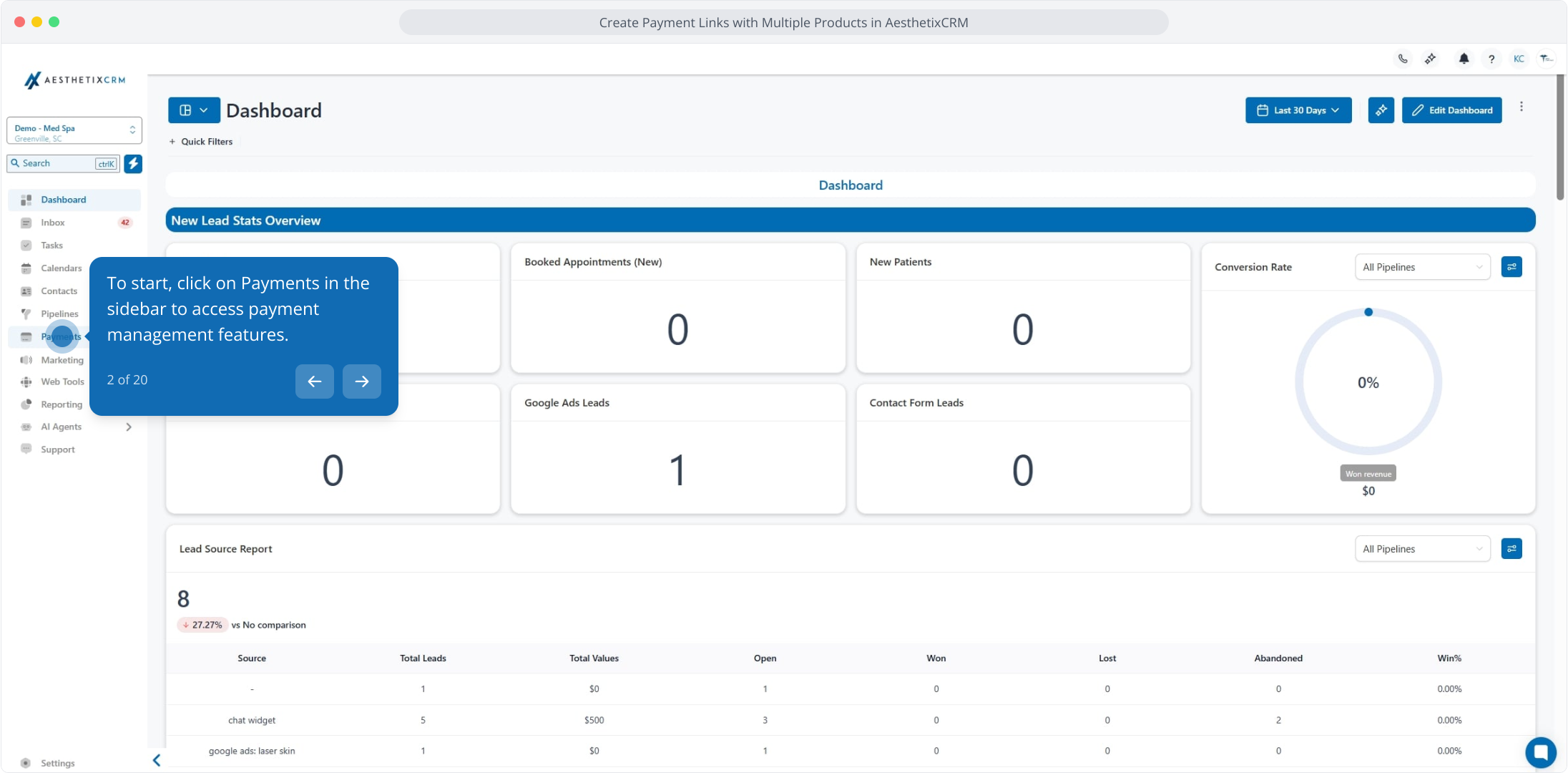
2. To start, click on Payments in the sidebar to access payment management features.
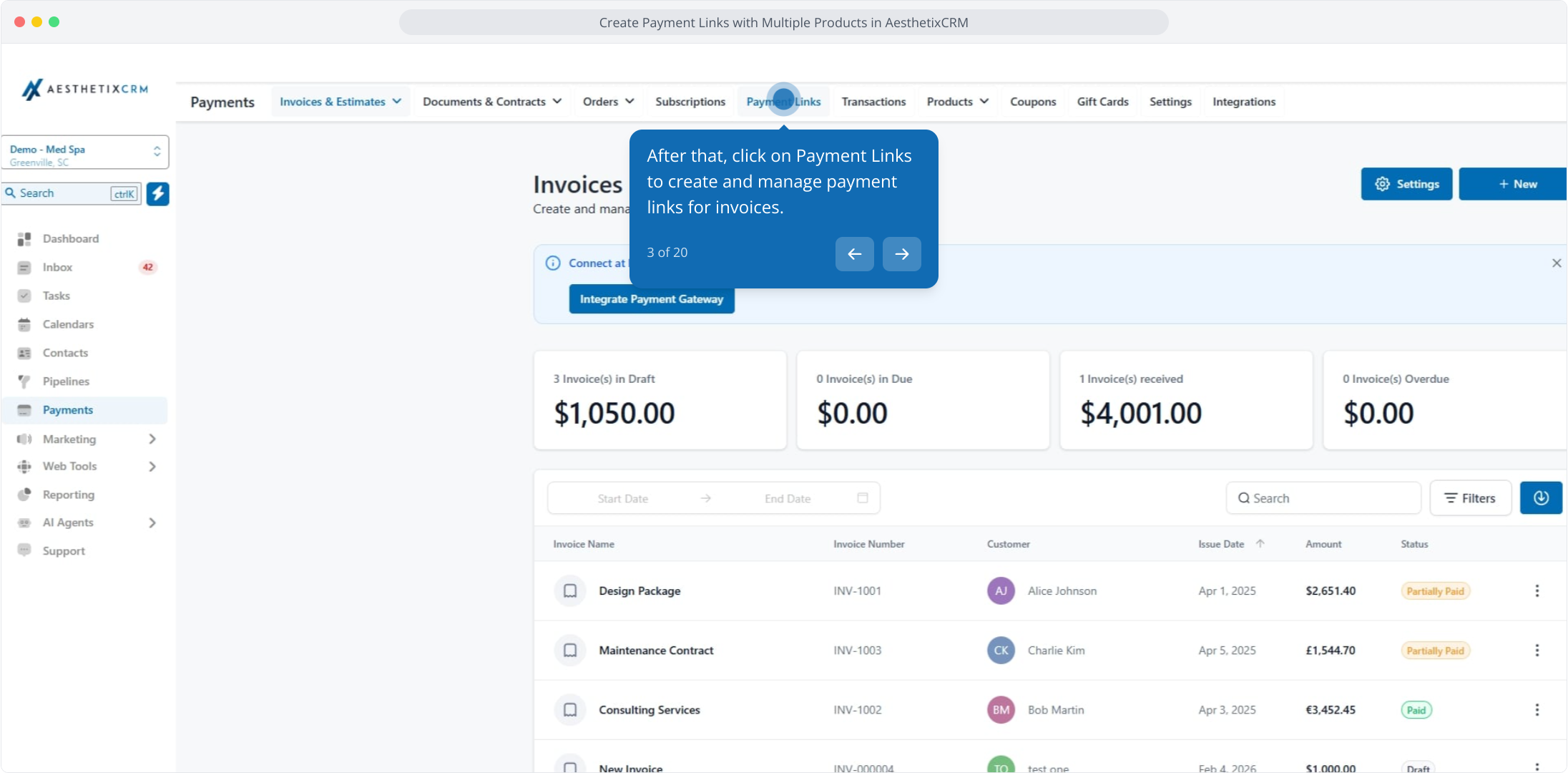
3. After that, click on Payment Links to create and manage payment links for invoices.
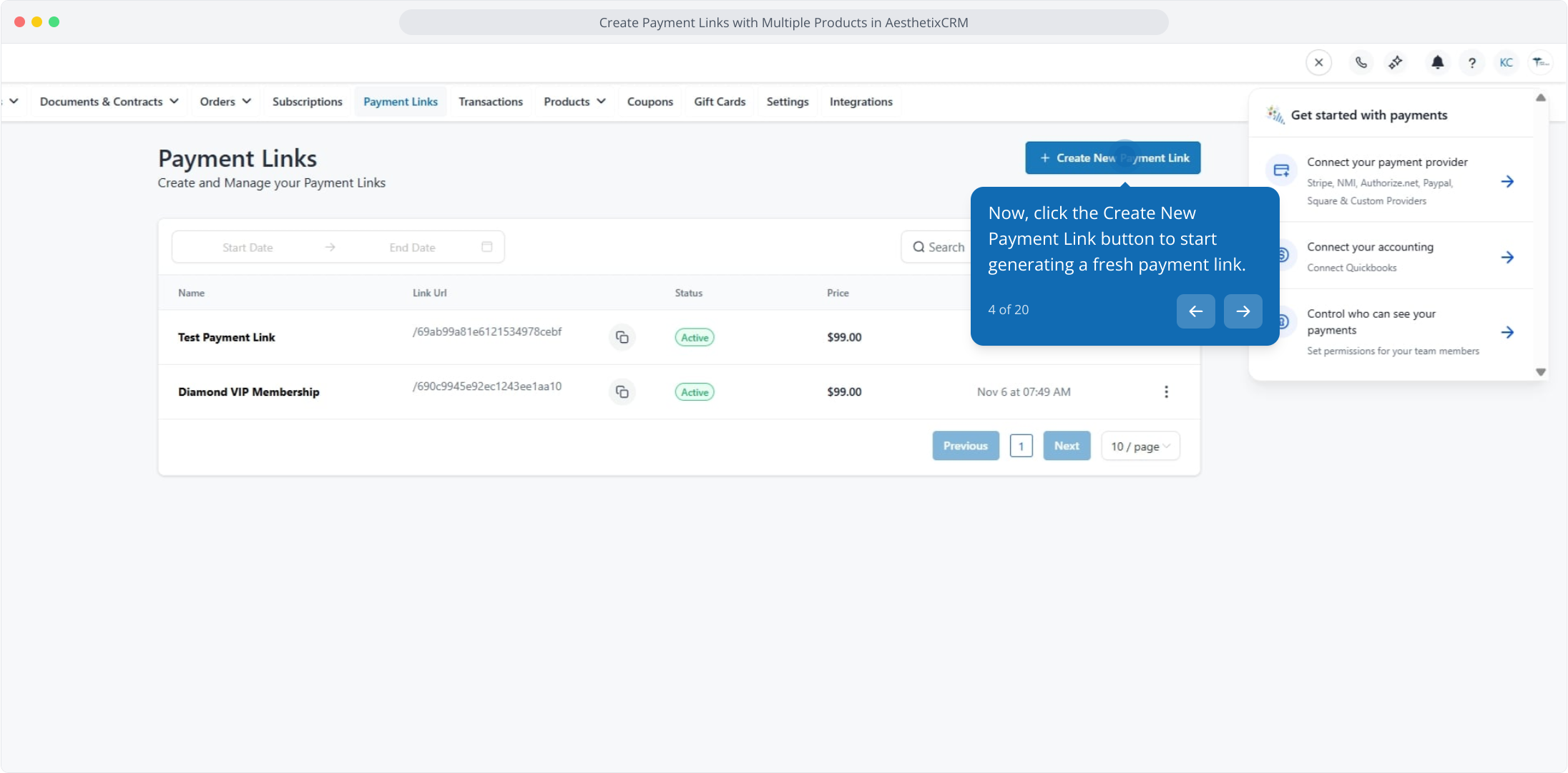
4. Now, click the Create New Payment Link button to start generating a fresh payment link.
5. From here, click the dropdown to select the product you want to configure for payment.
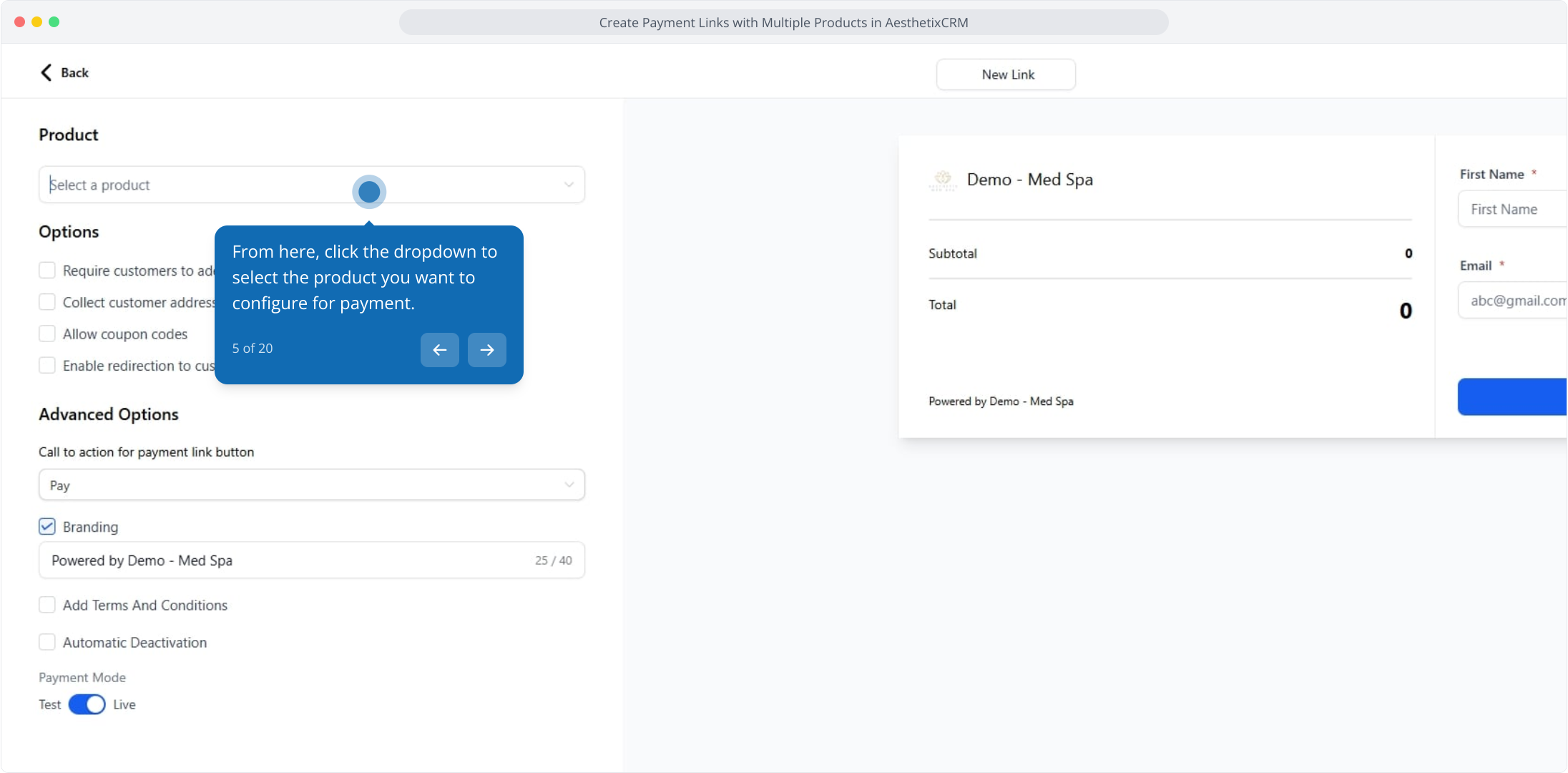
6. Select a product here.
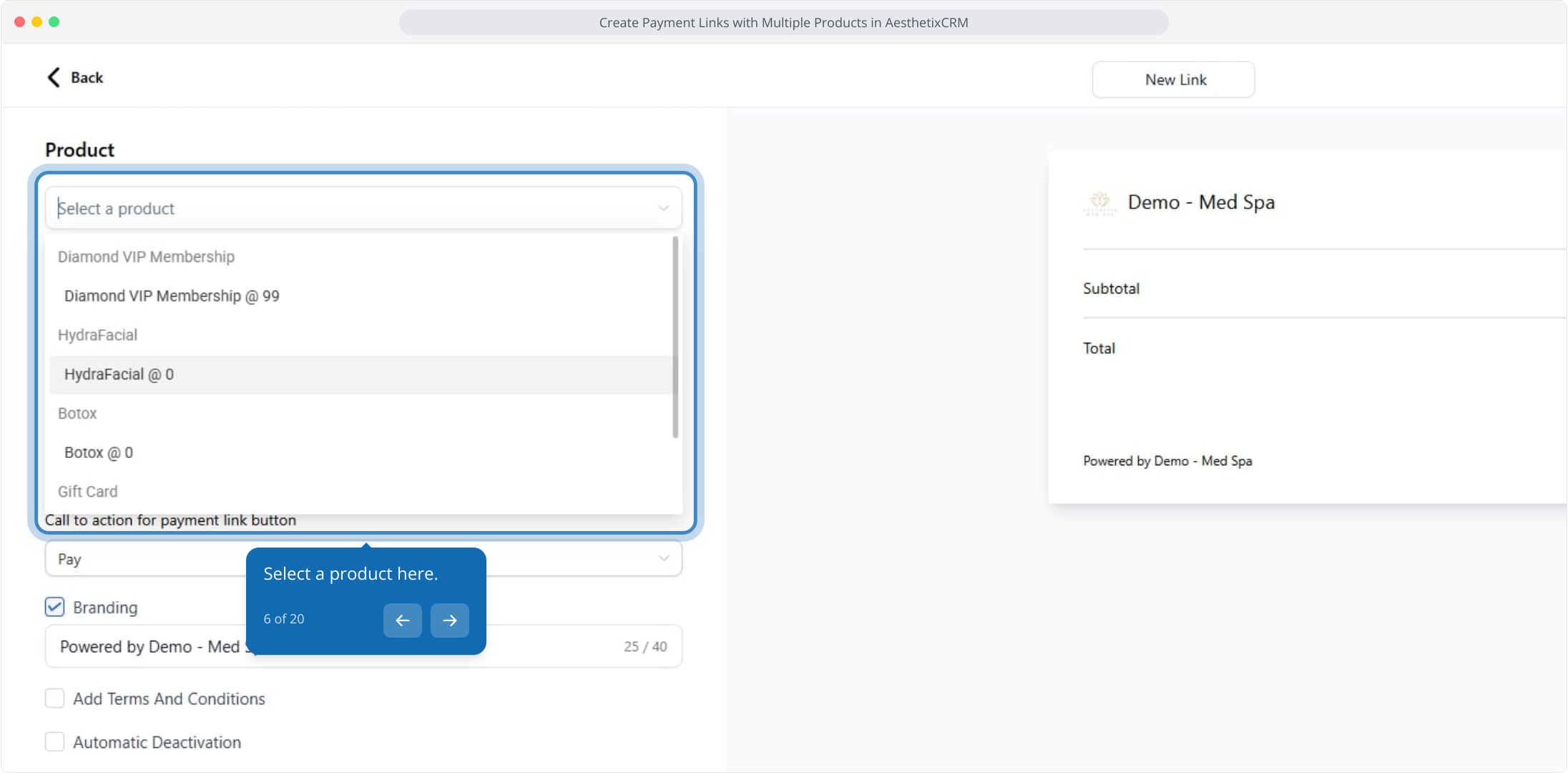
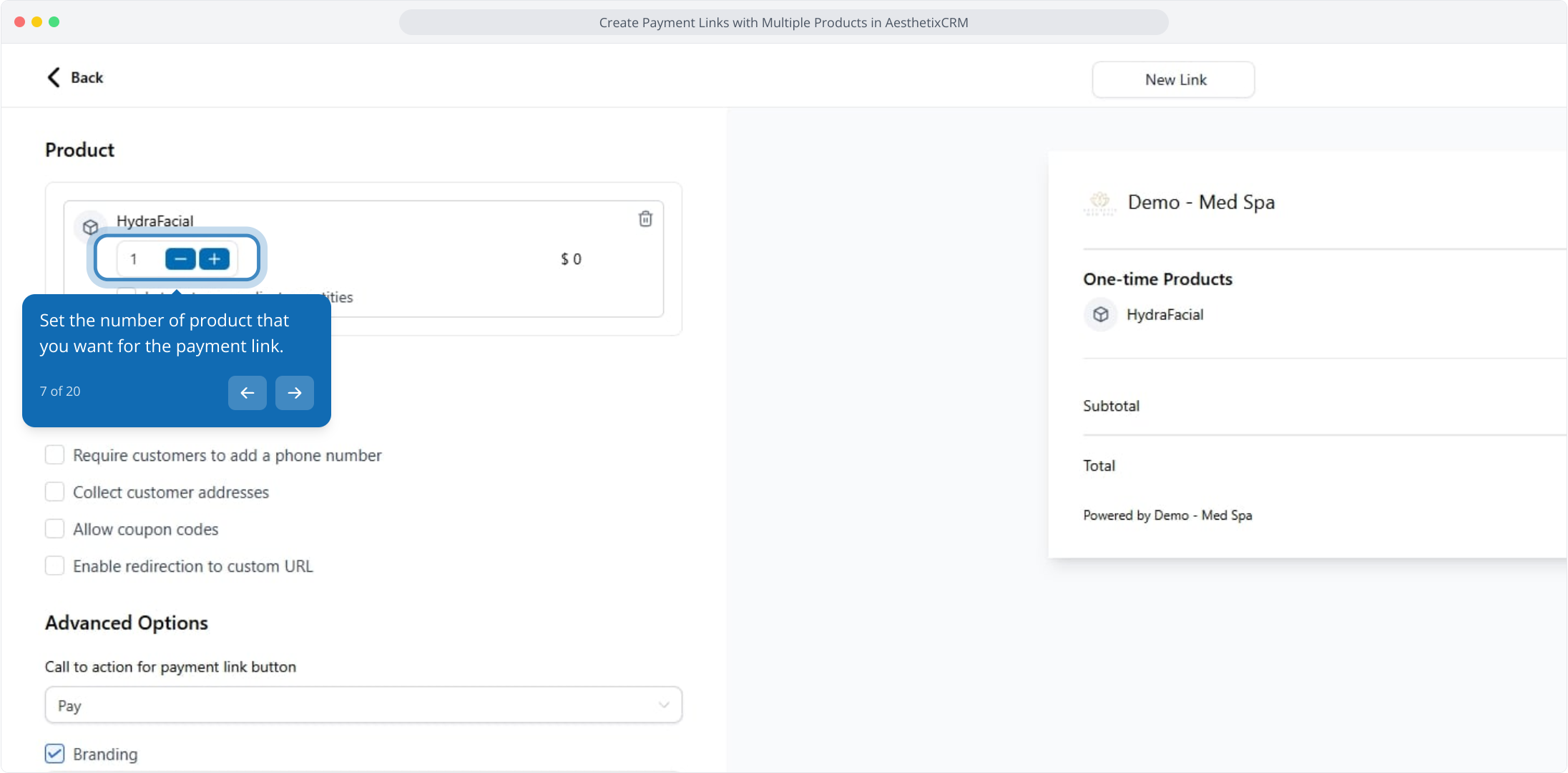
7. Set the number of product that you want for the payment link.
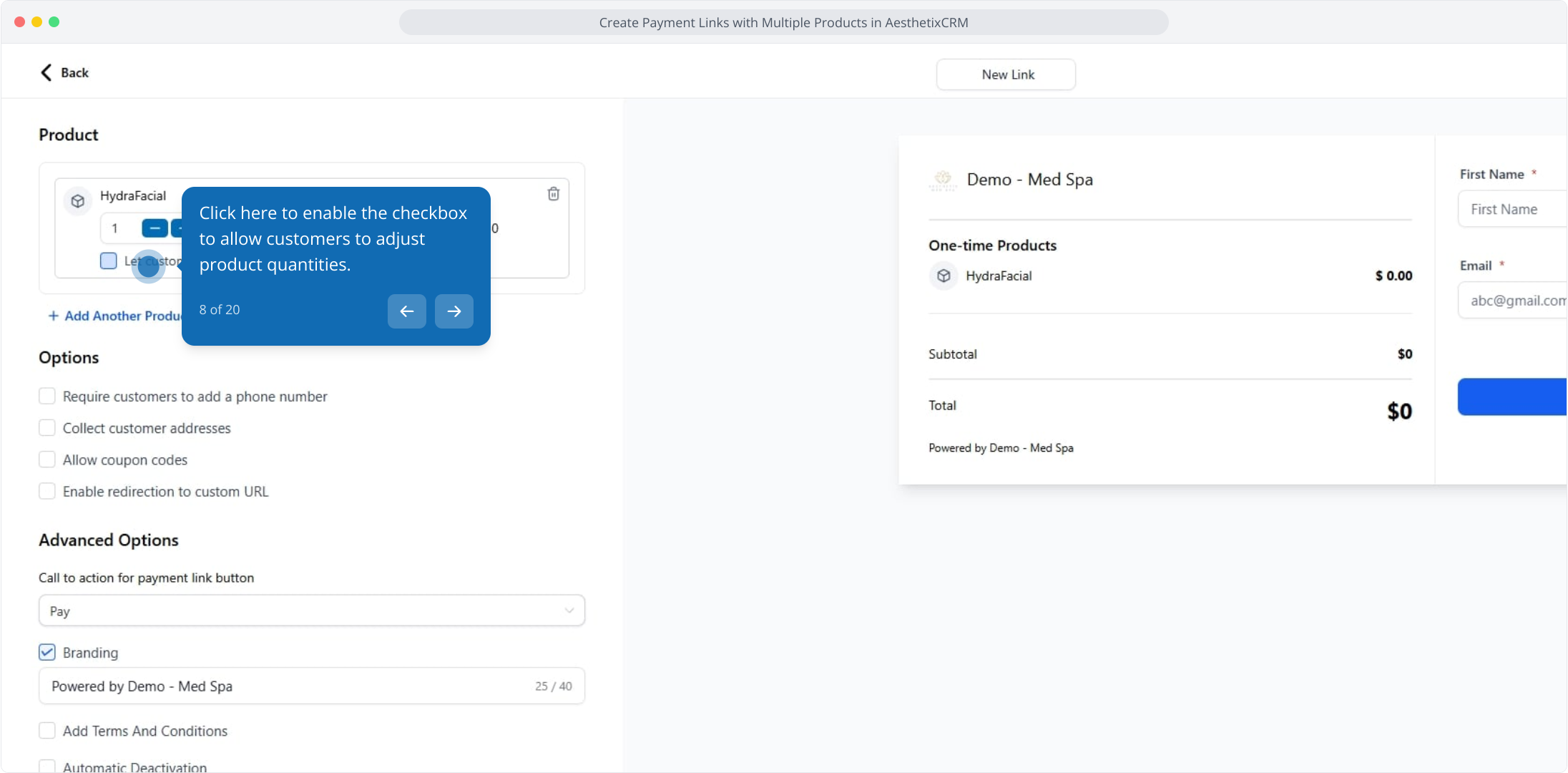
8. Click here to enable the checkbox to allow customers to adjust product quantities.
9. Next up, set the minimum and maximum quantity range for customer orders.
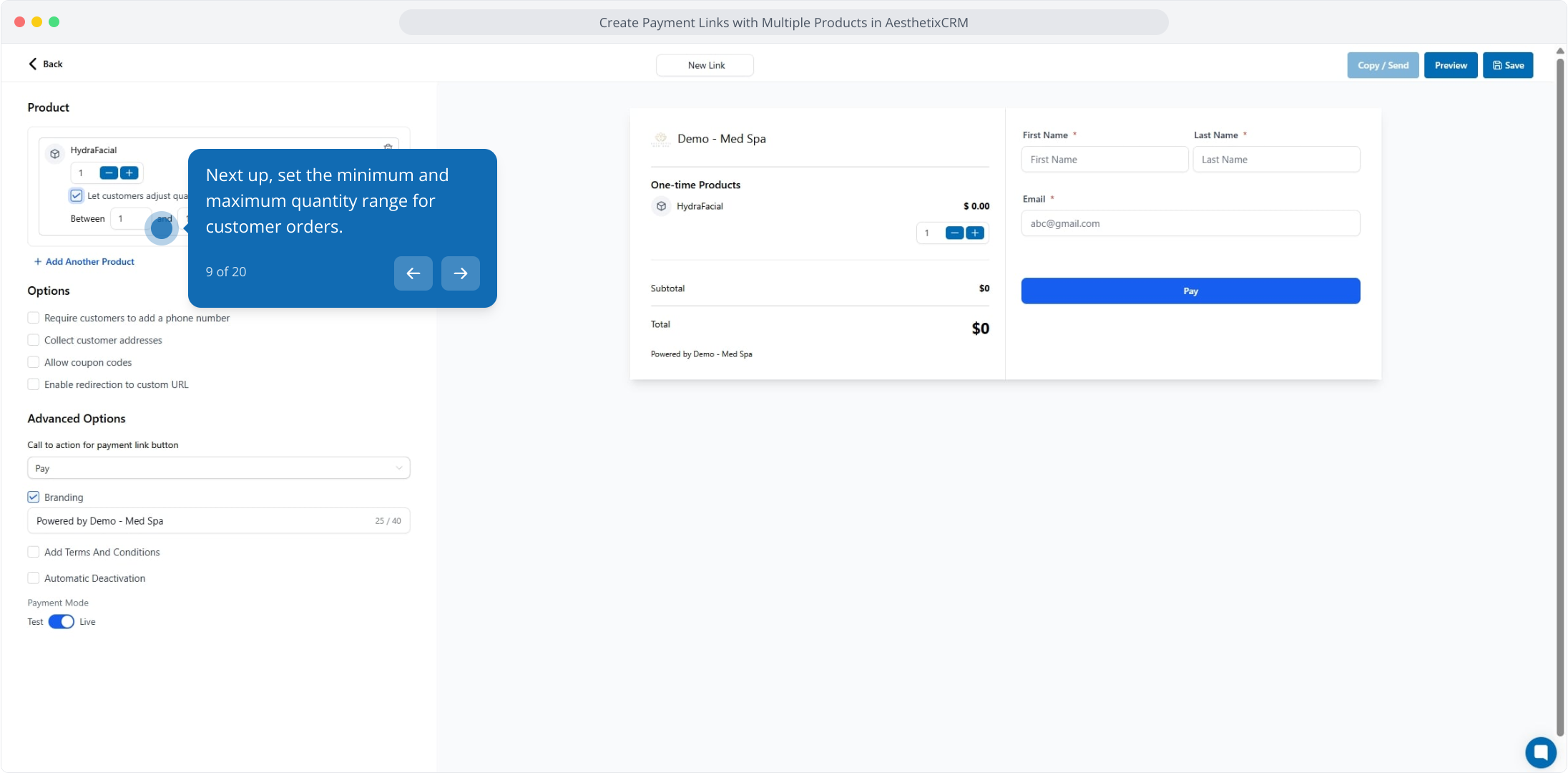
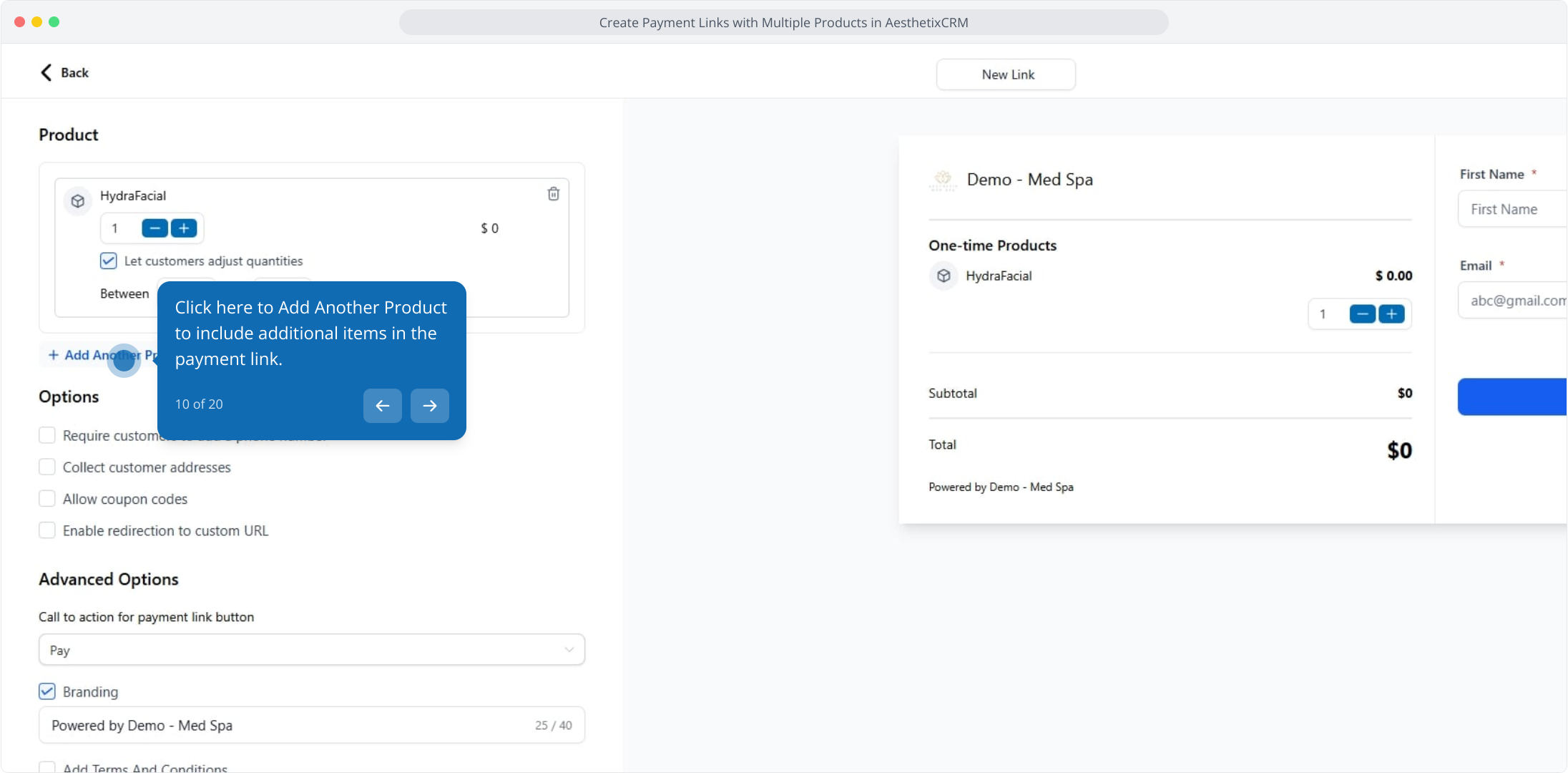
10. Click here to Add Another Product to include additional items in the payment link.
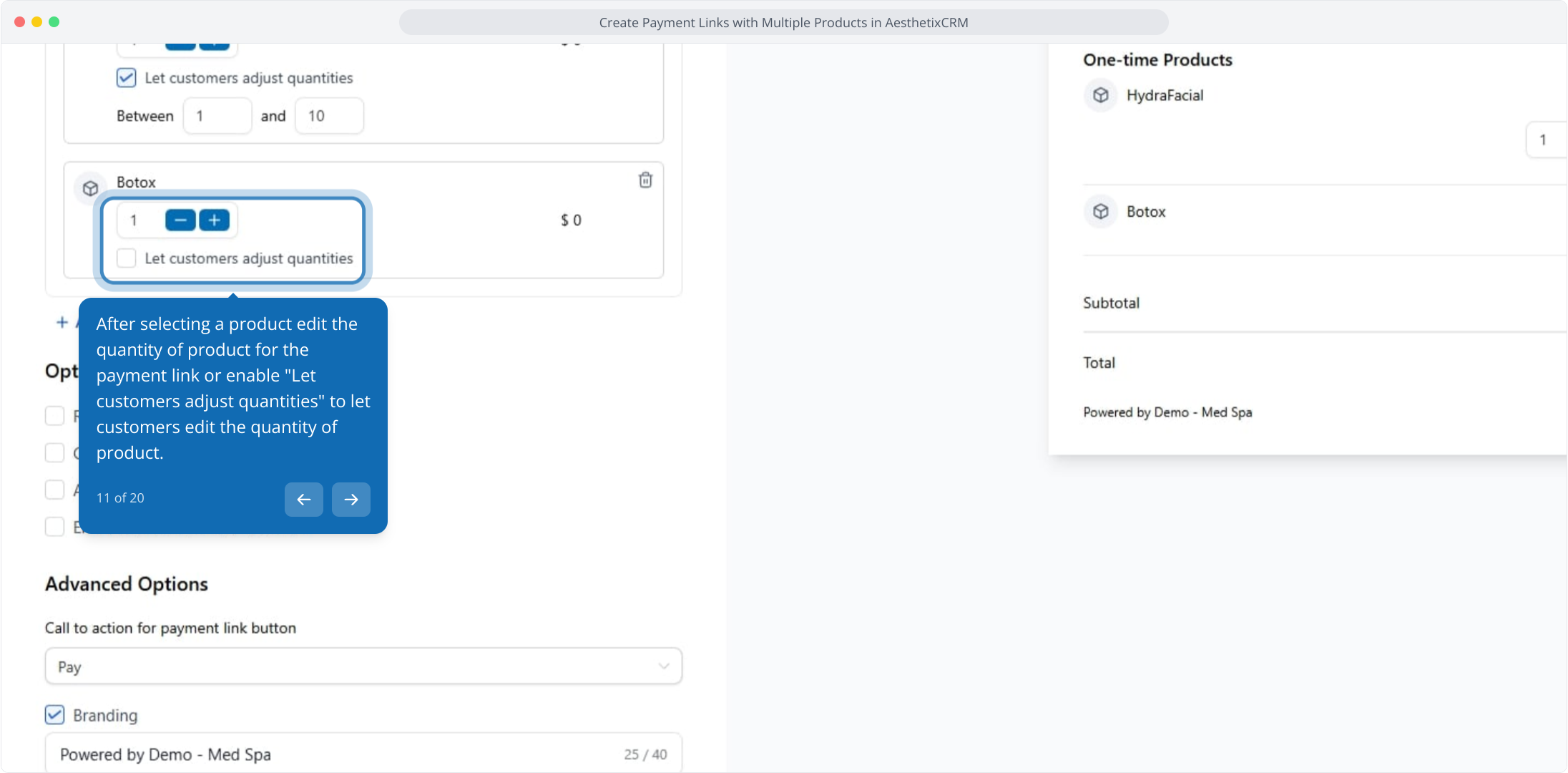
11. After selecting a product edit the quantity of product for the payment link or enable "Let customers adjust quantities" to let customers edit the quantity of product.
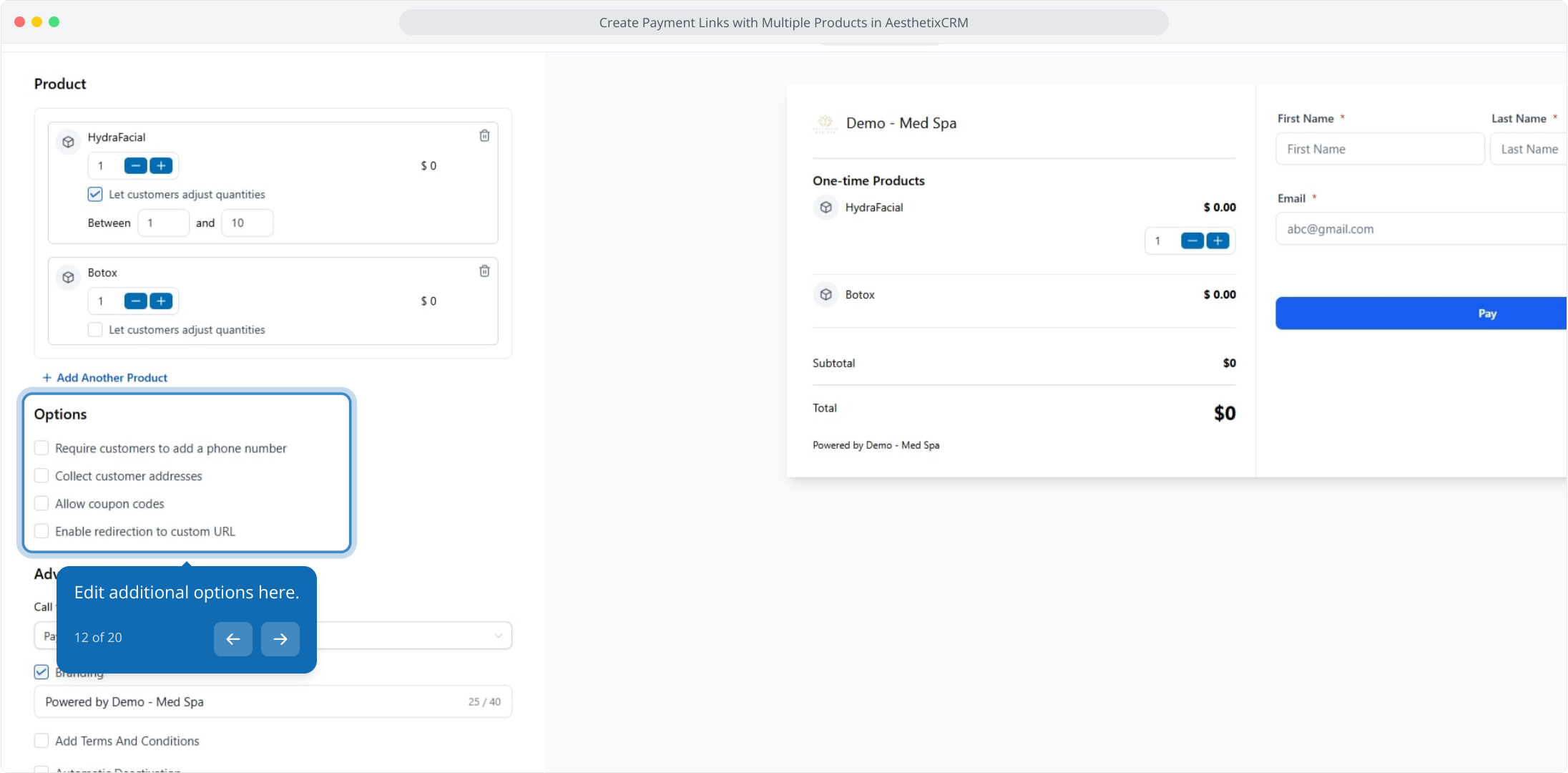
12. Edit additional options here.
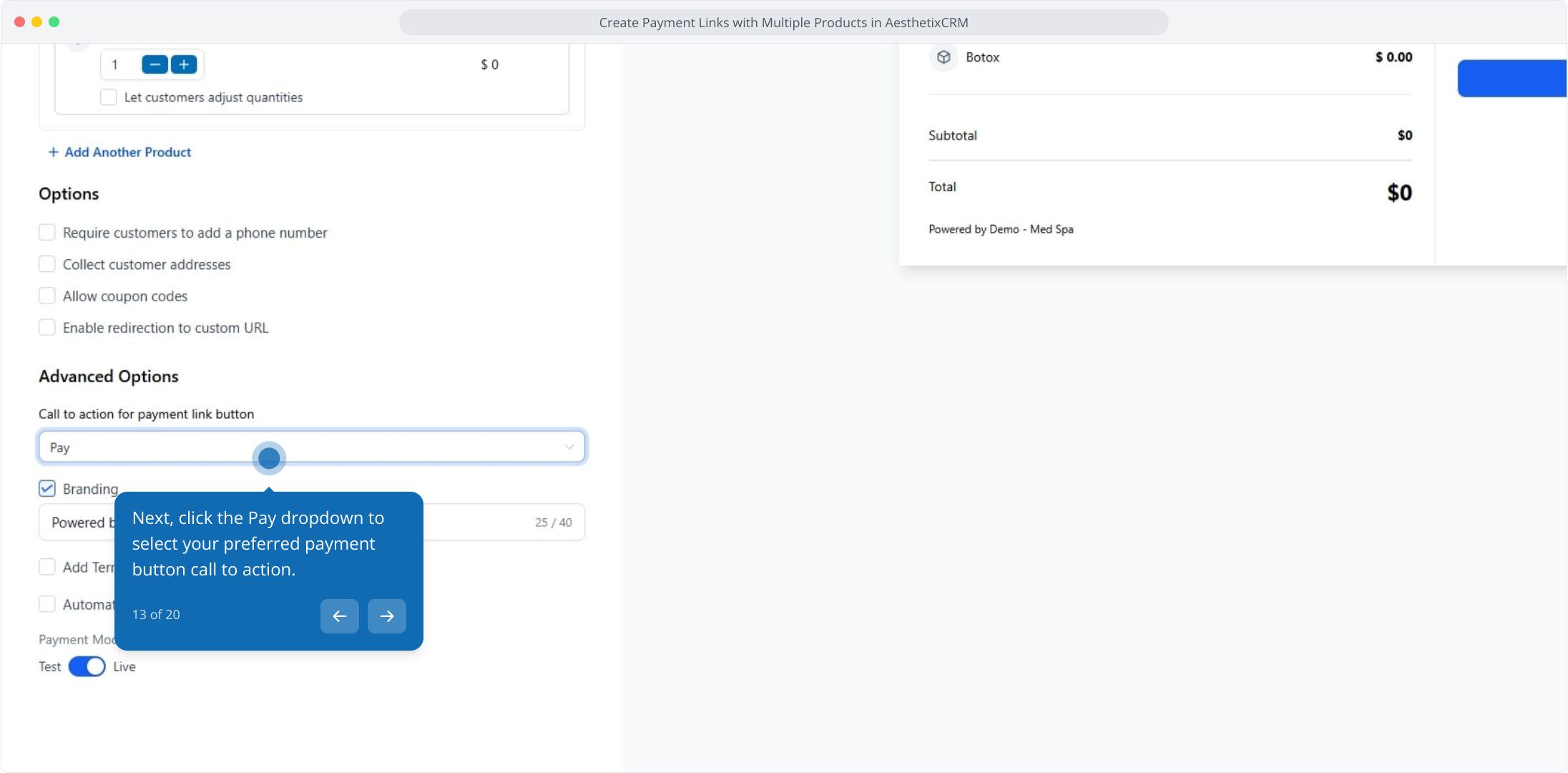
13. Next, click the Pay dropdown to select your preferred payment button call to action.
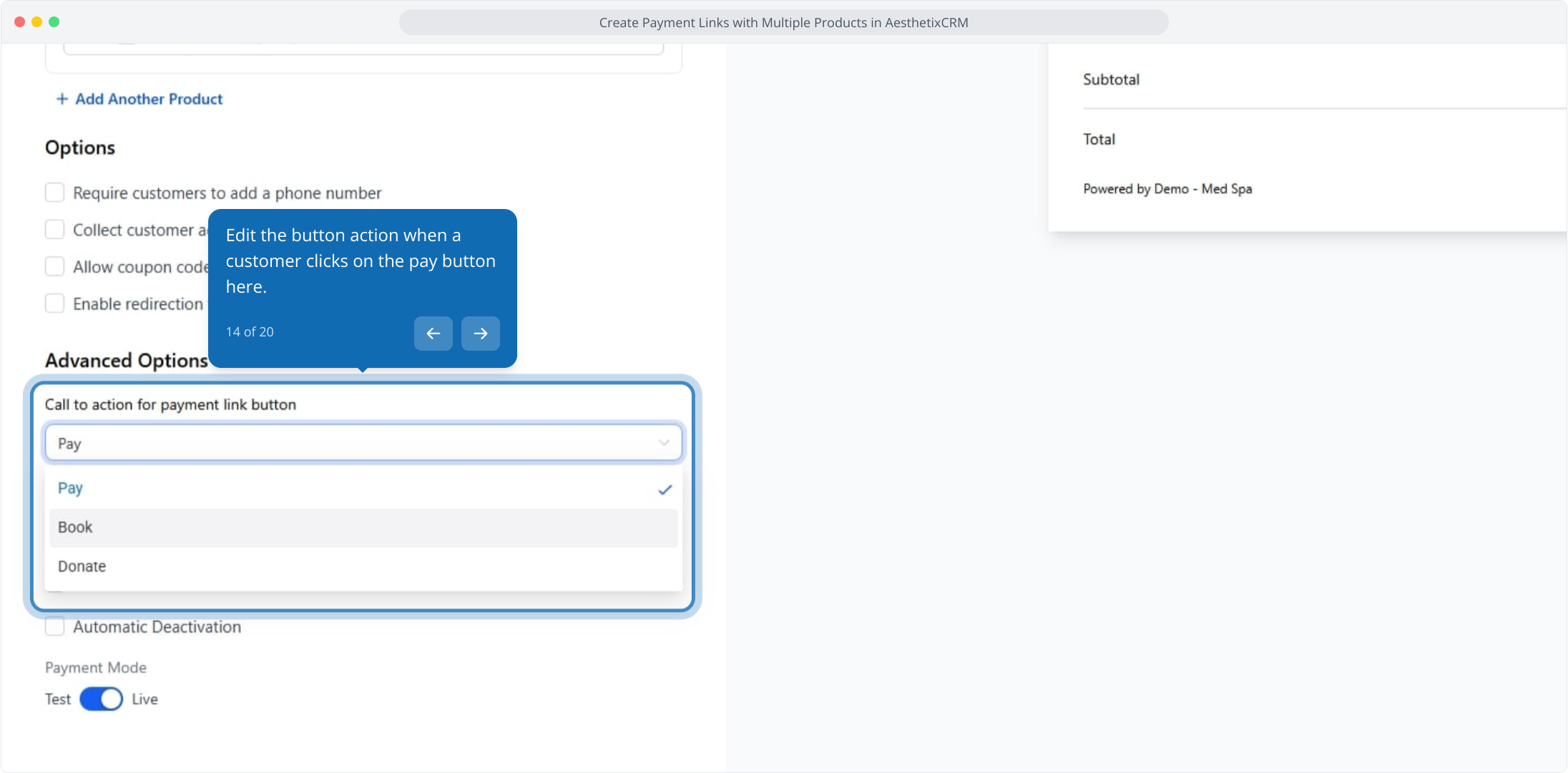
14. Edit the button action when a customer clicks on the pay button here.
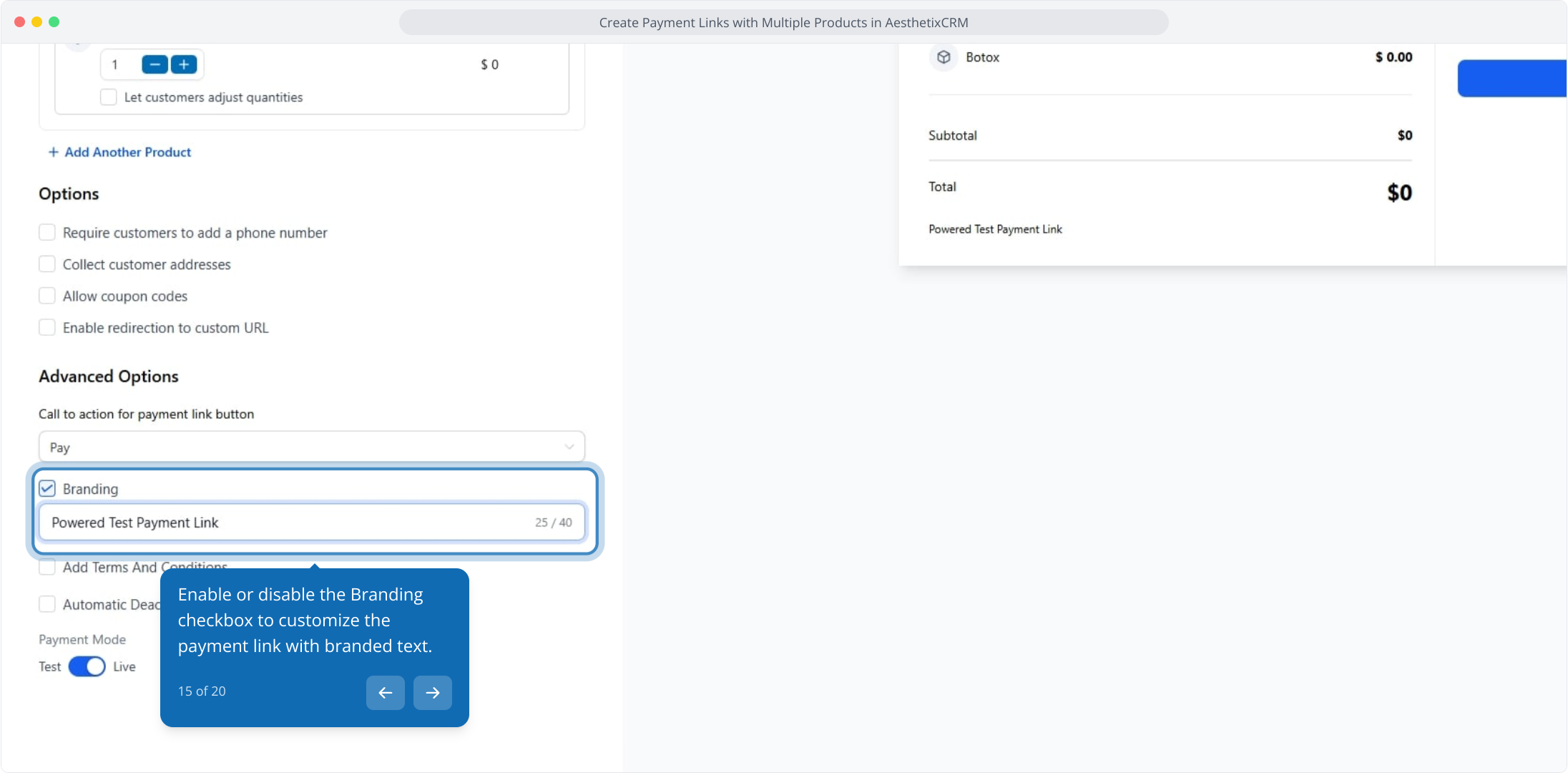
15. Enable or disable the Branding checkbox to customize the payment link with branded text.
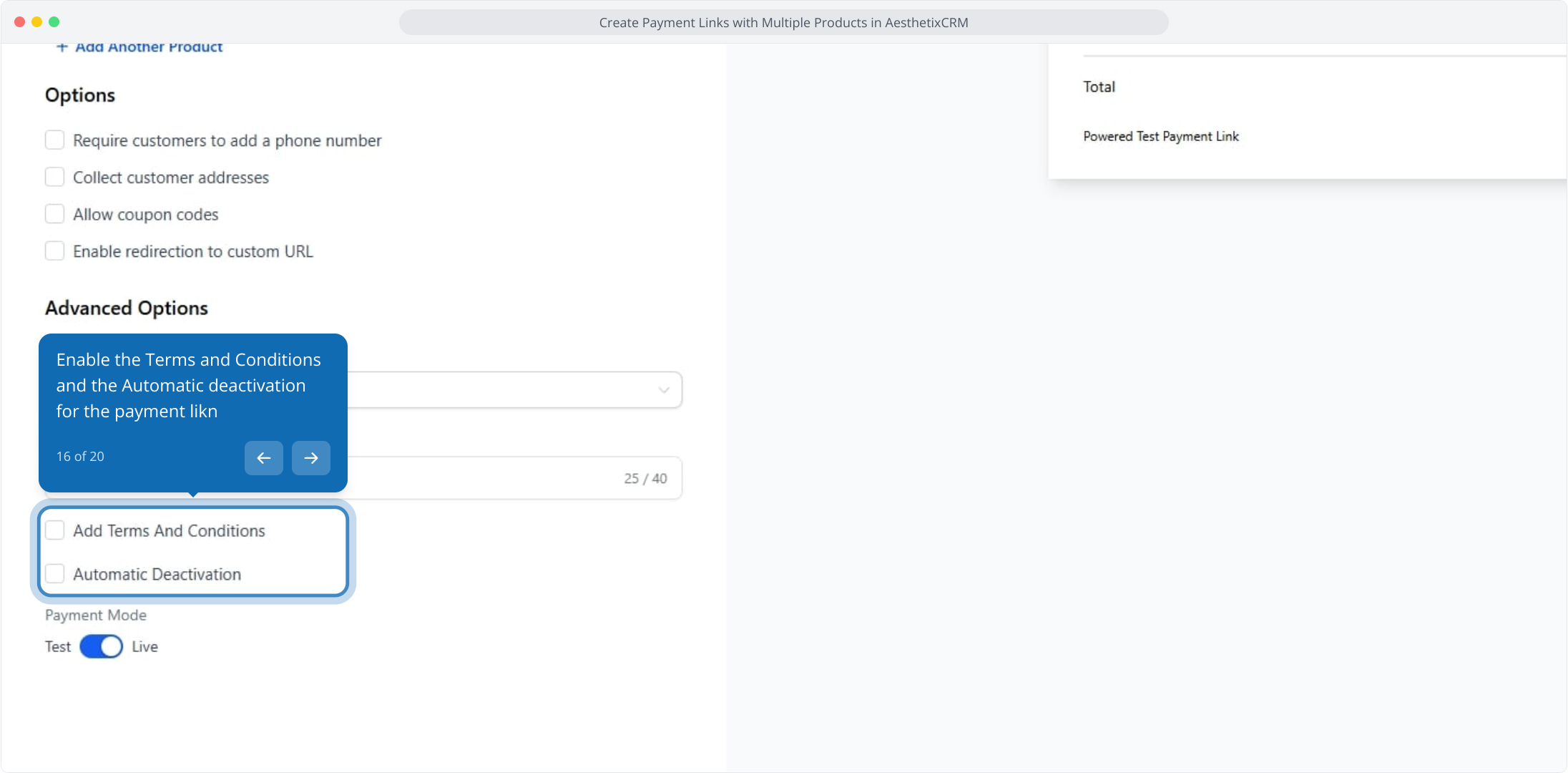
16. Enable the Terms and Conditions and the Automatic deactivation for the payment likn
17. Preview the payment link here.
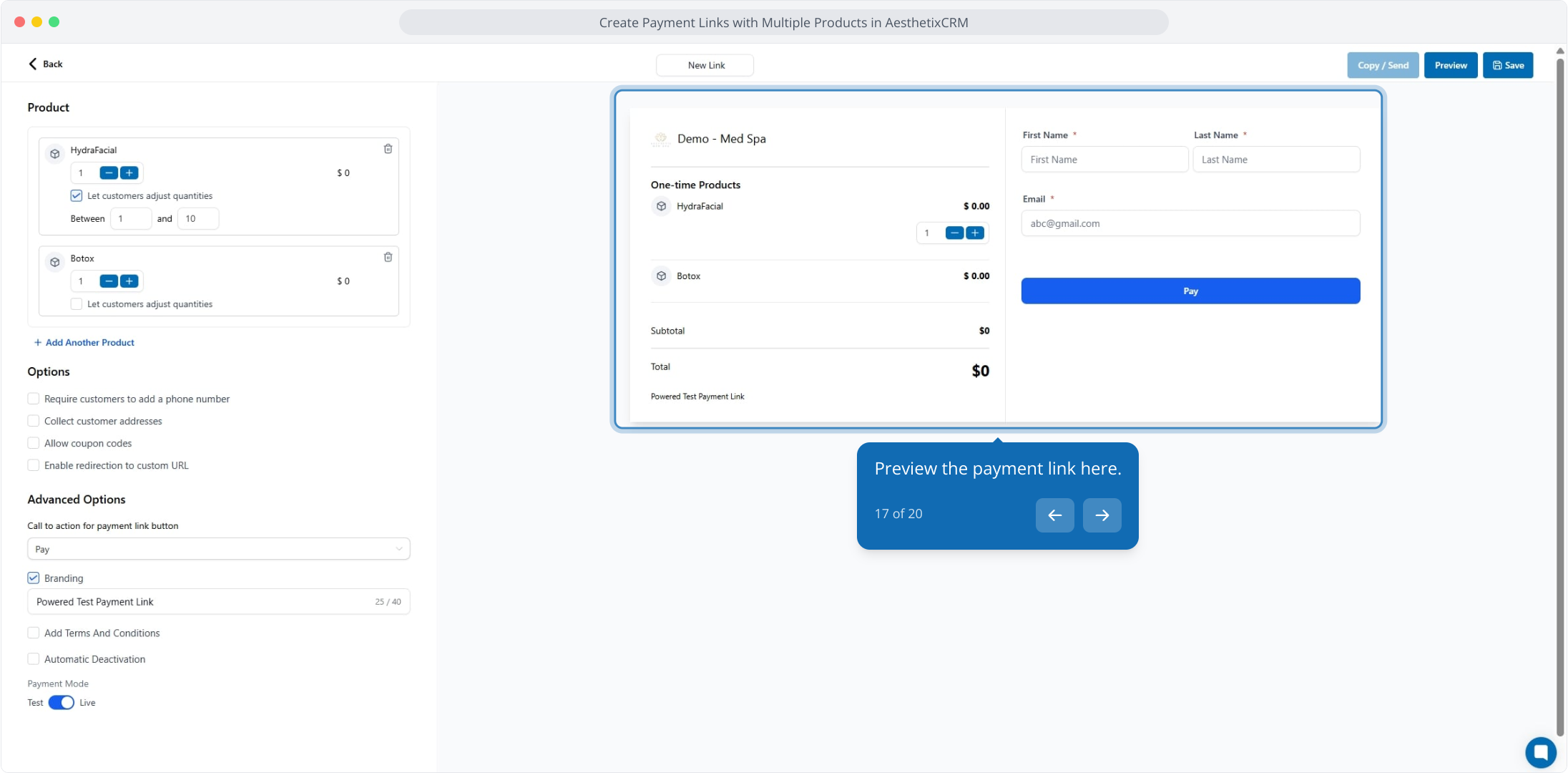
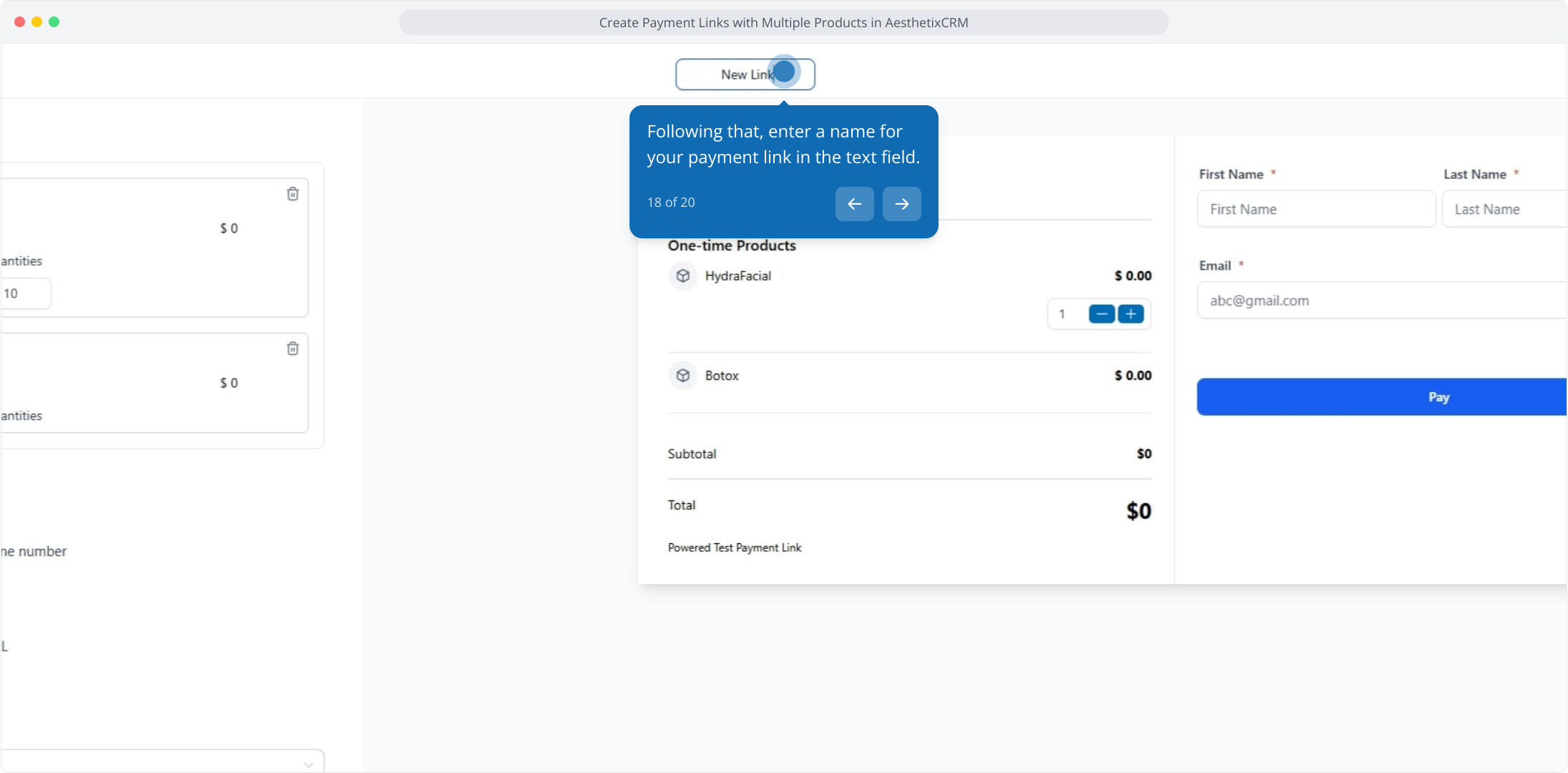
18. Following that, enter a name for your payment link in the text field.
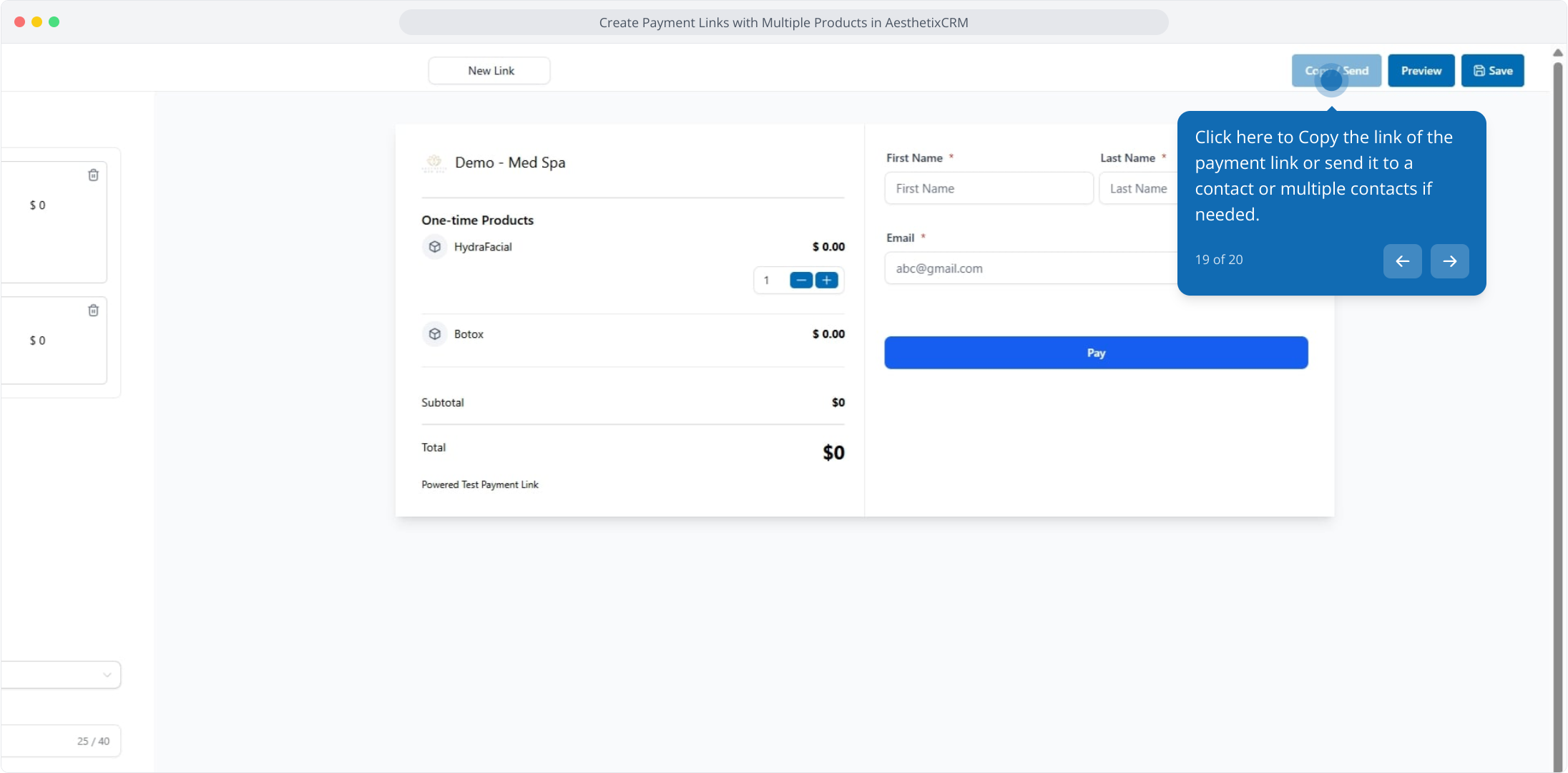
19. Click here to Copy the link of the payment link or send it to a contact or multiple contacts if needed.
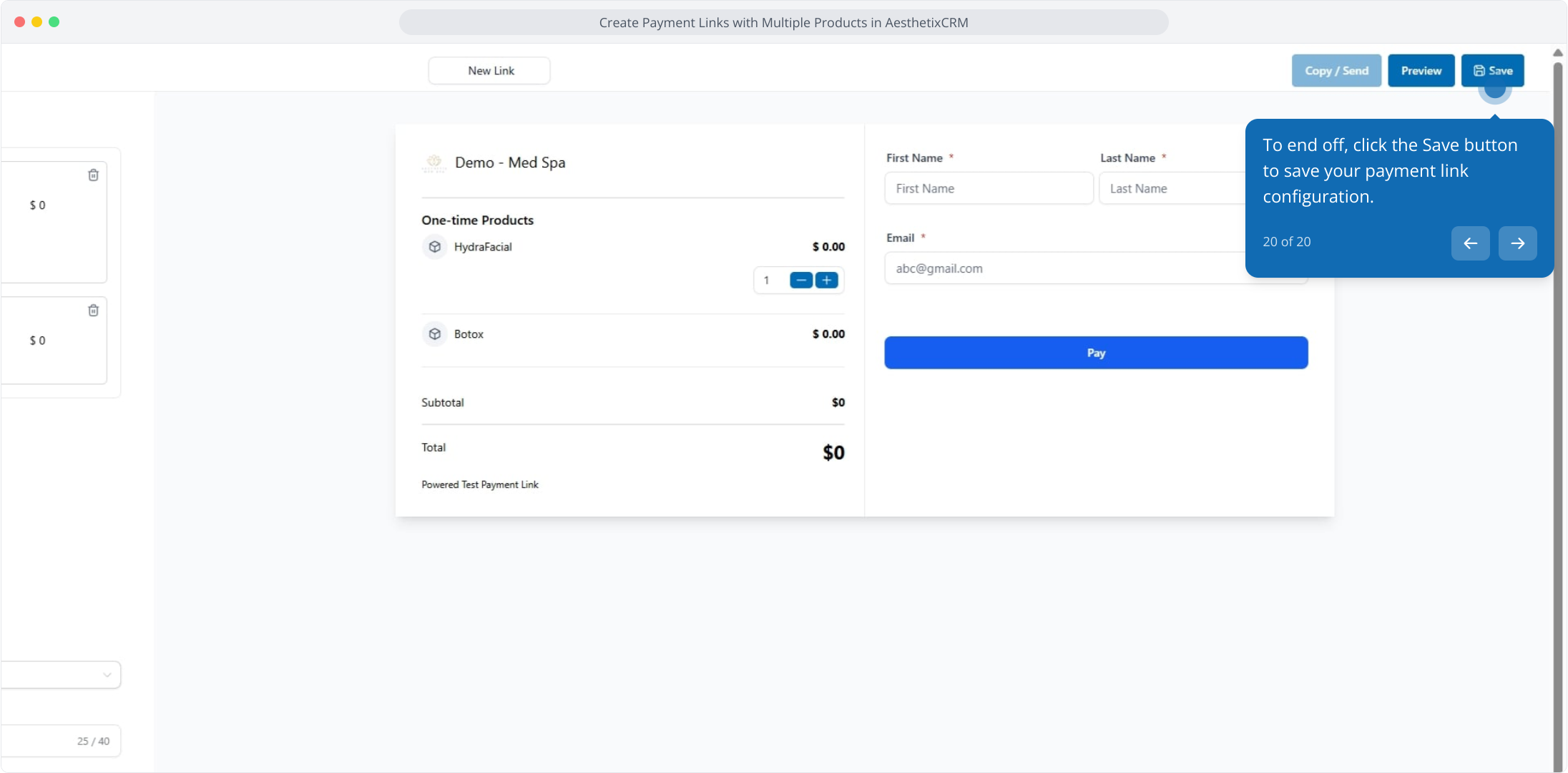
20. To end off, click the Save button to save your payment link configuration.
This workflow was created with Supademo.
