1. Send Text-to-Pay Request to Contacts in AesthetixCRM
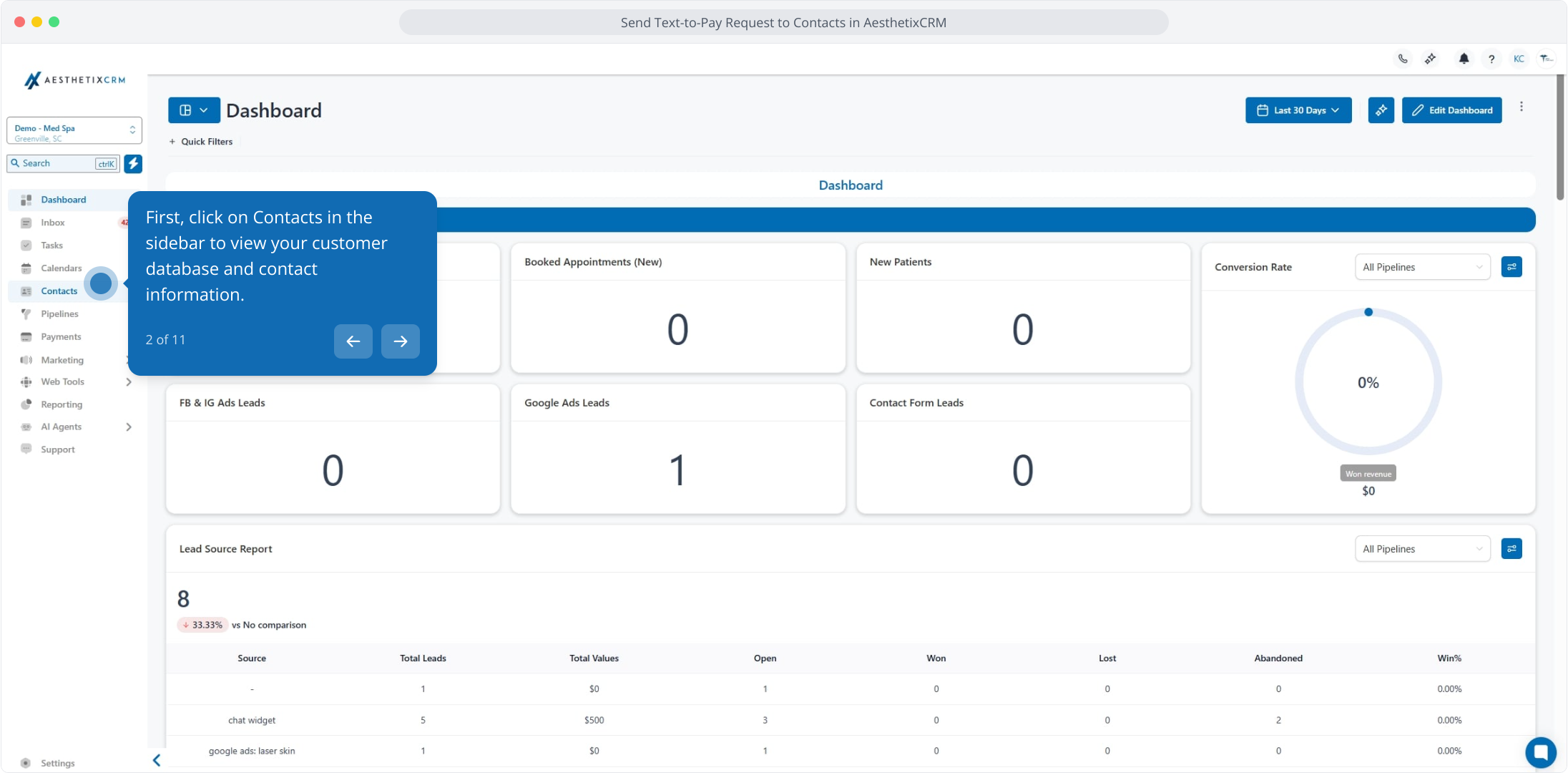
2. First, click on Contacts in the sidebar to view your customer database and contact information.
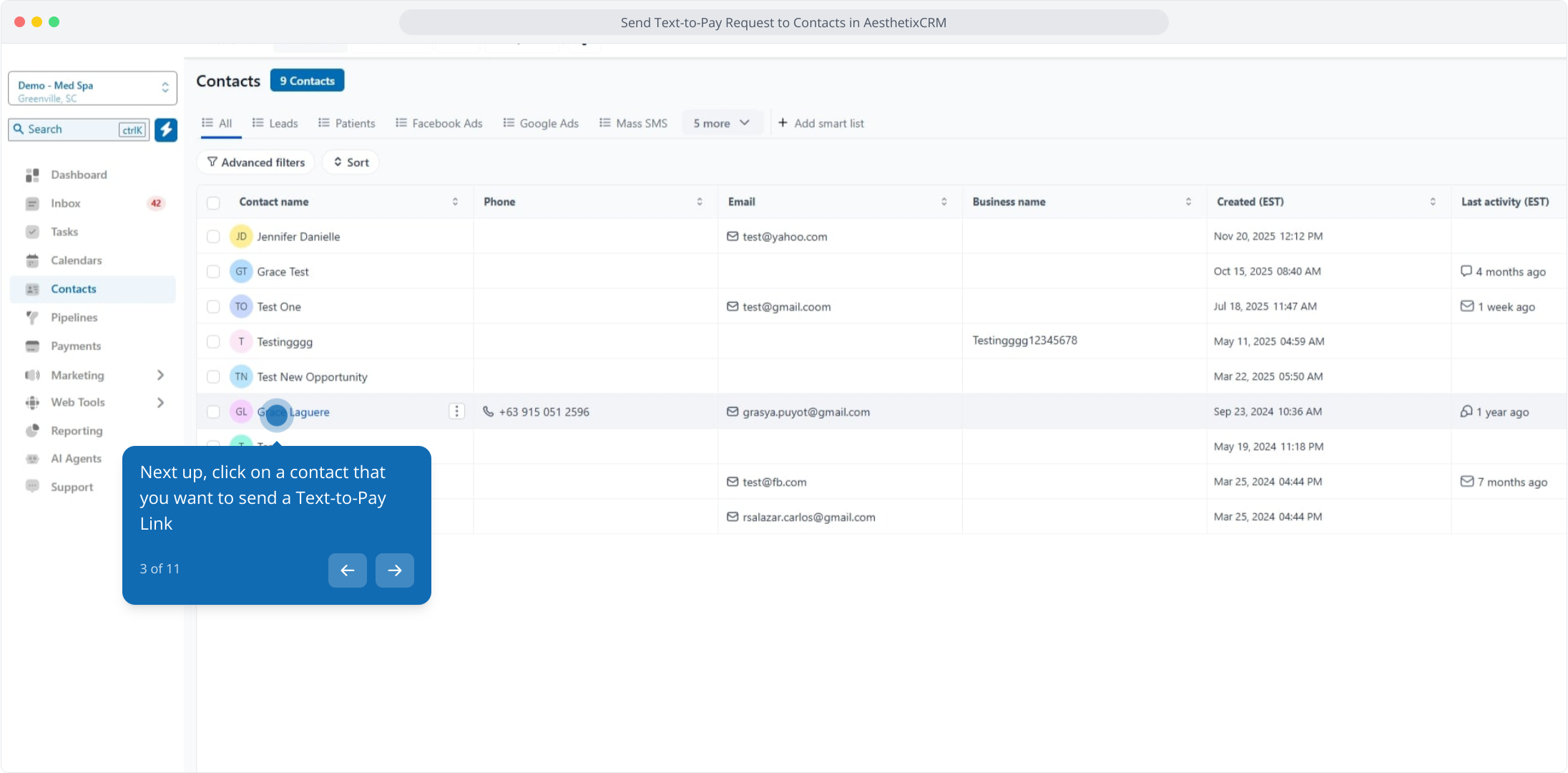
3. Next up, click on a contact that you want to send a Text-to-Pay Link
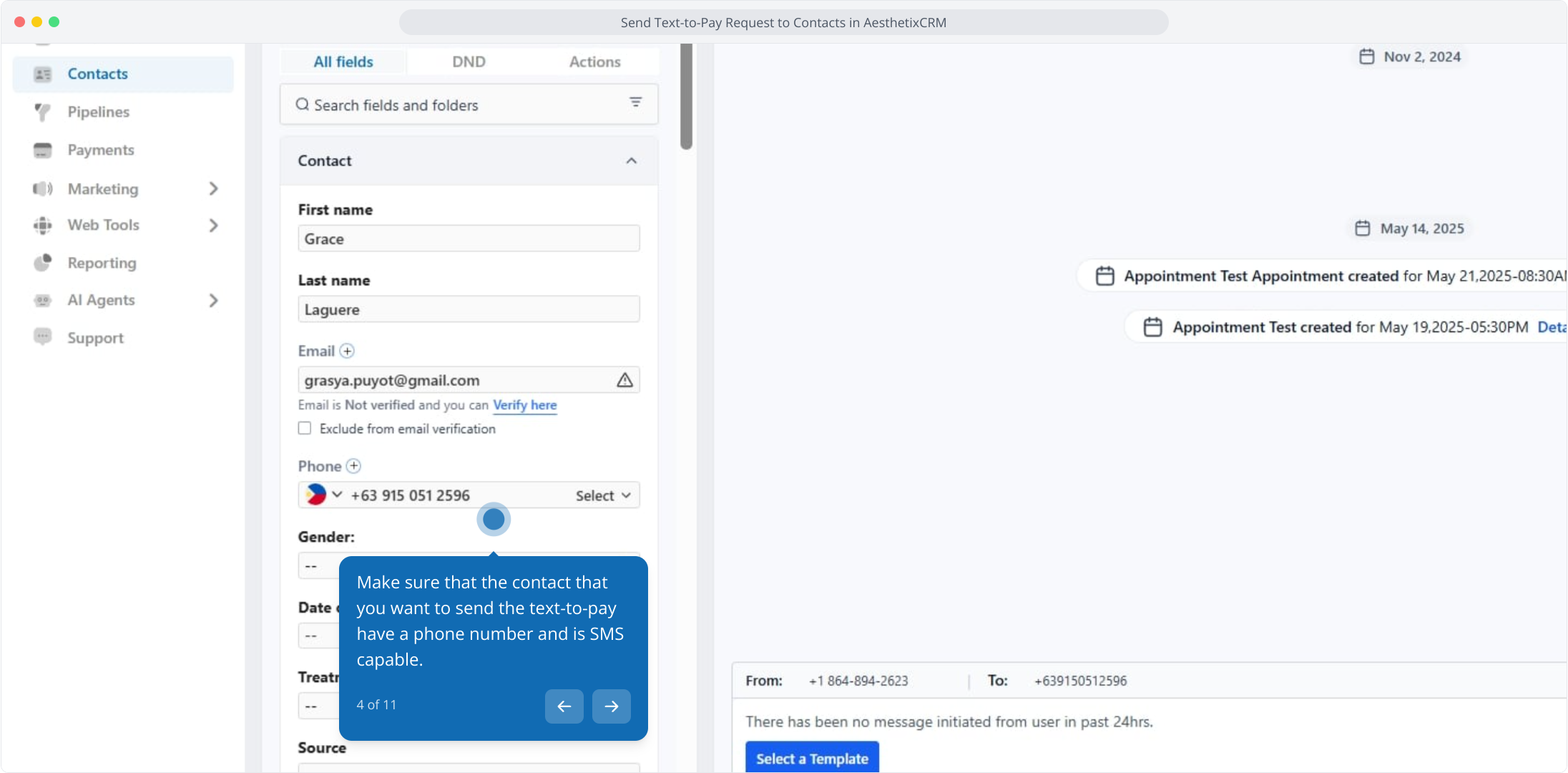
4. Make sure that the contact that you want to send the text-to-pay have a phone number and is SMS capable.
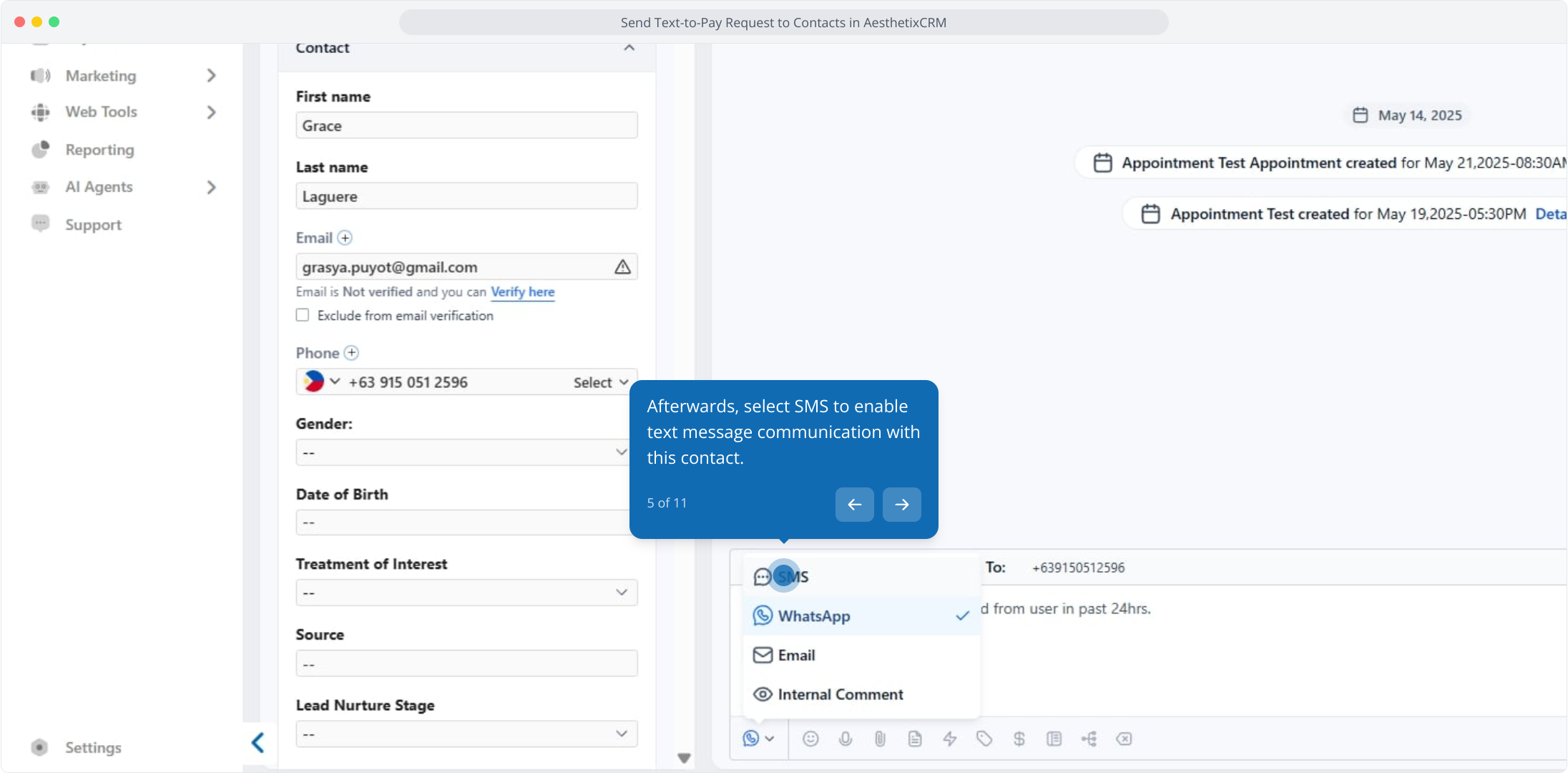
5. Afterwards, select SMS to enable text message communication with this contact.
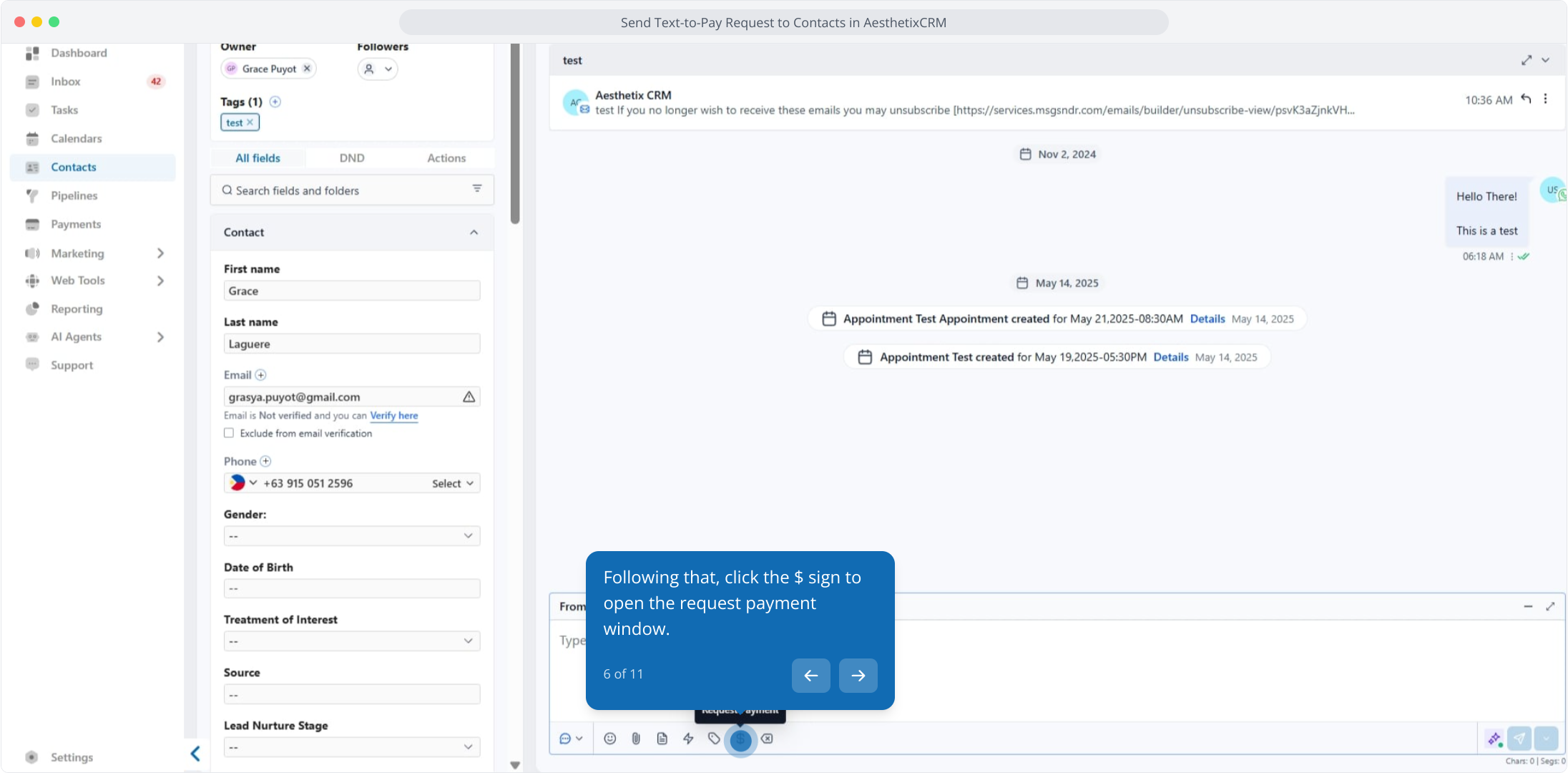
6. Following that, click the $ sign to open the request payment window.
7. Add a product here.
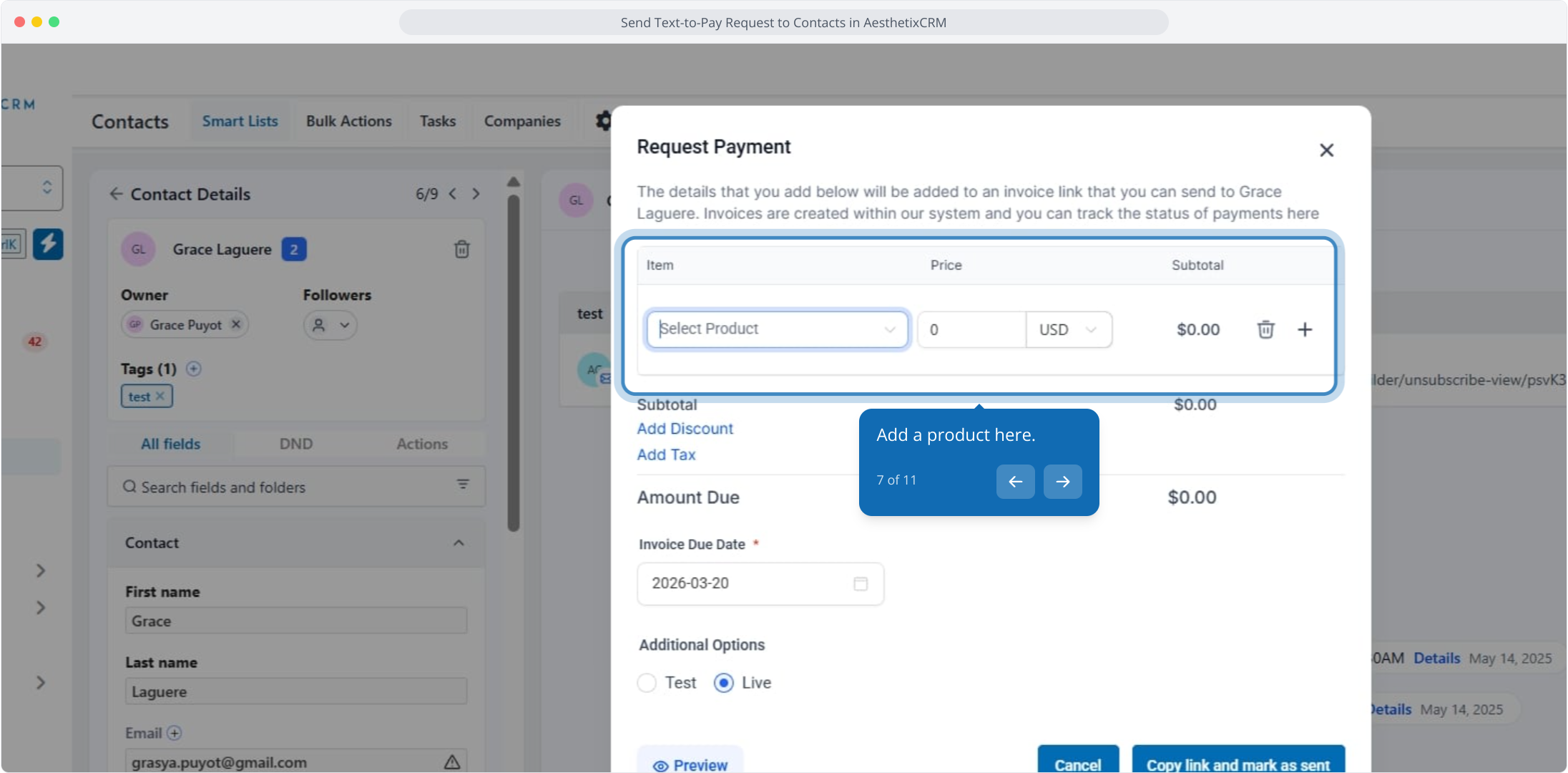
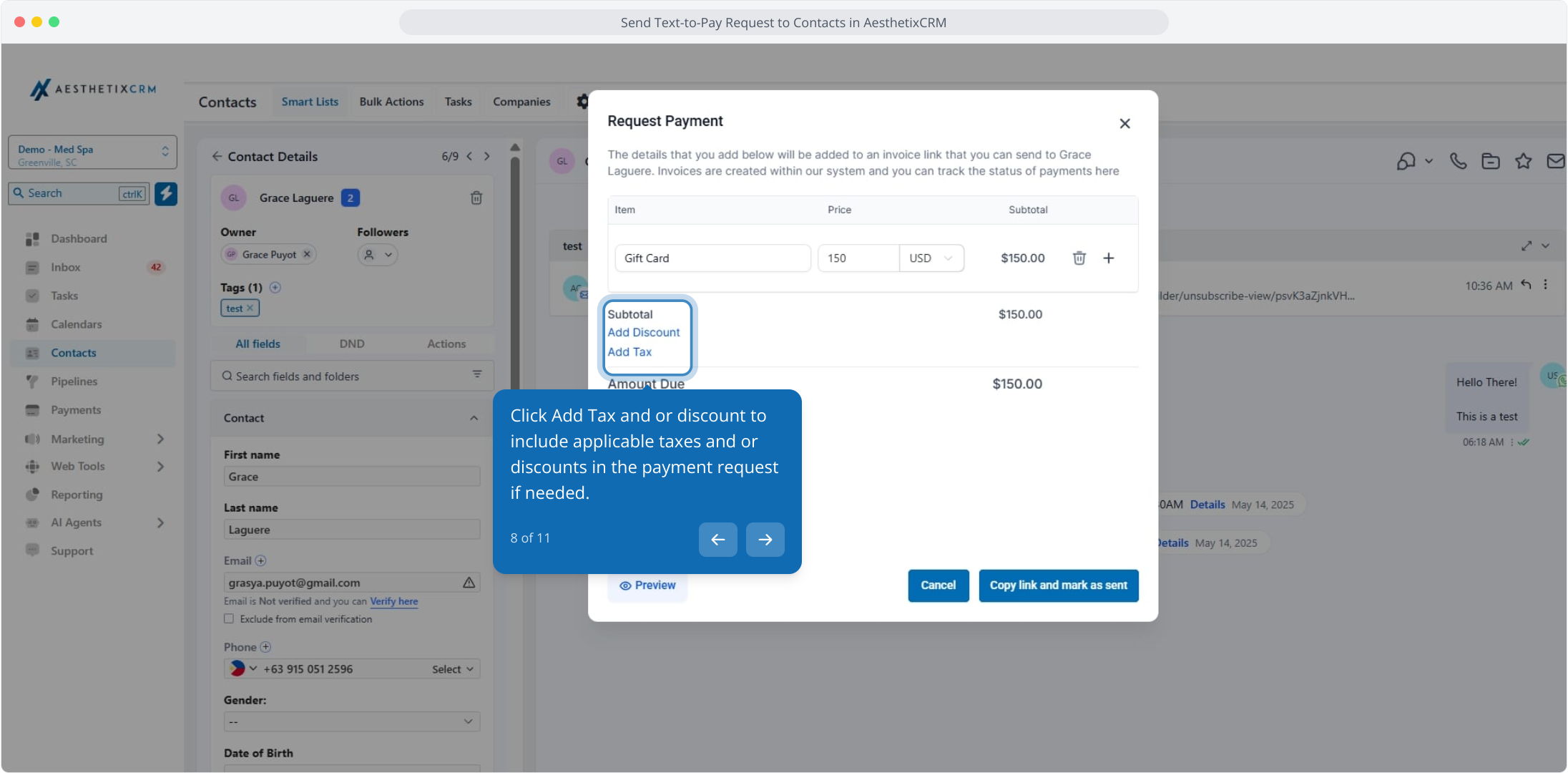
8. Click Add Tax and or discount to include applicable taxes and or discounts in the payment request if needed.
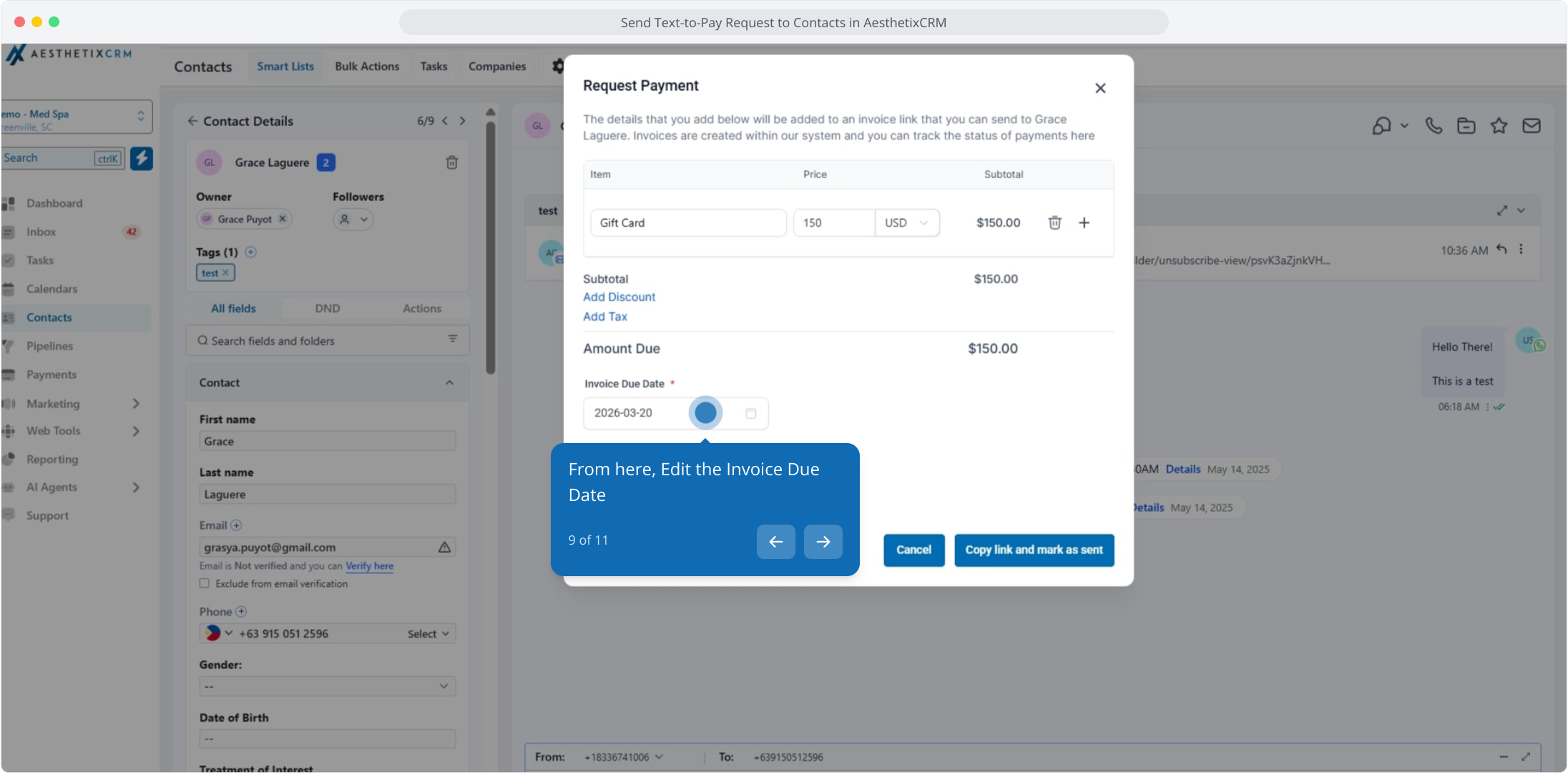
9. From here, Edit the Invoice Due Date
10. Click here to preview the text-to-pay request payment
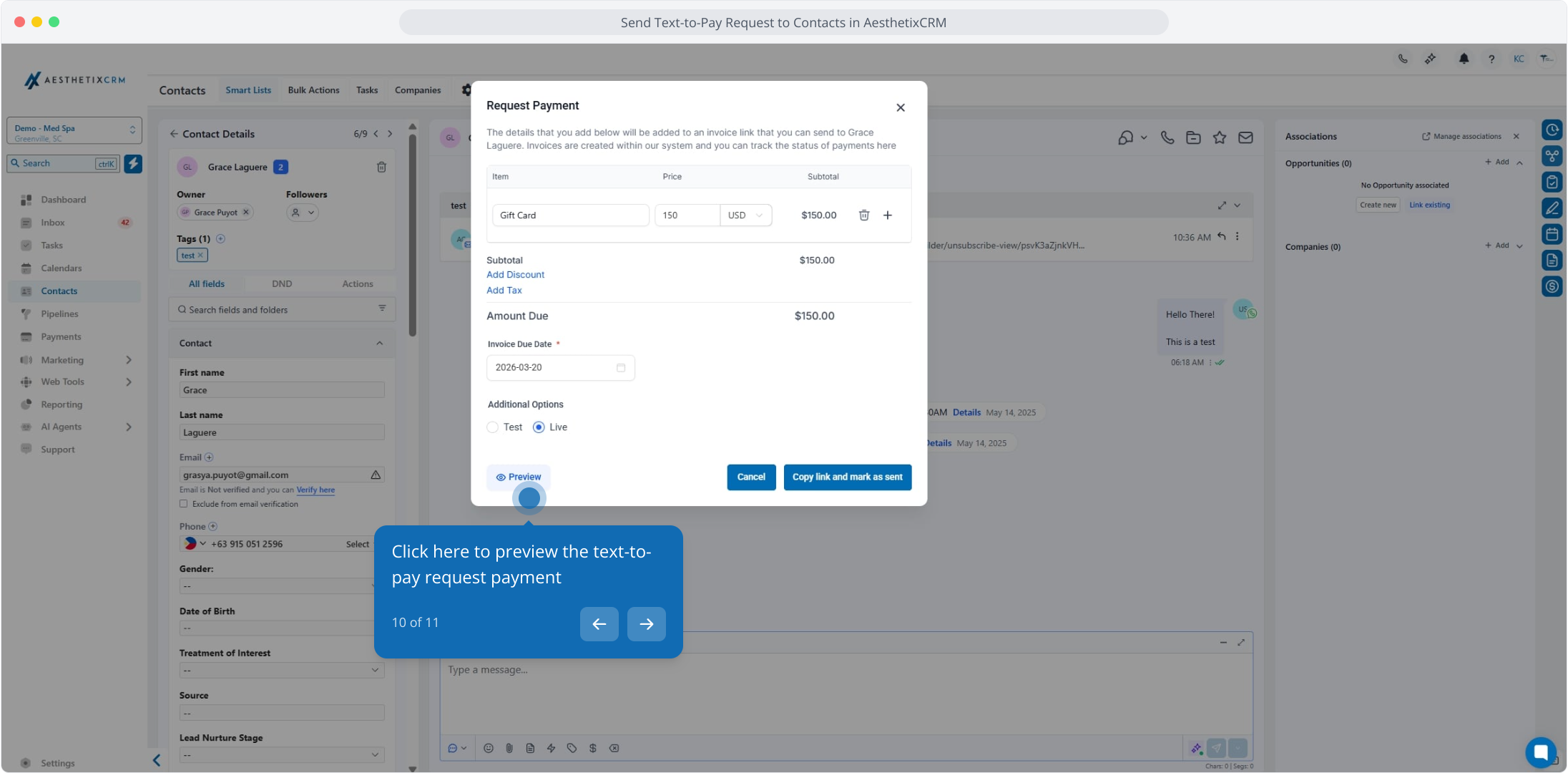
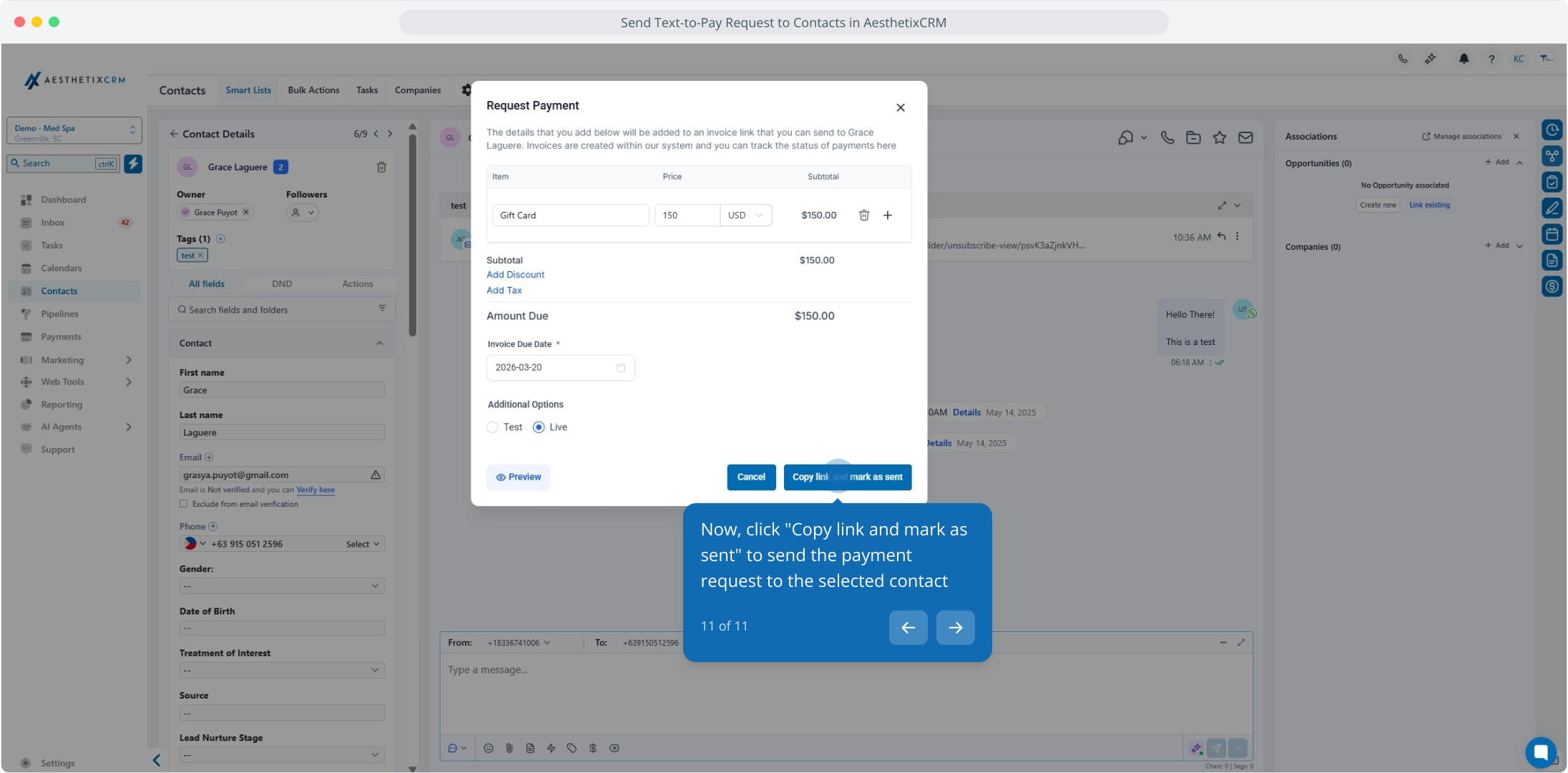
11. Now, click "Copy link and mark as sent" to send the payment request to the selected contact