1. Send Personalized Payment Links to Contacts in AesthetixCRM
2. First up, click on Payments to access the invoices and billing management section.
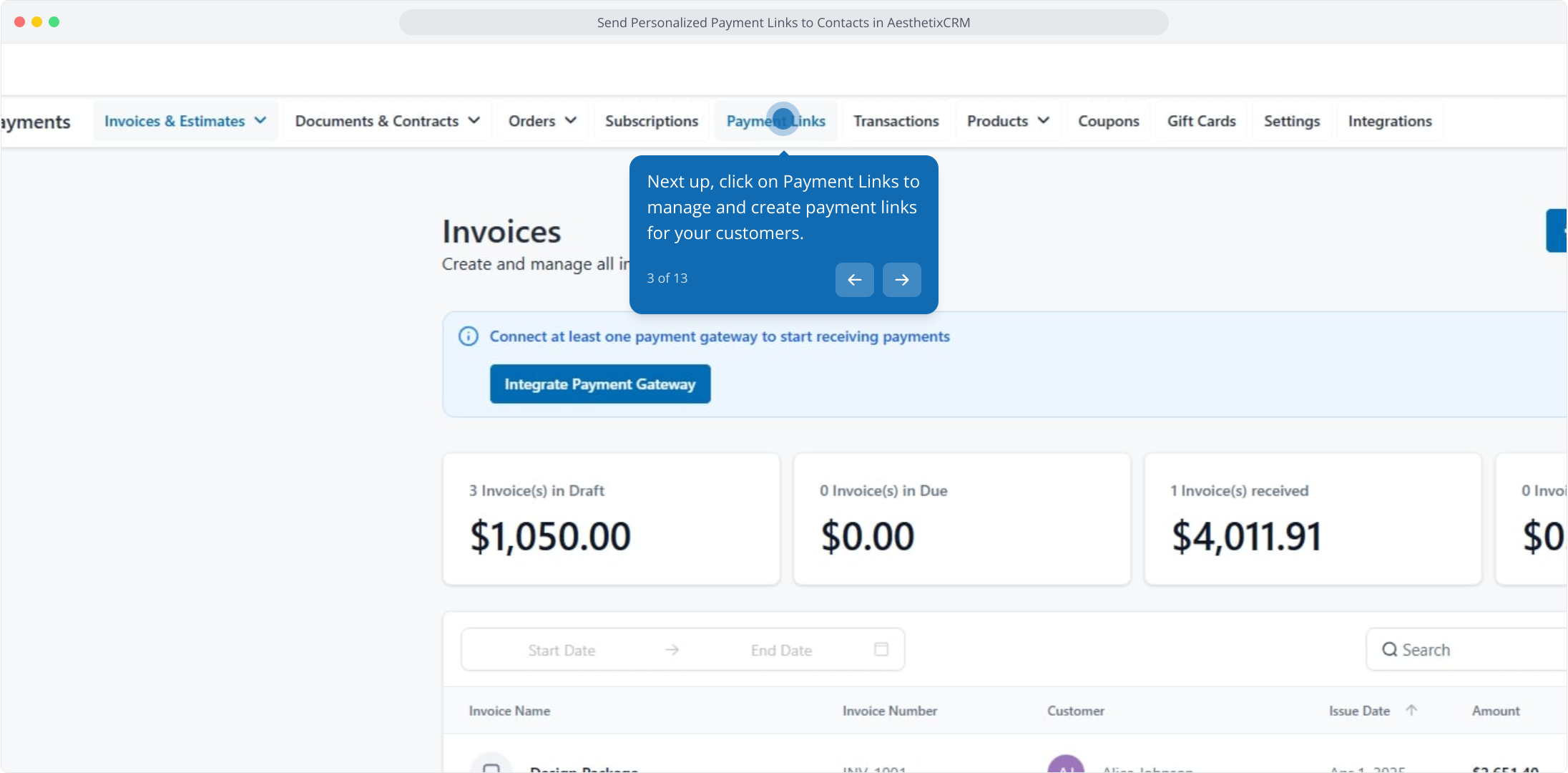
3. Next up, click on Payment Links to manage and create payment links for your customers.
4. Click the menu options button to access actions for this payment link.
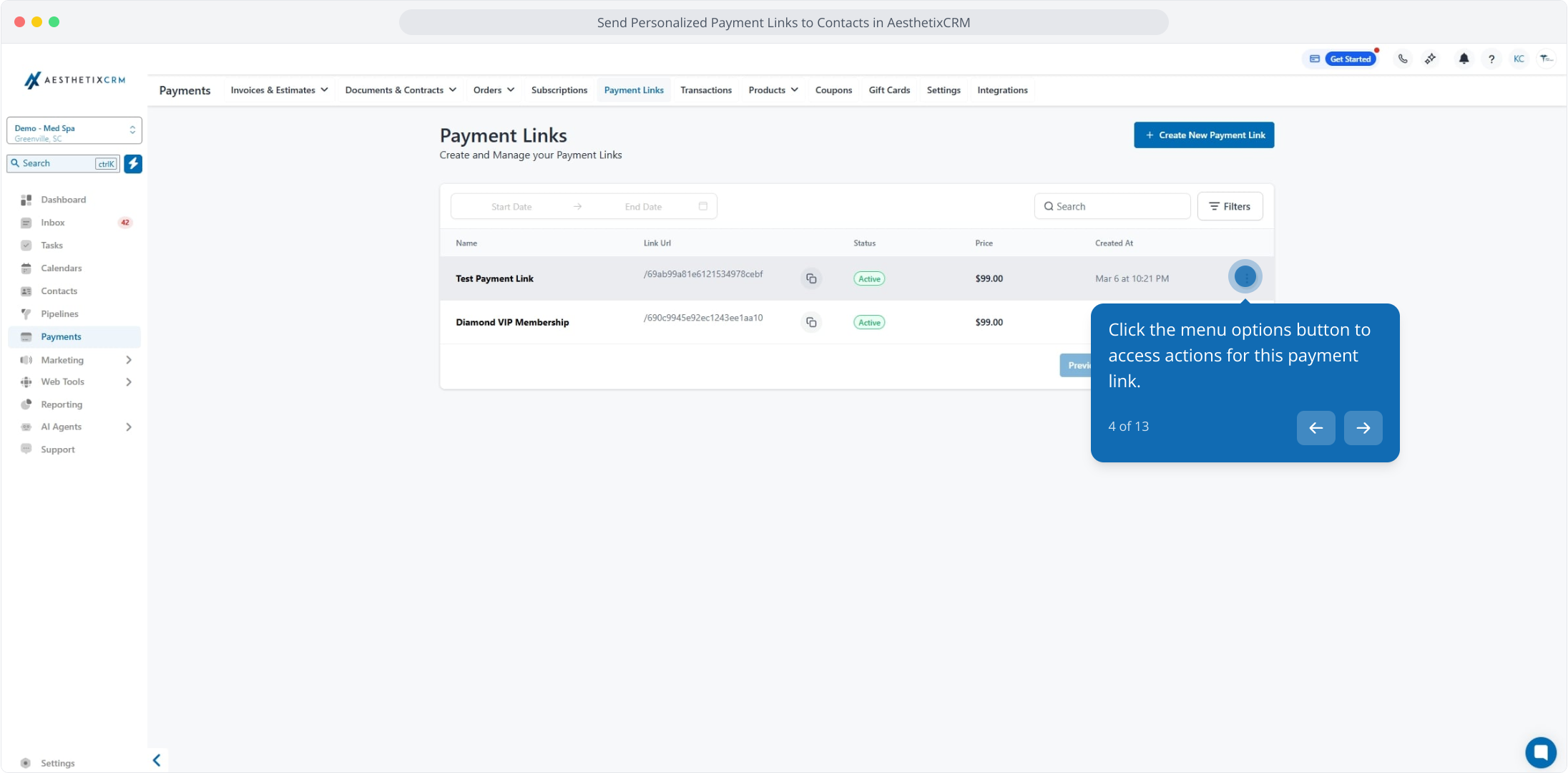
5. Next up, click Edit Link to modify the selected payment link settings.
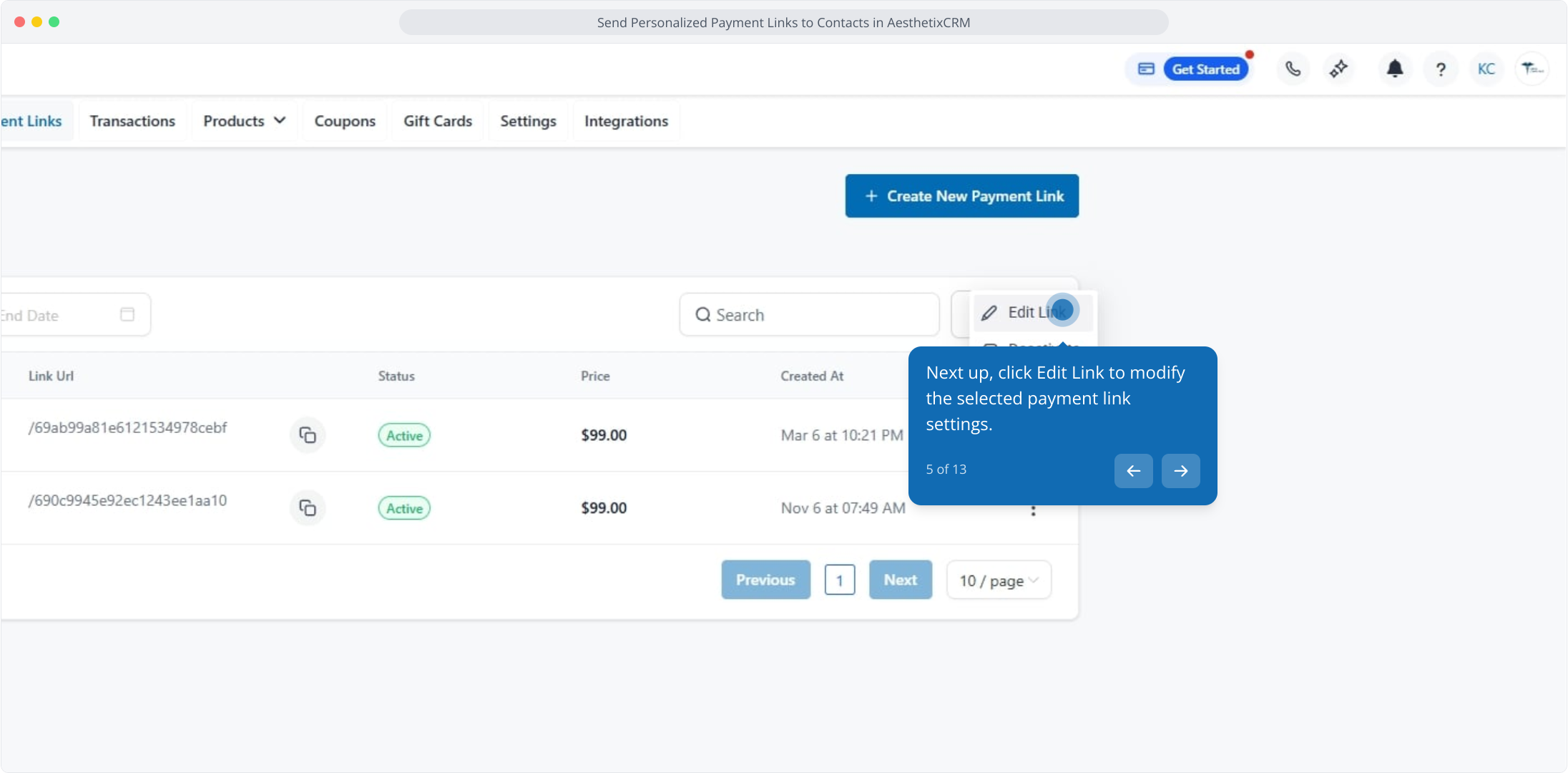
6. Next up, click the Copy / Send button to share the payment link.
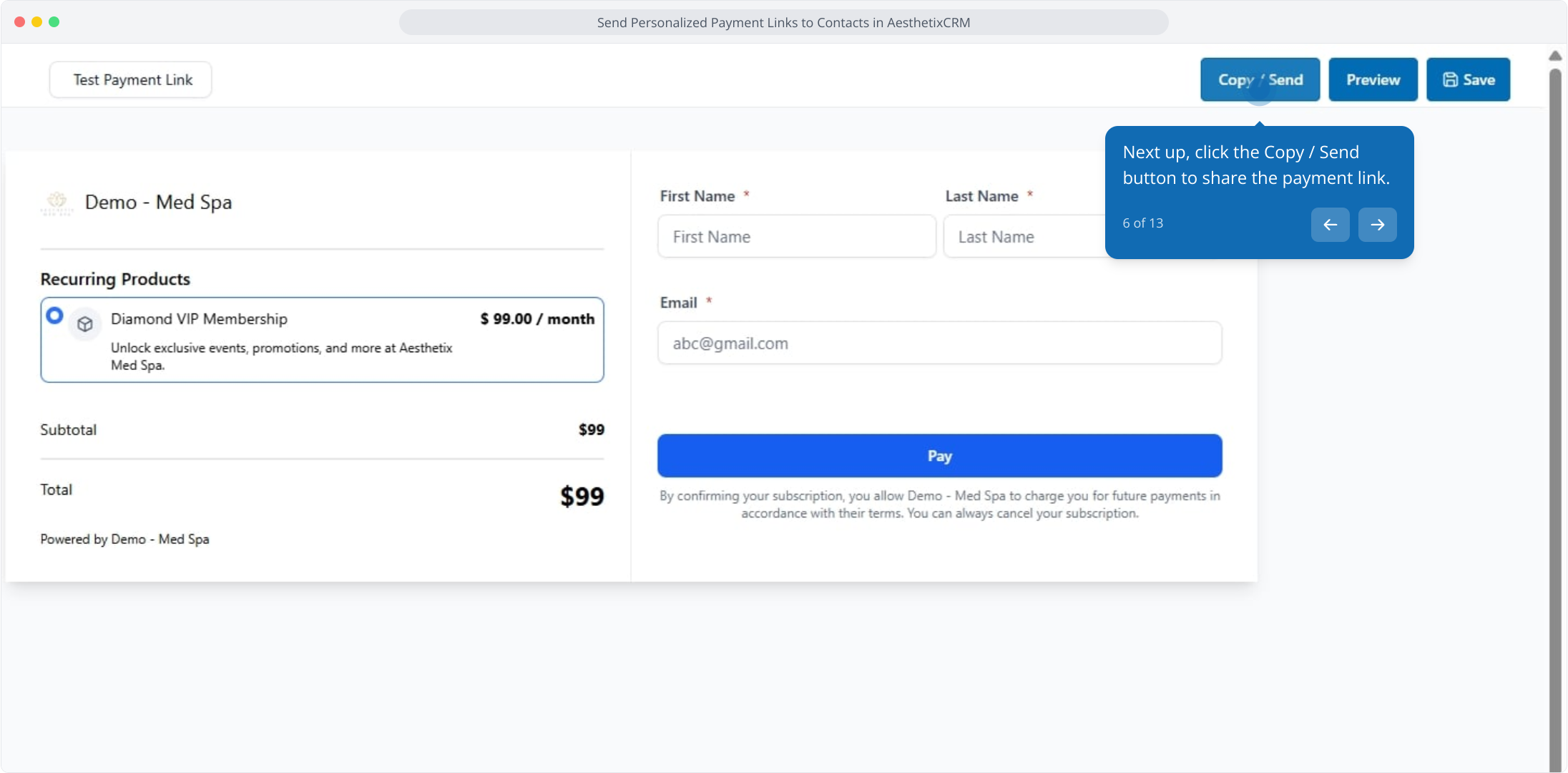
7. Afterwards, click Send To Contacts to distribute the payment link to selected contacts.
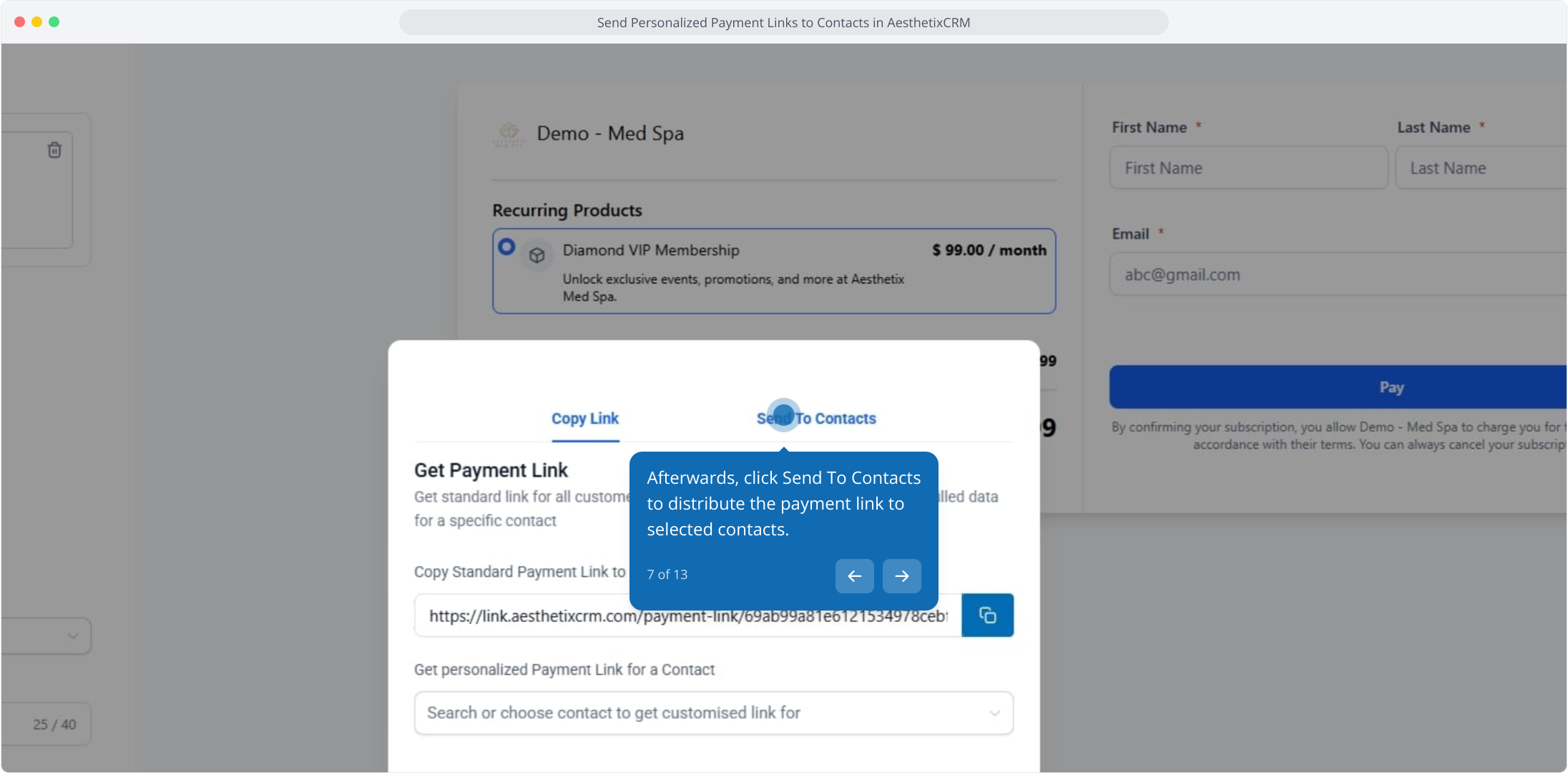
8. Following that, click the contacts dropdown to select the contact that you want to send your payment link.
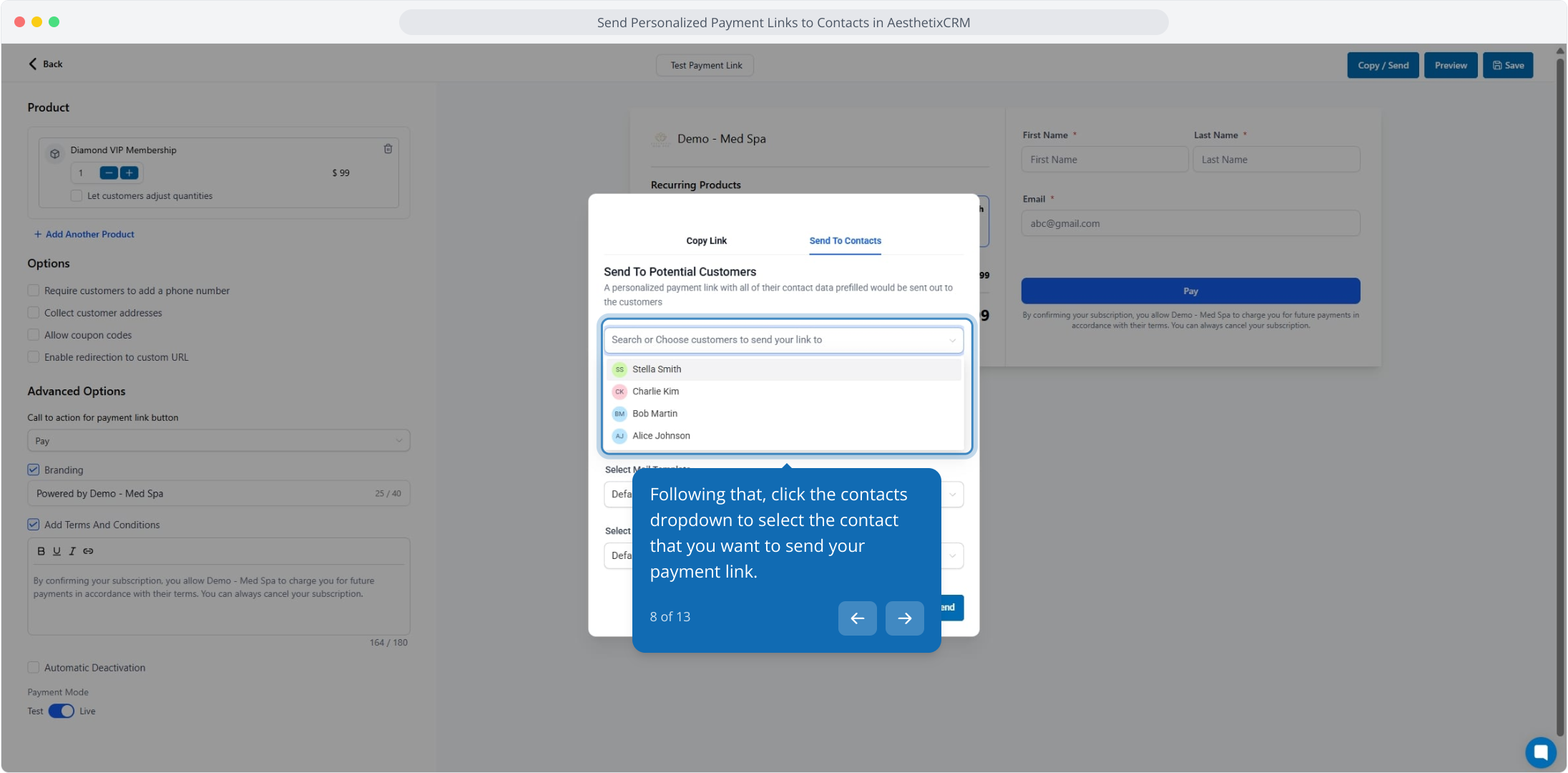
9. Select the channels you want to send the payment link to.
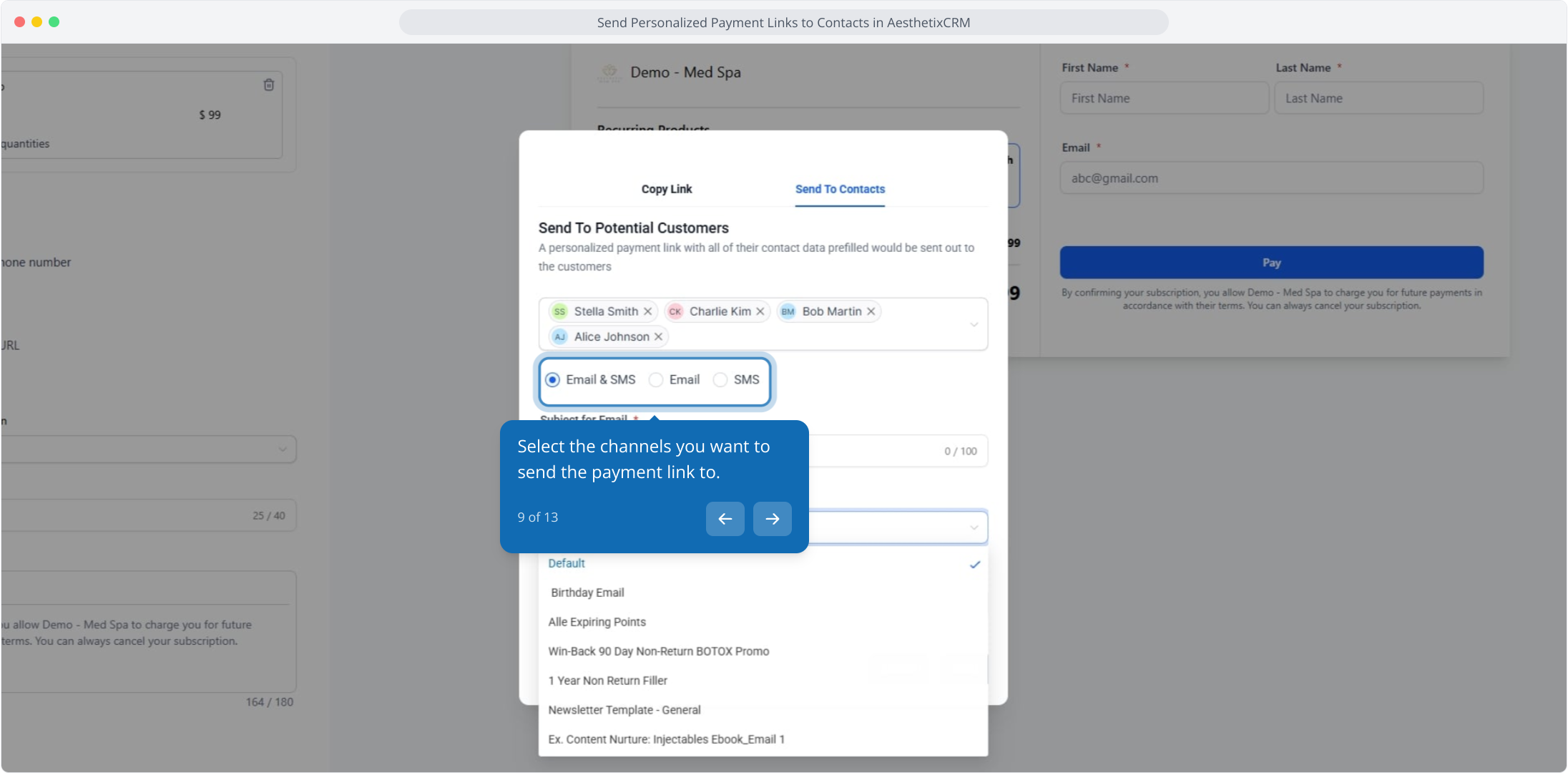
10. From here, enter your email subject line to customize the message recipients receive.
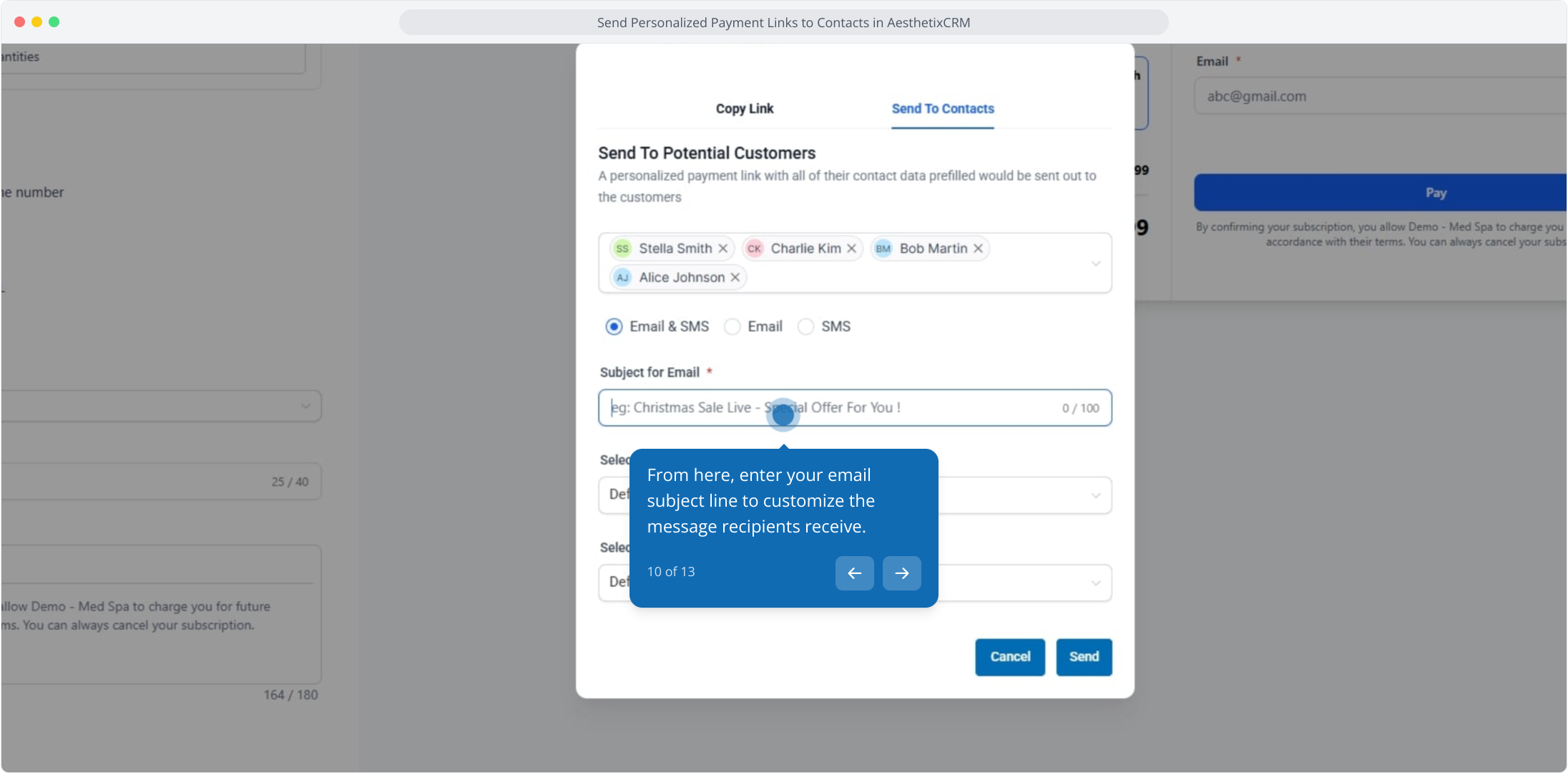
11. Afterwards, select the mail template dropdown to choose your preferred email template option.
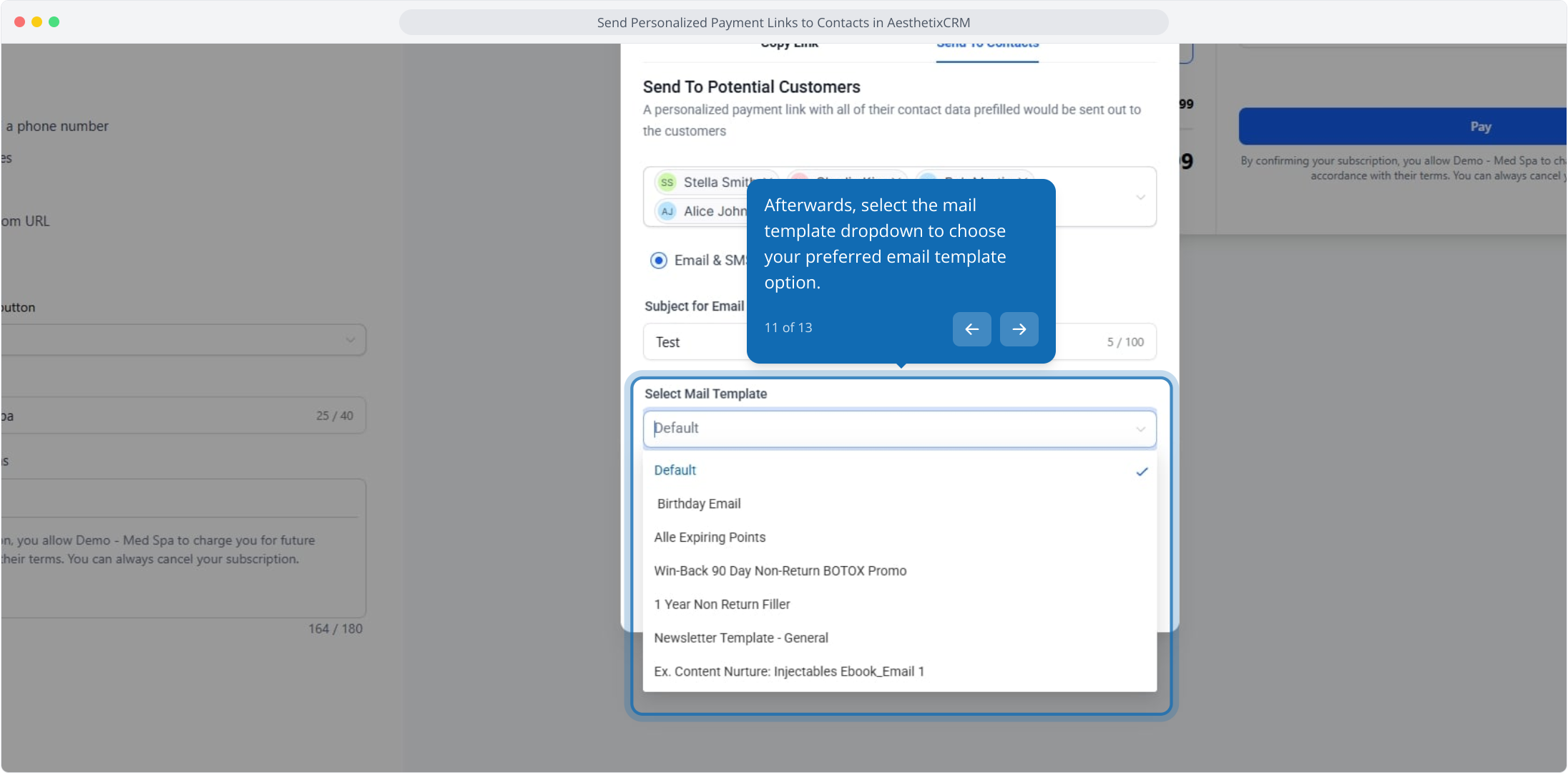
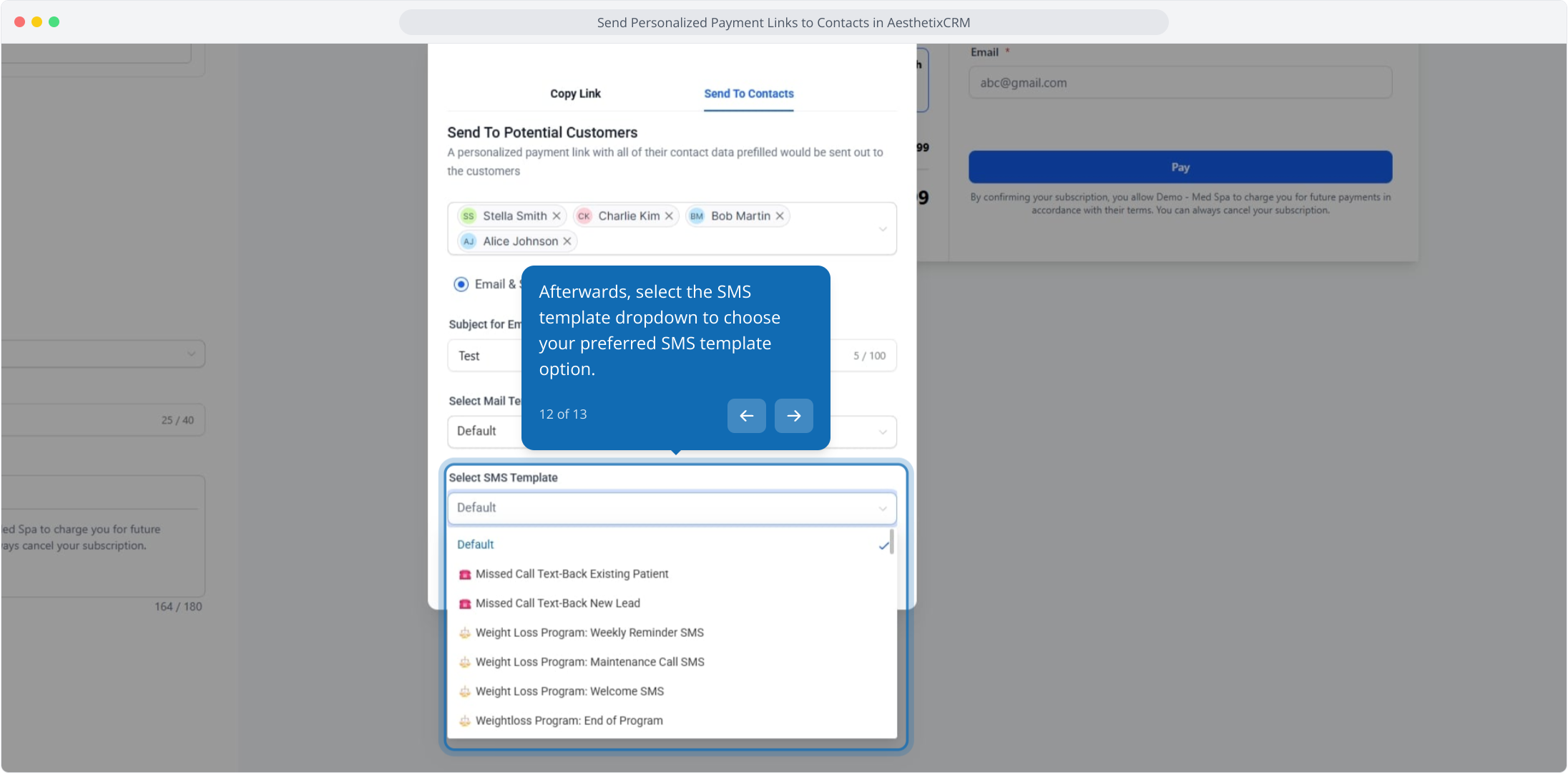
12. Afterwards, select the SMS template dropdown to choose your preferred SMS template option.
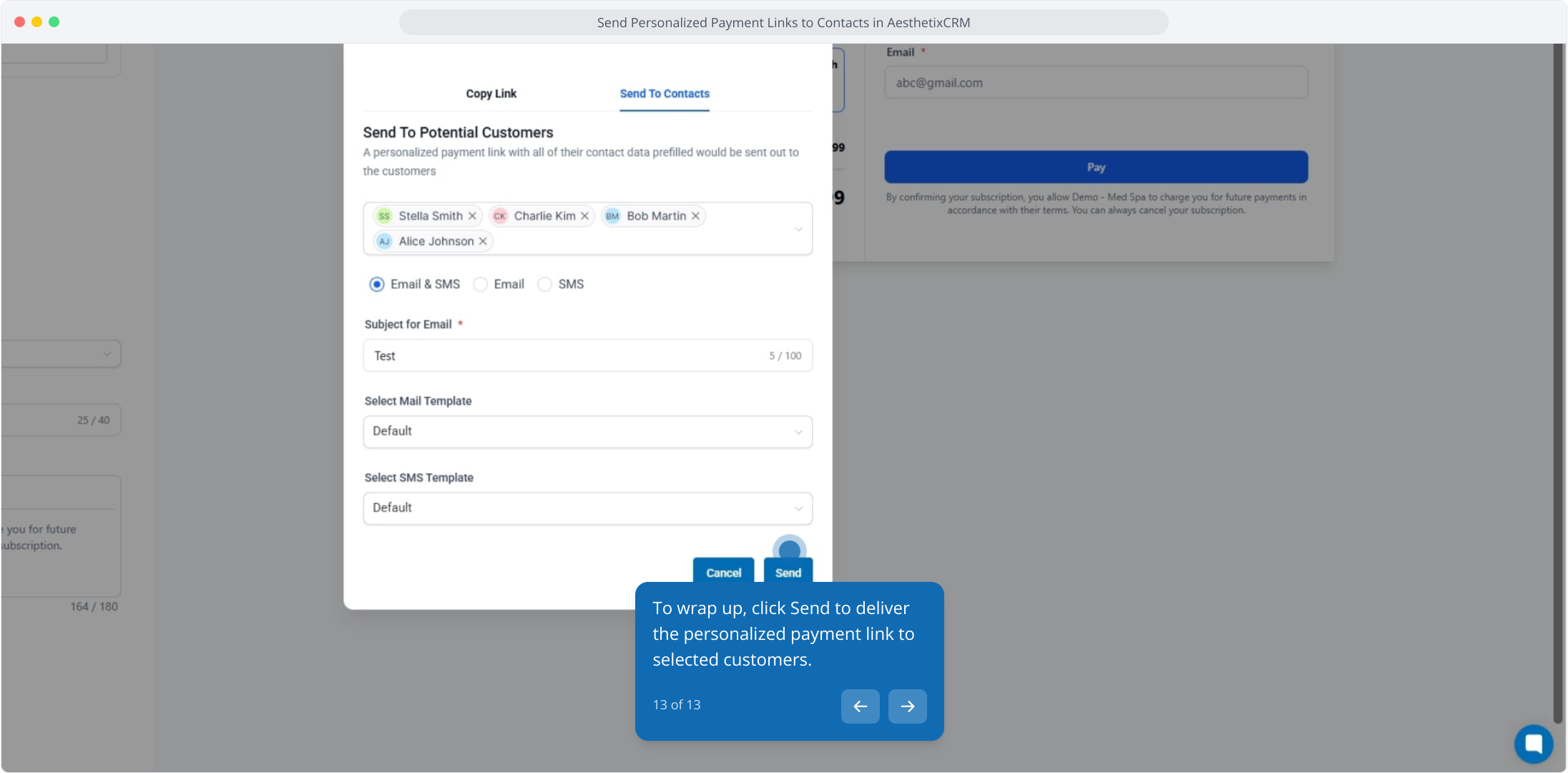
13. To wrap up, click Send to deliver the personalized payment link to selected customers.