1. Create and Share Payment Links in AesthetixCRM
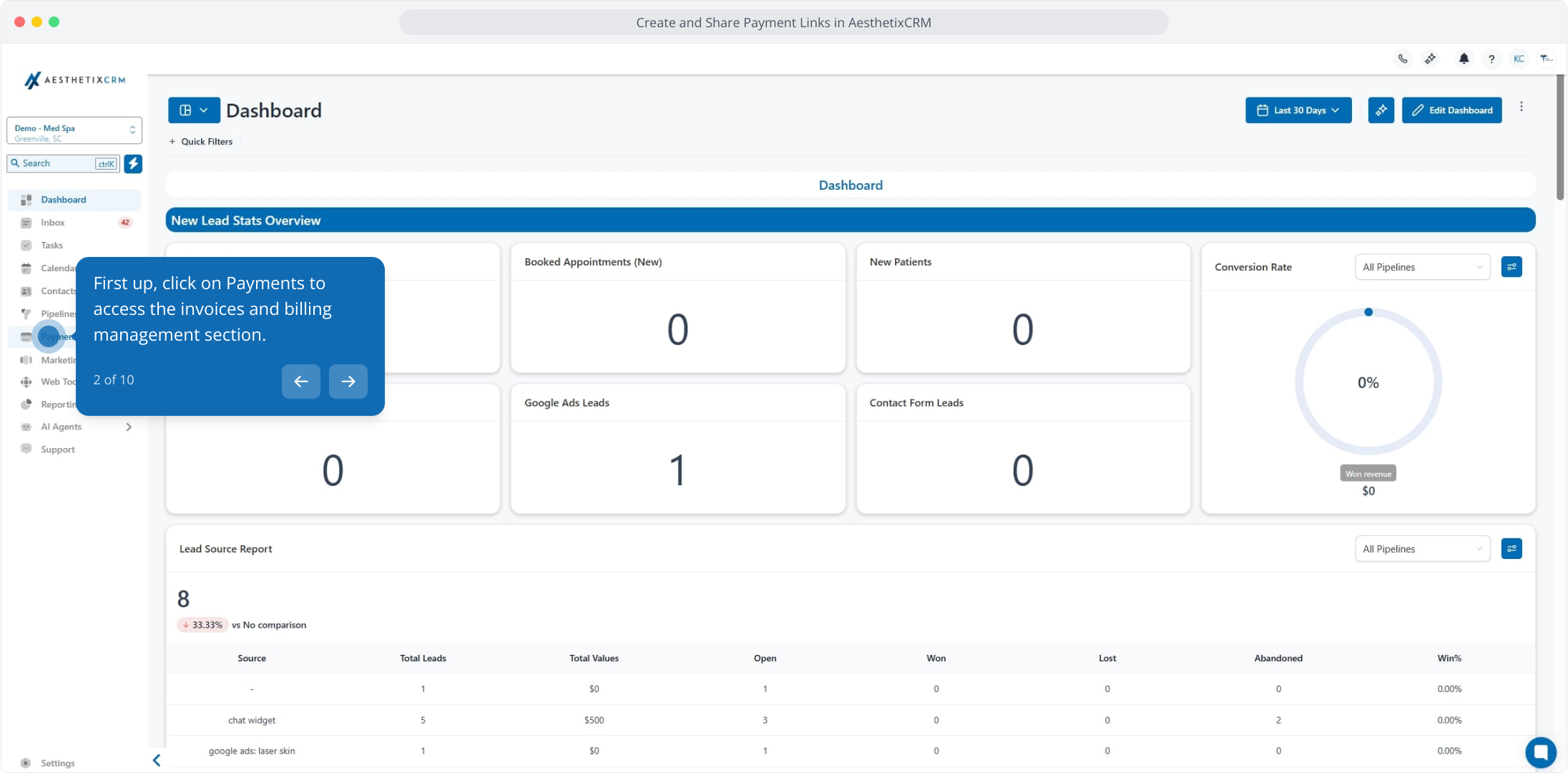
2. First up, click on Payments to access the invoices and billing management section.
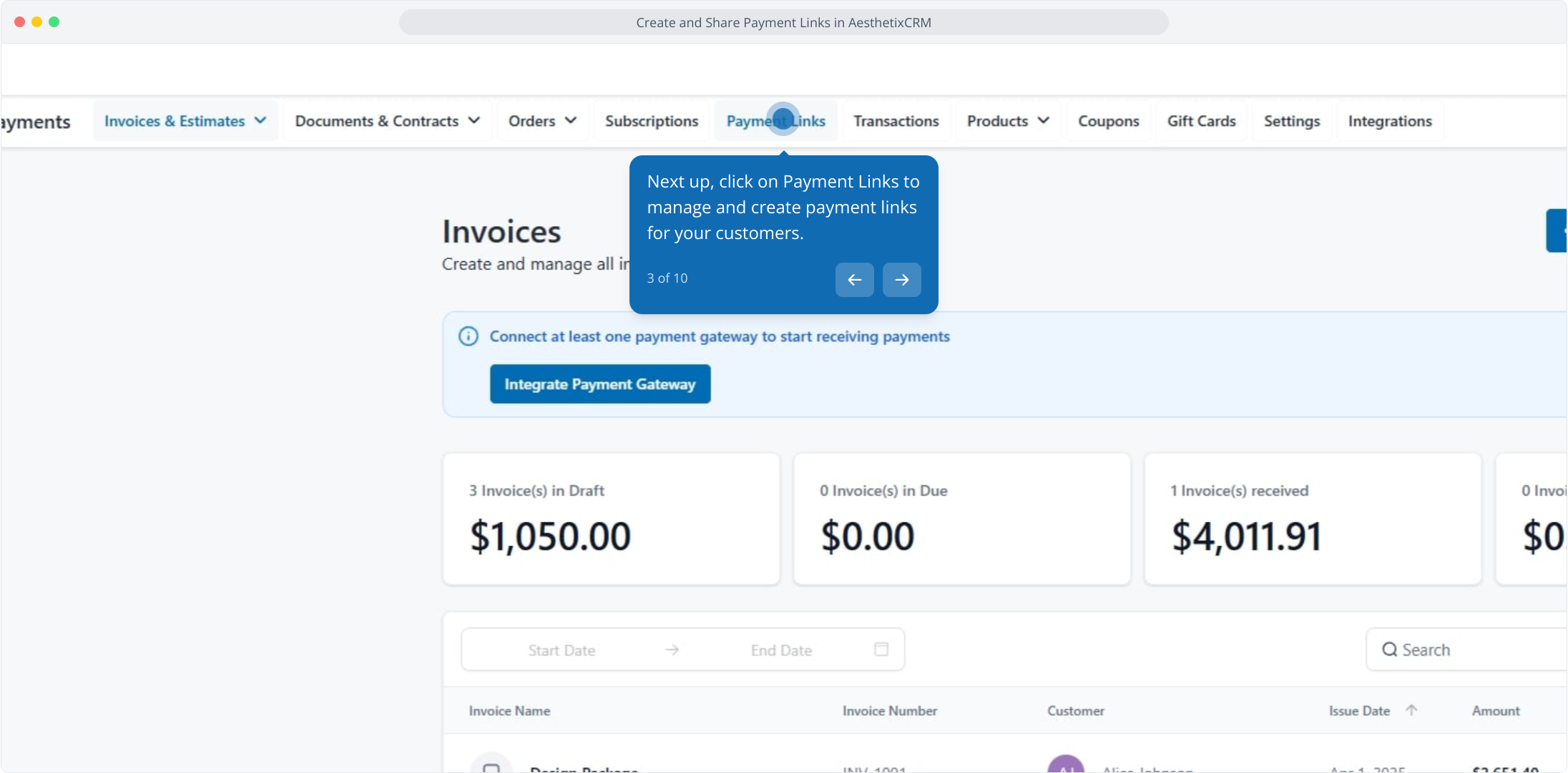
3. Next up, click on Payment Links to manage and create payment links for your customers.
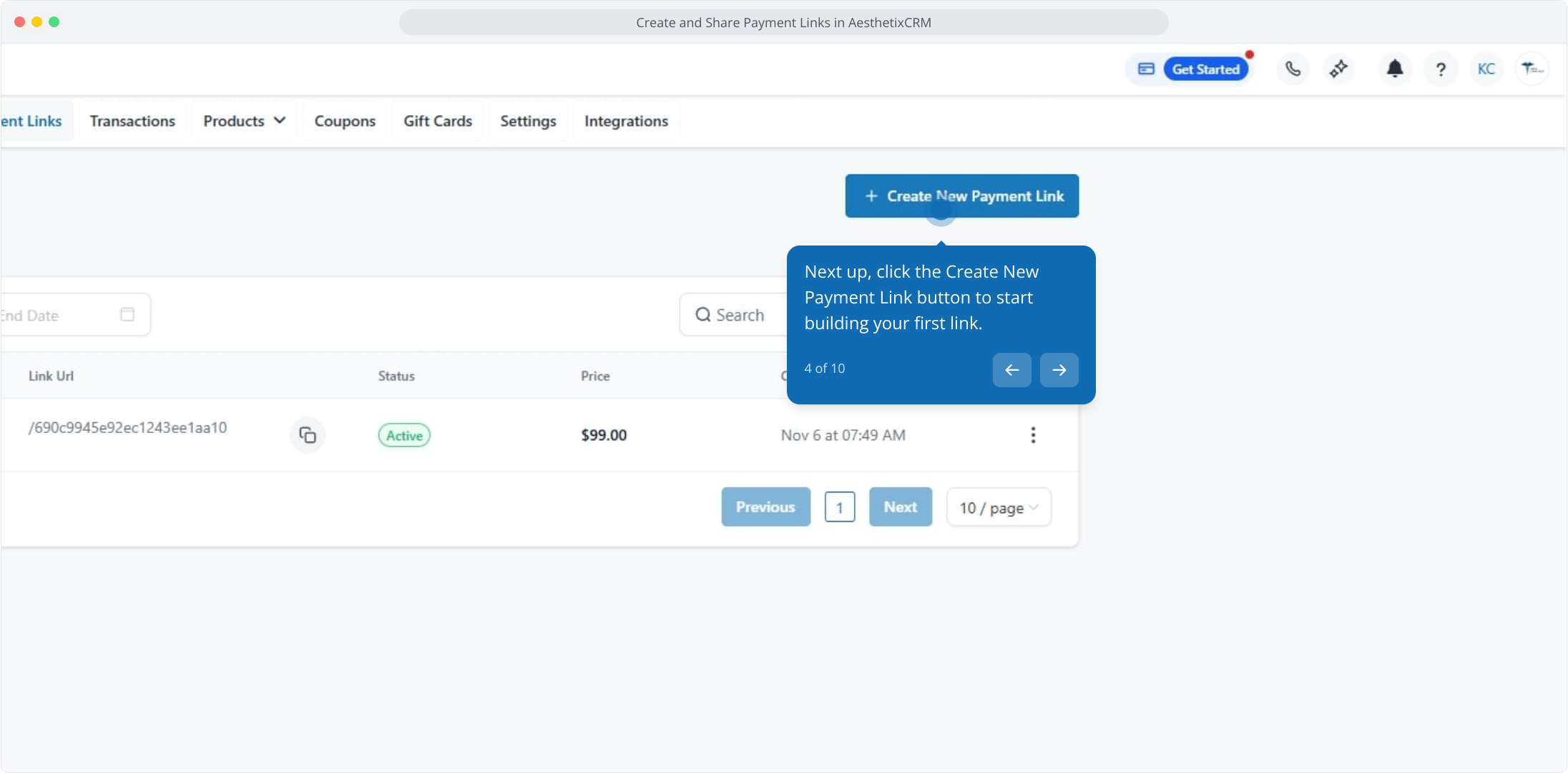
4. Next up, click the Create New Payment Link button to start building your first link.
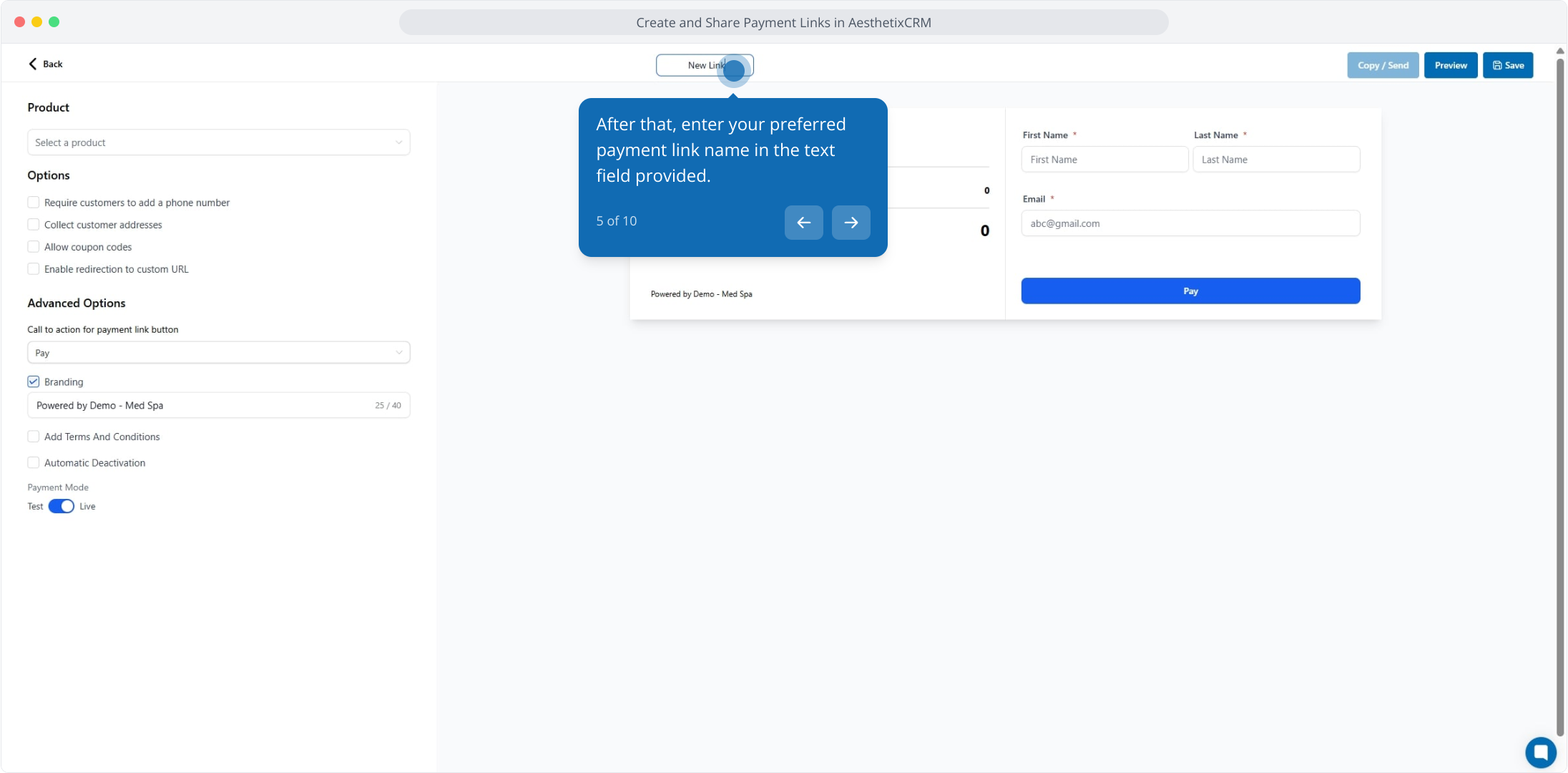
5. After that, enter your preferred payment link name in the text field provided.
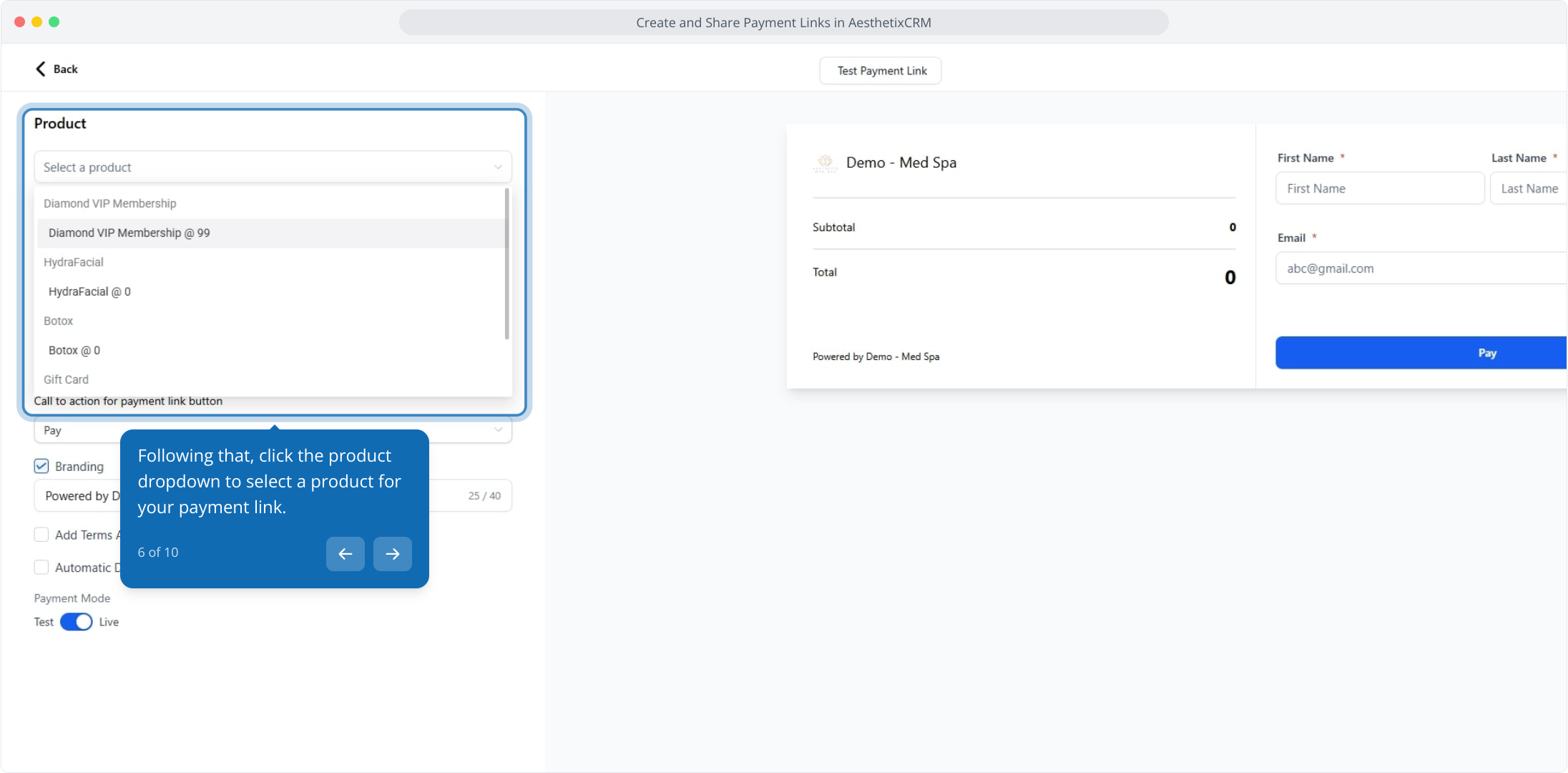
6. Following that, click the product dropdown to select a product for your payment link.
7. You can add another product by clicking here.
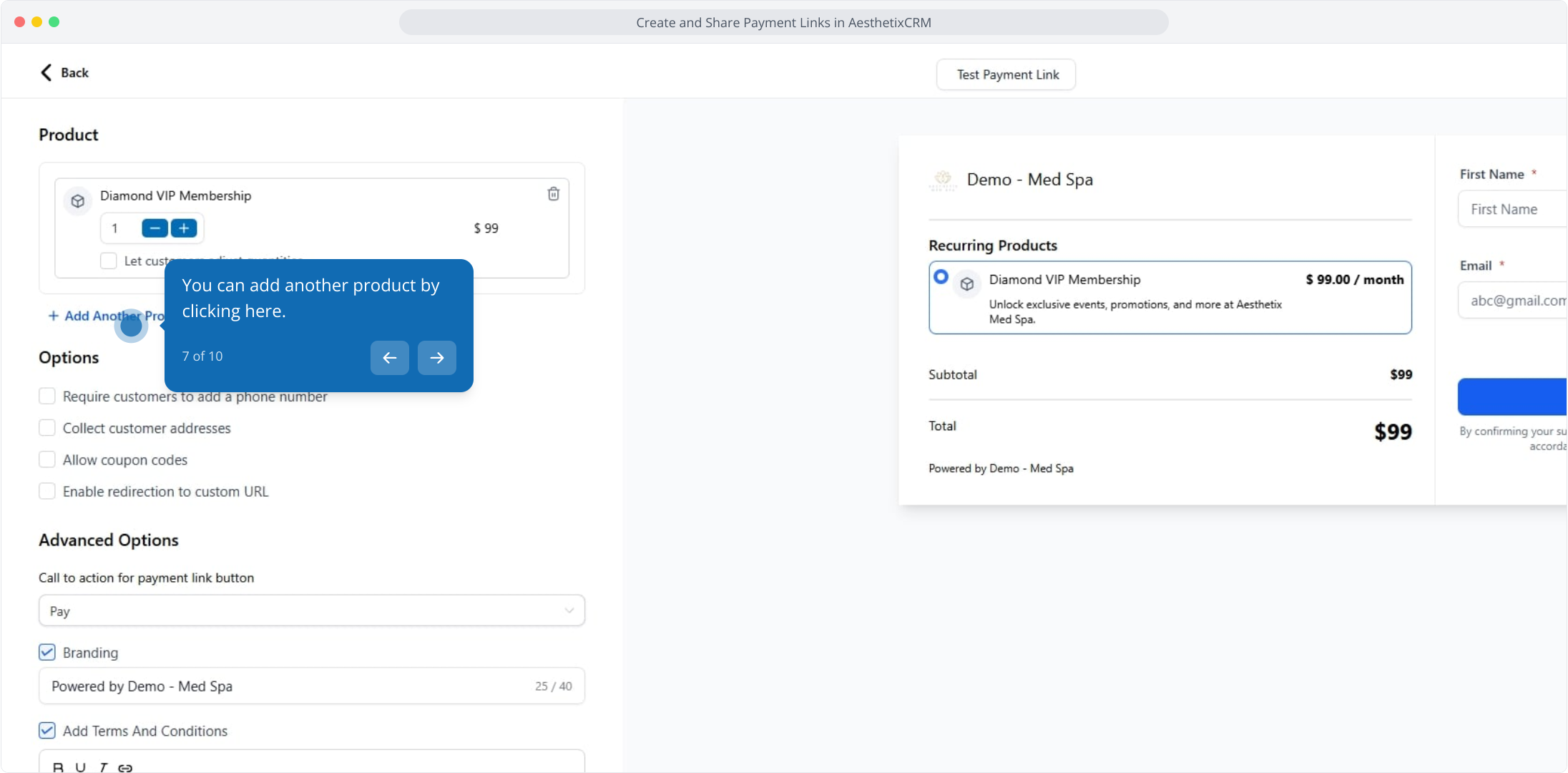
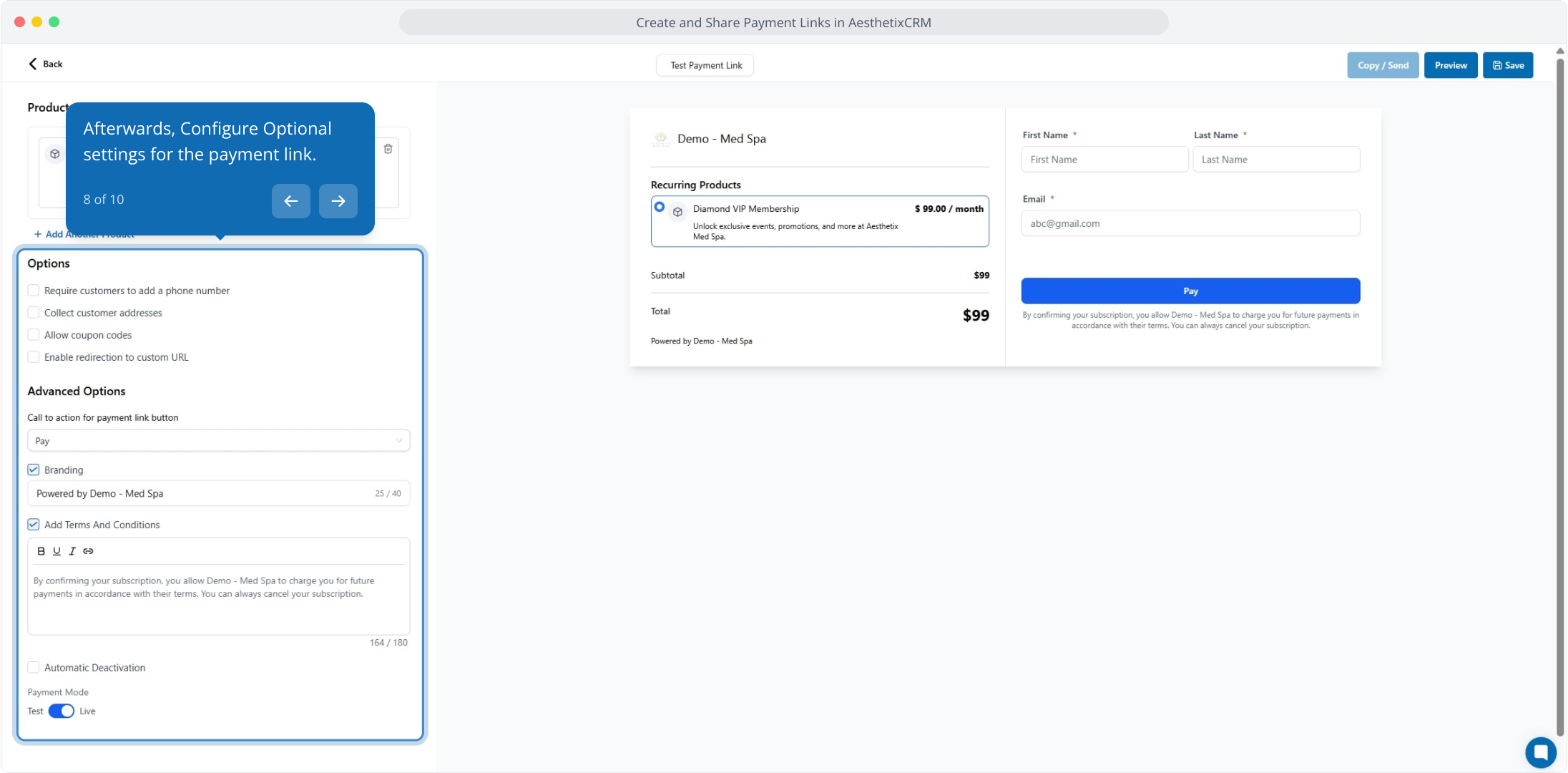
8. Afterwards, Configure Optional settings for the payment link.
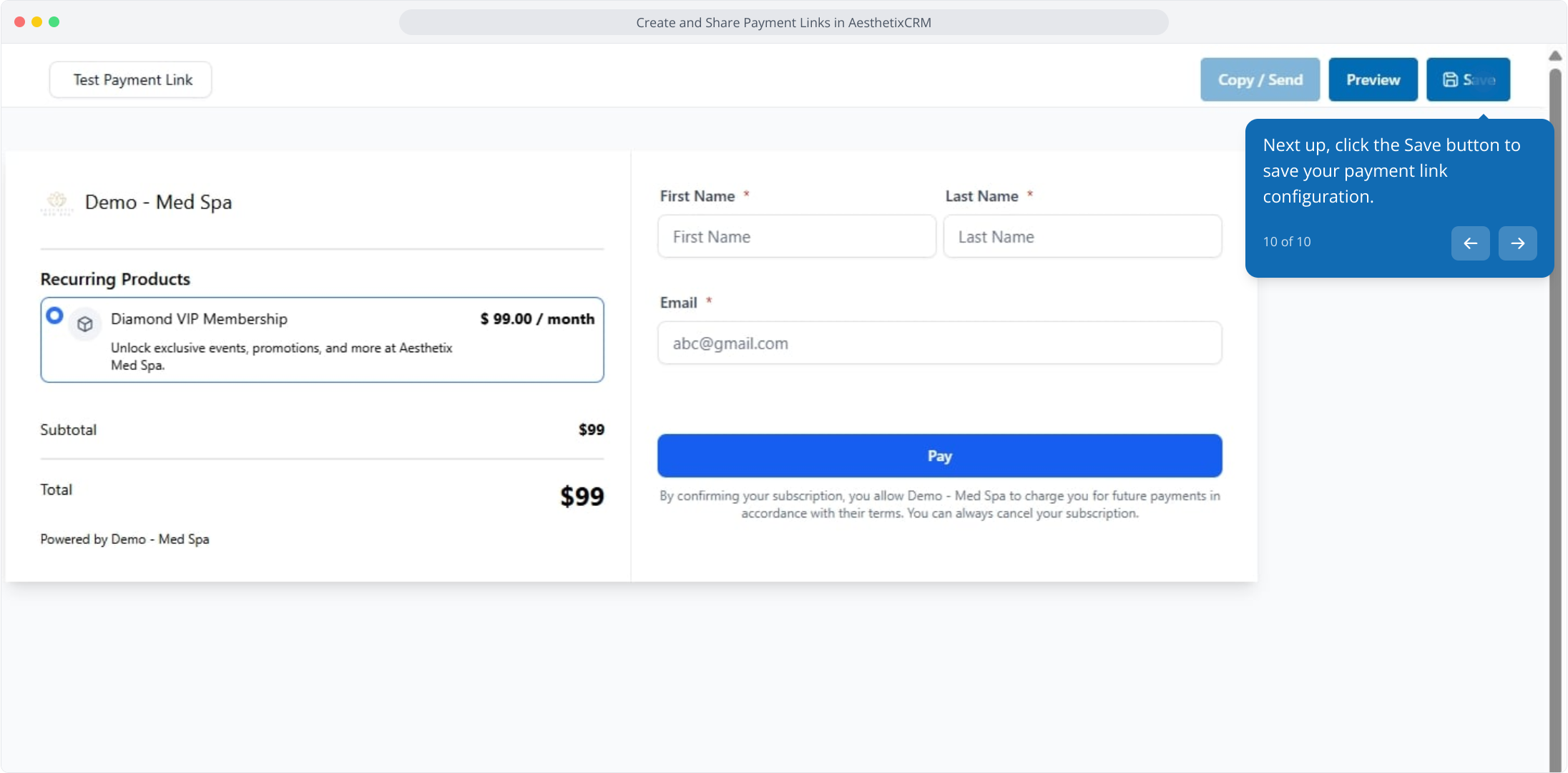
9. Click here to preview your Payment link in another tab.
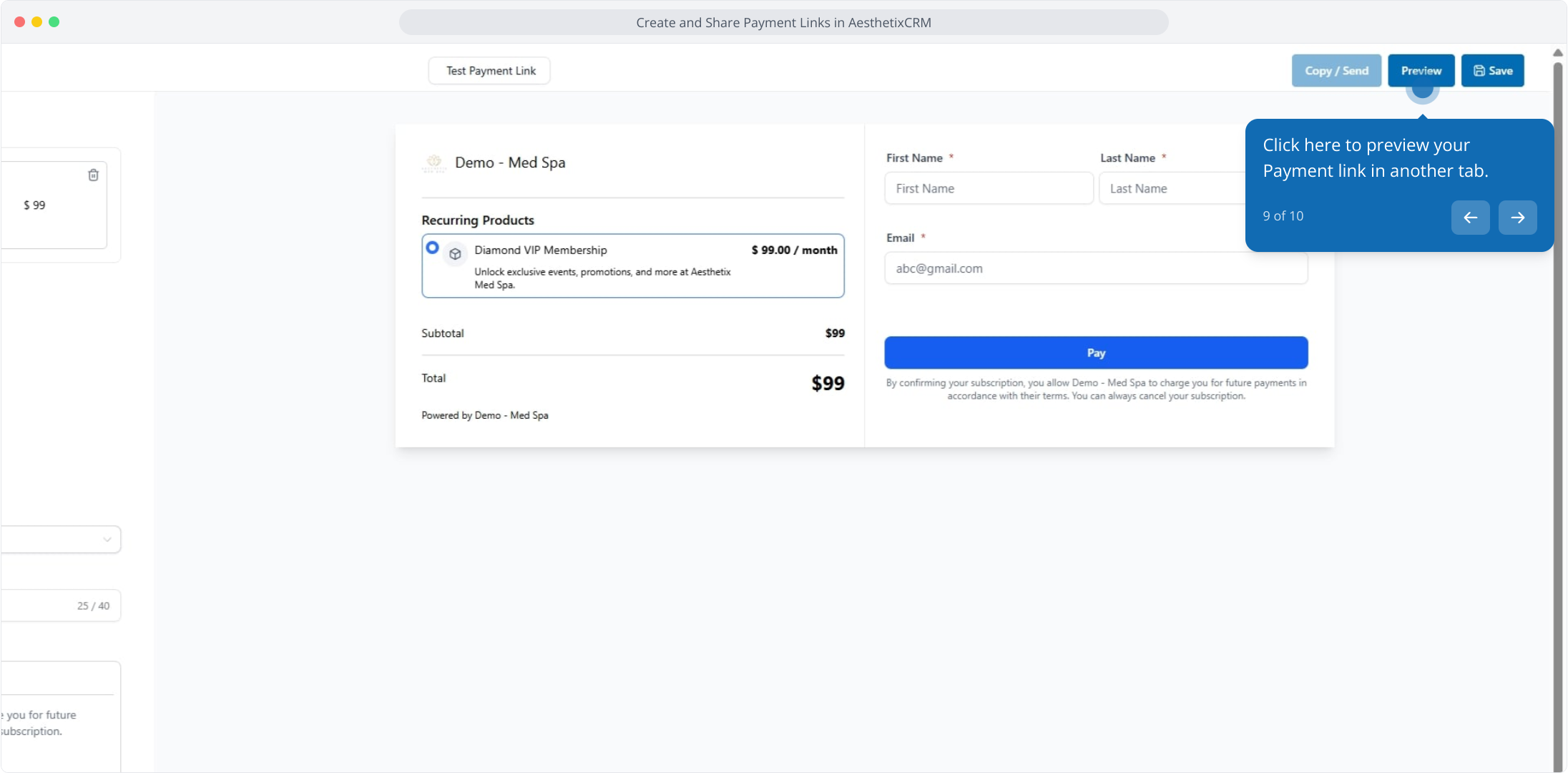
10. Next up, click the Save button to save your payment link configuration.