1. Editing of Payment Schedules and Partially Paid Invoices in AesthetixCRM
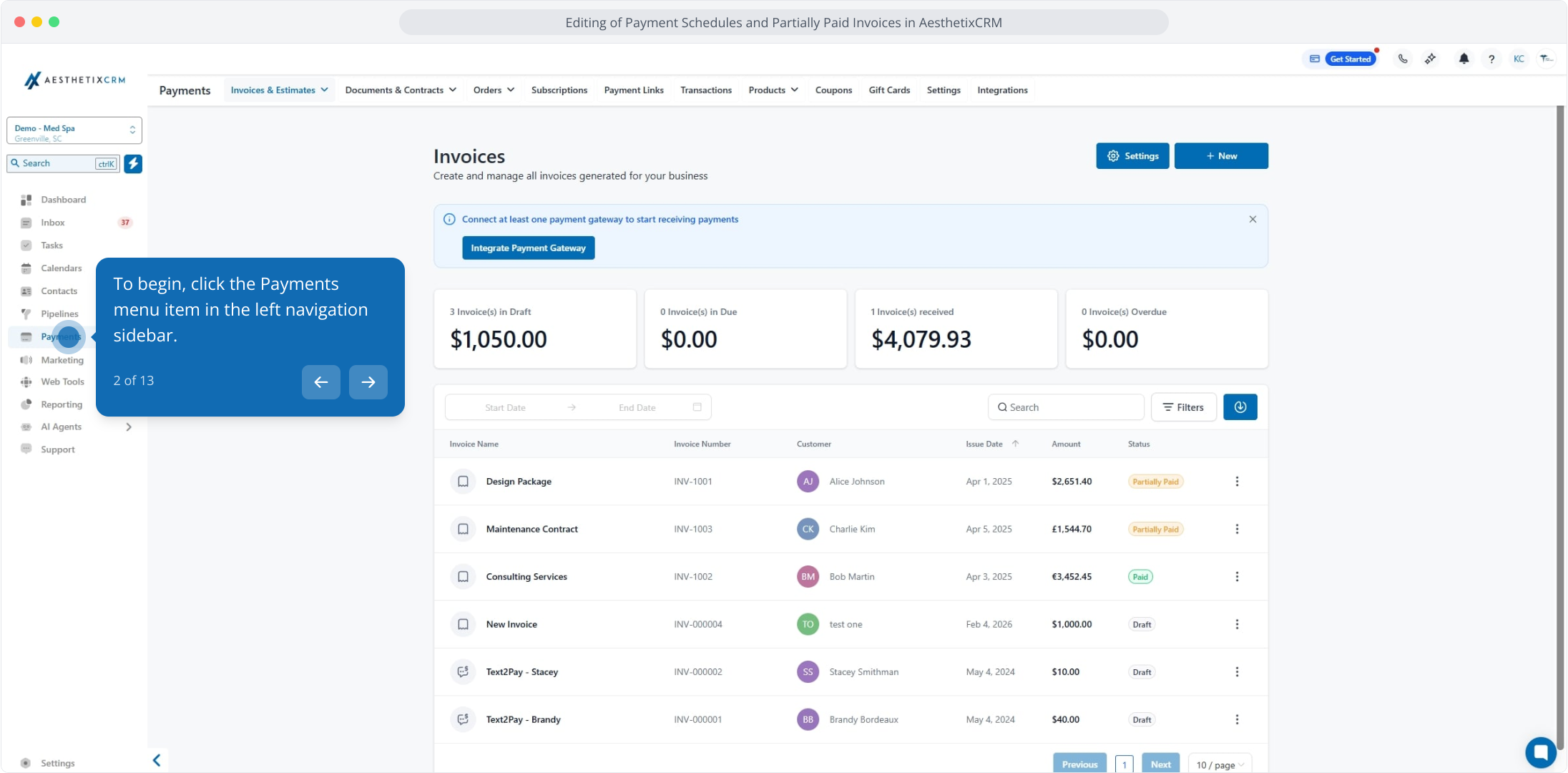
2. To begin, click the Payments menu item in the left navigation sidebar.
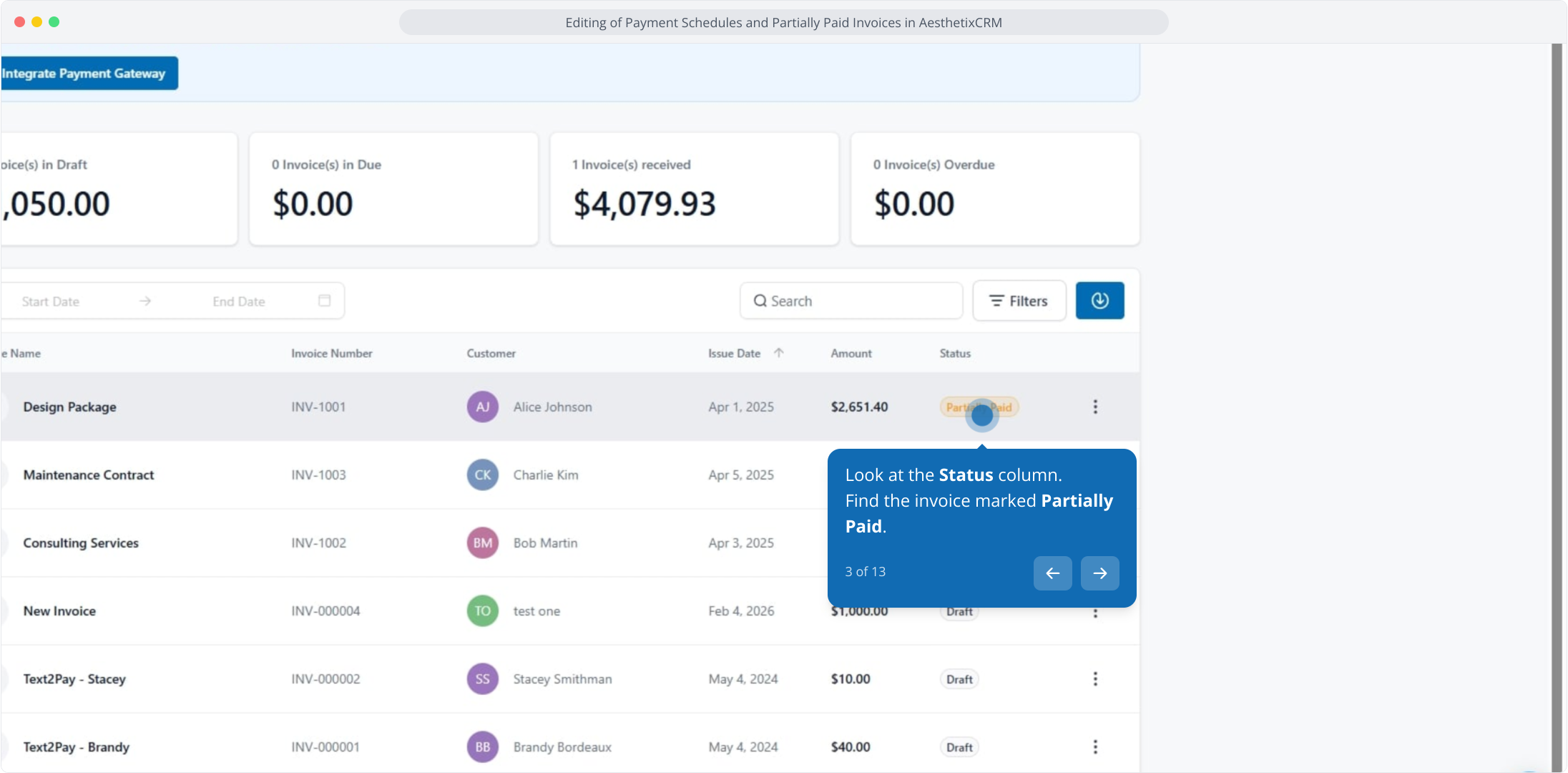
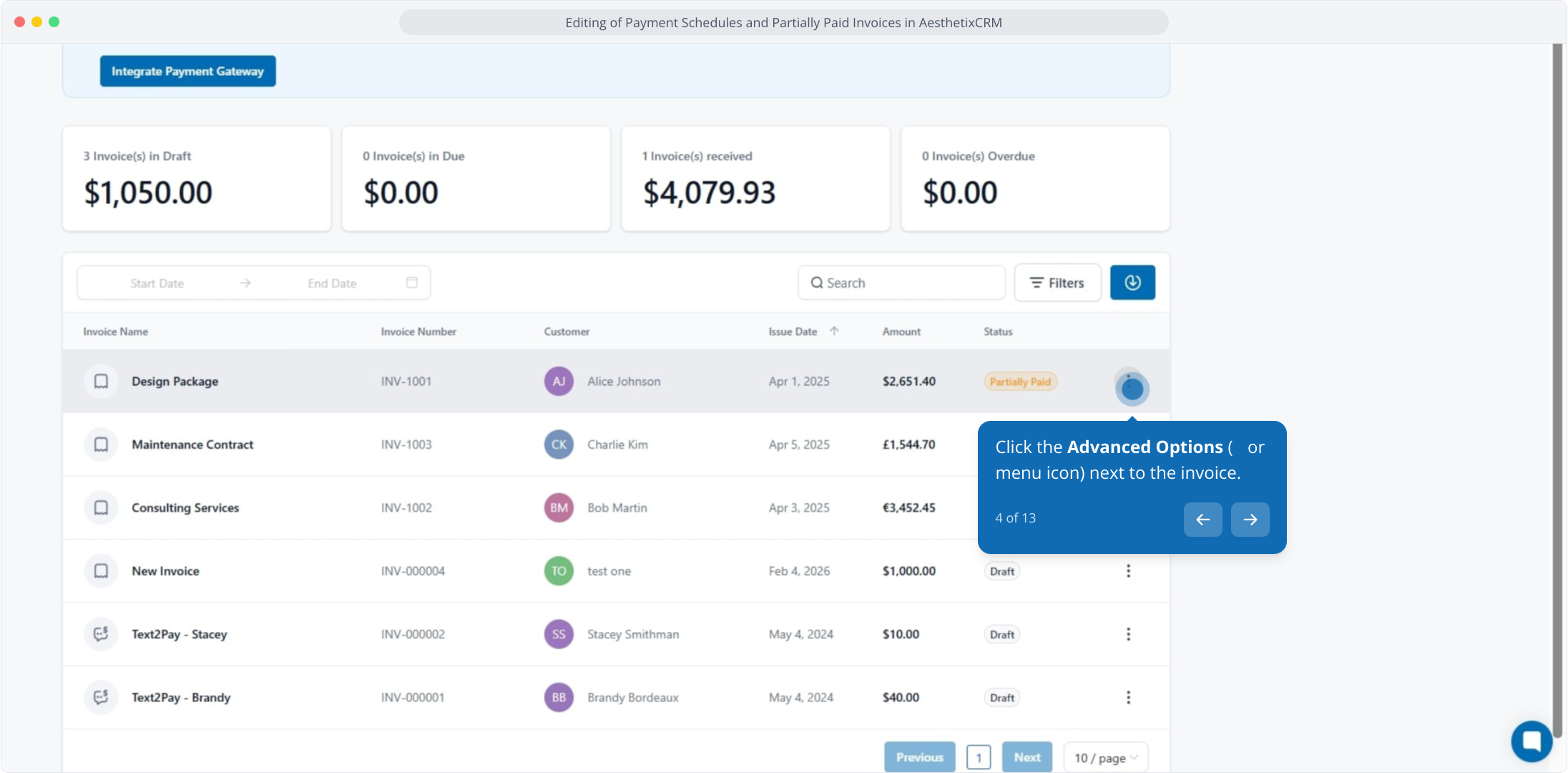
3. Look at the Status column.
Find the invoice marked Partially Paid.
4. Click the Advanced Options (⋮ or menu icon) next to the invoice.
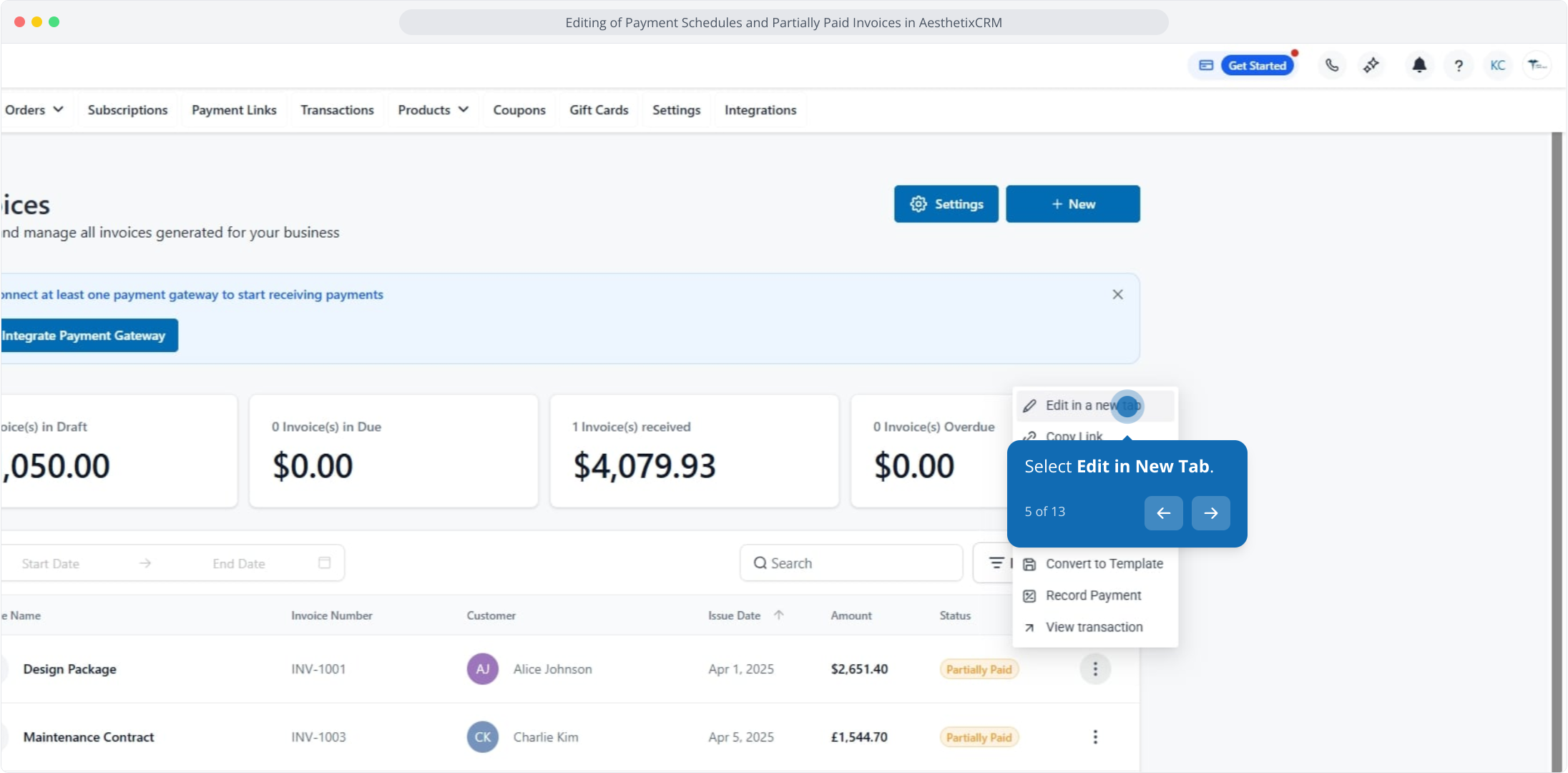
5. Select Edit in New Tab.
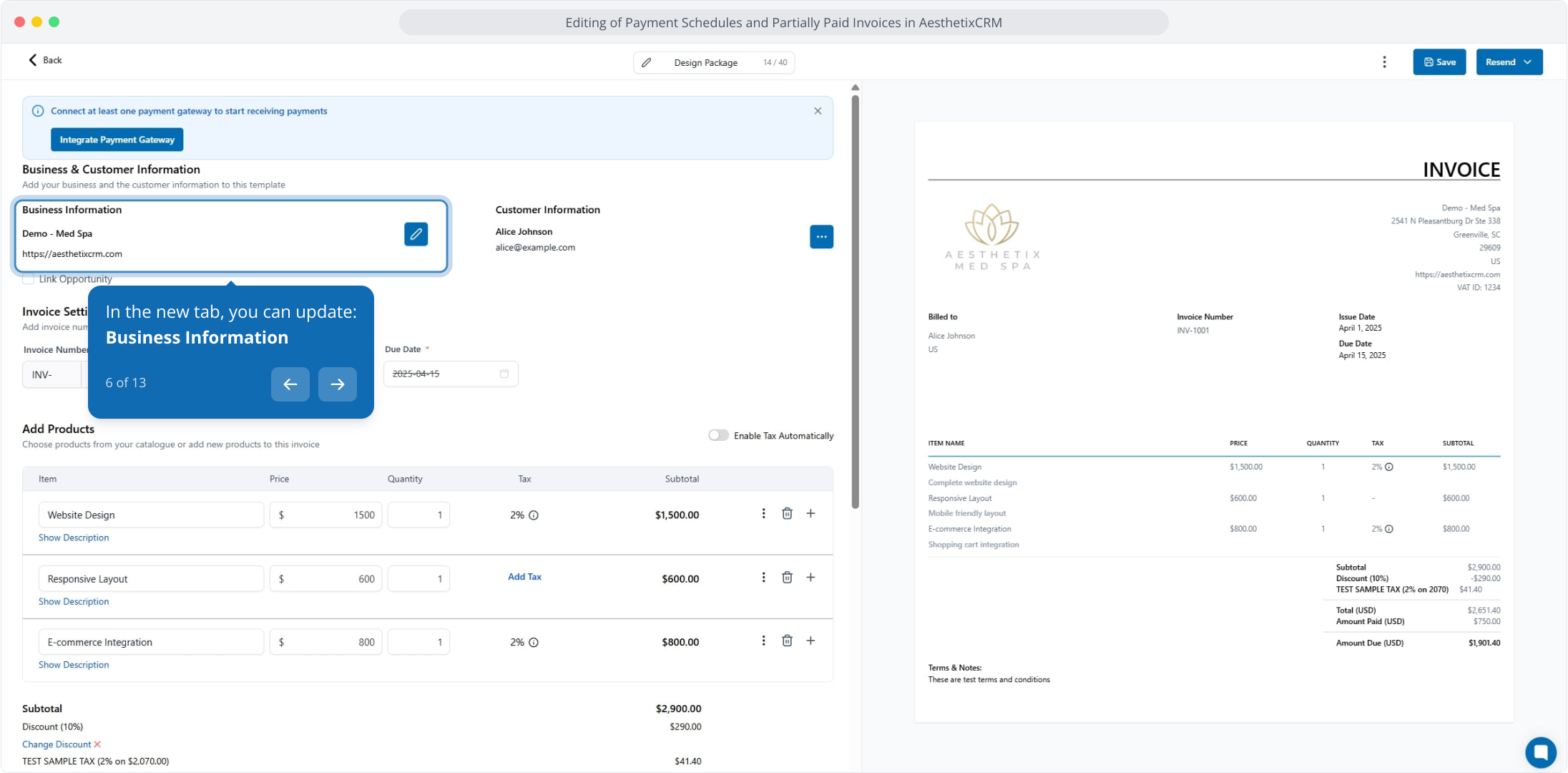
6. In the new tab, you can update:
Business Information
7. Linked Opportunity (if needed)
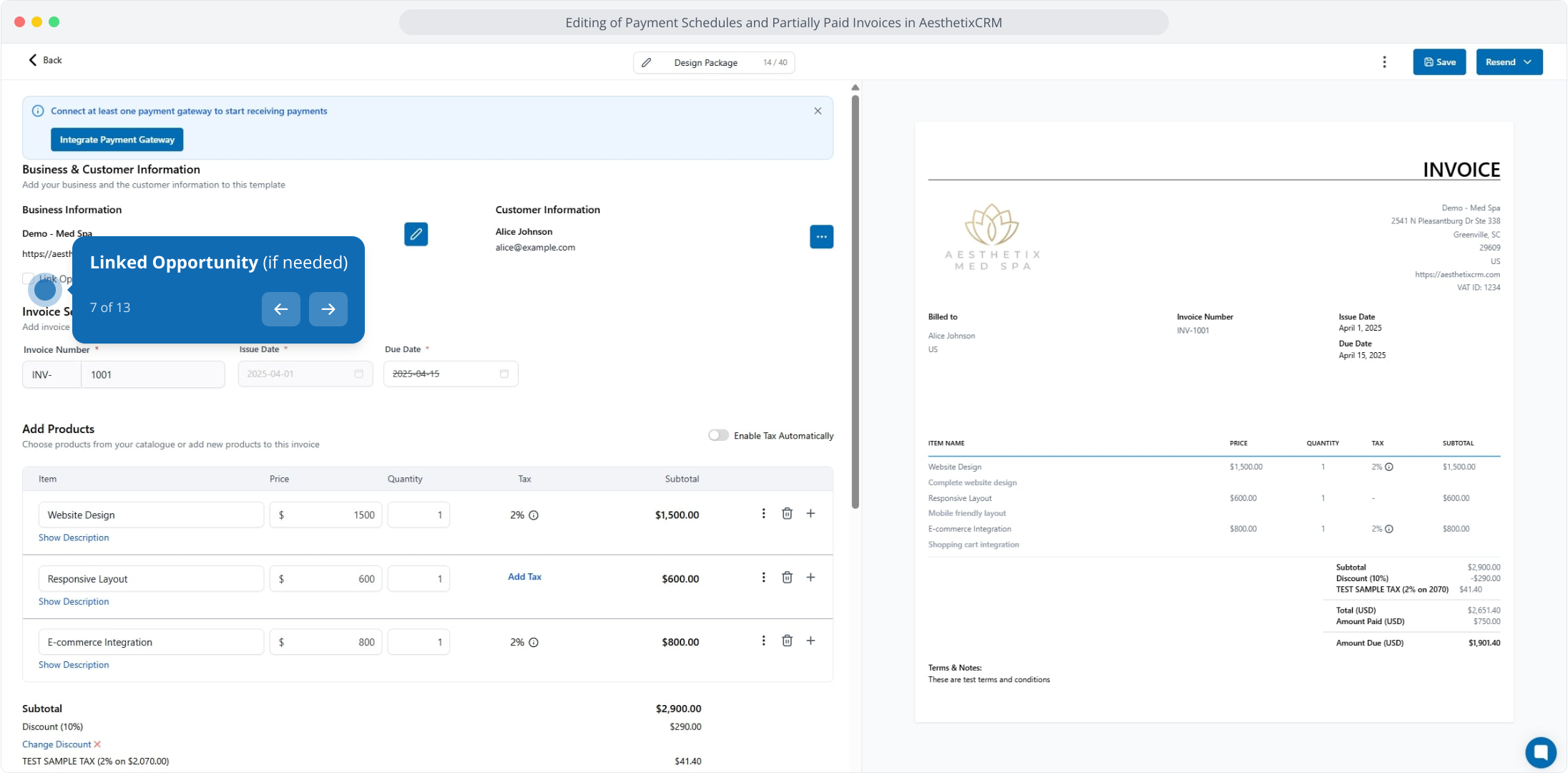
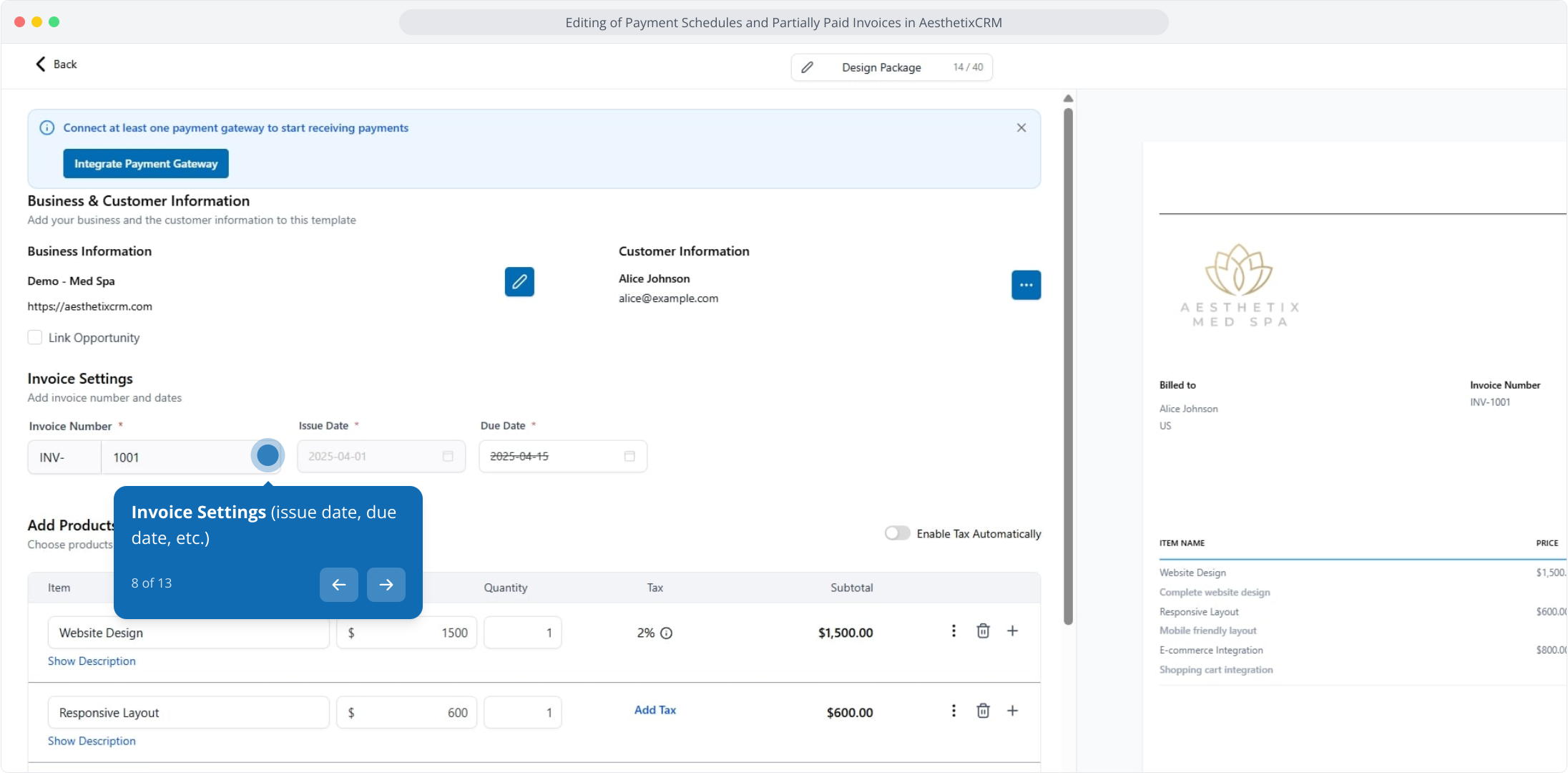
8. Invoice Settings (issue date, due date, etc.)
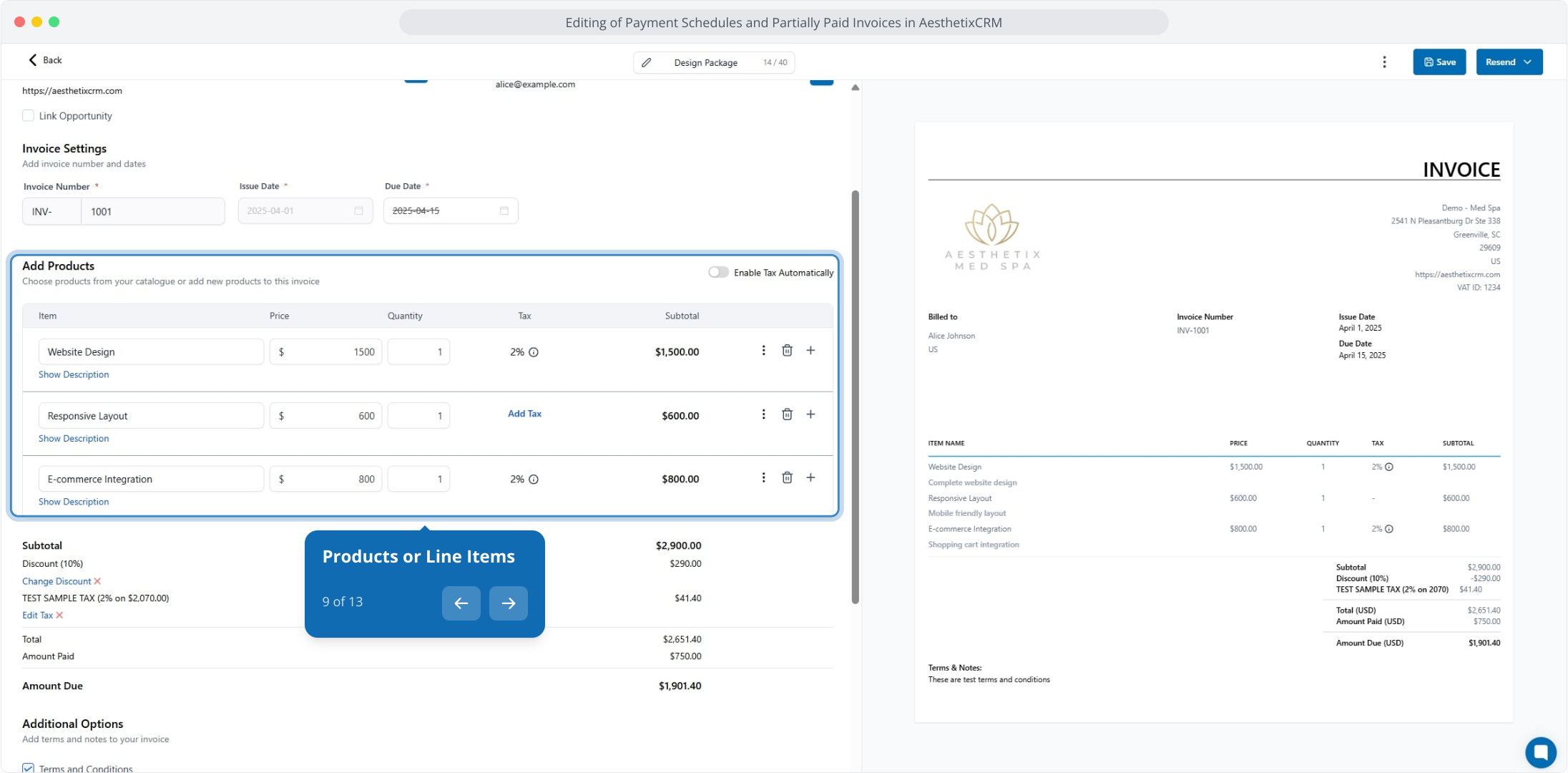
9. Products or Line Items
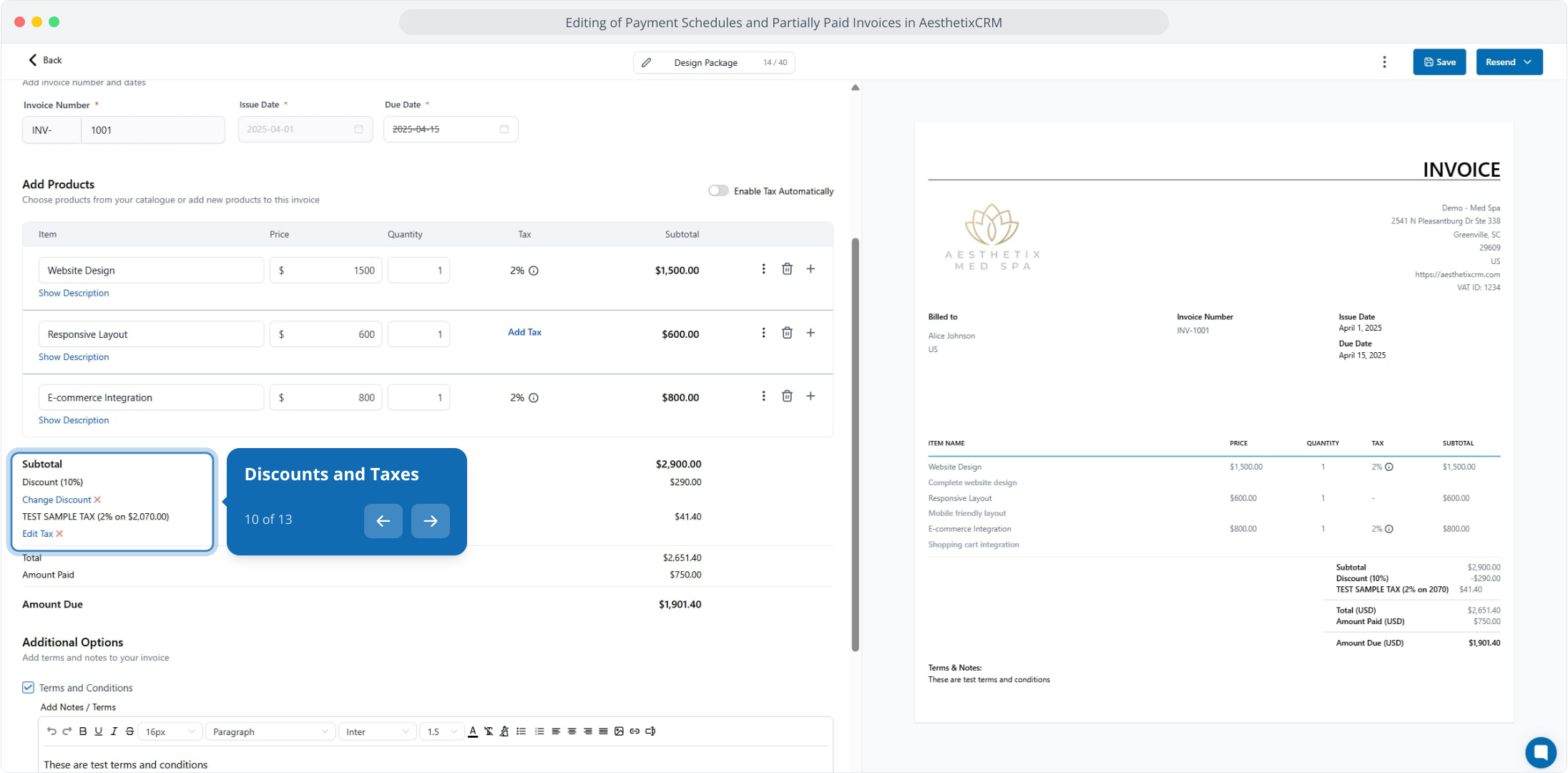
10. Discounts and Taxes
11. Additional Options (terms, attachments, payment settings)
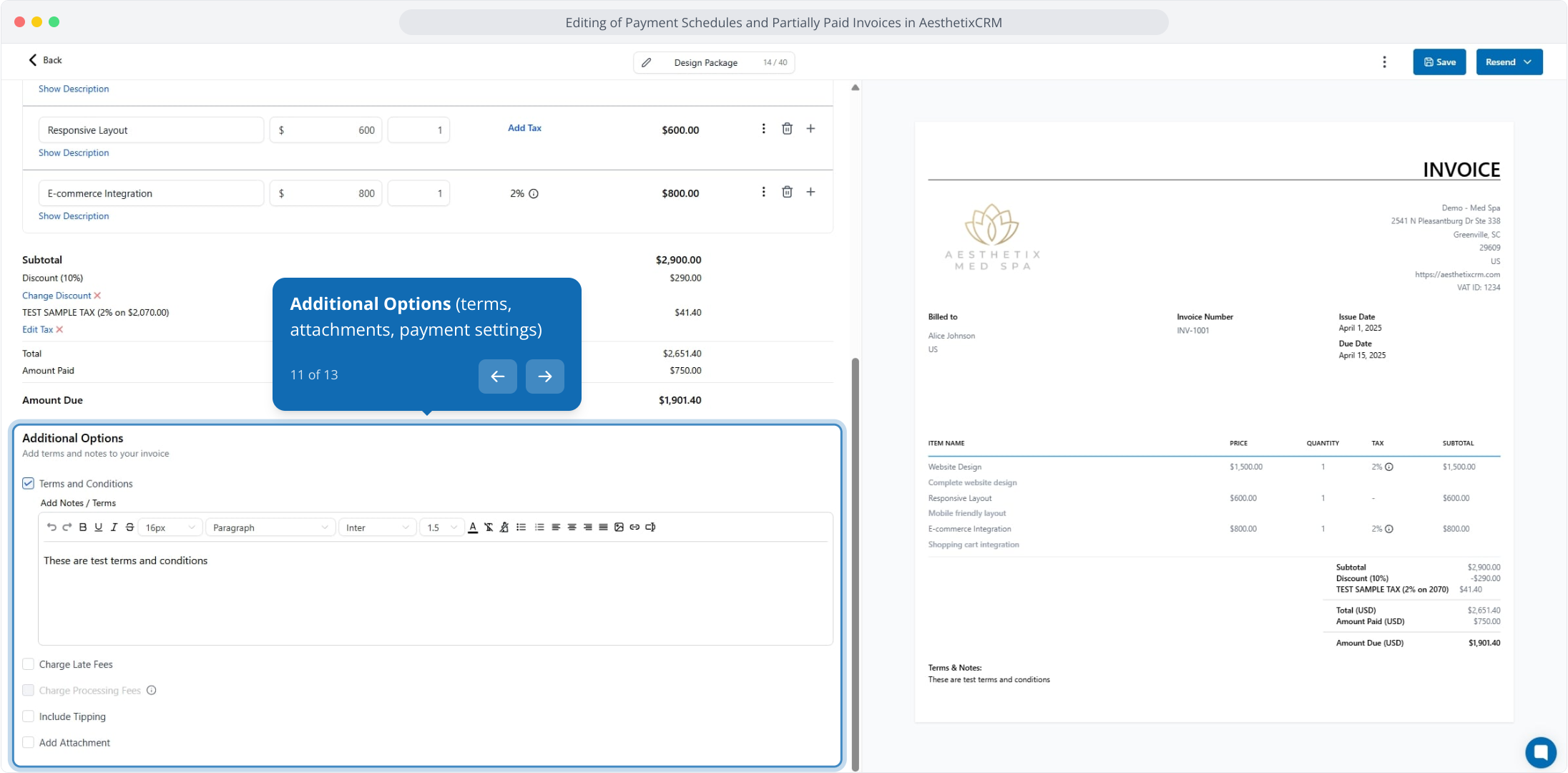
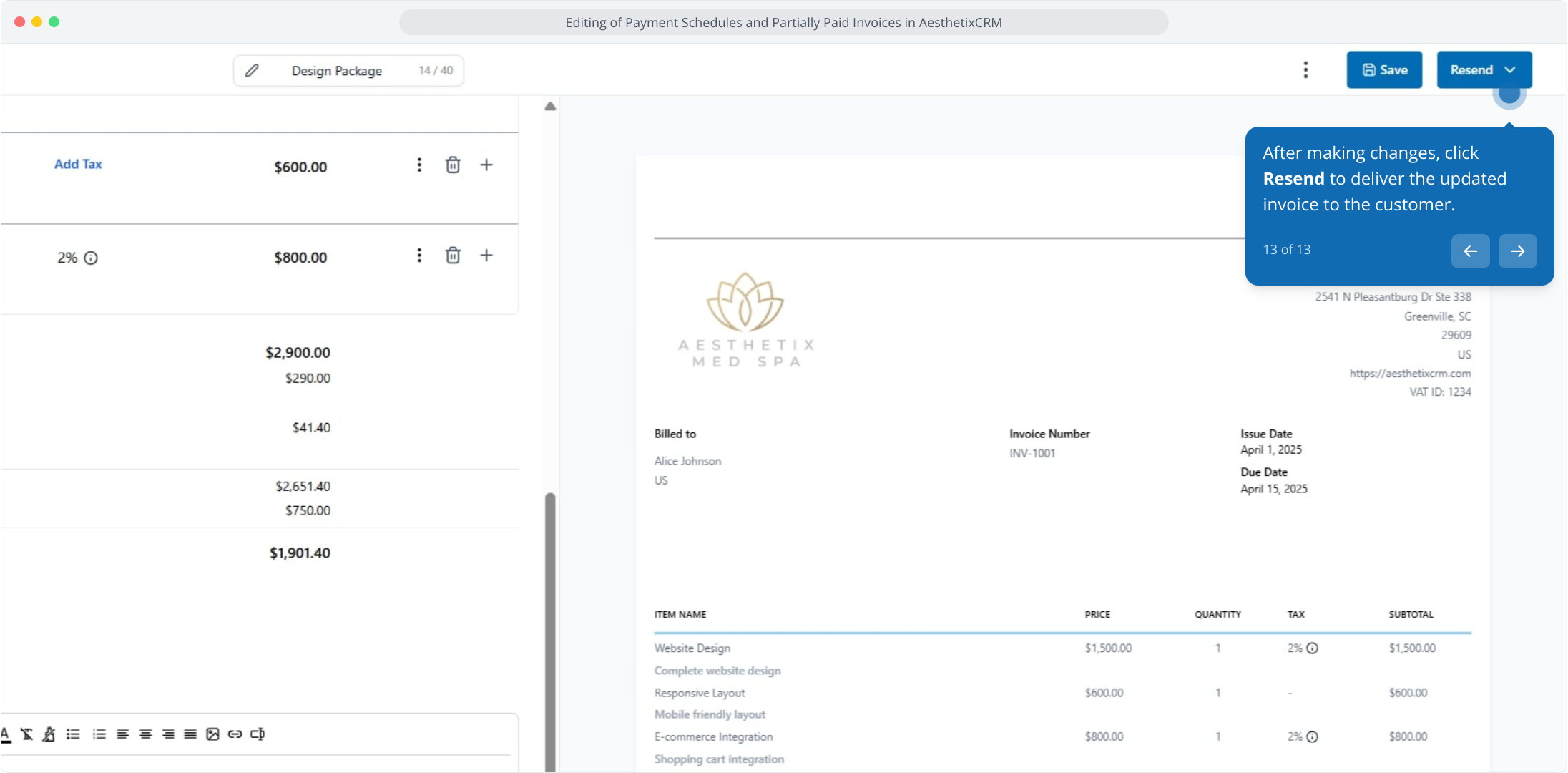
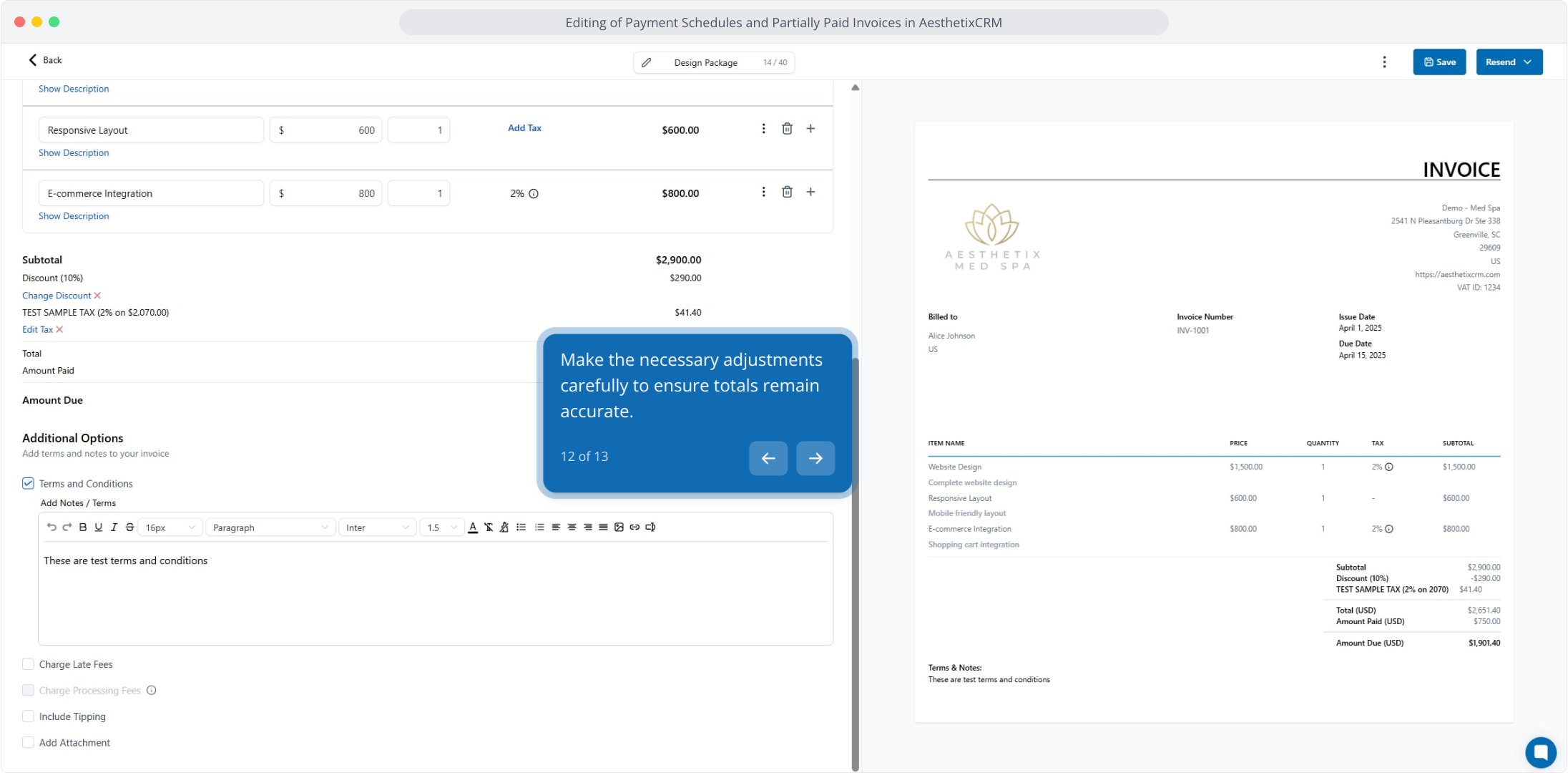
12. Make the necessary adjustments carefully to ensure totals remain accurate.
13. After making changes, click Resend to deliver the updated invoice to the customer.