1. Import and Map Invoices with CSV in AesthetixCRM
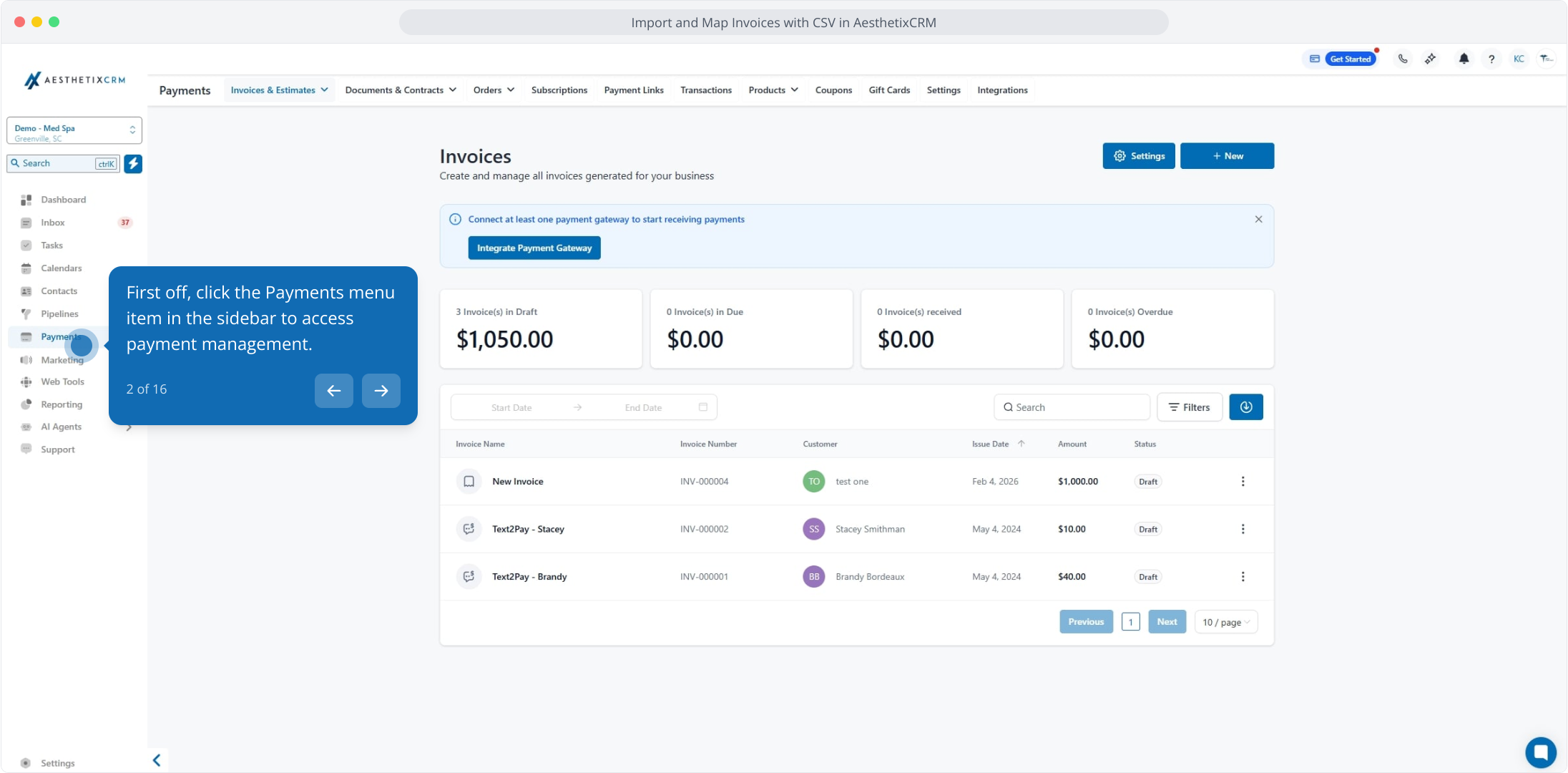
2. First off, click the Payments menu item in the sidebar to access payment management.
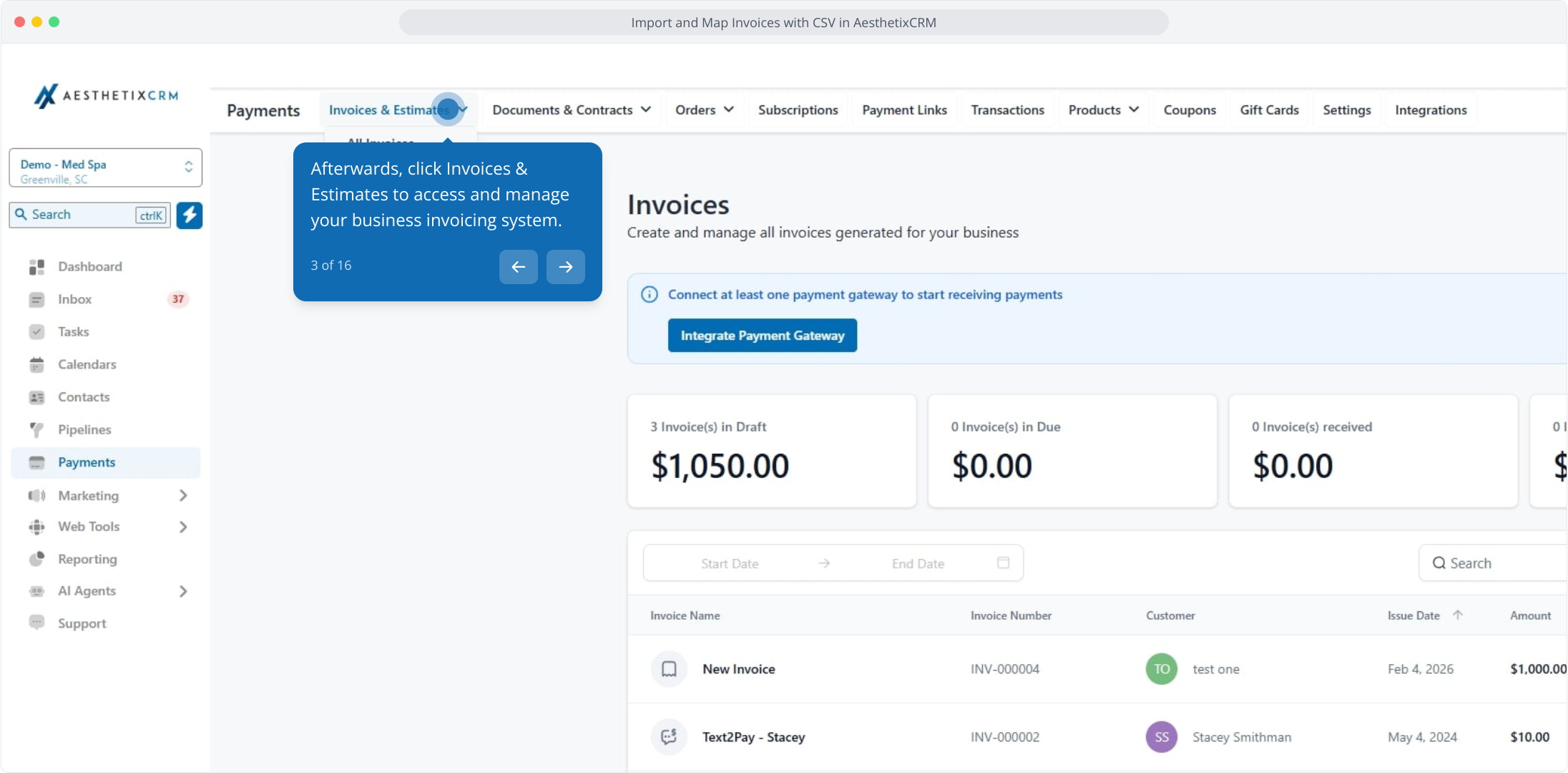
3. Afterwards, click Invoices & Estimates to access and manage your business invoicing system.
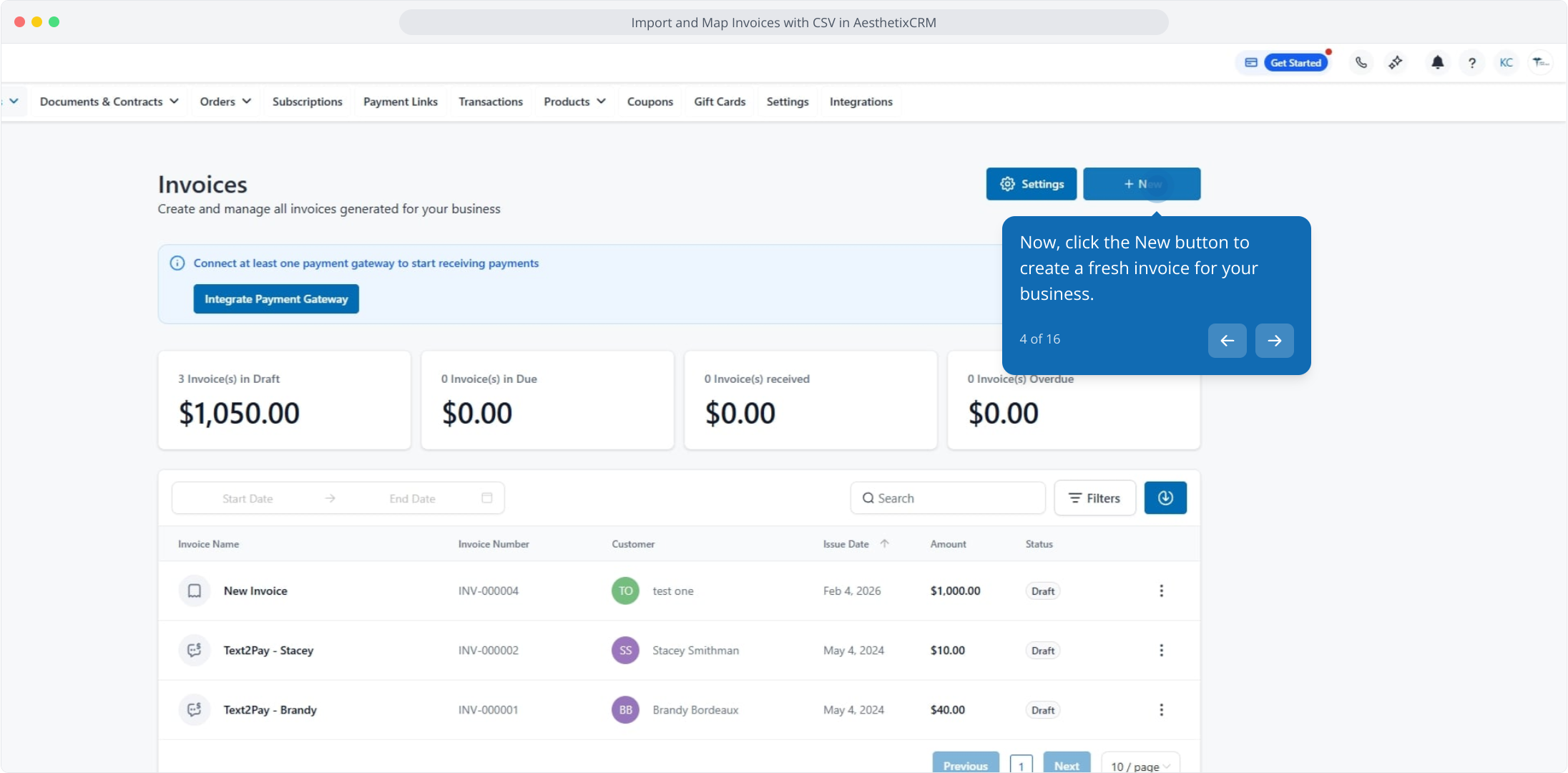
4. Now, click the New button to create a fresh invoice for your business.
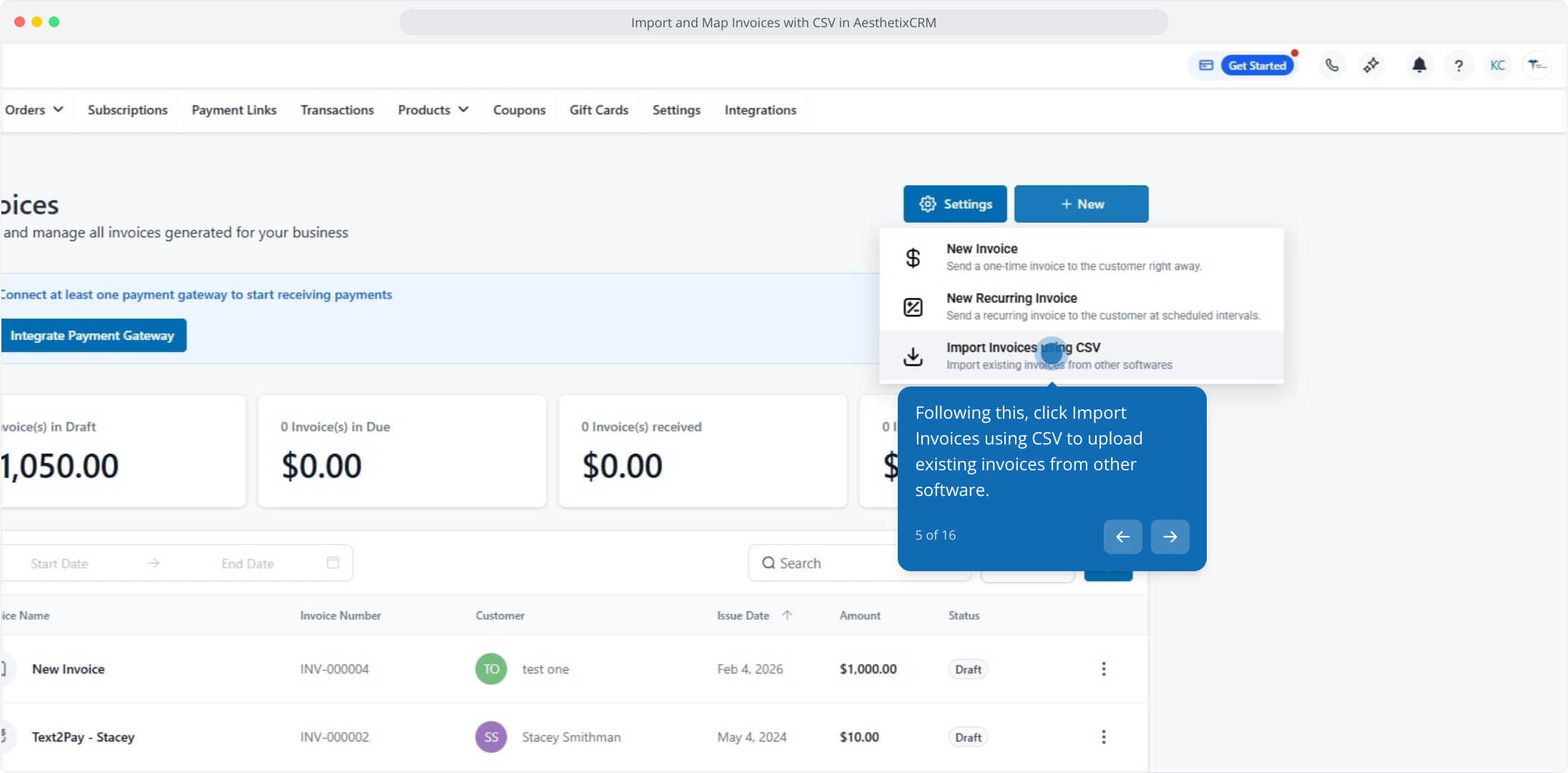
5. Following this, click Import Invoices using CSV to upload existing invoices from other software.
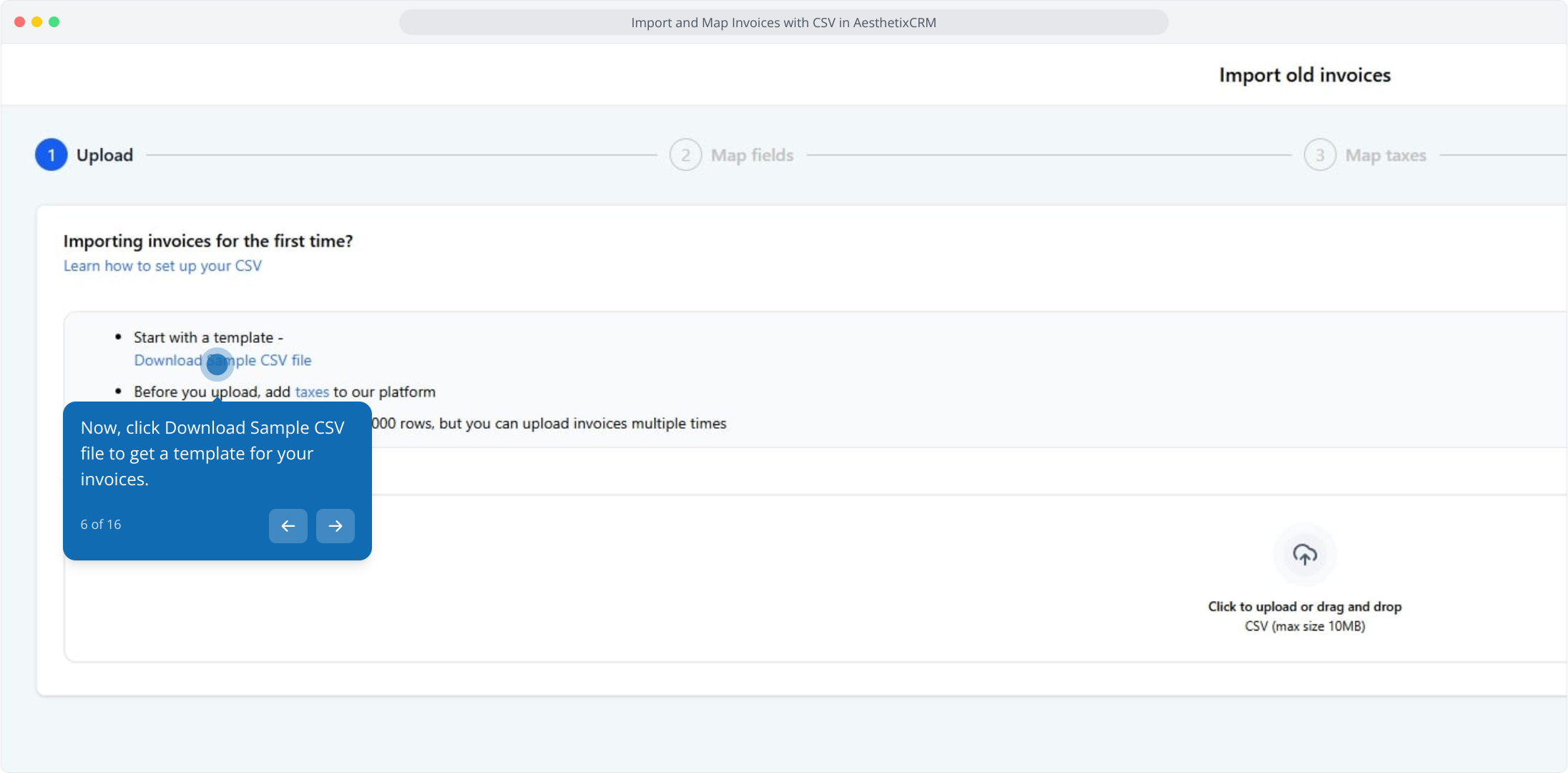
6. Now, click Download Sample CSV file to get a template for your invoices.
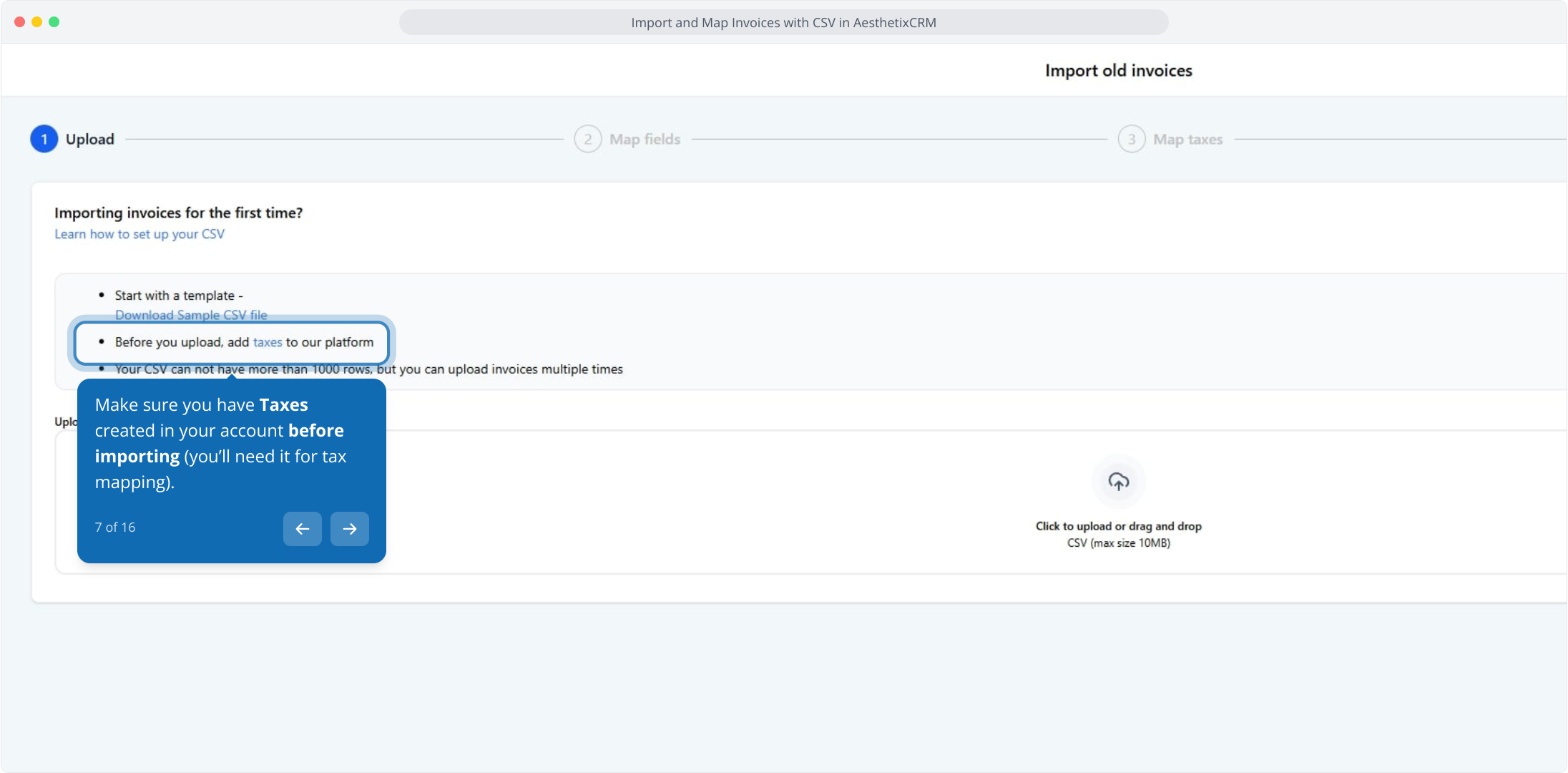
7. Make sure you have Taxes created in your account before importing (you’ll need it for tax mapping).
8. Your CSV file must contain no more than 1,000 rows per upload.
You can import more invoices by uploading multiple files.
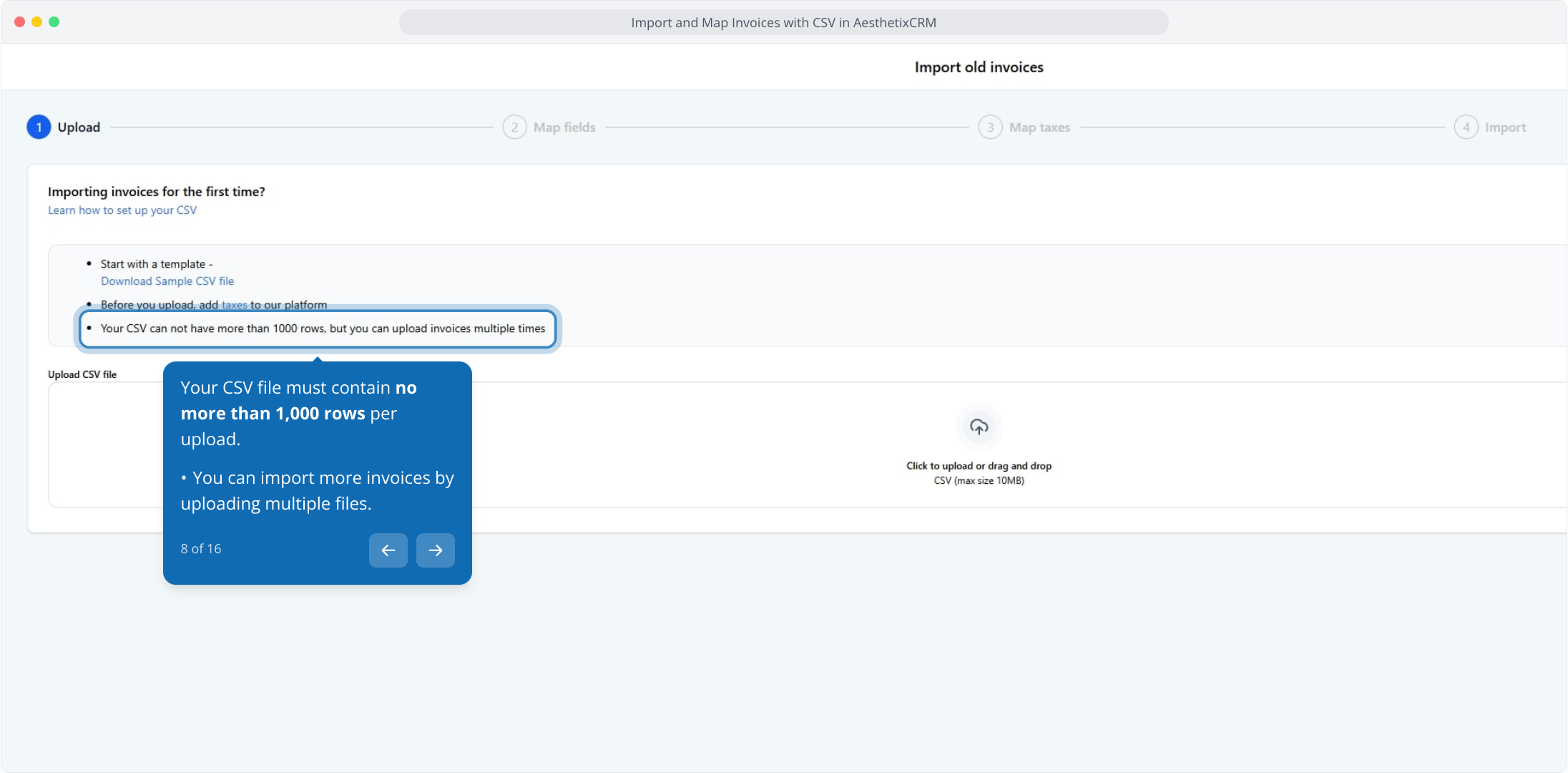
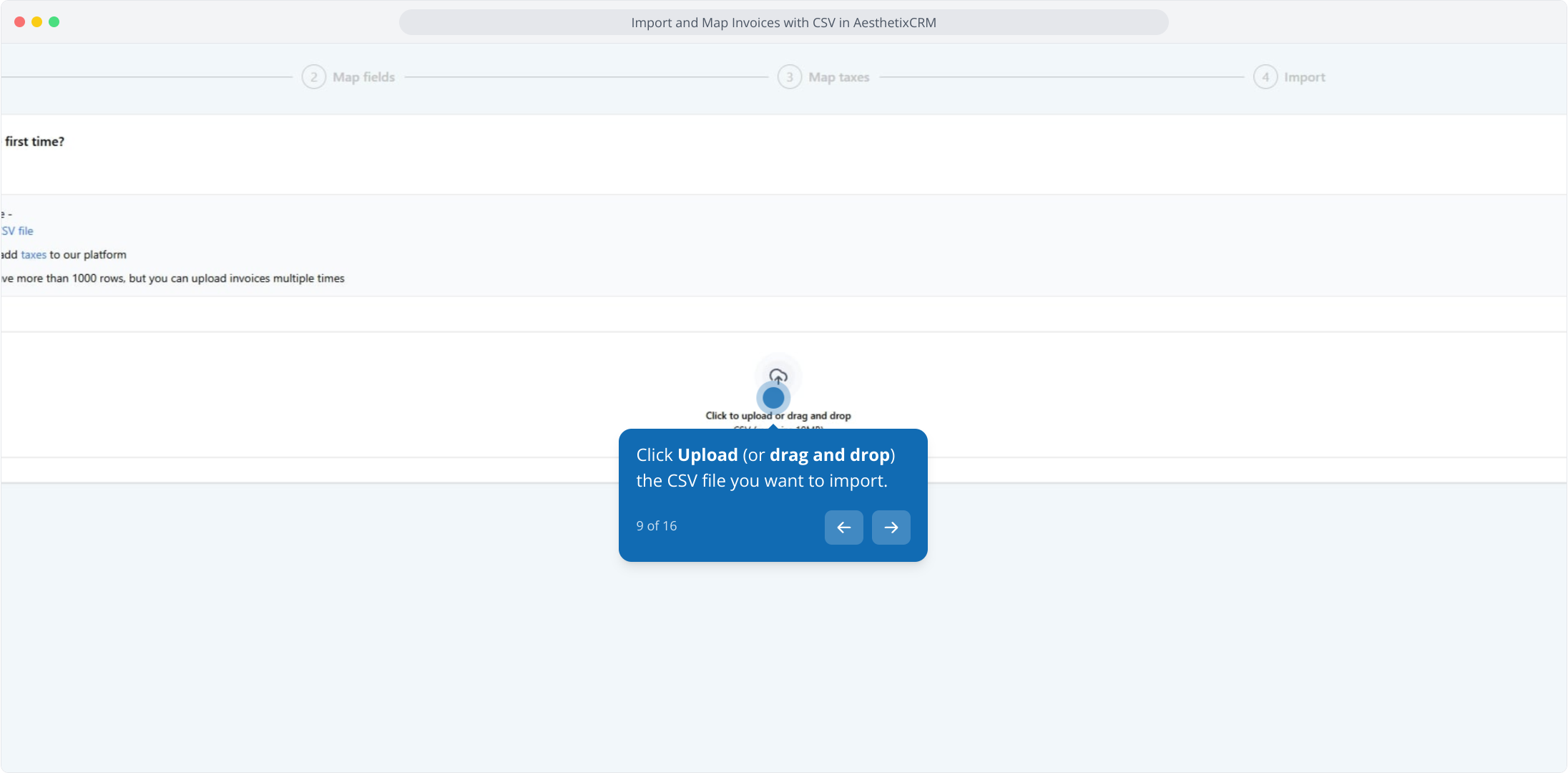
9. Click Upload (or drag and drop) the CSV file you want to import.
10. Then, click the Next button to proceed to the field mapping step.
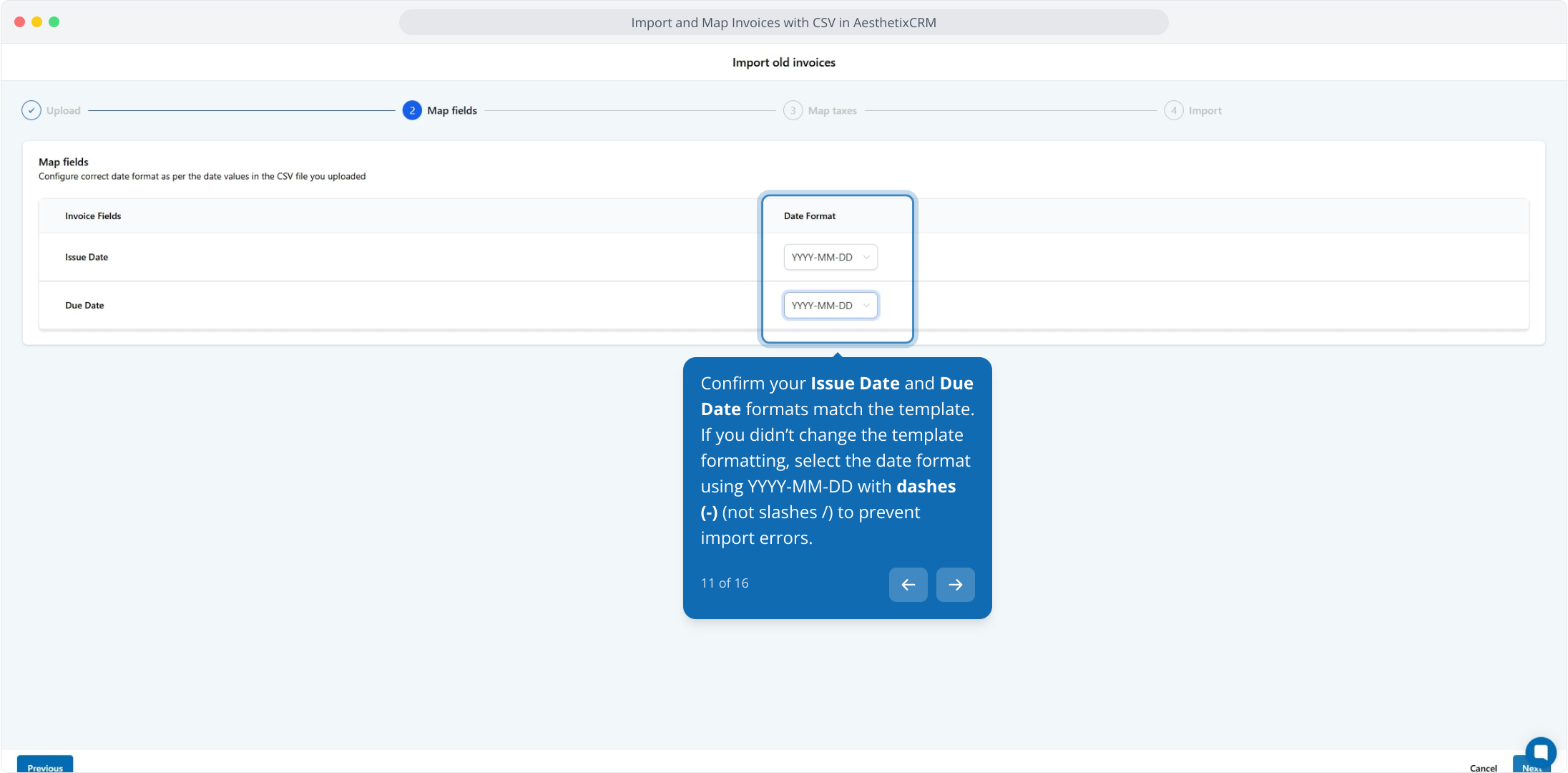
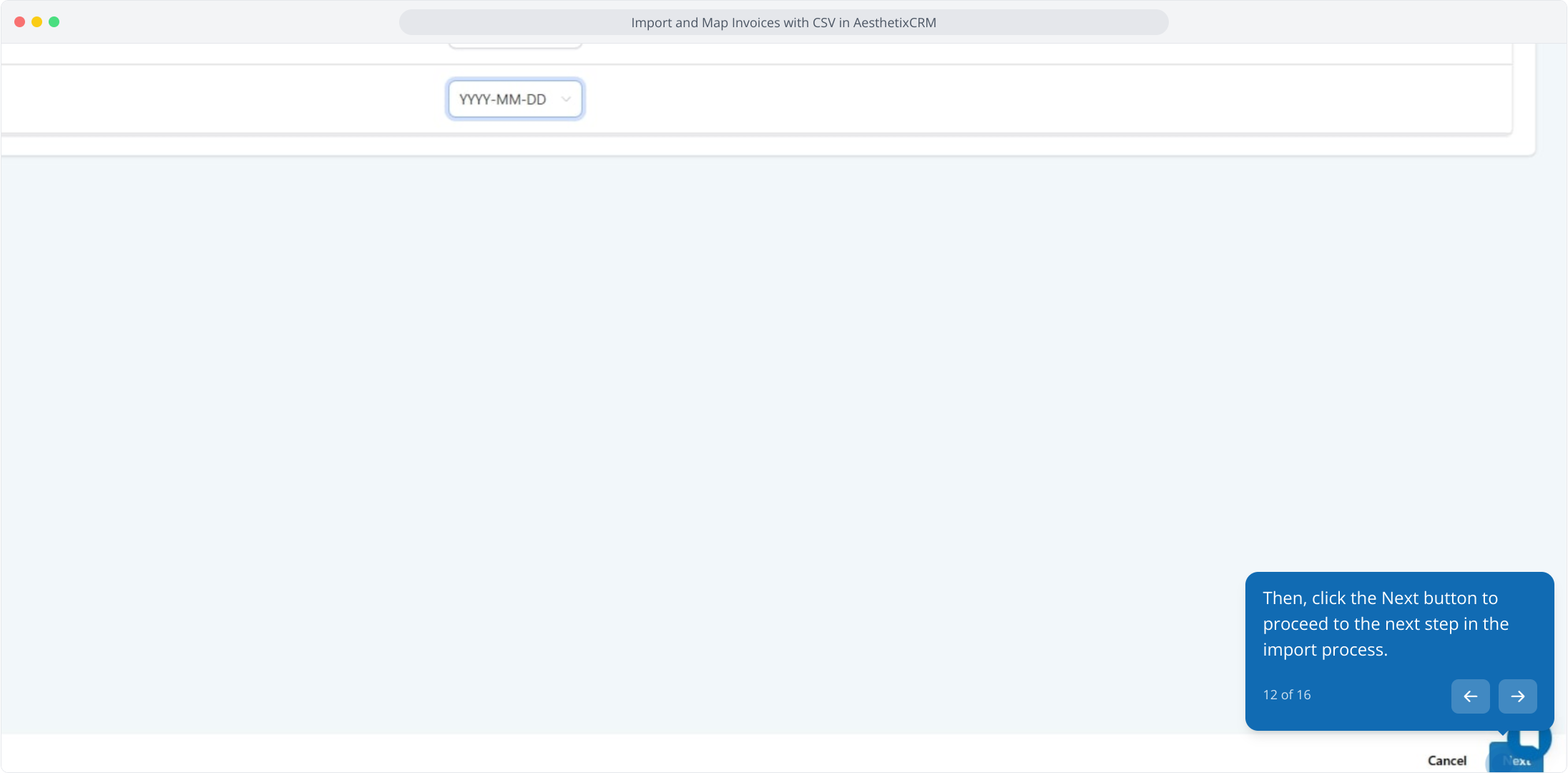
11. Confirm your Issue Date and Due Date formats match the template.
If you didn’t change the template formatting, select the date format using YYYY-MM-DD with dashes (-) (not slashes /) to prevent import errors.
12. Then, click the Next button to proceed to the next step in the import process.
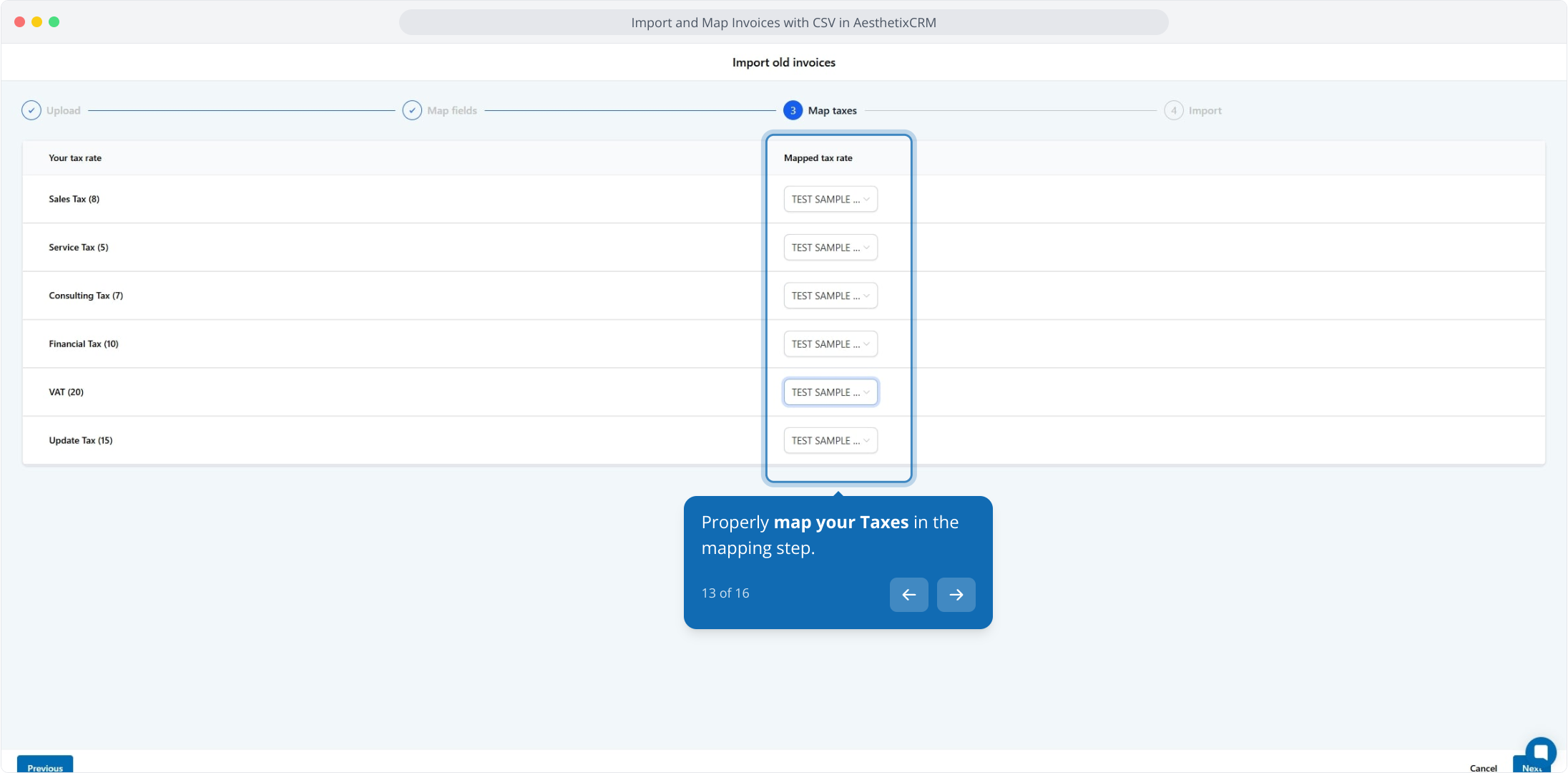
13. Properly map your Taxes in the mapping step.
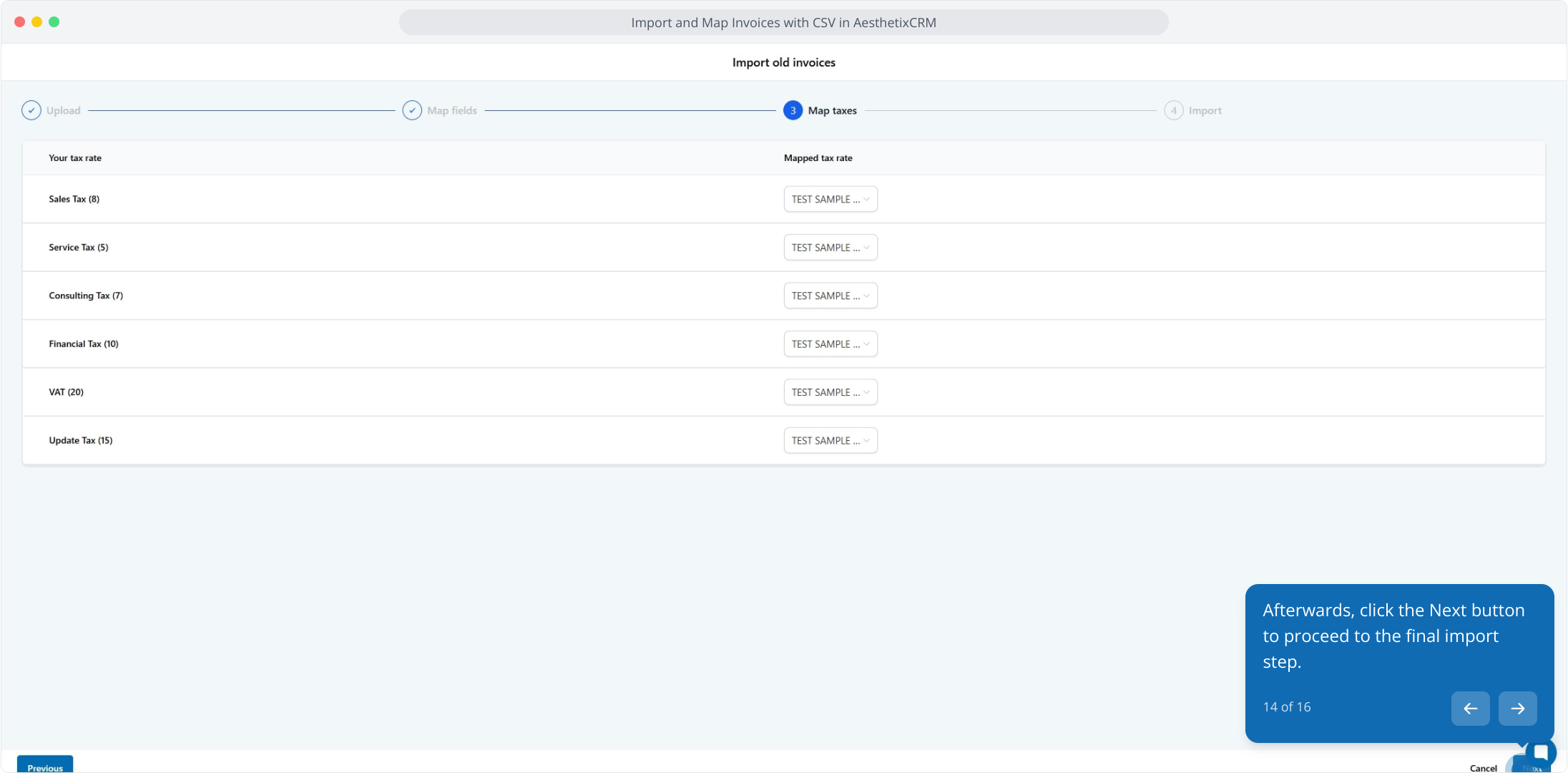
14. Afterwards, click the Next button to proceed to the final import step.
15. Afterwards, click the Start Import button to begin importing your invoices from the CSV file.
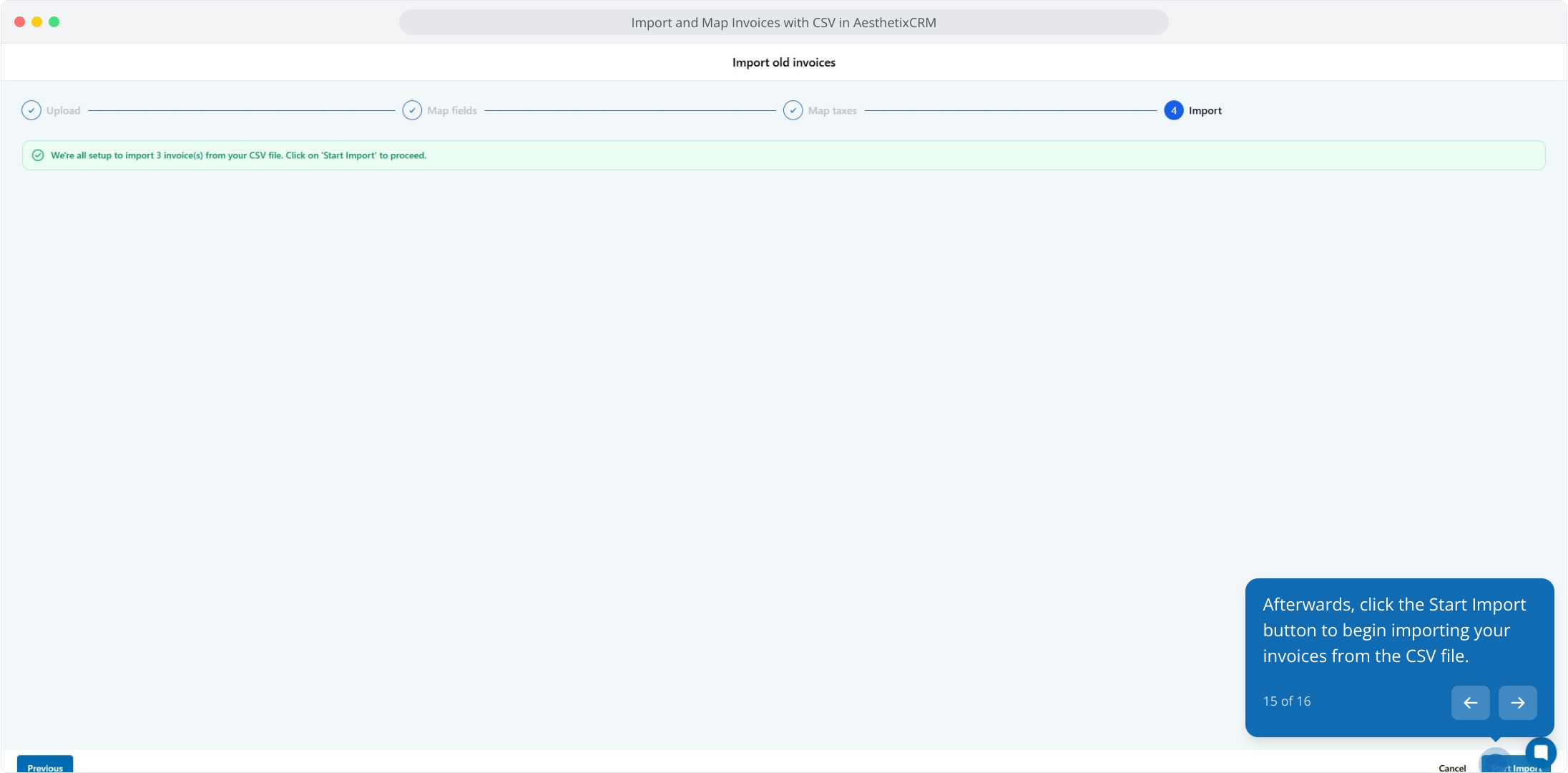
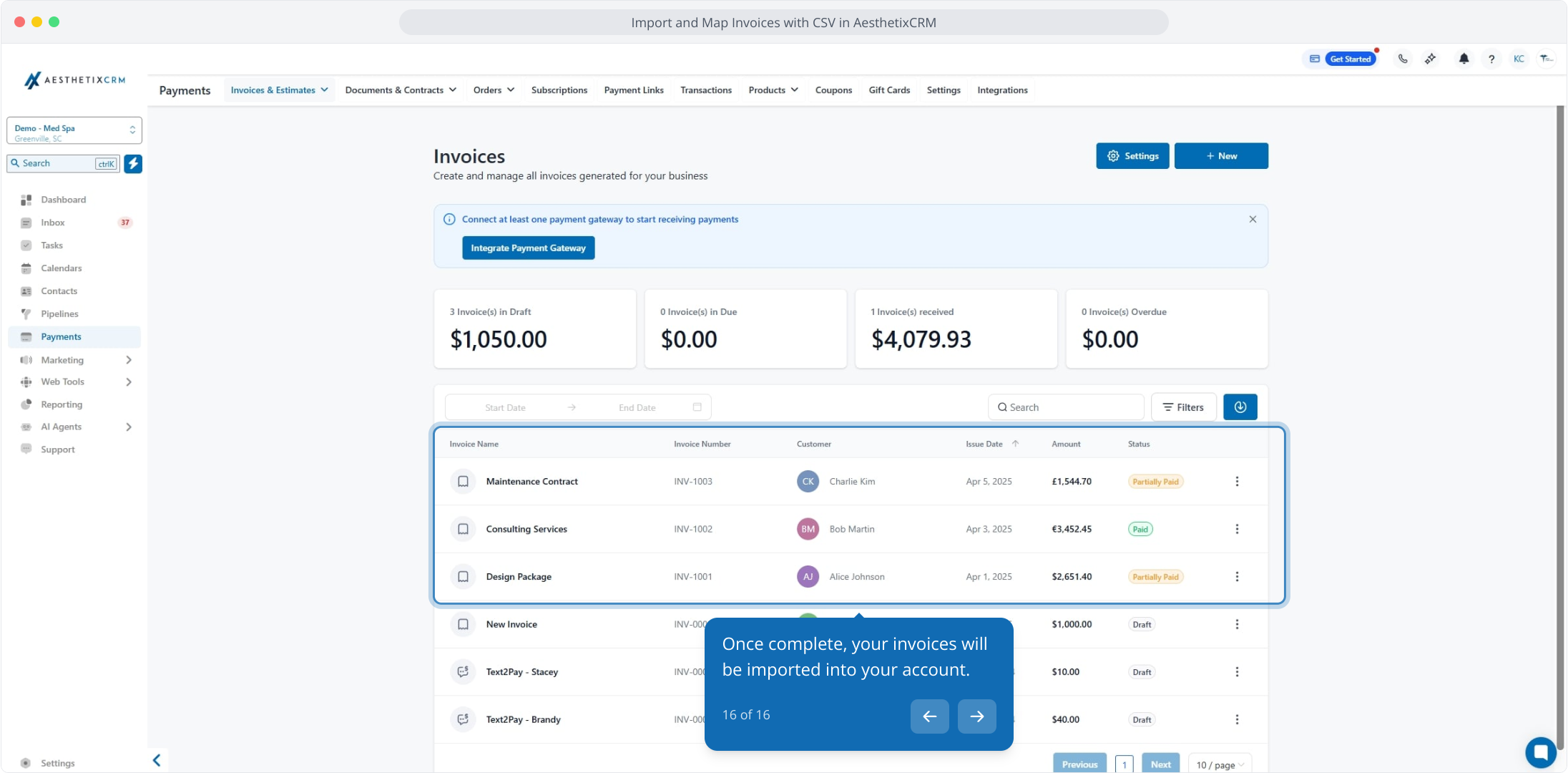
16. Once complete, your invoices will be imported into your account.