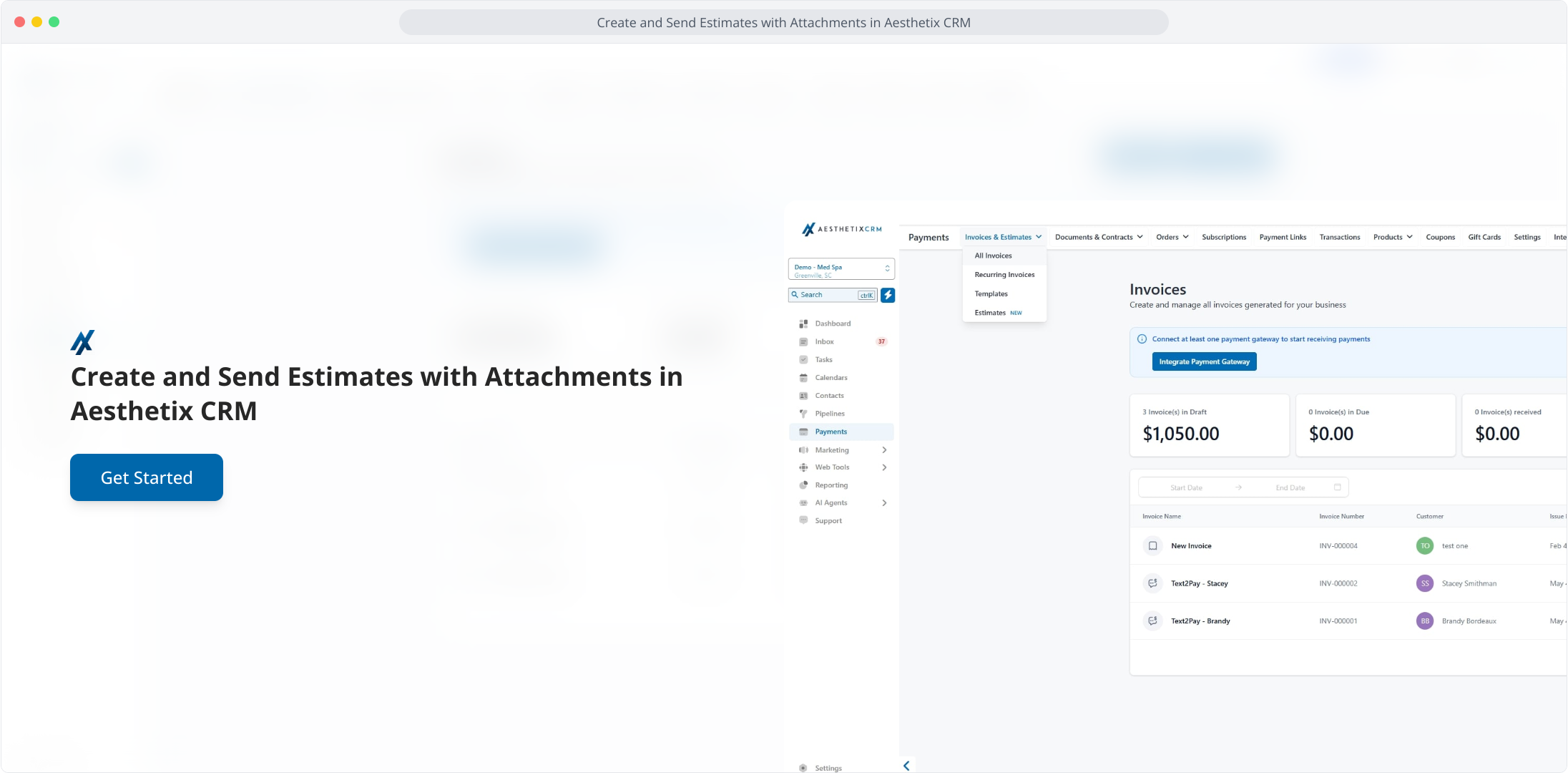
1. Create and Send Estimates with Attachments in Aesthetix CRM
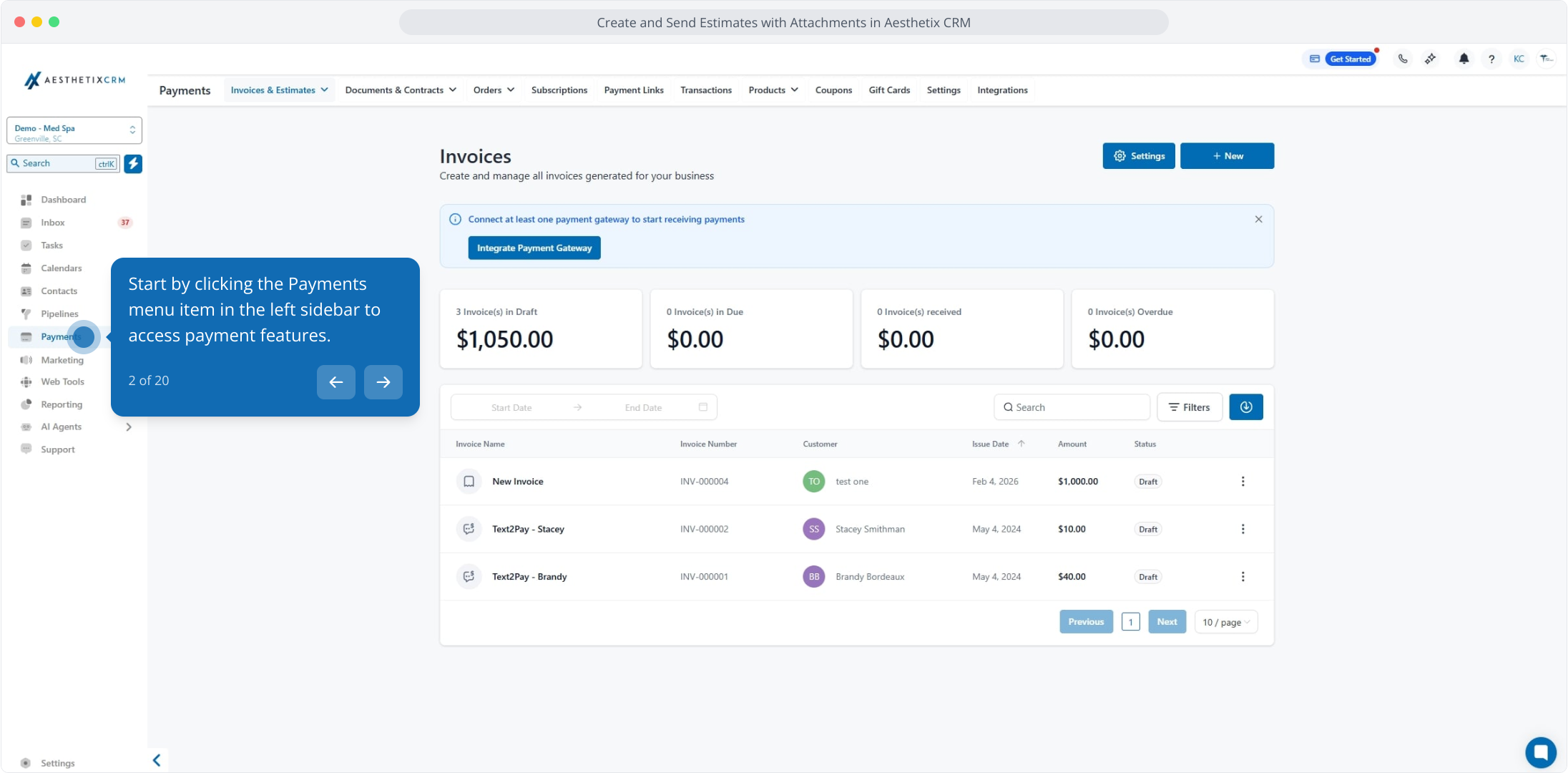
2. Start by clicking the Payments menu item in the left sidebar to access payment features.
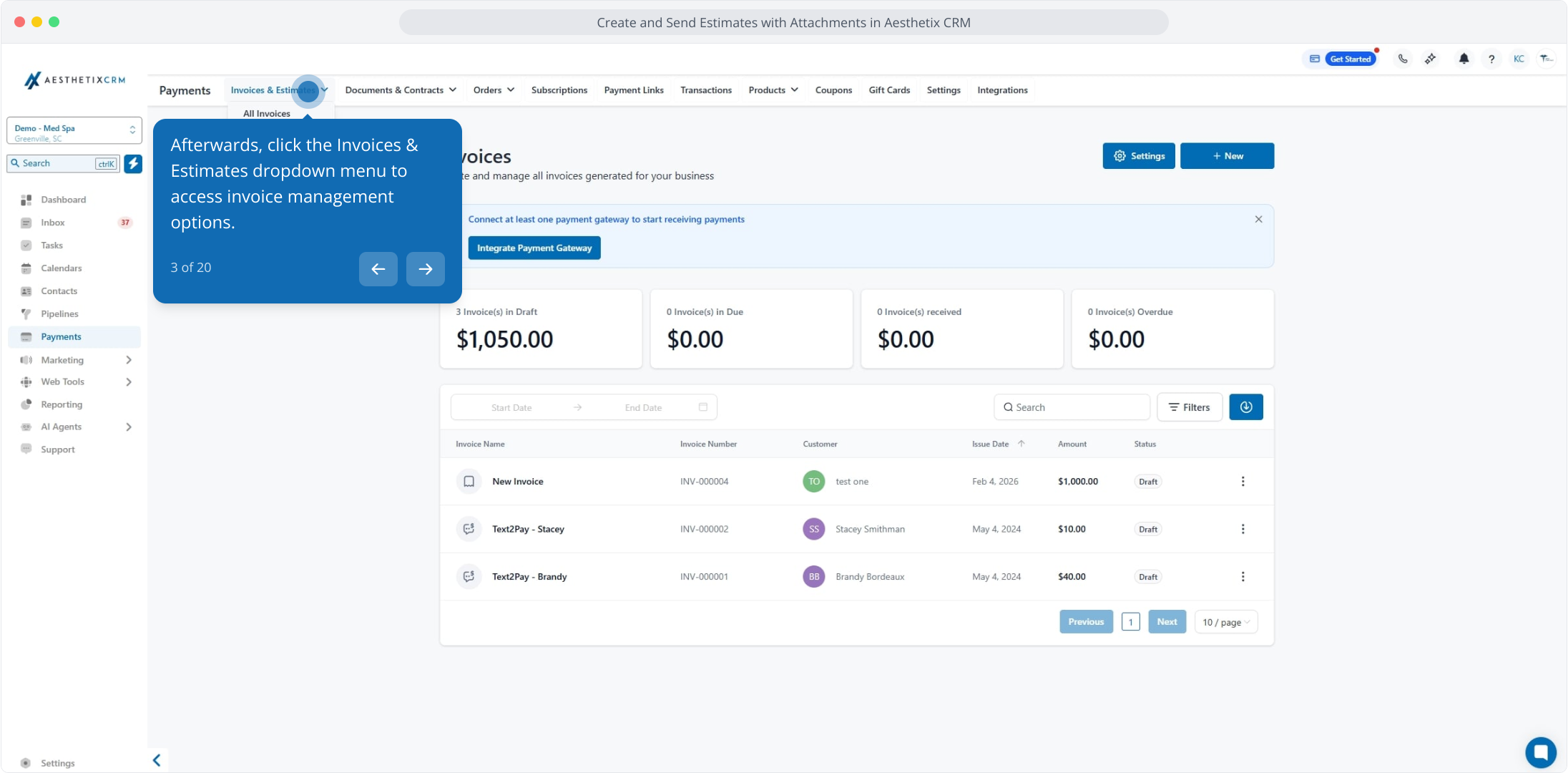
3. Afterwards, click the Invoices & Estimates dropdown menu to access invoice management options.
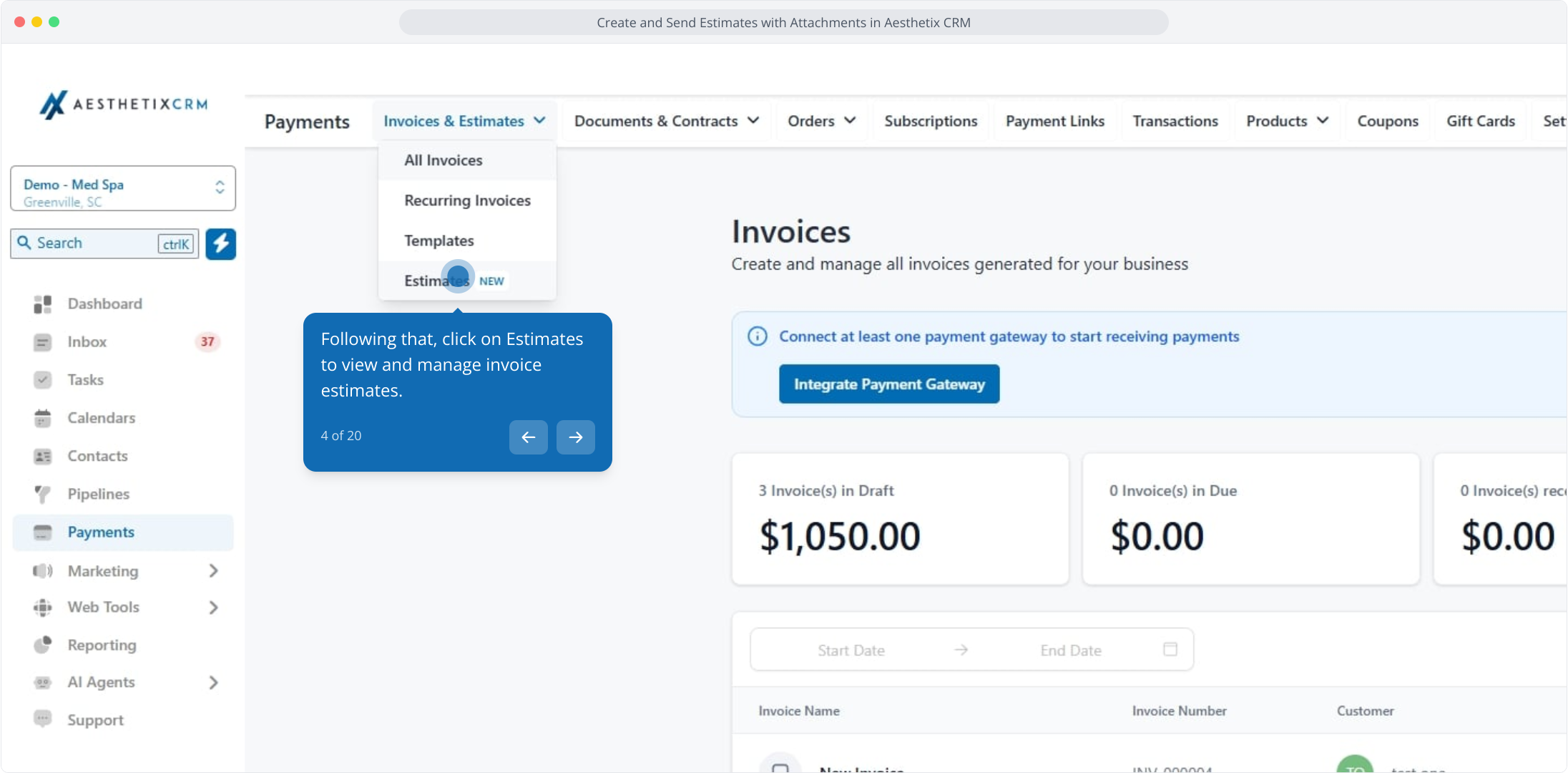
4. Following that, click on Estimates to view and manage invoice estimates.
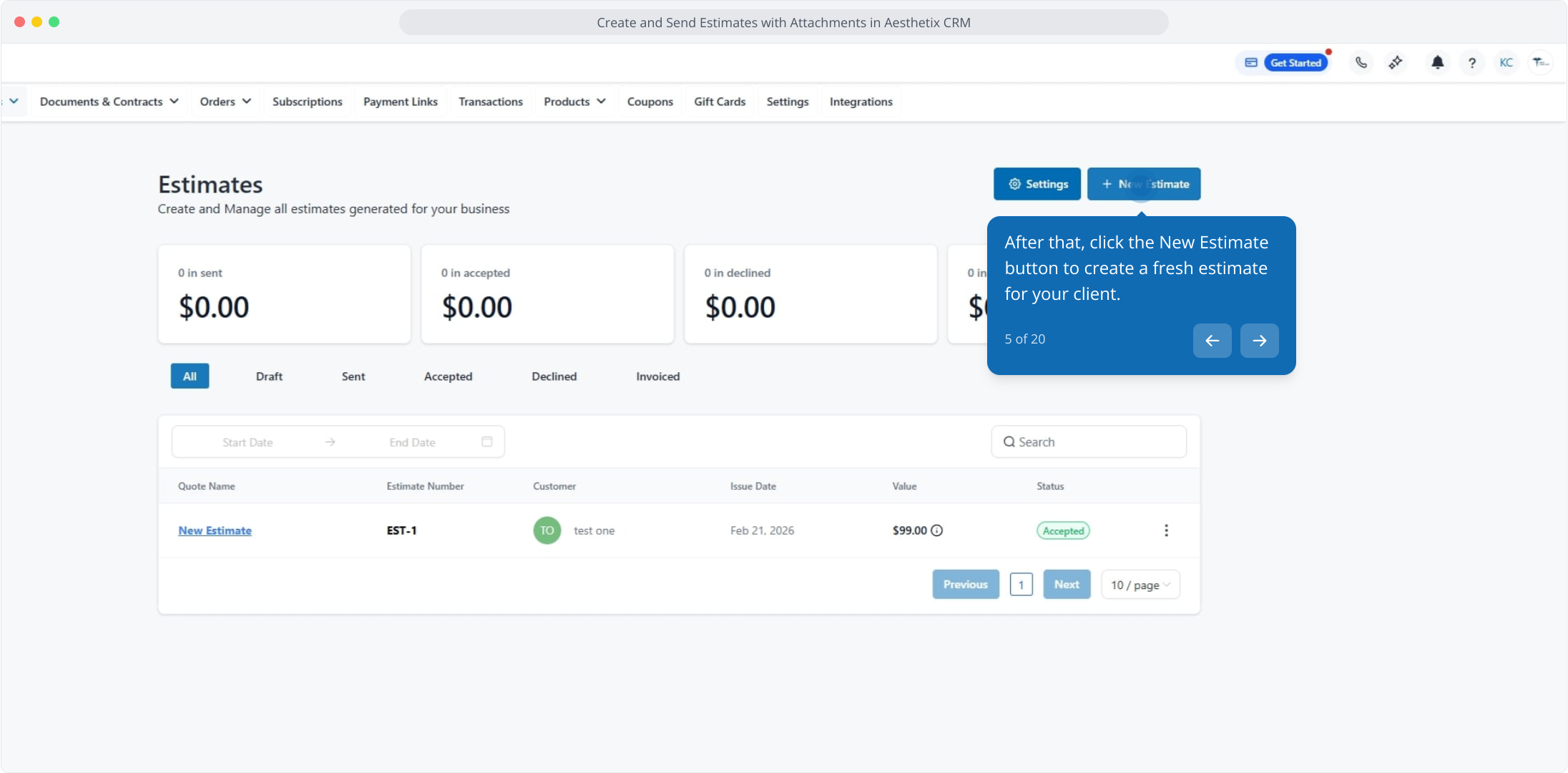
5. After that, click the New Estimate button to create a fresh estimate for your client.
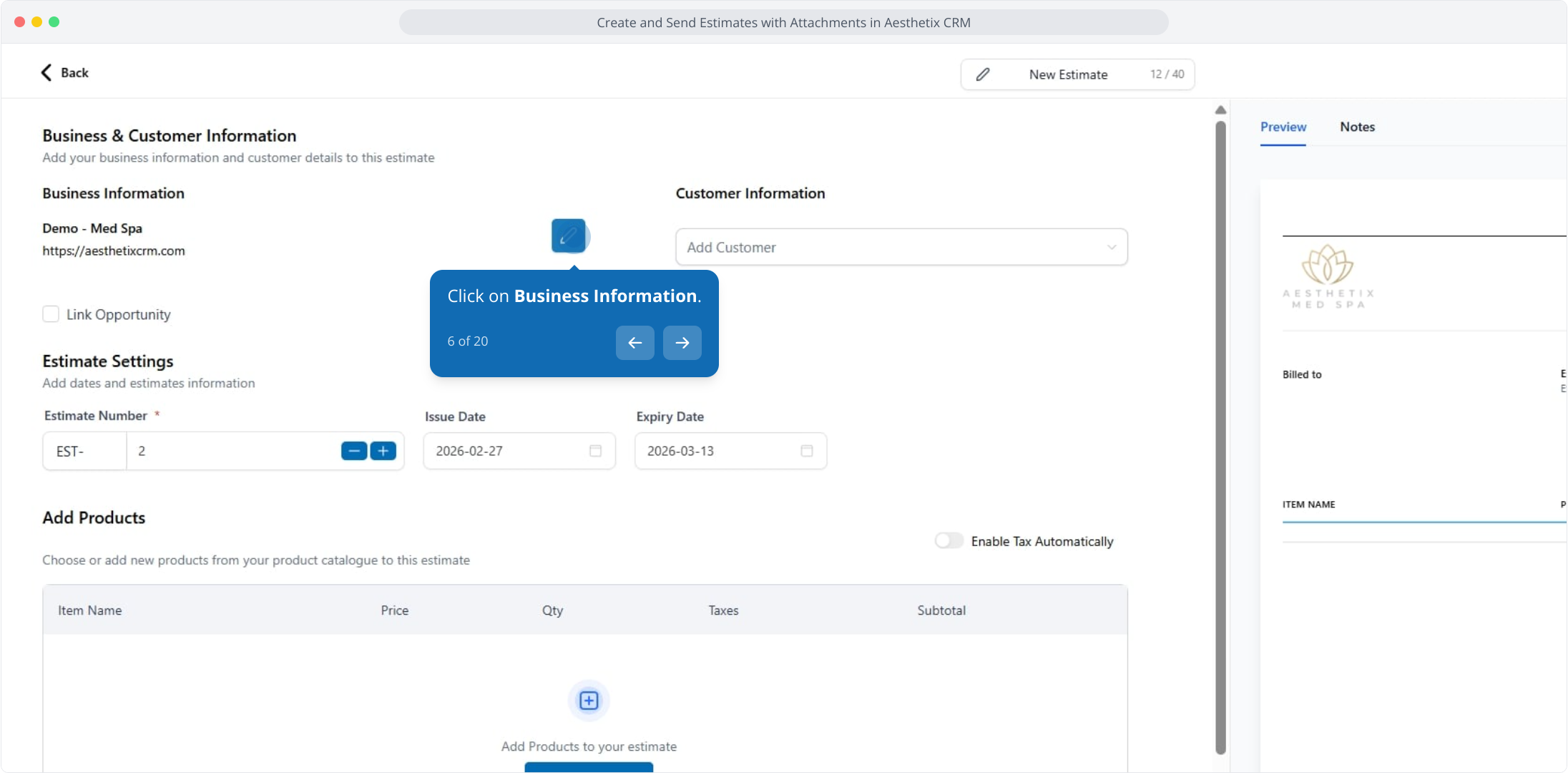
6. Click on Business Information.
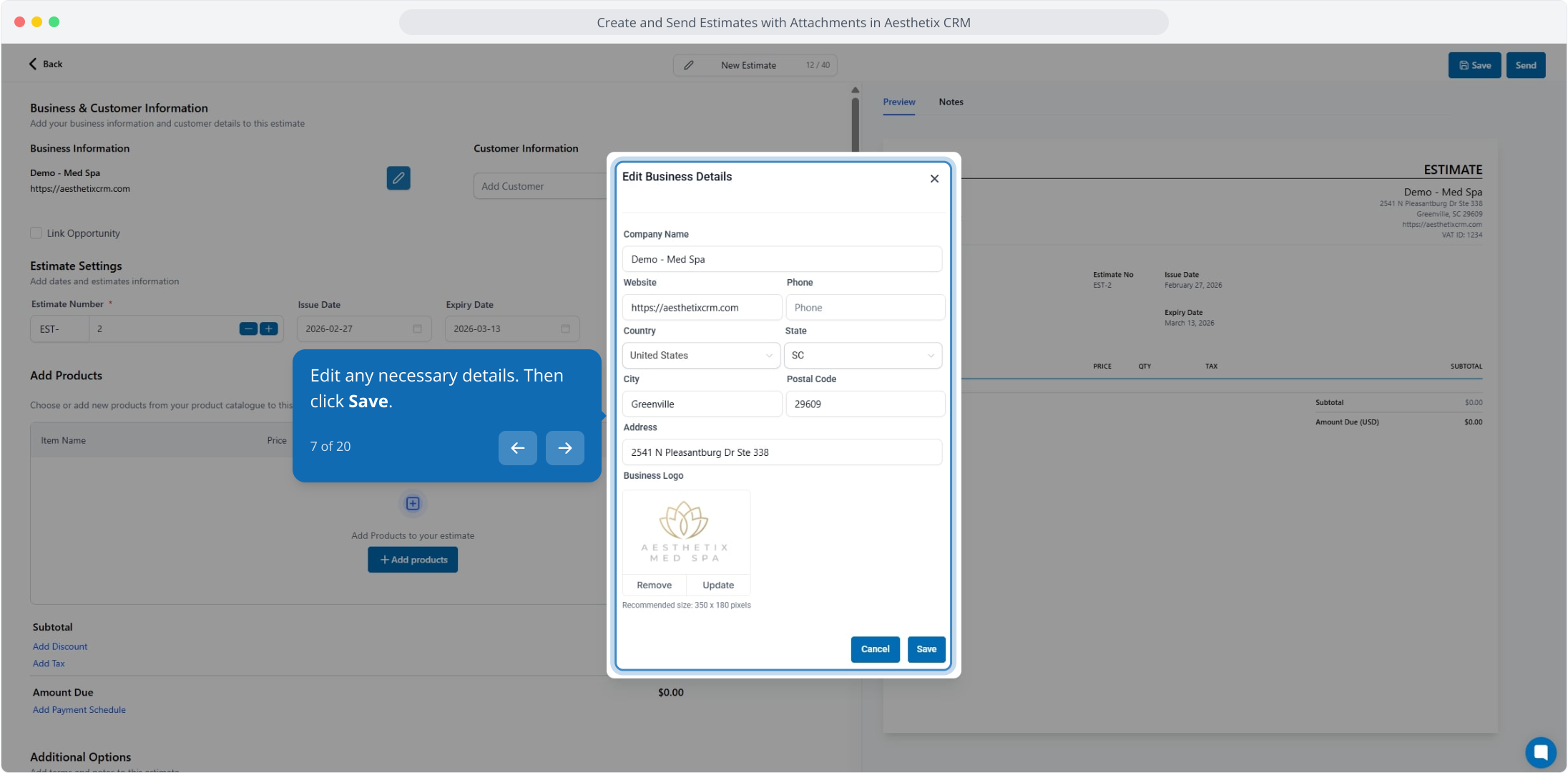
7. Edit any necessary details. Then click Save.
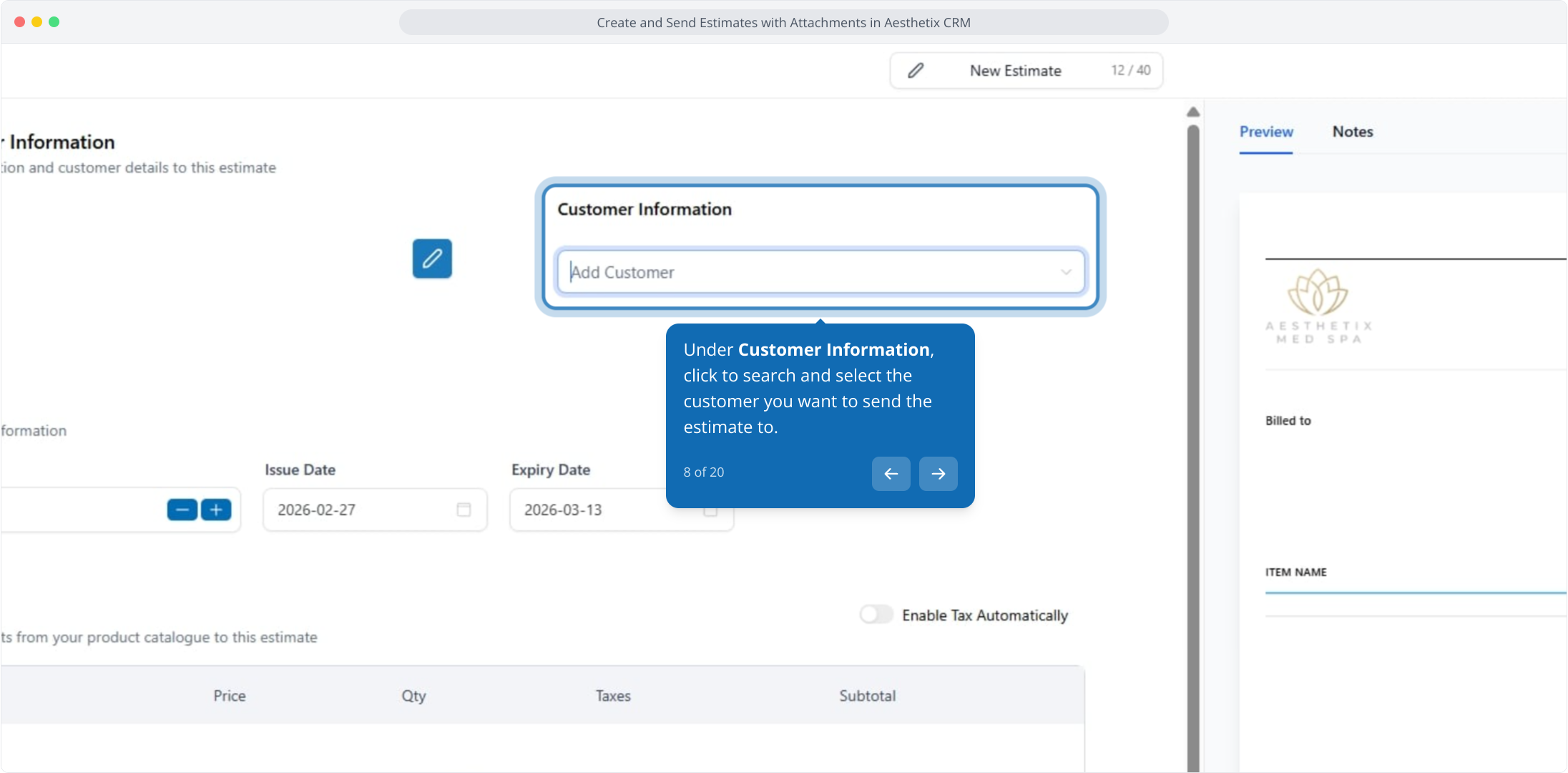
8. Under Customer Information, click to search and select the customer you want to send the estimate to.
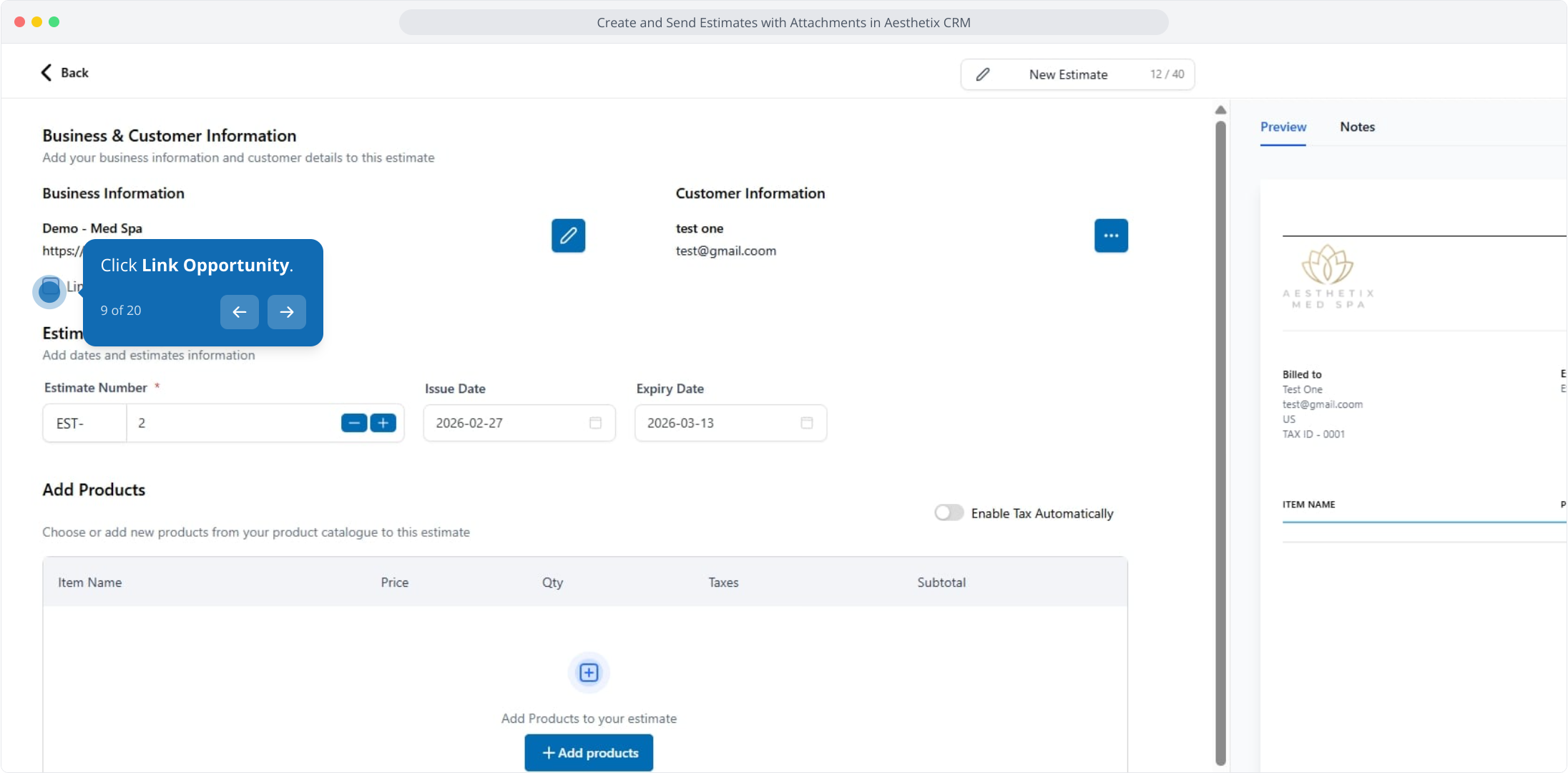
9. Click Link Opportunity.
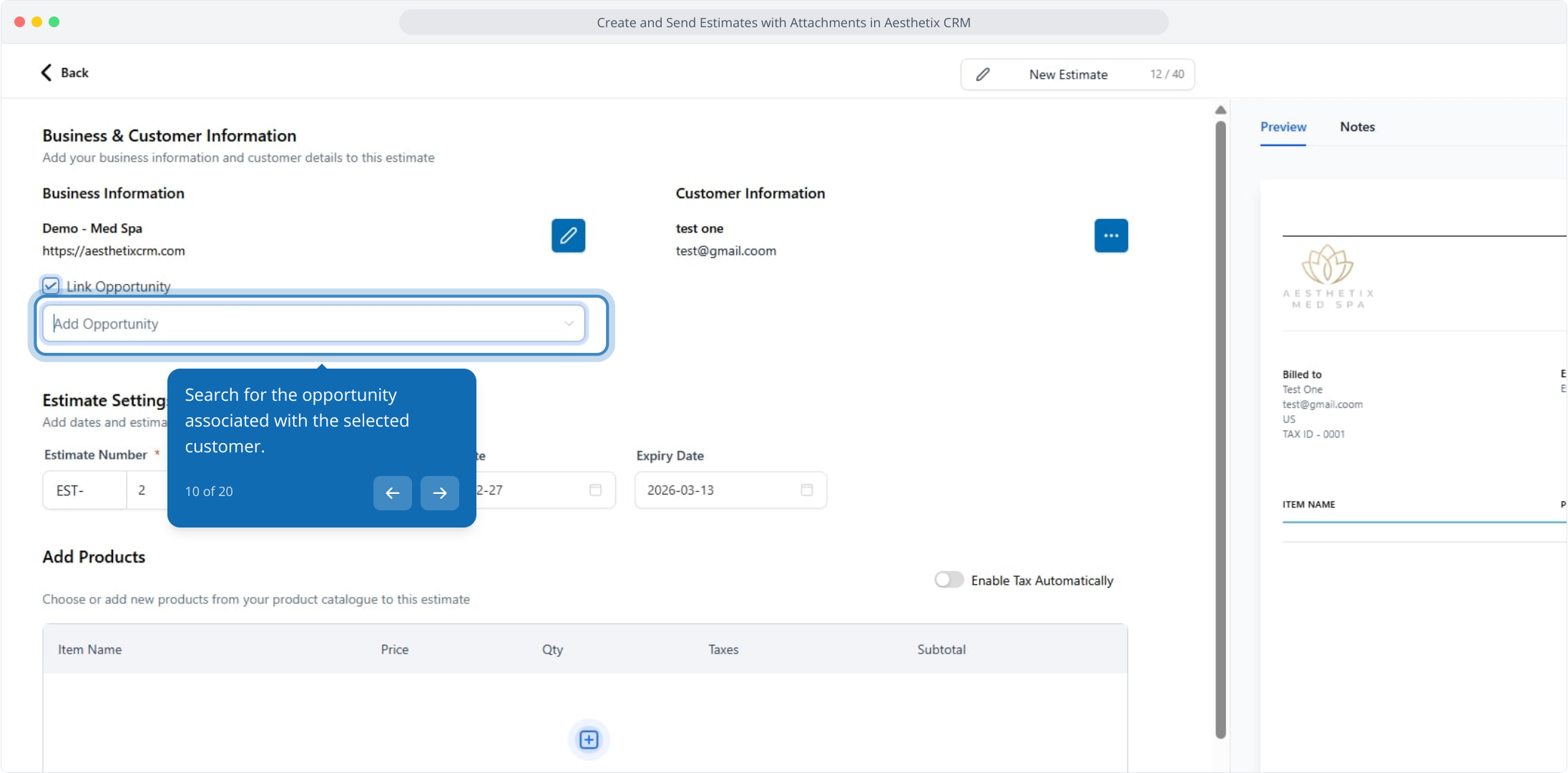
10. Search for the opportunity associated with the selected customer.
11. Select the correct opportunity to link it.
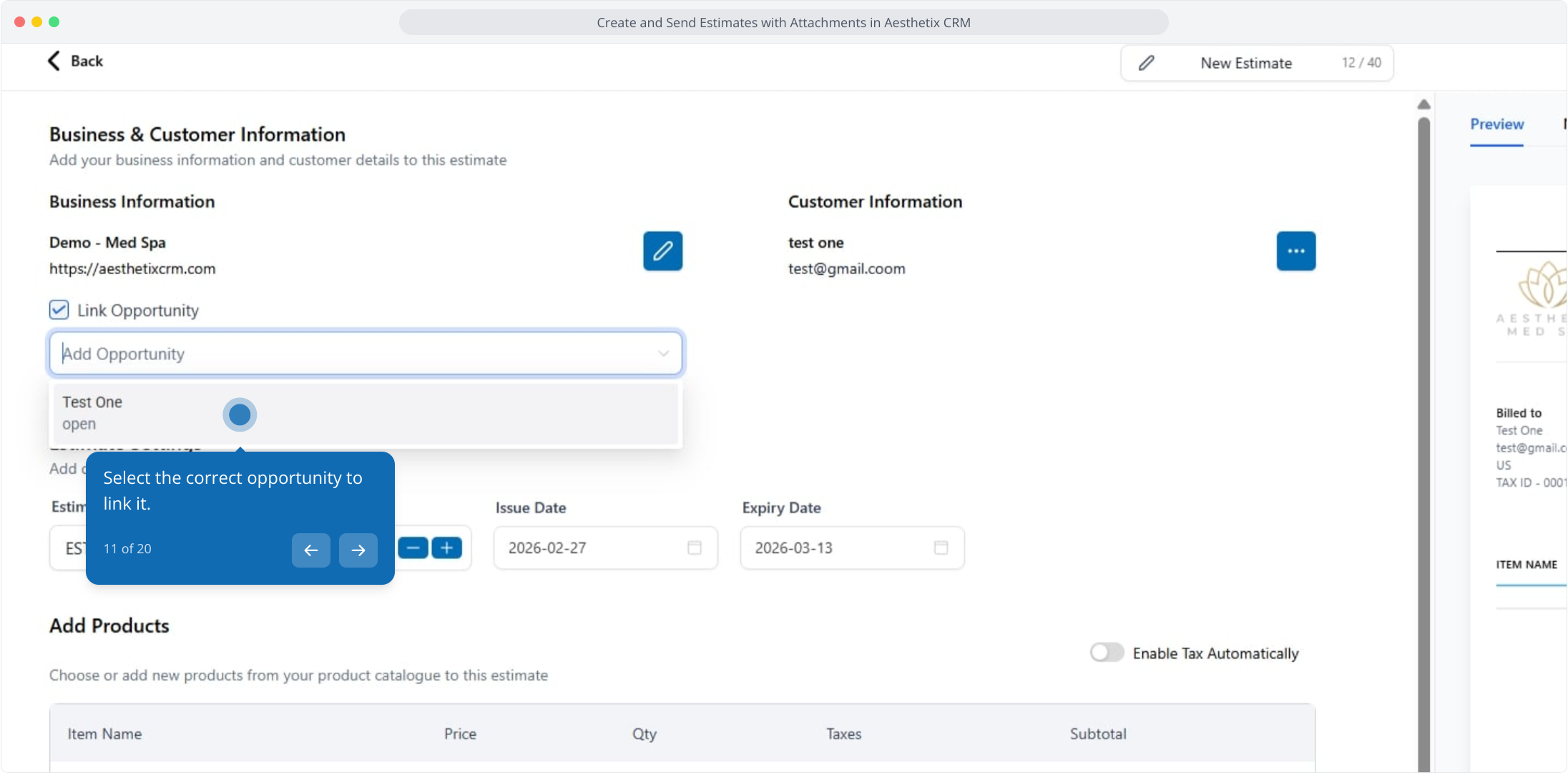
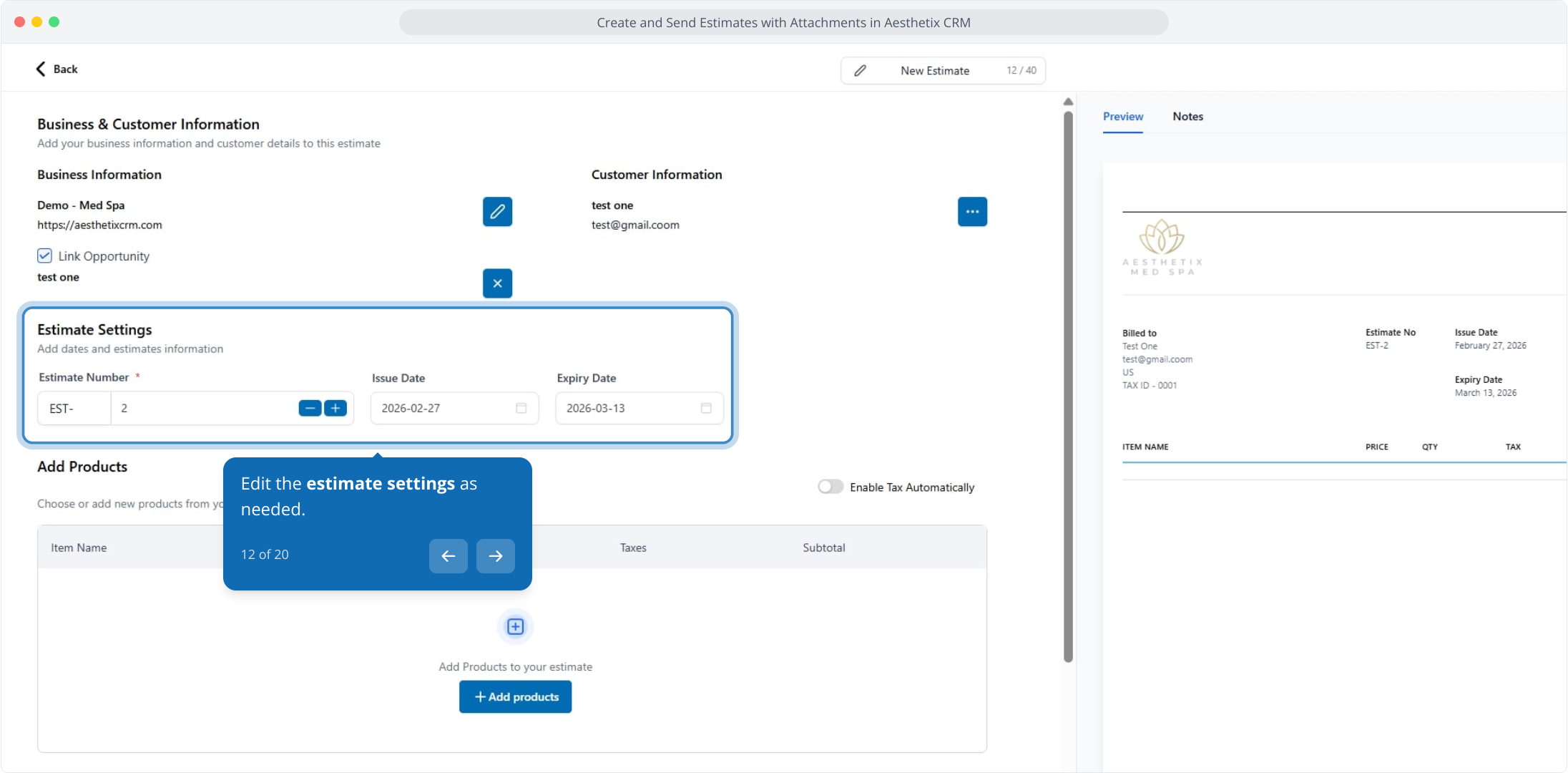
12. Edit the estimate settings as needed.
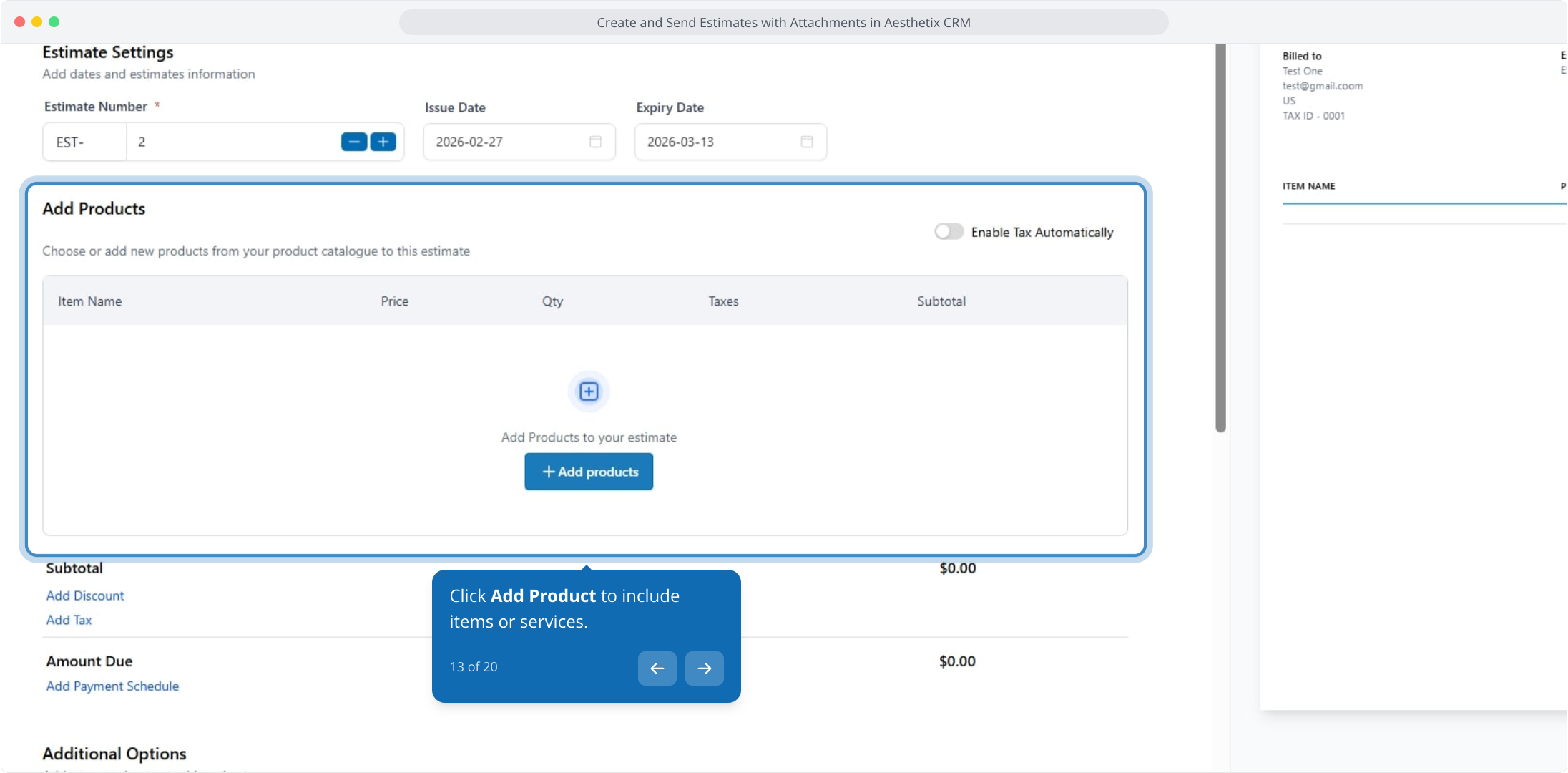
13. Click Add Product to include items or services.
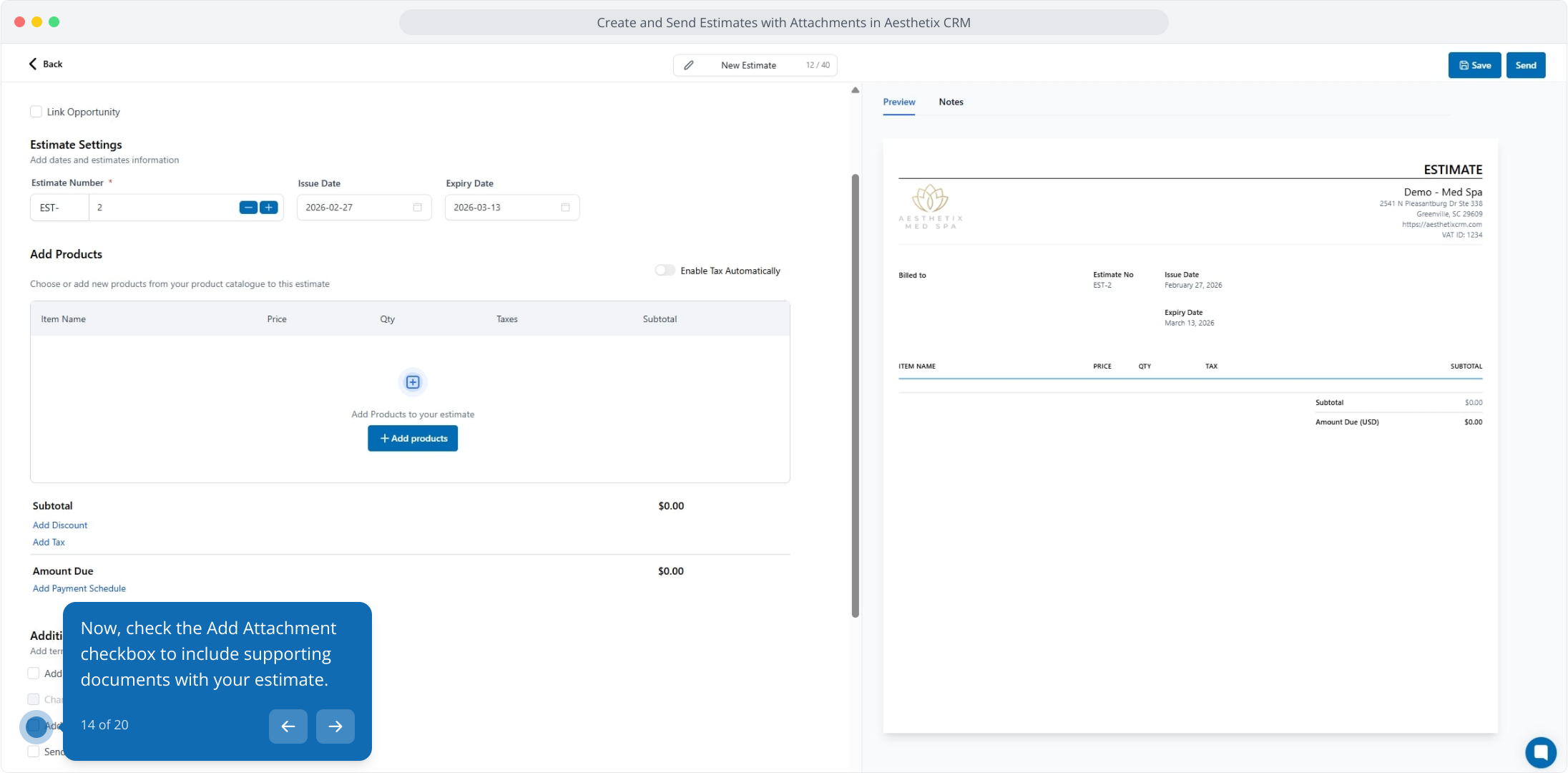
14. Now, check the Add Attachment checkbox to include supporting documents with your estimate.
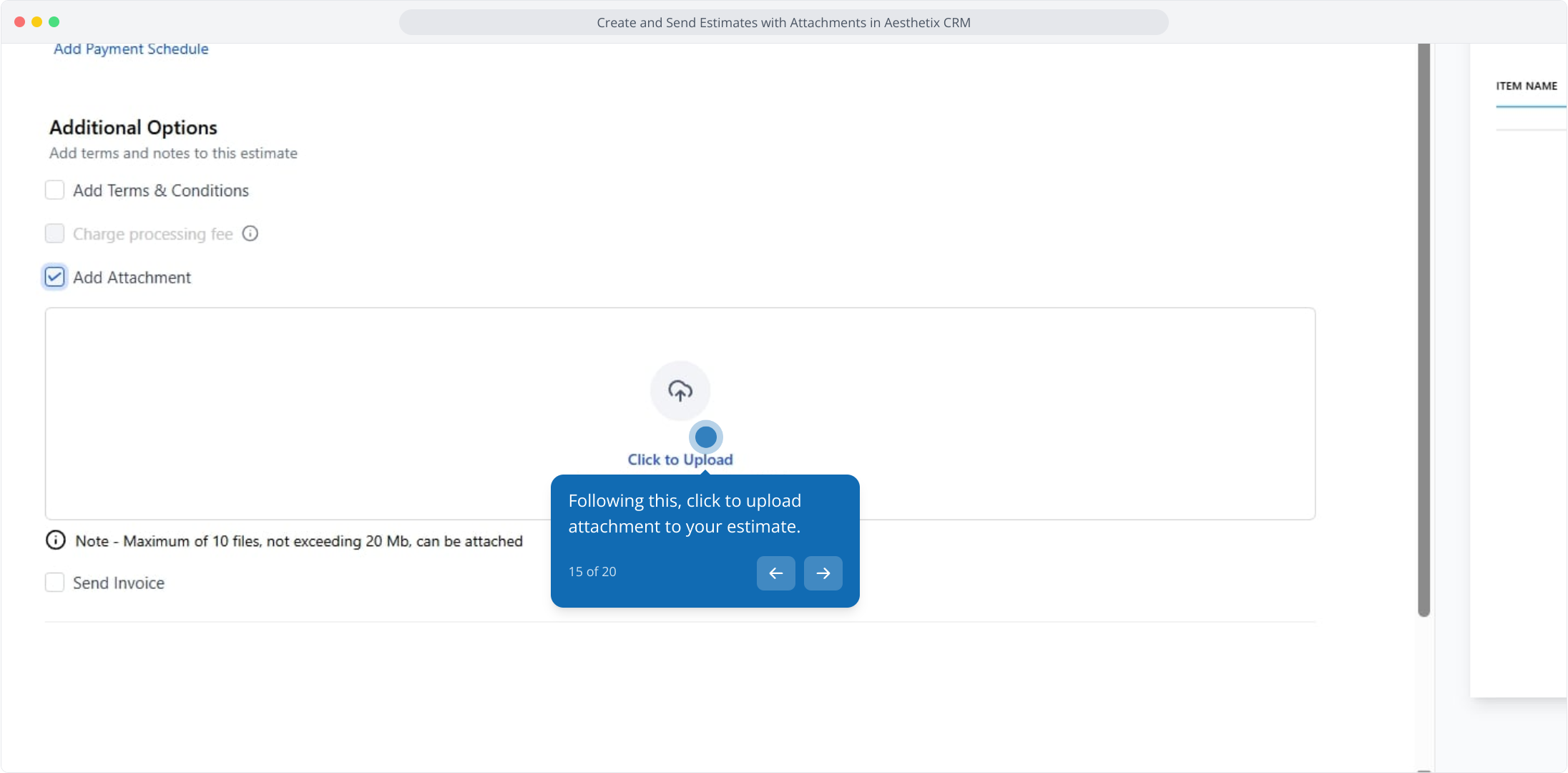
15. Following this, click to upload attachment to your estimate.
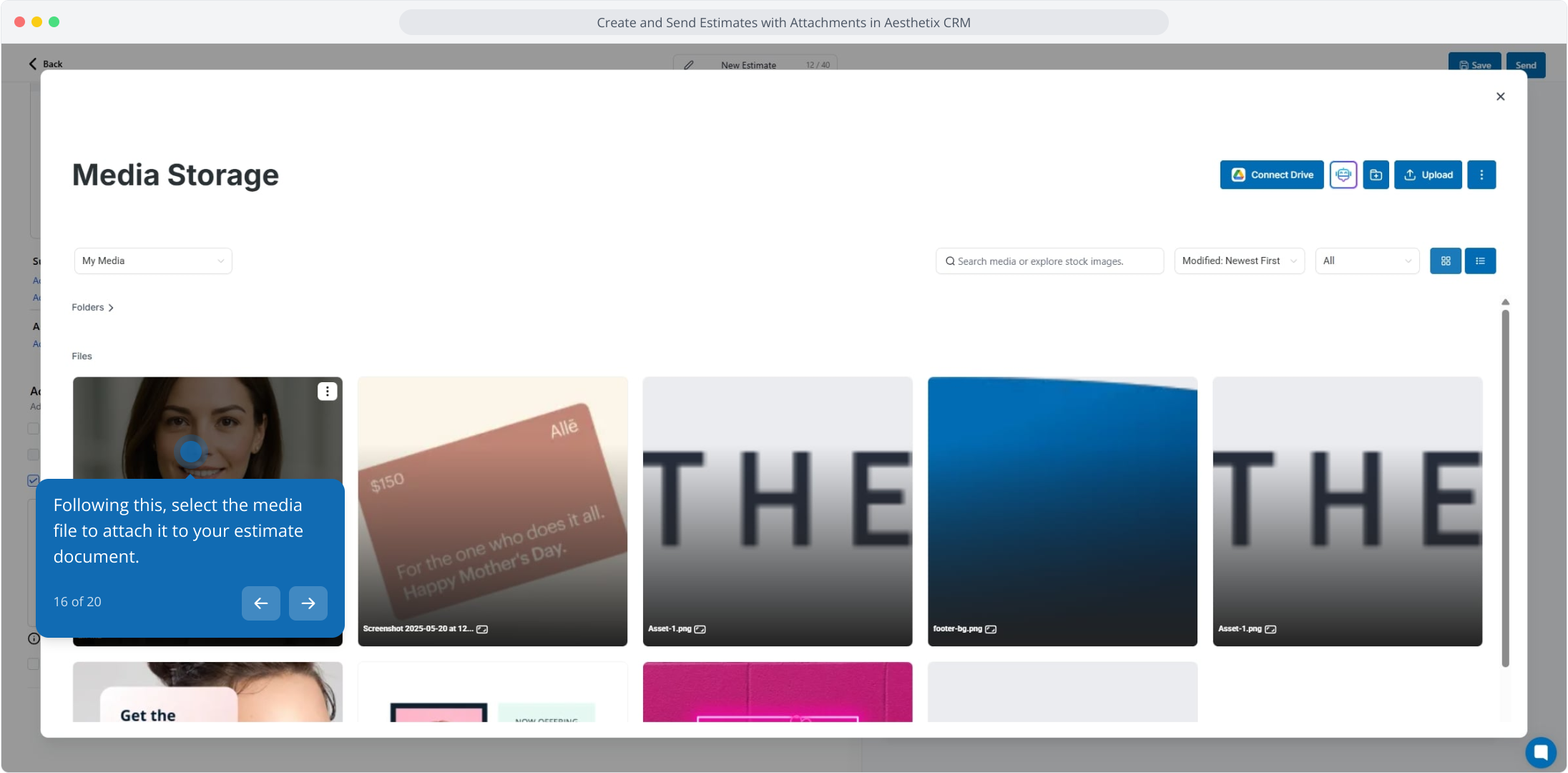
16. Following this, select the media file to attach it to your estimate document.
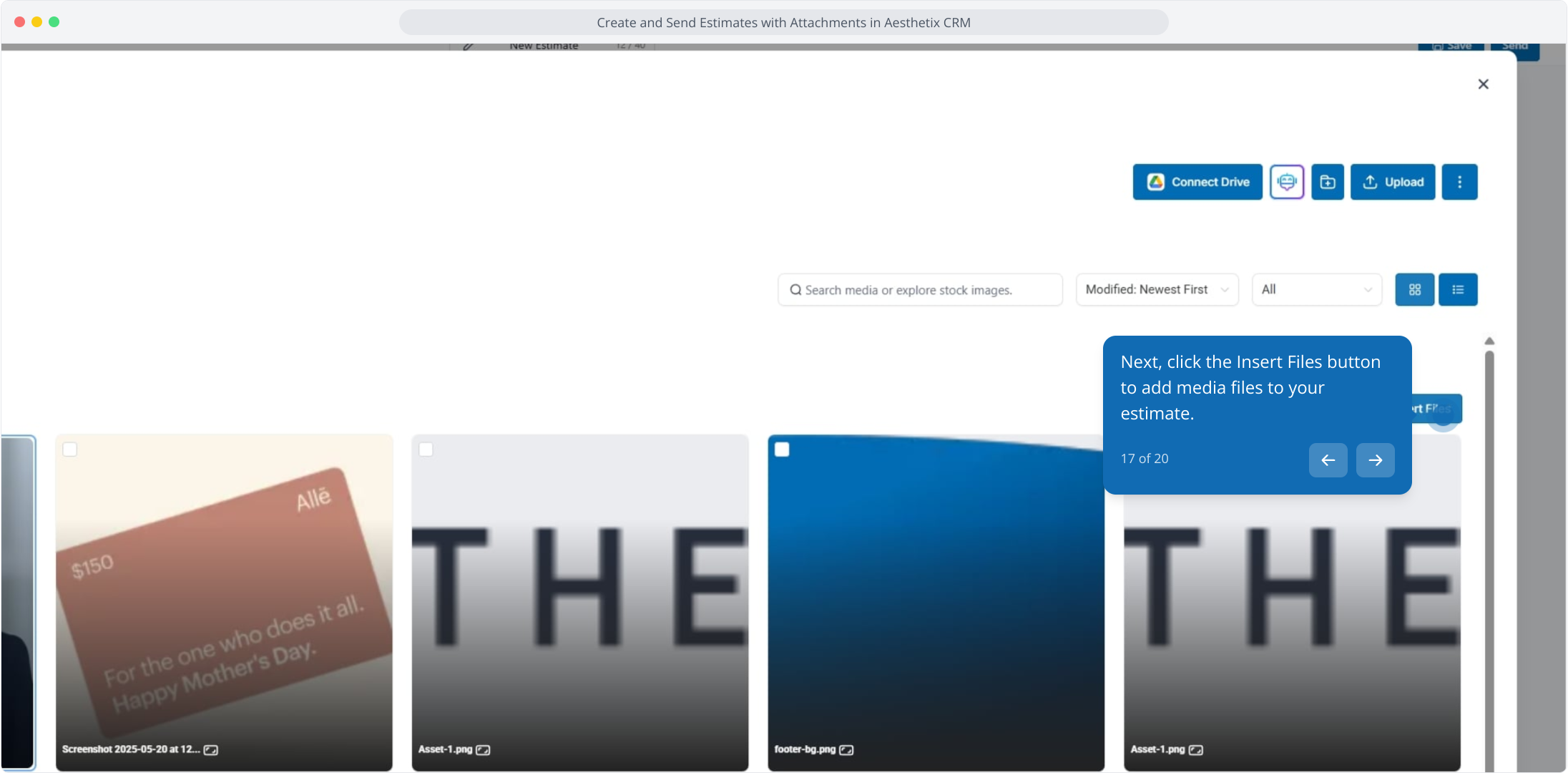
17. Next, click the Insert Files button to add media files to your estimate.
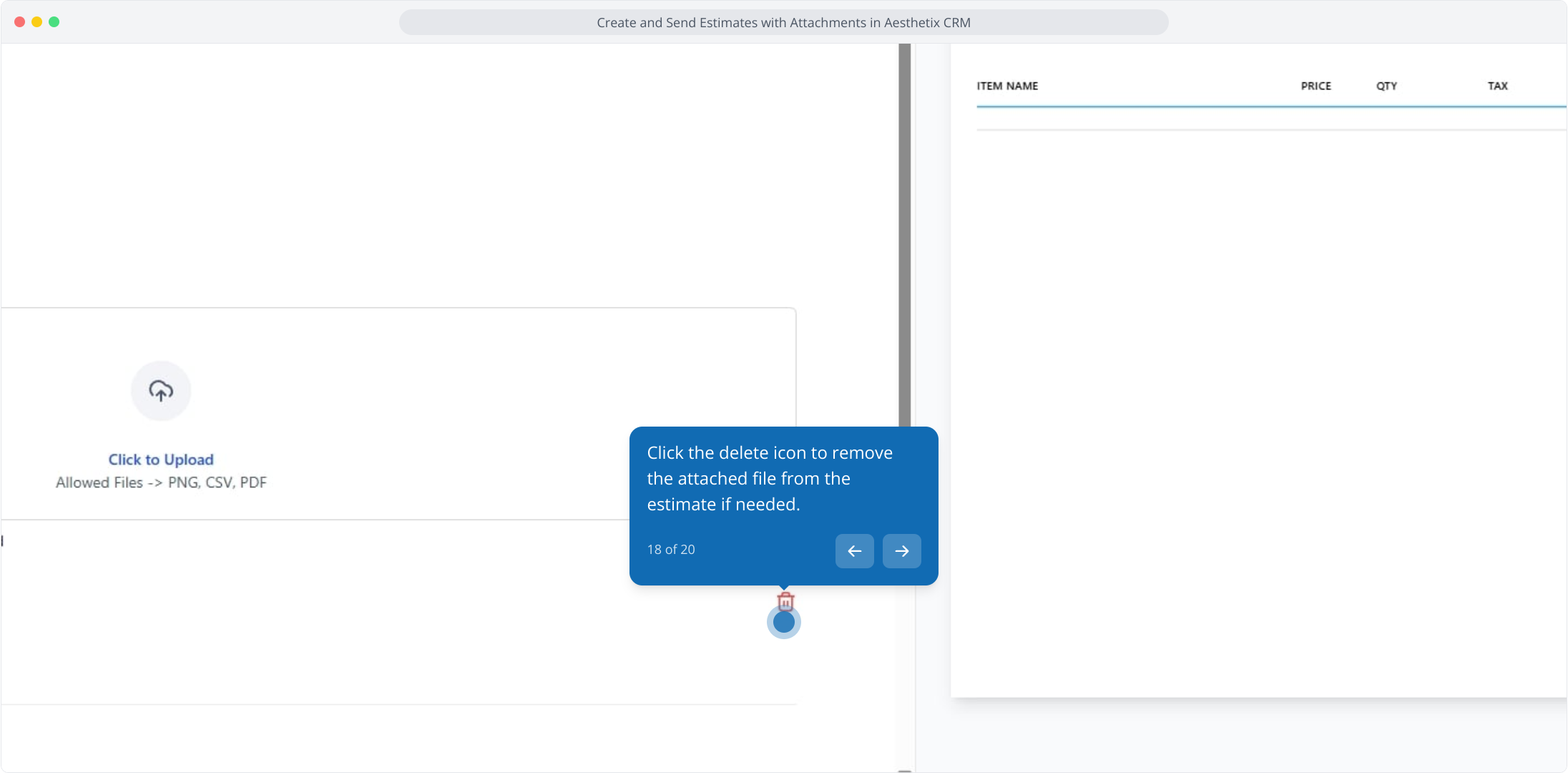
18. Click the delete icon to remove the attached file from the estimate if needed.
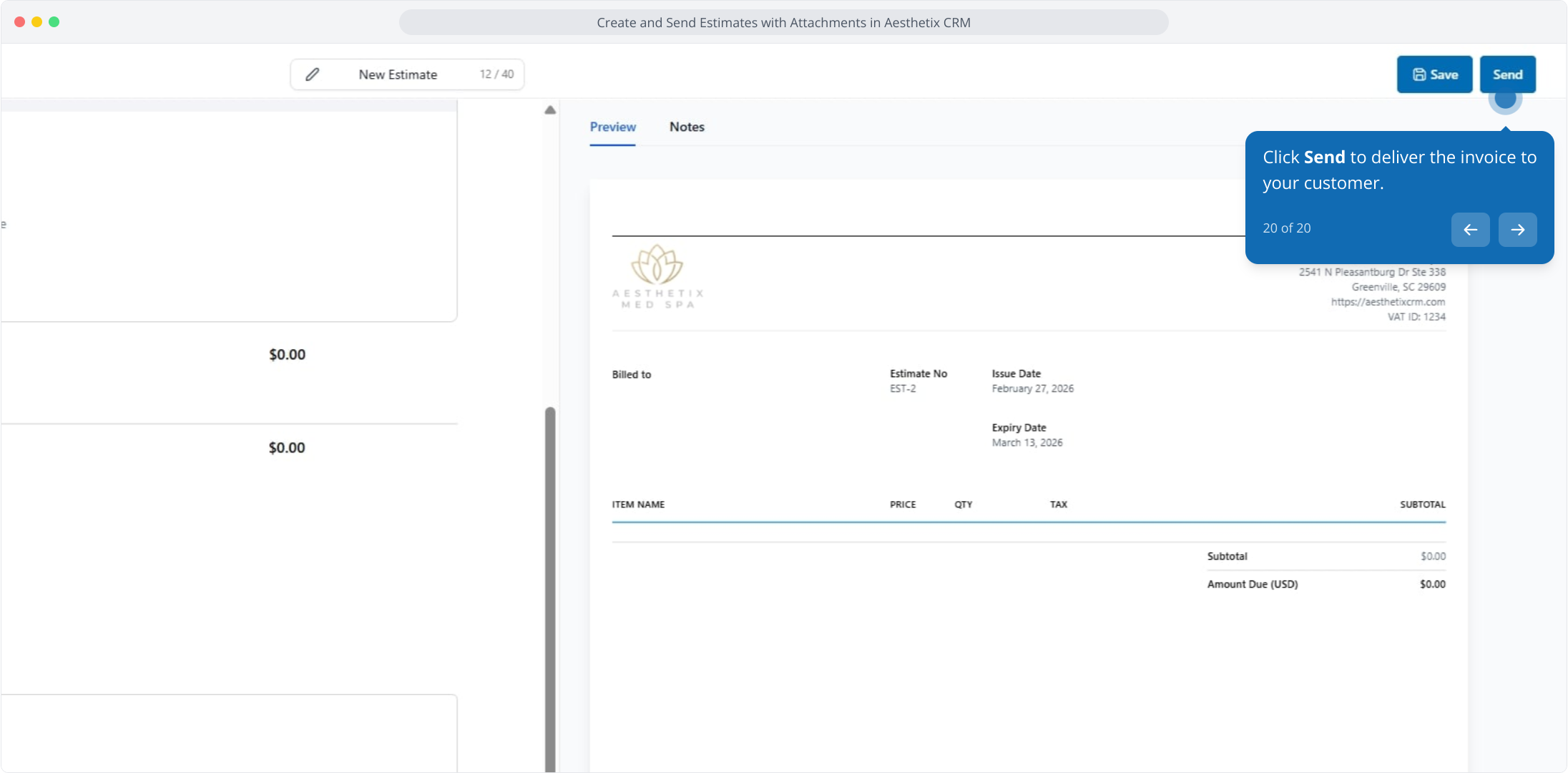
19. Click Save to mark the invoice as a draft
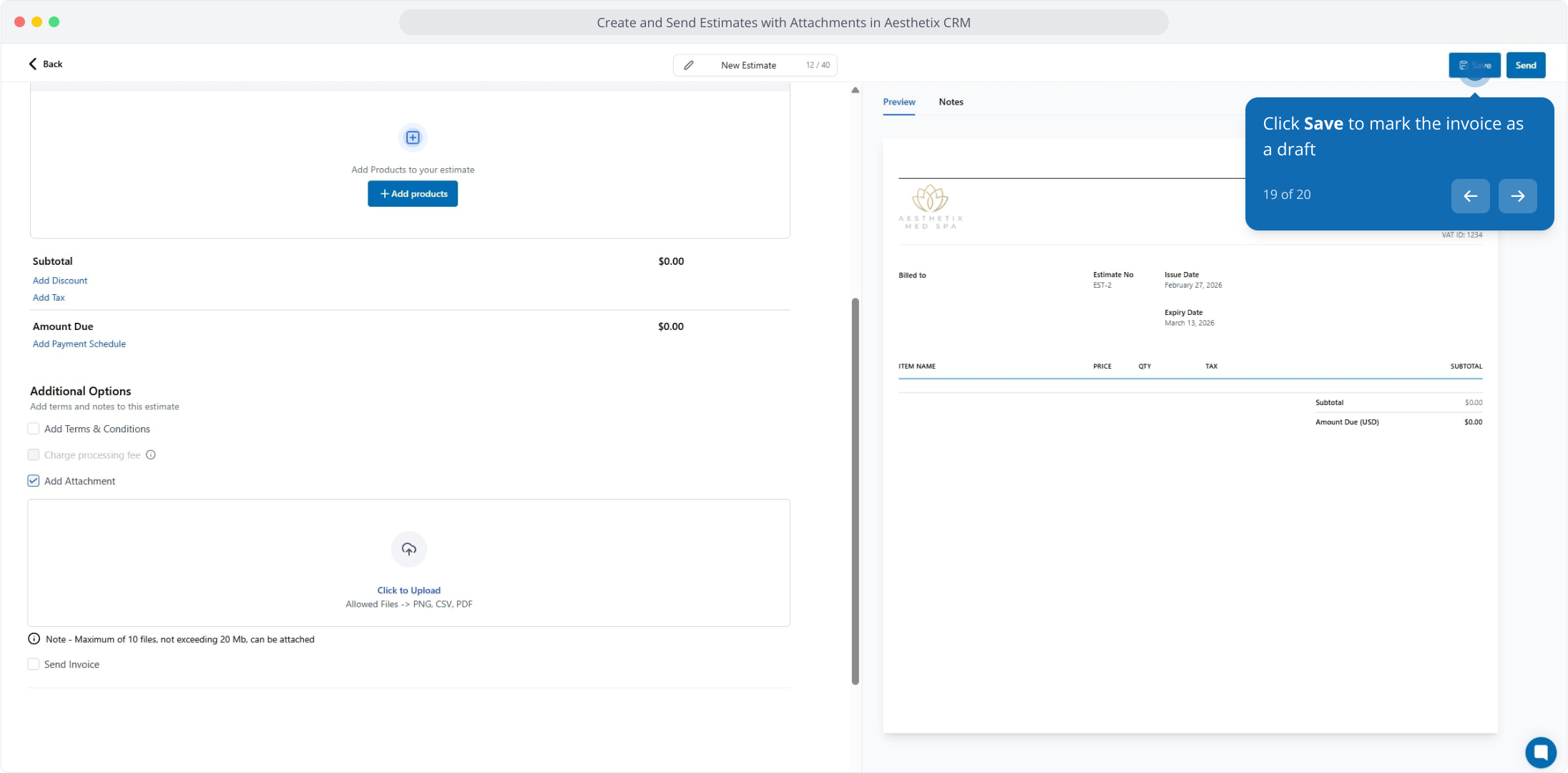
20. Click Send to deliver the invoice to your customer.