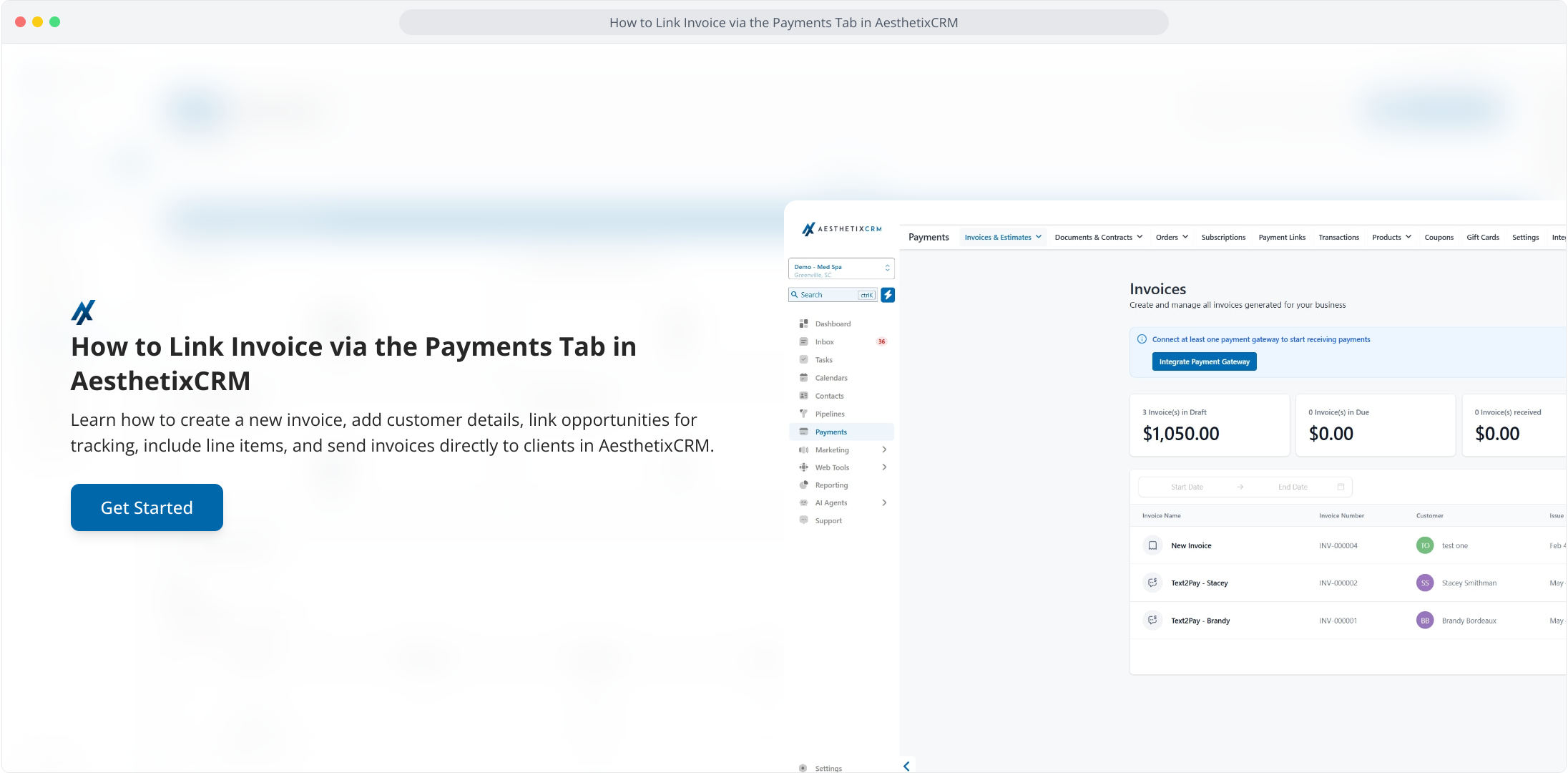
1. How to Link Invoice via the Payments Tab in AesthetixCRM
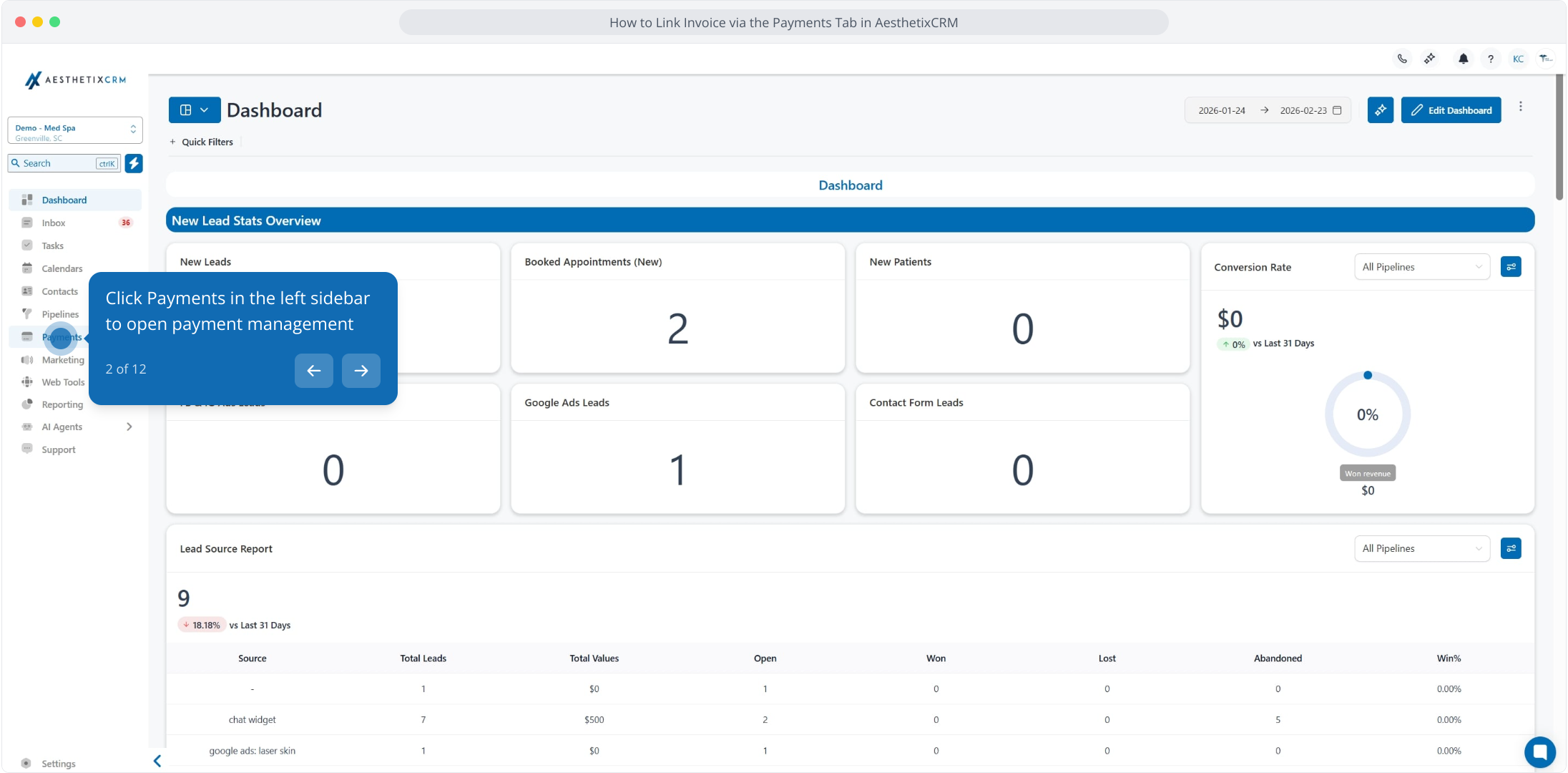
2. Click Payments in the left sidebar to open payment management
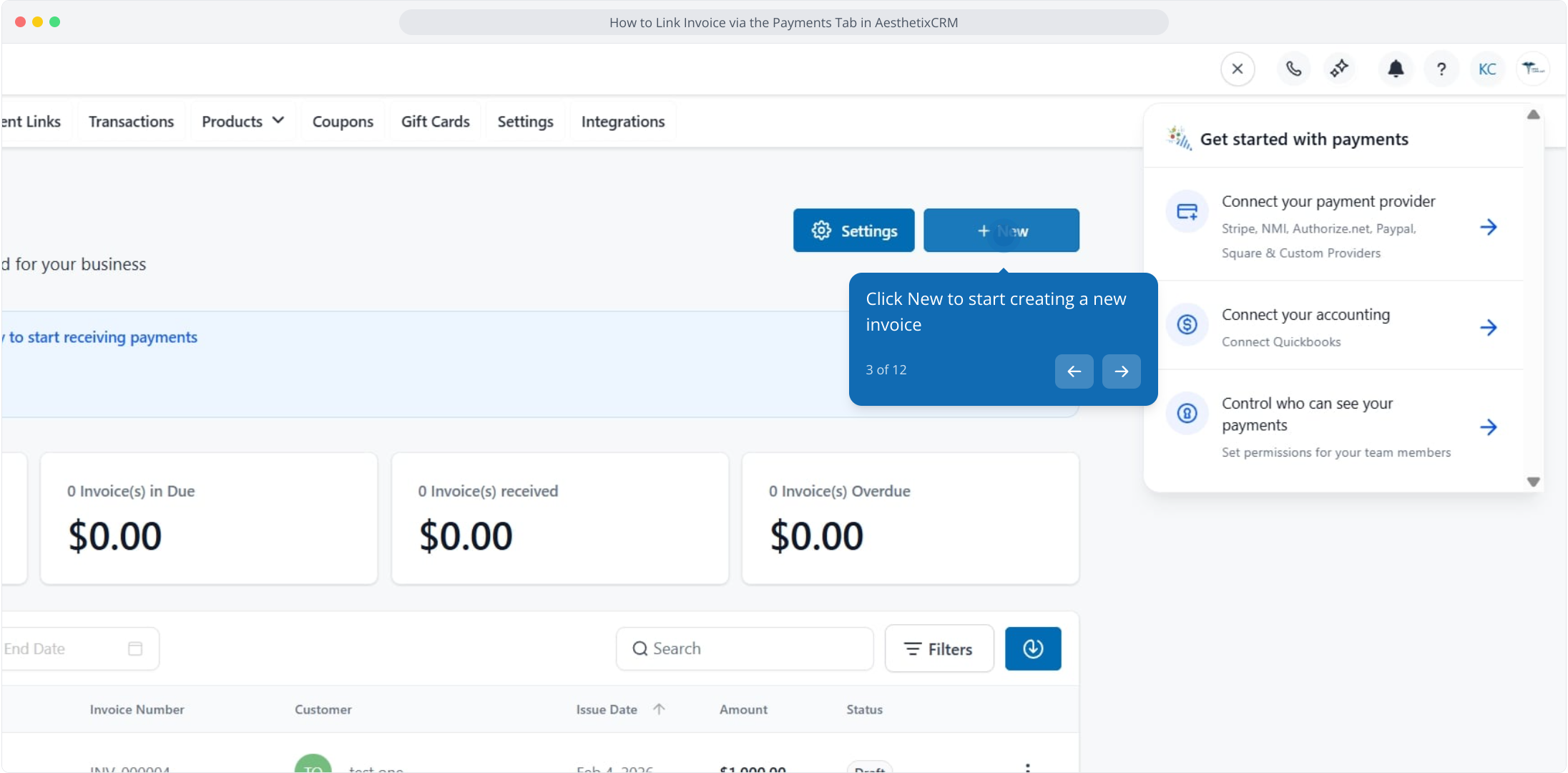
3. Click New to start creating a new invoice
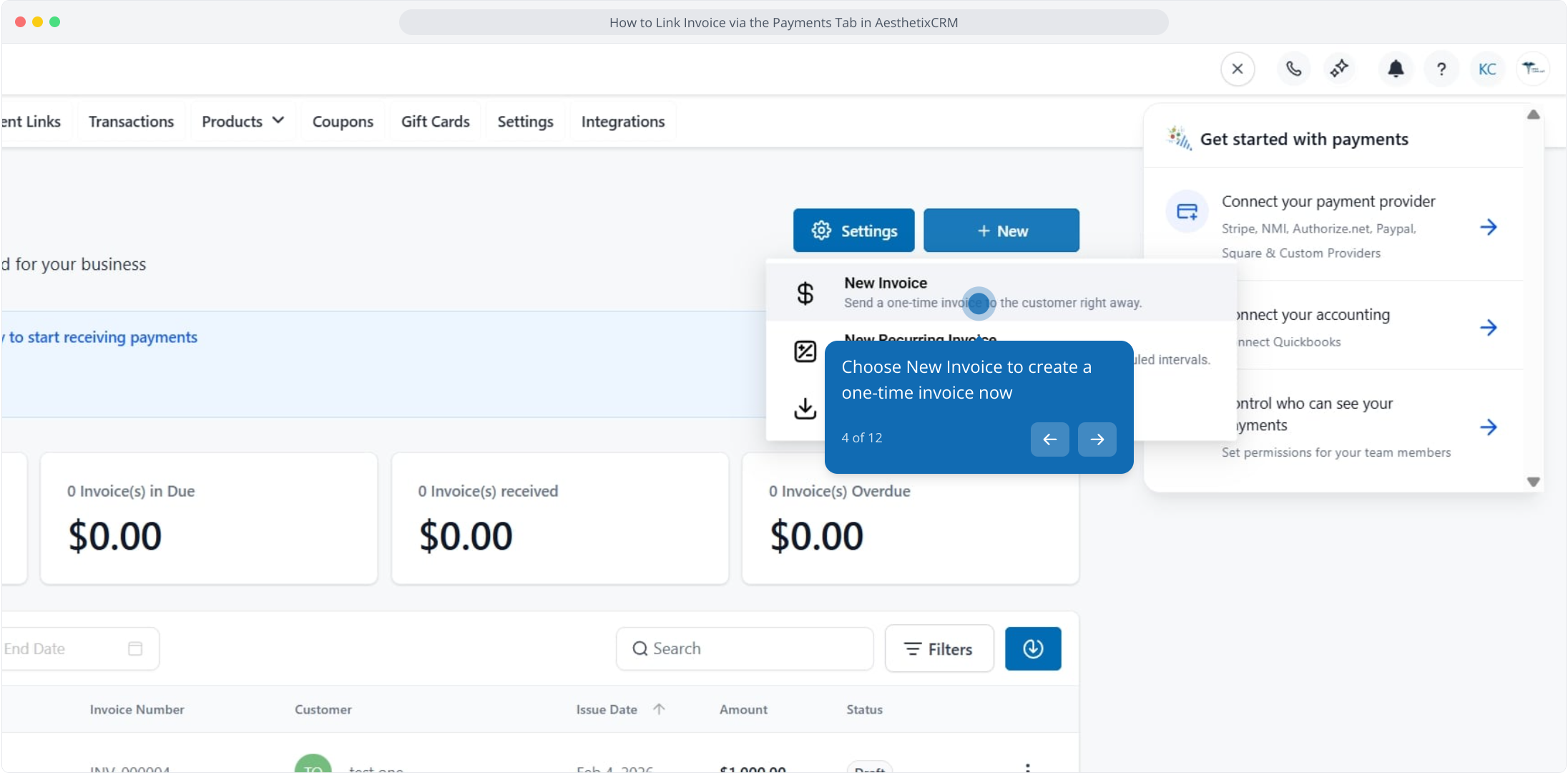
4. Choose New Invoice to create a one-time invoice now
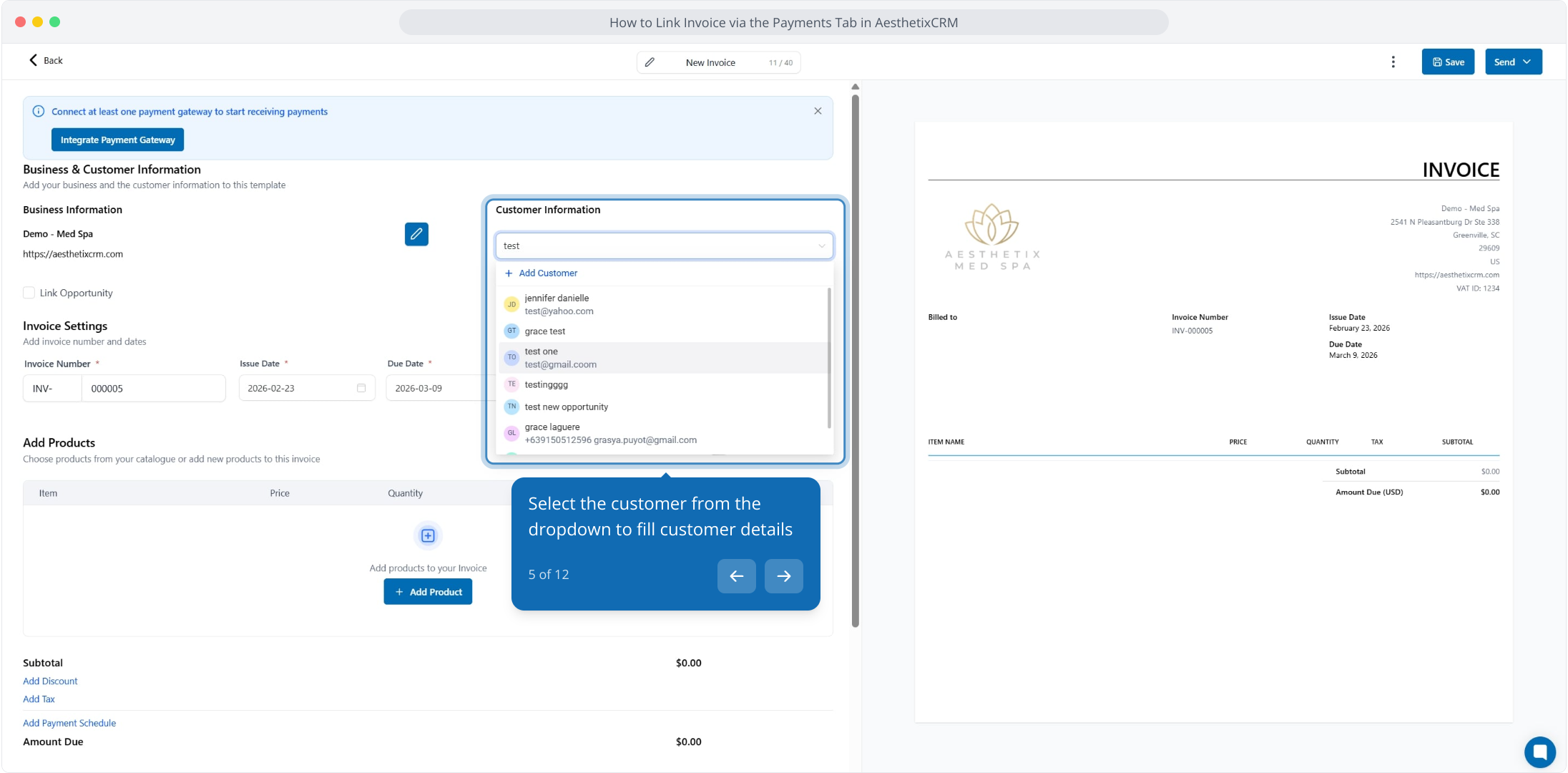
5. Select the customer from the dropdown to fill customer details
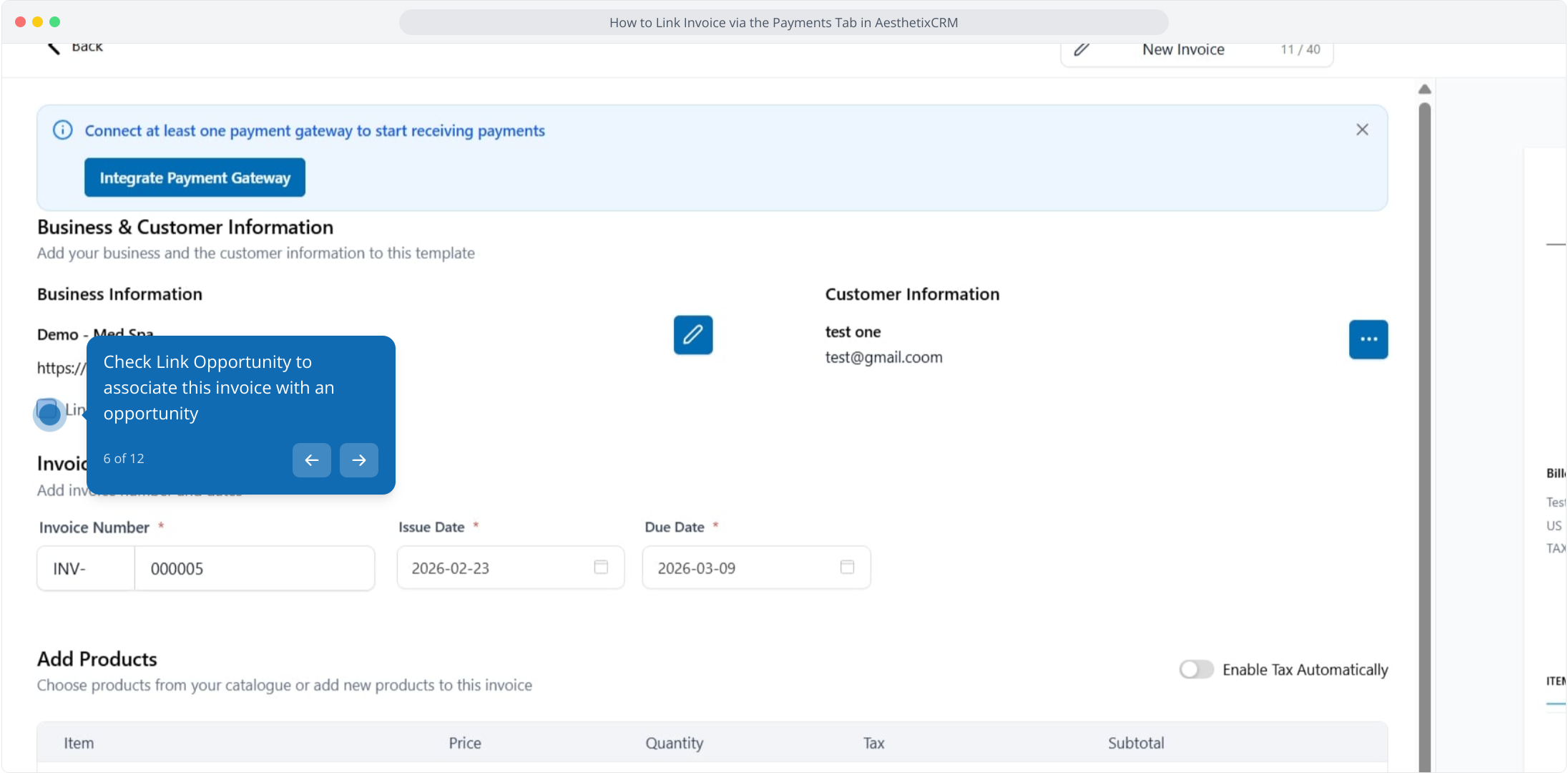
6. Check Link Opportunity to associate this invoice with an opportunity
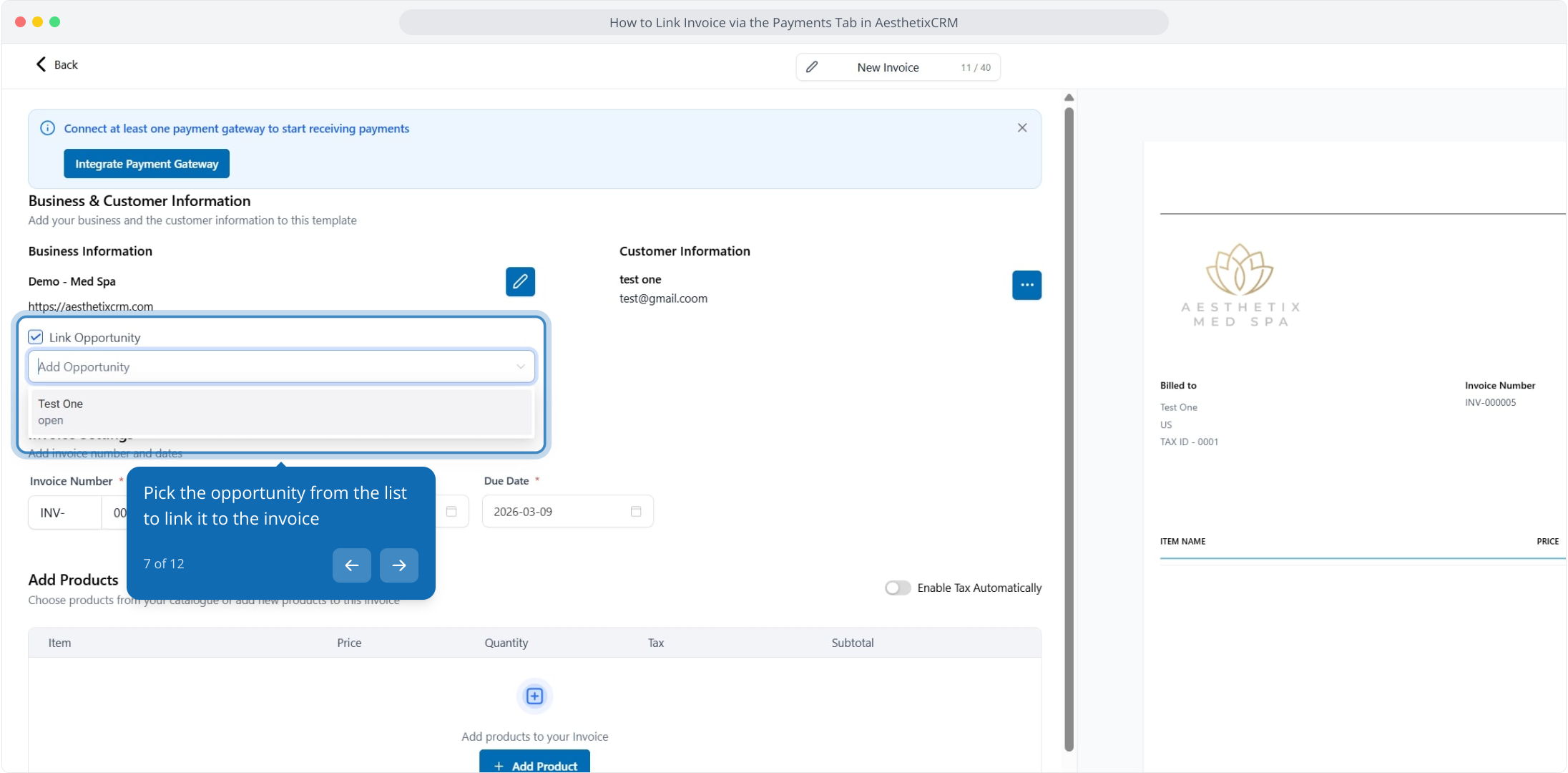
7. Pick the opportunity from the list to link it to the invoice
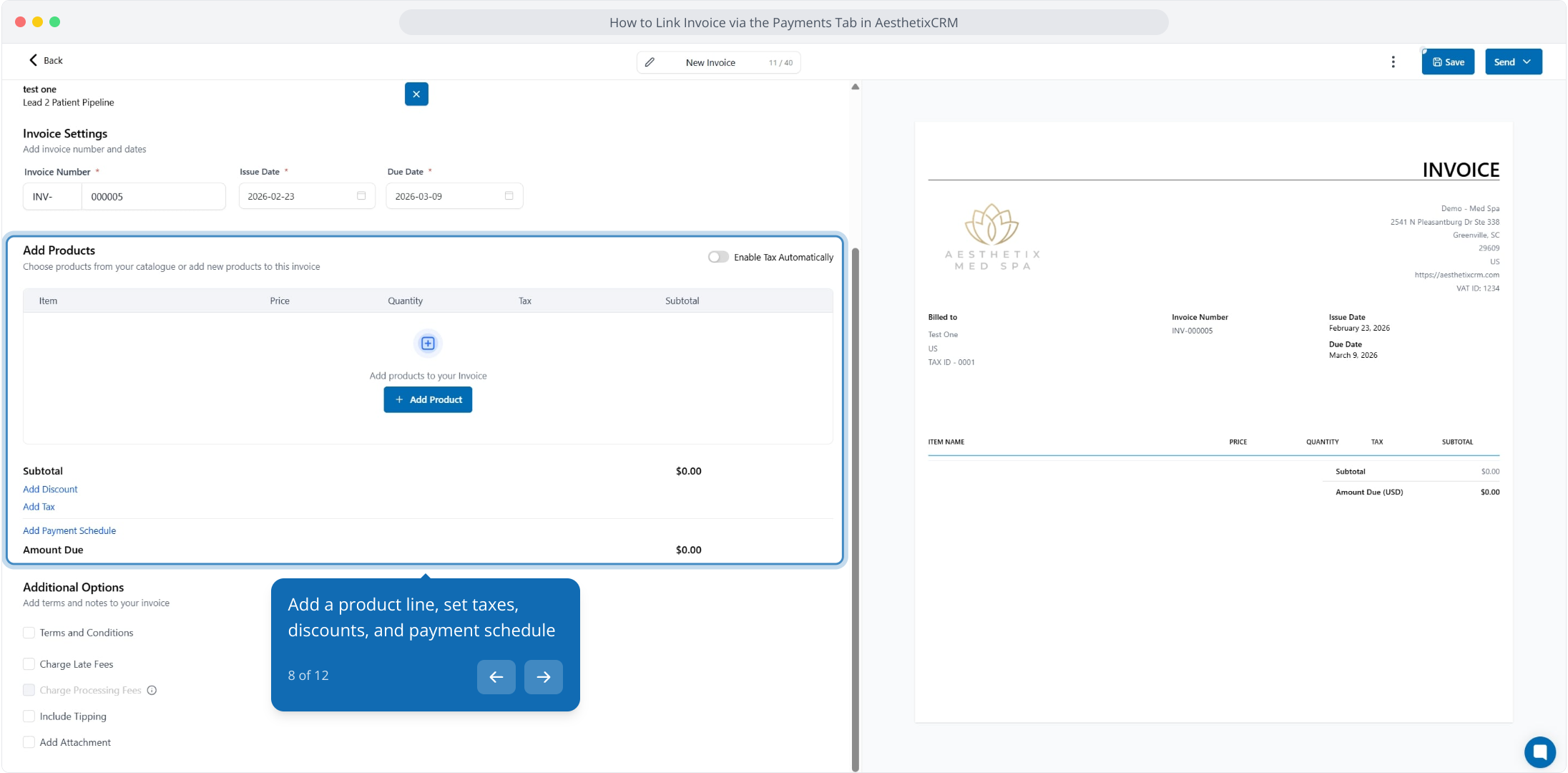
8. Add a product line, set taxes, discounts, and payment schedule
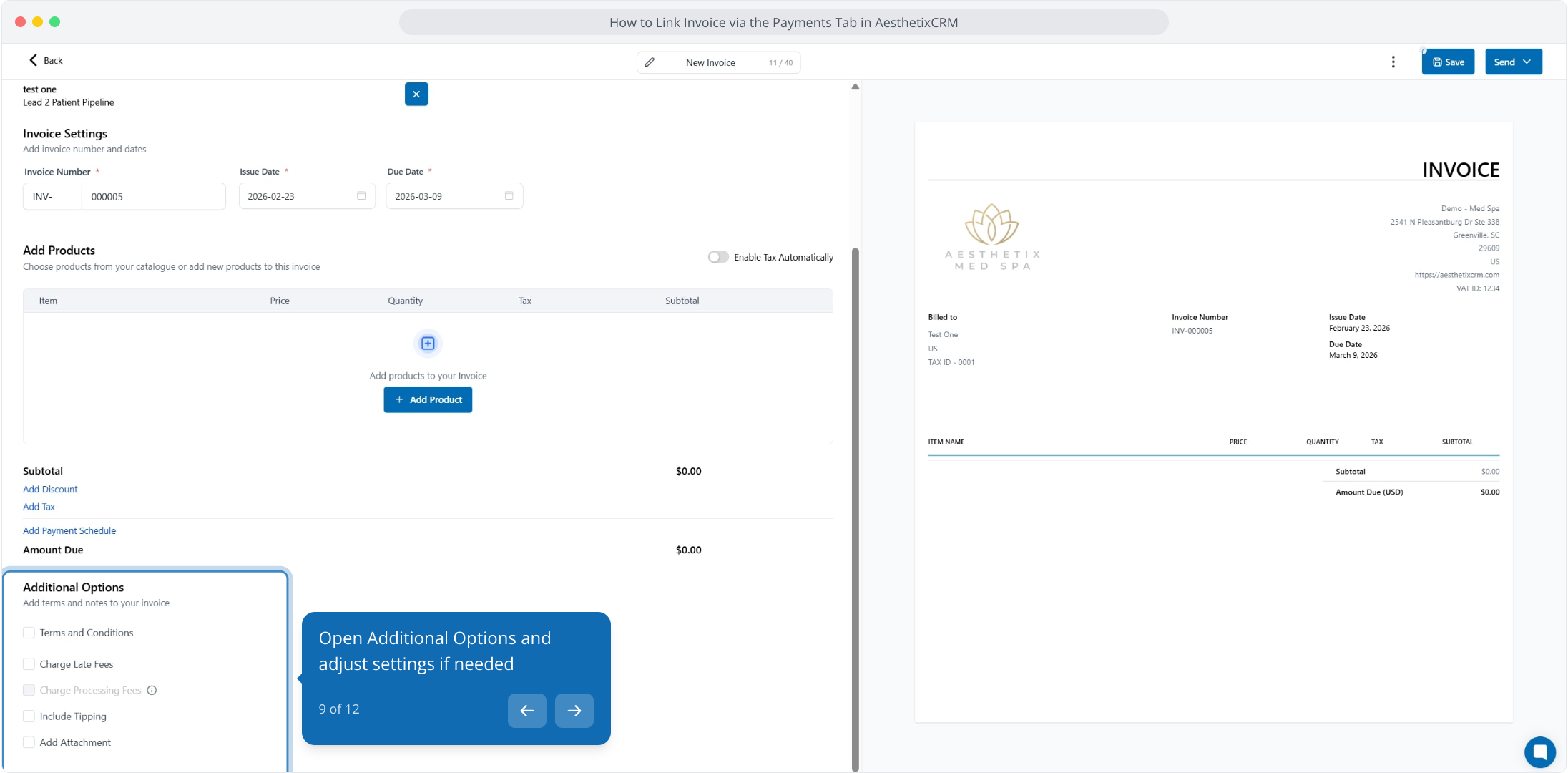
9. Open Additional Options and adjust settings if needed
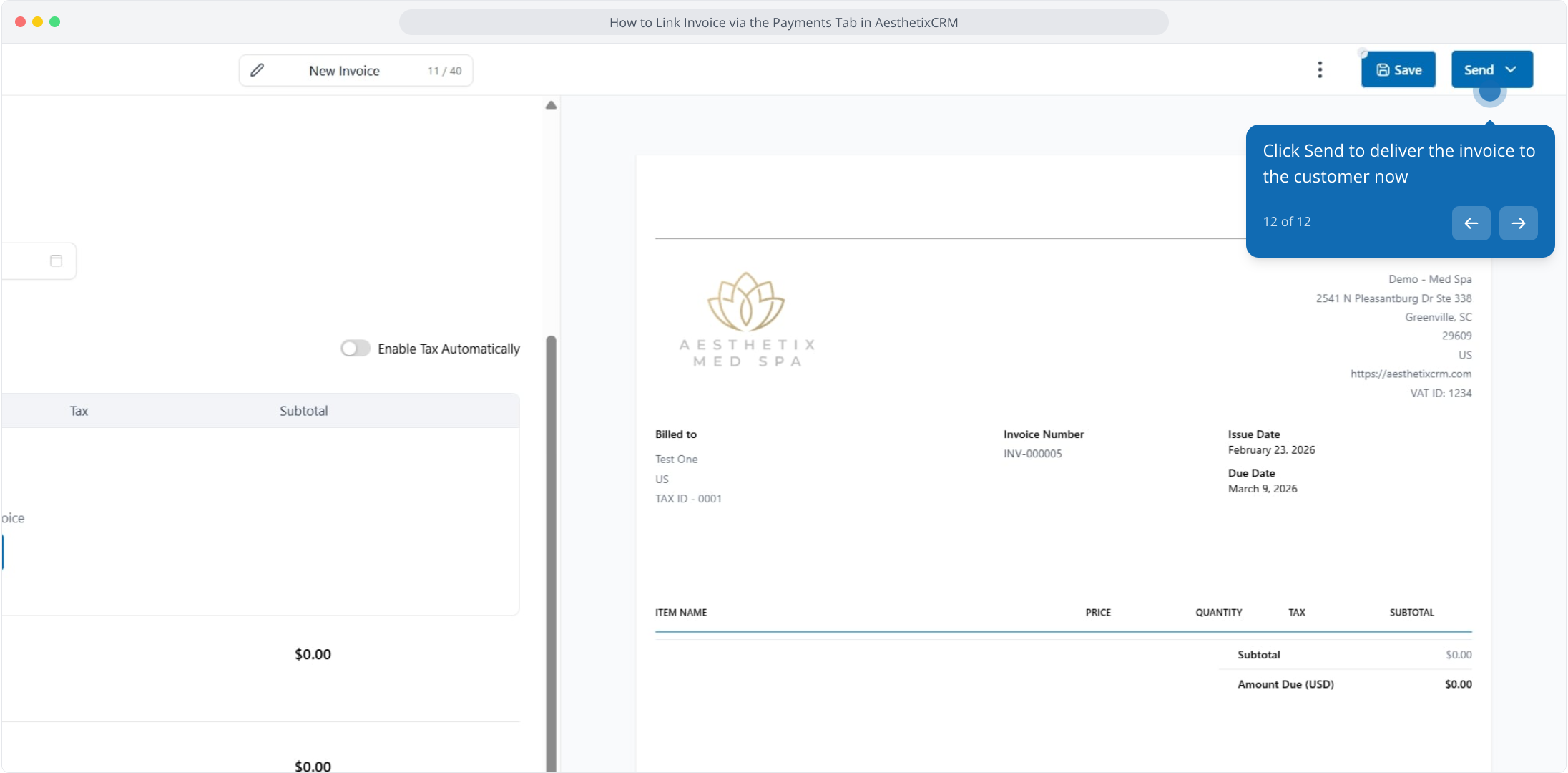
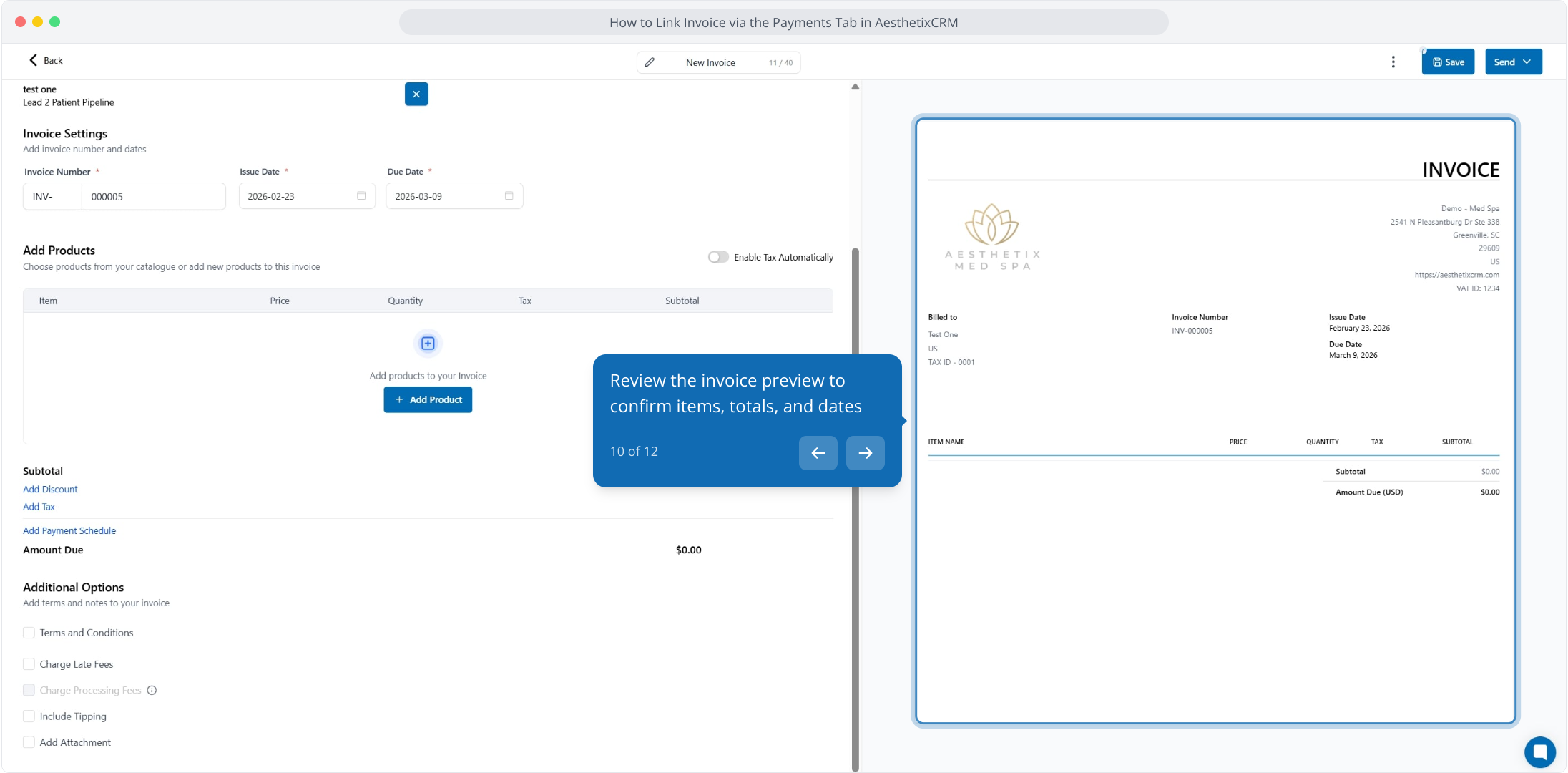
10. Review the invoice preview to confirm items, totals, and dates
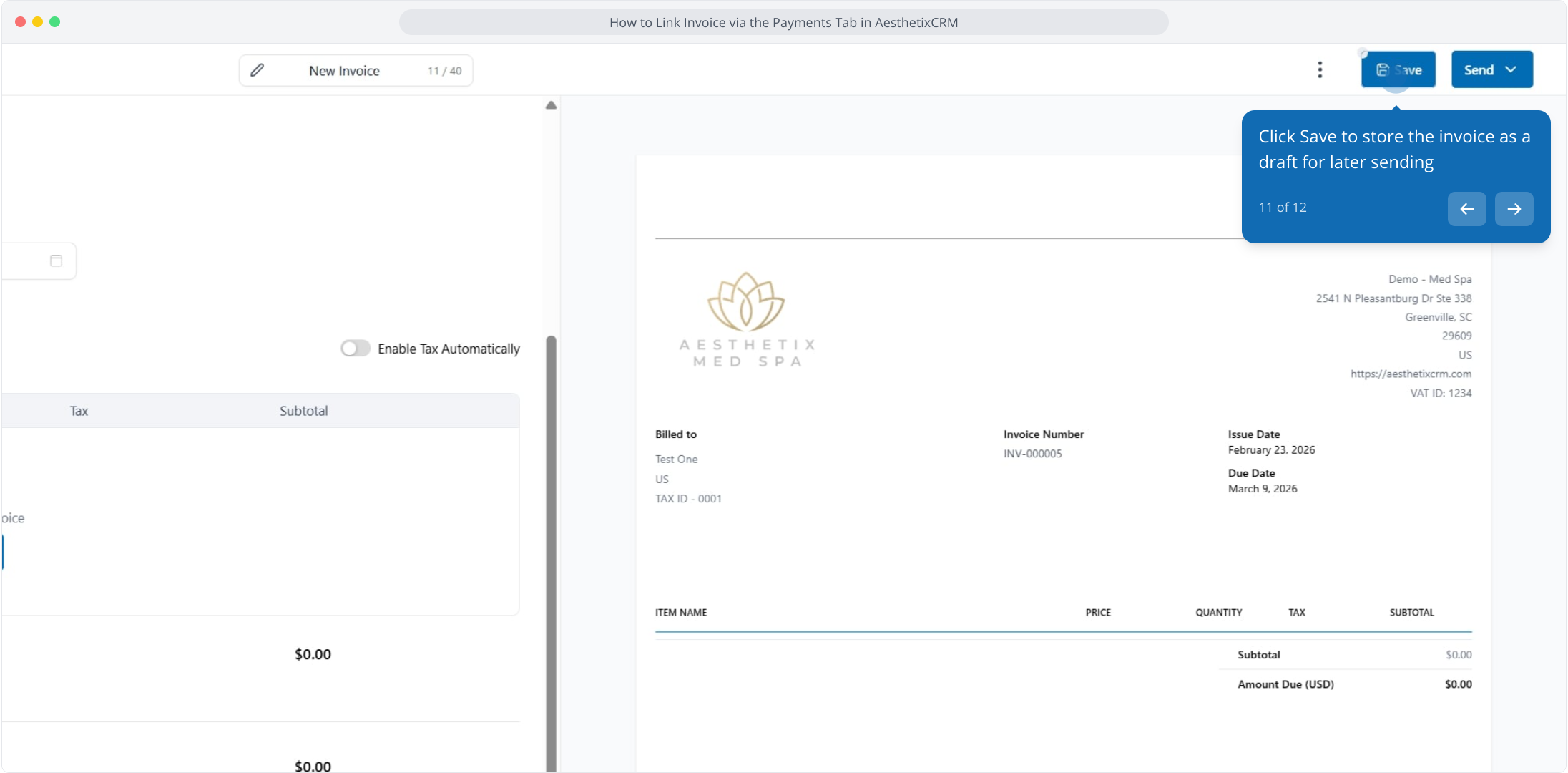
11. Click Save to store the invoice as a draft for later sending
12. Click Send to deliver the invoice to the customer now