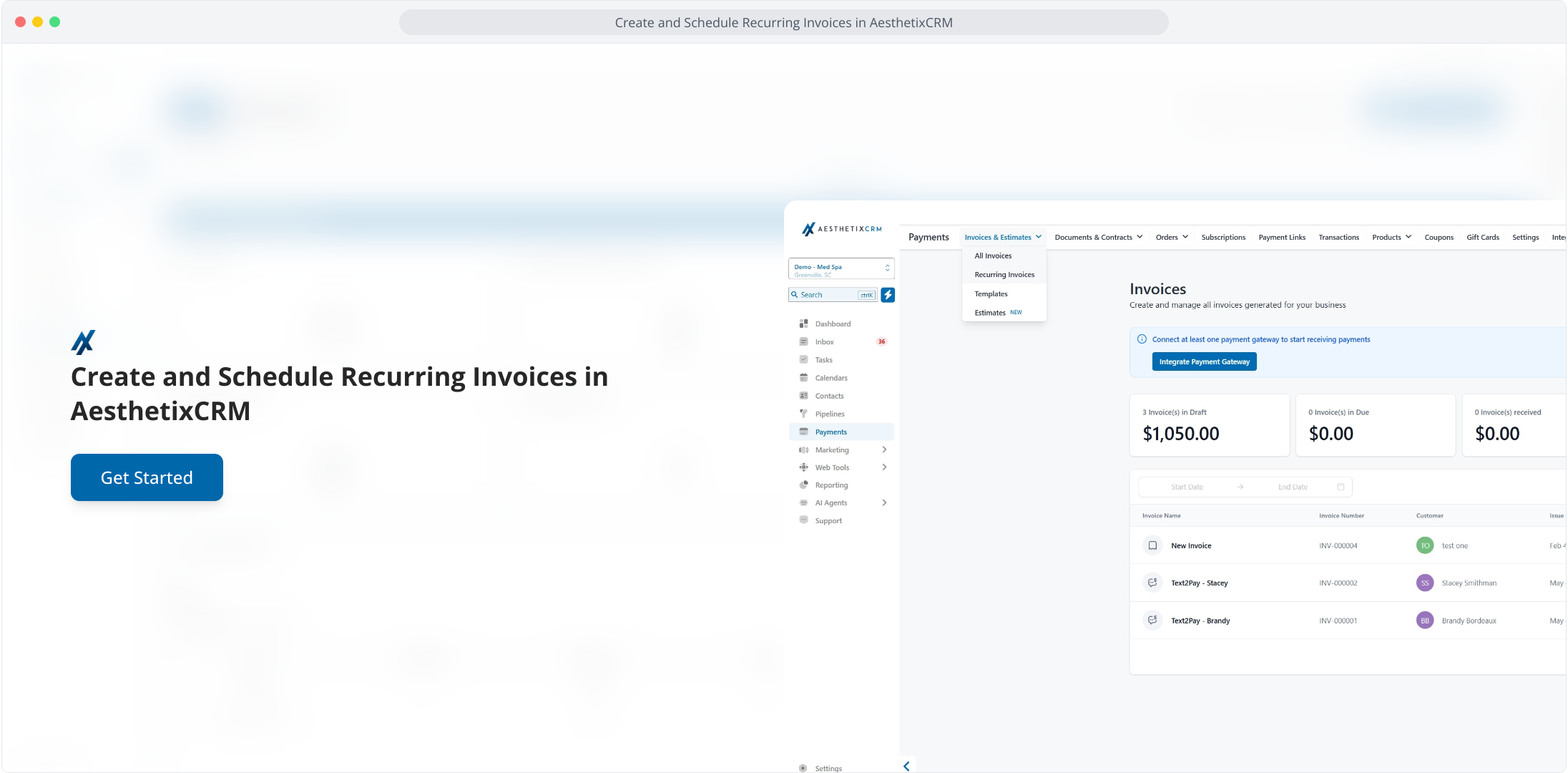
1. Create and Schedule Recurring Invoices in AesthetixCRM
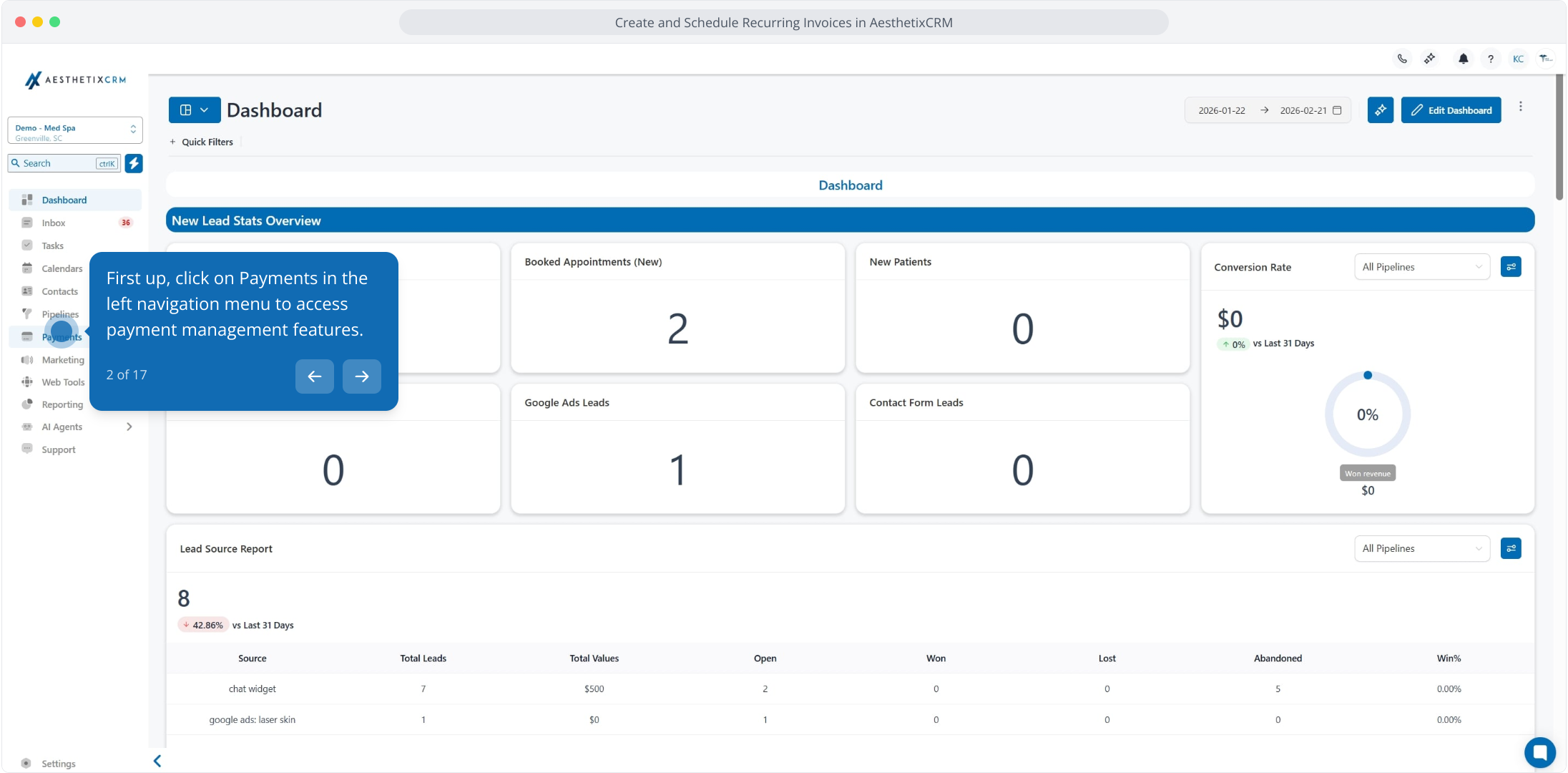
2. First up, click on Payments in the left navigation menu to access payment management features.
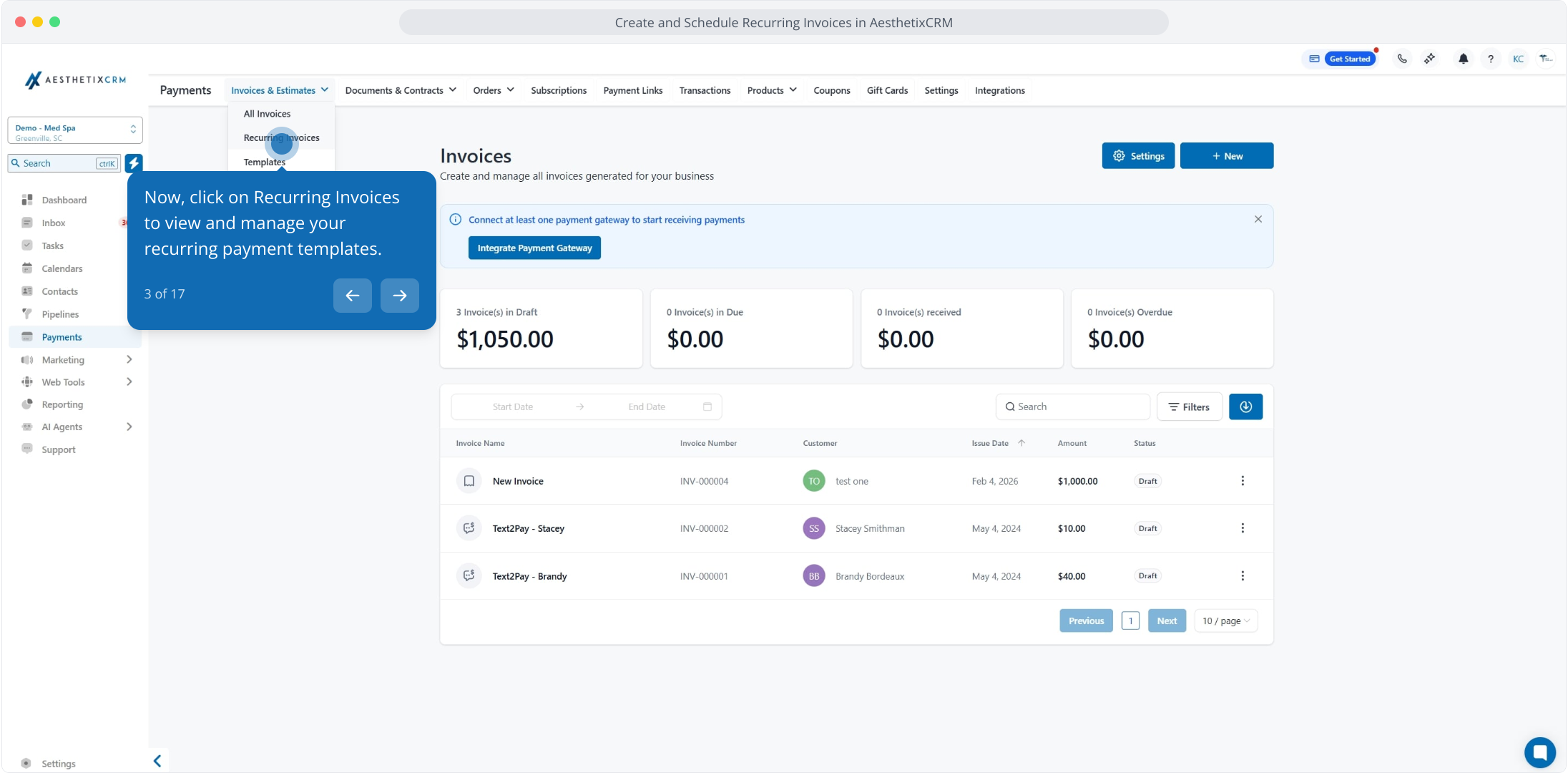
3. Now, click on Recurring Invoices to view and manage your recurring payment templates.
4. Next up, click the New button to create a new recurring invoice template.
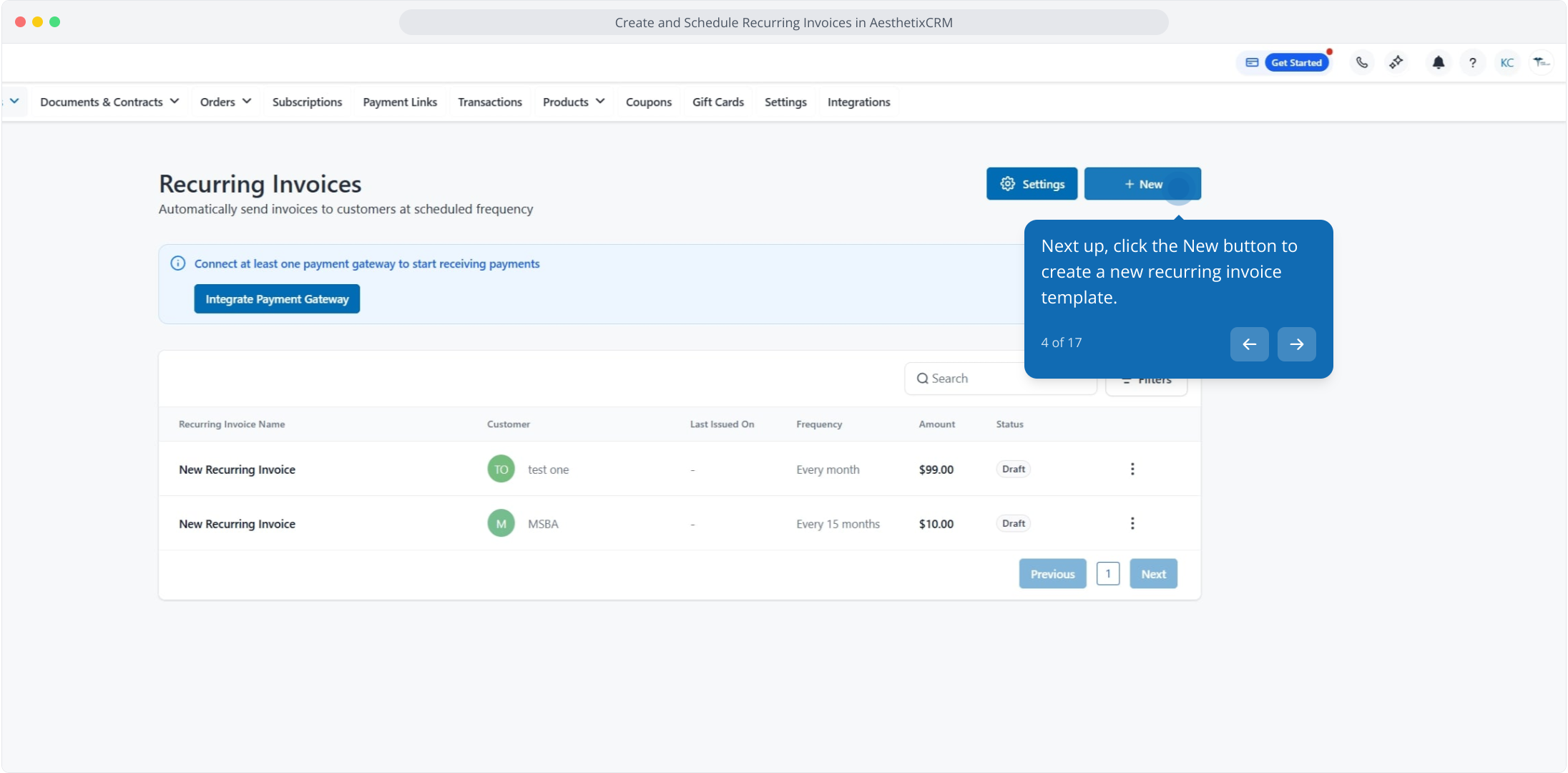
5. Afterwards, click on "New Recurring Invoice" to create a recurring invoice.
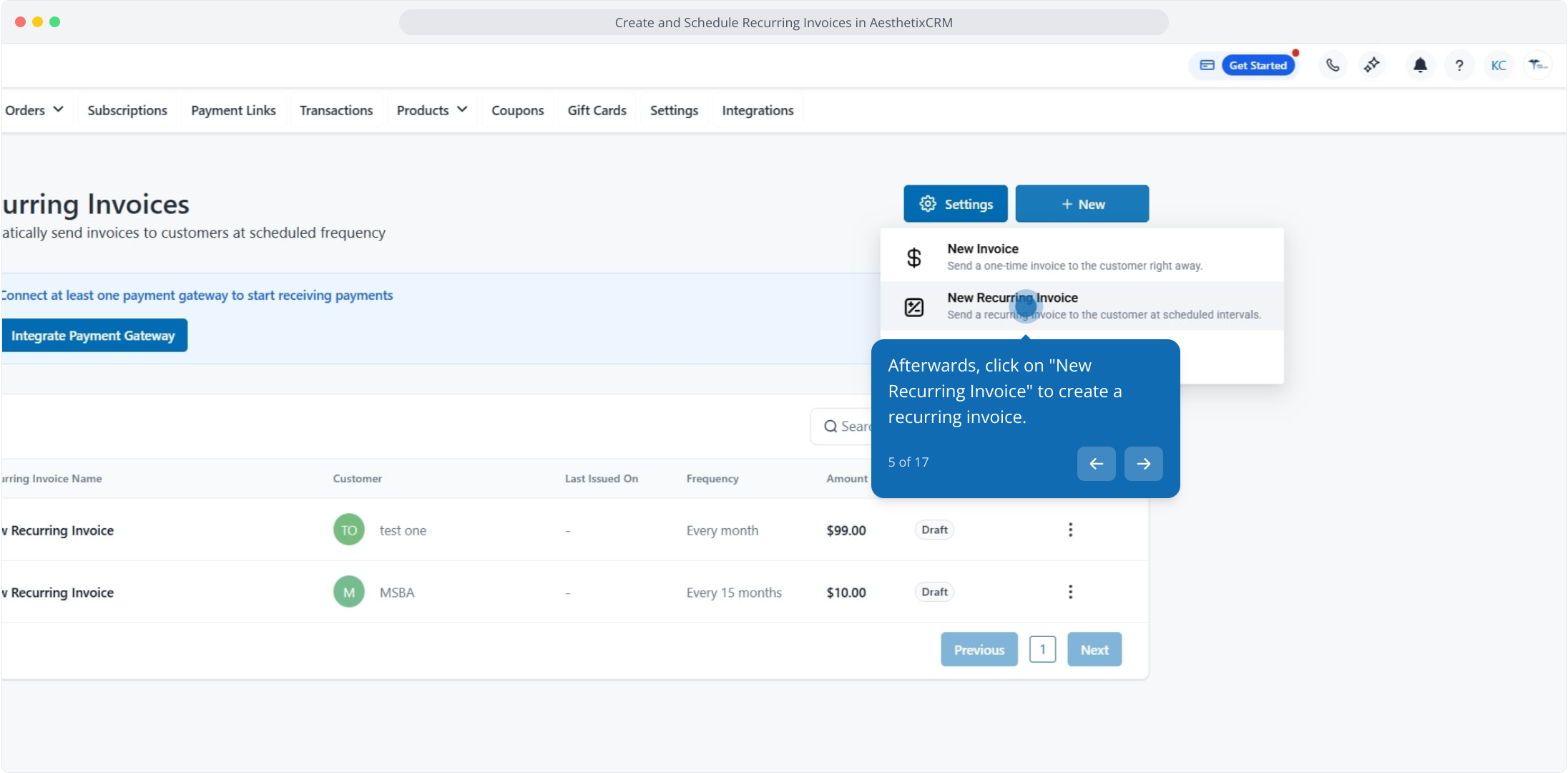
6. Click here to edit the Business Information.
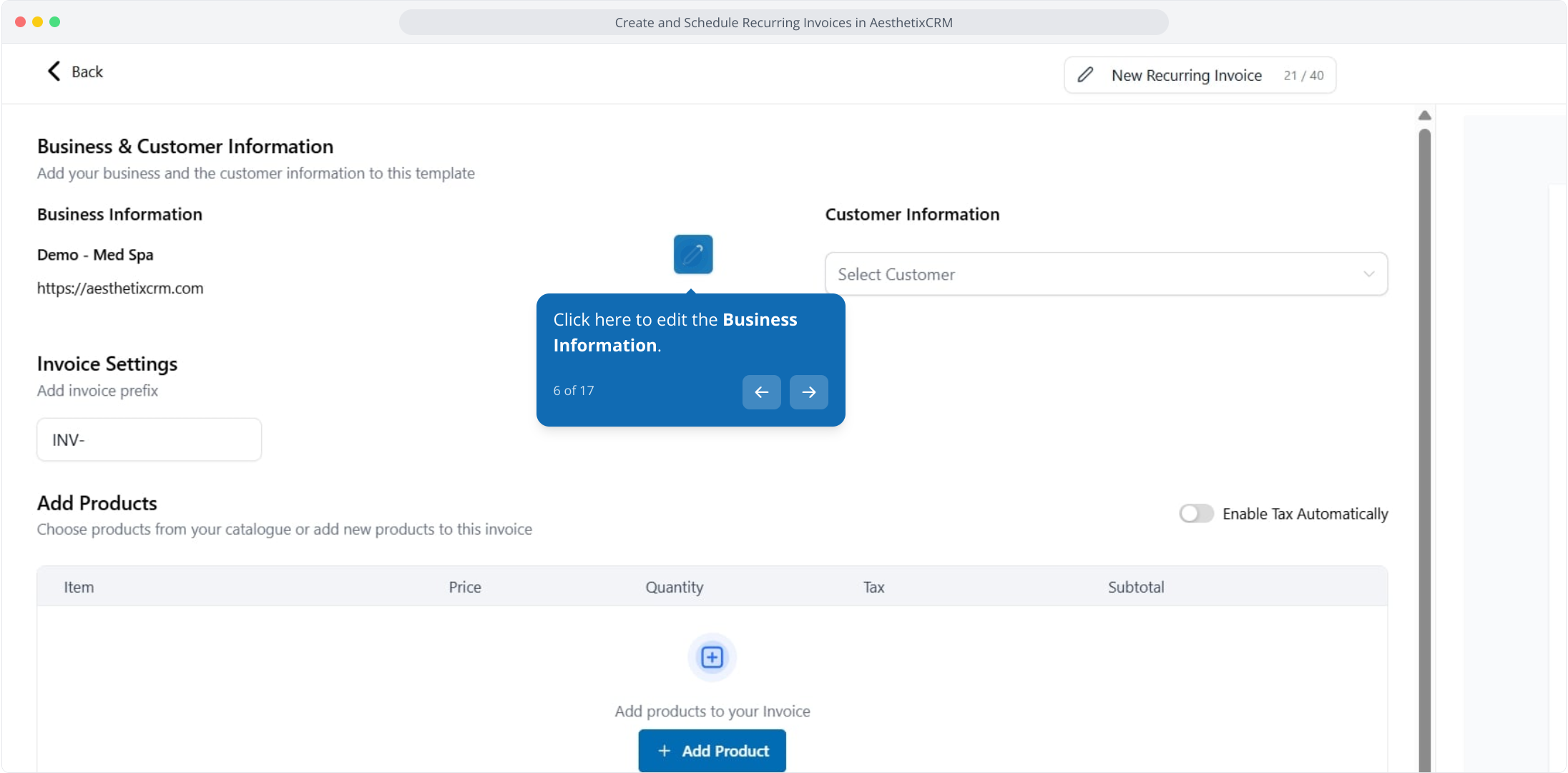
7. Edit any necessary details for you Business Information here. After that click Save
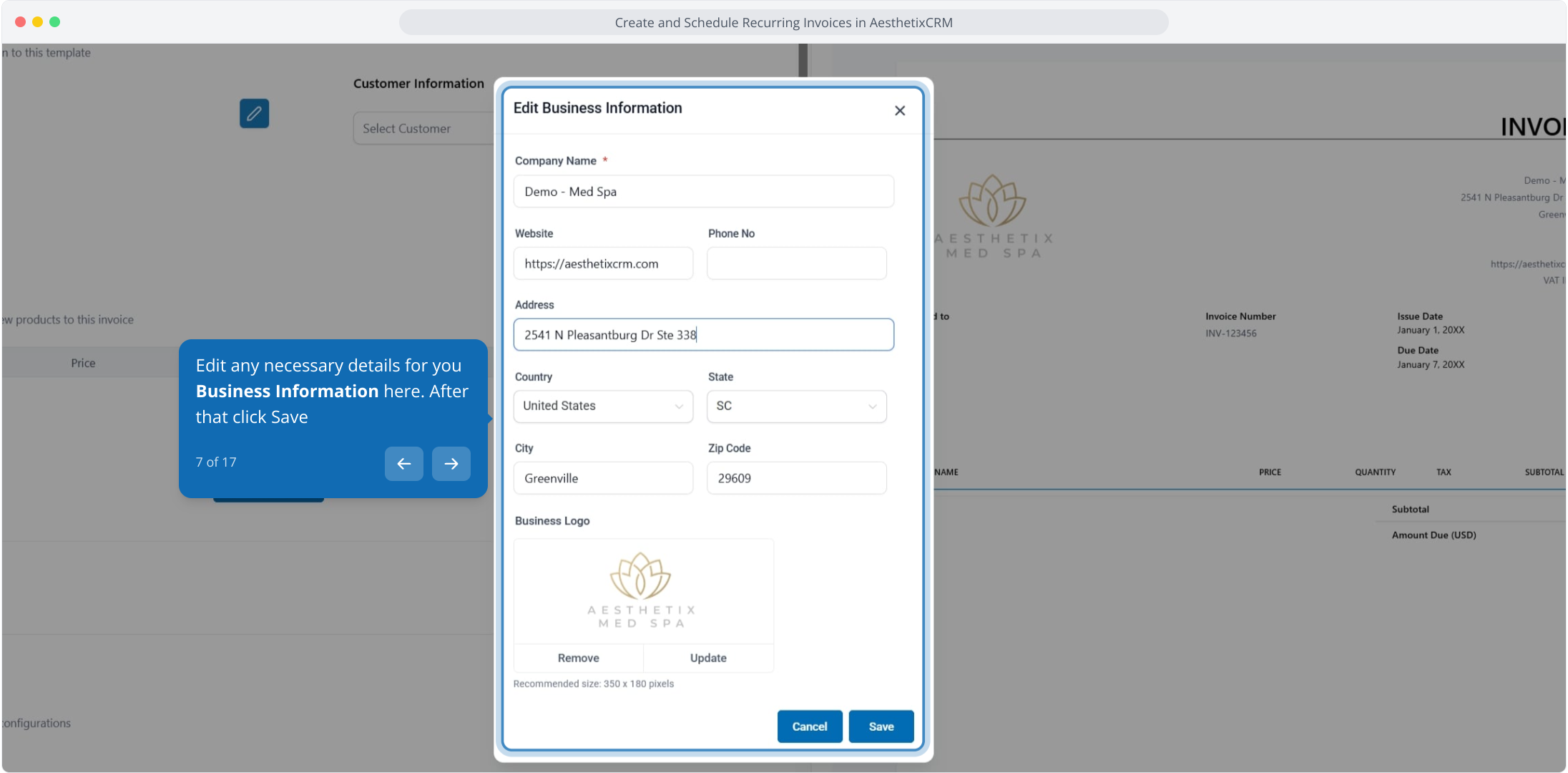
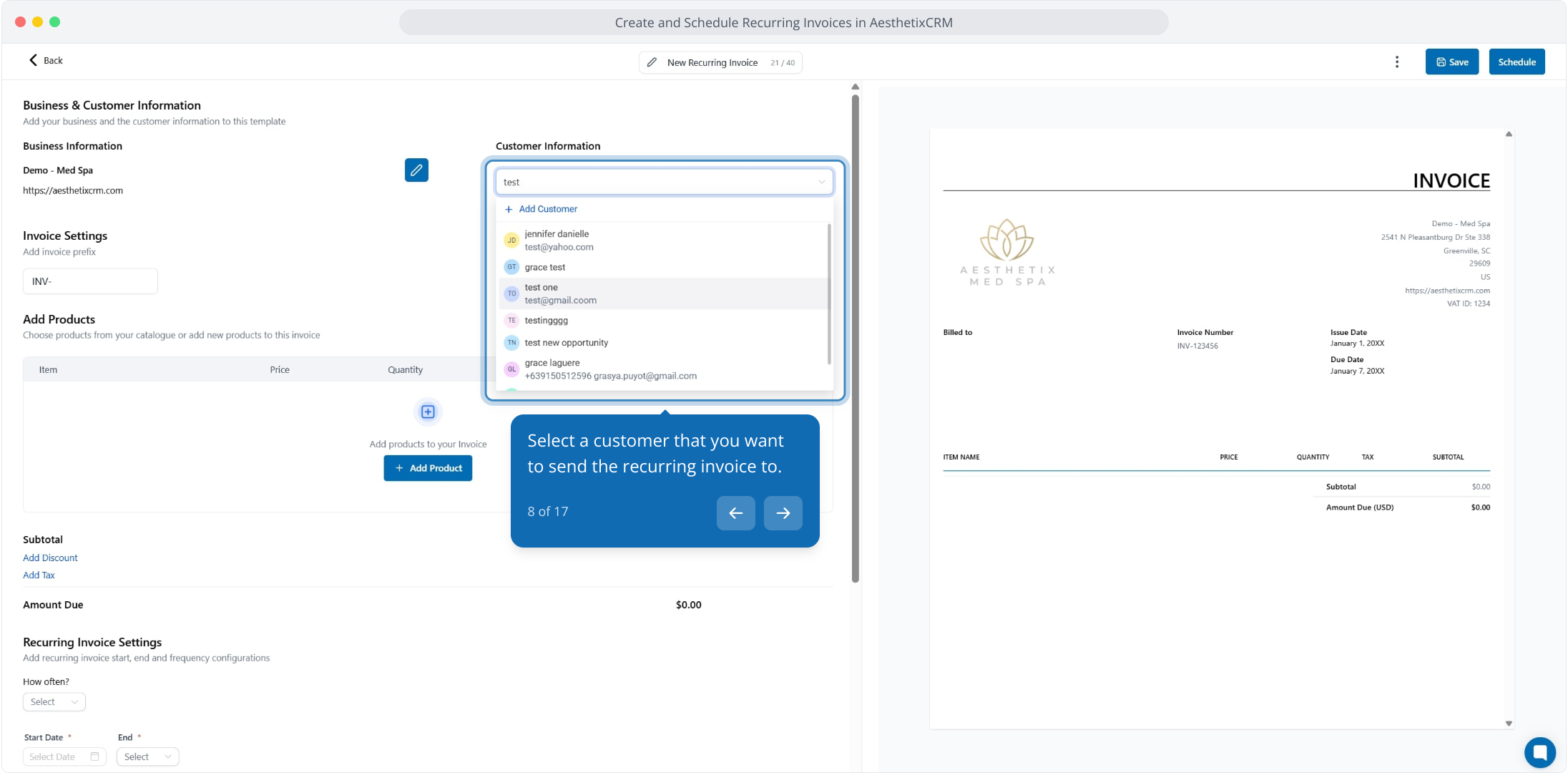
8. Select a customer that you want to send the recurring invoice to.
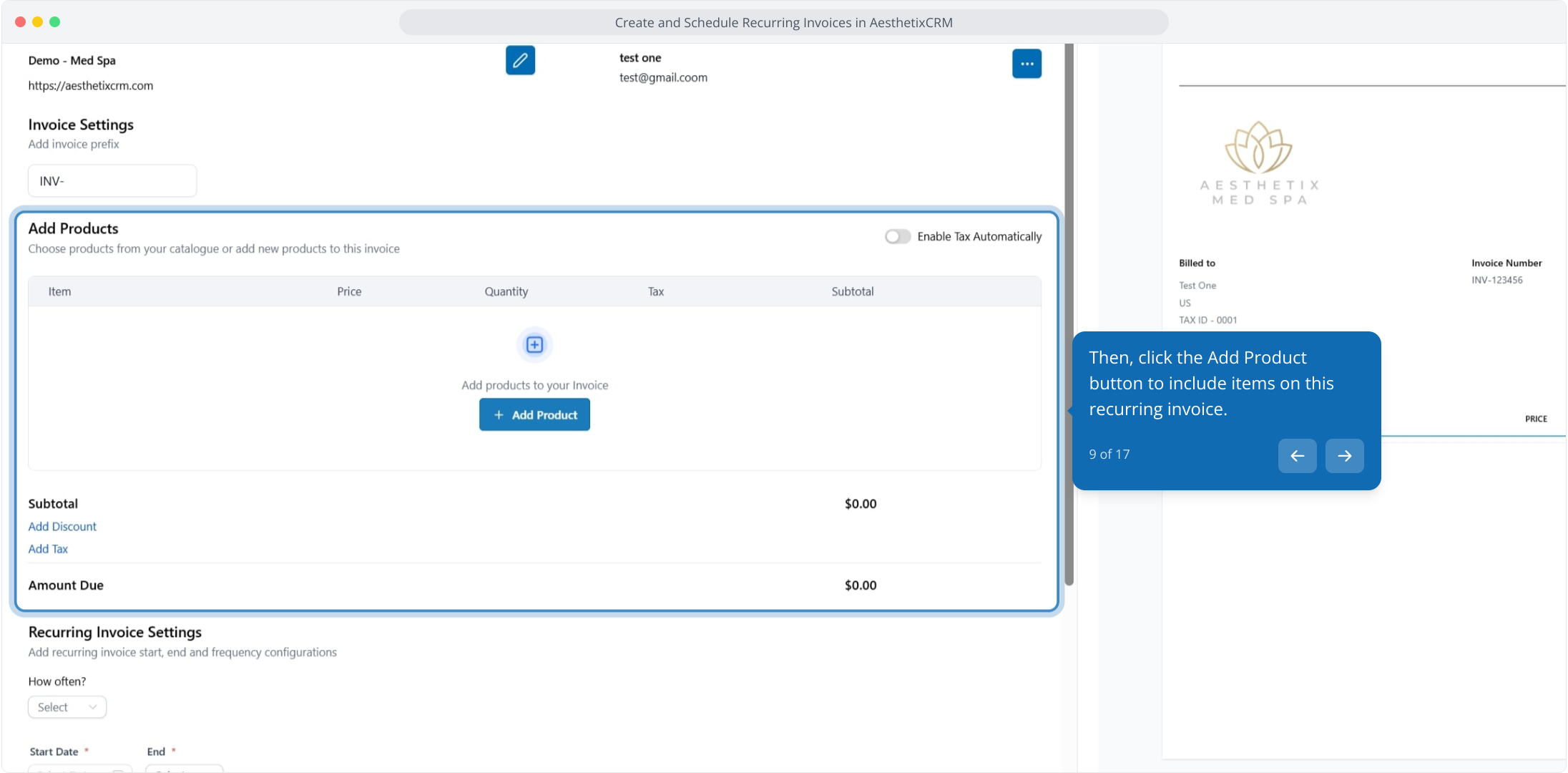
9. Then, click the Add Product button to include items on this recurring invoice.
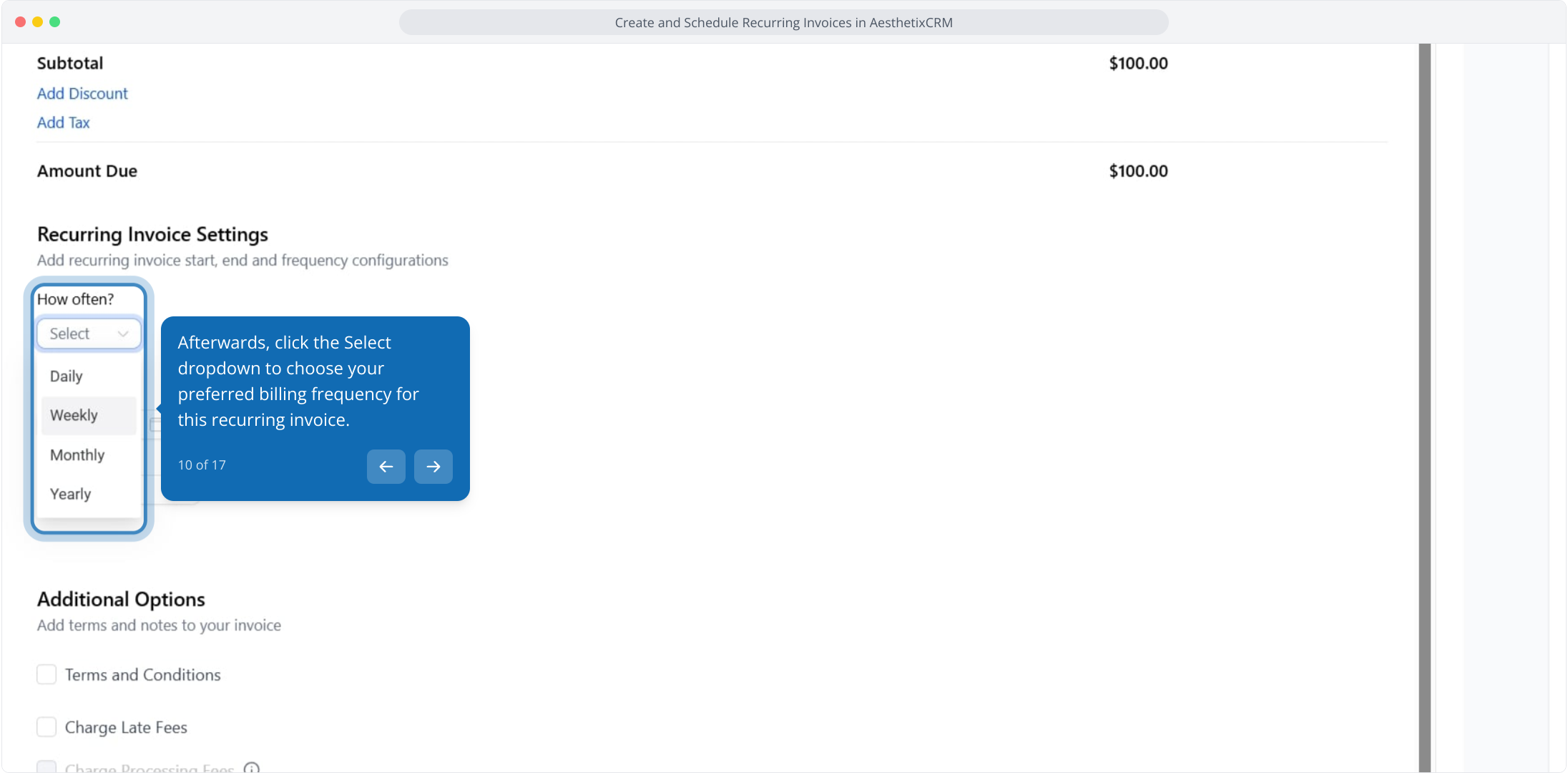
10. Afterwards, click the Select dropdown to choose your preferred billing frequency for this recurring invoice.
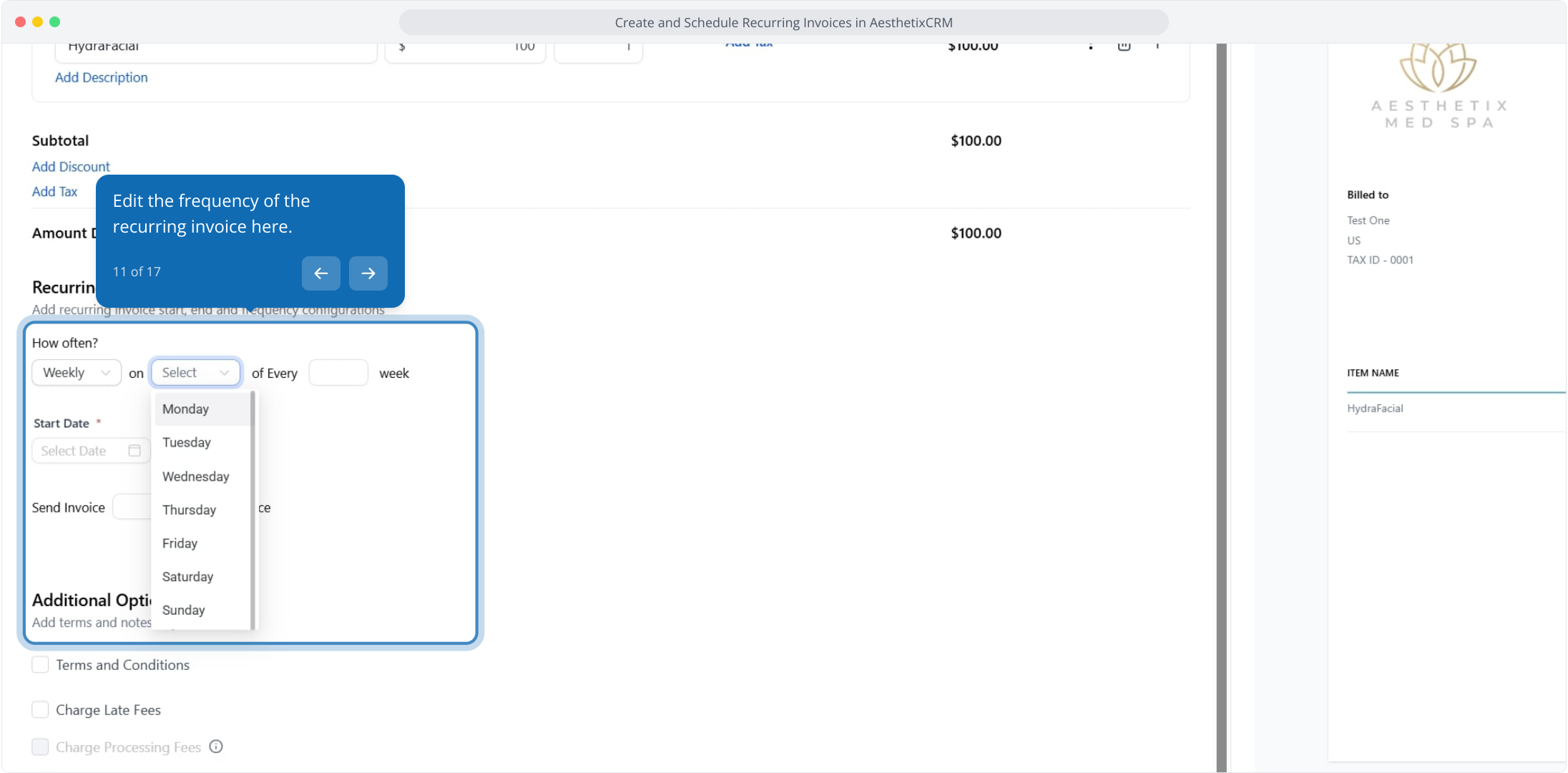
11. Edit the frequency of the recurring invoice here.
12. Edit the start and end date here.
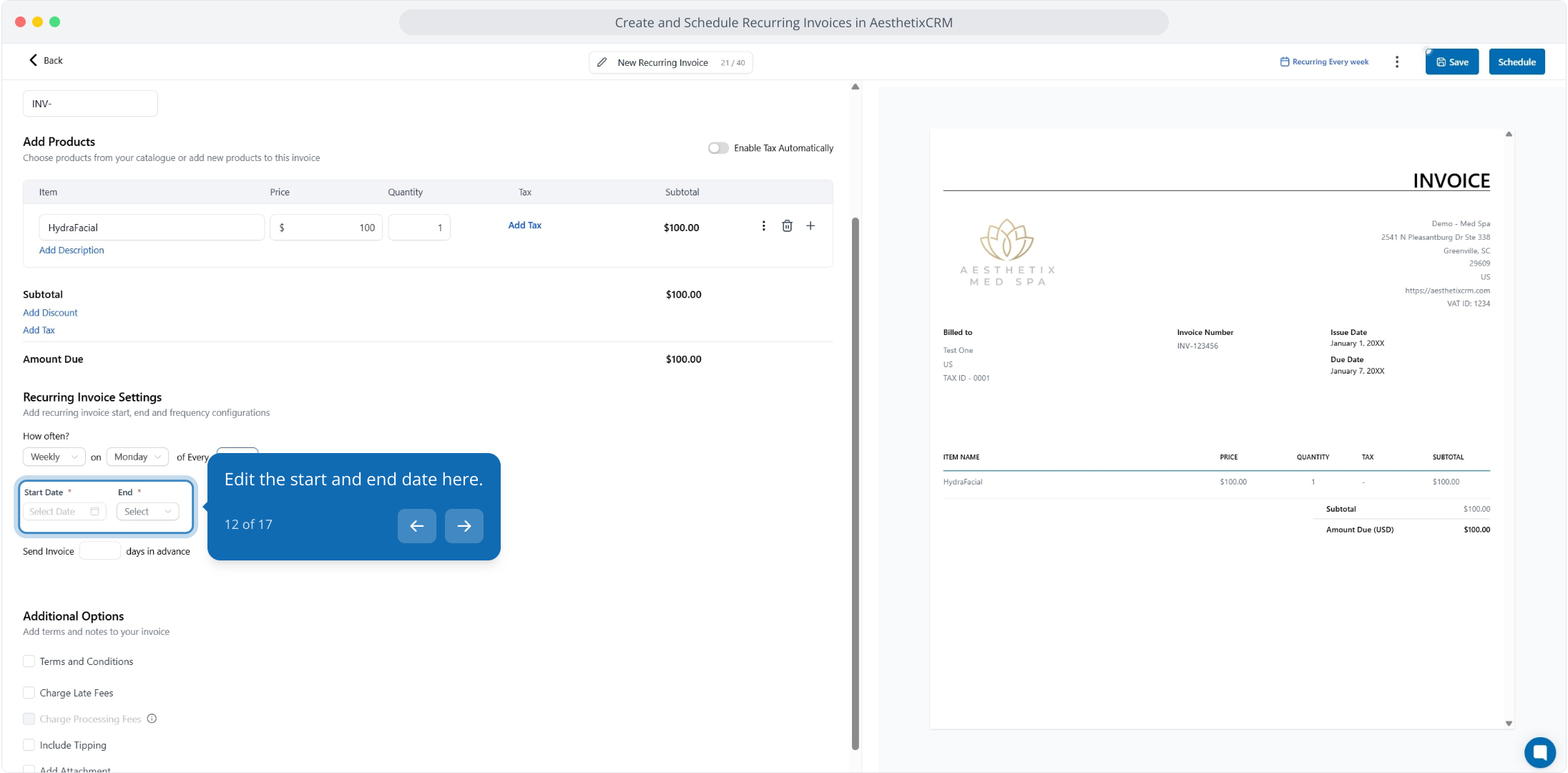
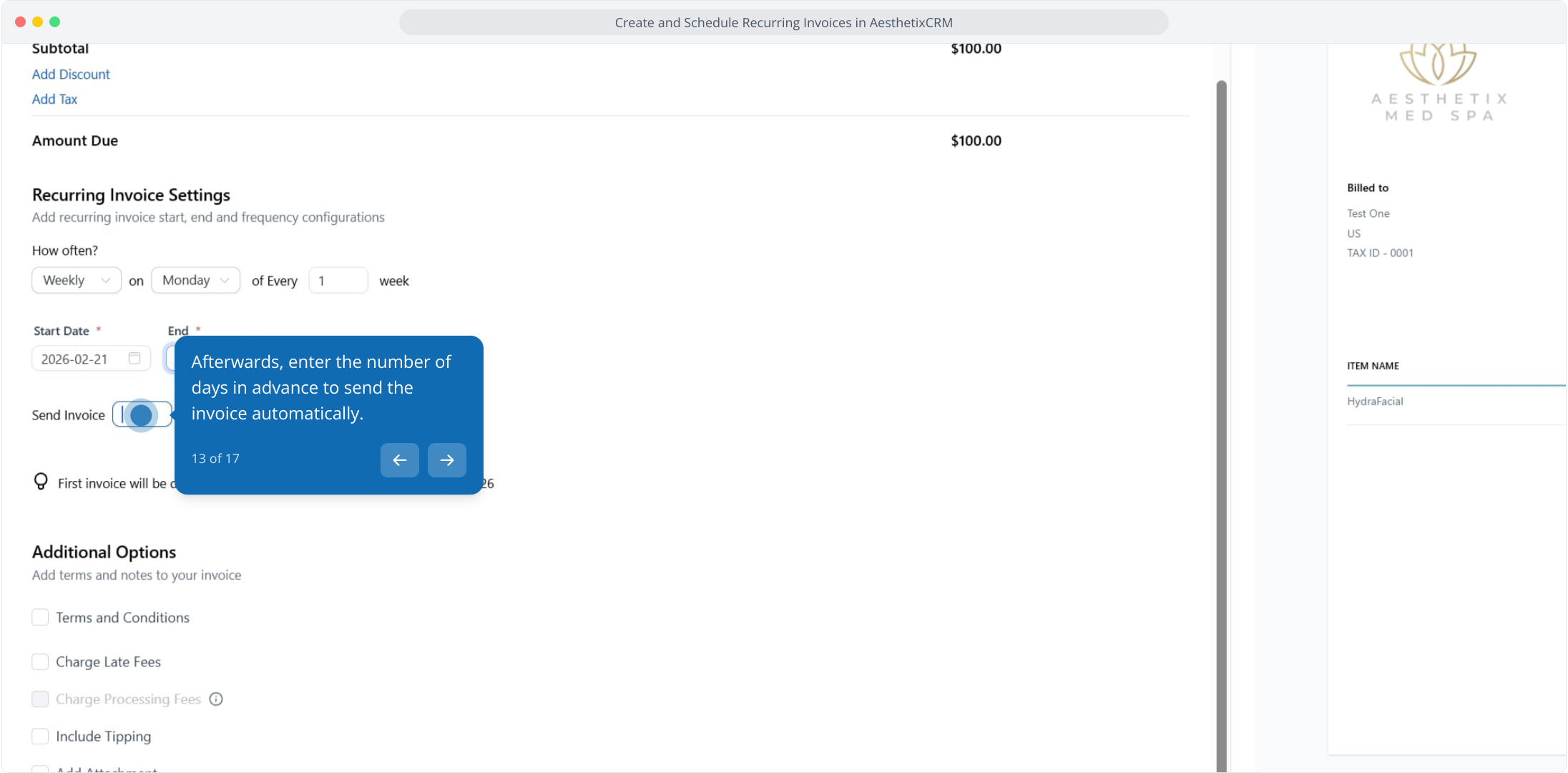
13. Afterwards, enter the number of days in advance to send the invoice automatically.
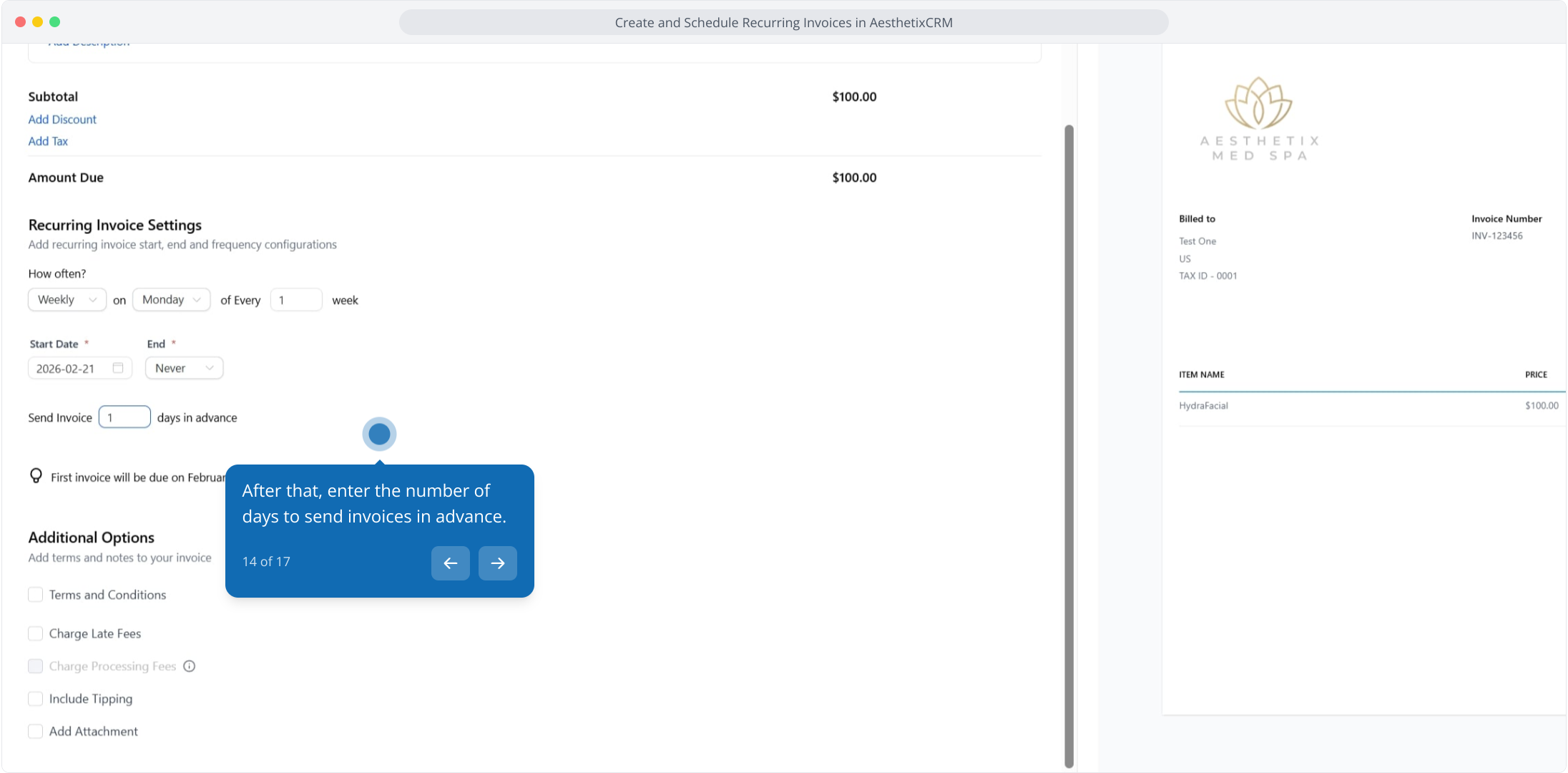
14. After that, enter the number of days to send invoices in advance.
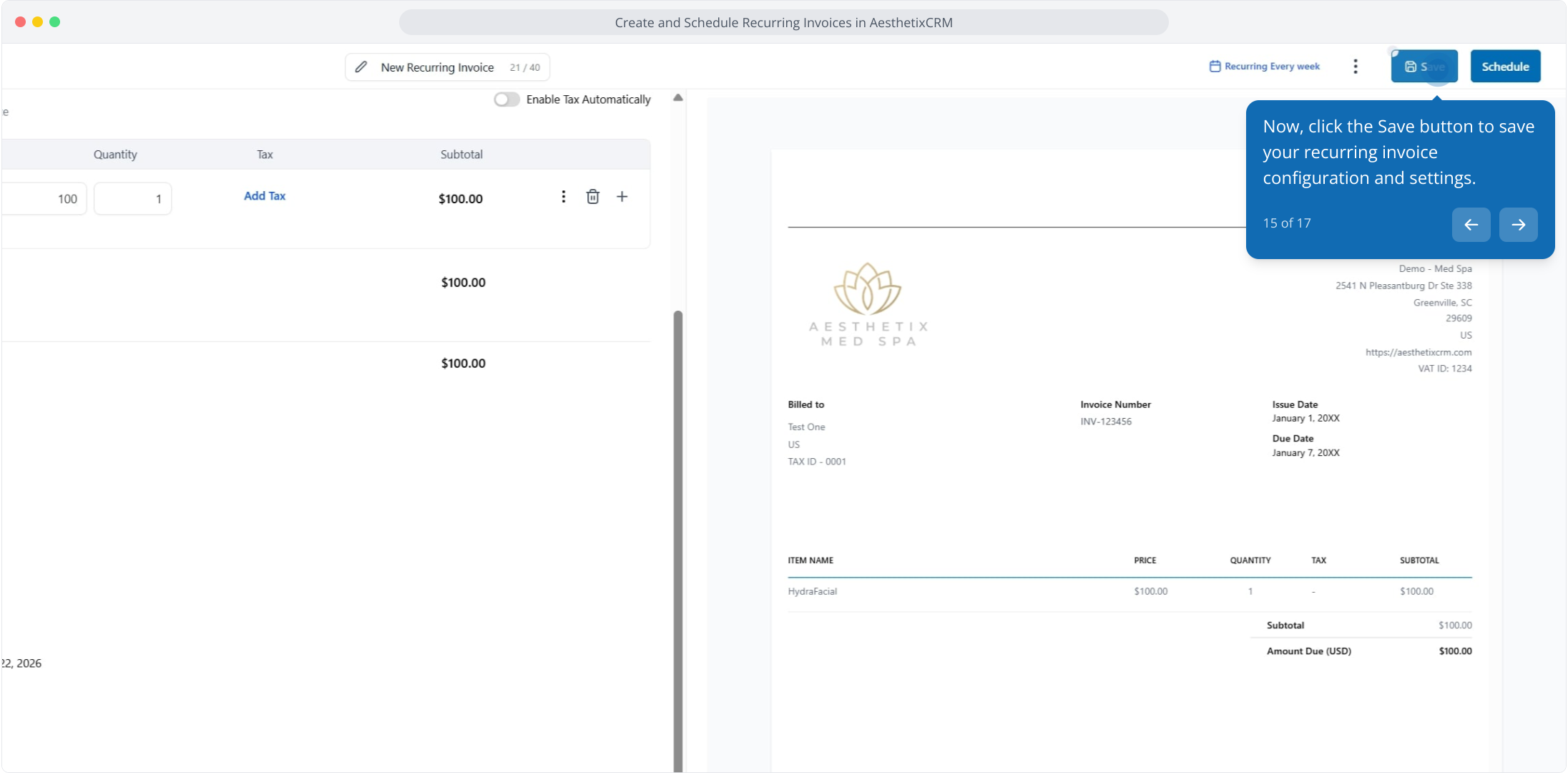
15. Now, click the Save button to save your recurring invoice configuration and settings.
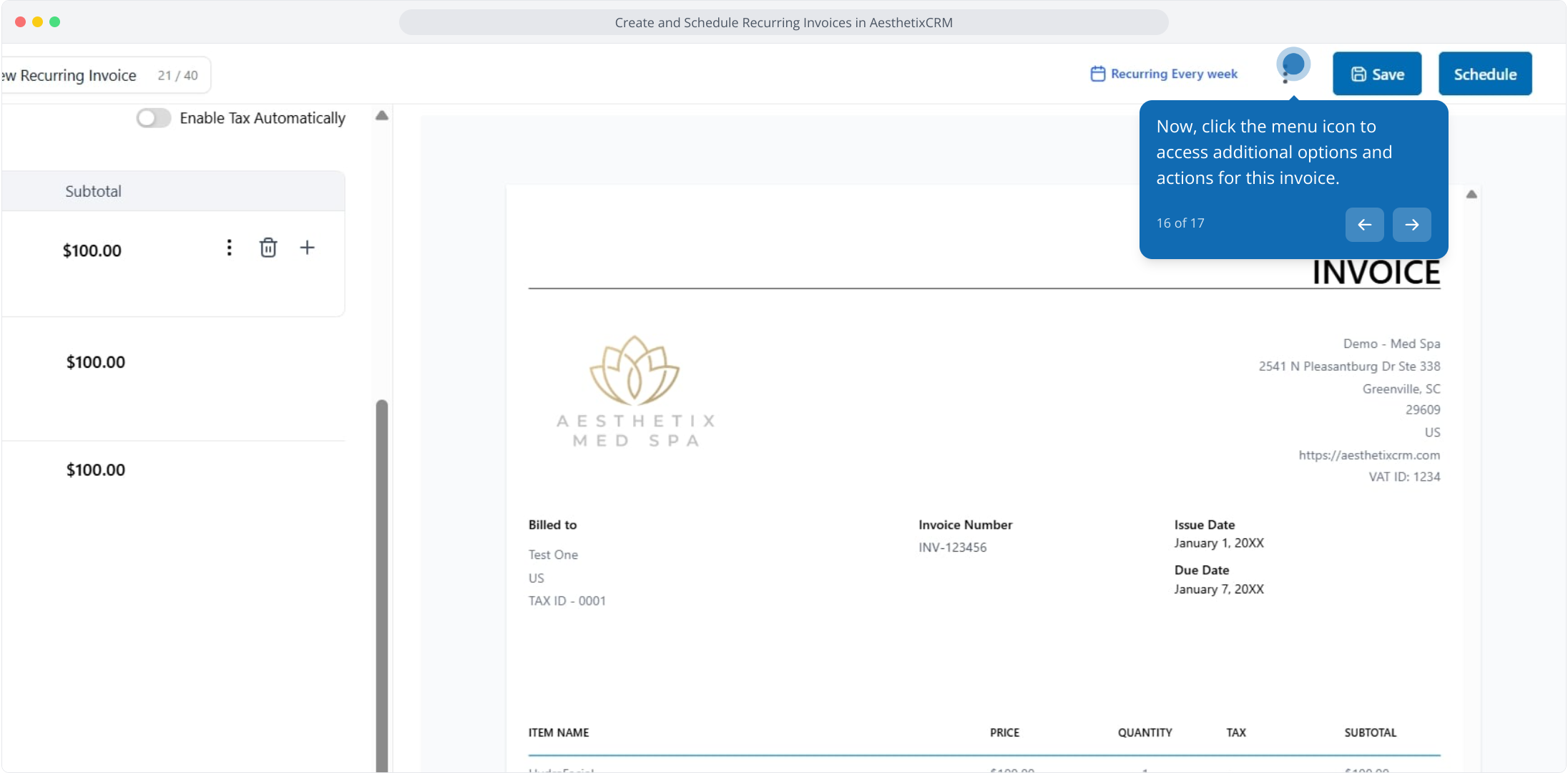
16. Now, click the menu icon to access additional options and actions for this invoice.
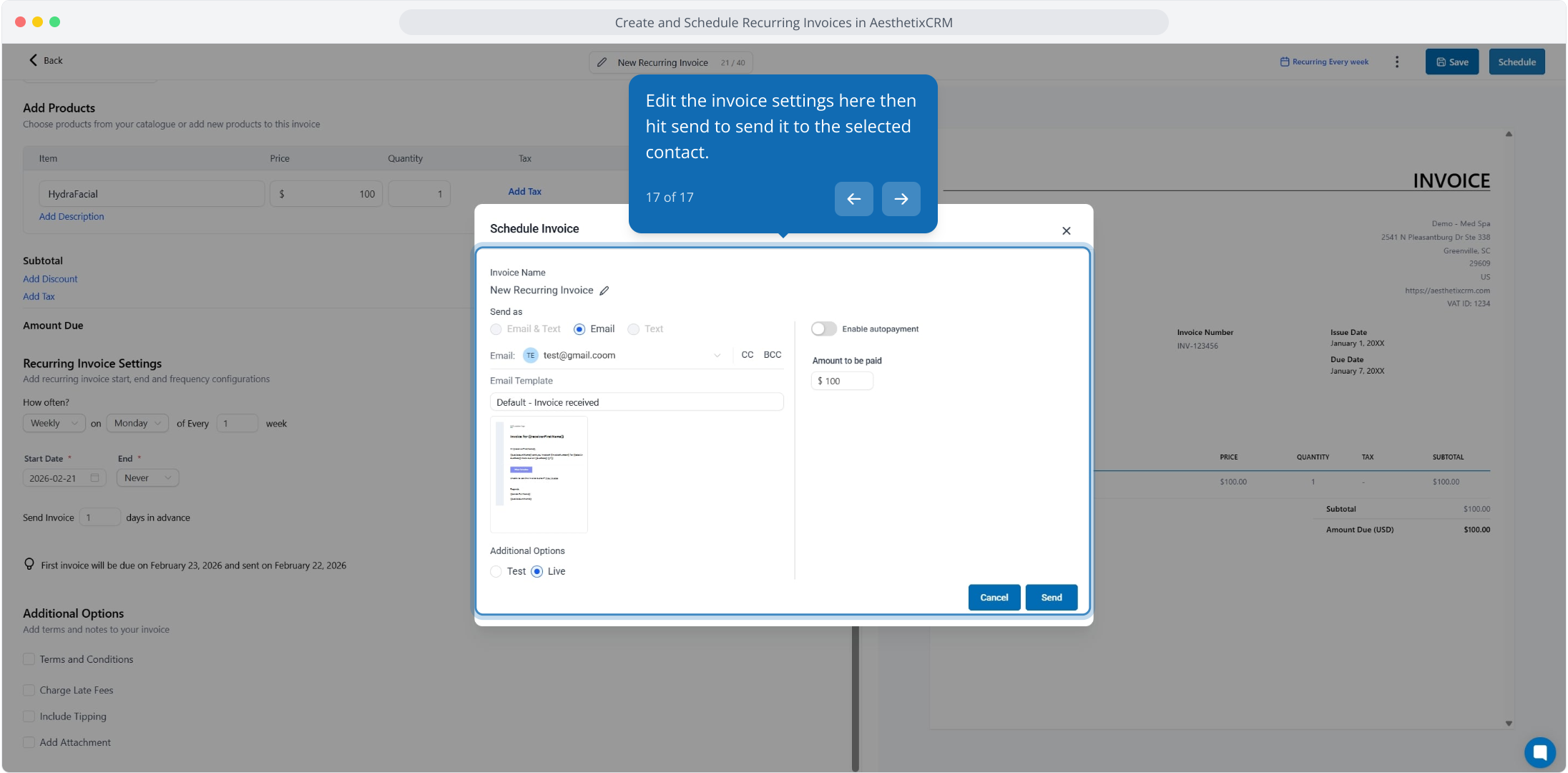
17. Edit the invoice settings here then hit send to send it to the selected contact.