1. Create Invoices with Multi-Installment Payment Schedules
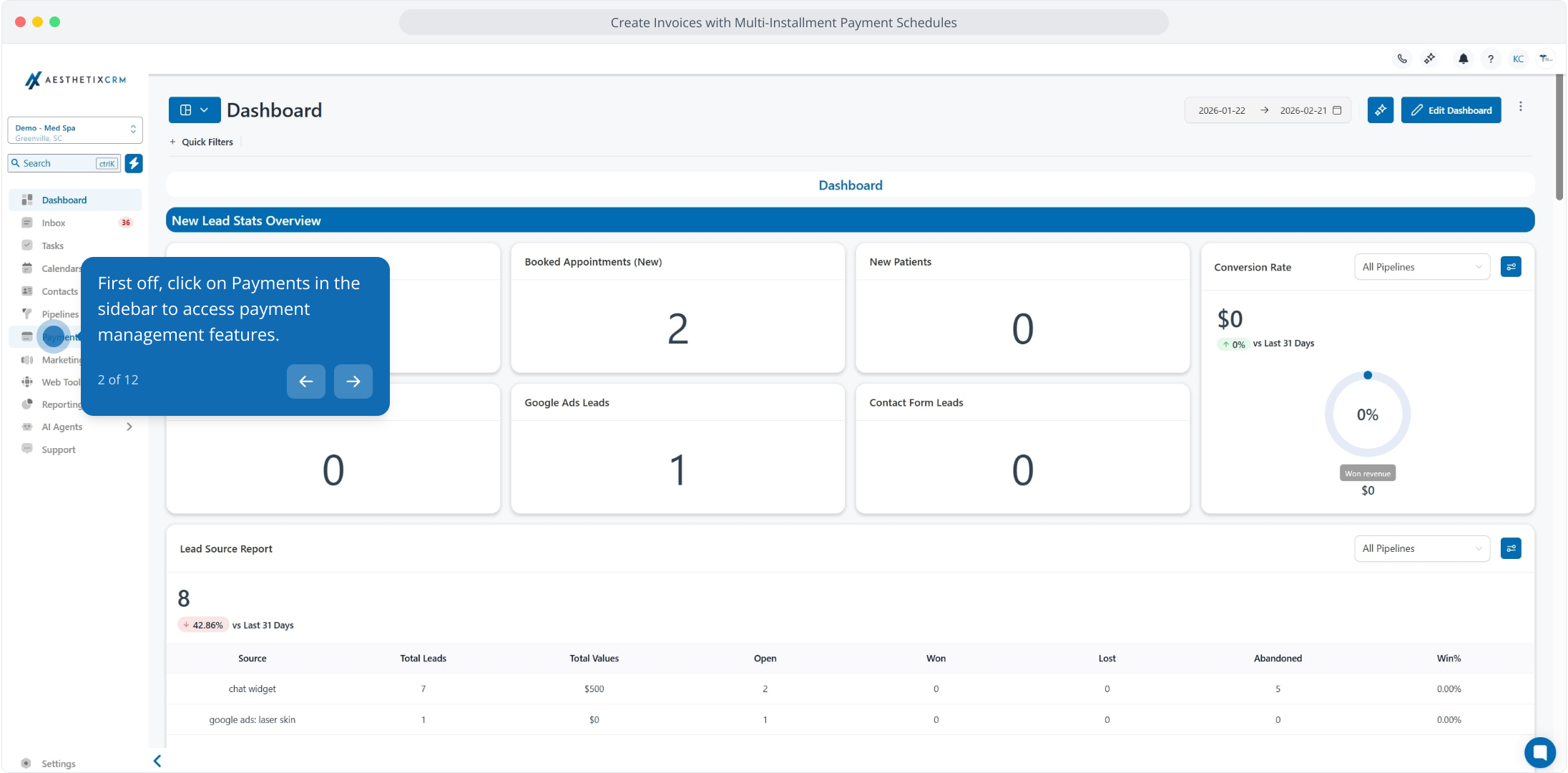
2. First off, click on Payments in the sidebar to access payment management features.
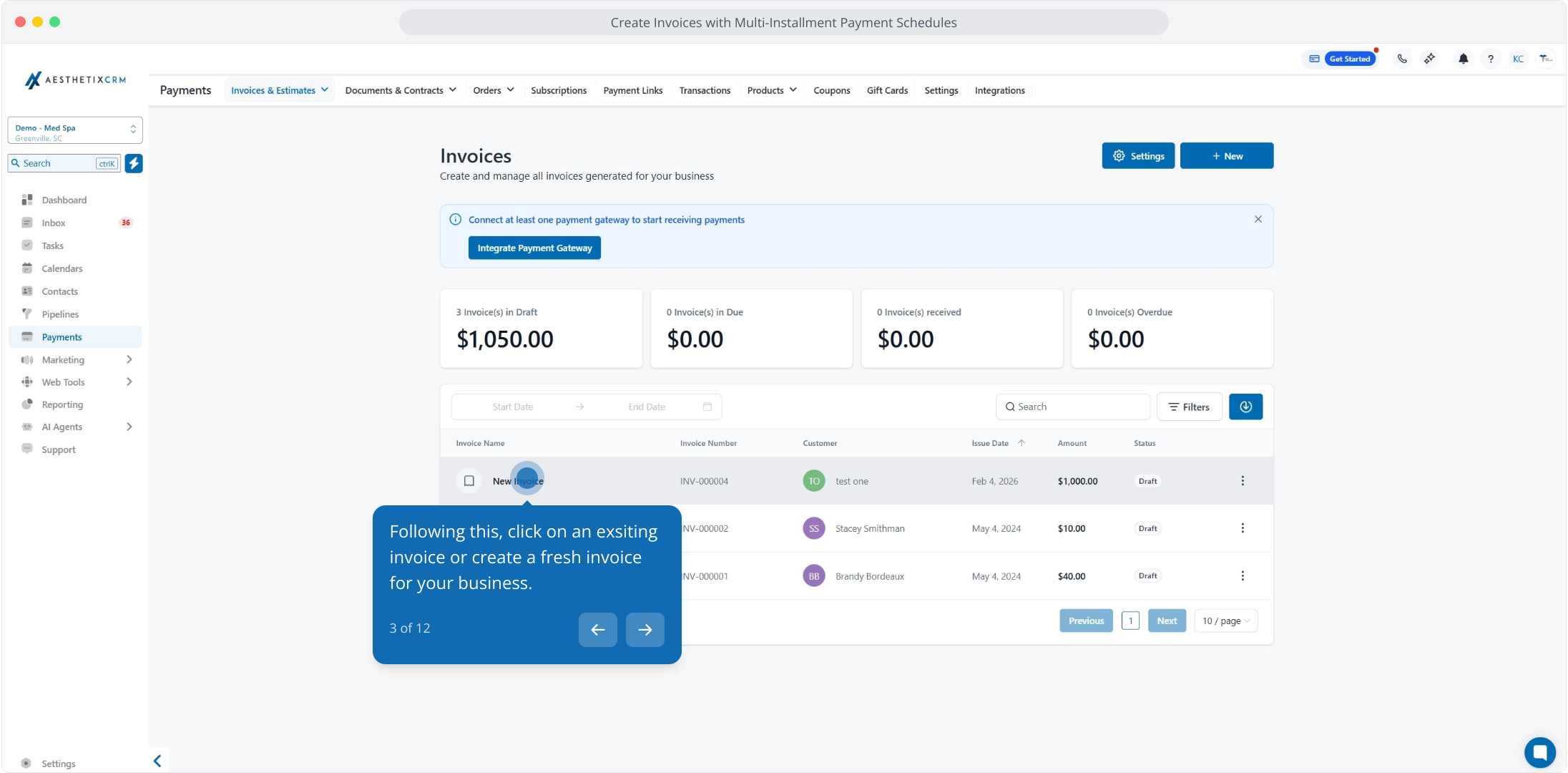
3. Following this, click on an exsiting invoice or create a fresh invoice for your business.
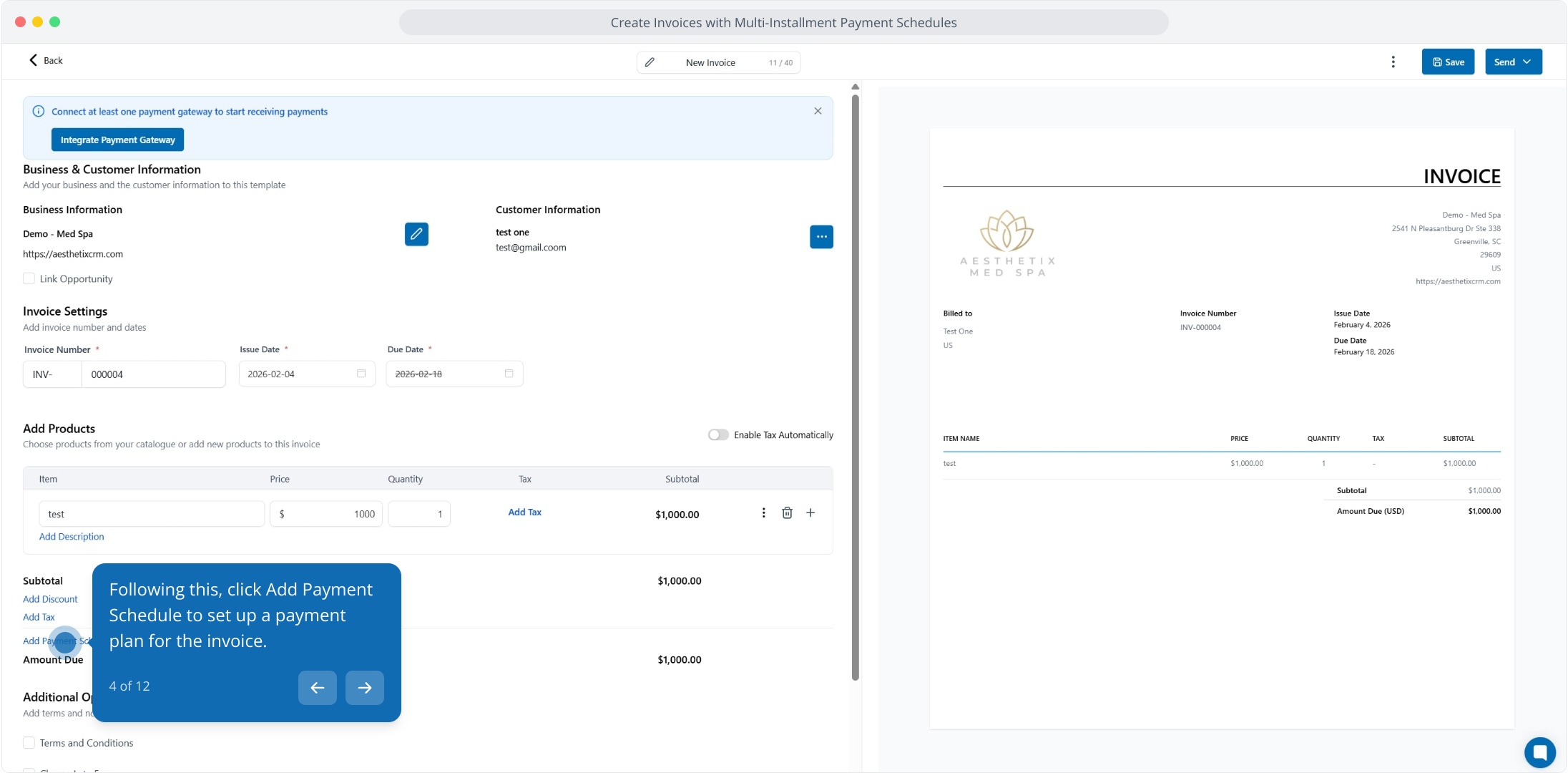
4. Following this, click Add Payment Schedule to set up a payment plan for the invoice.
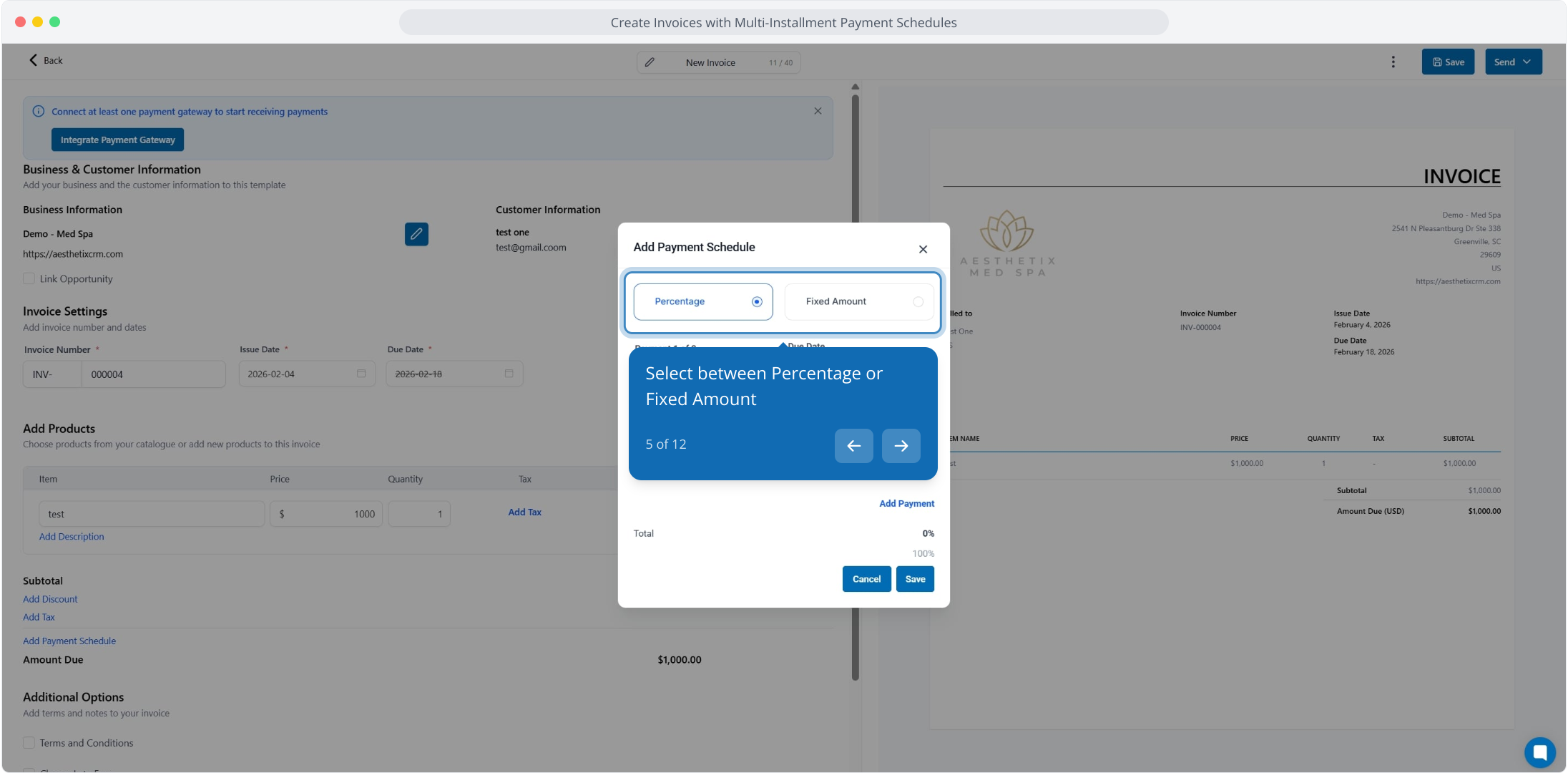
5. Select between Percentage or Fixed Amount
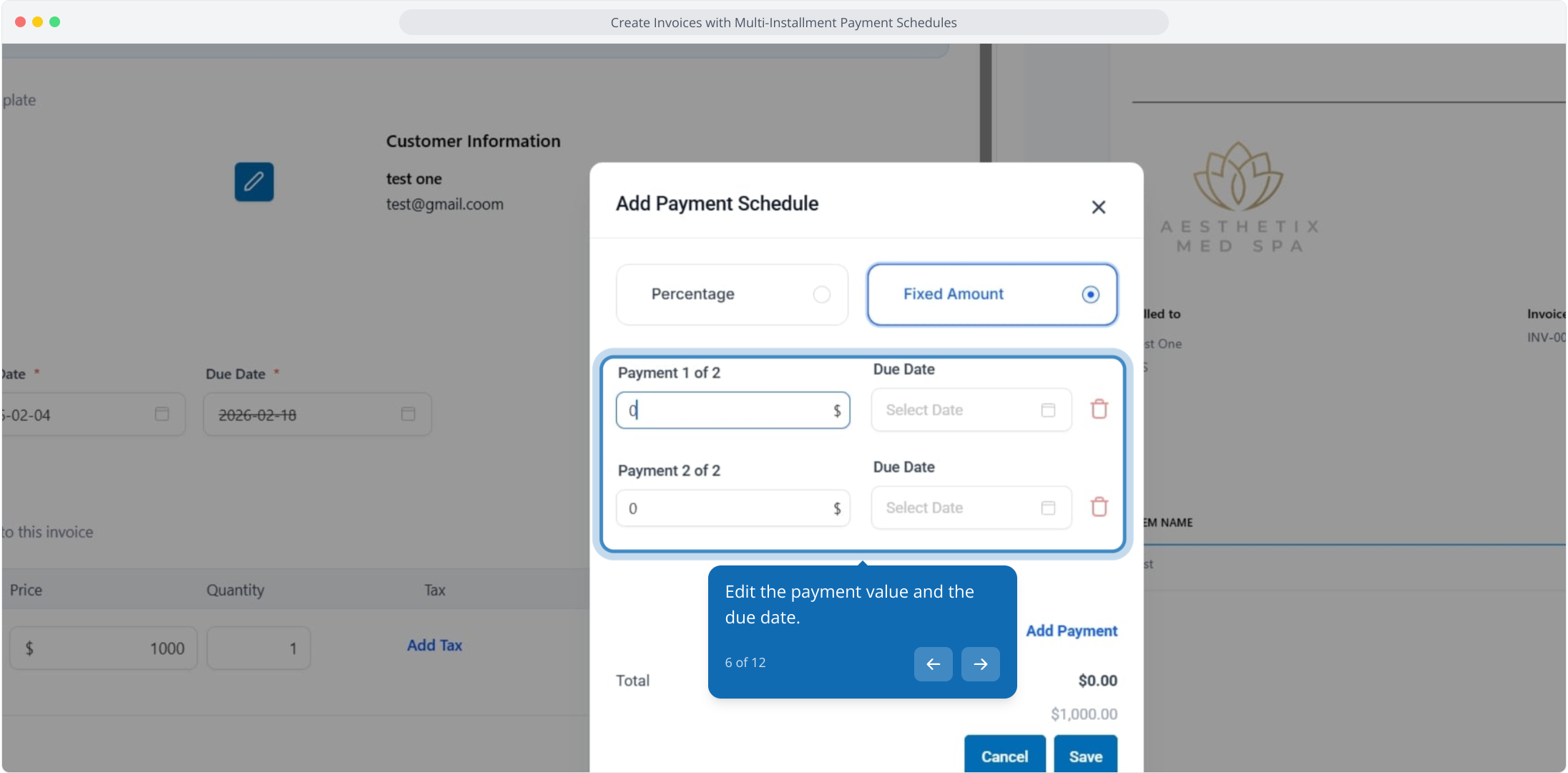
6. Edit the payment value and the due date.
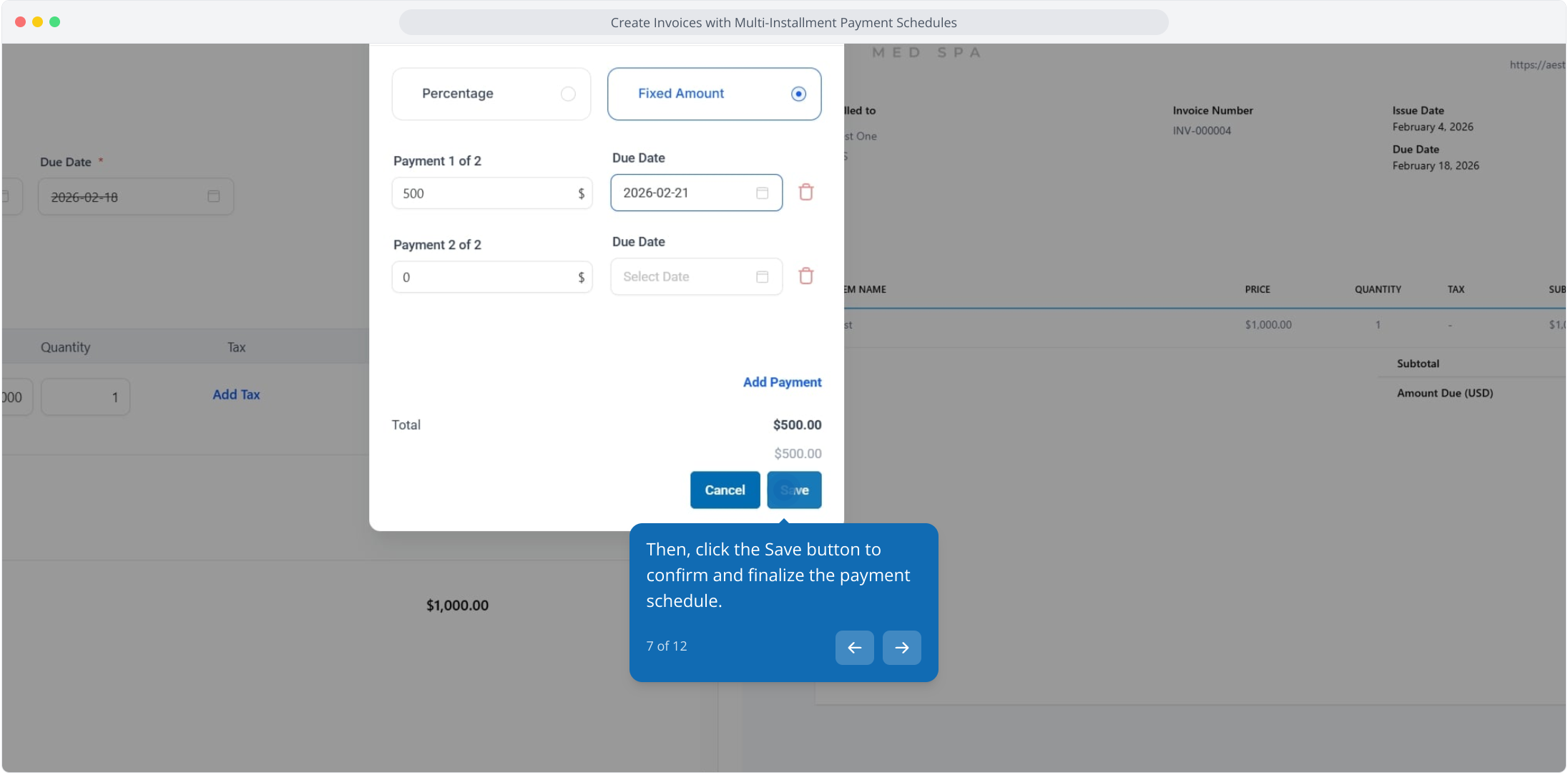
7. Then, click the Save button to confirm and finalize the payment schedule.
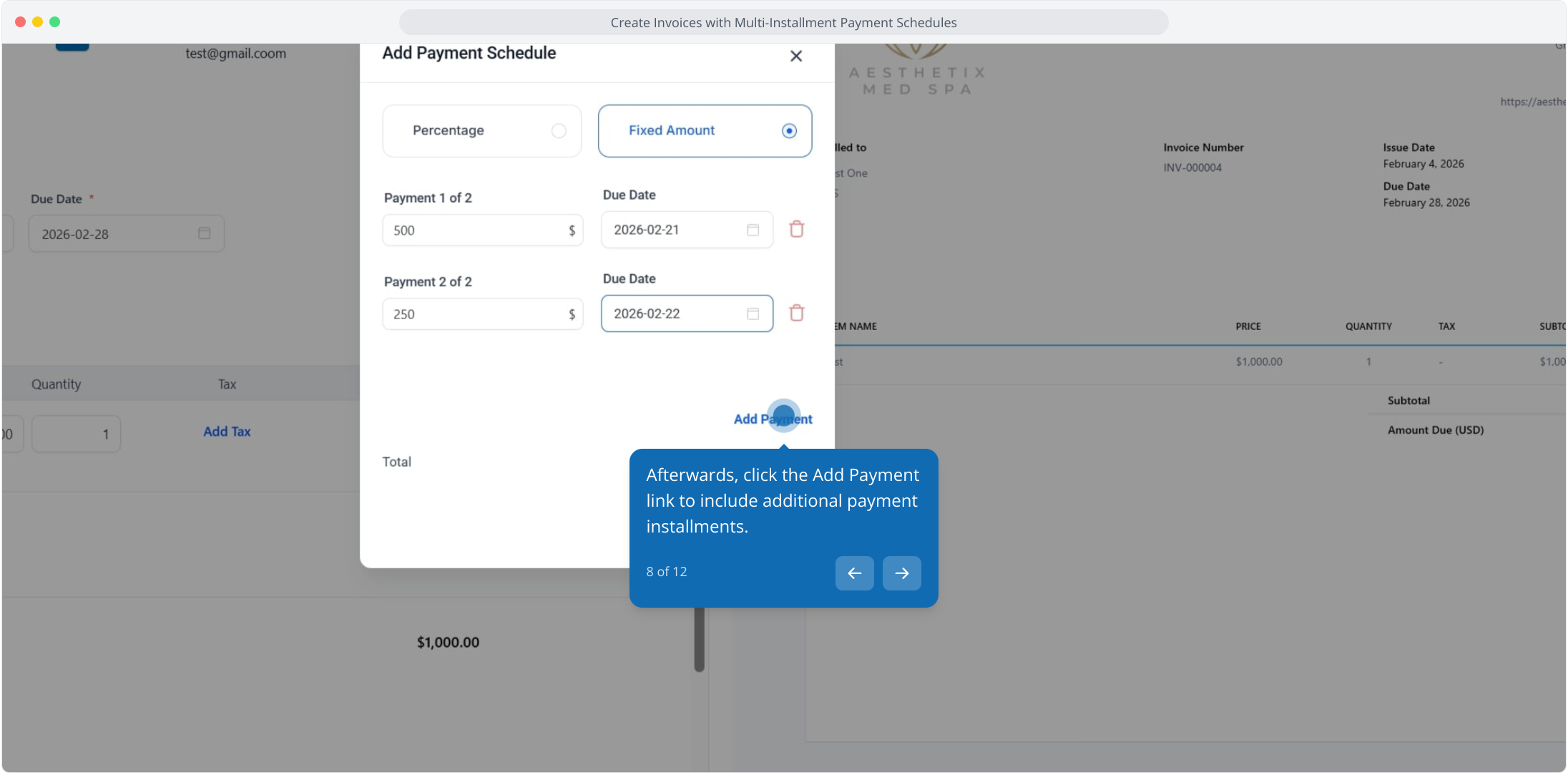
8. Afterwards, click the Add Payment link to include additional payment installments.
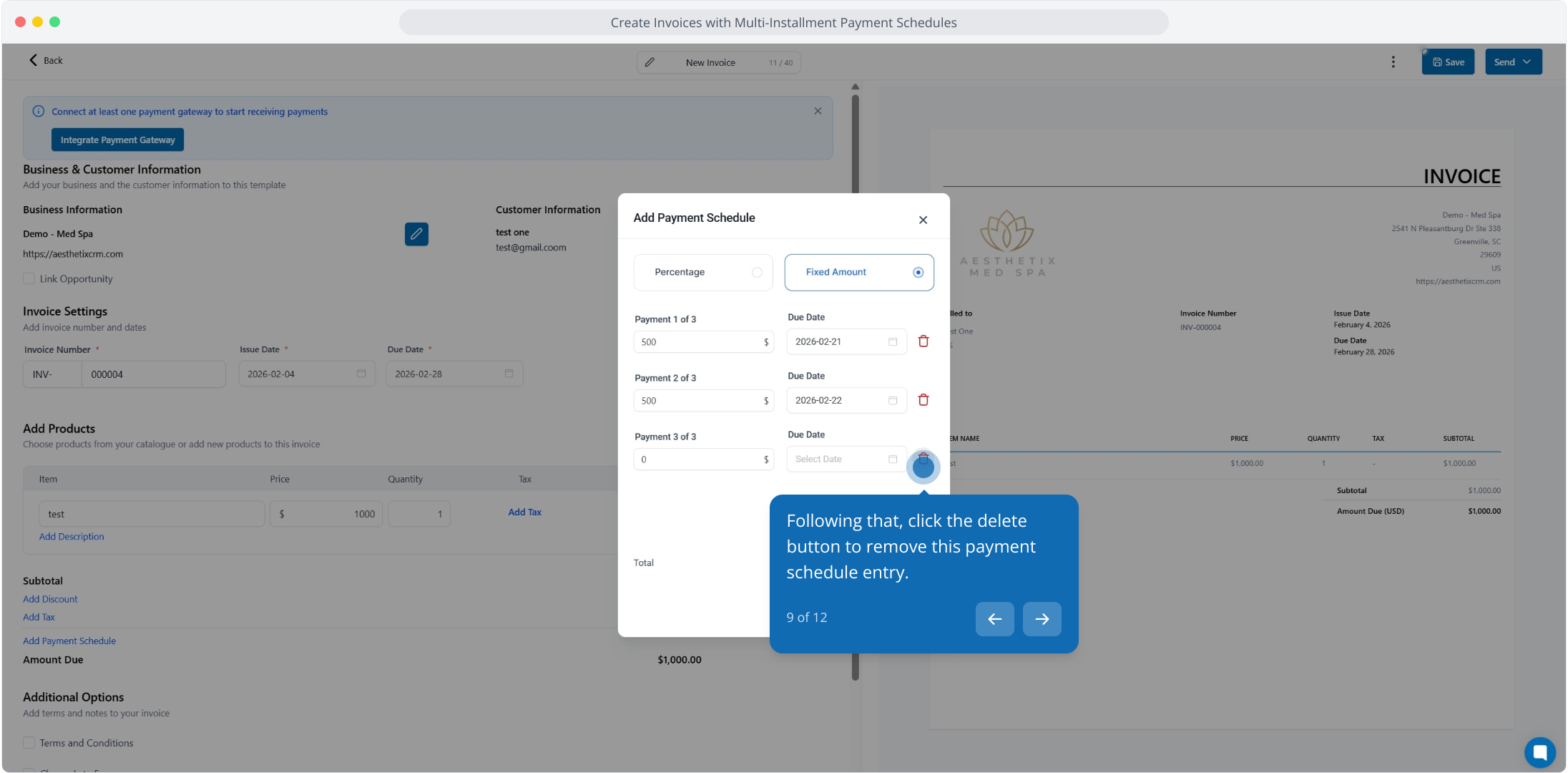
9. Following that, click the delete button to remove this payment schedule entry.
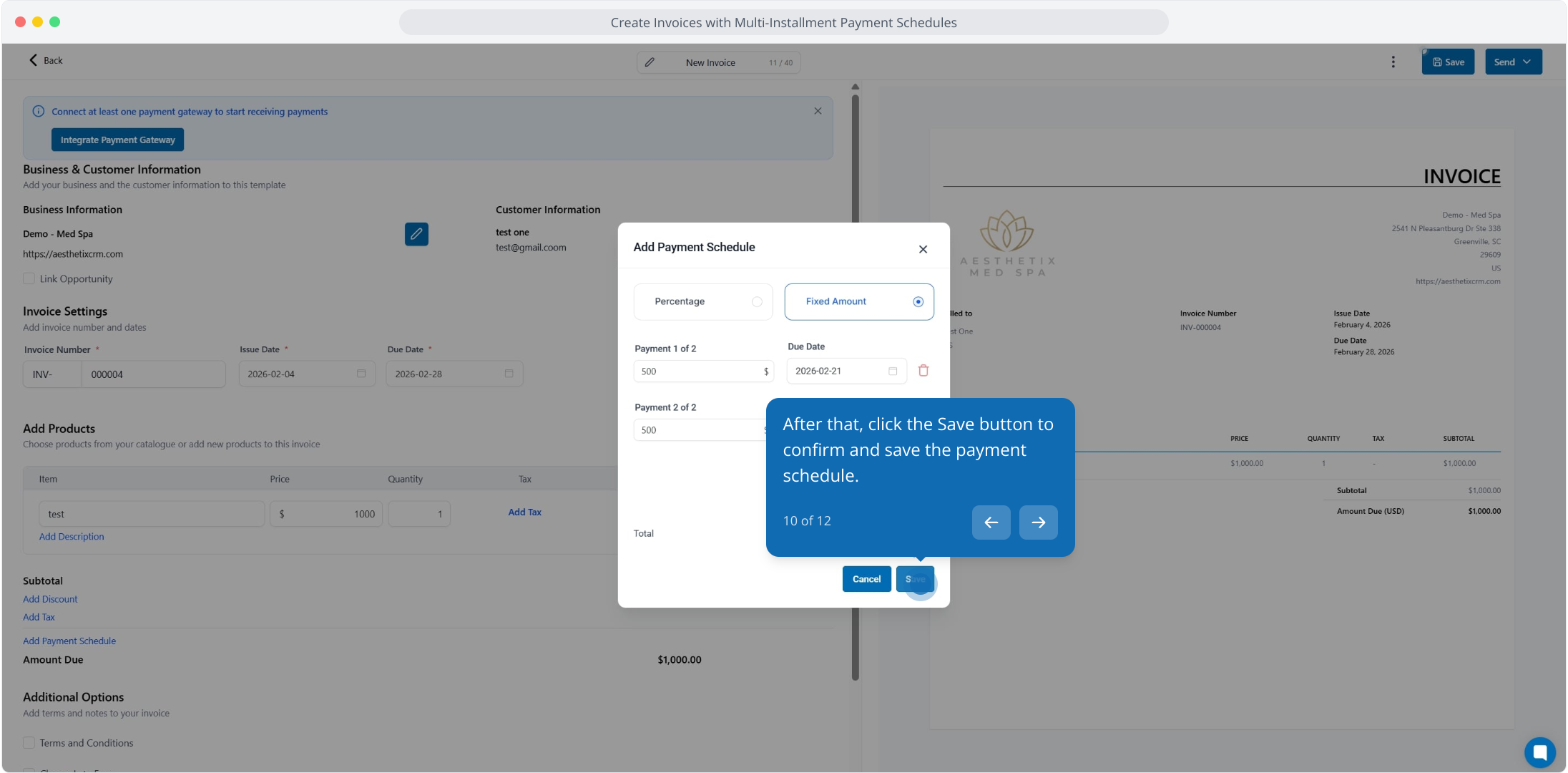
10. After that, click the Save button to confirm and save the payment schedule.
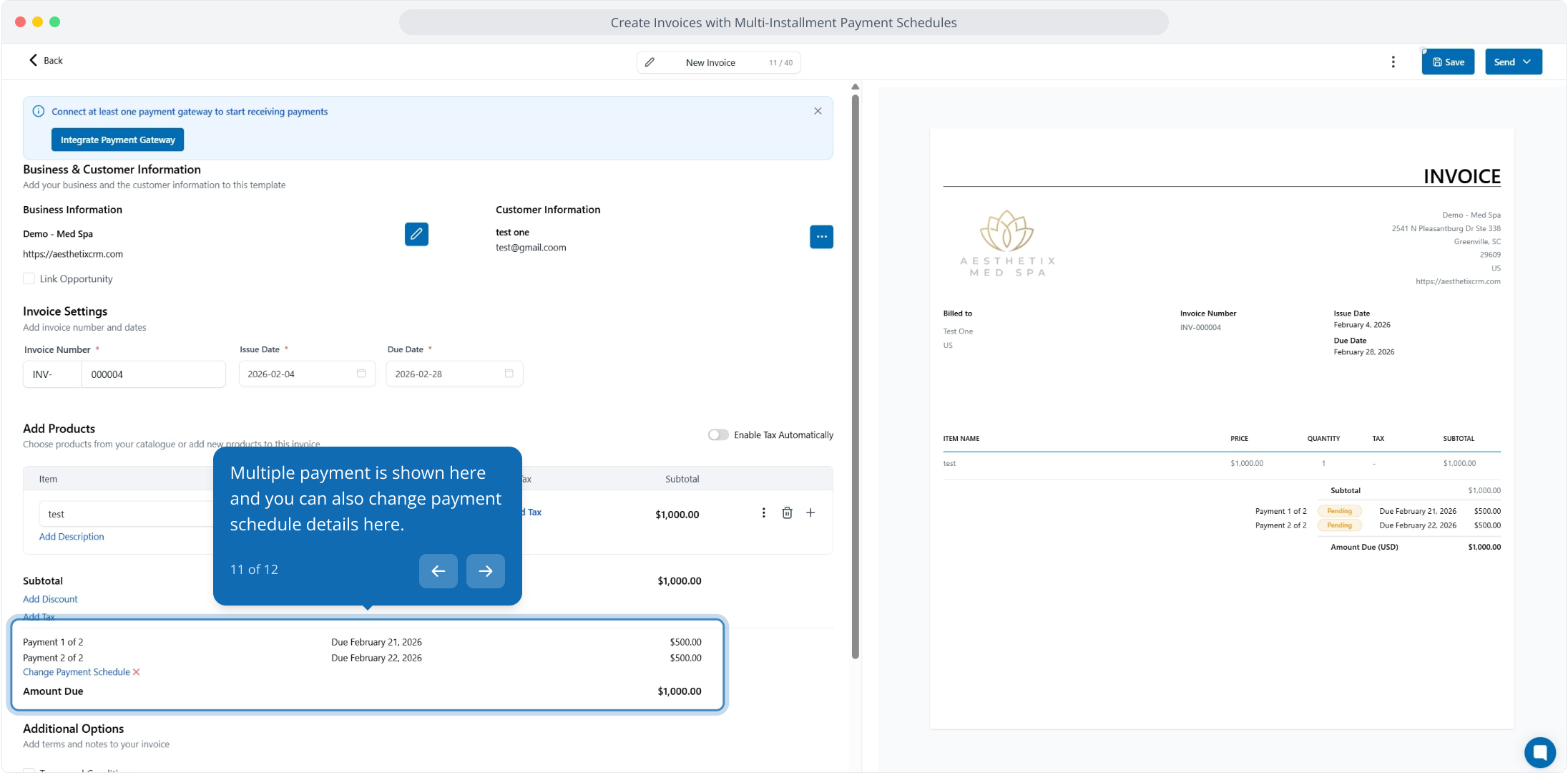
11. Multiple payment is shown here and you can also change payment schedule details here.
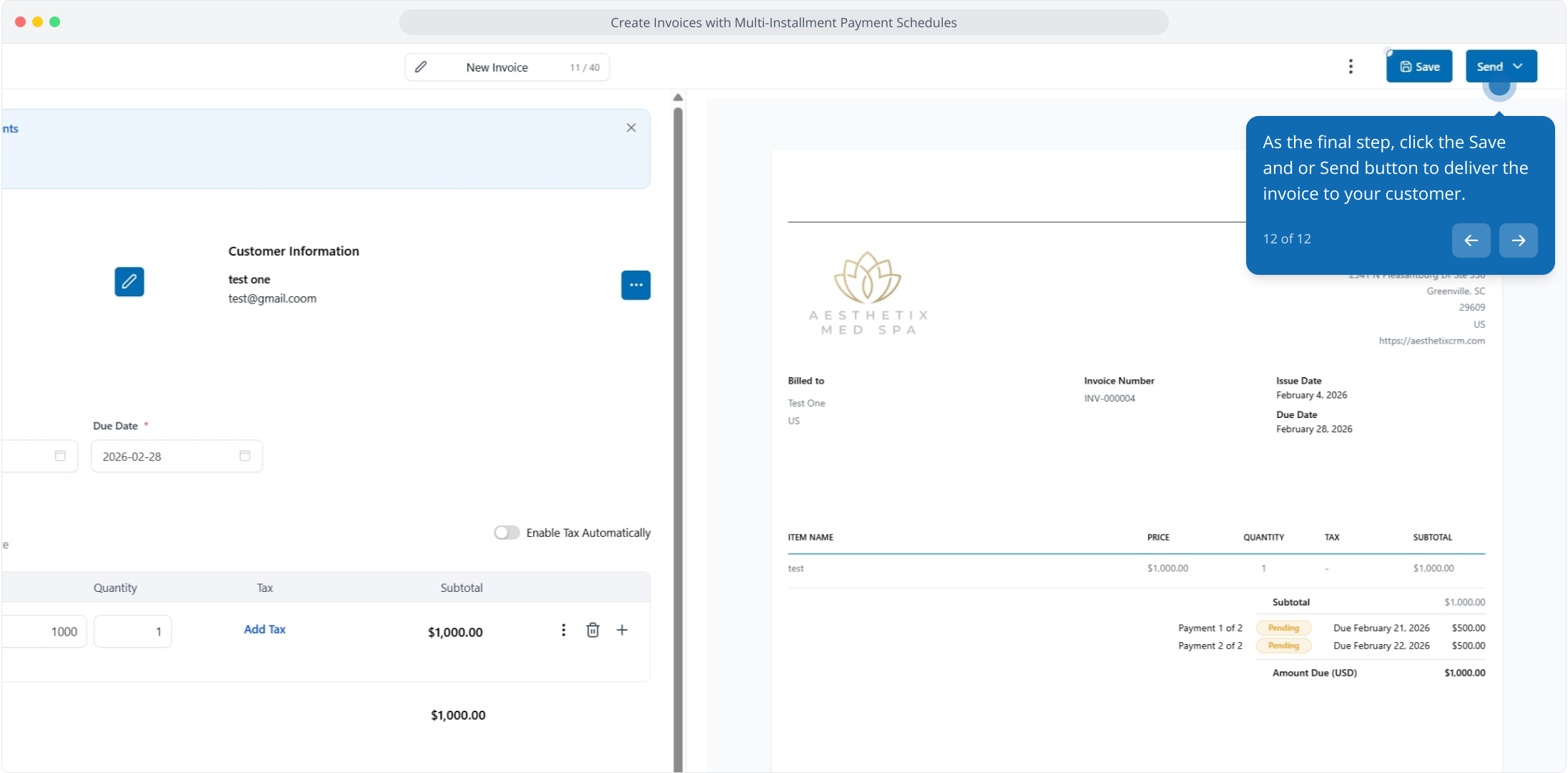
12. As the final step, click the Save and or Send button to deliver the invoice to your customer.