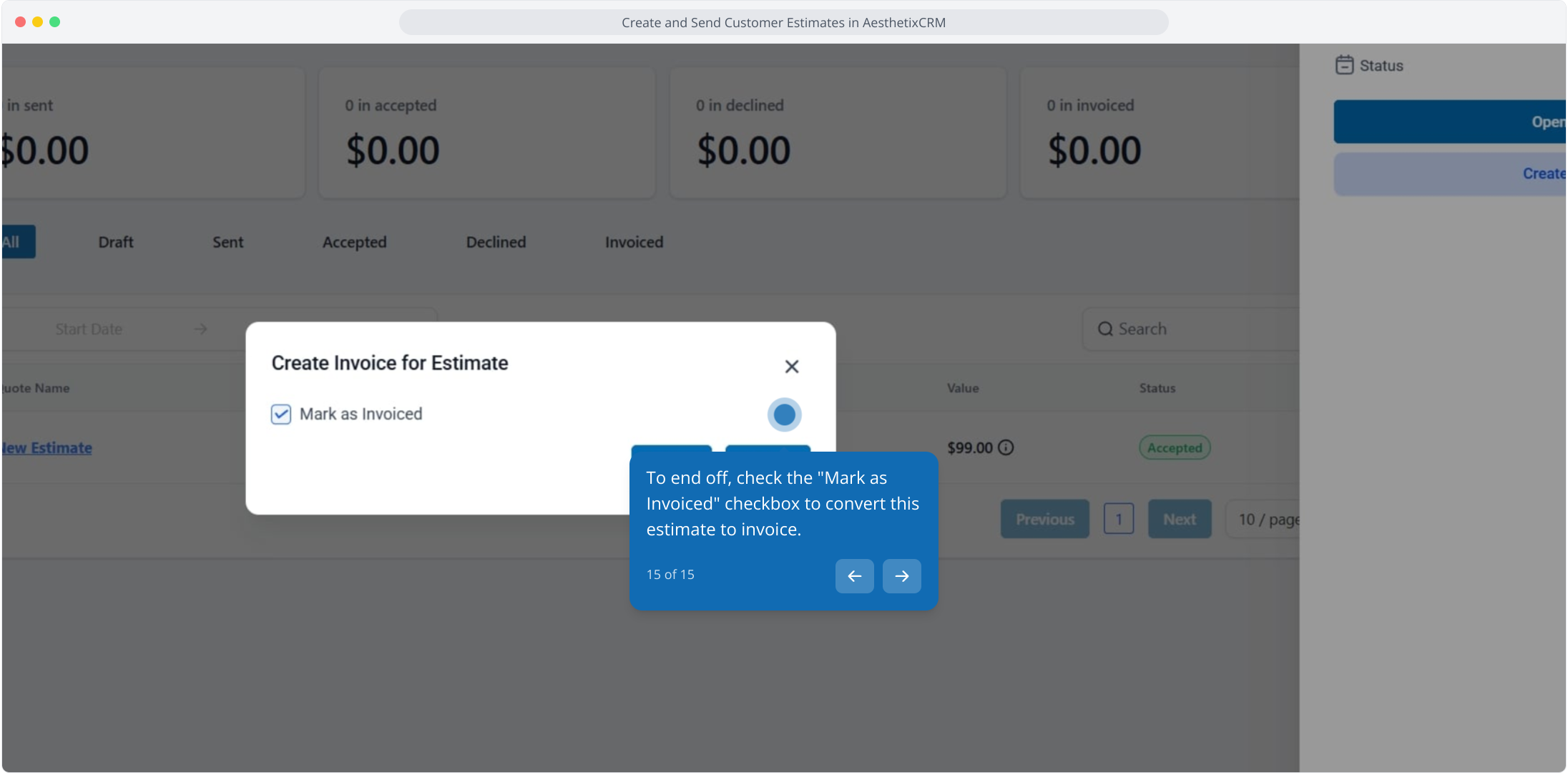
1. Create and Send Customer Estimates in AesthetixCRM
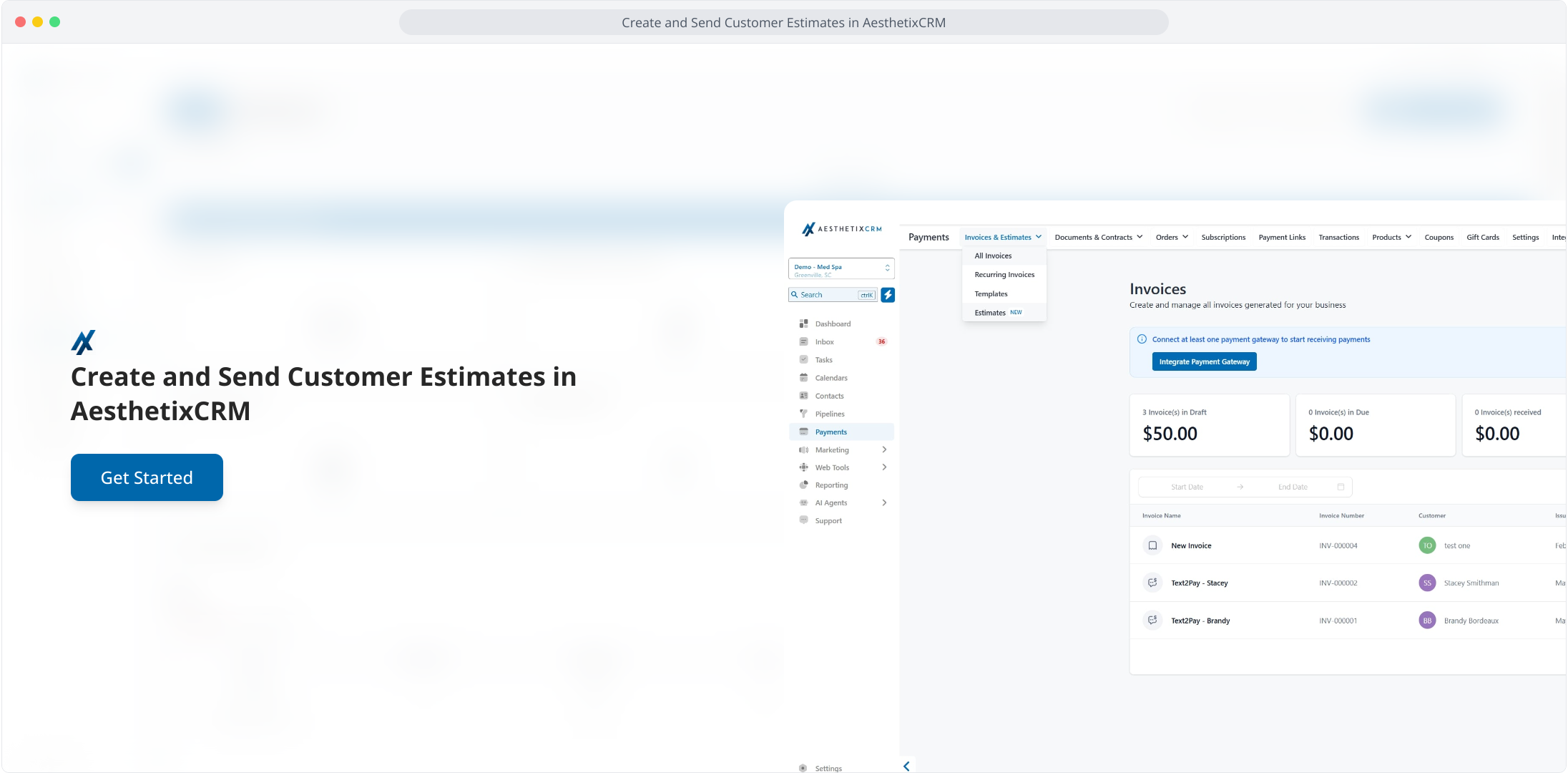
2. First off, click the Payments option in the sidebar menu to navigate.
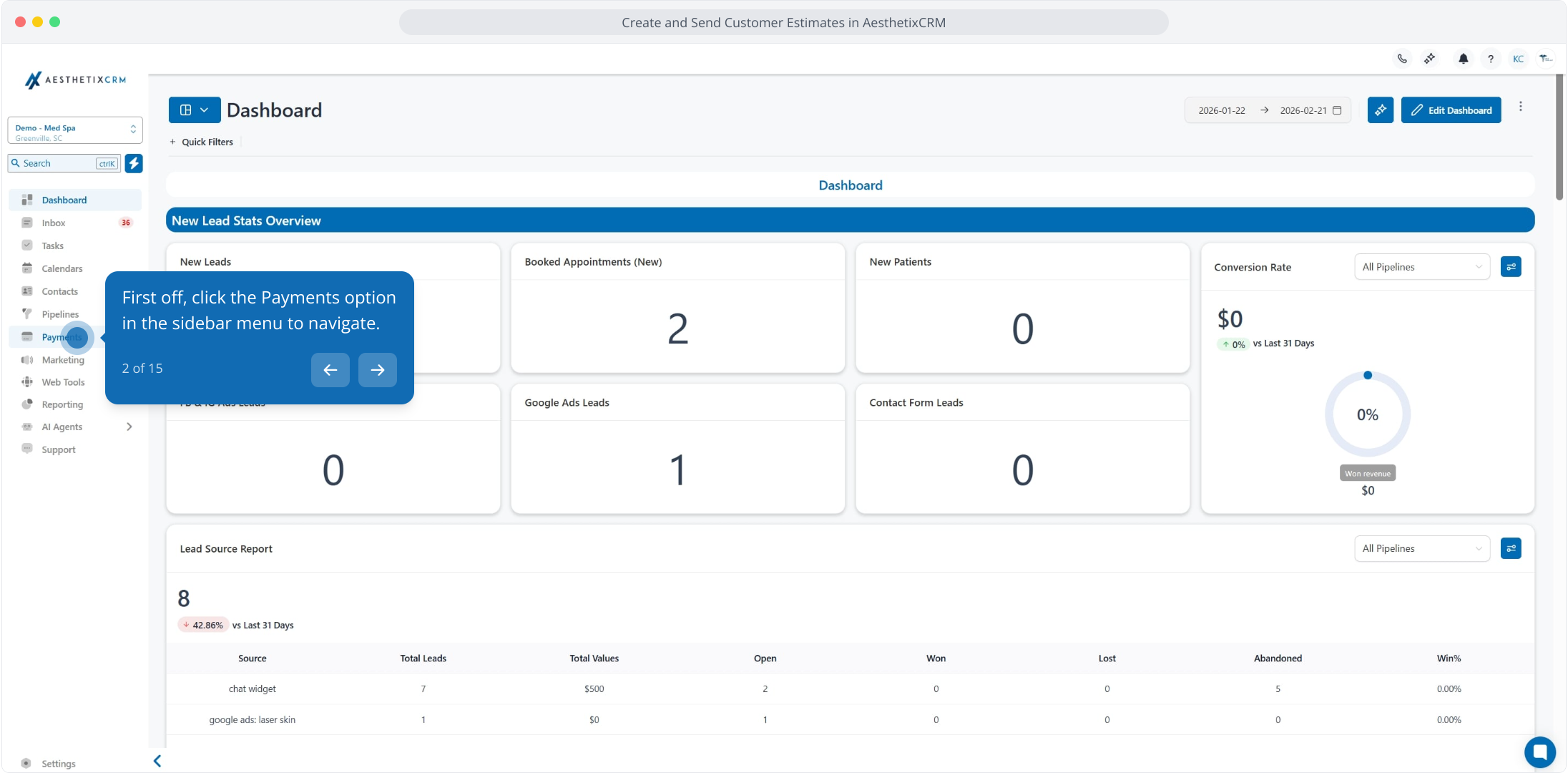
3. Following this, click on Estimates to view and manage customer estimates.
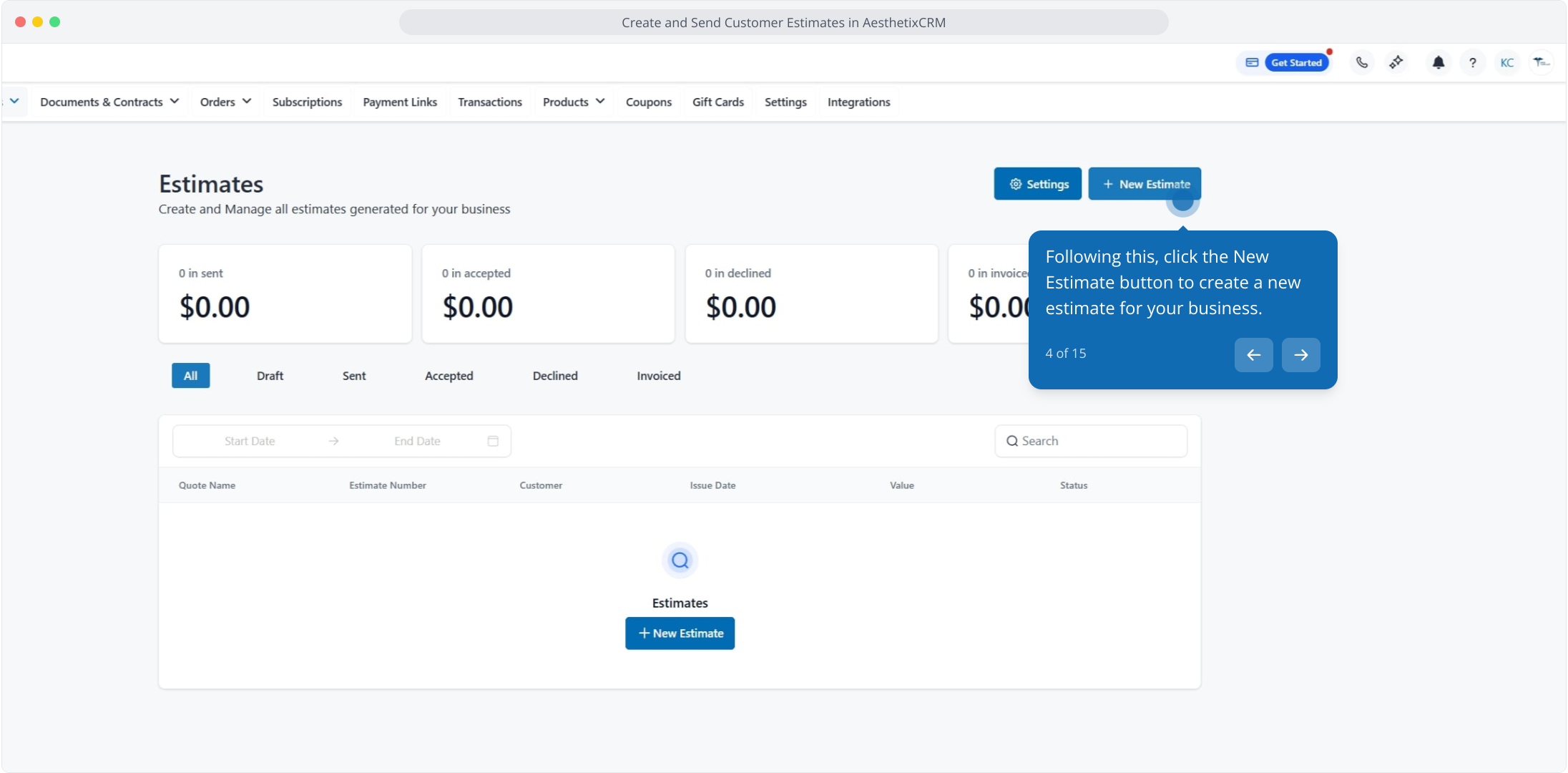
4. Following this, click the New Estimate button to create a new estimate for your business.
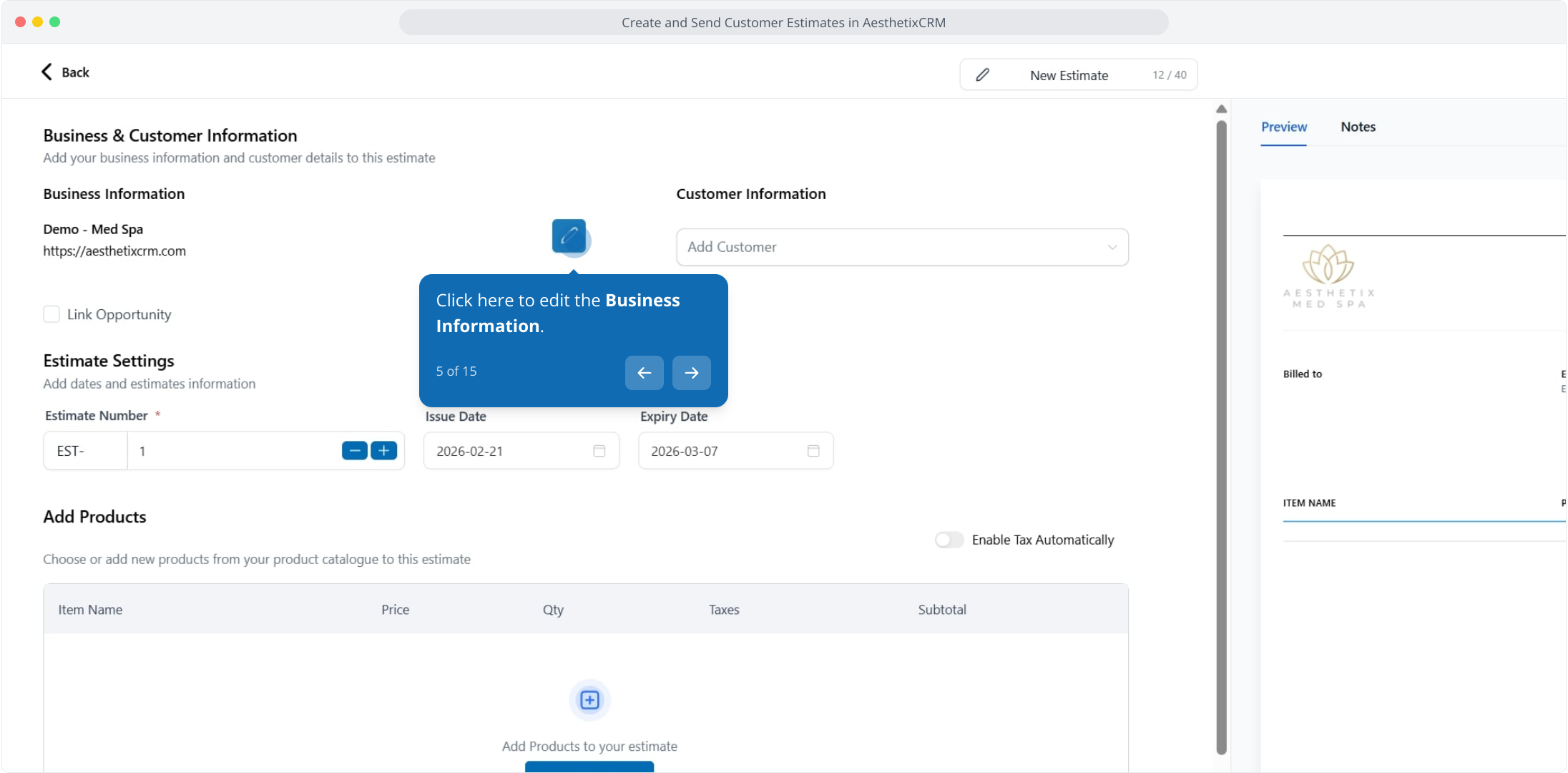
5. Click here to edit the Business Information.
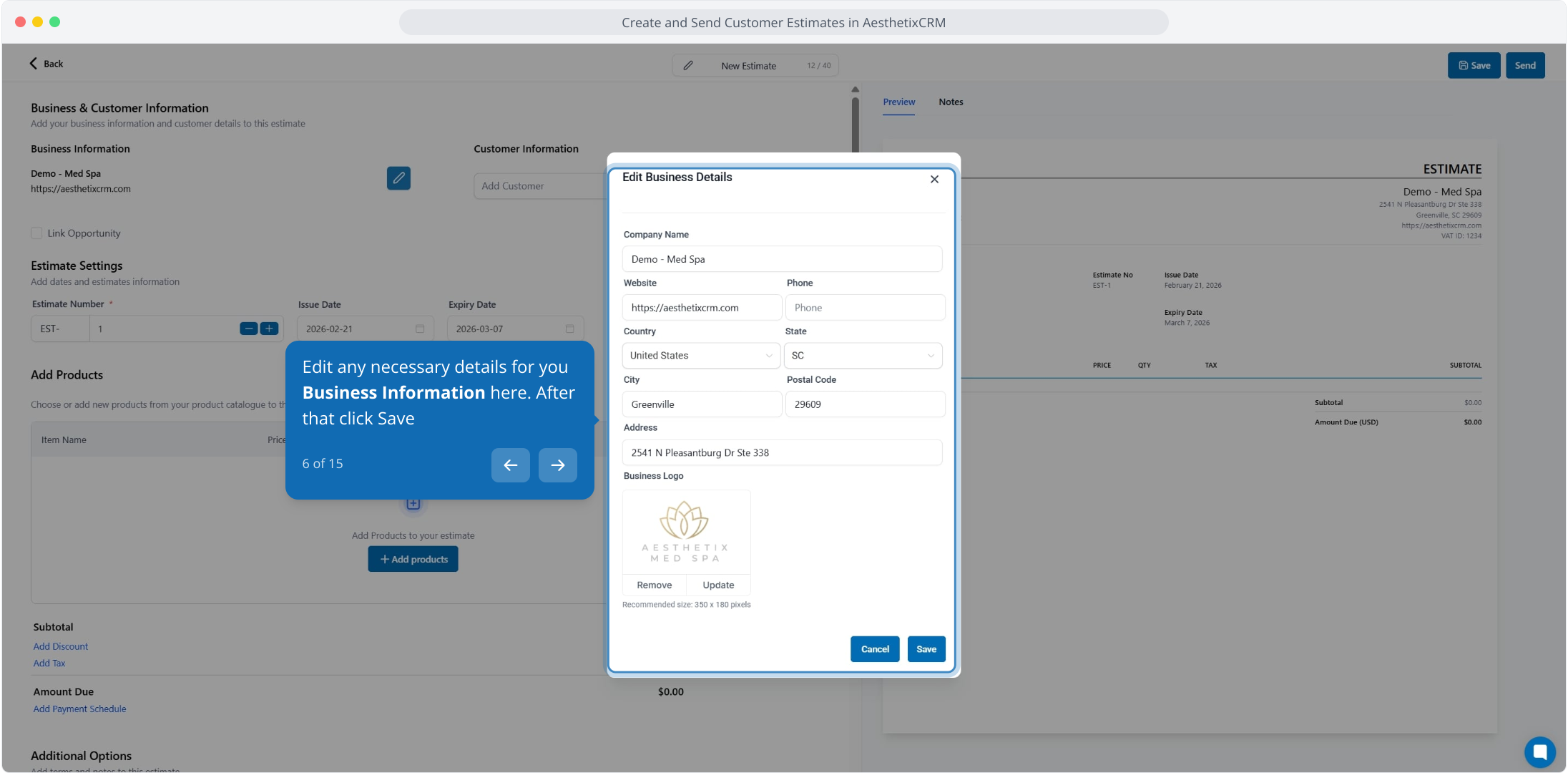
6. Edit any necessary details for you Business Information here. After that click Save
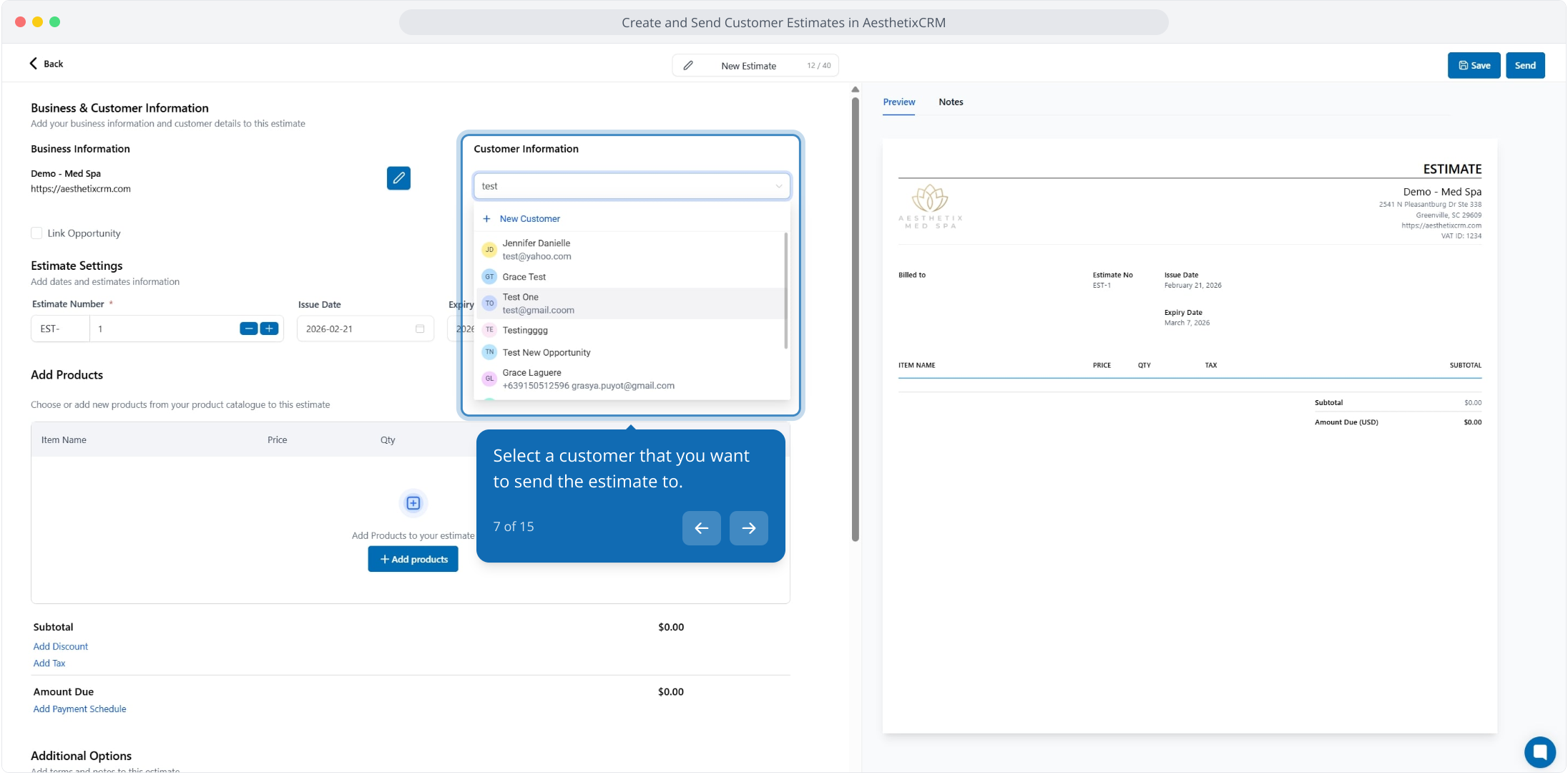
7. Select a customer that you want to send the estimate to.
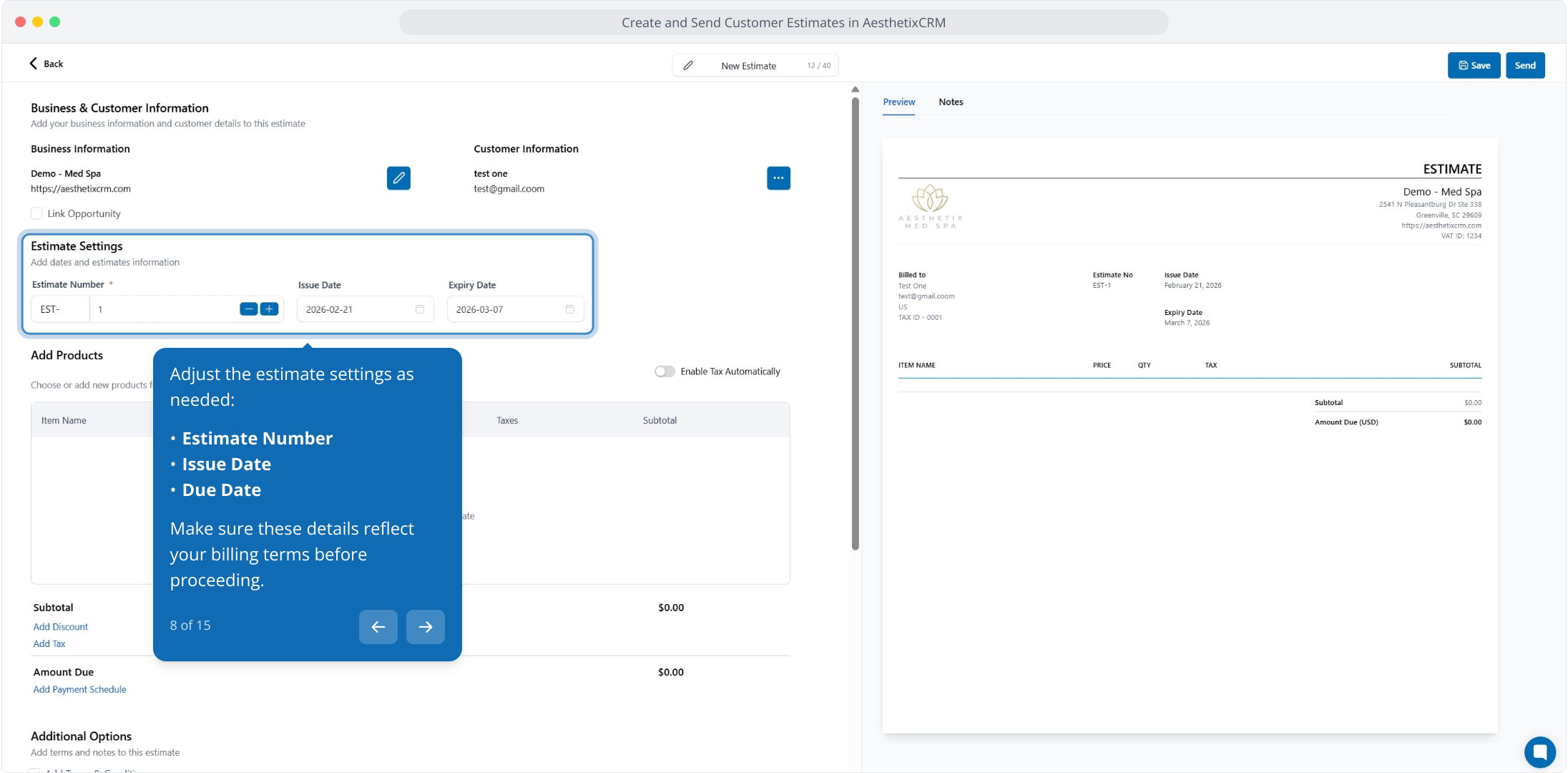
8. Adjust the estimate settings as needed:
Estimate Number
Issue Date
Due Date
Make sure these details reflect your billing terms before proceeding.
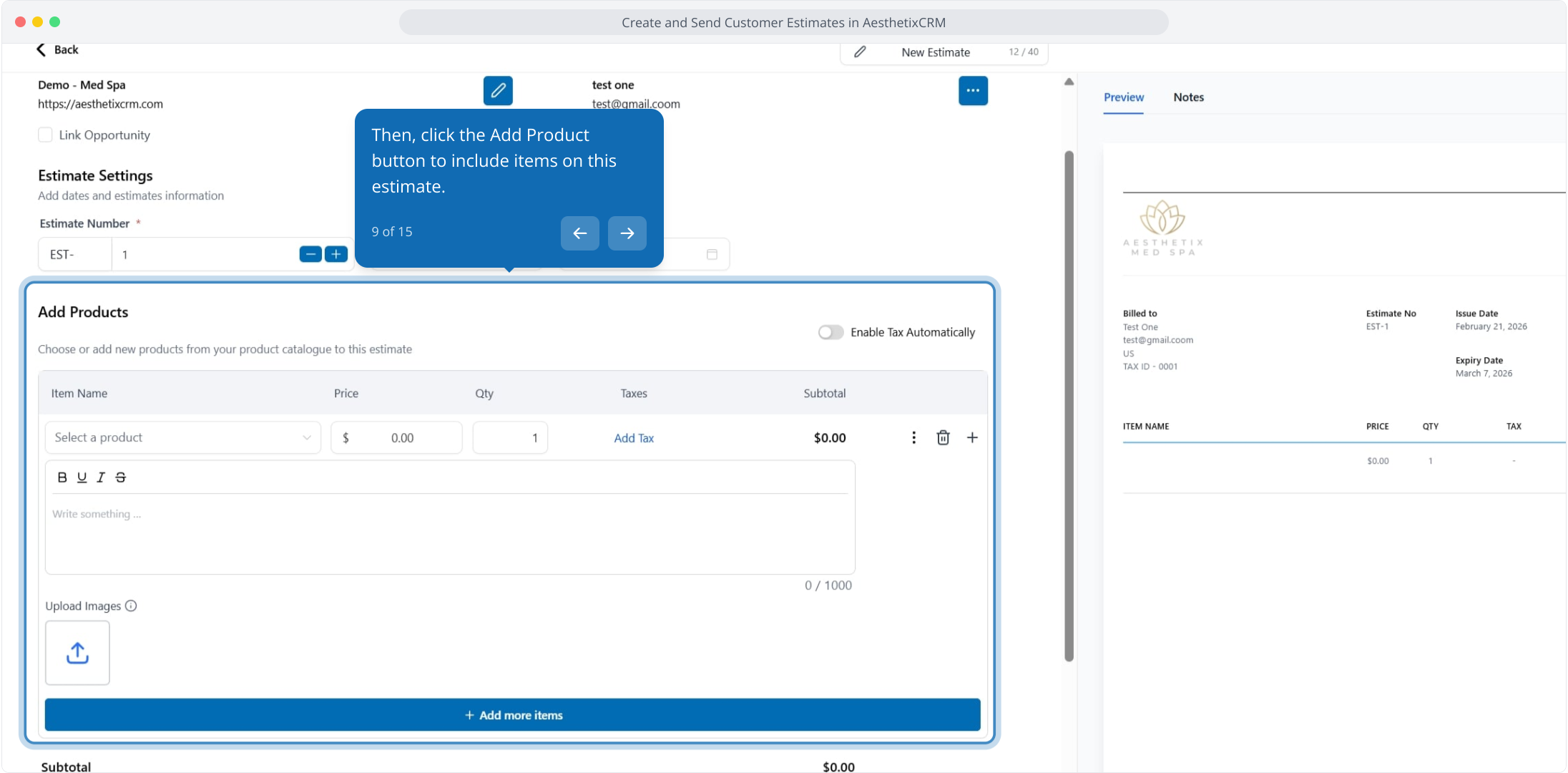
9. Then, click the Add Product button to include items on this estimate.
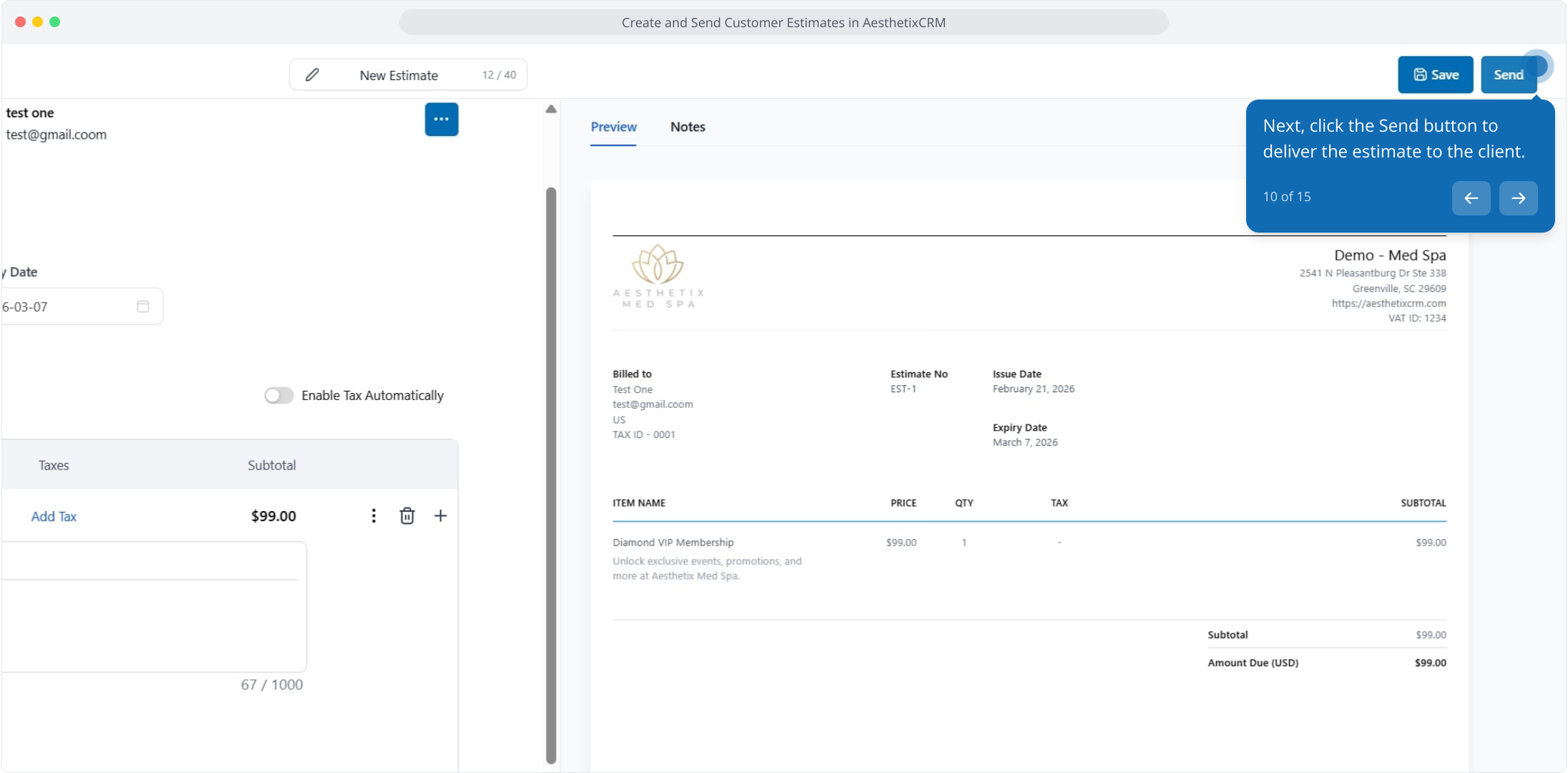
10. Next, click the Send button to deliver the estimate to the client.
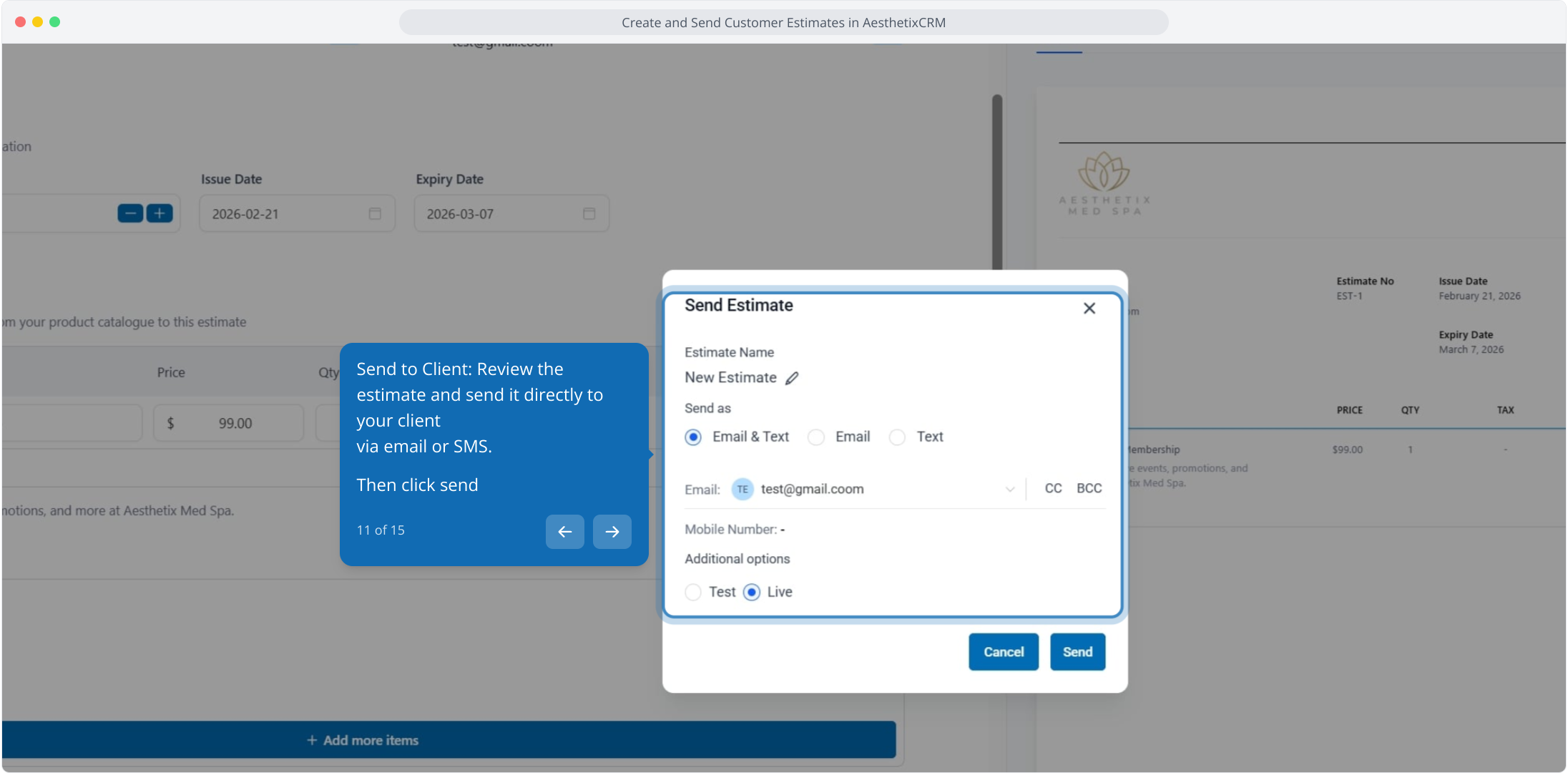
11. Send to Client: Review the estimate and send it directly to your client
via email or SMS.
Then click send
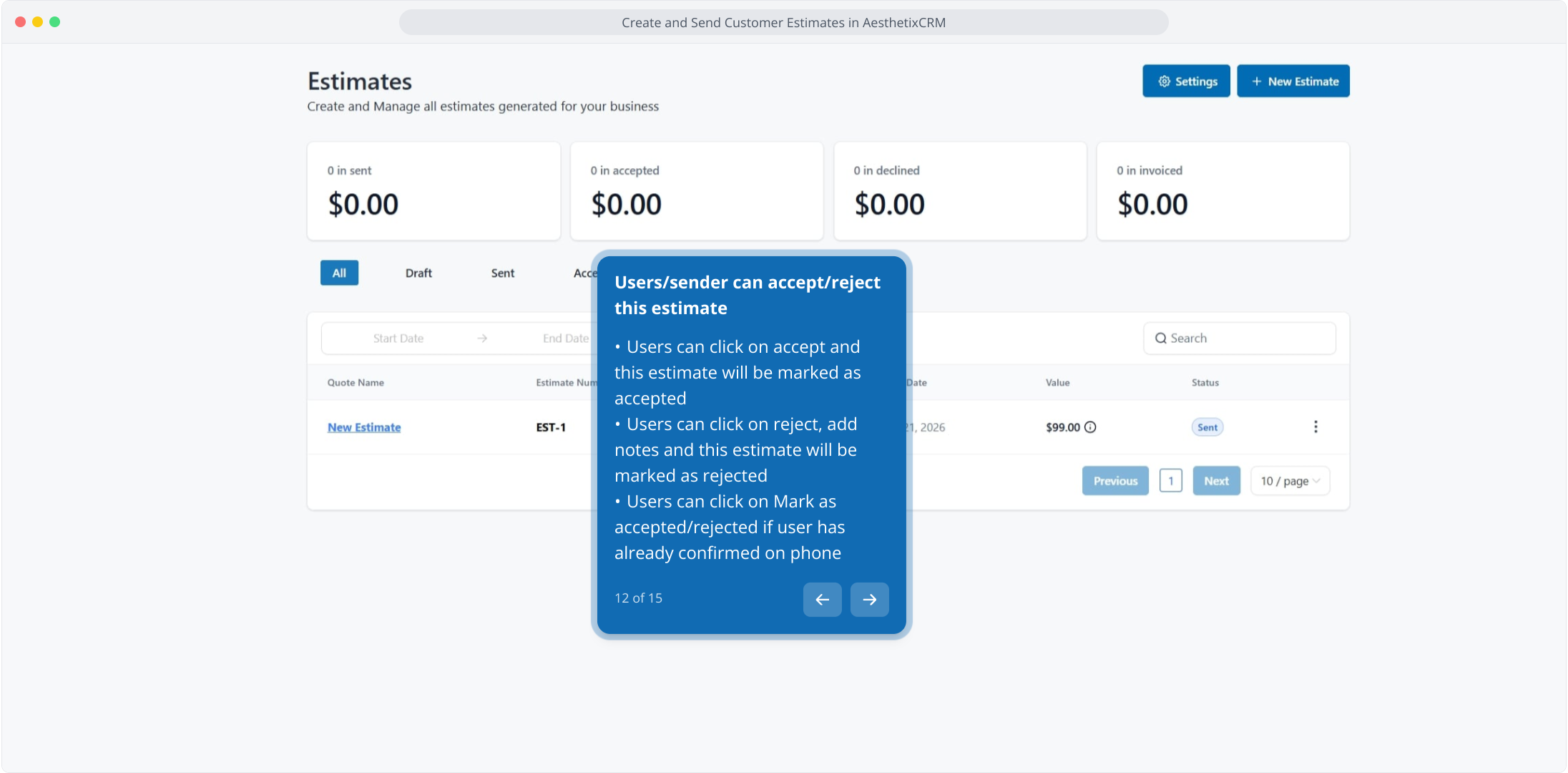
12. ### Users/sender can accept/reject this estimate
Users can click on accept and this estimate will be marked as accepted
Users can click on reject, add notes and this estimate will be marked as rejected
Users can click on Mark as accepted/rejected if user has already confirmed on phone
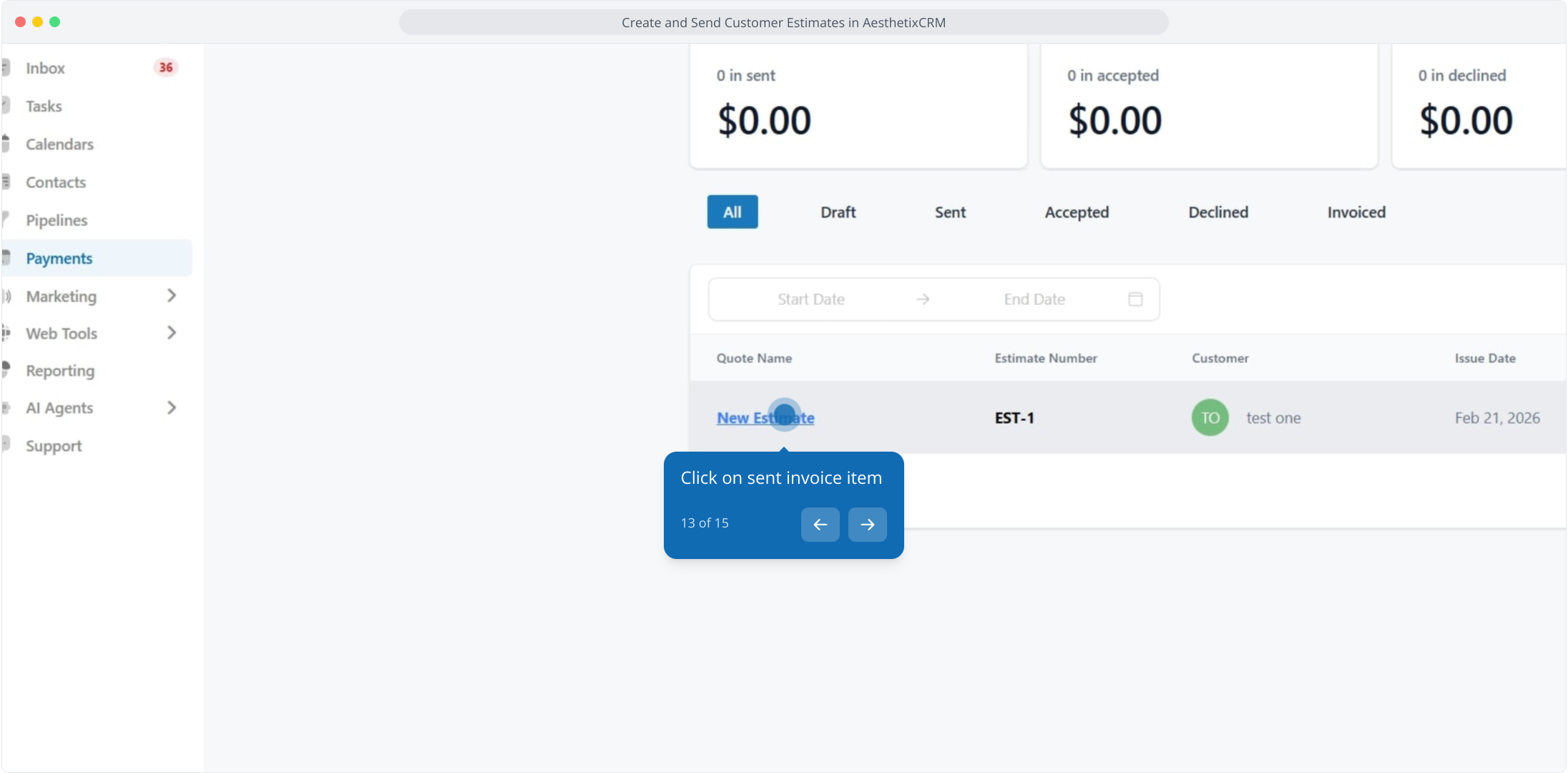
13. Click on sent invoice item
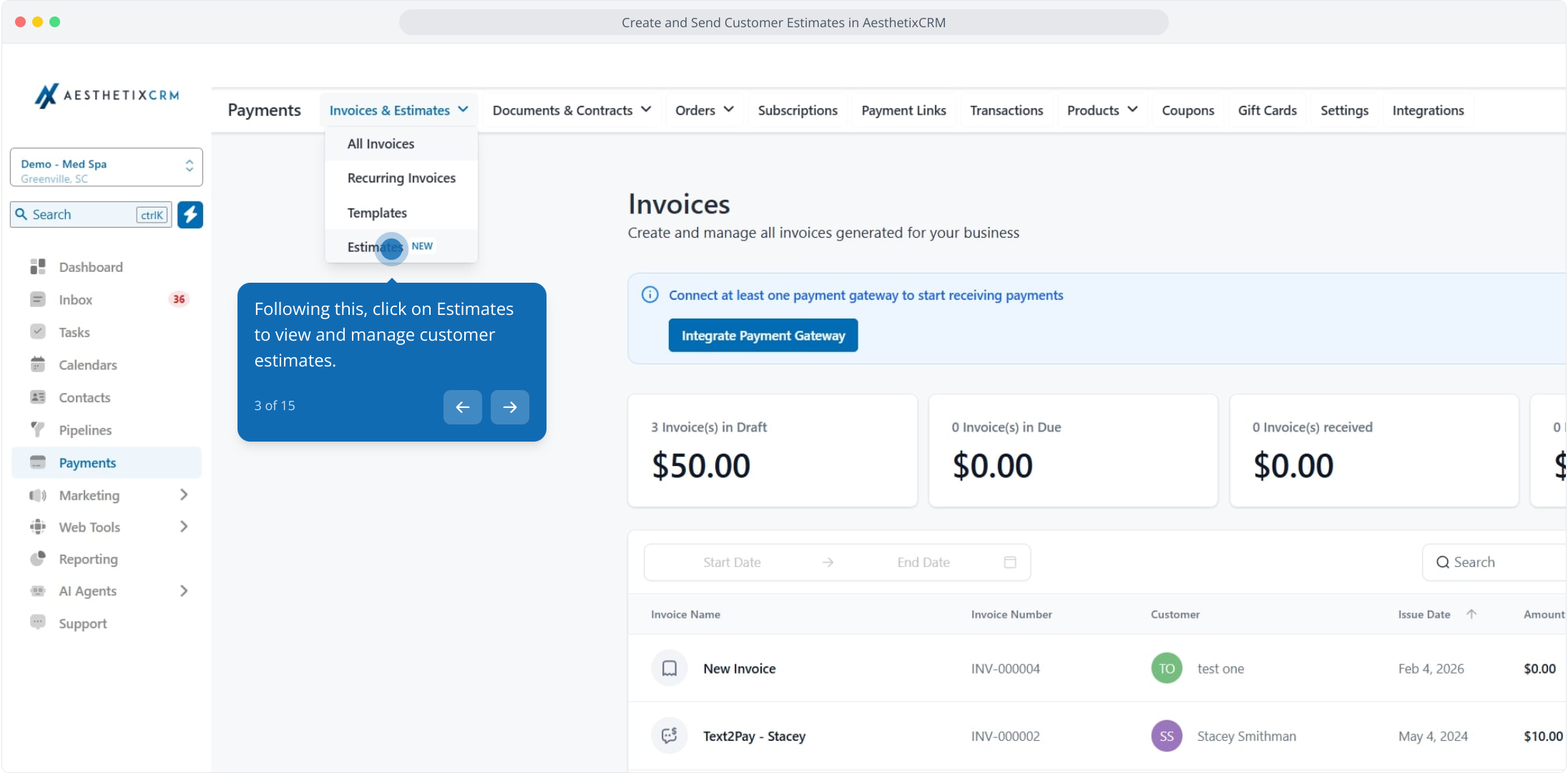
14. Convert to Invoice: Once your client approves the estimate, you can easily convert it into an invoice by selecting create an invoice from the dashboard or opening the accepted estimate and then clicking on create an invoice.
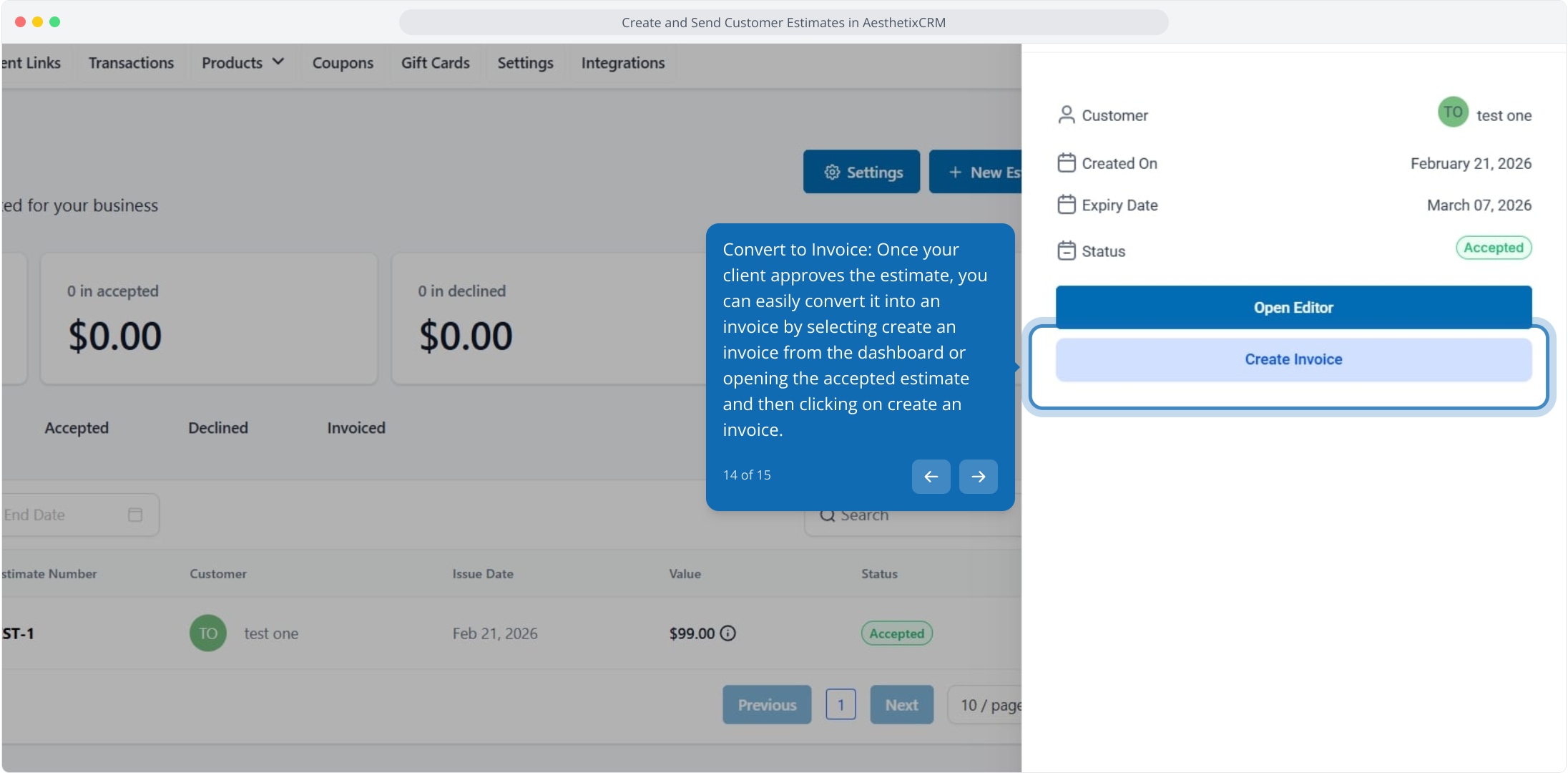
15. To end off, check the "Mark as Invoiced" checkbox to convert this estimate to invoice.