1. Create and Customize Invoice Templates in AesthetixCRM
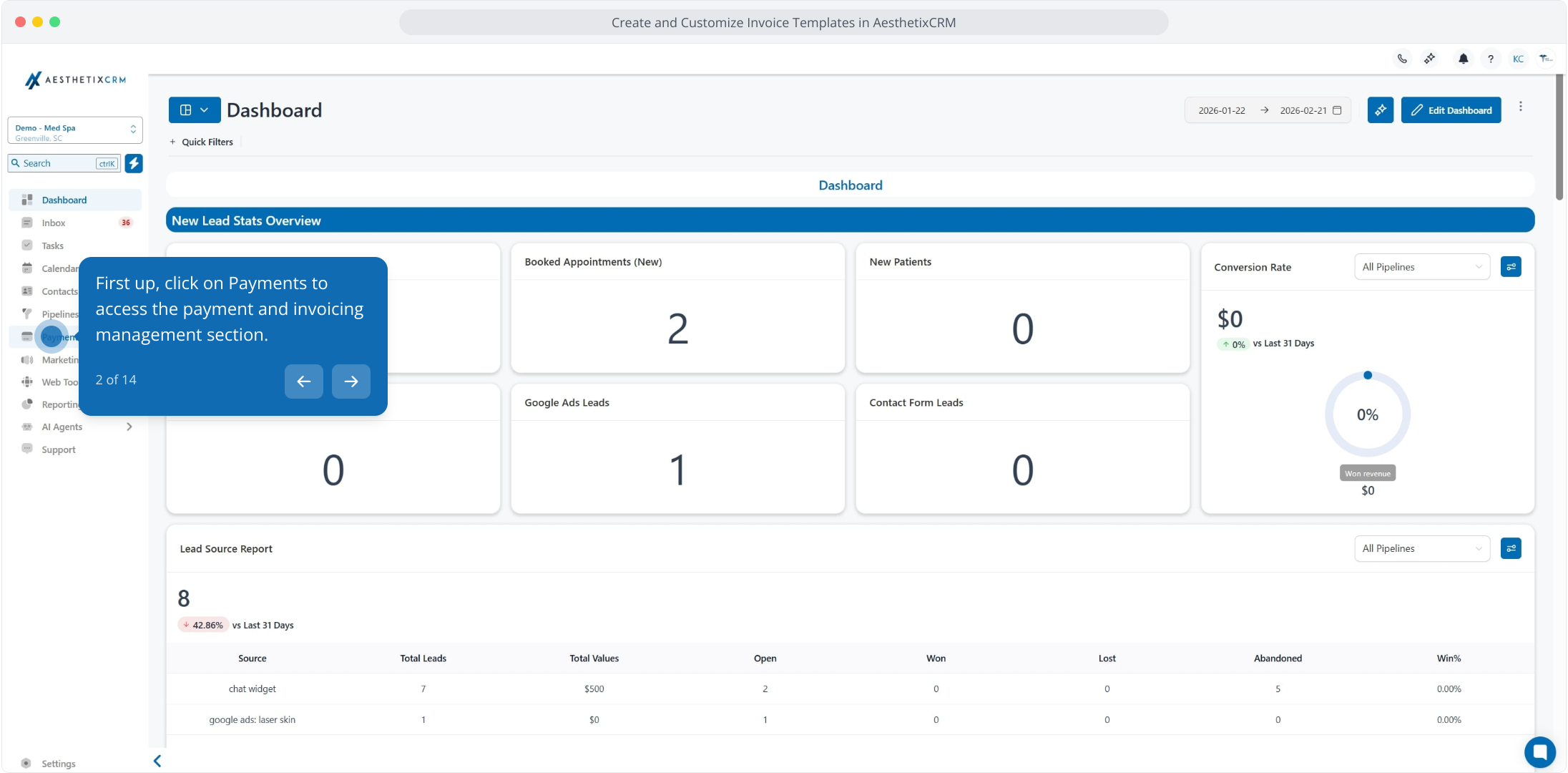
2. First up, click on Payments to access the payment and invoicing management section.
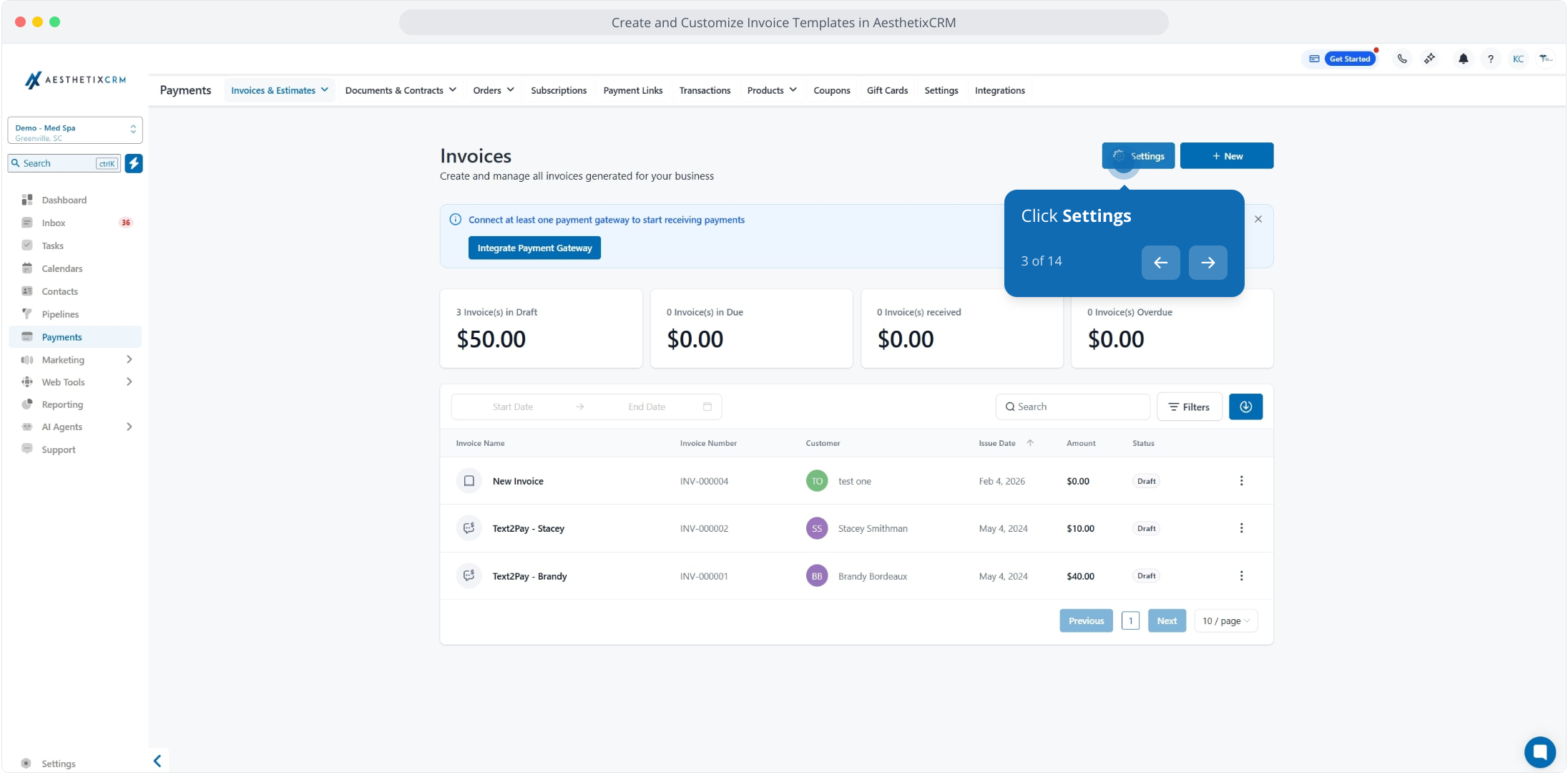
3. Click Settings
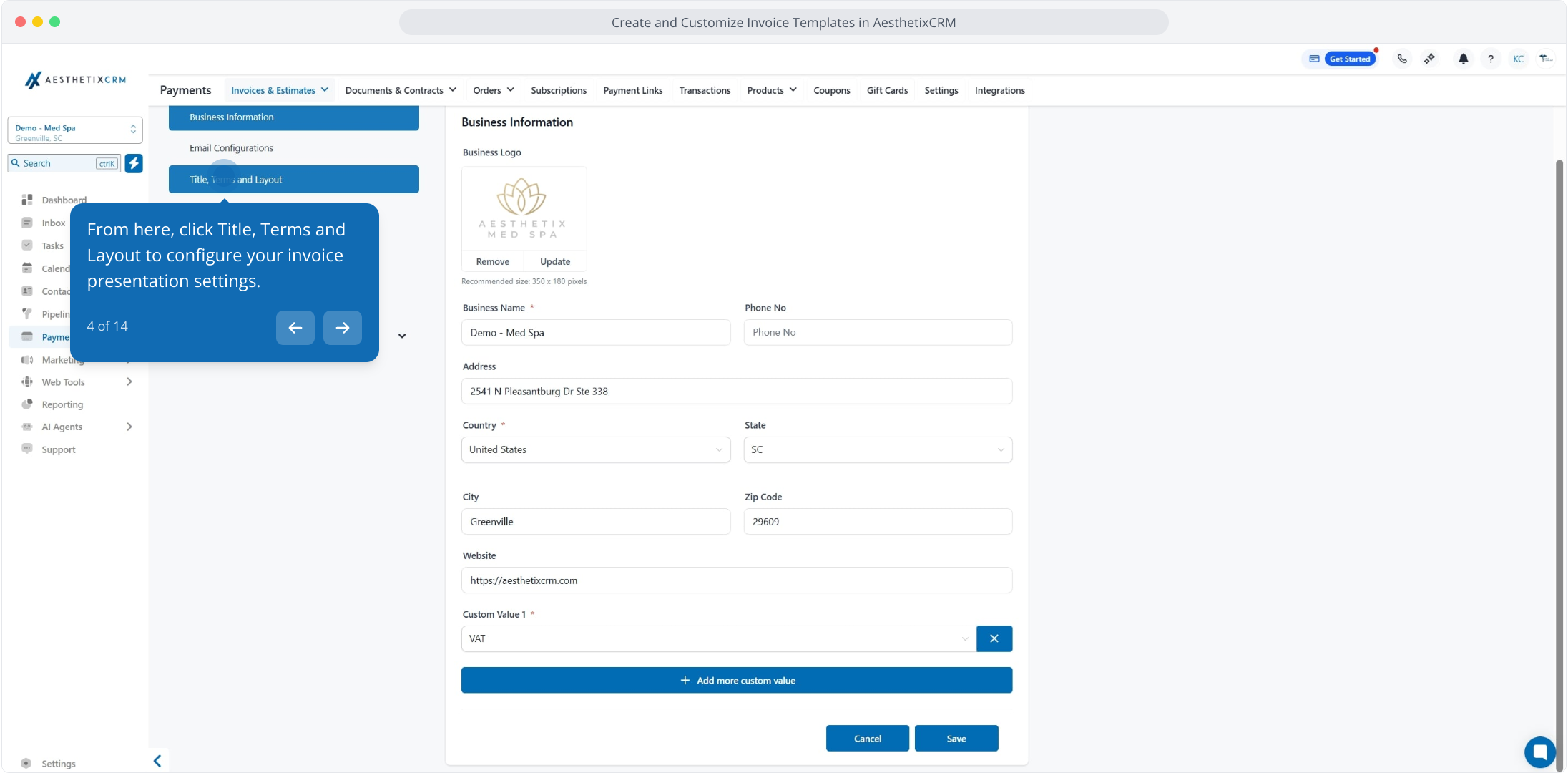
4. From here, click Title, Terms and Layout to configure your invoice presentation settings.
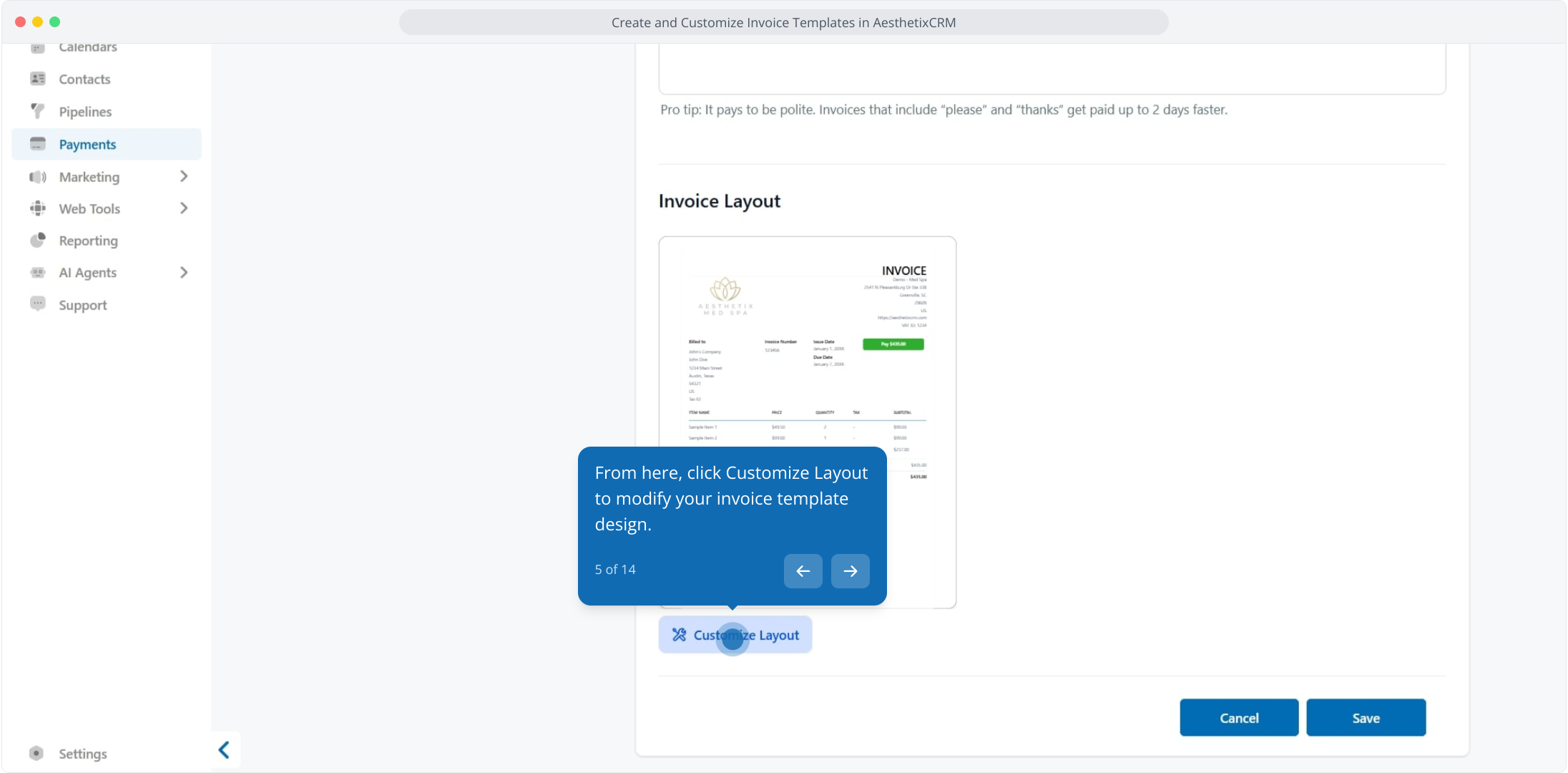
5. From here, click Customize Layout to modify your invoice template design.
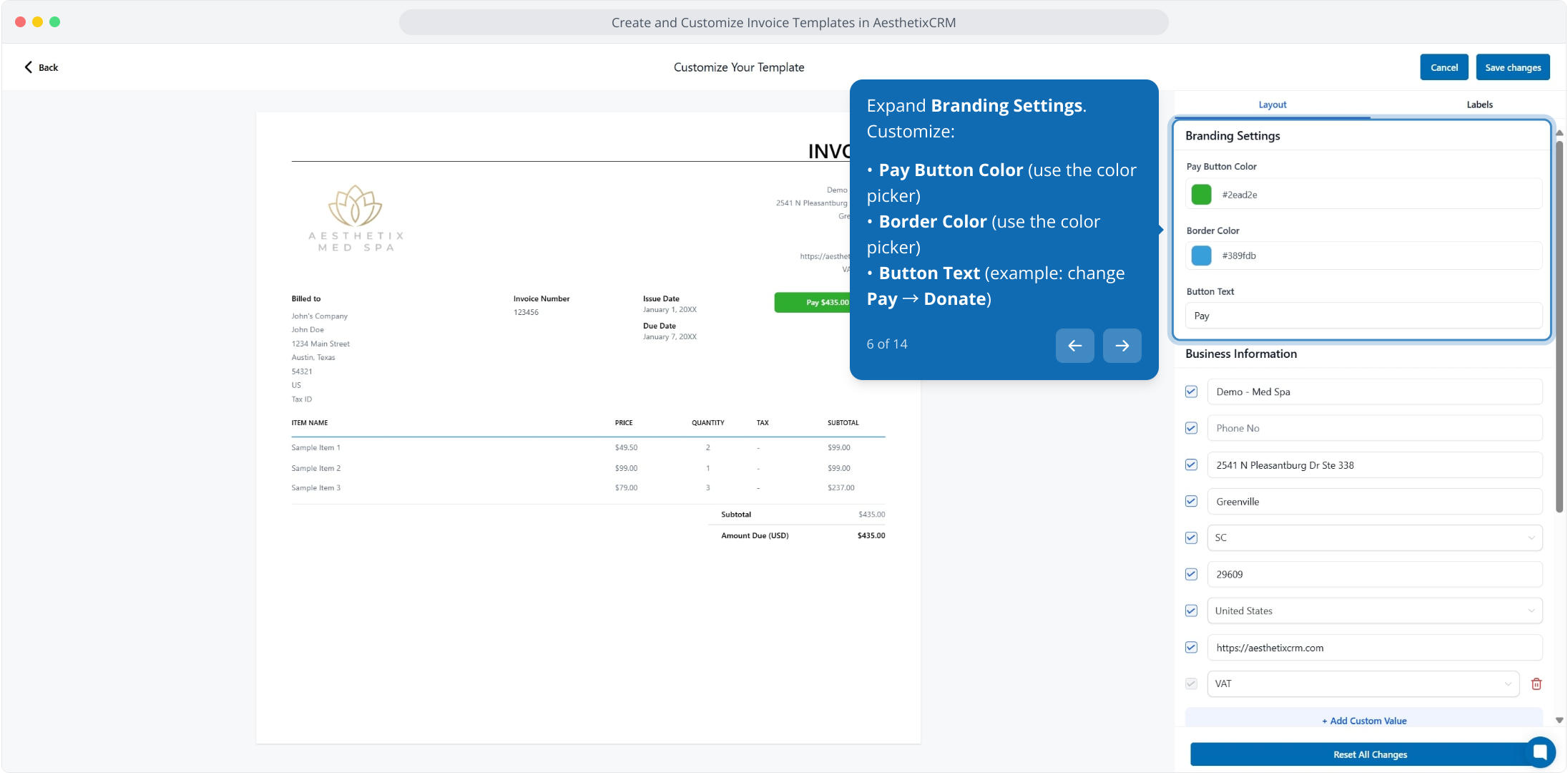
6. Expand Branding Settings.
Customize:
Pay Button Color (use the color picker)
Border Color (use the color picker)
Button Text (example: change Pay → Donate)
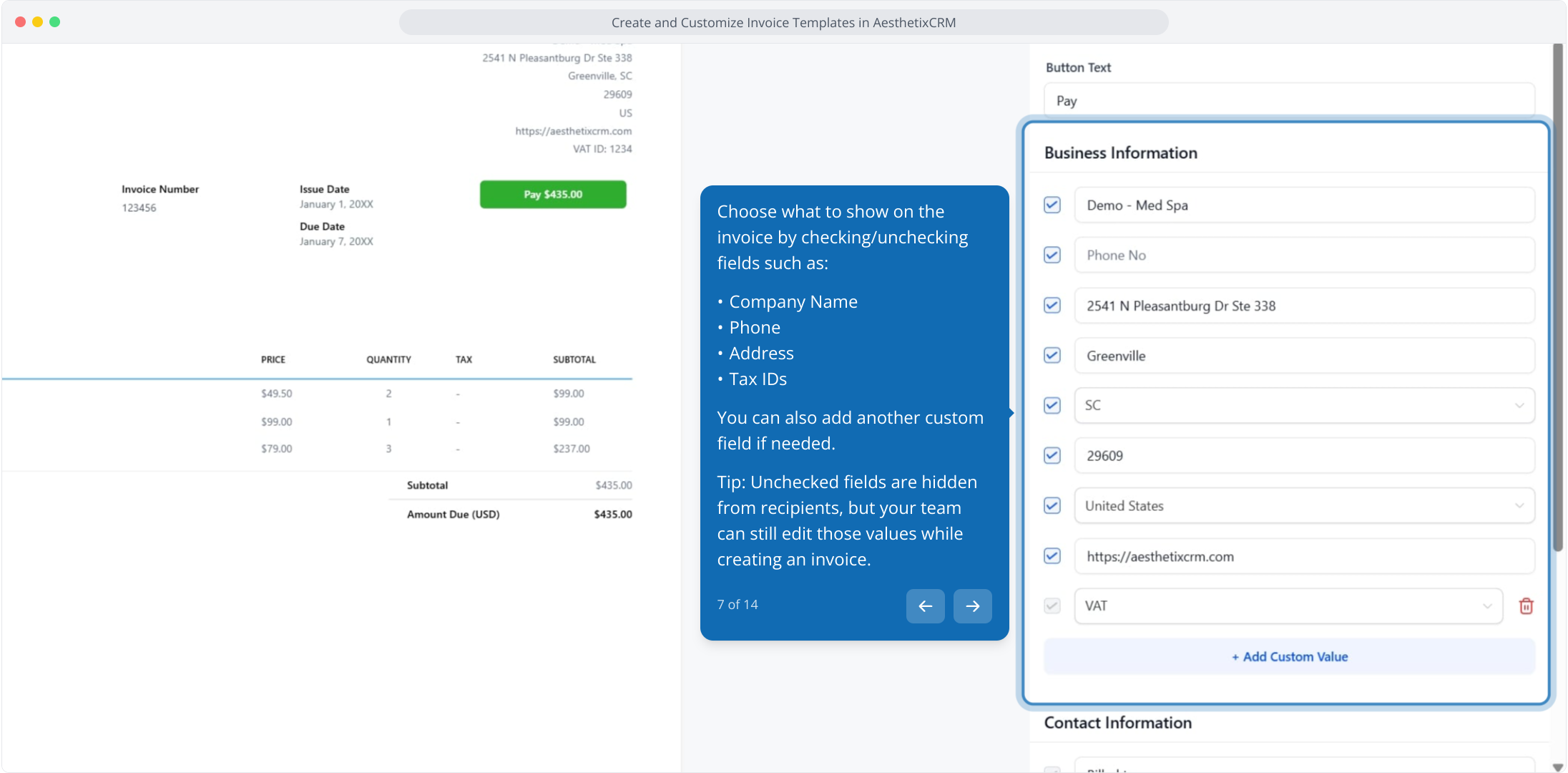
7. Choose what to show on the invoice by checking/unchecking fields such as:
Company Name
Phone
Address
Tax IDs
You can also add another custom field if needed.
Tip: Unchecked fields are hidden from recipients, but your team can still edit those values while creating an invoice.
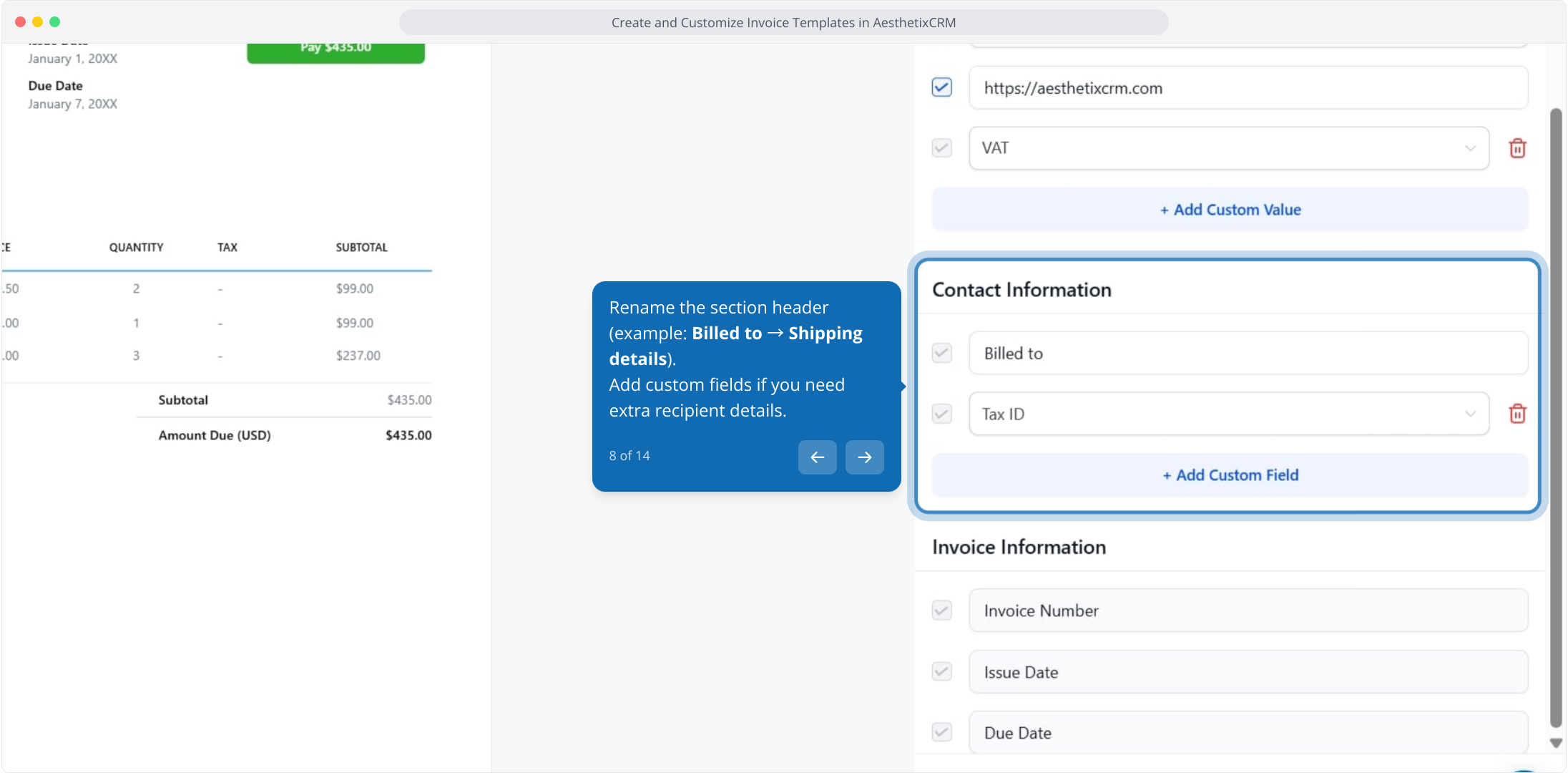
8. Rename the section header (example: Billed to → Shipping details).
Add custom fields if you need extra recipient details.
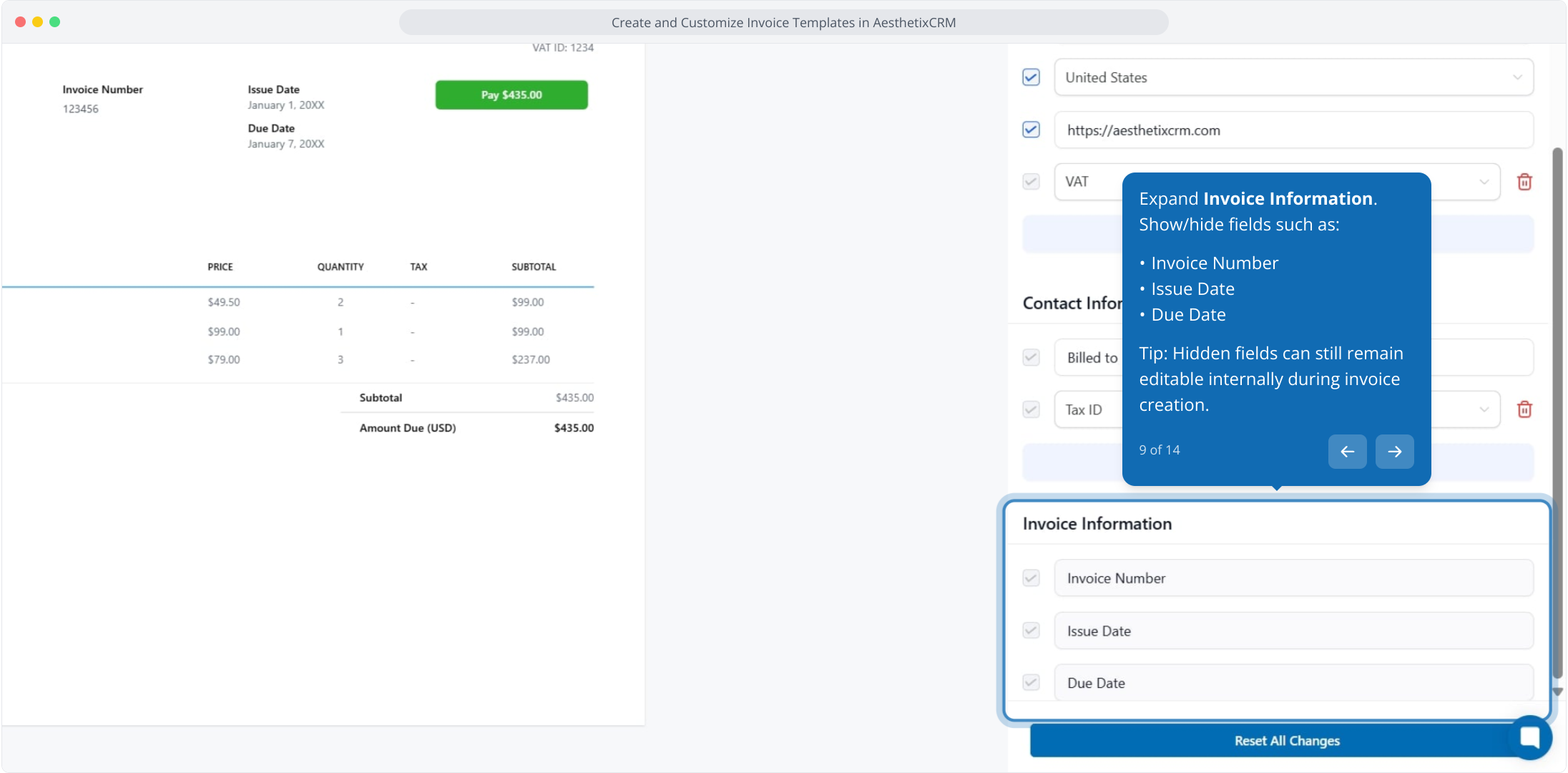
9. Expand Invoice Information.
Show/hide fields such as:
Invoice Number
Issue Date
Due Date
Tip: Hidden fields can still remain editable internally during invoice creation.
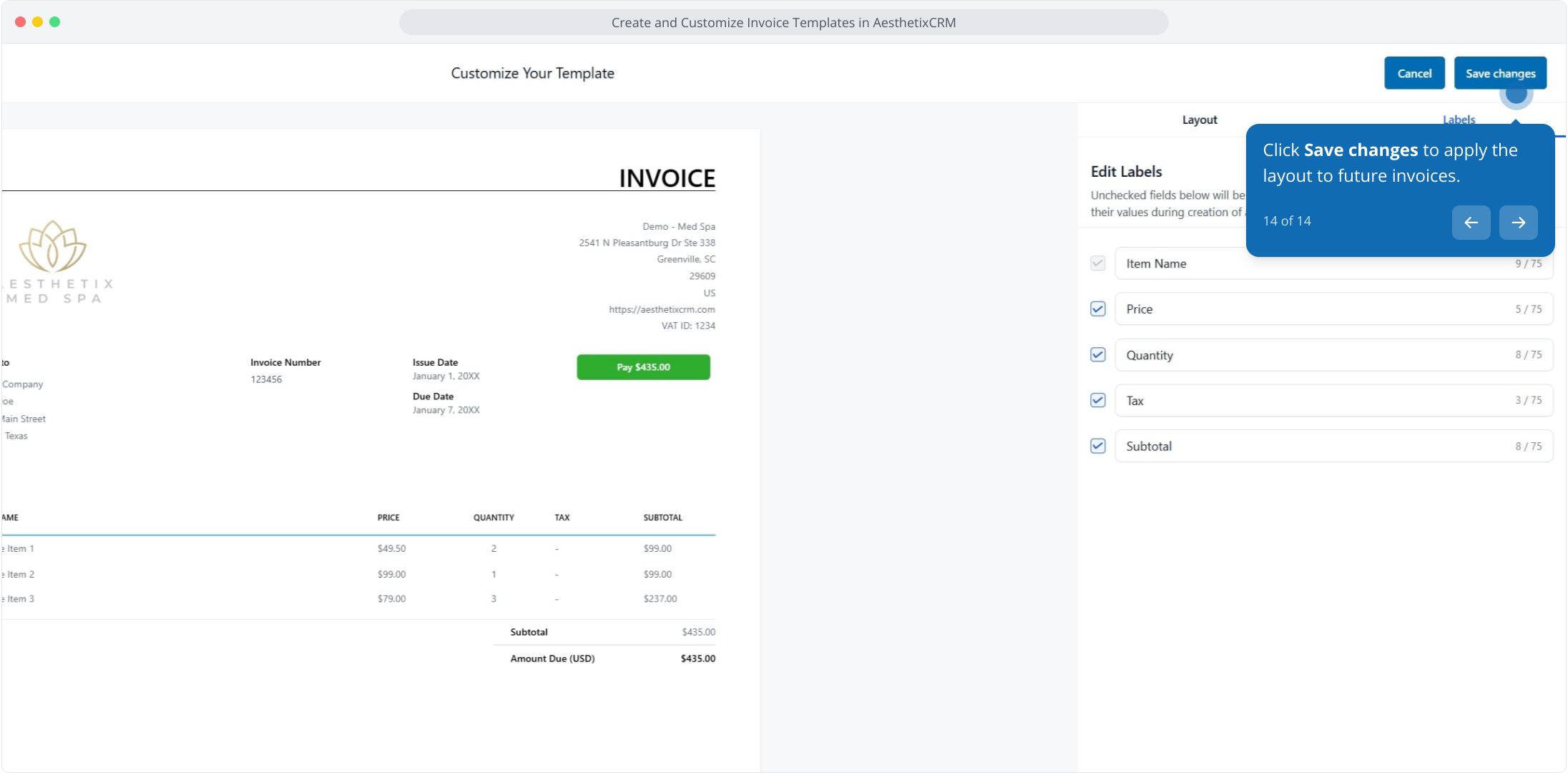
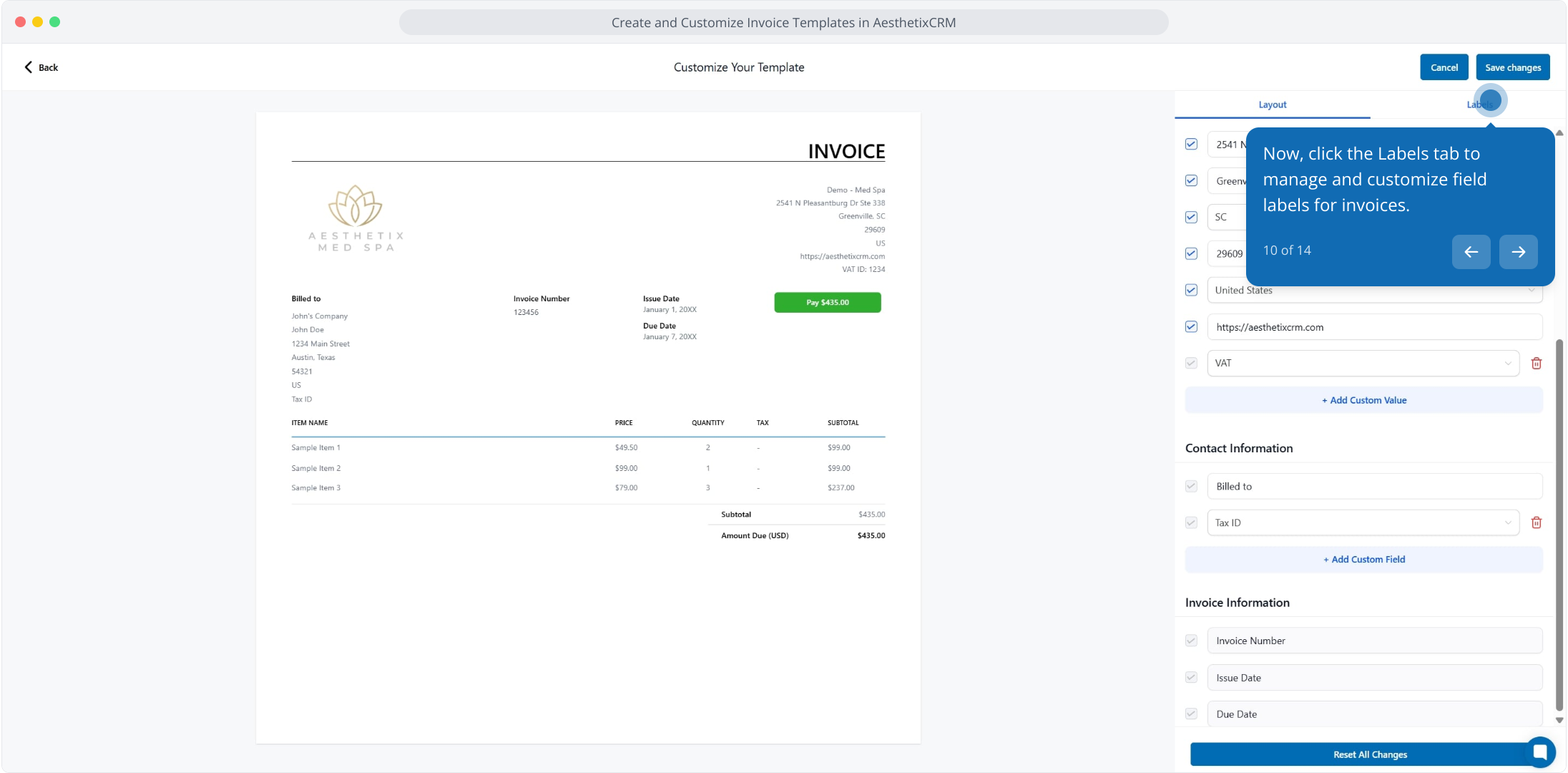
10. Now, click the Labels tab to manage and customize field labels for invoices.
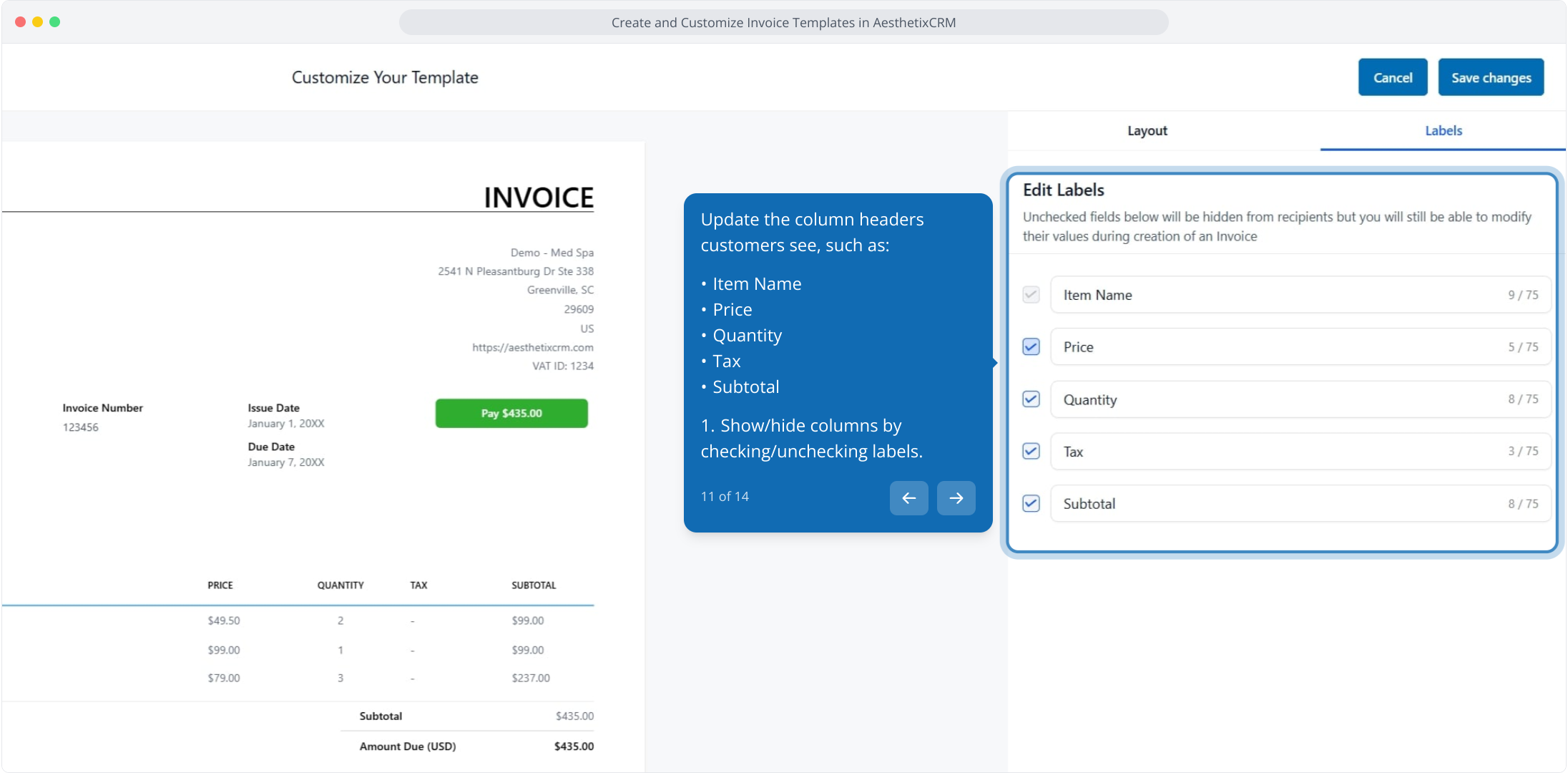
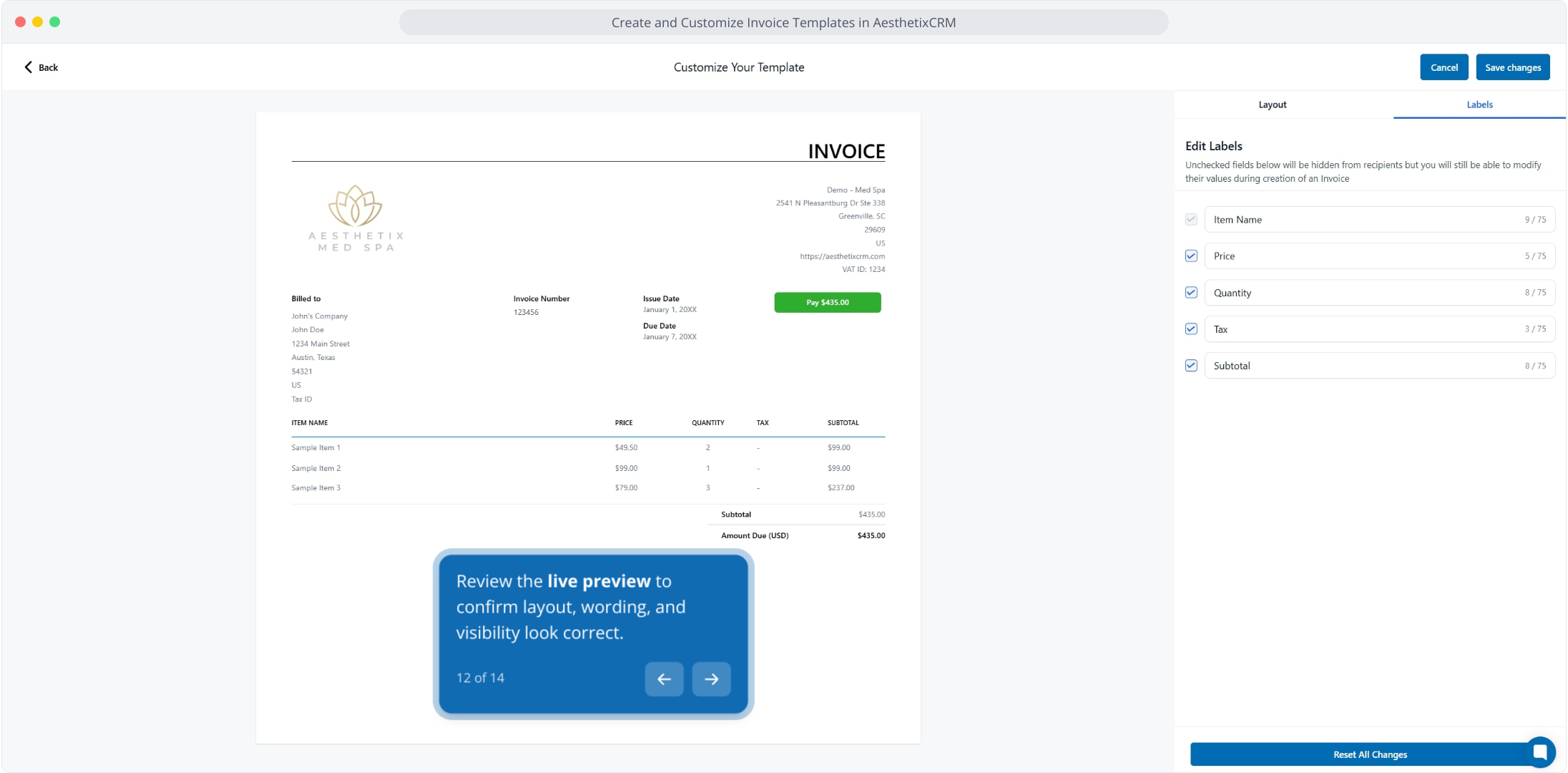
11. Update the column headers customers see, such as:
Item Name
Price
Quantity
Tax
Subtotal
Show/hide columns by checking/unchecking labels.
12. Review the live preview to confirm layout, wording, and visibility look correct.
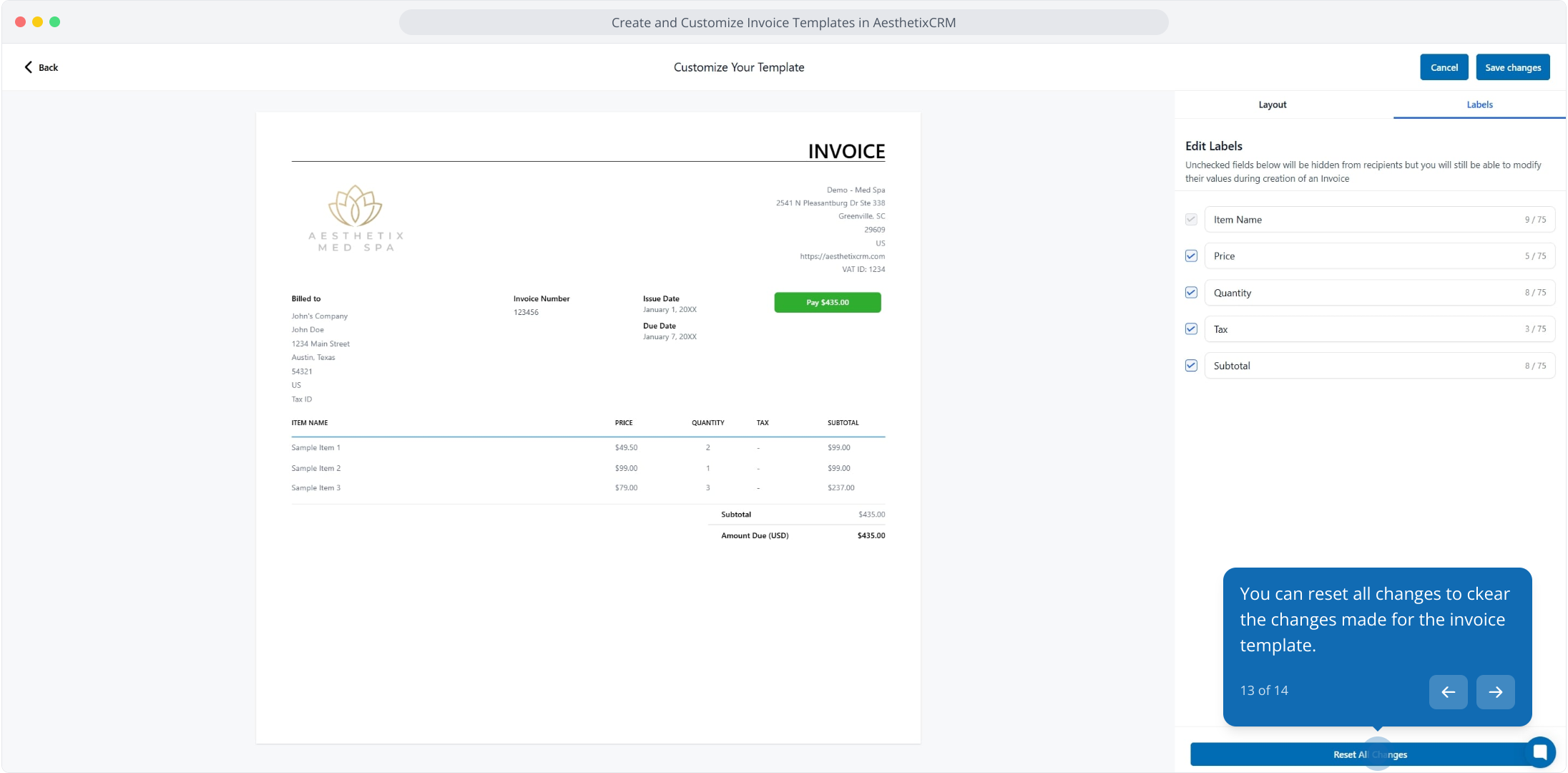
13. You can reset all changes to ckear the changes made for the invoice template.
14. Click Save changes to apply the layout to future invoices.