Learn more about the fields, workflows, sync behavior, and calendar available in the 4D EMR integration.
Opportunity and pipeline automation to decrease manual data entry and drive reporting efficiency
Supports multiple pipelines to automate updating opportunities in surgical and non-surgical pipelines
4D EMR appointments on a silent EMR Appointments calendar, so appointment reports reflect what happened in 4D EMR
Patient Lifetime Value tracking from patient charges, sent once per invoice
Automate Google review collection after appointments
Automate post-appointment follow-up
Automate patient retention campaigns for specific treatment and service types
Collect data for better patient segmentation
Automated birthday campaigns
Two-way sync to create patients in 4D EMR from Aesthetix CRM
The 4D EMR integration is built on AX Connect, which requires a $99/month per location integration fee paid to Aesthetix CRM.
You must activate the Aesthetix CRM integration inside 4D EMR and share your API credentials with us (see the next section).
You don't need to send us a list of your appointment types. We read your appointment types and subtypes directly from 4D EMR during setup, assign each one a category, and send the list to you to review and approve (see the Appointment Categorization section below).
You must activate the integration inside 4D EMR and share your credentials with Aesthetix CRM before the integration can be set up.
Step 1: Go to Practice → Settings → Integrations and click the Aesthetix CRM tile.
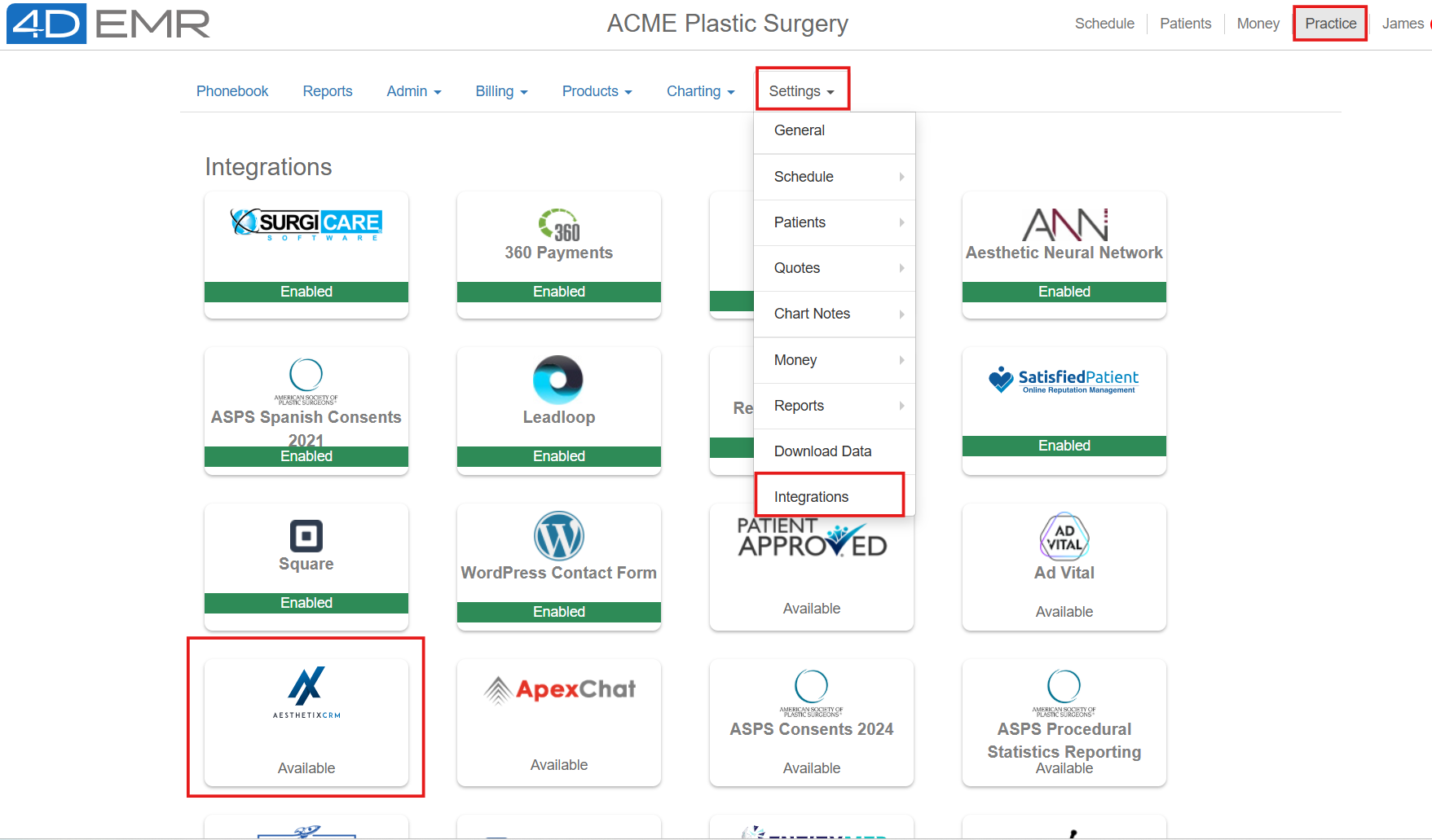
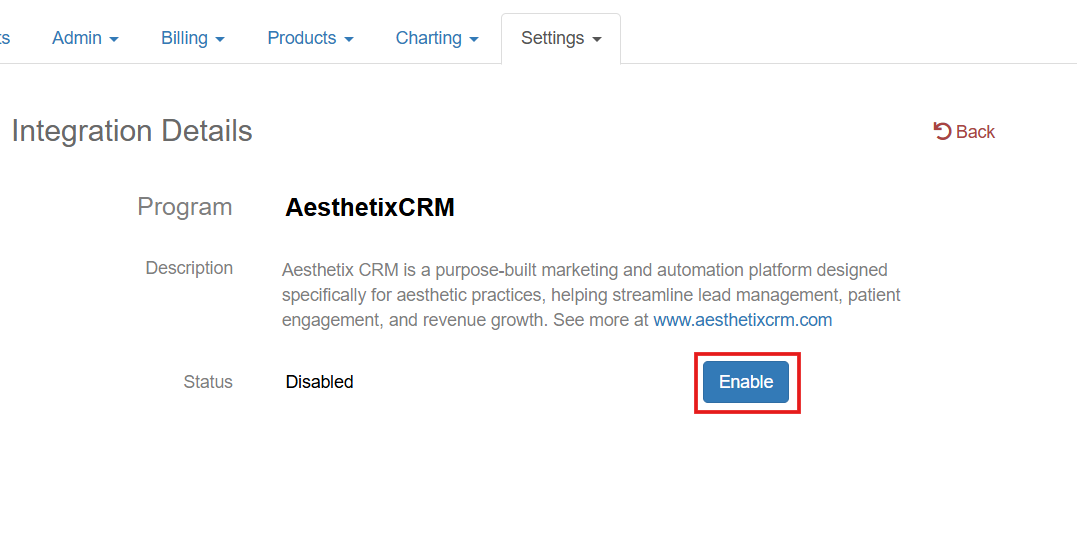
Step 2: Click the Enable button.
Step 3: A Client ID and Client Secret will be displayed. Copy both and email them to [email protected].
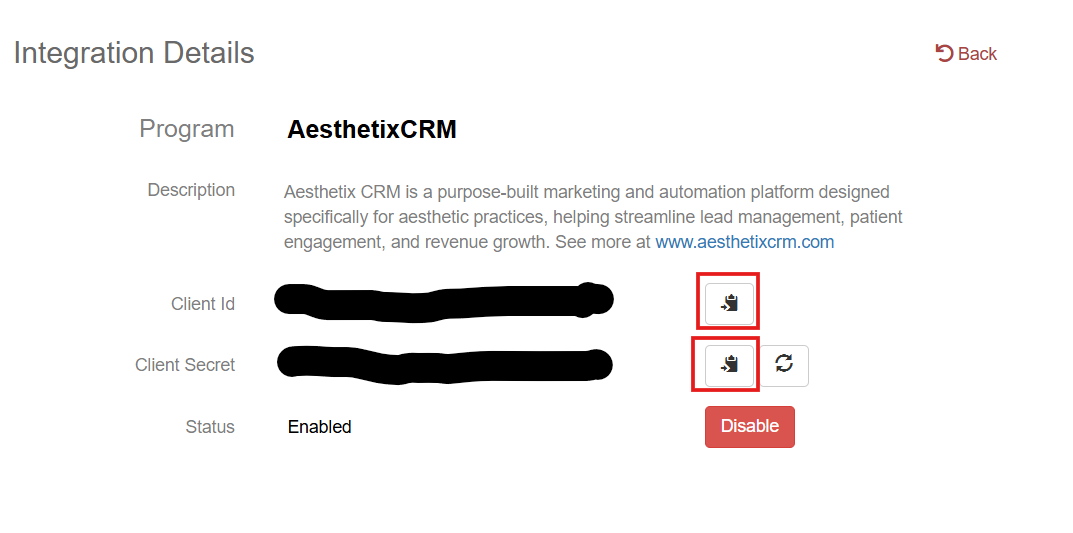
Important:
You keep full control of the integration and can deactivate it at any time by clicking Disable.
The Regenerate button changes the Client Secret. Do not click it unless Aesthetix CRM has asked you to. It resets the key and stops the integration until the new key is added on our side.
Contact 4D EMR support at [email protected] with any questions about the API credentials.
The 4D EMR integration is a polling integration, like our Nextech and ModMed integrations. AX Connect checks 4D EMR on a schedule and sends each change to Aesthetix CRM:
Appointments: every 5 minutes, AX Connect asks 4D EMR for every appointment that changed since the last check. Updates typically appear in Aesthetix CRM within about 5 minutes of the action in 4D EMR.
Patient charges: every 15 minutes, AX Connect reads today's and yesterday's charges and sends each invoice once. Charges typically appear within about 15 minutes.
A few things can add time:
Several changes for one patient. When one patient has more than one change in the same check (for example, a checkout and a new booking), the changes are sent about 60 seconds apart, in the order that keeps the pipeline correct.
A short 4D EMR outage. If 4D EMR's API doesn't answer, the next check reads the missed time again. Nothing is lost.
4D EMR is typically used by plastic surgery practices, so the integration is built with dual-pipeline support (surgical and non-surgical) and appointment categorization by default.
The integration only sends an appointment to Aesthetix CRM when something that matters changed: its status, its date or time, or its appointment type or subtype. Re-saving an appointment in 4D EMR, or moving it between Unconfirmed and Confirmed, does not send the contact through your workflows again.
Reschedules. When an appointment is rescheduled in 4D EMR, the original appointment is marked Rescheduled and a new appointment is booked. The new booking is sent last, so the contact ends on the new appointment's date and stage.
Order. A patient's changes are processed in pipeline order: reschedules first, then cancellations and no-shows, then completed visits, then new bookings, with the soonest booking last.
Another booking on the contact. A cancellation, no-show or reschedule of one appointment does not move the contact when they are still booked for a different appointment today or later. The contact stays on their upcoming booking.
Upcoming surgery. A Pre-Op, Post-Op or Block appointment change does not overwrite a contact who is booked for an upcoming surgery, so the contact stays at Surgery Scheduled.
Email and phone checks. Placeholder or malformed email addresses (for example [email protected]) and invalid phone numbers are not written to the contact, so different patients are never merged into one contact. International numbers with a country code are kept. If a patient has neither a valid email nor a valid phone number in 4D EMR, that change is not written to Aesthetix CRM.
Other statuses. Only the statuses listed in the Sync Details section below are sent. Statuses such as Left Message, Arrived, Roomed or Left Unseen are not.
What triggers it: An appointment is created, or changes to Unconfirmed, Confirmed, Rescheduled by Office or Rescheduled by Patient, in 4D EMR. All four are treated as booked.
What happens:
We read the full patient record from 4D EMR and check the email and phone number.
We format the appointment date in your practice's time zone.
We read the appointment type and subtype and the provider.
We set the Appointment Category from your practice's category list, which determines the pipeline and stage (see the Appointment Categorization section below).
We format the birthday.
We create or update the contact in Aesthetix CRM and add them to the EMR - 4D Appointments Update workflow.
The appointment is added to the EMR Appointments calendar as Confirmed.
Reschedules: when an appointment is rescheduled, 4D EMR marks the original appointment Rescheduled and books a new one. Both are sent as booked, with the new booking last, so the contact stays on a booked stage and ends on the new appointment's date. On the calendar, the original entry is marked Invalid (so it doesn't count as a cancellation) and the new booking appears as Confirmed.
Fields updated in Aesthetix CRM:
First Name, Last Name, Email, Phone
Next Visit Date
Next Visit Service
Appointment Category
4D Appointment Date
4D Appointment ID
4D Appointment Status
4D Appointment Type
4D Appointment Subtype
4D Birthday
4D Consult Reason (when 4D EMR has one)
4D Patient ID
4D Provider Name
Workflow actions in Aesthetix CRM:
A contact note is added with the appointment status, type and subtype (and the consult reason, when there is one). These notes are your audit trail for troubleshooting.
The contact is routed through the EMR - 4D Appointments Update workflow based on their appointment category and status (see the Pipeline Movement section below).
Next Visit: Next Visit Date and Next Visit Service show the appointment that was booked or changed. When several bookings for one patient come in together, the soonest one is written last. Next Visit Date is date-only (for example, 3/12/2026). For how these fields behave across EMR integrations, see Understanding Next Visit & Last Visit Fields in EMR Integrations.
What triggers it: An appointment changes to Seen or Checked Out in 4D EMR.
What happens:
Data collection and appointment categorization work the same way as for booked appointments.
Instead of Next Visit, we update Last Visit Date and Last Visit Service, since this is a completed appointment.
The contact is added to the same EMR - 4D Appointments Update workflow for pipeline movement.
The calendar entry is updated to Showed.
Additional fields updated (compared to Booked):
Last Visit Date (instead of Next Visit Date)
Last Visit Service (instead of Next Visit Service)
What triggers it: An appointment changes to one of these statuses in 4D EMR:
No-Show
Cancelled by Office
Cancelled by Patient
What happens:
Data collection follows the same pattern as the other statuses.
No date fields are updated: Next Visit and Last Visit stay as they were.
The contact is added to the EMR - 4D Appointments Update workflow, where they are routed to the Cancelled / No-Show stage of the appropriate pipeline.
If the same patient is still booked for another appointment today or later, the contact is not moved (see How changes are handled above).
On the calendar, a cancellation shows as Cancelled and a no-show as No-Show.
The exact 4D status (for example, "Cancelled by Office" or "Cancelled by Patient") is saved in the 4D Appointment Status field, even though they're grouped together for pipeline movement.
What triggers it: New charges appear on a patient's invoice in 4D EMR. Charges are read every 15 minutes.
What happens:
We group the charge lines by invoice, so one invoice is sent once with its total, not as separate line items.
The invoice total is each line's price less its discount, times the quantity, plus tax.
Each charge line is sent only once. If a line is added to an invoice after it was first sent, only the new amount is sent.
We check the email and phone number, then update the contact in Aesthetix CRM and add them to the EMR - 4D Patient Charges workflow.
When one patient has more than one invoice in the same check, the invoices are sent about 60 seconds apart.
Fields updated in Aesthetix CRM:
First Name, Last Name, Email, Phone
Invoice Paid Amount (the invoice total)
4D Invoice ID
4D Item Category (the invoice's categories)
4D Item Description (the invoice's line descriptions)
4D Patient ID
Workflow actions in Aesthetix CRM:
A contact note is added with the invoice total, categories and descriptions.
The Invoice Paid Amount is added to Patient Lifetime Value.
The charges workflow does not change opportunities. The opportunity value is set to Patient Lifetime Value the next time the opportunity moves stage on an appointment change (see Pipeline Movement below), so a new charge shows on the opportunity after the patient's next appointment update.
Refunds and credits. Refunds and credits are not yet subtracted from Patient Lifetime Value automatically. If a patient is refunded, contact us so we can correct their Patient Lifetime Value.
Charges start date. Charges have been sent per invoice since October 23, 2026. Charges before that date were counted line by line when they came in and were not re-added.
Excluded items. On request, we can leave specific line items out of Patient Lifetime Value, for example card surcharges or processing fees.
Known Limitation: Charges are read by invoice date. 4D EMR reports charges by the invoice's date, and the integration reads today's and yesterday's invoices in your practice's time zone. A charge added to an invoice dated earlier than yesterday is not picked up. If your team adds charges to older invoices, let us know.
What triggers it: A tag called 4d-create is added to a contact in Aesthetix CRM (manually or through an automation).
What happens:
The tag starts the EMR - 4D Create Patient Sync workflow, which sends a create patient request to 4D EMR through AX Connect.
The patient is created in 4D EMR with their first name, last name, email and phone.
Required fields in Aesthetix CRM:
First Name
Last Name
Phone
Optional: New leads to 4D EMR. On request, we can also send new leads to 4D EMR as leads (not patients) when an opportunity is created in your pipeline, with their treatment of interest and lead source. The lead needs a first and last name, because 4D EMR requires both.
Your 4D EMR appointments also appear on a calendar in Aesthetix CRM named EMR Appointments. The calendar went live for every 4D EMR practice on October 15, 2026 (or on the practice's go-live date, if later). Practices with several 4D EMR locations can ask for one calendar per location (for example, EMR Appointments · Downtown), each in its own color.
What it's for: The calendar lets the CRM's appointment reports show confirmed, showed, cancelled and no-show counts that match 4D EMR. It is a mirror of 4D EMR, not a booking calendar.
What each entry shows: the appointment type and the provider, the start and end time, and the patient's contact record (the appointment also appears in the contact's appointment history).
How appointments appear:
4D EMR status | Calendar status |
|---|---|
Unconfirmed / Confirmed | Confirmed |
Seen / Checked Out | Showed |
Cancelled by Office / Cancelled by Patient | Cancelled |
No-Show | No-Show |
Rescheduled by Office / Rescheduled by Patient | Invalid (not counted; the new booking appears) |
Pre-Op and Post-Op appointments appear on the calendar even when they don't move the pipeline.
Staff time blocks without a patient are not sent.
Only appointments created or changed in 4D EMR since the calendar went live appear. Older future appointments appear the next time they change in 4D EMR.
The calendar is silent. It sends no confirmations, reminders or cancellation messages to patients, and no alerts to your team. We check it every day to make sure it stays silent.
The calendar itself sends nothing, but your workflows can still react to it. Because 4D EMR appointments are now real appointments on a CRM calendar, workflow triggers behave like this:
Workflow trigger | Fires for 4D EMR appointments on the EMR Appointments calendar? |
|---|---|
Appointment Status with no calendar filter | Yes. It fires when an appointment is added (status Confirmed) and each time its status changes (Showed, Cancelled, No Show, Invalid). |
Appointment Status filtered to another calendar ("In Calendar") | No |
Appointment Status filtered to an EMR Appointments calendar | Yes, on purpose |
Customer Booked Appointment | No. This trigger is for bookings made through a booking link or widget. |
Please don't:
Book, edit, move or delete appointments on the EMR Appointments calendar. An appointment booked there is not sent to 4D EMR, and changes to synced entries are replaced the next time the appointment changes in 4D EMR. Make changes in 4D EMR; the calendar follows.
Turn on notifications, reminders or Google invitations for this calendar.
Build a workflow with an Appointment Status trigger without a calendar filter. An unfiltered Appointment Status trigger fires for every synced 4D EMR appointment, which could send patients a second reminder or follow-up. Filter appointment workflows to the calendars they are meant for.
The standard Aesthetix CRM workflows are not affected: the appointment workflows we install are limited to their own calendars, and the 4D EMR workflows run from the integration, not from calendar triggers.
Since 4D EMR is typically used by plastic surgery practices, the integration uses appointment categorization to route contacts to the correct pipeline and stage. This is critical to the integration working properly.
During setup, we read all of your appointment types and subtypes from 4D EMR and assign each one a category. We send you the list as your Appointment Categorization Document to review, and you must confirm every mapping before we finalize the integration. For how that document works and what each category means, see Appointment Category: How It Works.
Each appointment type and subtype is mapped to one of these categories:
Surgical Consult
Surgical Appointment
Non-Surgical Consult
Non-Surgical Appointment
Pre-Op Appointment (no pipeline updates)
Post-Op Appointment (no pipeline updates)
Block (no pipeline updates)
Important: Pre-Op, Post-Op and Block categories intentionally do not update opportunities. If an appointment is categorized as one of these, the contact is not moved in the pipeline.
Each appointment's category is written to the contact's Appointment Category field, and the EMR - 4D Appointments Update workflow reads that field to choose the pipeline and stage.
New appointment types: We check your 4D EMR appointment types and subtypes every week and add new ones to your category list. Until a new type is added, it may not have a category, so it may not route correctly. If you add appointment types in 4D EMR and need them working right away, contact us.
Surgical Pipeline:
Appointment Category | Status | Pipeline Stage |
|---|---|---|
Surgical Consult | Unconfirmed / Confirmed / Rescheduled | Consult Booked |
Surgical Consult | Seen / Checked Out | Consult Complete |
Surgical Consult | Cancelled / No-Show | Cancelled / No-Show |
Surgical Appointment | Unconfirmed / Confirmed / Rescheduled | Surgery Scheduled |
Surgical Appointment | Seen / Checked Out | Surgery Complete |
Surgical Appointment | Cancelled / No-Show | Cancelled / No-Show |
Non-Surgical Pipeline:
Appointment Category | Status | Pipeline Stage |
|---|---|---|
Non-Surgical Consult | Unconfirmed / Confirmed / Rescheduled | Booked |
Non-Surgical Consult | Seen / Checked Out | Patient |
Non-Surgical Consult | Cancelled / No-Show | Cancelled / No-Show |
Non-Surgical Appointment | Unconfirmed / Confirmed / Rescheduled | Booked |
Non-Surgical Appointment | Seen / Checked Out | Patient |
Non-Surgical Appointment | Cancelled / No-Show | Cancelled / No-Show |
For existing patients, each stage move also sets the opportunity value to the contact's Patient Lifetime Value. A lead's opportunity carries no value until they become a patient.
The workflow also checks whether a contact is a lead or an existing patient:
Existing patients (Contact Type is Patient) keep a won status at every stage as they move through the pipeline. This keeps their revenue attributed in your reports, including when they book a new consult.
New leads keep an open status until their appointment is seen or checked out, at which point they move to the appropriate completed or patient stage.
If a contact is in the wrong pipeline stage, check:
Appointment Category: verify the appointment type and subtype are mapped to the correct category. Incorrect categorization is the most common cause of pipeline issues.
Contact Notes: review the audit trail to see which appointments came in and in what order.
Another booking or upcoming surgery: a cancellation of one appointment doesn't move a contact who is booked for another, and a Pre-Op or Post-Op change doesn't move a contact booked for an upcoming surgery.
Contact Type: a contact whose Contact Type is Patient shows as won at every stage, including Consult Booked.
The native Date of Birth field in Aesthetix CRM can't be written through the integration directly. To work around this, we use a custom field called 4D Birthday and bring the birthday from 4D EMR into that field.
A dedicated Birthday workflow then copies the value from 4D Birthday into the native Date of Birth field when an appointment is Seen or Checked Out. A patient who has only booked appointments so far can have 4D Birthday filled and Date of Birth still empty until their first completed visit. This ensures any birthday automations you've built in the CRM work correctly with data from 4D EMR.
Several workflows in your Aesthetix CRM account are hidden and locked. This is intentional: these workflows contain the core integration logic, and changes could break the integration. The locked workflows include:
EMR - 4D Appointments Update
EMR - 4D Patient Charges
EMR - 4D Birthday Update
EMR - 4D Create Patient Sync
If you need custom automation built on top of any of these, let us know. We can either unlock specific workflows or help you build triggers off the tags and fields these workflows create.
All 4D-specific fields are organized in a 4D folder within your custom fields.
Custom Field Name | Type | Custom Value |
|---|---|---|
4D Patient ID | Text |
|
4D Appointment ID | Text |
|
4D Appointment Type | Text |
|
4D Appointment Subtype | Text |
|
4D Appointment Date | Date |
|
4D Appointment Status | Text |
|
4D Consult Reason | Text |
|
4D Birthday | Date |
|
4D Provider Name | Text |
|
4D EMR Facility | Text |
|
4D Invoice ID | Text |
|
4D Item Category | Text |
|
4D Item Description | Text |
|
4D Appointment ID is written on booked and completed appointments. The integration uses it to tell whether a cancellation is for the contact's current booking.
4D Appointment Date uses your practice's time zone.
4D Provider Name is the provider's first and last name (some practices also include the degree, for example "Jane Smith MD").
4D EMR Facility is filled for practices set up to use it.
In addition to the 4D-specific fields above, the integration also updates these standard Aesthetix CRM fields:
Field | Updated on |
|---|---|
First Name, Last Name, Email, Phone | Every change (only valid emails and phone numbers) |
Next Visit Date, Next Visit Service | Booked appointments |
Last Visit Date, Last Visit Service | Seen or checked-out appointments |
Appointment Category | Every appointment change |
Lead Type | Every appointment change (Surgical or Non-Surgical, from the appointment's category) |
Source | Set to 4D Direct when the contact has no source yet; an existing source is never changed |
Invoice Paid Amount | Patient charges (the invoice total) |
Patient Lifetime Value | Patient charges (through the Patient Charges workflow) |
This is a polling integration, not webhook-based. Appointment changes appear in Aesthetix CRM within about 5 minutes and charges within about 15 minutes. A patient with several changes can add a minute or two.
Only real changes are sent. Re-saving an appointment, or switching it between Unconfirmed and Confirmed, does not update the contact or re-run your workflows.
Charges come in per invoice. Each invoice is sent once with its total. A line added later to the same invoice is sent as its own amount.
Charges are read by invoice date. A charge added to an invoice dated earlier than yesterday is not picked up.
Refunds are not subtracted automatically yet. Contact us when a patient is refunded so we can correct their Patient Lifetime Value. Charges have been sent per invoice since October 23, 2026; earlier charges were not re-added.
Opportunity values update on appointment changes. Charges update Patient Lifetime Value right away, but the opportunity value only catches up the next time the opportunity moves stage on an appointment change. The integration never creates an opportunity from a charge.
Contacts need a valid email or phone. Placeholder or malformed emails and invalid phone numbers are not written. If a patient has neither, their changes are not written to Aesthetix CRM.
Appointment categorization is critical. Review the category list we send during setup carefully. New appointment types are picked up weekly; contact us if you need one working sooner.
The EMR Appointments calendar is a mirror of 4D EMR. Don't book on it or edit it, don't turn on its notifications, and filter any Appointment Status workflow by calendar.
No backfill. The calendar shows appointments created or changed in 4D EMR since it went live on October 15, 2026.
Next Visit Date is date-only (for example, 3/12/2026). Appointment times can't be stored in this field.
Birthday requires a workaround. The native Date of Birth field can't be written directly, so we use the 4D Birthday custom field and a sync workflow to keep them aligned.
Two-way sync requires four fields. To create a patient in 4D EMR from Aesthetix CRM, the contact must have first name, last name, email and phone filled in before the 4d-create tag is applied.
Do not click Regenerate on your API credentials unless Aesthetix CRM has asked you to. It resets your Client Secret and stops the integration.
How do I know if the integration received an appointment? Check the contact's Notes tab. Every appointment change sent to Aesthetix CRM adds a note with the appointment status, type and subtype. You can also find the appointment on the EMR Appointments calendar. Allow about 5 minutes. If the appointment was only re-saved, or moved between Unconfirmed and Confirmed, no new note is expected.
Why is a contact in the wrong pipeline stage? The most common cause is incorrect appointment categorization. Check the contact's notes for the audit trail, then verify the appointment type and subtype are mapped to the correct category. Also remember that a cancellation doesn't move a contact who is booked for another appointment.
A patient cancelled one appointment but has another booked. Why didn't they move to Cancelled / No-Show? The integration leaves a contact on their upcoming booking when a different appointment is cancelled or missed. This keeps the contact on the correct stage for the appointment they're still booked for.
Why is an existing patient showing as won at Consult Booked? Contacts whose Contact Type is Patient keep a won status at every stage, so their original revenue stays attributed in your reports. This is expected.
Why do I see one charge note per invoice instead of one per line item? The integration groups 4D EMR charge lines by invoice and sends each invoice once with its total. If a line is added to the invoice later, you'll see a second note for the added amount.
A charge is in 4D EMR but not in Aesthetix CRM. Why? Check that the patient has a valid email or phone in 4D EMR, and that the charge was added to an invoice dated today or yesterday. Charges added to older invoices are not picked up. Contact us with the patient's invoice details and we'll look into it.
Why doesn't the opportunity value match Patient Lifetime Value after a charge? Charges update Patient Lifetime Value right away, but the opportunity value is set when the opportunity moves stage on an appointment change. The opportunity catches up the next time the patient's appointment is booked, completed, cancelled or marked a no-show in 4D EMR. If the contact has no opportunity, none is created from a charge.
What is the EMR Appointments calendar, and can I book on it? It is a silent mirror of your 4D EMR appointments, so the CRM's appointment reports match 4D EMR. Don't book, edit or delete appointments on it: make changes in 4D EMR and the calendar follows. It sends no messages to patients or your team.
Why don't I see older appointments on the EMR Appointments calendar? The calendar shows appointments created or changed in 4D EMR since it went live on October 15, 2026. An older future appointment appears the next time it changes in 4D EMR.
I have a workflow with an Appointment Status trigger. Will the calendar set it off? Yes, if the trigger has no calendar filter. Add an "In Calendar" filter so the workflow only fires for the calendars it is meant for. Contact us if you'd like help reviewing your appointment workflows.
Why didn't a patient get created in 4D EMR after I added the 4d-create tag? Verify that all four required fields are filled in: first name, last name, email and phone.
How do I get my API credentials? In 4D EMR, go to Practice → Settings → Integrations, click the Aesthetix CRM tile, then click Enable. Copy the Client ID and Client Secret and email them to [email protected].
What happens if I click Regenerate on my API credentials? It resets your Client Secret and stops the integration until we add the new key. Only click it if Aesthetix CRM has asked you to.
I added new appointment types in 4D EMR. What do I need to do? Nothing right away: we check your appointment types and subtypes every week and add new ones to your category list. Until then, a new type may not route contacts to the correct pipeline stage. Contact support if you need it working sooner.
How often does the integration sync? Appointments every 5 minutes and charges every 15 minutes. When one patient has several changes at once, they are sent about a minute apart.
Contact Aesthetix CRM support through the help widget in your account or by email, and include the contact's name and the 4D EMR appointment or invoice details if you're reporting a sync issue. For custom automations built on the 4D fields, the EMR Appointments calendar or your pipeline, submit a Custom Build Request.
